1
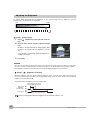
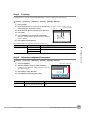
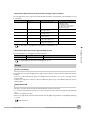
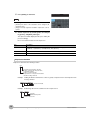
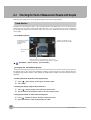
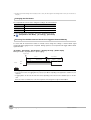
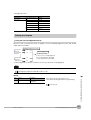
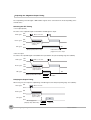
Screen Display When the Edge Level and Noise Level Are Changing
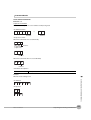
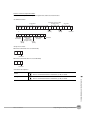
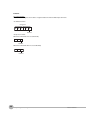
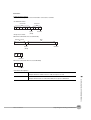
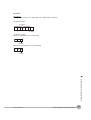
A bar showing the threshold level moves up and down on the graphic as the edge level/noise level value changes.
A cross-key cursor will also appear at the detected edge position.
Edge level
Noise level
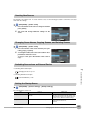
Undesired Edge Position Is Automatically Detected When Teaching
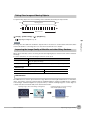
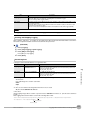
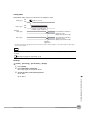
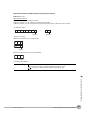
Manually set the color of the edge that you want to detect.
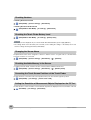
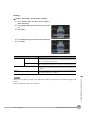
[Inspect] − [Inspection] − [Edge Position] − [Modify] − [Settings] Tab Page − [Teach]
1
2
3
4
Press [
5
6
7
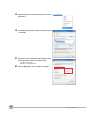
Press [OK] to enter the edge color.
] – [Color ON/OFF] on the right side of the display.
Press [ON].
Press [
] − [Set color.] on the right of the display.
Draw a rectangle around the color that you want to
use to extract an edge.
The specified color will be extracted.
Press [TEACH] again.
Press [Back].
(Only a rectangle can be used to specify the region.)
Note
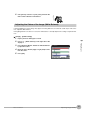
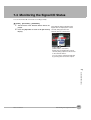
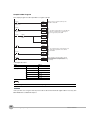
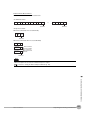
It is also possible to check the extraction colors or specify them using the color palette.
The RGB values of the extraction color can be checked and adjusted using the color palette.
If you press [
] − [Color palette], a color palette will appear.
When a color is pressed on
the color palette, its RGB
values will be displayed.
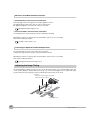
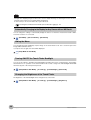
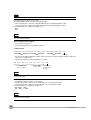
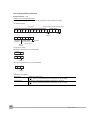
Increasing Processing Speed for Edge Position
Make the measurement region smaller to reduce the processing time.
Changing the measurement region: p. 57
62
Inspecting with the Edge Position Inspection Item
FQ User’s Manual