1
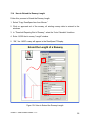
13.2.4 Dimensions of Runway (Heading /Length)
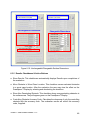
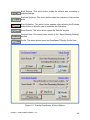
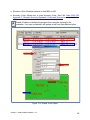
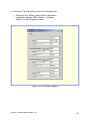
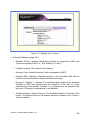
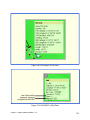
● Auto Calculate: Allows the user to enter data in any of the two areas and the third
area will be automatically calculated.
● Heading: Runway heading entered to the nearest hundredth of a degree.
● Length: Runway length in feet.
● Width: Runway width in feet.
● Surface: Type of surface such as concrete, asphalt, grass, dirt, or water.
● Enable: Enables or disables the program from using the runway data in the
evaluation.
13.3
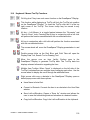
How to Create Reciprocal Runway
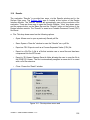
Follow this process to create a reciprocal runway to the new runway.
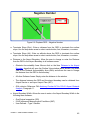
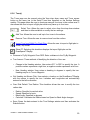
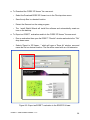
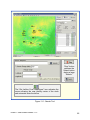
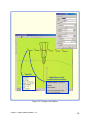
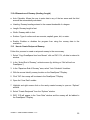
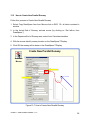
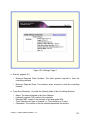
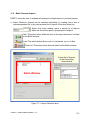
1. Select “Copy DrawSpace Item from Mouse” click on RWY 13L, all data is entered in
window.
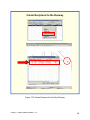
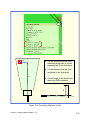
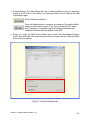
2. In the “Arrival End of Runway,” activate mouse (by clicking on “Get lat/Lon from
DrawSpace.”)
3. In the “Departure End of Runway” area, select “Auto Calculate” checkbox.
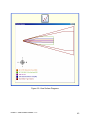
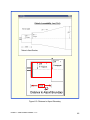
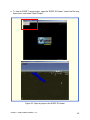
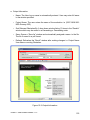
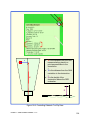
4. With the mouse Identify runway location on the DrawSpace™Display.
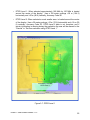
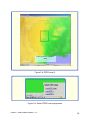
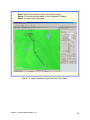
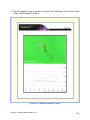
5. Click “OK” the runway will be drawn in the DrawSpace™Display.
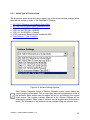
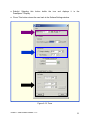
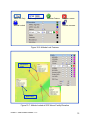
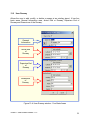
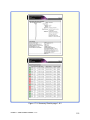
6. Open the “User Data” module.
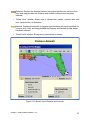
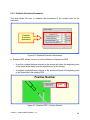
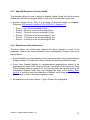
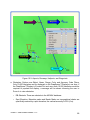
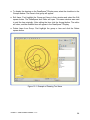
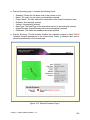
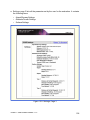
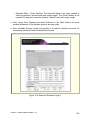
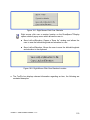
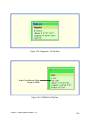
7. Highlight and right mouse click on the newly created runway to open an “Options”
window.
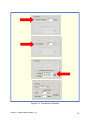
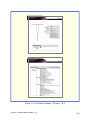
8. Select “Create Reciprocal” from the “Options” window.
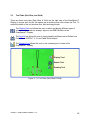
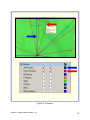
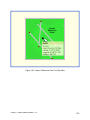
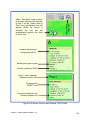
9. RWY 31R will appear in the “User Data” window and the runway will be labeled in
the DrawSpace™Display.
EOSE™ User Guide Version 1.13
93