1
Settings
4 - 55
Manage Triggers
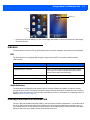
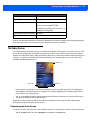
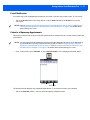
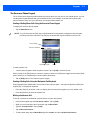
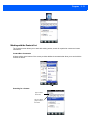
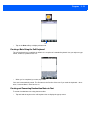
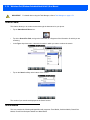
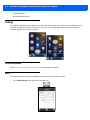
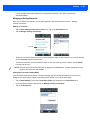
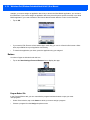
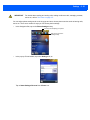
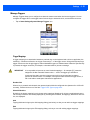
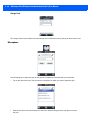
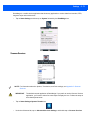
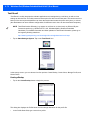
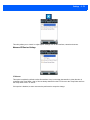
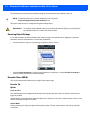
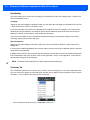
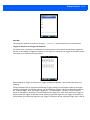
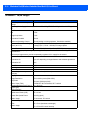
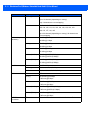
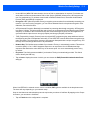
Manage Triggers allows you to configure how barcode scanners and other devices are triggered. You can
configure the trigger ID for each trigger button for both single- and double-click, and the double-click time.
•
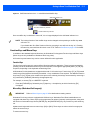
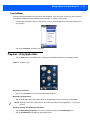
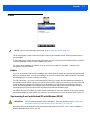
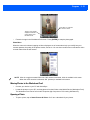
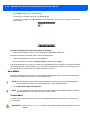
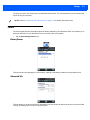
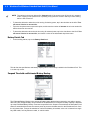
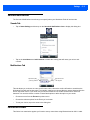
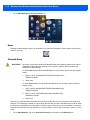
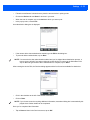
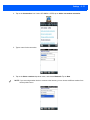
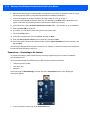
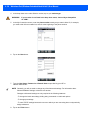
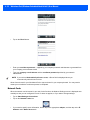
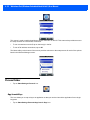
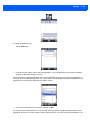
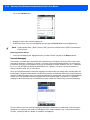
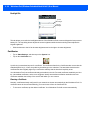
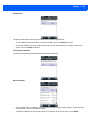
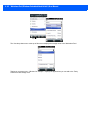
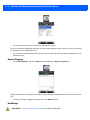
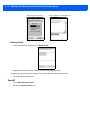
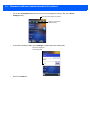
Tap on Start>Settings>System>Manage Triggers icon.
Trigger Mappings
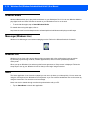
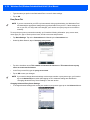
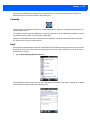
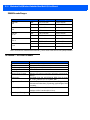
A trigger mapping is an association between a particular key on the keyboard and a driver or application, the
module(s) – sometimes referred to as “trigger consumer(s)” – of the trigger source. Along with keyboard keys,
trigger sources can also be grip triggers, external hardware triggers or software-based. When the specified key
is pressed, the trigger consumer (for example, a decoded scanner) is sent a message.
IMPORTANT
It is not possible to have two or more identical mappings — for example [F1] cannot be
mapped to the Non-Decoded Scanner twice — even if the trigger type is different.
A keyboard key that is used as a trigger source will no longer generate key data or
perform its normal function. For example, if the space button is used as a trigger source, it
will not be able to send space characters to applications.
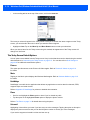
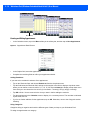
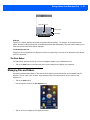
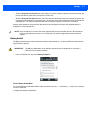
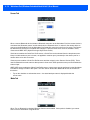
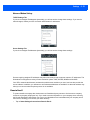
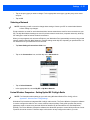
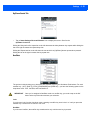
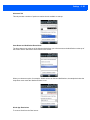
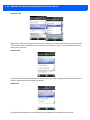
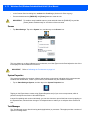
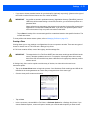
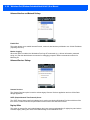
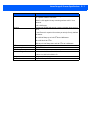
Double-Click
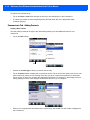
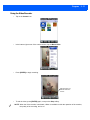
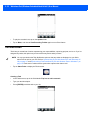
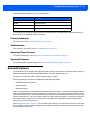
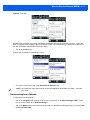
When a key is pressed and released, then pressed again within the configured time (between 0 to 1000 milliseconds), a double-click occurs. See also Trigger Press Type on page 4-56.
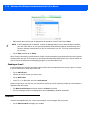
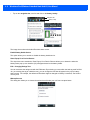
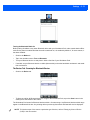
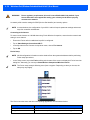
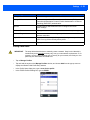
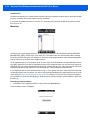
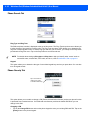
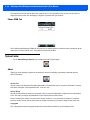
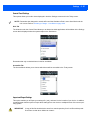
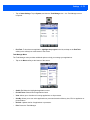
Show All Modules
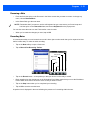
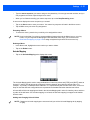
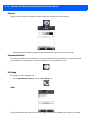
By default, the trigger mapping list only shows active mappings. Mappings for drivers or applications that are
not currently active are not normally displayed. By checking this checkbox, all mappings, both active and inactive, are displayed.
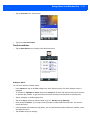
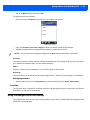
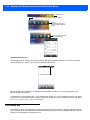
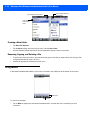
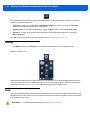
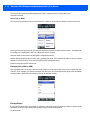
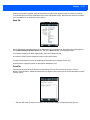
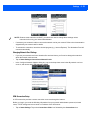
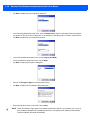
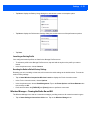
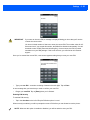
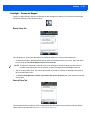
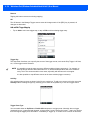
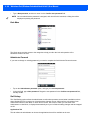
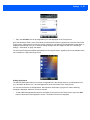
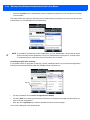
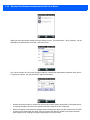
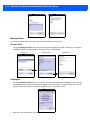
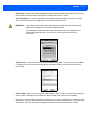
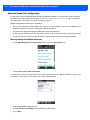
Add
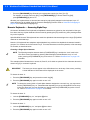
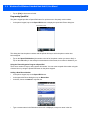
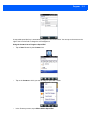
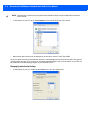
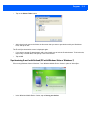
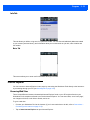
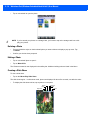
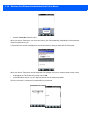
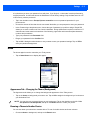
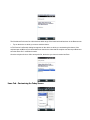
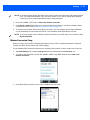
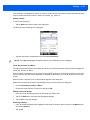
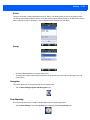
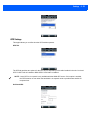
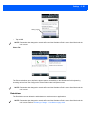
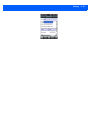
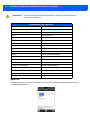
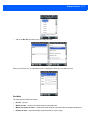
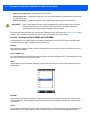
Tapping this button brings up the Add mapping dialog (see below), so that you can add new trigger mappings.
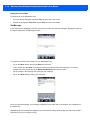
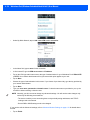
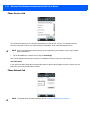
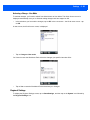
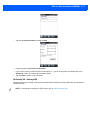
Edit
Tapping this button brings up the Edit mapping dialog, so that you can edit existing trigger mappings.
























![MC67 User Guide [English] (P/N 72E-161697](http://vs1.manualzilla.com/store/data/005941432_1-bd249a567cf14662f5cee6704d0a9b43-150x150.png)