1
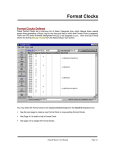
Format Clocks [cont] Assign Clocks to Days / Hours Be sure you select the Clock Assignment Grid you desire to change in Clock Assignment Grid dropdown box. You can assign any of your Format Clocks to any hour(s) of any day(s) of the week in that grid. Format Clocks are assigned to the day(s) and hour(s) for which they are to be used on a grid that shows days as rows and hours as columns. To assign a Format Clock for a day/hour, select the desired Clock form the dropdown list at the top of the screen to display that clock. Then [Left-Click] in the grid cell for the hour(s) and day(s) for which the displayed Clock is to be active. The 2-letter ID of that clock will appear in the cell. To clear a cell (to make its clock blank, just [Right][Click] in that cell. Natural Grid will not create a Log for any day/hour that does not have a valid 2-letter Clock ID in the cell for the affected day/hour for the selected grid. Creating and Editing Format Clocks You can cut and paste entire clock lines by holding the right mouse button and dragging it over the line or lines to be cut or copied, then selecting the function from the popup menu that will open. Click [New] to create a new format clock. You must give it a unique 2-letter ID and a description. Create a New Format Clock Click the [New Clock] button. Enter a valid 2-letter ID code for the new Format Clock Enter a description of the clock You can also specify the time increment for creating events in the clock. This is only a starrting point and can be changed during clock edit. Copy a Format Clock With the Format Clock you'd like to copy from displayed, click on the [Copy Clock] button. Enter a Valid 2-letter code for the Format Clock you'd like to copy to. If the copy-to Clock doesn't exist it will be created. If you click [OK] the copy-to clock will contain an exact copy of the copy-from clock's data. Natural Grid User Manual Page 9