1
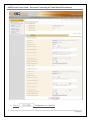
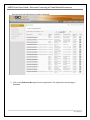
eMDA Portal User Guide ‐ Electronic Processing of Trade Related Documents Attached eDoc Code(s) Select from the dropdown list the code of the eDoc to be attached. Attach eDoc Reference No(s) Enter the Reference Number of the eDoc to be attached Scan of Attached eDoc(s) Click on attached. to locate from your PC and upload the scanned copy of the eDoc to be To add more eDocs, click on and follow step 9. To delete an eDoc attachment, mark the eDoc you want to delete and then click on . 10. Click on . This page containing the saved Item is displayed. If you want to add other items, click on If you want to remove an item, click on
and then follow steps 8‐10. . If you want to update an item, click on . The Add Item Details page is displayed and then update the fields as necessary. 19 | P a g e