1
3.7: Auto-run
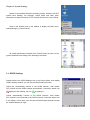
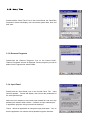
Double-click “Auto Run” icon on the control panel, the "auto-run" window
will be displayed, set PDT-1000W running specified applications
automatically after starting
Copy auto run programs to the Flash file directory of PDT-1000W, input the
programs address and file name to the text box in the window, or click the
Browse button on right to locate the program.
Completion of the specified program address, press the OK button. Restart
PDT-1000W, the specified program will run automatically.
PDT-1000W can automatically run three applications.
3.8: Storage Manager
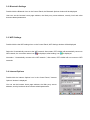
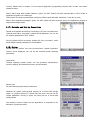
Double-click the Storage Manager icon in the Control Panel, the Storage Properties window will be
displayed. User can manage the extended program memory card over the Properties window.
Manage storage devices
Available storage devices appear in the drop-down box by device names. Press the "Format" button to
format the partition table of the selected storage device; press the "Uninstall" button to delete the selected
storage device.
Manage disk partition
Available partitions on the selected storage device are displayed in the partition list box.
Press the "New" button to create a new partition on the memory; press the "delete" button to delete the
selected partition from the storage device; press the "Properties" button, you can view the properties of
the selected partition.
3.9: Power
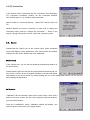
Double-click the Power icon on the Control Panel will display "Power
Properties" window. User can set and view power management
parameters; This window contains three tabs, "battery", "program" and
"Device Status".
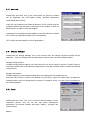
Battery: