1
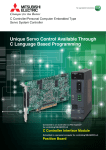
C Controller Interface Module Utility
Installation Instructions
Introduction
Thank you for purchasing C Controller Interface Module Utility.
This document explains how to install and uninstall
(Note-1)
. Please read carefully
C Controller Interface Module Utility
before installing the product to your personal computer.
(Note-1): C Controller Interface Module Utility includes API library
for the Q173SCCF, and test tool that can confirm the
development of control application and operation for
Mitsubishi C Controller Interface Module Q173SCCF.
Acknowledgements
• Reprinting or reproducing the part or all the contents of this
document in any form for any purpose without the permission of
Mitsubishi Electric Corporation is strictly forbidden.
• Although we have made the utmost effort to follow the revisions
of the software and hardware, in some cases, unsynchronized
matter may occur.
• The information in this document may be subject to change
without notice.
• We do not take any responsibility for the virus infection and
network failure caused by temporary deactivation of antivirus or
security software.
1
Installation Instructions (This manual)
1
Software license agreement
1
Precautions
®
• We do not guarantee any commercially available Microsoft
®
Windows Operating System products that are introduced in this
manual.
• This software's copyright is owned by Mitsubishi Electric
Corporation.
• This software requires one license per computer to be purchased.
However, only API library can be used for royalty free.
• This product (including manual) can be used under the Software
License Agreement only.
• We do not take any responsibilities for the consequences of
operating this product (including manual).
• User's Manual in the CD-ROM is a PDF file. To View the PDF file,
®
Adobe Reader is required. Download from the Adobe Systems
Incorporated website.
Personal computer main body
SW1DNC-QSCCF-B
Quantity
C Controller Interface Module Utility
CD-ROM
Confirm before installation
• Log on to a personal computer as a user having an attribute of "Administrator" (Computer administration).
®
• Terminate all the applications running under Windows Operating System before installation.
• Install this product before connecting a personal computer and a USB interface.
• When using antivirus or security software, the warning appears and you may not be able to install. Deactivate temporarily antivirus or
security software before installation.
1.Insert the CD-ROM to the CD-ROM drive. Double-click "Setup.exe"
2.Following the instructions on the screen, select or enter the necessary
Operating Environment
Item
Product name
Install C Controller Interface Module Utility to a personal computer.
(Otherwise, it is displayed as "setup".) in the CD-ROM.
Product Makeup
Model name
Installation
information.
Contents
Personal
computer
Microsoft Windows supported personal computer
OS
Microsoft Windows 7 English version (64-bit/32-bit)
[Service Pack 1]
®
®
Microsoft Windows Vista English version (32-bit)
[Service Pack 2]
®
®
Microsoft Windows XP English version (32-bit)
[Service Pack 3]
CPU
Desktop PC : Intel Celeron Processor 2.8GHz or
higher
®
®
Laptop PC : Intel Pentium M Processor 1.7GHz or
higher
Required
memory
1GB or more recommended (For 32-bit edition)
2GB or more recommended (For 64-bit edition)
®
®
®
®
®
Available hard
disk space
Precautions
®
®
• When using Windows 7/Windows Vista , the User Account Control screen appears if user account control is enabled. Click "Yes" or
Allow".
®
®
When using Windows 7
When using Windows Vista
1.Select "Yes".
1.Select "Allow".
®
When installing C Controller Interface Module Utility:
Available hard disk space: 1GB or more
When operating C Controller Interface Module Utility:
Available virtual memory space: 512MB or more
Disk drive
CD-ROM supported disk drive
Monitor
Resolution 1024 x 768 pixels or higher
Communication
interfaces
USB port
API library
C Controller Module : Q24DHCCPU-V
Operating system : VxWorks 6.8.1
Programming development environment:
CW Workbench
Wind River Workbench 3.2
• If the following messages are displayed several times before completing the installation of this product, the USB device driver must be
installed.
®
®
®
When using Windows 7/Windows Vista
When using Windows XP
1.Select "Install" and install the device driver.
1.Select "Continue Anyway" and install the device driver.
Precautions
(1) The following functions cannot be used when the computer is
®
®
®
running under Microsoft Windows 7, Microsoft Windows
®
®
®
Vista , Microsoft Windows XP. This product may not perform
properly when these functions are used.
• Activating the application with Windows compatible mode
• Simplified user switch-over
• Remote desktop
• Large fonts (Detail settings of screen property)
• DPI setting other than that of the normal size (Detail settings of
screen property)
®
®
(2) In Windows 7 and Windows Vista , log in as a user having
User authority or higher.
(3) The following functions cannot be used when the computer is
®
running under Windows 7.
• Windows XP Mode
• Windows Touch
BCN-B62008-325A
Q173SCCF-I-INSE
Continue to the Backside
BCN-B62008-325A
Q173SCCF-I-INSE
®
• If an overwrite install has been done to upgrade the version of C Controller Interface Module Utility when using Windows 7/Windows
®
Vista , the following message may be displayed. In this case, select "This program installed correctly".
®
Installing the USB device driver
®
When using Windows XP, in order to connect with a Q173SCCF via USB interface, the USB device driver needs to be
®
®
installed. When using Windows 7/Windows Vista the USB device driver is automatically installed.
®
When using Windows 7/Windows Vista
®
When using Windows XP
1.The "Found New Hardware Wizard" appears when the Q173SCCF and
personal computer are connected using a USB connection for the first time
only. The same screen appears when the USB port to be connected is
changed.
2.The "Welcome to the Found New Hardware Wizard" dialog may appear. In
this case, select "No, not this time".
3.The "This wizard helps you install software for." dialog screen appears. Select
"Install the software automatically [Recommended]".
1.Select "This program installed correctly".
4.The dialog of Windows Logo Test appears. The installing of the USB device
• The "Found New Hardware Wizard" may temporarily appear during the installation. This occurs for requesting a device registration to
®
®
Windows , and this screen will disappear automatically after the completion of the registration processing of Windows . At this time,
never execute any operation with the "Found New Hardware Wizard".
®
®
• When using Windows Vista /Windows XP, the "Found New Hardware Wizard" may appear, if the Q173SCCF and personal
computer (connected using a USB connection) are turned on without installing C Controller Interface Module Utility. In this case, select
"Cancel".
®
When using Windows Vista
1.Select "Cancel".
®
When using Windows XP
driver completes by clicking "Continue Anyway".
Uninstallation
Uninstall C Controller Interface Module Utility from a personal computer.
1.Execute the C Controller Interface Module Utility uninstallation from the control
®
panel of Windows .
1.Select "Cancel".
Microsoft, Windows, and Windows Vista are registered trademarks of Microsoft Corporation in the United States and other countries.
Intel, Pentium, and Celeron are trademarks of Intel Corporation in the United States and other countries.
Adobe Reader is a registered trademark of Adobe Systems Incorporated.
VxWorks is a trademark or registered trademark of Wind River Systems, Inc. in the United States and other countries.
All other company names and product names used in the manual are trademarks or registered trademarks of their respective companies.
BCN-B62008-325A
Q173SCCF-I-INSE
BCN-B62008-325A
Q173SCCF-I-INSE