1
On-Net Surveillance Systems, Inc.
•
NetDVMS 6.5f User Manual
Input, Events & Output
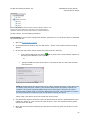
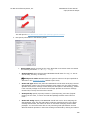
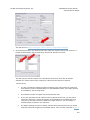
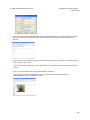
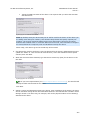
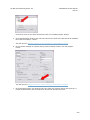
In the Enter the object names to select box, type the required user or group names, then use
the Check Names feature to verify that the user and/or group names you have entered are
recognized.
Note: If typing several user and/or group names, separate each name with a semicolon.
Example: Alonso; Sarah Walters; Management; Brian; Security; Hannah Carter; Stanislaw;
Dwayne Smith
Tip: Typing part of a user or group name is often enough. Example: Typing John, then clicking
the Check Names button, may be enough to quickly select the user Johnathan Smith.
•
When ready, click OK. The required users and/or groups will be imported, and listed in the
User administration window.
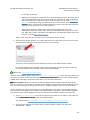
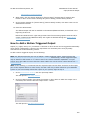
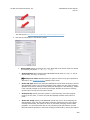
A user imported this way will appear as a Windows or Active Directory User in the list's Type
column. The user will furthermore be indicated by a user icon without the blue dot used for Basic
users.
A group imported this way will appear as a Windows or Active Directory Group in the list's Type
column. The group will furthermore be indicated by a group icon.
How to Edit an Existing User Name or Password
Editing an existing user's user name or password is only possible if the user in question is of the type
Basic user; the details of Windows users imported from Active Directory are edited through Active
Directory.
To edit the user name or password for an existing Basic user, do the following:
•
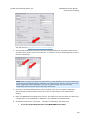
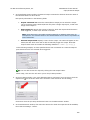
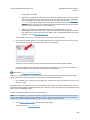
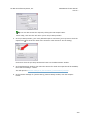
Select the required user in the Current users list, and click the Change password... button.
•
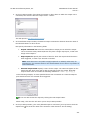
Edit the user name and/or password as required, then click OK.
Remember to inform the user about the change.
How to Remove an Existing User
To remove a user from the User administration window's list of users, select the user in the list and
click the Delete button. When removed from the list, the user will no longer be able to log in.
Note: Using this method to delete a Windows user imported from Active Directory will only remove
the user's right to log in with a access client; it will not remove the user's data from Active Directory.
What Information to Provide to Users
The information you need to provide in order to enable users to effortlessly log in to the surveillance
system depends on whether the users are using NetGuard, NetGuard-EVS or Ocularis Client Lite . For
NetPDA/NetCell Client users, see Using the NetPDA/NetCell Client.
NetGuard Users
When users log in with NetGuard, they must select between using basic or Windows-based
authentication. Provide them with the following information:
98