1
On-Net Surveillance Systems,Inc.
NetDVMS
Rev 5.0
Network Based CCTV Management System
Installation and User Manual
222 Route 59 suite 303 Suffern, NY 10901 U.S.A
Phone: (845) 36900 Fax: (845) 369-8711
www.onssi.com
1
On-Net Surveillance Systems NetDVMS
Rev 5.0
Installation Guide & Manual
Dear Customer,
With the purchase of On-Net Surveillance Systems Inc (ONSSI) NetDVMS you have chosen
an extremely powerful and flexible surveillance solution. ONSSI NetDVMS will turn your
TCP/IP-based video cameras and video servers into a sophisticated digital video surveillance
system fully controlled from your PC.
ONSSI NetDVMS (version 5.0) provides you with these main features:
•
Record and view cameras with up to 30 frames per second (25 for PAL)
•
Control up to 64 cameras per server
•
Secure image database with daily archiving and recovery options
•
Advanced low disk space database handling
•
Scheduled recording on time and/or event
•
Flexible screen setup with Recordings Browser and HotSpot in floating windows
•
Advanced motion detection with Exclude Filter for image areas of no interest
•
Advanced recording rules based on motion and external events
•
Increased recording speed on alarm option
•
Find specific recordings by date/time or event
•
Record sound while listening to previously recorded sound
•
Control of PTZ cameras and digital PTZ in iPIX 180 degree images
•
Up to 25 PTZ preset positions per camera for fast PTZ or scheduled patrolling
•
Advanced input/output control (external events)
•
Play back database recordings for up to 9 cameras with audio simultaneously
•
Time stamped event documentation on print, as AVI with audio or single JPEGs
•
Export extractions of databases for later review by auditors or authorities
•
Receive motion alerts via E-mail and SMS
•
All system messages on screen, in log-file and optionally via E-mail and SMS
•
Remote access to the system through the included Web Server and Image Server with
live images in single- and quad-view, pan/tilt/zoom preset control, database playback
and database browsing
•
Configurable remote user access rights: Limit access to cameras, database
playback/browsing and AVI creation
2
Contents
Contents ______________________________________ 3
Installation Guide _______________________________ 5
Introduction ______________________________________
Before You Install___________________________________
Step 1: Obtain Device License Keys ______________________
Step 2: Connect the Devices ____________________________
Step 3: Install the Software ____________________________
Step 4: Configure for First Time Use______________________
6
6
8
8
8
9
Program help__________________________________ 10
Obtaining Support _________________________________ 10
Administrator Manual ____________________________11
Configuring Video Cameras and Video Server Devices ________13
Changing Device Settings _____________________________15
Configuring Video Servers ___________________________16
Configuring Video Cameras and Video Server Devices ________ 17
Setting Image Quality and Recording Conditions ____________18
Calibration of Motion Detection _______________________ 23
Defining Motion Detection Exclude Areas ________________ 25
Setting Up and Using PTZ Preset Positions________________ 26
Goto Preset Position on Event feature Setup _____________ 28
Patrol When Camera is Online Setup __________________ 29
General Settings ____________________________________31
Configuring E-mail Alerting _________________________ 33
Configuring SMS Alerting __________________________ 34
Daily Database Archiving ____________________________ 35
Scheduling Camera Activity and Alert Periods __________ 38
Monitor Manual________________________________ 42
The Pan/Tilt/Zoom Panel ___________________________ 45
Using the Browser _________________________________ 46
Configuration Options _____________________________ 47
NetGuard: ____________________________________ 50
Setting up a View ___________________________________51
Limiting Bandwidth ________________________________ 52
Appendix A: Advanced Camera Control with Sensors _____ 56
Appendix B: Using the NetDVMS Web Server ___________ 58
3
Appendix C: Configuring the iPIX Technology __________ 61
4
Installation Guide
Note that for simplicity TCP/IP based video camera/server equipment will be called
“devices” throughout this guide.
5
ONSSI NetDVMS consists of six software applications: Administrator, Monitor,
Introduction
Browser, Image Server Administrator, Web Server and Realtimefeed
Server. Each of these applications is described briefly below.
The Administrator application: The administrator of the surveillance installation
uses this tool when setting up the system for the first time use, when adding new
cameras and whenever the system configuration needs to be changed. This tool is
also used to configure the screen layout of the Monitor, recording conditions, etc.
The Monitor application: This application is the core of the surveillance system, as
well as the main user interface. The Monitor records and displays live images from
the connected video cameras. Depending on the user rights, the operator may start
and stop cameras and control PTZ cameras.
The Viewer application: This application is used to play back recordings (up to 16
cameras simultaneously), create AVI files, export and print images, and to export
databases for review on another PC.
The Image Server Administrator: This application controls access to the
NetDVMS server via the NetGuard Remote Client. Connecting via the
NetGuard requires no separate software installation, it can be accessed and run via
the Web Browser.
The Web Server and Realtimefeed Server applications: These two applications
make up a powerful Web server that will enable users to access the surveillance
system from a remote site using a Web Browser. Using a Microsoft™ Internet
Explorer Web Browser on a remote computer you can view live images from the
cameras, control PTZ cameras, and review recordings. An alarm overview is
available to locate the desired event quickly.
Please note
⇒ You cannot run the Administrator application and the Monitor application
simultaneously; you will need to close one before opening the other.
⇒ In order to achieve the best performance and most reliable operation, it is recommended
that you do not use the surveillance PC for other purposes.
⇒ The Monitor application and cameras must run to record images. The video
surveillance is therefore not working if the Monitor application is closed!
Before You Install
6
Please be aware of the minimum system requirements.
Minimum Hardware Requirements *)
Up to 50 images/second total
CPU
HDD
RAM
Video
Network
Up to 400 images/second total
Pentium III, 1GHz
E-IDE disk(s)
Size depends on storage needs
256 MByte
Pentium4 Xeon, 3.4GHz
Fast SCSI disks
Size depends on storage needs
1 GByte
min. 1024 x 768 pixels
AGP video card
min. 1024 x 768 pixels
AGP 128MB video card
Ethernet 100 Mbit
Ethernet 100 Mbit
*) Based on 320x240 JPEG images, medium compression.
Software Requirements
OS
Protocols,
APIs and
Software
In-compatible
Software
Microsoft Windows XP PRO/ 2003
Note: It is highly recommended that all available Service Packs are
installed for the Operating System being used!
- TCP/IP support is required
- Microsoft Internet Explorer 5.5 or newer is required
- DirectX 8.1 or higher required for audio recording
FTP Server: Included in the software (default port 21).
HTTP Server: Included in the software (default port 81).
Realtimefeed Server: Included in the software (default port 9513).
ImageServer: Included in the software (default port 80).
To run other servers on these port numbers it is required to change the
port number used by the NetDVMS server.
In order to check if the TCP/IP protocol has been installed, look…
Under Windows XP/2003: In the Network item of the Windows Control Panel,
check in the Local Area Connections (default name) that the TCP/IP protocol is
installed and bound to your network adapter.
7
Step 1: Obtain Device License Keys
Please refer to the ONSSI NetDVMS Getting Started Guide for details on how
to obtain and import Device License Keys (DLKs).
Device License Keys are not required to run the Demo version.
Step 2: Connect the Devices
Connect all the devices to your LAN/Ethernet as described in the manuals for the camera
devices. Consult these manuals for more information.
For devices having an integrated Web interface, you can verify that the device is
successfully installed on your network by connecting to it using a standard Web
Browser. If you cannot connect using a Web Browser, then you will not be able connect
in ONSSI NetDVMS either.
Step 3: Install the Software
To make sure you install the most recent version of our software, please check our
website www.onssi.com for updates. Here you can also download the ONSSI
NetDVMS Getting Started Guide and an updated version of this User
Manual.
Please refer to the ONSSI NetDVMS Getting Started Guide for details on how
to uninstall any previous version of the software and how to install the most current
version of the ONSSI NetDVMS.
The ONSSI NetDVMS by default starts up automatically when the PC is started. This
functionality can be disabled in the General Setings window in the Administrator
application.
If a demo version of NetDVMS was already installed it is necessary to remove the
image databases. This can be done either by uninstalling the demo version (including
the databases) or by clearing each camera database from within the new version of
the NetDVMS software.
Please refer to the section "Setting Image Quality and Recording Conditions" for more
details on this.
8
Step 4: Configure for First Time Use
Upon successfully installing the ONSSI NetDVMS software you will need to add your video
camera and video server devices.
The ONSSI NetDVMS Getting Started Manual can guide you through these initial steps,
including a basic configuration of the Monitor screen layout and scheduler setup.
For more advanced customization options, please refer to the Administrator Manual
section in this manual.
9
Program help
The Administrator, Monitor, and Browser applications has context help for all
available functionality.
You obtain help by pressing the question mark icon in the program's active window (or in
some windows, the Help button). The cursor will turn into a “What’s this” cursor and you
can now click on the item that you need help with. Afterwards, click anywhere with the
mouse in order to remove the help pop-up window.
Obtaining Support
If you have questions or problems not answered in this manual, please contact your ONSSI
Software dealer or visit the ONSSI Surveillance Support site at www.onssi.com.
We trust you will enjoy using this ONSSI product!
10
Administrator Manual
The Administrator application is used when setting up the system for first time use,
when new cameras are added to the system, and whenever the system configuration needs
to be changed. This tool is also used to configure the screen layout of the Monitor
application, which recording conditions to use, etc. Start the Administrator from the
Program Menu.
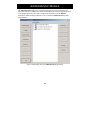
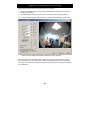
Figure 1: Main dialog box of the Administrator application
11
In the main dialog box you have the following buttons:
Add
Device…
Add new video camera or video server devices to the system. Please refer
to the Getting Started Guide and the more detailed "Configuring Video
Cameras and Video Server Devices" section in this manual for details.
Edit
Device…
Edit/update the configuration of an existing device.
Remove
Device
Remove an existing device from the system.
Settings…
Set up image quality and recording conditions, etc. for the camera.
See section "Setting Image Quality and Recording Conditions".
I/O Setup…
Define inputs and output that you would like to have available on the
system. Inputs can be used to create an alert or start/stop a camera.
Outputs can activate the output ports on selected devices and thereby
make it possible to turn on e.g. a siren or the light.
I/O
Control…
Setup defined inputs to activate selected outputs. More inputs can
activate the same output. Both external inputs and timer events can be
used to activate an output.
Monitor
Manager…
Set up screen layout and screen positions of the cameras, etc.
See section "Configuring Monitors and User Interface Layout".
Scheduler…
Control when cameras are online and when alerts are given.
See the "Scheduling Camera Activity and Alert Periods" section.
General
Settings…
Set up user rights and other system settings. See section "General
Settings".
Archive
Setup…
Set up of daily image database archiving if required. See section "Daily
Database Archiving".
Import
DLKs…
Import the DLK file generated by the ONSSI DLK retrieval system. Please
refer to the Getting Started Guide for details. Importing the DLK file
eliminates the need to enter the DLKs manually!
NetMatrix…
Enabled when the ONSSI NetMatrix plug-in is installed only.
12
Configuring Video Cameras and Video Server Devices
When you have installed the software you will need to configure it for all your video camera
and video server devices. The NetDVMS Add Device Wizard will help you with this.
Before you start adding devices it is suggested that the DLKs are imported.
Please follow the steps described in the E-mail received from the NetDVMS DLK retrieval
system, and in the Getting Started Guide, to import the DLKs.
When pressing the Add Device button In the Administrator the wizard will appear:
First Wizard dialog box:
The video device has this
IP-address on the
network:
Enter the IP address of the device on your network
Click the 'Port Setup'
button if other than HTTP
port 80 and FTP port 21 is
used
The HTTP and FTP ports used can be changed by clicking
the "Port Setup" button. This is used if more devices
share the same IP address (e.g. behind a router with NAT
functionality).
In the vast majority of cases it will not be necessary to
change the default ports.
Second Wizard dialog box:
The password for the
video device
administrator account is:
Please enter the password for the video device's
administrator account (sometimes called 'root' or
'admin').
Autodetect Device
For fast detection you can select the video device type.
You can also keep the 'Auto Detect Type' selection and let
the system find the device type.
13
Third Wizard dialog box:
DLK:
Please enter the Device License Key (DLK) for the MAC
address. The DLK will appear automatically if the SLC.dlk
file received by E-mail was imported (See the E-mail for
details).
Fourth Wizard dialog box:
Show this name for the
video device:
Please enter a name that will help you identify the device
later, e.g. "Entrance Door, "Sales office" etc.
Note that the system does not allow two devices with the
same name.
Press the Camera Setup
button to set up camera
names and PTZ devices
for this device.
Press the Camera Setup button if changes should be made
to the default camera name (Camera 1). For multichannel video servers the camera names are Camera 1,
Camera 2, etc.
PTZ devices (PTZ cameras or fixed cameras on PTZ foots)
should be enabled and the COM port and driver selected.
For more detailed information see the sub section
“Configuring Video servers" found in the next section
("Changing Device Settings").
After a device has been successfully added a new device icon will appear in the "Device
Manager" window. Press the "Add Device…" button again in order to set up remaining
devices.
14
Changing Device Settings
Changes to HTTP/FTP ports, IP addresses and device/camera names can be done by
selecting the device in the "Device Manager" window and subsequently pressing the "Edit
Device…" button.
In the Identify Video Device area the following information is found:
Device Type
The type of device you are using. (The device type can be found
automatically if you press the Detect Device button and the correct IPaddress and Device Password have been specified).
Device
Name
The name that helps you identifying the device in the software, e.g.
"Entrance Door", "Meeting Room 1" etc. Note that the same name can not
be used for more than one device.
Device
Serial
Number
The serial number (usually the MAC address) of the device, e.g.
00408c291ba2. The serial number is usually found on a label on the
device (can also be found automatically with the Detect Device button if
the correct IP-address and Device Password have been specified).
Device
License Key
16 characters license key associated with the device, e.g.
c5a8ff0c89679490 (See Step 1 "Obtain Device License Keys").
Enable iPIX
With iPIX 180 degrees image technology it is possible to PTZ in images
taken by a fisheye lens camera. The iPIX technology converts the fish-eye
lens image to a normal looking image in which you can move around,
covering a much larger area than with a normal lens camera.
iPIX
License Key
License key for enabling iPIX technology for the specific device. The iPIX
License Key is obtained in the same way as DLKs, using the iPIX License
Code instead of the Software License Code. If using an iPIX device the
license is not needed. It is only needed when using an non-iPIX device
while using the iPIX technology.
In the Network Settings area the following information is found:
IP-address
The IP address of the device on your network.
Default
HTTP port
Select this option if HTTP traffic to the device should go through port 80
at the specified IP-address.
Deselect this option if a non-standard HTTP port should be used and
specify the port in the field to the left of this checkbox.
Default FTP
port
Select this option if FTP traffic to the device should go through port 21 at
the specified IP-address.
Deselect this option if a non-standard FTP port should be used and
specify the port in the field to the left of this checkbox.
Root
Password
The password required when logging on to the device using the “root”
(sometimes called "Admin") account.
15
In the Audio area the following information is found:
Audio
Enabled
Available if audio is supported for the device. Select the option to enable
audio through the device. Audio requires DirectX 8.1 or higher, which
means that audio is not possible when using NT 5.0.
Configuring Video Servers
For Video Servers you need to specify if the connected cameras are Pan/Tilt/Zoom cameras
and you can also give the individual camera a name.
In order to do this, press the Camera Settings button and the Camera Settings for Device
dialog box will appear.
In the PTZ Camera Selection area the following information is found:
Some of the
connected
cameras …
Select this option if any of the connected cameras are Pan/Tilt/Zoom
cameras.
PTZ type
controlled
through
COM1
If you are controlling the PTZ functionality of one or several cameras
through the COM1 control port of the device then you must select the
correct PTZ camera type in the list box. If you are not controlling any
devices through this port, select "None".
PTZ type
controlled
through
COM2
If you are controlling the PTZ functionality of one or several cameras
through the COM2 control port of the device then you must select the
correct PTZ camera type in the list box. If you are not controlling any
devices through this port, select "None".
In the camera list box you will see a line for each camera channel on the Video Server. First
line (Camera 1) corresponds to camera channel 1 and so on. In order to specify the settings
for e.g. Camera 1 click once the first line, it will then become selected. In the configuration
area below you have the following options:
Camera
Name
Enter a name of the camera for you to remember it by. E.g. a name related
to its location, such as "Main Entrance".
Camera
Type
If the camera is a PTZ camera select "Movable", otherwise select "Fixed".
Device Port
Enabled if "Movable" is selected as Camera Type:
Select, which control port on the Video Server, should be used to control
the PTZ functionality of the camera.
Port
Address
Enabled if "Movable" is selected as Camera Type. Specify the port
address of the camera, which would normally be 1 or 0. If using daisy
chained PTZ cameras the port address identifies each of them. Please
refer to the camera manual for more information.
Pressing the Apply Changes button will show the updated information in the camera list
box. Press the OK button when you are done.
16
Configuring Video Cameras and Video Server Devices
Click on the Monitor Manager… button in the Administrator main window to
setup the Monitor look and feel.
Choose the Layout Size of the Monitor. Options are 1x1, 2x2, 3x3, etc. up to
an 8x8 grid camera layout.
Choose the desired Hot Spot Window functionality. The Hot Spot displays a
selected camera in a larger view, and can be used for point-and-click
Pan/Tilt/Zoom operations on some cameras. Possible Hot Spot options are:
None (no Hot Spot enabled; default).
Hot Spot (select Monitor Layout grid size for the Hot Spot).
In Separate Window (Hot Spot is a separate, floating window).
Click on a camera position and select a camera in the Select Camera dropdown list. Select the next camera position and repeat until all the cameras
are present in the Monitor Layout.
Select the Carousel if you want to enable this option. When the Carousel
function is activated in the Monitor, the Hot Spot window will automatically
change to show the next camera in the Monitor Layout. The interval between
shifts is specified in the Seconds Between Shifts option (default value is 5
seconds).
Click on the Settings… button to change the settings for the camera currently
selected in the Monitor Layout.
17
Setting Image Quality and Recording Conditions
For each of your cameras you can set the desired image quality, recording speed, and other
conditions for the recording of images. When recording sound from a device, the database
setup for the sound recording is also managed from here.
In the Administrator main dialog's tree-view, select the camera in question and press the
"Settings…" button. The Camera Settings configuration dialog box will be shown.
You can also invoke this dialog box by pressing the Settings… button in the Monitor
Manager dialog box.
In the Framerate Settings area you specify the recording speed of the camera:
Desired
Framerate
Specify the desired recording speed by entering the number of frames you
wish to retrieve from the device each second, minute or hour. This will
give you a recording range from 24 images per day up to 30 images per
second (25 images per second for PAL).
Enable
Speedup
Select this option if you want to increase the framerate on motion
detection and/or an external event.
“On motion”: Increase the framerate when motion is detected. The
framerate will revert to its original (lower) speed two seconds after the
last motion is detected.
“On event”: increase the framerate when the specified external Start
event is detected. The framerate will revert to its original speed when the
specified external Stop event is detected.
Please refer to Appendix A: ”Advanced Camera Control with Sensors”
section of this manual for details of how to set up external events.
Desired
speedup
framerate
When the Enable Speedup option is selected, the desired (higher)
recording speed is specified here by entering the number of frames you
wish to retrieve from the device.
This higher recording speed will be used whenever the speedup
conditions are met, as specified under Enable Speedup.
As with the desired framerate setting this will give you a recording range
from 24 images per day up to 30 images per second (25 images per
second for PAL).
18
In the Image Storage Settings area you specify the conditions for the recording:
Specify when to store the received images for this camera in the database.
When to
store
“Always”: Unconditionally store all received images in the database.
images in
“Never”: Never store any images in the database. Images are still
database
displayed in the Monitor window but can not be viewed via the web
interface.
“Conditionally”: Store the images to the database when the specified
conditions are met only.
On motion: Store all images with motion (default setting)
On Event: Store all images (regardless of motion) when the defined Start
event occurs until the defined stop event occurs.
Both conditions can be used alone or combined. When both options are
ticked images are stored in the database if just one of the conditions is
met.
Pre/Post
buffer
The number of seconds to store before and after the conditions for
storage is met.
In the Database Settings area you specify how many images you want to store in your
image database and the location of the image database files on your disk:
Max.
images in
database
Select this option to limit the image database for the camera to a
maximum size. When the maximum number of images has been
recorded, the oldest image in the camera database will be overwritten
automatically, each time a new image is received.
The maximum size that can be specified is 600.000 images.
Delete
images
older than
Select this option if you want the recordings in your image database for
the camera to be limited by age. If this option is selected the images will
automatically be deleted when they are older than the specified number
of minutes, hours or days.
Please note that you will not be able to store more than 600.000 images
regardless what maximum age has been specified.
Database
Path
Specify the main directory on your disk to keep the image database. A sub
directory for this camera will be created by the system, but the main
directory you specify must exist; it will not be created automatically.
To achieve the best performance, it is recommended that you specify a
location on a local hard disk, not on a network drive.
Browse
path (…)
Press this button if you wish to browse for the database path directory.
Clear
Database…
Press this button if you wish to delete all images recorded for this camera.
Caution: All your recordings for this camera will be permanently lost
(This does not include archived databases).
19
Delete
Audio older
than
Select for how long audio recordings should be kept in number of
minutes, hours or days. When older than specified, sound recordings will
be deleted unless they have been archived.
Audio archiving is done automatically if the image database archiving
functionality is activated.
In Case Of
Database
failure…
In case of a database failure, three image database recovery options are
available.
“Attempt to repair database”: The database repair function will be
activated when the Monitor is started.
Please note that no images can be recorded while the database repair
function is running. For large installations this can take several hours.
“Delete the database”: The database will be deleted when the Monitor is
started.
“Archive the database”: The database will be archived and a new created
for instant start of recording when the Monitor is started.
The first time the archived database is opened in the Browser the
database repair function will start repair of this specific database.
Please note that this option is available only if archiving has been set up
for this camera. Please refer to the chapter Daily Database Archiving in
this manual for details.
In the case recordings get bigger than expected or the available disk space is suddenly
reduced in another way, an advanced database re-sizing procedure will automatically
take place:
If archived databases are present on the disk containing the current database the
oldest archive for all cameras on that disk will be deleted.
If no archives are present the database size of the current databases will be reduced, so
that a percentage of the oldest recordings will be deleted and each database size will
temporarily be limited to its new size.
You will be informed on the screen, in the log-files and optionally through E-mail (if
setup) and SMS (if setup).
When the Monitor application is restarted the old database sizes will be used. It is
therefore up to the user to adopt the new sizes or solve the disk size problem in another
way.
20
In the Camera Monitor Setup area you specify how your camera is displayed in the
Monitor:
Show
Motion
Select this option if you want the detected motion to appear highlighted
in the image. If selected, the areas of the image with motion will be
colored with the selected motion color.
Clicking the "Motion Color…" button in the "Motion Detection Settings"
area will allow you to change the motion color used.
Show
Regions
Select this option if you want the areas in which motion detection has
been excluded (disabled) to appear highlighted in the image. If selected,
the areas will be colored with the selected region color.
Clicking the "Region Color…" button in the "Exclude Regions Settings"
area will allow you to change the region color used.
Update on
motion only
Select this option if you only want the camera to be updated on your
screen when motion has been detected. Enabling this option greatly
reduces the workload of the PC. It is therefore recommended that you
select this option if the PC runs primarily as a server, serving clients
through the built-in Web Interface.
Note: It is possible to disable screen updating completely in the General
Settings menu.
Enable iPIX
Select this option if iPIX technology should be applied to the camera.
When selected, a fish-eye image will look like an image from an ordinary
camera lens.
Note: Only available if iPIX have been activated for the device.
IPIX
Settings
Click this button to configure the iPIX Technology for the camera. IPIX
conversion of a fish eye image to a normal image is based on this
configuration. The configuration is described in Appendix C.
In the Motion Detection Settings area you have access to setting up motion detection for
the camera:
Motion
Detection…
Press this button in order to calibrate the motion detection. Please refer
to the Calibration of Motion Detection section for details.
Motion
Color…
Press this button to select a new motion color. Please refer to the "Show
Motion" option in the Camera Monitor Setup section.
21
In the Exclude Regions Settings area you have access to setting up regions for the camera
that should be excluded from motion detection:
Exclude
Regions…
Press this button in order to specify if certain areas of the images should
be excluded from the motion detection. Please refer to the "Defining
Motion Detection Exclude Areas" section for details.
Region
Color…
Press this button to select a new region color. Please refer to the "Show
Regions" option in the Camera Monitor Setup section.
In the bottom of the Camera Settings dialog box two (three) buttons are found:
Image
Quality…
Activates the "Configure Device" dialog box. Here the camera image
quality, including image size and compression, can be set up. A preview
image can be shown with the current selected settings.
Outputs…
Click this button to set the output settings for the current camera. In this
dialog you can select which defined outputs should be enabled if motion
is detected for this camera.
You can also specify up to five buttons that will be available in the
monitor application when the camera is selected. Each button can control
an output to be activated manually.
Note: Access to defining outputs is gained by clicking the I/O Setup
button in the Administrator main dialog box.
PTZ Preset
Positions…
This button is only shown when Pan/Tilt/Zoom is set up for the camera,
and the camera supports absolute positioning, or the device driver
supports import of relative PTZ positions from the device.
Up to 25 preset positions per absolute positioning PTZ camera can be
defined in the PTZ Preset Positions dialog box activated by this button.
Each preset position can later be instantly accessed in the monitor
application.
For relative positioning PTZ cameras defined preset positions on the
video server (AXIS or Convision) will be listed and used instead. These
preset positions must be defined through the web interface of the device
before they are available in the NetDVMS software.
The "PTZ patrolling" and "PTZ goto on event" features are both enabled
and set up from this dialog as well.
Event
Notification
Move an event from list of “Available Events” to “Active Events” to have
orange LED light up in NetDVMS Monitor.
For detailed information about PTZ preset positions and their use, please refer to the
section "Setting Up and Using PTZ Preset Positions.
22
Calibration of Motion Detection
The motion detection system may control (a) when images are saved to disk and (b) when
alarms are generated, and it is therefore a vital element of the system.
Motion detection needs to be calibrated carefully otherwise it will not function properly. Do
this as described below.
It is recommended that you set up the image quality to be used, and that any regions
excluded from motion detection (if any) are defined before you calibrate the motion
detection.
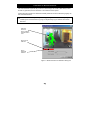
Detected
motion is
shown with the
selected motion
color
Motion Level
Indicator
Alarm
threshold
indicator
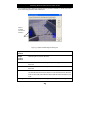
Figure 2: Motion Detection Calibration dialog box.
23
Motion
Level
Indicator
Indicates the current level of detected motion in the image. The indicator
is green when the level is below the threshold and will turn red when the
threshold is exceeded.
Alarm
Threshold
Indicator
Indicates the selected motion alarm threshold. A motion alarm will be
generated when the motion level goes beyond the threshold.
Noise
Sensitivity
Slider to adjust the noise sensitivity level of individual picture elements
(pixels). The noise sensitivity level controls when the change in light
intensity and color (light change) of individual pixel should be considered
noise (i.e. an insignificant change) and when it should be considered
motion (i.e. a significant change). In the live updating camera image you
will see the pixels in which motion has been detected marked with the
selected motion color (which is green by default). In order to understand
how it works, try to drag the slider to position "high" and watch how the
whole camera image will turn green.
Drag the slide bar back to the optimal position, where only the pixels
affected by significant light changes are marked with the motion color.
Motion
Sensitivity
Slider to adjust the motion sensitivity. The motion sensitivity controls the
alarm threshold and thereby determines the minimum size of an object
that will generate an alarm.
Drag the slider until the alarm threshold indicator is at the optimal
position.
Trees and bushes outdoors and plants indoors may generate undesired noise, you may
find that you can define motion detection exclude areas to eliminate this noise.
Some video cameras generate undesired noise at poor light conditions. In order not to
generate undesired alarms, you may find that you need to reduce the noise sensitivity
or to improve the light condition.
24
Defining Motion Detection Exclude Areas
You can define motion detection exclude areas if you wish to exclude (i.e. mask out) certain
areas of the image from the motion detection.
Squares
excluded
from motion
detection
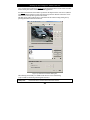
Figure 3: Define Exclude Regions dialog box.
Left mouse
button
Exclude square from motion detection.
Right
mouse
button
Include square in motion detection.
Set All
Press this button to exclude all squares (whole image) from motion
detection.
Clear All
Press this button to include all squares (whole image) in motion
detection.
Auto
Press this button to make the software detect noisy areas automatically
and exclude them from motion detection. Note that the motion detection
must be reasonably well calibrated before this auto detection feature will
work.
Show grid
Select this option if you wish the grid lines to appear in the image.
25
Setting Up and Using PTZ Preset Positions
Up to 25 PTZ preset positions per absolute positioning PTZ camera can be made accessible
in the control panel of the NetDVMS Monitor application.
For relative PTZ cameras the number of positions will depend on the video server (AXIS or
Convision) and the PTZ driver used. Only the preset positions defined on the video server
will be listed, and only these position can be used.
The PTZ preset positions dialog box is activated from the camera settings dialog box by
pressing the PTZ Preset Positions button.
Figure 4: PTZ Preset Positions dialog box
The following functionality is available in the PTZ View area of the dialog
(only available for absolute positioning PTZ cameras):
Wide/Tele
Click on the bar to set the zoom level for the camera.
26
When clicking, the zoom level will be set to the level indicated by the
cursor position on the bar.
Tilt (Vertical
bar)
Click on the bar to set the tilt position for the camera.
When clicking, the tilt level will be set to the level indicated by the cursor
position on the bar.
Pan
(Horizontal
bar)
Click on the bar to set the pan position for the camera. When clicking, the
pan level will be set to the level indicated by the cursor position on the
bar.
Pan/Tilt
buttons
Press the buttons in order to move the camera in the direction indicated
by the button.
Zoom
buttons
Press the buttons in order to zoom in or out.
In the Preset Position area you find the following functionality:
Use Preset
Positions
from Device
*)
For absolute PTZ cameras it can be chosen whether the preset positions
on the video server should be used or if preset positions defined in the
NetDVMS should be used.
For relative PTZ cameras, defined positions on the device will
automatically be used, i.e. the option cannot be unchecked.
Set Position
(Absolute)
Press the Set Position button when the PTZ camera has been moved to
the desired position. This will save the position as the (new) preset
position for this entry.
Note that names will be truncated if they are too long for the preset
position buttons in the Monitor application.
Edit Name…
(Absolute)
Select a preset position in the list and press this button to change the
name of the preset position if required.
Test
Move the camera to the selected preset position.
Delete (Abs.)
Remove the selected preset position from the list.
Preset
position list
List of all defined preset positions. The list is divided into five groups, A,
B, C, D and E, each with 5 preset positions. In the Monitor application
the preset positions will be shown in these groups of five. Each group has
its own button for fast access in the Monitor.
List control
buttons
Use the arrow up and down buttons in the preset positions area to
change the order of the listed preset positions. Selected a preset position
and move it up or down the list by using the arrows.
*) Selected devices only, please see the release note for details.
27
In the Patrolling and Preset Position on Event area the following options exist:
None
If preset positions should only be used manually, select this option.
Goto preset
on event
Select this option if the PTZ camera should automatically go to a preset
position when an event occurs. More events can be connected to the same
preset position.
The goto preset on event feature will be active when scheduled mode is
activated and PTZ mode is not selected for the camera.
Patrol when
camera is
online
Select this option if the PTZ camera should patrol among selected preset
positions when online.
The patrol feature will be active when scheduled mode is activated and
PTZ mode is not selected for the camera.
Goto Preset Position on Event feature Setup
When clicking the setup button associated with the Goto preset on event selection, the
following dialog will show:
Figure 5: Goto Preset Position on Event dialog box
Available
Preset
Positions
Select the preset position that the camera should move to when the
events selected in the "Available Events" list occur.
Available
Events
Select the event that should move the camera to the preset position
selected. You can select between both external events and timer events in
the "Available Events" list.
>> (Add
button)
Click the add button ">>" and the selected event will appear in the
rightmost list, containing all events that have been connected to the
currently selected preset position.
<< (Remove
button)
To remove an event from the list, select the event in the rightmost list and
click the remove button "<<".
28
Patrol When Camera is Online Setup
When clicking the setup button associated with the Patrol when camera is online selection,
the following dialog will show:
Figure 6: Setup PTZ patrolling dialog box.
In the Setup PTZ Patrolling dialog the following options can be set:
Stay at each
position…
Indicate for how many seconds the PTZ camera should stay at each preset
position included in the patrol schedule.
Time for
each PTZ
camera…
Indicate the number of seconds for the PTZ camera to complete a PTZ
command in worst case. In order not to produce a false motion alert,
motion detection is disabled from the time the camera is send to the next
preset position in the patrol and until the indicated time has expired. It is
therefore important that the PTZ camera is in place at the next position
before the time expires.
In the PTZ Patrol action on motion area the following functionality is set:
Disable
patrolling
schedule…
Select this option if motion detected during a patrol schedule should
temporarily disable the schedule and await one of the two options
available (see below)
Seconds has
passed
since…
Select the first option if the PTZ camera should stay for the indicated
number of seconds after motion was detected for the first time.
Seconds has
passed
without…
Select the second option if the PTZ camera should keep the position until
motion has not been detected for the indicated number of seconds.
In the Select preset positions to be used for patrolling area the following functionality is
found:
29
Preset
positions
Shows the list of all defined preset positions for the camera. Positions that
should be added to the schedule are selected in this list.
>> (Add
button)
Click this button to include the selected preset positions from the "Preset
position" list in the "Patrolling list". A preset position can be added more
than once, so that an important preset position can be visit more than
once during the schedule.
Note that multiple selections are possible. Hold down “Ctrl” on the
keyboard to select additional positions with the mouse or hold down
“Shift” to select a range of positions by clicking the first/last position with
the mouse.
<< (Remove
button)
Click this button in order to remove the selected preset positions from the
"Patrolling List". Note that if a preset position is included more than once
in the "Patrolling list", only those instances selected will be removed.
Note that multiple selections are possible. Hold down “Ctrl” on the
keyboard to select additional positions with the mouse or hold down
“Shift” to select a range of positions by clicking the first/last position with
the mouse.
Patrolling
list
Shows the list of all included preset positions in the patrol schedule. A
preset position can be included more than once in the list, so that an
important preset position can be visit more than once during the
schedule.
Move up
button
Move the selected preset position up in the "Patrolling list". The preset
position visits will be executed in the order they are listed, with the upper
preset position as the first.
Move down
button
Move the selected preset position down in the "Patrolling list". The preset
position visits will be executed in the order they are listed, with the upper
preset position as the first.
30
General Settings
The General Settings dialog box allows you to define which rights the user/operator has
when using the Monitor application and to set other administrative settings.
Figure 7: General Settings dialog box
Define user rights in the Administrator Settings area:
Enable
Protection
Select this option if you want to restrict the user's rights and enable
password protection.
Change
Password…
Press this button to change the administrator password.
Application
Startup
Select this option if the user should be allowed to start the Monitor
application without having to specify the administrator password.
Application
Shutdown
Select this option if the user should be allowed to close the Monitor
application.
Manual
Control
Select this option if the user should be allowed to start and stop the
cameras manually in the Monitor application.
Browser
Select this option if the user should be allowed to start the browser in the
Monitor application.
PTZ Control
Select this option if the user should be allowed to enable PTZ mode in the
Monitor application.
Quick
Browse
Select this option if the user should be allowed to invoke the Quick
browse feature in the Monitor application (requires HotSpot window).
31
Logfile Settings:
Logfile Path
Specify in which directory on your disk to keep system log files.
The directory you specify must exist; it is not created automatically.
Number of
days to log
Specify how many days you want to store the log files. A new log file will
be created each day. Log files older than the specified number of days will
be deleted automatically.
Advanced settings:
Disable
Screen
Update
Select this option if the Monitor screen is not actively used for viewing
video (i.e. machine is in server room). All Monitor screen updating will be
disabled. This will free up resources resulting in better system
performance.
Disable
Online
Indicator
Select this option if you want to stop the green light from flashing when
the camera is online. The number of flashes per second represents the
cameras current framerate.
Don't send
E-mail on
camera
failure
Select this option to disable sending of an E-mail whenever a camera
failure occurs (This will only happen if E-mail is enabled).
Don't send
SMS on
camera
failure
Select this option to disable sending of an SMS whenever a camera failure
occurs (This will only happen if SMS is enabled).
Add
Monitor to
Startup
group
Makes sure the Monitor is always started up when the PC is booted.
When not selected, camera failure E-mails will be sent if E-mail has been
enabled. Note that this will be carried out at any time regardless of
scheduled E-mail alert periods set in the Scheduler.
When not selected, camera failure SMS' will be sent if SMS has been
enabled. Note that this will be carried out at any time regardless of
scheduled SMS alert periods set in the Scheduler.
Uncheck this box if you do not want the Monitor to start automatically (it
is not sufficient to simply remove the Monitor icon from the Windows
Startup folder).
Other administrative settings:
E-mail
Settings…
Press this button to change the settings for E-mail alerting.
See Configuring E-mail Alerting below.
SMS
Settings…
Press this button to change the settings for SMS alerting.
See Configuring SMS Alerting below.
32
Configuring E-mail Alerting
The E-mail alerting system needs to be configured before it can be used; you do this in the
E-mail Setup dialog box in the following way:
Enable
E-mail
Select this option in order to enable E-mail alerting.
Advanced…
If Simple MAPI mail client is not available, it is possible to configure
SMTP E-mailing instead. SMTP can also be used if the mail client
requires confirmation before sending E-mails.
Recipient(s)
Specify the E-mail address of one or more recipients. Use a semicolon (;)
to separate the addresses if more than one recipient is specified.
E.g.: [email protected]; [email protected]
Subject Text
Specify the text string to be used as the subject for the E-mails sent.
Message
Text
Specify the text string to be used as the message (body) for the E-mails
sent. The name of the device and camera that generated the alarm will
automatically be appended to the text.
Include
Image
Select this option if you want the image that generated the alert to be
attached to the mail.
Time btw.
Mails…
Specify the minimum number of minutes between the alert E-mails for
the individual camera or 0 (zero) if each motion detection should result in
an alert E-mail. A motion alert from a camera will not generate an alert Email if the minimum number of minutes specified has not elapsed since
the last alert E-mail for the camera was sent.
Note: Camera failures and system failures will automatically be sent
through E-mail if this has not been disabled under "Advanced" in the
"General settings" dialog box
Background information: During a longer period of constant motion a
high number of alarms will be generated; it may not be desirable that an
alert E-mail is sent for every alarm.
Test button
Press this button to send a test mail to the specified recipient(s).
The Scheduler controls during which hours of the day the motion alert E-mails are sent
and which cameras should be generating the E-mails. See the section “Scheduling
Camera Activity and Alert Periods" for more information.
33
Configuring SMS Alerting
The SMS alerting system needs to be configured before it can be used; you do this in the
SMS Settings dialog box in the following way:
Enable
SMS
Select this option in order to enable SMS alerting.
GSM
terminal
connected to
Specify which serial port on the PC you have connected the GSM
terminal to.
SIM card PIN
code
Specify the PIN code of the SIM card inserted in the GSM terminal.
SIM card
PUK code
Specify the PUK code of the SIM card inserted in the GSM terminal.
SMS central
phone no.
Specify the phone number of the SMS central to receive your calls.
Recipient
phone no.
Specify the phone number of the GSM phone to receive the SMS alert
messages.
Message
Specify the text of the message to be sent.
Note: Camera failures and system failures will automatically be sent
through SMS if this has not been disabled under Advanced in the
General settings dialog box.
Note that:
• a maximum of 100 characters is allowed,
• only characters in the ranges a-z, A-Z, 0-9, comma and punctuation
mark are allowed.
Time btw.
Transmission
s…
Specify the minimum number of minutes between the SMS alerts for
the individual camera or 0 (zero) if each motion detection should result
in an SMS alert. A motion alert from a camera will not generate an SMS
alert if the minimum number of minutes specified has not elapsed since
the last SMS alert for the camera was sent.
Test button
Press this button to send a test SMS message to the specified recipient.
The SMS Alerting System requires that a GSM terminal has been connected to one of
the serial ports of the PC.
The software has been designed specifically for the Siemens M20 GSM terminal, but
will also work with other GSM terminals compatible with the M20 terminal.
Using the same GSM provider for the GSM terminal and the receiving GSM phone will
most likely give you the fastest and most reliable service.
34
Daily Database Archiving
The software supports multiple archives a day of the image databases. The main benefit of
using archiving is that it will allow you to make a backup of the archived image databases
on backup media using your normal backup software.
Another important benefit of using daily archiving is that it will increase the maximum
image database storage capacity to 600.000 images per camera per each archive. The
number of archived days on disk is only limited on the disk(s) capacity.
Note that a storage capacity of 600.000 images per day corresponds to storing
approximately seven images per second 24 hours a day.
You configure the image database archiving using the Database Archiving setup dialog
box. The dialog box is invoked by pressing the Archive Setup button in the Administrator
application.
Figure 8: Database Archiving setup dialog box
35
Enable
Archiving
Select this option if you want to use the daily image database archiving
feature for one or more of your cameras.
Daily
archiving
times:
Specify at which time of the day you want the archiving to occur. Note
that the cameras will be stopped (i.e. not recording) one by one while the
archiving takes place. You should therefore aim at choosing a time of the
day where nothing of importance should be recorded. If you are also
backing up your image database to a backup media, then you should also
choose a time of the day that will not conflict with the scheduled backup
job.
Delete
databases
in the
backup
directory
older than…
days
Specify how many days you want to store the archived image databases.
Each day at the selected time the image databases will be moved to new
sub-directories in the backup directory. Sub-directories containing
archived image databases older than the specified number of days will be
deleted automatically.
Send email
on archive
error
When selected, an E-mail will be sent if the system fails to archive a
database. This may be caused by a disk running full, as a result of
networking problem, or other causes.
Emails will only be sent if the email settings has been configured in the
General Setting email dialog.
Send SMS
on archive
error
When selected, an SMS will be sent if the system fails to archive a
database. This may be caused by a disk running full, as a result of
networking problem, or other causes.
An SMS will only be sent if the SMS option has been configured in the
General Setting SMS dialog.
Camera
archive
selection
list
Indicate for which cameras the daily image database archiving should
take place.
Camera
archive
path
It is possible to archive the databases on a different position than the
current database is located, including on a network drive.
Specify the archiving path for each camera by typing in the path, or use
the Browse icon button to browse for a directory.
Please be aware that the specified path must exist; it will not be created
automatically.
Set all
Press this button to activate daily image database archiving for all
cameras.
Clear all
Press this button to deactivate daily image database archiving for all
cameras.
Set all
Press this button to set the archive database path for all cameras to the
36
paths
same value as the currently selected path.
How does it work?
The archived databases for a camera will be stored in a so-called backup directory.
The backup directory will be created as a sub-directory called "Archives" of the
selected image database directory.
In the backup directory a sub-directory for each camera in this database path will
exist. Then name of the sub-directories corresponds to the MAC address of the camera.
Daily archived databases will be placed in sub-directories in the MAC address subdirectory and named after the time and date the archiving took place, i.e.:
"Database path"\Archives\"MAC address"\"Date-Time"\"Database files"
Note: Also audio databases are archived when archiving is selected for a camera. For
a video server with more camera channels the audio is archived with camera 1.
How do I configure my backup program?
If you want an external backup program to make a tape backup of the daily archived
image database for a camera then you should configure it to make a backup of the
backup directory.
It is recommended that you do not schedule it to make a backup of the image database
directory itself, since this may cause sharing violations and other malfunctions. Note
also that you should not schedule the backup job to overlap the time of the daily
archiving.
How does Archiving to a Network Drive work ?
When archiving to a network drive (any path not default), the Monitor application
first archives the database to the local (default) drive, then moves the archive to the
specified archive path.
This is done in order to speed up the archiving operation. Archiving directly to the
network drive would mean that the archiving time would vary according to the
available bandwidth on the network. Archiving the database locally, then moving
ensures that the archiving is performed as fast as possible.
Please be aware that there must be enough space on the local drive to keep the local
archive until it is moved to the network drive. As a rule of thumb the available space
should be the size of the daily database +50%.
Assuming recordings are spread evenly over time in the database, having a 50%
overhead will allow a full 12 hours to move the archives to the network drive, ensuring
that the System Administrator will have sufficient time to correct any network errors
that might occurs.
Note: To view an archived database located in a non-default path in the Browser, it
must be localized using the Browse (…) button in the setup menu.
If several cameras should be viewed at the same time each database must be browsed
for individually.
37
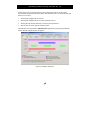
Scheduling Camera Activity and Alert Periods
In this section you can read about how to control important functions of the system
automatically through the built-in Scheduler. The Scheduler uses a one-week-calendar and
allows you to control:
•
Starting and stopping cameras on time
•
Starting and stopping cameras on events (external sensors)
•
Alerting through E-mail, SMS and/or sound on motion detection.
•
Motion alerts to certain periods of the day/week.
The Scheduler is activated in the Administrator application by pressing the Scheduler
button. The following dialog box will appear:
Figure 9: Scheduler dialog box
38
The following options and buttons are available:
Mode
The mode selection controls if time periods are added or removed when
clicking and dragging the mouse in the graphical window.
Set: Add/replace period for functionality (Online, E-mail, SMS and
Sound) currently selected.
Clear: Remove period for functionality (Online, E-mail, SMS and Sound)
currently selected.
Online
This option should be checked if clicking and dragging in the graphical
window should affect (Mode: Add/Clear) the Online periods for the
selected camera.
E-mail
This option should be checked if clicking and dragging in the graphical
window should affect (Mode: Add/Clear) the E-mail alert periods for the
selected camera.
SMS
This option should be checked if clicking and dragging in the graphical
window should affect (Mode: Add/Clear) the SMS alert periods for the
selected camera.
Sound
This option should be checked if clicking and dragging in the graphical
window should affect (Mode: Add/Clear) the Sound alert periods for the
selected camera.
Note: Used for audible alarm via PC soundcard, NOT for scheduling audio
recording!
Camera
Select in the list among the installed cameras. The Scheduler only
operates on the currently selected camera.
Copy
Schedule
Make a copy of the current schedule in order to transfer the same
schedule to another camera.
Paste
Schedule
Paste the copied (Copy Schedule) schedule setup to the currently selected
camera. The same schedule can be pasted to more cameras by selecting
each camera from the Camera listbox.
Important: Be careful when pasting because schedules are overwritten
without any warning.
Paste
Schedule to
all
Paste the copied (Copy Schedule) schedule setup to all cameras.
Important: Be careful when pasting because schedules are overwritten
without any warning.
39
The graphical window contains a lot of information and functionality:
Online Bar
Shows in which periods during the week the camera is active (i.e.
transferring images to the NetDVMS software for processing). Camera
activity can be controlled through time and/or events. Please refer to
Appendix A "Advanced Camera Control with Sensors" for more
information on working with sensors and events.
The Yellow bar indicates that the camera is active (transmitting images)
when an event occurs only (On Event).
A Purple bar indicates that the camera is active (transmitting images)
continuously (Always).
E-mail Bar
Shows in which periods during the week E-mails should be sent when
motion is detected.
SMS Bar
Shows in which periods during the week GSM-SMS messages should be
sent when motion is detected.
Sound Bar
Shows in which periods during the week sound alerts should be given
when motion is detected. The sound file used must be placed in the
NetDVMS Surveillance directory and must be named alarm.wav. If you
prefer a different sound than the default, simply replace the file.
Before using the E-mail Alerting System and the SMS Alerting System you need to
configure them by pressing the associated button in the General Settings dialog box
and filling out the required information. The General Settings dialog box is activated
in the Administrator application by pressing the General Settings button.
See the earlier sub-sections "Configuring E-mail Alerting" and "Configuring SMS
Alerting" for information on this.
Click & drag
the mouse
When you have selected the Mode (Set/Clear) and selected which
functions (Online, E-mail, SMS, Sound) you wish to operate (by checking
their check boxes), you do the following:
(a) Move the mouse cursor to the desired start time in the scheduler
window (pencil cursor indicates Set, eraser cursor indicates Clear), (b)
click the left mouse button and keep the button pressed, (c) drag the
cursor to the desired end time and (d) release the mouse button.
Note: When including the "Online" function and the Mode = "Set" a
small dialog box will appear:
Select "On Event" if the camera should only start transmitting images
when the event occurs during the specified time period, or
Select "Always" if the camera should transmit images during the time
40
period specified.
In both cases, the software will store the images in the database only if the
conditions set up in the Camera Settings are met.
Weekdays
Click on the name of a weekday (in the week overview) to zoom into that
day.
Click on the name of the day (in the day overview) to zoom out to the
week.
Start Event
Select the event that should start the camera in time periods with the "On
Event" selection (yellow bars). Events are defined in the "I/O Setup"
found in the main dialog of the administrator application.
Please also refer to Appendix A "Advanced Camera Control with Sensors"
for more information on working with sensors and events.
Stop Event
Select the event that should stop the camera in time periods with the "On
Event" selection (yellow bars). Events are defined in the "I/O Setup"
found in the main dialog of the administrator application.
Please also refer to Appendix A "Advanced Camera Control with Sensors"
for more information on working with sensors and events.
41
Monitor Manual
The Monitor application forms the core of the surveillance system; it is responsible for all
the practical work during the normal operation of the system. Besides forming the main
user interface, the Monitor application starts and stops the cameras, acquires the images,
displays the images on screen, detects if motion has occurred, saves the images in the
image databases, sends alarms, etc.
The surveillance system is only active when the Monitor application is running. If
you close the application you will not be recording images and alert-messages will not
be sent.
Start the Monitor from the Program Menu or from the shortcut on the desktop if you
chose to make a link during the installation.
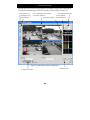
Figure 10: Main window of the NetDVMS Monitor application.
Here shown with four monitor windows, each showing the image stream of the
associated camera) and the separate HotSpot feature enabled.
42
In the main window you have the following buttons (from the top):
Minimize
Press the leftmost button of the three small buttons in order to minimize
the Monitor window.
Help
Press the middle button of the three small buttons to get on-line help for
the next item you click on.
Exit
Pressing the rightmost button of the three small buttons will close the
Monitor application. You will be asked to confirm this.
Note that this will stop all recordings.
Recordings
Press this button to start the Browser and review your recordings. Please
see section "Using the Recordings Browser" for details.
HotSpot
Press this button to switch the floating HotSpot on and off
(shown only if the floating HotSpot feature is enabled).
PTZ Mode
Press this button to enable/disable the Pan/Tilt/Zoom panel.
Please refer to the Pan/Tilt/Zoom Panel section for details.
Start / Stop
Press this button to start or stop the camera in the selected monitor. The
button is only enabled when manual mode is activated.
Start All
Press this button to start all cameras. The button is only enabled when
manual mode is activated.
Stop All
Press this button to stop all cameras. The button is only enabled when
manual mode is activated.
Manual
(Schedule
Override)
Switch between scheduler controlled mode and manual mode. In
scheduler controlled mode the scheduler is responsible for starting and
stopping the cameras. In manual mode the cameras can be started and
stopped manually using the start and stop buttons.
The system is in manual mode when the button is pushed in.
Note that when in manual mode all scheduled camera
start/stop, PTZ patrolling and automatic camera reconnection
is disabled!
Admin
Login
Press this button to gain administrator rights, and thereby removing the
restricted rights a normal user may have. Applicable only if the standard
user's rights have been configured to be restricted.
Quick
Browse
(QB)
Switch between on-line mode and quick browsing mode in the HotSpot
window. The HotSpot window is in quick browsing mode when the button
is pushed in.
QB Arrows
Use these two buttons to Quick Browse backward or forward in
recordings for the camera shown in the HotSpot window.
43
Carousel
If Hotspot is enabled you can have the Monitor cycle through all cameras
on the hotspot window according to interval set in the Monitor Manager.
Mute
Select this option to mute audio in the monitor application.
Exit
Press this button to stop the Monitor application and thereby stop all
camera recording. You will be asked to confirm this.
When you start the Monitor application it will start the cameras automatically if you
have specified them as "Online" in the Scheduler. You can disable and overrule the
Scheduler by pressing the "Manual" button.
When in “Manual” mode the cameras can be started manually one by one by pressing
the "Start" button or all cameras can be started simultaneously by pressing the "Start
All" button.
Note: For normal operation cameras should be scheduled and not left in manual
mode!
The HotSpot window shows an enlarged view of the selected monitor window. In
order to show another monitor window in the HotSpot window, you must select the
new monitor window by clicking on it with the mouse.
44
The Pan/Tilt/Zoom Panel
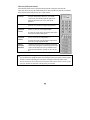
When the PTZ mode button is pushed in the PTZ panel will appear instead of the
Start/Stop, Start All, Stop All and Manual buttons. The panel buttons will only be enabled
if the selected camera has been set up as a PTZ camera.
Pan/Tilt
Arrows
Use these arrow buttons to move the camera in the
direction indicated by the arrow. Not all PTZ
cameras can be controlled with all eight arrow
buttons. Those that can not be used will be
disabled.
Home (H)
Press this button to move the camera to its home
position. Not all cameras support this function.
Zoom Out
(Camera
zoom)
Press the button with the magnifying glass and
minus to zoom out of the image (Wide).
Zoom In
(Camera
zoom)
Press the button with the magnifying glass and
plus to zoom into the image (Tele).
Preset
Position
Buttons
If Preset Positions have been defined for the PTZ
camera they will appear in the PTZ panel when the
camera is selected. The up to 25 available preset
positions is divided into 5 groups (A, B, C, D and
E).
Figure 11: PTZ Panel
You can also zoom out by moving the slider below
this button to the left-hand side.
You can also zoom in by moving the slider below
this button to the right-hand side.
The HotSpot window supports interactive Pan/Tilt/Zoom. With PTZ Mode enabled
you can click in the HotSpot window and hold down the mouse button while dragging.
A slider (0-100%) indicating the zoom factor will appear. Move the slider to the
desired zoom factor and release the mouse button. The camera will now center on the
spot you pointed out and zoom with the factor you selected.
45
Using the Browser
In the Browser you can review and playback your recordings of images and sound, printout
or export the individual images, create AVI video files, export sound as wave files, etc.
Configuration menus
User configurable monitor display
with activity indicators
Configuration and
action shortcuts
Recordings Timeline
Direct Date/Time selections
Current playback
date/time display
Figure 12: Recordings Browser dialog box.
Playback controls
Configuration window
46
The Browser window consists of eight elements:
Configuration
Menus
Menus for Browser configuration and functionality activation.
Configuration
Shortcuts
Shortcuts to selected Configuration Menu functions. When holding the
mouse pointer over an icon the shortcut name is shown.
User
configurable
monitor
display
Each monitor can be configured to display any video (and audio) source
via the Tools, Database Information menu. The layout of the monitor
display is configured in the File, Settings menu.
Direct
Date/Time
Selection
In the status bar for each camera, the name of the camera and the
motion detection (red) and image in database without motion (green)
indicators are shown.
Jump directly to a specific date and/or time (15 minutes intervals).
If the content is stored in an archived database located in the default
path relative to the current database, the archives can be accessed
transparently.
If the archives are located in a different path than default relative to the
current database, the archives must be opened manually by using the
browse button in the Database Information menu.
Current
playback
date/time
display
Here the date and time currently viewed on the monitors is displayed.
Recordings
Timeline
The Recordings Timeline shows the database information for each
camera monitor position.
The displayed date/time is the system (PC) time at the time of recording.
This time is also referred to as a timestamp.
The information is distinguished by colors:
Grey: No images are stored for this date/time.
Green: Images with no motion are stored for this data/time.
Red: Images with motion are stored for this date/time.
The time span and direction of the timeline is configured from the File,
Settings menu.
Configuration
Window
Here the currently selected configuration/action window is displayed.
Playback
Controls
The Playback Control Panel is used when playing back recordings.
The Navigation Keys are used to jump to the previous/next image,
motion sequence, and database end for the currently selected camera.
Use the Play Reverse, Stop, and Play Forward buttons to control
playback start/stop and directions. The Cue-Bar can be used to speed up
and slow down the playback speed.
Configuration Options
47
The following functions are available from the Configuration Menus:
File Menu
Settings*): Activates the Monitor/Timeline Settings window.
Monitor View: Set up the monitor layout (1, 4, 9 or 16 monitors) and
whether the monitors should be displayed in their original
height/width ratio or stretched to fit the monitor windows.
Timeline: Set up the time span of the Recordings Timeline window
and whether the timeline has the oldest (default) or the newest
recordings at the top of the Timeline.
Single View*): View only a single camera in the Browser
(Alternatively double-click on an image to switch mode).
Multi View*): View multiple cameras in the Browser simultaneously
(Alternatively double-click on an image to switch mode).
Exit: Close the Browser window.
View Menu
Add to Views: Store the current monitor view as a bookmark.
The bookmarks are listed in the bottom of the menu.
Organize Views: Rename and delete predefined views.
Tools Menu
Database Information*): Set up the video/audio for each monitor.
Click on a monitor position, then select the desired video and audio
source for this monitor position.
If the source is located in an archive stored on a non-default
position, or is an exported database, the content needs to be located
manually using the browser (…) buttons.
Motion View*): View the horizontal recordings timeline for the selected
camera monitor position.
Alarm Overview*): View the alarm list for the selected monitor position.
Jump to an alarm date/time by selecting it in the list.
Image Controls*): Post-recording image presentation.
PTZ digitally in the image shown at the selected monitor position by
using the +/- and arrow buttons.
Select the “smooth image” option to digitally enhance the image.
Select the 1:1 option to force the Browser to view the selected in
original size and height/width ratio. If the monitor position window
is smaller than the image, the zoom in/out and navigation buttons
can be used to navigate in the image.
Tools Menu
(Continued)
Export*): Export database content.
Selecting the desired audio/video feed(s), as well as the desired date
and time start/stop intervals to export.
To export all video/audio feeds currently viewed, choose the
48
“Current Video Feed(s)” and “Current Audio Feed(s)” options.
Next, choose which format to export to:
AVI File: export to motion picture AVI format with audio
Database Files: export to new NetDVMS databases for
manual storage of selected information for review in any
NetDVMS Browser any time.
JPG/WAV Files: export as single JPG images with audio
in separate WAV format files.
Click NEXT, then choose where to place the exported file(s), and
select the export options (if any) desired:
Timestamp: Include system timestamp on JPG/AVI
exports.
Half/Full Framerate: Select whether to include all (full)
or every other (half) image when creating AVI files. Half
Framerate may be desirable to avoid very large files when
using high recording speeds.
Codec: Selected the codec (coder/decoder) to use when
creating AVI files. If in doubt, Indeo® Video 5.10 or
Microsoft Video 1 are good choices as they will work on
most computers.
Print*): Print out the selected camera image with comments.
Help*): Content specific help tool.
*) This function can also be accessed directly by clicking on the appropriate Configuration
and Action shortcut.
49
NetGuard:
The NetGuard enables remote access to live, playback, alarms and export of images from
the surveillance system.
The optional NetGuard Advanced enables multi-server access, allowing live and
playback viewing across systems.
Starting the NetGuard:
Connect to the surveillance server via an Internet Explorer, or start the locally
installed client from the shortcut on the desktop.
The NetGuard can be started in two modes when using the Internet Explorer: Full
Screen or In Browser Window.
Computers with a screen resolution less than 1280x1024 should always use the
Full Screen mode.
The locally installed Remote Client is always started in full screen mode.
Login
Enter your User Name and Password as
set up by the administrator, and the
Server Address and Port Number for the
system to login to, when the Login
screen is displayed.
Click Login.
The client will now log in and display the
NetGuard interface.
On first time login the setup will be empty and must be
configured before the client can be used.
The NetGuard can view 4 cameras from one server
at a time.
The optional NetGuard Advanced can view 16
cameras from multiple servers simultaneously.
50
Setting up a View
Click on the Setup Tab to display the Setup Panel.
At least one Group must be defined to set up for a Camera View.
Create Group
Enter a name for the Group in the Group Control, then
click on the New button.
Create View
Enter a name for the View in the View Control, then click on
the desired Layout Button just below the View Name field.
The view will then be added to the selected Group.
Add Cameras to a View
Click on next to the Engine (server) name in the Systems
Overview to expand the Engine and see the available
cameras.
Drag the camera(s) from the Systems Overview to the desired
Camera Position(s) in the View. The View is stored
automatically.
Changes on camera and user properties made on the server are applied on the next log
in. If the camera or user properties are modified the View needs to be re-created to reflect
the changes.
51
Limiting Bandwidth
If the NetGuard Remote Client is used over the Internet or a slow network connection or
if for other reasons you need to limit the bandwidth the NetGuard uses, the quality of the
images can be reduced on the server side thus decreasing the bandwidth used.
Click on a camera in the View and select the desired quality
from the Image Quality dropdown list in the Camera
Control.
Click on the Apply To All button to set the selected quality to
all the cameras in the View.
The selected quality for each camera is stored automatically.
When the Live tab is selected, the client will connect to the Engine(s) and display the live
images from the cameras in the selected view.
NetGuard: Viewing Live Images:
When the Live tab is selected, the client will connect to the Engine(s) and display the live
images from the cameras in the selected view.
Selecting a View:
Double click on an image to view in full screen mode. Double click on the image
again to return to the normal view.
If reduced Image Quality has been set up for the camera, the image will be displayed
with the full quality from the Engine when the image is displayed in full screen mode.
Click on a View in the Views control to select
another View or select the view from the Views
placed over the
dropdown list
Camera View.
Output Conrol:
If the selected camera has outputs defined on the Engine, the output can be triggered
by selecting it in the Output Control and clicking on the Fire link.
PTZ Control
PTZ cameras can be controlled from the Remote Client.
Use the PTZ Buttons in the PTZ Control to control the
selected camera.
Select the Preset Position from the Presets dropdown list
to go to the preset position.
52
NetGuard: Viewing Recorded Images:
When the Browse tab is selected the client will connect to the Engine(s) and display the
recorded images from the cameras in the selected view.
Selecting a View
Double click on an image to view the camera in full screen mode. Double click on the
image again to return to the normal view.
If reduced Image Quality has been setup for the camera, the image will be displayed
with the full quality from the Engine when the image is displayed in full screen mode.
Click on a View in the Views control to select
another View or select the view from the Views
placed over the
dropdown list
Camera View.
Time Navagation
Use the Time Navigation controls to browse and play back
the recorded images from the cameras in the View.
shows
The Time Area of the Playback Control
the master time and date of the recordings currently viewed.
It also displays the playback speed (1.00x).
All cameras in the View are tied to the same Master Time. If there are no recorded
images from one or more cameras on the current time the last image in the database
before the time will be displayed.
Periods without recordings are not skipped. The clock continues and the cameras are
updated when the next recording is reached.
Playback and Browsing Recordings
Use the Browse Buttons
recordings for the selected camera.
to manually navigate through the
Use the Browse and Playback area to browse the recordings and start and stop
playback.
Move the Time sliders sideways to browse the recordings. Use the upper slider for
fine browsing, the lower for coarse browsing.
Use the Playback buttons to start and stop playback.
Use the Playback Slider to control the playback speed.
53
Use the Go To Time area
to go to a specific time. Enter the time and
date, then click on the Go link to go to the specified time.
Alarms
The Alarms Control is used for displaying the Motion Alarms for the selected camera.
Click on the Get Alarms button to retrieve the twenty next and previous alarm times
from the selected camera.
The alarm time and date are displayed for each alarm along with the number of
recorded images in the alarm sequence.
Click on the to open the alarm. This will show the time of the first and last image in
the sequence and the motion alarm time.
Click on an alarm to move to the time of the alarm.
NetGuard: Generating Video Evidence:
The Export Control is used for setting the export start and stop time, selecting the camera
to export, and opening the export dialog.
Set the export Start Time and Stop Time by entering the times
and dates manually or browse to the start and stop image and
click on the corresponding Set link.
Click on the Export button to start the export once the export
times have been set.
The export is done in four steps:
First Step
Select the Export Format as either AVI (movie clip) or JPG
(still images).
Select the export Framerate.
Selecting the Full option will export all images between
the start and stop times.
Selecting the Half option will export only every second
image between the start and stop times.
54
Select the codec to be used for encoding the AVI from the AVI Codec dropdown list.
The list will contain the video codecs installed on the client PC.
By default, the AVI File Name is the export start time. Edit the name in the field if
the file should have a different name.
The quality of the AVI depends on the selected video codec. The Indeo® video 5.10
codec generally gives the best compromise between quality and file size and is thus the
recommended choice.
Third Step
Select the Add Timestamp option if Timestamps from the surveillance system should
be added to the exported images.
The default Export Destination path is the desktop. Select the Path option if a
different path should be used.
Fourth Step
Click on the Export link to start the export.
The bar in the top of the export dialog displays the export progress.
When the Close On Completion option is selected (default), the export dialog will
close automatically when the export is finished.
The Exported files are saved in the Exported Images in the selected path.
55
Appendix A: Advanced Camera Control with Sensors
Through most devices (cameras/video servers) it is possible to connect external sensors to
the surveillance system. For example, PIR (Passive Infrared) sensors or door and window
contacts could be connected. Please refer to the device manuals for a description of how to
connect external sensors to the devices.
ONSSI NetDVMS offers the possibility of controlling the camera activity, sending an E-mail
and/or SMS alert or activating a device output port, with the use of external sensors. For
each sensor one or more event can be defined and for each of the monitors a start and stop
event can be selected from the defined events. Follow these steps in order to control
camera activity through sensor input:
Start by opening the Administrator application and press the I/O Setup button. First we
define an event based on the input from an external sensor. This kind of event is called an
external event. For each external event one or more timer events can be defined. A timer
event is an event that occurs after a specified time has elapsed since the related external
event occurred.
In the Defined Events window select the camera or video server device to which the
external sensor is connected. Now press the Add New Event button and the Add New
Event dialog box appears if only one input is available or the Multiple Input Events dialog
appears if more input are available. Select the type of event to be used, either through the
drop down boxes or from the list if more inputs are available. In the latter first click the add
button (>>), now:
A. Enter a name for the external event in the External Event Name box.
B. Check the "Send E-mail/SMS if this event occurs" option boxes if you want to be
informed by E-mail and/or SMS when the event occurs.
C. Press the OK button of the dialog box in order to return to the Event Settings dialog
box.
A plus (+) will now appear to the left of the device to which the sensor is connected. Press
the plus in order to see the defined external event entry. The event name appears under the
device, which indicates that this event is controlled through that device. In order to create a
timer event that is connected to the new external event; select the event by clicking on it in
the Defined Events window. Now press the Add New Event button. The Define Timer
Event dialog box appears.
Do the following in this dialog box:
A. Enter a number in the Timer Event Occurs After box and specify if the number entered
is in Seconds or Minutes.
B. Give the timer event a name in the Timer Event Name edit box.
56
C. Press the OK button of the dialog box in order to return to the Event Settings dialog
box.
A plus (+) will now appear to the left of the defined external event found under the device
to which the sensor is attached. Press the plus in order to see the defined timer event entry.
The timer event name appears under the external event name, which indicates that this
timer event is controlled through the external event. Press the OK button in order to return
to the main window of the Administrator application. Click the Scheduler button and the
Camera/Alert Scheduler dialog box will appear:
A. From the Monitor list box select the monitor to be controlled by the created events.
B. From the Start Event listbox select the event that starts the camera.
C. From the Stop Event listbox select the event that stops the camera.
Since the camera can be controlled through events but also controlled through time, we
need to specify when the camera should be controlled by the start and stop events.
In the Camera/Alert Scheduler dialog box do the following:
A. Select the Mode to Set in order to specify the event period.
B. Check the Online check box, uncheck the E-mail, SMS, and Sound check boxes. Adding
periods will now only apply to the Online part.
C. In the Scheduler week view click on the name of the day on which the event controlled
period starts.
D. Now find the start time of the event-controlled period and click and drag the mouse to
the end time.
E. You will now be asked to specify the selected time period as On Events or Always.
Select On Events and the selected time period turns yellow in the Scheduler overview.
When online event periods have been set, press the OK button of the Camera/Alert
Scheduler dialog box in order to start using the event settings and return to the main
window. The camera will now start and stop on the specified events but only when in the
specified event period.
Advanced button (I/O Setup):
Inputs are received in different ways from one device to another. By clicking the Advanced
button the FTP port, TCP/IP port (Alert port) and SMTP port used can be set. For those
devices requiring polling of inputs, the polling frequency can be set.
57
Appendix B: Using the NetDVMS Web Server
NetDVMS Surveillance includes a powerful web server that enables access to the image
database from a remote computer. Through the web server you can get access to live
images as well as playback recordings and browse the image databases (including archived
databases in the Archives folder). Before the web server can be used the following
requirements must be fulfilled.
Requirements:
•
Internet Explorer 5.0 or above is installed on the remote computer.
•
The NetDVMS Surveillance computer should be reachable from the remote computer
through a TCP/IP connection (LAN, modem or Internet).
•
The NetDVMS Surveillance computer has a unique IP-address on the LAN and/or
Internet.
•
No other web server using the same http port (default port 80) must be running on the
NetDVMS computer. The http port can be changed from within the NetDVMS Web
server.
•
The Live Feed Server uses port 9513. If changed the html pages needs to be edited
to reflect this change. Look for the "RTFeed.port = 9513;" line in each html file and
change the port number to the new value.
Open the NetDVMS Web Server and Live Feed Server on the NetDVMS Surveillance
computer. You can open them from the NetDVMS Surveillance group (Start menu), if these
were not opened automatically at computer startup, i.e. with a shortcut placed in the
Windows Startup group.
The two servers need to be started before they are active. This can be done manually by
clicking the Server Start for both servers. If AutoStart have been selected chosen for both,
they will automatically start when opened (default).
58
The options in the web server are:
HTTP Port: Here the port used by the
HTTP server can be changed.
Auto Start: Start up the service
automatically when the application I
launched.
Log Activity to File: Maintain a log file in
the NetDVMS Surveillance installation
directory
Days to log: Number of days to keep the
log before it is deleted.
Timeout for connection: If a client has
been inactive (not requested any new
information) for the specified duration he
is required to log in again to retrieve data.
Realtimefeed quality: The default quality
used by the Realtimefeed server (can be
overridden by user).
User administration: Three options exist
for user administration:
Allow anonymous access: No passwords are required for accessing the server.
Access for predefined users only: Username/password is required to access the
server. All users have access to all options and all cameras.
The user administration dialog is accessed via the User Setup button.
Restrict user access by camera: Each user (defined in the user administration) can be
limited to view specific cameras only, be restricted to live views (no database play
back) only and be disallowed to export recordings to AVI files.
The user rights administration is accessed via the User Access button.
The three quality levels of the Realtimefeed server (live and play back) can be changed
in the Windows registry:
HKEY_CURRENT_USER\Software\ONSSI\Surveillance\General.
"RT High Quality", "RT Medium Quality" and "RT Low Quality" can be set to a value
between 0-100, with 100 being the best quality.
59
Connecting to the NetDVMS Web server interface.
When a user has been added the user should be able to connect to the NetDVMS
Surveillance system from a remote computer.
1.
Start the Internet browser on the remote computer.
2.
Enter the IP-address of the NetDVMS Surveillance computer in the browser address
box. Add the http port number after the IP-address if another port than port 80
(default) is used. A colon should separate the IP-address and port number. Now
connect to the computer.
3.
A log-in web page will be shown if the connection has been established successfully.
Enter the username and password and select ActiveX support if you are interested in
playback or live images. Press the Login button.
4.
You are now connected to the NetDVMS Web Server, and the last retrieved image from
monitor 1 will be shown.
You can now:
•
Change between the different cameras by selecting the camera in the graphic object
(Single View - Select Camera). Move the cursor over the object (Monitor layout) and
click when the desired camera is found. The camera name appears below.
•
Search for images by using the Image, Motion, Sequence, End, Overview and Alarms
forward/backward functions.
•
Search for images by date/time by using the Goto function.
•
Press the Playback button and press the Play button below the image to start playback
from the current position in the database. Select between the Low, Medium and High
user-defined image qualities from the drop-down box.
•
Press the Live button and press the Play button below the image to start the live image
stream. Cameras defined as PTZ cameras can be PTZ controlled. PTZ buttons will
appear automatically. Select between the Low, Medium and High user-defined image
qualities from the drop-down box.
Note that the camera must be online in the Monitor application in order to
establish a live connection to the camera!
•
Print current image (Still) by pressing the Print button.
•
Click Quad View and select a Quad View to view four cameras live on the same page.
Start by selecting the four cameras from the list boxes below the four monitors and
Press the OK button to start the live stream. A total of ten quad views can be saved.
Save a Quad View by pressing the Save Setup button in the top of the Quad View. You
can change the name of the Quad View to the left of the Save Setup button.
•
Press the Help button of the web page in order to get a full functionality description of
the different possibilities that you have.
60
Appendix C: Configuring the iPIX Technology
Before iPIX technology can be used with a camera you need to:
•
Enter the NetDVMS iPIX License Key (Not needed for iPIX cameras) for the device in
the "Edit Device" dialog
•
Enable the iPIX technology for the monitor view in the "Camera Settings" dialog
•
Configure the iPIX technology for the camera. Click the "iPIX Settings" button in the
"Camera Settings" dialog and the iPIX configuration dialog will show:
The configuration consists in adjusting an ellipse to enclose the actual image area of the
fish eye lens. Doing so will set the values, used by the iPIX technology, for converting the
oval image to an ordinary rectangular image. The following buttons are using to accomplish
the configuration.
61
R- / R+
Rx- / Rx
Ry- /
Ry+
X- / X+
Y- / Y+
Ceiling
mount
Toggle
Preview
Apply
Change both the horizontal and vertical radius of the ellipse at the same time,
keeping the aspect ratio. Click R- to make the ellipse smaller and R+ to make
it bigger.
Change the horizontal radius of the ellipse. Click Rx- to make it smaller and
Rx+ to make it larger.
Change the vertical radius of the ellipse. Click Ry- to make it smaller and
Ry+ to make it larger.
Move the ellipse to the left by clicking the X- button and to the right by
clicking the X+ button.
Move the ellipse down by clicking the X- button and up by clicking the X+
button.
If the iPIX camera is ceiling mounted the navigation key behavior can be set
to reflect this by checking the Ceiling Mount checkbox.
Toggle the image preview between fish-eye view and the view resulting from
the iPIX correction algorithm as it is currently adjusted.
In result preview the navigation keys can be used to PTZ in the image.
Click to save the current values and keep the dialog open. Clicking the OK
button will also save the current values.
62