1
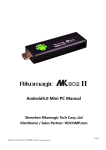
EFO Android Mini TV Dongle User Manual
USER MANUAL
EFO Android Mini TV Dongle
With wireless voice
MODEL: AMTVDV
VER.: 02
-1-
1
EFO Android Mini TV Dongle User Manual
EFO Android Mini TV Dongle with customized Voice Driver which can allow user selects
Audio output to USB and via EFO Voice Mini Wireless Keyboard and Touchpad for audio
playback wirelessly. With EFO Voice Mini Wireless Keyboard and Touchpad, you can either
use the build-in speaker and microphone to talk with Skype like the phone or use the headset
that plugged into the EFO Voice Mini Wireless Keyboard and Touchpad for enjoy movie at
night that not disturb families sleeping or keep your privacy voice chatting. EFO Voice Mini
Wireless Keyboard and Touchpad also good for voice control, voice search, and voice input
and chat. Now user can simply speak out the name of the movie for playing.
EFO Android Mini TV Dongle can allow user select Audio output at the setting menu
between USB (via USB dongle wirelessly transmit audio to the EFO Voice Mini Wireless
Keyboard and Touchpad) and TV audio out (TV HDMI) for audio playback.
EFO Android Mini TV Dongle connects to the HDMI interface of any TV that with HDMI
interfaces and converts it into a Smart TV. In fact, it is much more than a Smart TV that
normal TV manufacturer provide. It runs at Android 4.0 ICS as today's latest smart phones
except with the big TV display. Other than the screen size, the control instead of touch screen,
now with the USB wired/wireless/voice keyboard and touchpad. Same convenience as touch
screen but it look like a TV remote control.
As general smart phone, it can download apps from the Google Play Store and lot of apps
marketplace to stream videos, play games, connect with your friends on Facebook, catch up
on news, do some work or simply surf the web etc. You can even attach the iPazzPort voice
wireless keyboard (Voice remote) and a USB camera to do Skype video call. Yes, all that on
your TV! But not limit with that. Different apps are building up and with more and more
coming.
EFO Android Mini TV Dongle special design with small size that can fits inside your pocket
and you can conveniently bring it anywhere you go even when you travel abroad. It can easily
plug into any monitor or TV that with HDMI interface and connected with WiFi network, you
will get access to all your information, games, TV streaming channels, and work documents
etc. same at anywhere. Just to keep your personal digital lifestyle.
EFO Android Mini TV Dongle also good for work. It can plug into the projector to do the
presentation without bring the heavy notebook. Presentation material can be stored at the
cloud (like a Dropbox account) or locally at the SD Card (up to 32G).
With the big TV screen for display, right now user can share with friends and family for the
collection of HD movies, Photos and video clips. Other than that, it also can play together to
enjoy the better family live.
This innovative product is best to fill the gap for your digital live. It can integrated with the
mobile and tablet as a bundle to enrich the lifestyles.
-2-
2
EFO Android Mini TV Dongle User Manual
1. Features and specifications:
:
1.1. Features
– Ultra-mini, thumb Android Smart TV
– Supports EFO Voice Mini Wireless Keyboard (remote) for Skype QQ, MSN, Google
Voice search, voice input and voice control.
– Play voice at remote as watching video alone, no effect family
– Support video call
– Android 4.0 OS, rich preloaded applications software for home education,
entertainment, travel presentation, etc.
– WiFi inside
1.2. Specifications
1.2.1
CPU:
- 1.0G, GPU inside
- HD video decoder(1080P@ 60FPS)
- HD video encoder(1080P@ 30FPS)
1.2.2
Memory:DDR3: 1G
1.2.3
Flash:8G
1.2.4
Network:WiFi 802/.11 b/g
1.2.5
Interface:
–
–
–
–
1.2.6
HDMI 1.4
USB HOST
Mini USB
SD Slot
1
1
1
1
Operations system:
– Android4.0, support multi language
-3-
1.2.7
Power supply:MINI USB,DC:5V
1.2.8
Size:
:77.2*26*13.5mm
1.2.9
Weight:26g
3
EFO Android Mini TV Dongle User Manual
2
Product overview
Figure of EOF Android Mini TV Dongle
-4-
4
EFO Android Mini TV Dongle User Manual
3
How to Setup
3.1. Push the HDMI switch to slide the HDMI interface out and at the same time raise
the external antenna.
3.2. Power up the EFO Android Mini TV Dongle
3.2.1. Plug EFO Android Mini TV Dongle to any of your TV HDMI interface.
3.2.2. Power up your TV and select the signal source to the “HDMI” interface that you plug
in.
3.2.3. Power up the EFO Android Mini TV Dongle by plugging in the USB plug side of the
power cable into your TV USB interface (if any) or USB power adaptor. The other
side (mini USB plug) of the power cable plugged into the mini USB socket of the EFO
Android Mini TV Dongle (please noted that if the USB interface of your TV only
provide output power less than 5V/500mA, please buy the USB power adaptor from us
or any computer shop to make the EFO Android Mini TV Dongle work properly.).
3.2.4. The green (or blue) Indicator of the EFO Android Mini TV Dongle will on. It means
that the EFO Android Mini TV Dongle successfully started.
3.3. Input device
3.3.1. EFO Android Mini TV Dongle support standard USB keyboard and mouse.
support RF 2.4G EFO Voice Mini Wireless keyboard Multi-Touchpad
It also
3.3.2. Standard wired USB keyboard or mouse: plug USB keyboard or mouse into USB port
of EFO Android Mini TV Dongle.
3.3.3. RF 2.4G wireless keyboard and mouse: plug USB receiver into USB port of EFO
Android Mini TV Dongle.
3.3.4. RF 2.4G EFO Voice Mini Wireless keyboard Multi-Touchpad: plug USB receiver into
USB port of EFO Android Mini TV Dongle.
3.3.5. EFO Android Mini TV Dongle does not support “double click to open”, just
-5-
5
EFO Android Mini TV Dongle User Manual
“click-to-open”.
3.3.6. For more input device interfacing, EFO Android Mini TV Dongle can plug with USB
hub to share the physical USB socket with more device. Although it can support hub
for more interface, it cannot be too much as the output power of the socket is limited.
3.4. Wi-Fi Setup
3.4.1. Click “Settings” on the main interface.
3.4.2. Select “Wi-Fi” and turn it to on, then the available open ssid will shown. Select the
preferred SSID for connection and then follow through the normal WiFi setup for
connection.
3.4.3. If the required SSID not shown on the list then requires searching the wireless network
again to make sure that the required SSID is found.
3.5. Adjust your TV screen resolutions
3.5.1. If the TV screen is not fully mapped when device is power up, do the setup to make it
function properly.
3.5.2. Click “Settings” on the main interface.
3.5.3. Select “Display” and click “output settings” at the right hand side.
3.5.4. Select “Auto detecting” and then wait it finished.
3.6. Menu description on the main interface:
: Back to upper menu
: Return to main interface
: Volume up
-6-
: Volume down
6
EFO Android Mini TV Dongle User Manual
: Enter management of application software
3.7. File management:
3.7.1. Click
to enter application software management, find “ES File Browser” and
running it. This app can manage your file such as copy, cut, paste etc. All function
buttons locate at the top bar of the screen.
3.7.2. Data exchange with your PC
– Instead of power up the EFO Android Mini TV Dongle with TV USB socket, plug
the USB side of the power cable to the computer. After power up processes
finished, a pull-down menu will appear on the right-down corner. Click “USB
CONNECTED”
–
Click “Turn on USB storage” at the pop window,
– At the computer side, it will show up with a new disc. Now can fully function as a
normal disc that exchange of contents between computer and EFO Android Mini
TV Dongle. Definitely, it also can share content with WiFi to process the online
content instead of this process.
3.8. Reset EFO Android Mini TV Dongle
3.8.1. Press “reset” button to reset the EFO Android Mini TV Dongle O.S to factory setting,
Warning: to prevent any data lost, please back up your system files before performing
reset.
-7-
7
EFO Android Mini TV Dongle User Manual
3.9. System Settings
3.9.1. Click “Settings” on the main interface to enter system setting window.
3.9.1.1.
Wi-Fi, details refer to section 3.4.
3.9.1.2.
Sound output selection
– Select HDMI for all audio out to the HDMI interface
– Select USB audio for all audio out to the USB interface
3.9.1.3.
screen resolution setting
3.9.1.4.
Apps Management. It can show, modify, stop, running, delete etc. applications.
Select target application name and then perform the corresponding function to the
apps.
Show the usage of the storage
3.9.1.5.
3.9.1.6.
A
Language and character input setting.
3.9.1.7. Date and Time for set up the time and date as well as the format of the display.
-8-
8
EFO Android Mini TV Dongle User Manual
4. Audio Application management
4.1. Google Play Store has collected a lot of Android application software. You can find
what you needs. For more information, please visit below link:
https://play.google.com/store?hl=en
4.2. Voice search is one of the free apps at the Google play store. This function requires the
EFO Android Mini TV Dongle to have audio driver that work with the USB Audio.
EFO Voice Mini Wireless Keyboard already with the driver added to the EFO Android
Mini TV Dongle hence it is working properly for this feature. Simply install the app at
Google Play Store that can easily find by typing “voice search” at the search field and
press the search button. Result will list like below (before installation, you maybe need
to register your account).
-9-
9
EFO Android Mini TV Dongle User Manual
4.2.1. After Voice Search is installed, an icon
will appear at the end of the input field.
Pressing this icon and a pop up will show you that you require to speak. Voice out
what you want to input and corresponding voice search result will be displayed at the
input field. Repeat the procedure until the correct result is coming out. Although it is
not 100% accuracy, it already reduces much of the input effort.
4.2.2. Language setting for voice search
4.2.2.1. Google Voice Search supports most language in the world, please do as following to
set language
4.2.2.1.1.
back to main user interface and find “setting” button and click it to enter setting
window
4.2.2.1.2.
find “Language and input”
4.2.2.1.3.
find “Speech” and then “Voice search”
- 10 -
10
EFO Android Mini TV Dongle User Manual
4.2.2.1.4.
Click “Voice Search” and select your language.
4.3. Local or internet video and audio: take YouTube as an example,
4.3.1. With EFO Voice Mini Wireless Keyboard receiver plugged into the USB port of EFO
Android Mini TV Dongle and setup the audio output to the USB Audio.
4.3.2. Click right-bottom of screen
4.3.3. Go to “Setting” window, find “Sound” and then “Audio Output”
- 11 -
11
EFO Android Mini TV Dongle User Manual
4.3.4. Click USB audio to set voice output through USB port and HDMI PCM to set voice
output through the HDMI interface.
4.3.5. Go to m.youtube.com and search your favorite movies for watching. The audio output
will through the USB port of the EFO Android Mini TV Dongle wirelessly to the
speaker of EFO Voice Mini Wireless Keyboard. Either can use the speaker build in the
keyboard or use the headset to enjoy the movie privately. Definitely, it also can avoid
disturbing to your families while you’re enjoying of the movie.
4.3.6. Other than playing voice, the movie name searching after installing of voice search, it
can input the movie name by speaking out the movie name and the voice search
engine will convert the voice to text input and inputted to the input field of the
YouTube searching input field. So, after clicking
function, it is extremely easily for movie search.
- 12 -
to activate the voice search
12
EFO Android Mini TV Dongle User Manual
5.
Frequently Asked Questions:
5.1. If you do not see the LED lights, check the power if connected well.
5.2. If the LED light is on and the TV is turned on but TV screen doesn’t show TV stick
interface, please check whether the HDMI is connected well, or check if the signal output
has been switched to HDMI output.
5.3. If you can not see mouse icon on TV screen, please check whether the mouse is
connected well, if you use 2.4G wireless mouse, please make sure it has battery inside.
(Some of the mouse do not match the TV stick due to non-standard, please consult the
mouse suppliers)
5.4. If you have set up the Wi-Fi network, but still no Internet access, please check if the
Wi-Fi icon in lower right corner is completely gray. If it is gray it means the Wi-Fi signal
is weak, then please contact broadband provider.
5.5. When you need to input text but soft keyboard doesn’t appear, please click the 'keyboard'
icon in the lower right corner, and turn off the 'physical keyboard'.
5.6. Some applications are designed for mobile phones and may not be full screen displayed.
5.7. If some applications can not be used, these applications may not be optimized for the Android 4.0
operation system.
- 13 -
13
EFO Android Mini TV Dongle User Manual
6.
Quick EFO Voice keyboard layout:
1. Mouse Touchpad
2. Scrollbar
3. Right Mouse: Exit or back
4. Left Mouse
5. Esc: Escope
6. SF: Shift
7. BS: Backspace
8. Fn + Enter: restart
9.
: ON/OFF remote voice
10. Voice indicator LED
11.
12.
: voice down/up/mute (click SF to switch)
: Previous track/next track/play pause
13. F4: Zoom in/F5: Zoom out
Remark: Details of the EFO Voice Keyboard please refer to the product manual of EFO Voice Keyboard.
- 14 -
14