1
Spectre Circuit Simulator User Guide
Parameter Specification and Modeling Features
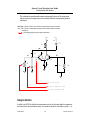
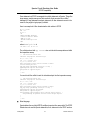
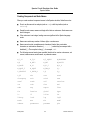
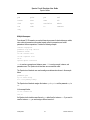
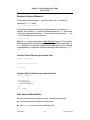
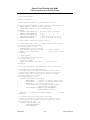
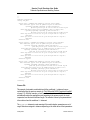
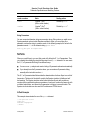
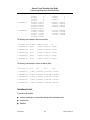
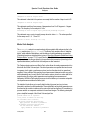
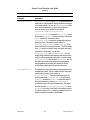
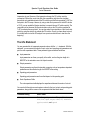
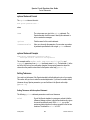
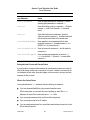
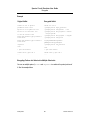
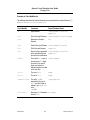
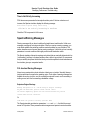
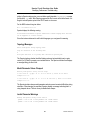
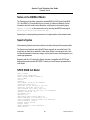
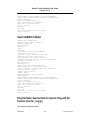
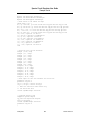
model sp_data nport file="Spara.data"
// Components
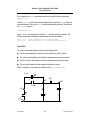
Port1
(i1
gnd)
port
num=1
TL1
(i1
gnd
o1
gnd)
Port2
(o1
gnd)
port
num=2
Port3
(i2
gnd)
port
r=50
num=3
X1
(o2
gnd
o2
gnd)
sp_data
Port4
(o2
gnd)
port
r=50
num=4
tline
z0=25
f=1M
// Analyses
Op_Point dc
Sparams sp stop=0.3MHz lin=100 ports=[Port1 Port3]
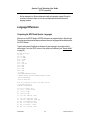
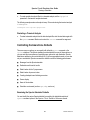
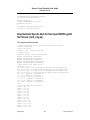
Creating an S-Parameter File Automatically
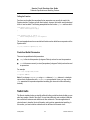
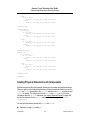
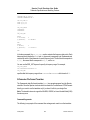
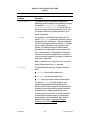
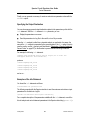
To create an S-parameter file automatically, run an sp analysis that sweeps frequency and
set the output file parameter to file="filename". The parameter filename is the
name you select for the S-parameter file. For more information about specifying an sp
analysis, see Chapter 6, “Analyses,” and the parameter listings for the sp analysis in the
Spectre online help (spectre -h sp).
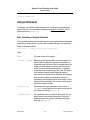
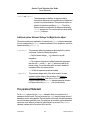
Creating an S, Y, or Z-Parameter File Manually
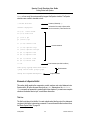
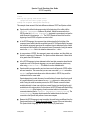
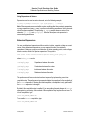
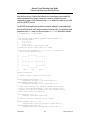
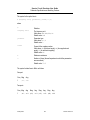
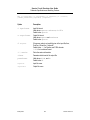
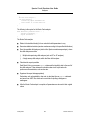
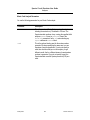
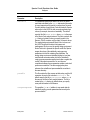
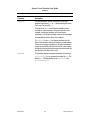
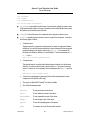
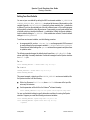
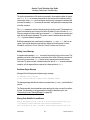
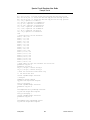
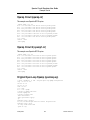
To create an S, Y, or Z-parameter file manually in a text editor, observe the following
guidelines and rules:
■
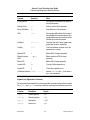
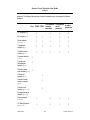
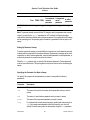
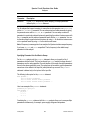
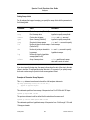
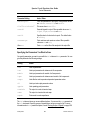
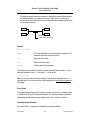
The Spectre simulator accepts the following formats for S, Y, or Z-parameters: realimag, mag-deg, mag-rad, db-deg, and db-rad. The formats do not have to be the same
for each parameter. For clarity, use a comma to separate the two parts of an S, Y, or Zparameter.
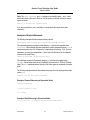
■
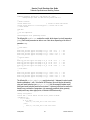
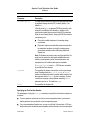
Begin each file with a semicolon. Semicolons indicate comment lines.
■
Use spaces, commas, and newlines as delimiters.
■
You can enter the parameters in any order.
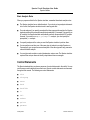
■
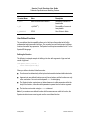
You can specify any number of frequency points. The frequency points do not have to be
equally spaced, but the frequency index must be in ascending or descending order.
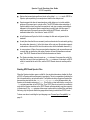
■
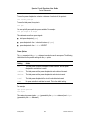
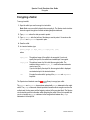
You must place the frequency specification before the S-parameters, and you must
separate the frequency specification from the S-parameters with a colon.
January 2004
121
Product Version 5.0