1
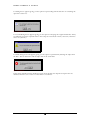
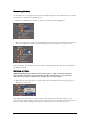
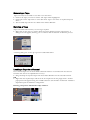
Renaming a Tape Tapes can easily be renamed to ease their use in the future. Click on the Tape you wish to rename. The Tape will be highlighted. Click again on the Tape name to enter edit mode. Type a new name as required and press Enter. The renamed Tape will now be visible in the Folders Window. Deleting a Tape Tapes can be deleted when they are no longer required. Right click on the Tape you wish to delete and select Delete from the popup menu. A dialogue box will appear, allowing you to continue with the deletion or abort the process. Figure 69 DELETE TAPE A warning dialogueue comes up to prevent accidental deletion. Figure 70 WARNING Loading a Tape to a Channel Geevs Virtual Tapes are run from within Channels and have to be loaded into the selected Channel. This can be accomplished in two ways: Drag and drop the required Tape from the Folders Window into the selected Channel. OR Right click the required Tape and select the Load option from the popup menu. Another popup menu will appear listing the available Channels. The number of Channels available is dependent upon the hardware configuration. Deleting a Tape does NOT delete Clips within it. Figure 71 LOAD TAPE