1
G E E V S
S E R V E R
&
C L I E N T
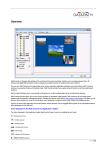
Figure 7 GEEVS CLIENT
DIRECTORY TREE
From the folders window the user can manage the clips held
within the Geevs database
All Clips
All clips and clip folders contained within the Geevs database
are accessed from here. Media directories can be added and
deleted from here.
Searches
The searches function allows the user to search the Geevs
database for clips according to a set of search criteria. Search
results can be easily converted into Geevs Tapes and
Sequences.
Tapes
When working in VTR emulation mode the Geevs can be
controlled as a Slave device through RS232 or RS422 using
Sony protocol. A Virtual tape is a compilation of clips ready
to be run in VTR emulation mode which can be controlled
from an external controller.
Sequences
Sequences allow the User to create Playlists of clips which can incorporate loop and event
controls.
Clips Window
The clips window displays the contents of the currently selected folder. This may be a Clips
Folder, Search Folder, Tape Folder or Sequence Folder. Details of the contained clips can be
viewed here.
Channels Window
This area displays the available Channels within Geevs and their current status. In standard
mode, each channel has play, pause and cue functions. Additional functions are available by
clicking the arrow icon.
Clip Edit Window
Each channel can be controlled
in Edit mode. To access edit
mode, left-click the channel
arrow icon and select edit mode.
Edit mode allows the user to
scrub though a clip, mark In/Out
points and generate sub-clips.
More details about sub-clips are
available in chapter 7
Figure 8 GEEVS CLIENT EDIT WINDOW
7