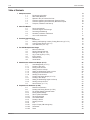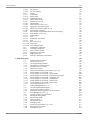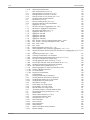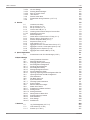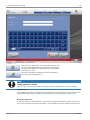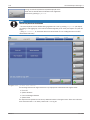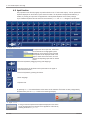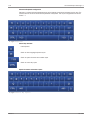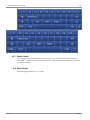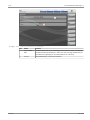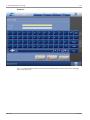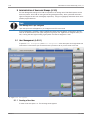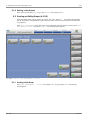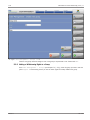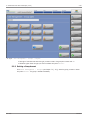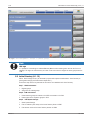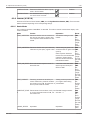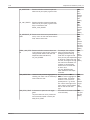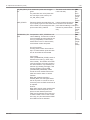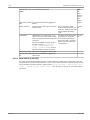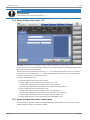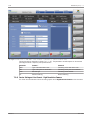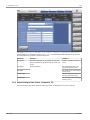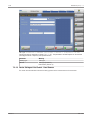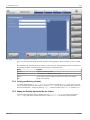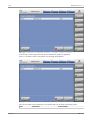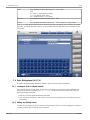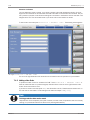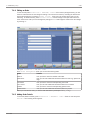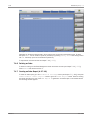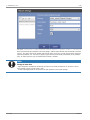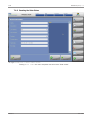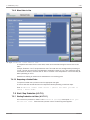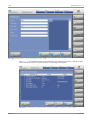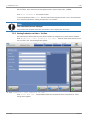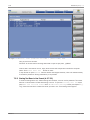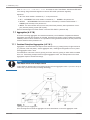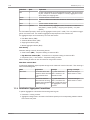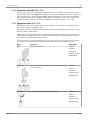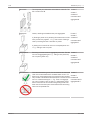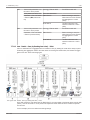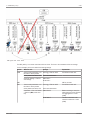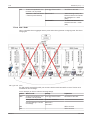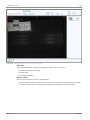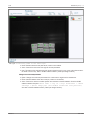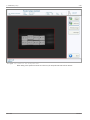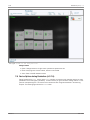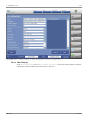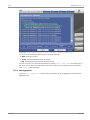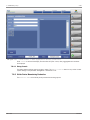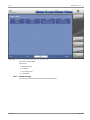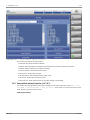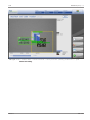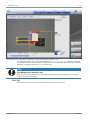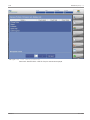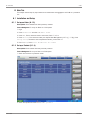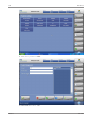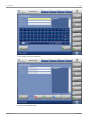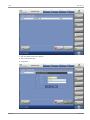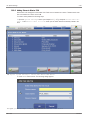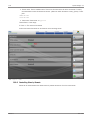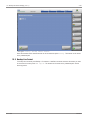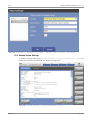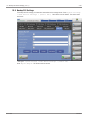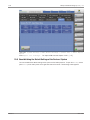
1
Operating Manual Pilot Line Manager 4.10 OM_PLM_410_A_ext Version A 2014-07-07 4.10 Table of Contents Table of Contents Version A 1 Safety Instructions 1.1 1.2 1.3 1.4 1.5 1.6 Explanation of Symbols Basic Safety Measures Operator's Duty to Exercise Due Care Protection against Injuries Caused by Electrical Power Protection against Injuries Caused by Mechanical Impact Transport, Installation and Start-up 9 9 9 9 10 10 10 2 About This Manual 2.1 2.2 2.3 2.4 2.5 Scope and Audience Technical Support and Trainings Formatting and Meaning Availability of Buttons and Screens How to Use Screenshots 11 11 11 11 11 12 3 Functions Overview (A-3) 3.1 Introduction 3.2 Marking and Capturing of Items (Folding Boxes etc.)(A-3.3.2) 3.3 Link of Control Devices (A-3.3.3) 3.4 Level Definitions (A-3.3.4) 13 13 13 14 14 4 The PLM Workspace and Usage 4.1 Menu Tree Overview 4.2 Screen Elements Overview 4.3 Starting the PLM (A-3.4.4) 4.4 Log-in and Log-off (A-3.4.3) 4.5 Input Function 4.5.1 Remote Control 4.6 Home Screen 16 16 17 18 19 22 24 24 5 Administration of Users and Groups (A-3.5) 5.1 User Management (A-3.5.1) 5.1.1 Creating a New User 5.1.2 Editing a User Account 5.1.3 Adding a User to a Group 5.1.4 Adding or Withdrawing Rights to a User 5.1.5 Changing the Password of a User 5.1.6 Deleting a User Account 5.2 Creating and Editing Groups (A-3.5.2) 5.2.1 Creating a New Group 5.2.2 Adding or Withdrawing Rights to a Group 5.2.3 Deleting a Group Account 5.3 Active Directory (H-1.12) 27 27 27 28 29 30 31 32 32 32 33 34 35 6 Preparation for Production (A-3.6) 6.1 Overview of Production 6.2 Creating and Editing Devices (A-3.6.2) 6.2.1 The System Settings Overview Screen 6.2.2 Editing System Settings 6.2.3 Table: System Parameters 6.2.3.1 Taking Screenshots 6.2.3.2 Local Cache Mode 6.2.4 Creating a Device 6.2.5 Deleting a Device 6.2.6 PLC 6.2.6.1 Import / Export (XML settings file) 6.2.6.2 Parameters 6.2.6.3 Teach 37 37 37 37 38 39 42 42 42 44 45 47 48 48 iii Table of Contents 4.10 6.2.6.4 6.2.6.5 6.2.7 6.2.7.1 6.2.7.2 6.2.7.3 6.2.7.4 6.2.8 6.2.8.1 6.2.8.2 6.2.8.3 6.2.8.4 6.2.8.5 6.2.9 6.2.10 6.2.11 6.2.12 6.2.13 6.2.14 6.2.14.1 6.2.14.2 6.2.14.3 6.3 6.3.1 6.3.2 6.3.3 6.3.4 6.3.5 7 Production (A-3.7) 7.1 7.2 7.2.1 7.2.2 7.2.3 7.2.4 7.2.5 7.2.6 7.2.7 7.2.8 7.2.9 7.2.10 7.2.11 7.2.12 7.2.13 7.3 7.3.1 7.3.2 7.3.3 7.4 7.4.1 7.4.2 7.4.3 7.4.4 7.4.5 7.4.6 7.4.7 7.4.8 7.4.9 iv PLC Siemens PLC Allen-Bradley Printers Printer Mode Wolke Printer APS/Domino Printer Zebra 170xiIII Printer Cameras (A-3.6.2.8) Reader Modes Smart Camera (A-3.6.2.8.2) Aggregation with Smart Camera Setting up a Product in SMC (H-1.6) High Resolution Camera Use cases for Printer/Reader Modes with China Coding Hand Scanner (A-3.7.9.4) Checkweigher UPS Comparator VGL7/VGL8 RFID Show EPC History Noise Level Show Debug Console Configuring IP Addresses Allocating IP Addresses Internal Remote Control Example of IP Allocation COM Interface IPs Entering IP addresses at the Devices Production Settings Screen Line Format (A-3.7.2) Line Format Setup Procedure The Add/Edit Line Format Screen Creating a New Line Format Editing Line Formats Editing Device Settings at Line Format (A-3.7.2.5) Device Settings at Line Format - PLC Device Settings at Line Format - Smart Camera Device Settings at Line Format - High Resolution Camera Device Settings at Line Format - Comparator 7/8 Device Settings at Line Format - Hand Scanner Device Settings at Line Format - Wolke Printer Device Settings at Line Format - Zebra Printer Line Format Report (A-3.7.2.11) Product Management (A-3.7.3) The Product Management Screen Creating and Deleting a Product Adding and Deleting Application IDs at a Product Order Management (A-3.7.4) Loading an Order via Hand Scanner Adding and Editing Orders Adding a New Order Editing an Order Adding Order Details Deleting an Order Creating an Order Report (A-3.7.4.6) Resetting the Order Status Move Order to Line 49 49 51 51 51 53 55 56 56 59 61 62 78 80 81 82 83 84 86 87 88 88 89 90 90 90 93 93 94 94 95 95 95 96 96 97 100 100 101 102 103 104 105 106 107 107 108 108 110 110 110 111 112 112 113 113 115 116 Version A 4.10 Table of Contents 7.4.10 7.5 7.5.1 7.5.2 7.5.3 7.5.4 7.6 7.6.1 7.6.2 7.7 7.7.1 7.7.2 7.7.3 7.7.4 7.7.5 7.7.6 7.7.7 7.7.8 7.7.8.1 7.7.8.2 7.7.8.3 7.7.8.4 7.7.9 7.7.9.1 7.7.9.2 7.7.9.3 7.7.9.4 7.7.9.5 7.7.9.6 7.7.9.7 7.7.9.8 7.7.9.9 7.7.9.10 7.7.10 7.7.10.1 7.7.10.2 7.7.10.3 7.8 7.8.1 7.8.2 7.8.2.1 7.8.2.2 7.8.3 7.8.4 7.8.5 7.8.6 7.8.7 7.9 7.9.1 7.9.2 7.9.3 7.9.4 7.9.4.1 7.9.4.2 7.9.4.3 7.9.4.4 7.9.5 7.9.5.1 Version A Reopening a finished Order 116 Start / Stop Production (A-3.7.5) 116 Starting Production via Order (A-3.7.5.1) 116 Starting Production via Order > Test Run 118 Starting Test Run via Line Format (A-3.7.5.2) 119 Production Menu during Production 121 Serialization (A-3.7.6) 122 Internal Handling of SNs (A-3.7.6.1) 122 Serialization Settings at the PLM Software 123 Aggregation (A-3.7.8) 124 Functional Principle of Aggregation (A-3.7.8.1) 124 Serialization / Aggregation Preconditions 125 Serialization with DMS (A-3.7.7.3) 126 Aggregation Status (A-3.7.7.4) 126 Aggregation with ABS 128 Aggregation with SCS 129 Aggregation with MAS 130 Aggregation Examples 130 Item - Bundle - Case (by Reading Bundle Labels) - Pallet 130 Item - Bundle - Case (by Reading Item Label) - Pallet 132 Item - Case - Pallet 133 Item - Pallet 135 Manual Aggregation Actions (A-3.7.7.8) 136 Destroying Parent Label (Reversing Aggregation, A-3.7.7.9.1) 136 Deleting the Relation between Child Unit and Parent Unit (deaggregate) (A-3.7.7.8.2) 137 Suspending an Order (A-3.7.7.8.3) 137 Finishing an Order Before it is completed 137 Commissioning and Decommissioning a Unit (A-3.7.7.8.5) 137 Closing an Incomplete Unit (partial case) 138 Viewing Aggregation Rank of a Unit (A-3.7.8.4) 138 Re-printing a Label with same SN or Different SN (A-3.7.7) 139 Handling Incomplete Units When Order is finished 140 Run Testorder with Imported GTIN (H-4.1) 141 Manual Aggregation by Scanning a Barcode (H-2.9) 141 Creating a Barcode Command 141 List of Commands 142 Commonly used Barcodes 144 Troubleshooting 145 Treating Products after an Interruption 145 Avoiding Waste of Items after an Interruption 145 Use Wildcards globally for all Line Formats 145 Use Wildcards Line Format specific 146 HRC Offset is too large 149 Printer Offset is too Large / Small 150 Ejector Offset is too Large / Small 150 Scanner Offset is too Large / Small 151 “Processing Timeout” at the MPI Software (SCS) 151 Device Options during Production (A-3.7.9) 155 Smart Camera 156 Check of Serial Number (A-3.7.9.2) 157 High Resolution Camera (HRC) 157 Hand Scanner (A-3.7.9.4) 159 Show Information 159 Show Hierarchy 160 Show Aggregation 161 Debug Console 162 Wolke Printer Menu during Production 162 Machine Settings 163 v Table of Contents 4.10 7.9.5.2 7.9.5.3 7.9.5.4 7.9.5.5 7.9.6 7.9.7 7.9.8 Ink Level Settings Cleaning Wolke-Cartridges Show in Process Control Label Preview Domino Printer Menu Camera Menu during Production (A-3.7.9.7) PLC 164 165 165 166 167 168 170 8.1 8.1.1 8.1.2 8.1.3 8.1.3.1 8.1.3.2 8.2 8.2.1 8.2.2 8.2.3 8.2.4 8.2.5 8.2.6 8.2.7 8.2.8 8.2.9 Installation and Setup Set up an Order (H-1.3) Set up a Product (H-1.4) Install a New PLM (H-1.2) Installing a New PLM and Keep the Previous One Problems that can occur Manual Operations Handle Items at Power Failure or E-Stop (H-2.1) Reprint a Case or Pallet Label (H-2.4) Continue Suspended Order (H-2.5) Suspend an Order (H-2.6) View Hierarchy (H-2.7) Aggregate an Item to a closed Partial Case (H-3.7) Aggregate a case to a closed partial pallet (H-3.8) Aggregate pallet to Shipment (H-3.9) Aggregate Item to Case at MAS (H-3.10) 172 172 172 172 178 178 178 178 178 178 179 179 179 179 180 180 180 8 How Tos 9 Special Applications 9.1 Communication with Pilot Site Manager (A-3.8.1) 181 181 10 System Settings 10.1 10.2 10.2.1 10.3 10.3.1 10.3.2 10.3.3 10.3.4 10.3.5 10.4 10.5 10.6 10.7 10.7.1 10.7.2 10.8 10.9 10.9.1 10.9.1.1 10.9.1.2 10.9.2 10.9.3 10.9.4 10.9.5 10.9.5.1 Defining Database Connection Switching between Lines Changing global System Settings Second Signature Configuration Activating Second Signature Second Signature Group Message Configuration Screen Action Configuration Screen Importing / Exporting the Second Signature XML File Importing ERP Data over XML Configuration Email Notification Edit Month Name List System Information Extracting System Information System Logging Remove / Save Error Images Master Slave Feature Configuration of Master and Slave Starting a Slave Starting the Master Adding Slaves to Master PLM Controlling Slave by Remote State Information Slave Settings Start Behavior 182 182 182 183 183 183 184 184 185 186 186 187 189 191 191 192 193 194 194 195 195 196 197 199 200 202 Log File Management (A-3.10.1) View statistics (A-3.10.2) Counters (A-3.10.2.1) 203 203 205 207 11 Statistics 11.1 11.2 11.2.1 vi Version A 4.10 Table of Contents 11.2.2 11.2.3 11.2.4 Print Quality (A-3.10.2.2) Show Error Images (A-3.10.2.3) Database Statistics 208 209 210 12 Backup and Restore Settings (A-3.11) 12.1 Backup Log File 12.2 Backup Camera Formats 12.3 Backup Line Format 12.4 Backup System Settings 12.5 Backup PLC Settings 12.6 Reestablishing the Default Settings of the Devices / System 211 211 211 212 213 214 215 13 Alarms (A-3.12) 217 14 Appendix 14.1 14.2 14.3 14.4 14.5 14.6 14.7 Version A User Rights Table (A-3.5.1.1) Device Classes AI Management (A-3.7.2.12) Regular Expressions Date Values Supported Printers Abbreviations and Terms 218 218 225 226 234 237 238 238 vii Table of Contents viii 4.10 Version A 4.10 Safety Instructions | 1 1 Safety Instructions 1.1 Explanation of Symbols The following symbols and notes are warning signals of possible damage to person or property or assist you as guidelines. DANGER This symbol can be found in the operations manual at all references concerning operational safety, if not adhered to there will be danger to body and life of persons. Always observe the instructions carefully and perform with extreme attention and wariness. Note This symbol indicates the appropriate handling of PCE-components. 1.2 Basic Safety Measures For safe operation of the PCE components the following points must be observed: • The components must be mounted on a stable, mechanical, permanently fixed attachment. • During operation, the components must be protected against the influence of external light. • The power supply of the components is provided by 24 V DC-technique and supplied by an external power source. All necessary safety measures for this type of technique are to be adhered to. The device may only be operated by persons trained on and authorized to use the device, who are familiar with the Instruction Manual and are able to operate the device accordingly. DANGER Lightning causes damage to the eyes Do not look into the lightning without adequate eye protection To ensure safe operation of the system, repeated inspections are to be carried out on all the relevant safety parts, and particularly the above-mentioned points and Instruction Manual are to be observed. 1.3 Operator's Duty to Exercise Due Care The PCE components are developed and constructed under consideration of the harmonized norms to be adhered to, as well as further technical specifications. They meet the latest technical requirements and ensure the highest level of security during operation. The safety of the system during everyday operation can, however, only be ensured if all the necessary, relevant measures are taken. Planning these measures and controlling their implementation is part of the system operator's responsibility for exercising due care. The operator must ensure that: • the system is used in accordance with the stipulations, • the system is only operated in perfect, fully functional condition, • the Instructions Manual is always in a readable condition and is available, in full, where the machine is installed, • only respectively qualified and authorized personnel operate and service the system, Version A 9 / 242 1 | Safety Instructions 4.10 • this personnel is instructed on a regular basis on all the relevant aspects concerning work safety, and that they are familiar with the Instruction Manual and the safety instructions it contains, • all the system features relating to safety are carefully tested at regular intervals, • the higher the safety risks are, protected against by this device, the more frequent regular inspections must be carried out. 1.4 Protection against Injuries Caused by Electrical Power DANGER The system is operated with supply voltage! - Contact with live parts can cause perilous state of shock and severe burns. - Operate system with duly mounted housing only. - Unplug electric supply prior to cleaning and care. - In case of liquid has been spilled on the system, immediately switch off the system and unplug electric supply. 1.5 Protection against Injuries Caused by Mechanical Impact DANGER Danger of injury by movable and rotating parts! - Wear adequate personal protective equipment. - Switch off machine prior to mechanical adjustment work. 1.6 Transport, Installation and Start-up During transport it must be ensured that the device is packed and transported as such that it is protected against moisture and impact. When installing the device in an industrial environment, this should typically be done where the adverse effects of dust, moisture, temperature and vibration are at their very lowest. Safe operation of the device can only be guaranteed if specially trained personnel have conducted the installation and start-up. DANGER Danger of tripping and tumble accidents! - Tripping- and tumble accidents lead to severe injuries! - Install machine connections (cables) adequately in order to avoid tripping! DANGER Rotating axes! - Rotating axes! Can pull in and tear hair, clothing and jewelry. - Do not operate machine with opened housing! - Keep away long hair, loose clothing, jewelry etc. from machine! 10 / 242 Version A 4.10 About This Manual | 2 2 About This Manual 2.1 Scope and Audience This manual describes how to use and configure the Pilot line Manager (PLM). It is intended for personnel who operate the PLM in order to control a vision inspection system for packing lines. This includes: • Operators • Supervisors • Administrators • Engineers During production the PLM can control the following elements: • Manual Aggregation Station • Shipping Case Station • Advanced Bundle Station • Datamatrix Station This includes the corresponding devices like cameras, printers and plc. For information on how to use the PLM in combination with an ERP system, read the Pilot Site Manager (PSM) Operating Manual. 2.2 Technical Support and Trainings At our website you find the latest information about our products and services. Please visit: www.pharmacontrol.de For any requests please do not hesitate to contact us via email or phone: Service line: +49 (0) 6251 85 45 – 555 / Email: [email protected] We provide extensive seminars and trainings that will help you get the most from your equipment. Our application seminars focus on industry and application issues. Individual trainings can be arranged on demand. Please contact us to request your individual training. 2.3 Formatting and Meaning The formats used in this manual have determined meanings. If they are used they denote the following: Formatting Format PC Meaning ‘apostrophes’ Names of fields, columns at the home screen, checkboxes, names of modes, parameters <angle brackets> Wildcard for usernames, wildcard for tab names of devices (individual names can be assigned) Menu Paths, Buttons at the screen surface, fixed tab names, names of screens and dialogs 2.4 Availability of Buttons and Screens Always remember that many functionalities of the PLM need certain user rights. This means if your screen does not offer buttons shown in the user manual it is likely that you need more user rights which have to be assigned to your profile by an administrator. The usual way to assign user rights is to add a user to a user group. Thus the user obtains all user rights belonging to that group. Version A 11 / 242 2 | About This Manual 4.10 2.5 How to Use Screenshots Below each screen you see the path how to get there1. Additional actions that are to perform at this screen are described below the screen2. Wildcard buttons3 and actions at the path4 are placed in brackets. See the following example: 1: 1Figure 2-1: Home>(<select smart camera bar>)3 > Menu > Product management > New product > (enter product name)4 > Enter (at the keyboard) > Live Image 2 12 / 242 Press Next. Version A 4.10 Functions Overview (A-3) | 3 3 Functions Overview (A-3) 3.1 Introduction The Pilot Line Manager PLM is the line management component of the Pilot Software Suite. The PLM controls and administrates centrally at one line the devices such as printers, cameras and scanners. During start of production, the connected devices are provided with static data (e.g. LOT and EXP). As an option, a database connection for serialization is possible (this ensures a distinct traceability of the single unit from the manufacturer to the patient. The operator is able to manage with minimum effort all devices at the line; the provided settings are stored in the central database. In case of Serialization/Aggregation: A clear traceability of the individual packaging from the manufacturer right up to the patient is guaranteed. Figure 3-1: Production line track and trace 3.2 Marking and Capturing of Items (Folding Boxes etc.)(A-3.3.2) The individual packaging units are typically marked via inkjet or laser printer. Thereafter they are verified immediately via a multifunctional Smart Camera as to correct data content and readability. In case of Serialization/Aggregation: The status of every unit will be registered in order to ensure traceability. All units classified as bad will be ejected immediately and only units classified as good proceed the packaging process. The counter readings produced during the evaluation process are displayed in real-time and are stored in the database after stop or completion of the production. Note Datamanagement complies with 21 CFR Part 11 directives Data management and storage as well as operation of the software are in compliance with the 21 CFR Part 11 directives. Version A 13 / 242 3 | Functions Overview (A-3) 4.10 3.3 Link of Control Devices (A-3.3.3) The monitoring devices are connected directly via LAN interface, if there is one. If there is no LAN interface, devices are then connected via RS232 to LAN boxes. To the extent that this is feasible, devices are connected in accordance with the current directives of the VDMA-Standard “VDMAXML_P”. An intelligent component assures compatibility for units without VDMAXML_P capabilities. If their interfaces are exposed, new devices can be rapidly and easily integrated with a custom-developed modular concept. The PLM is able to communicate with other devices via Ethernet, USB and RS232. 2: Figure: Link of devices Note Compliance with the 21 CFR Part 11 Data management and storage as well as operation of the software are in compliance with the 21 CFR Part 11 directives. 3.4 Level Definitions (A-3.3.4) This is an overview of the control levels at the aggregation/serialization process. The following figure is an example how a visual inspection production can basically look like. The detailed structure of your system is defined at the functional specification. 14 / 242 Version A 4.10 Functions Overview (A-3) | 3 3: Figure: Control levels at the aggregation/serialization process Version A 15 / 242 4 | The PLM Workspace and Usage 4.10 4 The PLM Workspace and Usage 4.1 Menu Tree Overview The menu tree shows the maximum possible menu structure of the system. Depending on user rights, certain menus may not be visible. 4: 16 / 242 Version A 4.10 The PLM Workspace and Usage | 4 5: 4.2 Screen Elements Overview The following figure shows the appearance of the PLM Interface. The example shows the device set tings screen. Version A 17 / 242 4 | The PLM Workspace and Usage 4.10 6: Figure: System Settings > Edit device settings > (<PLC tab>) Pos. Name Function 1 Program head Statistical data of the production (current format, status of production, batch number and line name) as well as the registered user 2 Login / Logout By clicking this button you can log in or log off. Button 3 Menu panel 4 Sub Navigation Here the buttons for current interaction are displayed. If an alarm occurs it is displayed here. 5 - Here you can navigate to additional options if applicable. 6 Tab menu The tab menu allows navigating to specific information and device settings. Note: The names of the device tabs can be assigned freely (see chapter 6.2.3.1 [} 39]). 7 Status Bar At the status bar error messages (red), warnings (yellow) and modifications, e.g. of line format, user log-in and log-off, start/stop of production (green) will be displayed. If several messages are displayed, this will be signaled by ^ after the message. By clicking the status line the information history will be called. The current date and time are always visible in the left corner of the status bar. With these buttons you navigate to the main functions. These buttons are fixed. 4.3 Starting the PLM (A-3.4.4) To start the PLM and the line follow the sequence listed below: 1. Turn on the power supply of the stations and devices without having the PLM installed. For example this can be MAS, SCS, ABS. Wait until software is completely up and running. 2. Turn on the power supply of the stations having the PLM installed. This is usually only the DMS but can also be another station. Wait until software is completely up and running. 18 / 242 Version A 4.10 The PLM Workspace and Usage | 4 To automate this delay the startup waiting time at the PLM has to be configured. Press System Set tings > Edit System Settings. At the parameter ‘WT01 Startup waiting time’ set a checkmark at the checkbox and set the waiting time to 20 seconds. See the following screen: 7: Figure: System Settings > Edit system settings (Start up waiting time) Note Meet sequence of turning on stations It is essential to start at first stations and devices without having the PLM installed. If not retaining the sequence an IP-address conflict can occur. 4.4 Log-in and Log-off (A-3.4.3) All rights in the PLM are user dependent. Different users see different screens and can perform different tasks in the PLM. After starting the Pilot Line Manager you have to log-on in order to get access to further functions in the menu panel on the right hand side of the screen. Version A 19 / 242 4 | The PLM Workspace and Usage 4.10 8: Figure: Login Upon clicking the log-in button in the upper right corner the input of a user name and password will be necessary. Depending on the rights of the registered user further functions will be available (see chapter 5 [} 27]). The name of the presently registered user will be displayed on the button (here <Administrator 1>) Note Change password if required Upon first login, the user may be asked to change his password (depending on the system settings). Change of User When a different user wants to operate the Pilot Line Manager, the previous user will have to log off first. It is guaranteed herewith that the created log and production files can be assigned to a specific user. Setting auto log-off time An auto log-off can be adjusted optionally. The user will be logged-off automatically after a preset time, as long as he is not entering any data at the terminal. This functionality can be set under the system settings. 20 / 242 Version A 4.10 The PLM Workspace and Usage | 4 If using an external keyboard the keyboard displayed on the screen can be switched off for the duration of the registration of the user by pressing Keyboard. Note Screen Keeyboard can be disabled - The screen keyboard can be disabled during registration of a user by pressing keyboard (see chapter on logging in and logging off). It can also be switched off globally for all users (see chapter on system settings) - (Using Disconnect, all connected devices are disconnected. This is a debug function for the PCE maintenance technician!) 9: Figure: admin (active user button) The following buttons at the logout screen are only displayed for administrator and engineer users: • Exit to OS • System shutdown • Pilot Line Manager shutdown • System reboot The supervisor and operator do not see any additional buttons at the logout screen. Select one of the functions and confirm with OK or directly confirm with OK to log off. Version A 21 / 242 4 | The PLM Workspace and Usage 4.10 4.5 Input Function Easy operation of the PLM by fingertip is possible thanks to the 15 inch touch display. You can operate the keyboard displayed on the screen if inputs need to be made. The keyboard is displayed automatically, if needed, by clicking an input field. The appearance of the keyboard depends on the country settings. As per hardware keyboard the next field can be accessed by Tab and Shift changes to capital letters. 10: Figure: Keyboard1 The respective active input field, where data can be entered will be highlighted yellow. Depending on the position of the input field the keyboard will be displayed either in the upper or lower third of the screen, as such that the corresponding input field will remain visible. Move the keyboard by dragging moving and dropping it. With these arrows the keyboard can be positioned on the upper or lower end of the screen. Close the keyboard by pressing this button. Switch language. Keyboard size. By pressing Enter the focused button at the screen will be executed. This button is easily recognized by the black frame (see the Login button at the following example). 11: Figure: Frame If using an external keyboard the keyboard displayed on the screen can be switched off for the duration of the registration of the user by pressing the button Keyboard. 22 / 242 Version A 4.10 The PLM Workspace and Usage | 4 Alternative Keyboard Configuration Optionally a modern keyboard designed analog to the Android smart phone keyboards can be used. The Launcher.bat file has to be called with the parameter –fxkeyboard. This layout is supported from version PLM 4.7.1. 12: Figure: Keyboard2 Control key functions: Hide keyboard Switch to other language keyboard layout Switch to special character and number layout Switch to control key layout Special character and number layout: 13: Figure: Control key layout: Version A 23 / 242 4 | The PLM Workspace and Usage 4.10 14: 4.5.1 Remote Control If you want to control the PLM software via remote control, use a common remote desktop program e.g. Teamviewer©. In addition you need an internet connection; performance will be dependent on the speed of your internet connection. 4.6 Home Screen The following figure shows the Home screen: 24 / 242 Version A 4.10 The PLM Workspace and Usage | 4 15: Figure: Home (while production is running) Version A Pos. Name Function 1 Device Status Bars The main menu of the Pilot Line Manager always remains visible. All operating elements available are displayed in order to be able to change between the program functions (depending on the authorization level of the user). 2 Counter (Good/Bad/Overall) of the devices attached 25 / 242 4 | The PLM Workspace and Usage 4.10 Help Button 16: Figure: Help button at the screen The Help button contains a HTML version of this documentation and is always visible in the lower right corner of the status line. 26 / 242 Version A 4.10 Administration of Users and Groups (A-3.5) | 5 5 Administration of Users and Groups (A-3.5) The User Management settings at the PLM are equivalent to the settings at the PSM. Both systems use the same user profiles. At the PLM all user rights are being managed centrally. Name, password and certain rights are assigned to each user access/group respectively. The type of right/group determines access to the possible program functions. Note User Management is pre-configured Upon start-up the user management is pre-configured from PCE service staff! A user management is included in order to add/edit and delete users and groups. All functions in the software can be restricted due to user rights, assigned to a group or user. Rights can be assigned directly to a user, or along with other rights building a group which can then be assigned to a user. 5.1 User Management (A-3.5.1) To open the user management press User Management at the menu panel on the right hand side of the screen. At the overview you can select the user you want to edit or you can create a new user. 17: Figure: User Management 5.1.1 Creating a New User To create a new user press Add.The following screen appears: Version A 27 / 242 5 | Administration of Users and Groups (A-3.5) 4.10 18: Figure: User Management > Add Enter the new username, a password and confirm with OK Note Choose a secure password The password strength corresponds to the security of the password. A secure password contains lowercase and upper-case letters, numbers and also special characters. 5.1.2 Editing a User Account After you have selected a user to edit, see chapter 5.1 [} 27], the following screen appears: 28 / 242 Version A 4.10 Administration of Users and Groups (A-3.5) | 5 19: Figure: User Management > Add > OK The following options for the user can be set: • User account valid until: Here you can set how long the user account will be valid. Enter a date. After this date access is automatically blocked. • User has to change password at next login: At the next login the user is requested to change the password that was given by the administrator. The password strength corresponds to the security of the password. A secure password contains lower-case and upper-case letters, numbers and also special characters. • Locked: A user account can be locked and released. If a user no longer needs its account, access can be locked. If a user enters the wrong password several times (number is depending upon system settings), the account is automatically locked. Only users with specific rights can unlock the user account again. With the buttons at the lower part of the screen you can call up the corresponding functions as described in the following chapters. The table below gives an overview of these functions: Name Function Groups... Add the selected user to the desired group Rights... Add the desired rights to the selected user Change Password... Change the password of the selected user Delete... Delete the selected user 5.1.3 Adding a User to a Group Select a user (see chapter 5.1 [} 27]) and press Groups. The following screen appears: Version A 29 / 242 5 | Administration of Users and Groups (A-3.5) 4.10 20: Figure: User Management > (User) > Groups Select the group to which you want to add the user and press Add. A screen appears where you can see to which groups the user is already added to. Choose the group where the user has to be added. Repeat this step to add the user to additional groups. If you want to withdraw the user from a group select the group and press Delete. Once you have finished editing the affiliation of the user confirm with OK to leave the screen. 5.1.4 Adding or Withdrawing Rights to a User Select a user (see chapter 5.1 [} 27]) and press Rights. A screen appears where you can see which rights are already added to the user: 30 / 242 Version A 4.10 Administration of Users and Groups (A-3.5) | 5 21: Figure: User Management > (User) > Rights Press Add and select the right you want to add to the user and confirm with OK. If you want to withdraw user rights select the right you want to withdraw and press Delete. 5.1.5 Changing the Password of a User Select a user (see chapter 5.1 [} 27]) and press Change Password. The following screen appears: 22: Figure: User Management >(User) > Change password The password strength corresponds to the security of the password. A secure password contains lower-case and upper-case letters, numbers and also special characters. Enter the new password retype it and confirm with OK. Version A 31 / 242 5 | Administration of Users and Groups (A-3.5) 4.10 5.1.6 Deleting a User Account Select a user (see chapter 5.1 [} 27]), press Delete and confirm with OK. 5.2 Creating and Editing Groups (A-3.5.2) Within the groups menu you can create new groups. The “Level” setting (1 … 10) enables administrators who do not have the “maySeeAllUsers” right to view and edit all users on lower levels (for user administration purposes). Press User Management at the menu panel on the right hand side of the screen in order to get to User Management/Groups. Then press Groups. The following screen appears: 23: Figure: Figure: User Management > Groups 5.2.1 Creating a New Group Go to User Management Groups (see chapter 5.2 [} 32]) and press Add. The following screen appears: 32 / 242 Version A 4.10 Administration of Users and Groups (A-3.5) | 5 24: Figure: User Management > Groups > Add Enter the new group name and assign a level to the group. If required add a note. Confirm with OK. 5.2.2 Adding or Withdrawing Rights to a Group Go to User Management Groups (see chapter 5.2 [} 32]), select the group you want to edit and press Rights. At the following screen you can see which rights are already added to the group: Version A 33 / 242 5 | Administration of Users and Groups (A-3.5) 4.10 25: Figure: User Management > Groups > Rights • Add rights: Press Add and select the right you want to add to the group and confirm with OK. • Withdraw rights: Select the right you want to withdraw and press Delete. 5.2.3 Deleting a Group Account Go to User Management Groups (see chapter 5.2 [} 32]), select the group you want to delete and press Delete. The group is deleted immediately. 34 / 242 Version A 4.10 Administration of Users and Groups (A-3.5) | 5 26: Figure: User Management > Groups > (select group) Note ADS login It is possible to connect/login to an Active Directory Server without creating extra users for the Pilot Line Manager. The login via active directory will return a user level which is mapped to certain groups from the PLM. 5.3 Active Directory (H-1.12) Notice: These settings can only be executed by experts with respective authorization. Active Directory requires global settings (see PLM manual chapter 9.2.1). Three basic steps have to be performed to connect the local database with Active Directory: Step 1 - LDAP environment: 1. Register groups 2. Assign user to created groups Step 2 - PLM environment: 1. Create identical groups as created in the LDAP environment in the PLM 2. Define rights for the respective groups in PLM Step 3 – PLM System Settings: 1. Select System Settings 2. Enter IP address (Host name) of the Active Directory Server in AD01 3. Enter domain name of the Active Directory domain in AD02 Version A 35 / 242 5 | Administration of Users and Groups (A-3.5) 4.10 4. Enter Active Directory search path in AD03 5. Enter Active Directory search filter in AD04 Configuration Example: 27: Figure: System Settings > Edit System Settings Time synchronization is only required if there is a Kerberos authentication. This needs to be changed in domain controller. Login if Active Directory is not accessible If Active Directory is not accessible, there is a standard user in all of the groups. Use this standard user to login to PLM. 36 / 242 Version A 4.10 Preparation for Production (A-3.6) | 6 6 Preparation for Production (A-3.6) 6.1 Overview of Production This is an overview on what has to be done prior producing a product. Step Action Comment Explanation 0 Create devices (precondition) Select Device Class. Set device Name and Settings. 1 Create product (optionally) See product management 2 Add a line format Add a line format Name the line format. Assign a product if applicable. Information and settings on how a line is built up: which devices are used at the line format Edit device settings at line format AI fields that have to be used are selected. (PLC, camera, printer…) 3 Create an order Information about and settings of an order including the AI values are entered. A line format is assigned and also a product can be assigned. 6.2 Creating and Editing Devices (A-3.6.2) Important System settings have to be made, devices have to be created. Possible devices are: • Printers • Cameras • Hand Scanner • PLC • UPS • Com Interfaces • Servers • Comparator VGL7/VGL8 • Checkweigher 6.2.1 The System Settings Overview Screen In this menu users with administrator rights can change important system parameters. Note System settings should only be changed by trained personal The PCE tool setter pre-configures system settings at start-up! Changes of these settings can lead to a shutdown of the device! To open the system settings overview press System Settings at the menu panel on the right hand side of the screen. The following screen appears: Version A 37 / 242 6 | Preparation for Production (A-3.6) 4.10 28: Figure: System Settings At the appearing screen the available buttons lead to the functions as follows: Name Function Edit system settings List where you can edit, enable or disable system-wide parameters Create/edit device Create or edit devices for usage in line Edit device settings Edit settings of the devices Switch line Select another line for production Second signature message configuration Define messages which need to be confirmed by second signature Second signature action config- Define actions which need to be confirmed by second signature uration ERP data over XML Configura- Define paths, where the PLM gets order and product data of an XML docution ment Edit Month name list Define input and output format for the name of the month System information Here you get information about the system like database and installed devices Remove/Save error images Remove or save error images 6.2.2 Editing System Settings At this screen you can edit parameters which are valid for the whole system. Press Edit system set tings at the system settings overview (see chapter 6.2.1 [} 37]). The following screen appears: 38 / 242 Version A 4.10 Preparation for Production (A-3.6) | 6 29: Figure: System Settings > Edit System Settings To enable a parameter set a checkmark in the corresponding checkbox and set a value if applicable. Grayed out checkboxes are global system settings, how to change them see chapter 9.2.1 [} 183]. To apply changes at the system settings, the PLM has to be restarted. The table below lists all parameters that can be set here: 6.2.3 Table: System Parameters Version A ID Parameter Description AD01 Active Directory Server name Name of the server with the Ac- tive Directory Default AD02 Active Directory Do- Domain name of the server main name with the Active Directory AD03 Active Directory search path Search path in which the server is found with the Active Directory. Valid Path AD04 Active Directory search filter Type of user admin Alphanumeric AD05 Kerberos Use Kerberos authentication AD06 JAAS login configu- Configuration for Active Direcration file tory SU01 Max. no. of wrong logins Maximal number of wrong lo- 3 gins which locks further logins. Numeric SU02 Time between wrong Time after a wrong login, after 0 logins the count of maximal wrong logins is reset. Numeric - (&(objectClass= user)) Allowed values Alphanumeric Alphanumeric Checkbox - Valid Path 39 / 242 6 | Preparation for Production (A-3.6) 40 / 242 4.10 SU03 Automatic login A user who is used if nobody is logged in. Username SU04 Password strength Calculated value for safety of password. “0” if password doesn’t match with rules. 0 … 255 SU05 Password-validity (month) Number of month after a pass- 12 word must be changes. Numeric SU06 Password history Number of passwords until an 5 old password can be used again. Numeric SU07 Automatic logout (minutes) Number of minutes with no ac- 30 tion after the user is logged out. Numeric SU08 Keyboard always ON Activation / de-activation of the touch screen when Pilot Line Manager is operated using the external keyboard. Yes = Work with touch screen No = Work with mouse and keyboard Checkbox SE01 Company Prefix Used for SSCC values (Aggregation) SE02SE04 Rank 2 SSCC Exten- Prefix for SSCC_Values, that the 0/1/2 sion Code … Rank rank defines 4 SSCC Extension Code SR00 SR08 Rank 0 Description … Rank 8Description Description of the Ranks (hier- Global/Unit/Bundle/ Alphanumeric archical level) Case/Pallet FP01 – FP08 SN Fix Part Rank 1 … SN Fix Rank 8 Fixed part of the serial number for the relevant rank SL01 SL08 SN var. length Rank Length of the variable portion of 12 1 … SN var. length the serial number Rank 8 Numeric SX01 SN Extra percentage Reserve volume of additional (not used) serial numbers in percent Numeric SA01 – SA08 SN Algo Rank 1 … SN Algo Rank 8 Algorithm for generating serial INC numbers: INC: incremental generation of serial numbers INCRND<Number>: Chance numbers between zero and <Number> INC<Number> / INCRND<Number> ES01 ERP SN Ranges Takes over/does not take over the serial number from ERP Checkbox PA01 PDF templates path Directory for filing the PDF re- port templates. This can be done centrally for several lines. If the field is empty, the standard folder of the PCETnT directory will be used. 0 - 0 Numeric 0…9 Alphanumeric Valid UNC path. Version A 4.10 Version A Preparation for Production (A-3.6) | 6 PA02 PDF path Directory for filing the PDF reports of the line. This can be done centrally. If the field is empty, the standard folder of the PCETnT directory will be used. - Valid UNC path. PA03 Print screen path Path for screenshots of the PLM. Enter the directory path, e.g. D:\pictures. Triggering is done via external keyboard by pressing the print key. Checkbox SI01 Second signature Switches on whether Second Signature is active or not. Checkbox SI02 Second signature group When activated, only users who join the “SI02 Second Signature” group are allowed to confirm signatures. Checkbox SV01 Supervisor station Switches the software to the supervisor mode. Checkbox EI01 Max error images count Max. number of error images left in memory. EX01 ERP over XML When activated data are imported from PSM. XP01 ERP over XML path 10 Numeric Path of XML documents in a data transfer - Valid Path XP02 ERP over XML con- Path of XML confirmation file firmation path - Valid Path IP01 Default IP IP address, which defines by several network cards in the address area of the devices - Valid Path EM01 ERP XVIEW Mode Imports/does not import the orders from ERP Checkbox DP01 Parallel devices start Activates/deactivates the paralup: lel loading of the order data to the devices (accelerated production start). Checkbox EF01 Allow Empty fields in Only for “French Coding”. order tables Empty fields are not printed and not checked. Checkbox RF01 Reset readers ref. code Checkbox WT01 Startup waiting time If a database connection is (sec) missing, a start delay can be set. US01 PLC not UPS supplied After finishing production, invalid reference codes are sent to all reading devices to prevent reading of codes after production is finished. If there is a power failure during production, an attempt to read the last counter by the PLC will fail. This will avoid blocking the Pilot Line Manager application. 0 Numeric Checkbox 41 / 242 6 | Preparation for Production (A-3.6) 4.10 PS01 Parallel devices connection Activates/deactivates the parallel start of the devices when starting up. Checkbox FR07 Filter Open Order Customized ERP order import Checkbox DR01 Dynamic Device Ranks The device rank is variable and is defined in the line format. Checkbox KA01 Keep Agg. Rank State In case of production interrup- tions, the input product ranks will not be deleted, they will be saved. 2…8, separated by comma (e.g. 2,3,5) FR01 Set finished order read-only At the end of order the status will be set to “4” instead of “3” (usually it is set to “3”). Thus, it will not be possible to commission and decommission manually. Checkbox LC01 Local Cache Mode Activates/deactivates buffering of the order data in order to be able to continue production without database connection. Checkbox EA01 Allow empty aggre- Allows aggregation of empty gation cases to pallet although a content count is defined. Checkbox RA01 Reprint new serial When reprinting a damaged label, the new label gets a new serial number instead of reusing the old serial number. Checkbox HC01 Helper code length Defines length of helper code DN01 Decommission not Decommissions not aggreaggregated units on gated unit on a rank rank 6 Numeric - Alphanumeric 6.2.3.1 Taking Screenshots To trigger a screenshot of the current screen, press the <print key> button at the external keyboard. Precondition: • Set a checkmark in the checkbox at the parameter PA03 in the system settings and enter the directory path there and press Save to save the settings. • Restart the PLM to apply the settings. 6.2.3.2 Local Cache Mode Usually the PLM is connected to a central database and all data are written to database continuously. If database connection is lost; PLM is not able to continue the production. The local cache mode allows continuing the production also if database connection is lost, by storing the order data to the local cache. To enable local caching: • Set a checkmark in the checkbox at the parameter LC01 in the system settings. • Restart the PLM to apply the settings. 6.2.4 Creating a Device Before a device can be used in the system it has to be “created” in the PLM. This chapter describes how to create and edit devices. To create a device open the System Settings screen (see chapter 6.2.1 [} 37]) and press Create/edit device. At the Device table for line screen you see which devices are already created in the PLM: 42 / 242 Version A 4.10 Preparation for Production (A-3.6) | 6 30: Figure: System Settings > Create edit device/add device Sequence of Devices (Sort) At the column ‘Sort’ you can assign numbers to the devices. The sequence entered here will be adopted for the device bars at the home screen and for the tabs at the Edit device settings screen. At this screen you have the following options: Remove: Inactivates the chosen device, use this for example if a device is not used in any format. Reconnect: Reconnection if a device is lost. Is only for PCE service staff and should otherwise not be used. Press Add to create additional devices. The following dialog appears: 31: Figure: System Settings > Create edit device/add device > Add Device Version A 43 / 242 6 | Preparation for Production (A-3.6) 4.10 • ‘Device name’: Enter an individual name for the device. This will be the name for the device tab at the line format. For clarity we recommend to name the devices as follows: (Station on which the device is used)_(Device). Examples: - DMS_Wolke printer - ABS_HRC • ‘Class name’: The class contains predefined device formats. At the device formats the fields to be printed on a product are defined. At the line format the device formats and their fields are loaded. ‘Device Owner’ (Virtual Device Owner): Device owner refers to a single master device that exists physically but is to fulfill several functions on various ranks (See example below). If a device does not support the virtualization mode, the device owner field is disabled. Example for Device Owner: A printer needs to be able to print different labels on 2 different ranks. It is first registered as a normal "PrinterMaster" device. This is the owner or master. This printer is then registered a second time as a virtual "PrinterSlave" device with the owner device: "PrinterMaster". The second printer is then assigned to another rank. Thus there are now two devices in the Pilot Line Manager that can print out labels on a master device. Log Level The logLevel parameter of each device setting allows to control how many log data is produced and saved to plm.log. A per device setting allows debug logs only for a limited scope namely the specific device. Possible values are: • TRACE (all possible log data is logged. Use this log level only for a limited time) • DEBUG (less than TRACE is logged) • INFO (Default level, less than DEBUG is logged) • WARN (warnings and error messages are logged, less than INFO is logged) • ERROR (only error messages are logged) Note Press reconnect after Login/log-off After login/log-off from devices, the button Reconnect on the tab “System” must be pressed. 6.2.5 Deleting a Device To delete a device select it at the Device table for line screen (see: Chapter 6.2.3.1 [} 39]) and press Remove. If a device is still linked to a line it is not possible to delete it. The following error message appears: “Device is linked to a configuration”. Confirm the message by pressing Confirm and deactivate the device at the line or delete the line format. 44 / 242 Version A 4.10 Preparation for Production (A-3.6) | 6 6.2.6 PLC 32: Figure: System Settings > Edit device settings > (Select PLC tab) At the PLC tab scroll down. With the buttons at the lower part of the screen you can call up the corresponding functions as described in the following chapters. The table below gives an overview of these functions: Name Function Parameter Set, delete and edit PLC parameters Messages Set, delete and edit PLC messages Counter Configure PLC counter Import / Export Import and export of parameters, messages and counters Teach PLC configuration (e.g. inform of the positions of the devices and the sensors) The table below gives an overview of the possible PLC settings of the screen above: Version A Parameter Description Default value Allowed values Name Freely selectable name - Alphanumeric Description Optional description - Alphanumeric PLCType Type of the used PLC S7_200_compatible Drop-down list automaticMode When automatic mode is active, manual operation of the device is not possible. boxingRank Hierarchy level counterRefreshTime Refresh time [ms] for the 1000 Pilot Line Manager to ask for new counter values from the PLC Checkbox (1) Unit 0 ... 8 Numeric 45 / 242 6 | Preparation for Production (A-3.6) 4.10 heartBeatPLCTime Time [ms] for the PLC to 1000 check the connection to the IPC Numeric heartBeatPilotTime Time [ms] for the Pilot to 1000 check the connection to the PLC Numeric internalFormats PLC to administer internal formats Checkbox ip IP address of the device logLevel Setting of how much data INFO is logged (TRACE/DEBUG/ INFO/WARN/ERROR) Drop-down list needDeviceFormat Device appears on the line format. Printed status Checkbox readTimeOut Waiting [ms] time for an 1000 answer before timeout Numeric shiftRegister Display of the shift register in the overview Checkbox shiftRegisterRefreshTime Update time [ms] of the shift register display statusBitWaitTime Time [s], end of produc- 10 tion after a timeout of the PLC. Numeric watchDogTime Time [ms] to ask for errors Numeric writeCounters PLC counter readings are stored in the database in case of discontinuation or stop of the production. Checkbox ShowDeviceFrame Activates/deactivates display of the device in the menu “overview”. Checkbox - Valid IP address LogLevel 46 / 242 200 500 Numeric Version A 4.10 Preparation for Production (A-3.6) | 6 6.2.6.1 Import / Export (XML settings file) 33: Figure: System Settings > Edit device settings > (select PLC) > Import/Export Press Import all settings. The screen looks as follows: 34: Figure: System Settings > Edit device settings > (select PLC) > Import/Export > (select file) Select the XML file suitable for the PLC version and press Open. Version A 47 / 242 6 | Preparation for Production (A-3.6) 4.10 6.2.6.2 Parameters At the following screen you can edit the PLC parameters. Setting parameter globally If you want to set a parameter globally for all line formats (settings are not editable at the line format) set a checkmark at its checkbox. Then the values have to be entered here at the system settings. Setting parameter locally If you want to change the parameters locally at the line format (settings have to be set at the line format) set no checkmark at its checkbox. Then the values have to be entered at each line format. Setting a checkmark makes parameter global. Setting no checkmark makes the setting local. • Global • Local at device The screen looks as follows: 35: Figure: System Settings > Edit device settings > (select PLC) > Parameter 6.2.6.3 Teach Press Teach in order to load the XML data to the PLC. Press Save to save the PLC settings. 48 / 242 Version A 4.10 Preparation for Production (A-3.6) | 6 6.2.6.4 PLC Siemens 36: Figure: Home > PLC Class name: Siemens SPS IP / SPS PPI Only the counters are displayed 6.2.6.5 PLC Allen-Bradley Class name: Rockwell PLC Selecting the PLC Allen-Bradley field, the screen below appears with its two buttons Show PLC IO and Select PLC Mode. Version A 49 / 242 6 | Preparation for Production (A-3.6) 4.10 37: Figure: Home > PLC Select Show PLC IO to see which inputs and outputs of the PLC are set. The screen below will appear. This screen is only a display. No manually configuration is possible. 38: Figure: Home > PLC > IO Panel 50 / 242 Version A 4.10 Preparation for Production (A-3.6) | 6 Select PLC Mode to control functions manually. Example: Select Stopper1 to activate Stopper1. 6.2.7 Printers In this chapter the settings of the printers are described. 6.2.7.1 Printer Mode The ‘printerMode’ configures printers and distinguishes aggregation from serialization/static printers. • 'AGGREGATE_PRINTER': These are only used on ranks > 1 and are supplied with labels individually. Example: ABS Bundle Label Printer. • 'BUFFERED_PRINTER': This is the standard setting for serialization or static printers on rank 1. On this setting, the printer (if online) loads the internal buffer with labels at beginning of production. Example: DMS Wolke Printer • 'HC_PRINTER': Prints helper codes. • 'COPY_PRINTER': Prints data read by a reader (COPY_READER Mode) . Example: Temporally delayed reprint of a temporally aggregation label. • 'DISTRIBUTION_PRINTER': Print buffer . Collects printing data from DISTRIBUTION_READER and prints at a defined time. Example: • 'LINEFORMAT': This changes the setting of the device settings to line format, in which ‘Aggregate Printer’ and ‘Buffered Printer’ can then be selected. 6.2.7.2 Wolke Printer The Wolke Printer is editable under System Settings > Edit device settings > (se lect <wolke printer tab>). At the tab menu on the top you can switch between the screens. Version A 51 / 242 6 | Preparation for Production (A-3.6) 4.10 39: Figure: System Settings > Edit device settings > (select <Wolke printer tab>) Edit the settings at the input fields and scroll down menus. The table below gives an overview of these functions: 52 / 242 Parameter Description Default value Allowed values Name Name that has been assigned in the device management settings. - Alphanumeric Description Optional description - Alphanumeric PLCName Name of the printer for the PLC (Printer 1 … Printer 8) - Drop-down list automaticMode When automatic mode is active, manual operation of the device is not possible. boxingRank Hierarchy level (1) Unit 0 ... 3 buffer Number of buffered printers 18 Numeric debugMode Output of errors/warnings/messages. Only for PCE purposes Checkbox internalFormats Printer manages internal formats Checkbox ip IP address of the device - Valid IP address logLevel Setting of how much data is logged (TRACE/DEBUG/INFO/WARN/ERROR) INFO Drop-down list needDeviceFormat Determines whether the device is jointly used in the line format. Checkbox port Port number Numeric printerMode AGGREGATE_PRINTER: BUFFERED_PRINTER: Checkbox BUFFERED_PRINTER Drop-down list Version A 4.10 Preparation for Production (A-3.6) | 6 showDeviceFrame Activates/deactivates the display of the device in the menu “overview”. Checkbox 6.2.7.3 APS/Domino Printer The APS/Domino Printer is editable under System Settings > Edit device settings > (select <APS/Domino printer tab>). At the tab menu on the top you can switch between the screens. The following two figures display the printer settings of the Domino Printer (initial screen and scrolled down). The settings can be configured. 40: Figure: System Settings > Edit device settings > (select <APS/Domino printer tab>) Version A 53 / 242 6 | Preparation for Production (A-3.6) 4.10 41: Figure:System Settings > Edit device settings > (select <APS/Domino printer tab>) Edit the settings at the input fields and scroll down menus. The table below gives an overview of these functions: Parameter Description Default value Allowed values Name Name that has been assigned in the device management settings. - Alphanumeric Description Optional description - Alphanumeric APSSIMPath Path where the APS simulation software can be found - Valid Path PLCName Name of the printer for the PLC - Drop-down list automaticMode When automatic mode is active, manual operation of the device is not possible. boxingRank Hierarchy level (1) Unit 0 ... 3 buffer Number of buffered printers 5 Numeric internalFormats Printer manages internal formats IP IP address of the device - Valid IP address logLevel Setting of how much data is logged (TRACE/DEBUG/INFO/WARN/ERROR) INFO Drop-down list needDeviceFormat Determines whether the device is jointly used in the line format. port Port number 502 Printer mode AGGREGATE_PRINTER: BUFFERED_PRINTER: BUFFERED_PRINTER Drop-down list Checkbox Checkbox Checkbox Numeric LINEFORMAT: 54 / 242 Version A 4.10 Preparation for Production (A-3.6) | 6 printerUnit Number of printer heads showDeviceFrame Activates/deactivates the display of the device in the menu “overview”. 1 Numeric Checkbox 6.2.7.4 Zebra 170xiIII Printer The Zebra 170xiIII Printer is editable under System Settings > Edit device settings > (select <zebra 170xiIII printer tab>). At the tab menu on the top you can switch between the screens. 42: Figure: System Settings > Edit device settings > (<select zebra 170xiIII printer tab>) Edit the settings at the input fields and scroll down menus. The table below gives an overview of these functions: Version A Parameter Description Default value Allowed values Description Optional description - Alphanumeric PLCName Name of the printer for the PLC - Drop-down list automaticMode When automatic mode is active, manual operation of the device is not possible. boxingRank Hierarchy level (1) Unit 0 ... 3 buffer Number of buffered printers 2 Numeric internalFormats Printer manages internal formats Checkbox ip IP address of the device Valid IP address logLevel Setting of how much data is logged (TRACE/DEBUG/INFO/WARN/ERROR) INFO Drop-down list labelPath Path on which the label inventory is stored for the printer. - Valid Path Checkbox 55 / 242 6 | Preparation for Production (A-3.6) 4.10 needDeviceFormat Determines whether the device is jointly used in the line format. Checkbox showDeviceFrame Activates/deactivates the display of the device in the menu “overview”. Checkbox 6.2.8 Cameras (A-3.6.2.8) Cameras of PCE are the Smart Camera (SMC) and the High Resolution Camera (HRC). These can fulfill different functions depending on the corresponding settings. 6.2.8.1 Reader Modes At this table the parameter ‘readerMode’ is described. This table is valid for hand scanners equally if the mode is available. Mode Function PRINT_INSPECTION Reads and checks static or serialized labels and its print quality if good or bad. Print inspection reader statistics are rank related. Explanation Device The standard setting for most readers. SMC, VGL, hand scanner (single item reader) STATIC_INSPECTION Reads and checks static (non serialized) Default setting for generic non HRC, labels and its print quality if good or bad. serialized reader on global rank SMC, (rank 0). VGL, hand Static inspection should be used for non-item related label scanner (single inspection. Reader statistic and muldoes not influence serialized tiple item label database status. reader STATIC_INS_BUFFER Static rank related inspection mode. Fill device SN store PRINT_COMPARE 56 / 242 Used when reader read static data but printer should print SGTIN or SSCC. Previously printed units are further proAlready produced products are cessed. Camera only reads the numbers put in again without being and sends it to the PLM. SN verification is printed before. done by PLM instead of camera. HRC, SMC, VGL, hand scanner (single and multiple item reader SMC, VGL, Scanner (single item reader) AGGREGATE_READE Reads several child unit labels one by one Standard setting for readers R or at once and sends codes to PLM, veri- with rank > 1 fies content size. HRC, SMC, VGL, hand scanner (single and multiple item reader) LINKING_READER deprecated deprecated deprecated Version A 4.10 Preparation for Production (A-3.6) | 6 HC_INSPECTION Reads and checks serialized helpercode labels and its print quality if good or bad. SMC, VGL, hand scanner (single item reader) HC_LINK_READER Reads and checks serialized helpercode labels and its print quality if good or bad. Only in combination with SERIAL_LINK_READER. SMC, VGL, hand scanner (single item reader) HC_AGGREGATE_RE Reads several child unit helpercode labels ADER one by one or at once and sends codes to PLM, verifies content size. SERIAL_LINK_READ Reads and checks serialized labels and ER its print quality if good or bad. Process is linking between current read code and helpercode label read before by HC_LINK_READER. AGG_INSPECTION For example, this is helpful when you change the outer packaging and the existing codes can no longer be read. Then you can print helpercodes on the units, linked to the original code, to recognize the original code at the database. Precondition: a second reader must be set to the same rank an has to be in HC_LINK_READER.mode, which checks the PCE-helpercode label. SMC, VGL, hand scanner (single item reader) Verifies the last processed aggregation by At a case packer a HRC or checking if an items is at an assumed po- SMC are used as aggregate insition inside of a case. spection reader. This reader checks if a unit is at the expected position. E.g. the last unit is at the lower right of the case. If that is true this affirms that all units must be also right. HRC, SMC, VGL, hand scanner (single item reader) AGG_DELAY_PRINT All children of a parent unit are aggregated. The parent label will not be printed until one child serial number is read by the AGG_DELAY_PRINT. Version A HRC, SMC, VGL, hand scanner (single and multiple item reader) This mode can be used to label SMC, a unit with delay. VGL (Single item reader) 57 / 242 6 | Preparation for Production (A-3.6) 4.10 HC_AGG_DELAY_PR All children of a parent unit are aggreINT gated. The parent label will not be printed until one child helper code is read by the HC_AGG_DELAY_PRINT. COPY_READER Reads and checks serialized labels and its print quality if good or bad. Sends read serial number to a connected printer with printer mode: COPY_PRINTER. DISTRIBUTION_REA Compareable to COPY_READER but with DER internal buffering. This function is used for lines with reading of several labels at one item (e.g. helpercode) in same rank. It makes sense to use it if there are many items between camera and printer. This mode can be used to label SMC, a unit with delay. VGL, hand scanner (single item reader) Used for sending unknown serial numbers to a connected printer without buffering. A read code will be printed immediately. SMC, VGL, hand scanner (single item reader) SMC, VGL, hand scanner (single item reader) Aim of this function: Avoiding waste of items when machine stops. All items between printer and camera can be avoided to be discarded. How it works: CAM1 (DISTRIBUTION_READER) reads all elements of the code (e.g. GTIN, expiry, serial number). The elements are verified (with the exception of the serial number). The serial number is only checked for attendance (by checking the length). Then the serial number is sent to CAM2 (DISTRIBUTION_CONSUMER). CAM2 checks the serial number received from CAM1 and sets the status to ‘verified’. Problem: When both cameras would be in READER_MODE, the shift register would start at the printer. In case of an error all items from printer till CAM2 would have to be replaced. Solution: When CAM1 gets the serial numbers from CAM2 and not from the printer, the sequence of items between printer and CAM1 can be changed. So the shift register starts at CAM1. Thus in case of a machine stop, only the items between CAM1 and CAM2 have to be discarded. 58 / 242 Version A 4.10 Preparation for Production (A-3.6) | 6 DISTRIBUTION_CON see DISTRIBUTION_READER SUMER SMC, VGL, hand scanner (single item reader) AGG_PRINT_INPECT Print Inspection Mode and Aggregation ION Reader readers PARITY_READER Compares two or more equal pre-printed external serials Two or more parity reader All readcheck for identical serials on a ers single unit. Used for china code without PLM printed helpercodes. LINEFORMAT LINEFORMAT is no reader mode. It is a switch to move the reader mode configuration from the global device setting to the line format. The reader mode settings from All readthe selected line format are ers used. Reader mode settings have to be made in the device details of the line format and are stored there. Setting LINEFORMAT as reader mode in the device settings (System set tings > Edit device set tings > reader Mode) allows to define the reader mode per line format. ABS_AGG_READER ABS enhanced aggregation reader mode ABS_HC_AGG_READ ABS enhanced helpercode aggregation ER reader mode 6.2.8.2 Smart Camera (A-3.6.2.8.2) The Smart Camera reads barcodes, data matrix codes and human readable text and compares it with the data received from the PLM. When the data is valid, the item is further processed. If data is unvalid, the item will be discarded. The Smart Camera is editable under System Settings > Edit device set tings > (<select smart camera tab>). At the tab menu on the top you can switch between the screens. Version A 59 / 242 6 | Preparation for Production (A-3.6) 4.10 43: Figure: System Settings > Edit device settings > (<select smart camera tab>) Edit the settings at the input fields and scroll down menus. The table below gives an overview of these functions: 60 / 242 Parameter Description Default value Allowed values Name Name that has been assigned in the device management settings Camera Alphanumeric Description Optional description - Alphanumeric PLCName Name of the printer for the PLC Cam1 Drop-down list autoVerifyAggUnit Possibility of combining with one reading process the verification and commission into the database. Checkbox automaticMode When automatic mode is active, manual operation of the device is not possible. Checkbox boxingRank Hierarchy level ConnectGui Activates/deactivates the image processing on the camera Checkbox debugStatistics Stores communication between the Pilot Line Manager and the camera in txt data. Only for error searches, otherwise this should be switched off. Checkbox (1) Unit Drop-down list Version A 4.10 Preparation for Production (A-3.6) | 6 errorImages Activates/deactivates the permanent storage of MSC error images in the Pilot database Checkbox internalFormats Camera manages internal formats Checkbox ip IP address of the device 192.168.100.215 Valid IP address logLevel Setting of how much data is logged (TRACE/DEBUG/INFO/WARN/ERROR) INFO needDeviceFormat Device appears on the line format Checkbox preAggregationReject Units scanned by aggregation reader are validated direct after read and rejected by PLC. Default the validation process starts with the covering box close signal (content size is reached or close button) Checkbox readerMode PRINT_INSPECTION Drop-down list PRINT_INSPECTION Drop-down list AGGREGATE_READER LINKING_READER AGG_INSPECTION LINEFORMAT showDeviceFrame Activates/deactivates the display of the device in the menu “overview”. Checkbox useWildcards Activates/deactivates the transfer of the serial number through a placeholder (*****) it is only checked for length, not for contents. Checkbox 6.2.8.3 Aggregation with Smart Camera Aggregation of items to a case can also be done via Smart Camera. This feature will only be implemented for the latest Smart Camera generation (150, 205, 206, 215). To achieve this, the camera uses its subset and set to store serial numbers temporarily. The aim is to send the complete set of serial numbers to the PLM only after the case was closed, while filling a new case in the meantime. How it works The aggregation process via Smart Camera is described in the Flowchart below (See Figure 6-17: Aggregation with Smart Camera [} 61]). Parameter Actions by SMC Filling Case (A) Capturing Items (for Save SNs to Subset Case A) Processing in SMC and PLM Case A filled - Transfer SNs from Subset to Set Filling new case (B) Capturing Items (for Save SNs to Subset Case B) Version A Case (A) complete - Keep on filling new case (B) Capturing Items (for Save SNs to Subset… Case B) Transfer SNs from Set to PLM, check and Aggregate SNs 61 / 242 6 | Preparation for Production (A-3.6) 4.10 44: Figure 6-17: Aggregation with Smart Camera 6.2.8.4 Setting up a Product in SMC (H-1.6) This chapter describes how to set up a product in the Smart Camera. Some step sequences have to be repeated in order to set several fields. For this the steps are numbered. 62 / 242 Step Action 1 Press Home. Version A 4.10 Preparation for Production (A-3.6) | 6 45: Figure: Home Step Action 2 Select the camera bar. The following screen appears (It may be that the software automatically skips this screen. In this case you do not need to press menu at this point and you see the subsequent screen): Version A 63 / 242 6 | Preparation for Production (A-3.6) 4.10 46: Figure: Home > (<select smart camera bar>) Step Action 3 Press Menu. The following screen appears: 64 / 242 Version A 4.10 Preparation for Production (A-3.6) | 6 47: Figure: Home > (<select smart camera bar>) > Menu Step Action 4 Press Product management. The following screen appears: Version A 65 / 242 6 | Preparation for Production (A-3.6) 4.10 48: Figure: Home > (<select smart camera bar>) > Menu > Product management Step Action 5 Press New product. The following dialog (New product name) appears: 66 / 242 Version A 4.10 Preparation for Production (A-3.6) | 6 49: Figure: Home > (<select smart camera bar>) > Menu > Product management > New product Step Action 6 Enter a unique product name. 7 Press Enter on the keyboard. The following dialog (Live image) appears: Version A 67 / 242 6 | Preparation for Production (A-3.6) 4.10 50: Figure: Home > (<select smart camera bar>) > Menu > Product management > New product > (en ter product name) > Enter (at the keyboard) Step Action 8 Select live Image. 9 Place item underneath the Smart Camera. The following screen appears: 68 / 242 Version A 4.10 Preparation for Production (A-3.6) | 6 51: Figure: Home > (<select smart camera bar>) > Menu > Product management > New product > (en ter product name) > Enter (at the keyboard) > Live Image Step Action 10 Select Next. The following dialog (Control) appears: Version A 69 / 242 6 | Preparation for Production (A-3.6) 4.10 52: Figure: Home > (<select smart camera bar>) > Menu > Product management > New product > (en ter product name) > Enter (at the keyboard) > Live Image > Next Step Action 11 Press OCV control. The screen looks as follows: 70 / 242 Version A 4.10 Preparation for Production (A-3.6) | 6 53: Figure: Home > (<select smart camera bar>) > Menu > Product management > New product > (en ter product name) > Enter (at the keyboard) > Live Image > Next > OCV control To set the control window for the expiry date proceed as follows. Step Action 12 Move the yellow control window in a way that it is arranged around the expiry date. See below. To set the control window you can use the navigation arrow keys as described in the following table. You can also move the control window and adjust its borders by dragging and dropping the borders. Button Function Navigation arrow keys for functions at the modes. The mode is selected at the button in the middle. Button Mode ‘scrolling’ Version A The control window can be moved using the arrow keys. 71 / 242 6 | Preparation for Production (A-3.6) Step 4.10 ‘zoom in’ The control window can be enlarged using the arrow keys. ‘zoom out’ The control window can be reduced using the arrow keys. Action 13 After the control window is set to the right position, press OK to confirm. The following Dialog (Threshold) appears: 54: Figure: Home > (<select smart camera bar>) > Menu > Product management > New product > (en ter product name) > Enter (at the keyboard) > Live Image > Next > OCV control (arrange con trol window) > OK (set threshold) Step Action 14 Move threshold in a way until you can clearly read the font. 15 Then press OK to confirm. The following dialog (Window with measuring arrows?) appears: 72 / 242 Version A 4.10 Preparation for Production (A-3.6) | 6 55: Figure: Home > (<select smart camera bar>) > Menu > Product management > New product > (en ter product name) > Enter (at the keyboard) > Live Image > Next > OCV control (arrange con trol window) > OK (set threshold) > OK Step Action 16 Select Yes. After pressing Yes, the following dialog (Font Memory) appears: Version A 73 / 242 6 | Preparation for Production (A-3.6) 4.10 56: Figure: Home > (<select smart camera bar>) > Menu > Product management > New product > (en ter product name) > Enter (at the keyboard) > Live Image > Next > OCV control (arrange con trol window) > OK At this dialog you have to choose the font memory you would like to use. Step Action 17 Select ocrb. The following dialog (Prepare another control?) appears: 74 / 242 Version A 4.10 Preparation for Production (A-3.6) | 6 57: Figure: Home > (<select smart camera bar>) > Menu > Product management > New product > (enter product name) > Enter (at the keyboard) > Live Image > Next > OCV control (arrange control window) > OK (set threshold) > OK > Yes (select font memory) To set another control window for the <LOT> field you have to repeat the steps (11-15). Version A Step Action 18 PressYes. (You are automatically led back to proceed from step 11) 19 Repeat steps 11–15 75 / 242 6 | Preparation for Production (A-3.6) 4.10 58: Figure: Home > (<select smart camera bar>) > Menu > Product management > New product > (enter product name) > Enter (at the keyboard) > Live Image > Next > OCV control (arrange control window) > OK (set threshold) > OK > Yes (select font memory) Step Action 20 Select No. The following screen appears: 76 / 242 Version A 4.10 Preparation for Production (A-3.6) | 6 59: Figure: Home > (<select smart camera bar>) > Menu > Product management > New product > (enter product name) > Enter (at the keyboard) > Live Image > Next > OCV control (arrange control window) > OK (set threshold) > OK > Yes (select font memory) > No At this screen you see the calculated position of measurement lines. Step Action 21 Press Next to leave the screen. After pressing next you get to the following screen: Version A 77 / 242 6 | Preparation for Production (A-3.6) 4.10 60: Figure: Home > (<select smart camera bar>) > Menu > Product management > New product > (enter product name) > Enter (at the keyboard) > Live Image > Next > OCV control (arrange control window) > OK (set threshold) > OK > Yes (select font memory) > No > Next You can return to production or add a new control window. To add another control window press Add control window. You will be redirected to step 11. To return to production close the Product management dialog by pressing x and press Production at the Main Menu dialog. 6.2.8.5 High Resolution Camera The High Resolution Camera is editable under System Settings > Edit device settings > (select <megapixel camera tab>). At the tab menu on the top you can switch between the screens. 78 / 242 Version A 4.10 Preparation for Production (A-3.6) | 6 61: Figure: System Settings > Edit device settings > (select <megapixel camera tab>). Edit the settings at the input fields and scroll down menus. The table below gives an overview of these functions: Version A Parameter Description Default value Allowed values Name Name that has been assigned in the device management settings HRC Alphanumeric Description Optional description - Alphanumeric ConnWatchDogTO Customizable time WatchDog [ms] 10000 Numeric PLCName Select suitable value - Drop-down list autoVerifyAggUnit Possibility of combining with one reading process the verification and commission into the database. Checkbox automaticMode When automatic mode is active, manual operation of the device is not possible. Checkbox baudRate Baud rate between Camera and IPC 57600 Drop-down list boxingRank Hierarchy level (2) Bundle Drop-down list comPort Sets the COM Port to that to which the camera is connected. COM2 Drop-down list logLevel Setting of how much data is logged (TRACE/DEBUG/INFO/WARN/ERROR) INFO Drop-down list Image Port for TCPIP connection 50000 Numeric Internal Formats Camera manages internal formats Checkbox needDeviceFormat Determines whether the device is jointly used in the line format. Checkbox 79 / 242 6 | Preparation for Production (A-3.6) 4.10 preAggregationReject Units scanned by aggregation reader are validated direct after read and rejected by PLC. Default the validation process starts with the covering box close signal (content size is reached or close button) Checkbox Parity RS232 value (EVEN/MARK/NONE/ODD/ SPACE) None readerMode PRINT_INSPECTION / AGGREGATE_READER / LINKING_READER / AGG_INSPECTION / LINEFORMAT See “Smart Camera” AGGRAGATE_READE Drop-down list R StopBits RS232 value (1/2/3) 1 showDeviceFrame Activates/deactivates the display of the device in the menu “overview”. Drop-down list Drop-down list Checkbox 6.2.9 Use cases for Printer/Reader Modes with China Coding Printer A Printer B Serial Number Helper Code Use case 1 mode Reader A1 Reader B1 Serial Number Helper Code Printer B prints helper codes (HC), reader A2 reads external pre-printed china serial (SN) and Reader B2 link PLM generated HC with china serial. Both readers must be triggered for all units and reader B2 trigger generate new HC into printer B buffer. Position and order sequence of reader A2 and B2 is flexible. Good/bad IO signal of reader A2 and B2 are merged to eject after last reader position. HC_ PRINTER readOnly lineformat (SN mapping) Use case 2 R21 LINKING_ READER LINKING_ READER yes no 21 R21 Reader A2 reads external pre-printed china serial (SN) and reader B2 link external generated HC with china serial. Both readers must be triggered for all units. Position and order sequence of reader A2 and B2 is flexible. Good/bad IO signal of reader A2 and B2 are merged to eject after last reader position. mode LINKING_ READER LINKING_ READER readOnly yes yes lineformat (SN mapping) 21 R21 Use case 3 mode Printer B prints helper codes (HC), reader A2 reads external pre-printed china serial (SN) and reader B2 link PLM generated HC with china serial. Reader A2 and B2 must be synchronized triggered for all units and reader B1 trigger generate new HC into printer B buffer. Position and order sequence of reader A2 and B2 is flexible. Good/bad IO Signal of reader A2 and B2 are merged to eject after last reader position. HC_ PRINTER readOnly lineformat (SN mapping) 80 / 242 Reader A2 Reader Serial Number B2 Helper Code R21 HC_ INSPECTION LINKING_ READER LINKING_ READER no yes yes R21 21 R21 Version A 4.10 Preparation for Production (A-3.6) | 6 Use case 4 Printer A prints china serials, printer B prints helper codes (HC), reader A2 reads internal china serial (SN) and reader B2 link PLM generated HC with PLM china serial. Both readers must be triggered for all units and reader B2 trigger generate new HC into printer B buffer and also generate new serials into printer A buffer. Position and order sequence of reader A2 and B2 is flexible. Good/bad IO signal of reader A2 and B2 are merged to eject after last reader position. mode BUFFERED_PRI HC_ NTER PRINTER readOnly lineformat 21 (SN mapping) 21 LINKING_ READER LINKING_ READER no no 21 R21 Use case 5 Printer A prints china serials, printer B prints helper codes (HC), reader A2 reads internal china serial (SN) and reader B2 link PLM generated HC with PLM china serial. Both readers must be triggered for all units and reader B1 trigger generate new HC into printer B buffer and reader A1 generate new serials into printer A buffer. Position and order sequence of reader A2 and B2 is flexible. Good/bad IO signal of reader A2 and B2 are merged to eject after last reader position. mode BUFFERED_PRI HC_ NTER PRINTER readOnly lineformat 21 (SN mapping) R21 PRINT_ INSPECTION HC_ INSPECTION LINKING_ READER LINKING_ READER no no no no 21 R21 21 R21 6.2.10 Hand Scanner (A-3.7.9.4) The hand scanner is editable under System Settings > Edit device settings > (S elect <hand scanner tab>). At the tab menu on the top you can switch between the screens. 62: Figure: System Settings > Edit device settings > (Select <hand scanner tab>) Version A 81 / 242 6 | Preparation for Production (A-3.6) 4.10 Edit the settings at the input fields and scroll down menus. The table below gives an overview of these functions: Parameter Description Default value Allowed values Name Name that has been assigned in the device management settings - Alphanumeric Description Optional description - Alphanumeric autoVerifyAggUnit Possibility of combining with one reading process the verification and commission into the database. Checkbox automaticMode When automatic mode is active, manual operation of the device is not possible. Checkbox baudRate Baud Rate between Scanner and IPC 38400 Drop-down list boxingRank Hierarchy level (0) Global Drop-down list comPort Describes the COM Port the Scanner is connected to. COM2 Drop-down list logLevel Setting of how much data is logged (TRACE/DEBUG/INFO/WARN/ERROR) INFO Drop-down list commandTimeout After this time [s] the scanner resets the actual command 30 Numeric debugMode Possibility of blending in/out the button „Debug Console“. The Debug surface enables analysis of read-in codes. Checkbox needDeviceFormat At the moment without any meaning Checkbox preAggregationReject Units scanned by aggregation reader are validated direct after read and rejected by PLC. Default the validation process starts with the covering box close signal (content size is reached or close button) Checkbox readerMode PRINT_INSPECTION PRINT_INSPECTION Drop-down list AGGREGATE_READER LINKING_READER AGG_INSPECTION LINEFORMAT See “Smart Camera” showDeviceFrame Activates/deactivates the display of the device in the menu “overview”. Checkbox 6.2.11 Checkweigher The checkweigher is editable under System Settings > Edit device settings > (S elect <checkweigher tab>). At the tab menu on the top you can switch between the screens. 82 / 242 Version A 4.10 Preparation for Production (A-3.6) | 6 63: Figure: System Settings > Edit device settings > (select <checkweigher tab>) Edit the settings at the input fields and scroll down menus. The table below gives an overview of these functions: Parameter Description Default value Allowed values Description Optional description - Alphanumeric UseArticleID Information about usage of article ID or article name in line format Checkbox automaticMode Must always be set (checkmark). Checkbox boxingRank Hierarchy level (0) Global Drop-down list errorPort Connection to error report service 55200 Numeric InternalFormats The scanner uses internal formats ip Checkweigher IP address - Valid IP address logLevel Setting of how much data is logged (TRACE/DEBUG/INFO/WARN/ERROR) INFO Drop-down list NeedDeviceFormat Use of line format in case of checkmark port XML port for communication 55100 Numeric vncEnable With HC checkweigher always off, with HC Avantgarde checkweigher always on - Checkbox vncPassword Password for HC Avantgarde checkweigher - Alphanumeric vncPort Standard port for VNC connection 5900 Numeric showDeviceFrame Activates/deactivates the display of the device in the menu “overview”. Checkbox Checkbox Checkbox 6.2.12 UPS The UPS is editable under System Settings > Edit device settings > (Select <UPS tab>). At the tab menu on the top you can switch between the screens. Version A 83 / 242 6 | Preparation for Production (A-3.6) 4.10 64: Figure: System Settings > Edit device settings > (Select <UPS tab>) Edit the settings at the input fields and scroll down menus. The table below gives an overview of these functions: Parameter Description Default value Allowed values Name Name that has been assigned in the device management settings - Alphanumeric Description Optional description - Alphanumeric boxing Rank Hierarchy level (rank) (0) Global Drop-down list comPort Describes the COM Port the device is con- nected to. (COM1 … COM30/USB) Drop-down list logLevel Setting of how much data is logged (TRACE/DEBUG/INFO/WARN/ERROR) Drop-down list shutDown Determines whether the PC needs to be shut down in case of power failure. Checkbox showDeviceFrame Activates/deactivates the display of the device in the menu “overview”. Checkbox INFO 6.2.13 Comparator VGL7/VGL8 The UPS is editable under System Settings > Edit device settings > (select <Comparator VGL7/VGL8> tab). At the tab menu on the top you can switch between the screens. 84 / 242 Version A 4.10 Preparation for Production (A-3.6) | 6 65: Figure: System Settings > Edit device settings > (select Comparator VGL7/VGL8 tab) Edit the settings at the input fields and scroll down menus. The table below gives an overview of these functions: Parameter Description Default value Allowed values Description Optional description - Alphanumeric PLCName Name of comparator for the PLC - Drop-down list autoVerifyAggUnit Possibility of combining with one reading process the verification and commission into the database. Checkbox automaticMode When automatic mode is active, manual operation of the device is not possible. Checkbox boxingRank Hierarchy level connectGui Connection between Pilot Line Manager and comparer ip IP address stored in comparator - Valid IP address logLevel Setting of how much data is logged (TRACE/DEBUG/INFO/WARN/ERROR) INFO Drop-down list needDeviceFormat Determines whether the device is jointly used in the line format. readerMode PRINT_INSPECTION AGGREGATE_READER PRINT_INSPECTION Drop-down list (1) Unit Drop-down list Checkbox Checkbox LINKING_READER AGG_INSPECTION LINEFORMAT See “Smart Camera” Version A 85 / 242 6 | Preparation for Production (A-3.6) 4.10 useWildcards Possibility of using Wildcards at input of reference codes. Checkbox showDeviceFrame Activates/deactivates the display of the device in the menu “overview”. Checkbox 6.2.14 RFID Here the RFID menu is shown. 66: Figure: Home > RFID Reader At the RFID menu you have the following options: • Show EPC History: Shows the readings of the electronic program code (EPC). • Noise Level: Shows the noise level of the RFID reader. • Show Debug Console: The debug console must be activated within the settings of the device. It should only be activated for debug reasons! 86 / 242 Version A 4.10 Preparation for Production (A-3.6) | 6 6.2.14.1 Show EPC History 67: Figure: Home > RFID Reader > Show EPC History • Time: Time of the scan • UID: Serial number of the transponder • EPC: Hexcode of serial number and GTIN • GS1 Data: Read GS1 data - (01) GTIN; (21) Serial number The last 1000 readings are stored. Version A 87 / 242 6 | Preparation for Production (A-3.6) 4.10 6.2.14.2 Noise Level 68: Figure: Home > RFID Reader > Noise Level The menu helps positioning the antenna. The noise level for the Feig Reader should be within 1 … 20 mV. • Start/Stop: Start/Stop of the recording. 6.2.14.3 Show Debug Console 69: Figure: Home > RFID Reader > Debug Console 88 / 242 Version A 4.10 Preparation for Production (A-3.6) | 6 The menu shows the log file with all communication data. If you press the button Extended, the following menu will be displayed: 70: Figure: Home > RFID Reader > Debug Console > Extended • Get Timer: System time of RFID reader. • Get Report: Status report of RFID reader (for further information see documentation from Feig). • Out 1 (1sec.): Hardware output 1 active for 1 second. • Out2 (1sec.): Hardware output 2 active for 1 second. • Int1 state: Show hardware input 1. • Int2 state: Show hardware input 2. • Buffer on: Activate buffer read modus. • Buffer off: Deactivate buffer read modus. • Notify on: Transmission of the read data without buffering on. • Notify off: Transmission of the read data without buffering off. 6.3 Configuring IP Addresses This chapter describes the allocation of IP addresses to stations and devices for communication between devices and the PLM. All operating systems (DMS, ABS, SCS, and MAS if available) need an own IP address at the line. Also all the following devices need an IP address: • Printers • Cameras • Hand Scanner • Checkweigher • UPS • Comparator VGL7/VGL8 • PLC Version A 89 / 242 6 | Preparation for Production (A-3.6) 4.10 • Com Interfaces • Servers First you have to allocate the IP addresses at every operating system of the station PCs and afterwards you need to allocate the device IP addresses at the device settings at the PLM. 6.3.1 Allocating IP Addresses To allocate the IP addresses at the pre-installed Windows XP OS take the following path: Press Start > Setting Network Connections > extern (intern is used from pce for configuration) > Properties > (Select Internet Protocol [TCP/IP]) > Properties > Advanced > add. At this dialog you can add additional IP Addresses. We recommend allocating the IP addresses as described in the corresponding wiring diagram and described below. This convention helps recognizing the IP addresses immediately. The allocation works as described below. 6.3.2 Internal Remote Control At a line the PCs of all stations are able to control one single PLM (Note: this is not applicable in master / slave mode, but IP address allocation will be the same). The third byte at the DMS IP corresponds to the third IP bytes of the other stations. This allows controlling the PLM with all Interfaces at the line. For device IPs this works the same way. 6.3.3 Example of IP Allocation The chapter shows our recommendation for allocating IP addresses. For device IPs we recommend using the following ranges at the 4.byte: • Printers from 230…to 239 • COM servers from 240…to 249 • PLCs 250 • Cameras, Comparators from 215…to 229 Each station gets an IP address for its PC and additional IP addresses for its devices (a). The DMS gets additional IP addresses for the link to the other stations at the line. At this IP addresses the 3.byte is the same as the 3.byte of the corresponding stations (b). 90 / 242 Version A 4.10 Preparation for Production (A-3.6) | 6 Address Allocation for Printers and Com Servers The devices should be destinguished by the 4.byte. Start from the smallest value for the first device (e.g. 230 for printers) and increase by one to the next device. Repeat this for each rank. See the following example. Version A 91 / 242 6 | Preparation for Production (A-3.6) 4.10 Address Allocation for Cameras and Comparators Cameras and comparators must be handled specifically. The reason is that the software interface only can identifiy the devices by the 4.byte. Hence the 4.byte of cameras and comparators of the entire line must be unique. We recommend to allocate the IP addresses as in the folowing example: • The devices should be destinguished by the 4.byte. Starts from 215 and increment by one for each device throughout the line. 92 / 242 Version A 4.10 Preparation for Production (A-3.6) | 6 6.3.4 COM Interface IPs A special case regarding IP addresses are devices with Com-Port interfaces (e.g. RS232). These are connected via a com-server. All devices connected to a com-server use the same IP addresses and are distinguished only by their port. The IP-Address allocation or the port allocation respectively has to be done at the W&T Comport Redirector software. For more information about the software see the corresponding manual or the help within the program. The following table shows an example of the COM-Ports allocation: Device Type Name IP-Address Port Description COM port (With one COM10 port) 192.168.102.240 8000 SCS-HRC COM port (With three ports) COM11 192.168.102.241 8000 SCS-Hand Scanner COM12 192.168.102.241 8100 (SCS free port) COM13 192.168.102.241 8200 (SCS free port) COM14 192.168.103.240 8000 MAS-Hand Scanner COM15 192.168.103.240 8100 (MAS port) COM port (With three ports) COM16 192.168.103.240 8200 We recommend starting COM-port names from 10 (COM10…). MAS-Hand Scanner 6.3.5 Entering IP addresses at the Devices After allocating the IPs at the PCs of the stations the IP addresses have to be entered at the device set tings dialog. Version A 93 / 242 7 | Production (A-3.7) 4.10 7 Production (A-3.7) From the production screen all settings concerning the production can be made. Also production itself is started and controlled from here. Note Create devices before editing production settings Before editing the production settings all devices have to be created (See chapter 6.2 [} 37]). 7.1 Production Settings Screen To open the Production settings screen press Production at the menu panel on the right hand side of the screen. The following screen appears: 71: 71 Figure: Production Depending on the respective user rights the following operations are available from here: 94 / 242 Name Function Start production via order Choose an order and start the production Test run via line format Choose a line format and start a test run Add/edit order Add or edit an order Add/edit line format Add or edit a line format Create/edit product Create or edit a product Order results create report Create a report of order results AI management Enable/disable AI management data Reset order status Reset the status of an order Version A 4.10 Production (A-3.7) | 7 Move order to line Move order to produce it at another line Move serial numbers to order Moves unused serial numbers to another order 7.2 Line Format (A-3.7.2) The line format contains the settings for all used devices at a line. Here the fields and permitted values of each device are defined. Before setting up a line format, ensure that: • camera formats are created • a print format is created Please note: For High Resolution Camera a default format is used. Open: Displays a HTML view of the generated report. 7.2.1 Line Format Setup Procedure At the setup of a line format you have to perform the following steps: Step Action Explanation 1 Add line format See chapter 7.2.3 [} 96] 2 Edit line format See chapter 7.2.4 [} 96] 3 Edit device settings at line format See chapter 7.2.5 [} 97] 7.2.2 The Add/Edit Line Format Screen To create or edit a line format press Production > Add/Edit line format to get to the Add/ Edit line format screen. The screen looks as follows: 72: Figure: Production > Add/Edit line format Version A 95 / 242 7 | Production (A-3.7) 4.10 The list on the right hand side of the screen shows all existing line formats. Select a line format to view or modify it. Processing is possible only if the selected line format is not linked to a suspended order. 7.2.3 Creating a New Line Format Press Add to create a new line format. The screen looks as follows: 73: Figure: Production > Add/Edit line format > Add Fill in a unique name for the new format and press save. Additional description is optional. To create the line format press Save. You can also copy a line format and use its settings for a new line format. To copy, select the line format you want from the list and press the copy button (see screen in chapter 7.2.4 [} 96] ), change the name and the settings and press Save. At the Add/Edit line format screen you can edit the following fields: Name Function Line format Enter the name of the new line format Line f. descr. Here you can enter additional information about the line format Date last changed Shows the last date of change Product Select the corresponding product name Product descr. Additional information about the product 7.2.4 Editing Line Formats To edit a line format press Production > Add/Edit line format to get to the Add/Edit line format screen. Select an existing line format from the list to edit. You can edit the line format information as described in chapter 7.2.3 [} 96]. The screen looks as follows: 96 / 242 Version A 4.10 Production (A-3.7) | 7 74: Figure: Production > Add/Edit line format 7.2.5 Editing Device Settings at Line Format (A-3.7.2.5) At the line format you have to determine which fields/variables of a device have to be used at the line. The fields are defined by loading a device format. The parameters can be edited. Note Create devices before editing formats Devices have to be created before you can set the formats (See chapter 6.2 [} 37]). Some devices manage their formats by their own; this means editing the settings of these devices is not done at the line format. The path for changing the settings for these devices is as described in the following table: Name Function HRC At the monitor from the station where the HRC is installed switch from PLM toHRC-AI Software using the switch button. SMC At the PLM go to the Home screen and select the SMC. PLC Press System settings > Edit device settings Devices that manage their formats by their own do not have the possibility to load the formats into the PLM but need to be activated (see below). Note Activate device To use a device at a line format it is essential to set a checkmark at the “activated” checkbox, put in a name for the device and set the variables. Version A 97 / 242 7 | Production (A-3.7) 4.10 Set a checkmark at the “activated” checkbox, enter a name for the device and set the variables. Select the wished line format from the list (see chapter 7.2.4 [} 96]) and press Devices. The following screen appears: 75: Figure: Production > Add/Edit line format > Devices For every used device you have to perform the following steps (see also at the following screen): Step Description Explanation 1 Select a device From the tab menu on the upper frame of the screen. You see a tab for every previously created device. 2 Set a checkmark at the Acti If the checkmark is set, the device can be used in the line. vated checkbox. 3 Press load formats 4 Select the desired device format From the List. you want to use at the line format. Loads the device formats stored on the cameras, printers and possibly other connected devices to the Pilot Line Manager. 5 Press load fields to load Possible parameters are retrieved from the selected formats. The types of codes (e.g. DMX, GTIN or CIP) are loaded into the left the preconfigured settings of column. The formats of the Identification numbers respectively the selected device format. the value ranges of other variables are loaded into the right column. Type and number of displayed parameters depend on the camera settings. The figure below shows the device settings at the line format of a Smart Camera: 98 / 242 Version A 4.10 Production (A-3.7) | 7 76: Figure: Production > Add/Edit line format > Devices > Load formats ‘Read-only’: This function is used, for example, if you have a batch of items that has already been printed. The production was stopped and now the items have to be further processed. The serial numbers do not yet exist at the database. Then the serial numbers only have to be read and saved into the database. For regular serialization this function is deactivated. Parameter Prefixes All parameters with ## (double hash) in front of it are for codes: (##) DMX (##BC) BARCODE 128 (##HR) HUMAN READABLE (##RF) RFID EPC At their fields you have to input the content the code has to contain. E.g.: At the field ‘DM0’ select (##DMX). Fill in the AIs separated by a hyphen. Example: AIs to be embedded in the DMX code Fill into the DM0 field GTIN (01); SERIAL(21); USE BY OR EXPIRY(17); 01-21-17-10 BATCH/LOT(10) At the parameter fields in the left row you select the field content type. In the right row you define the field content format. The coding refers to the GS1 standard. All parameters with X in front of it are wildcard fields for human readable text. Here you can input any text to print it onto the unit. At the Description field you can add information about the special configuration of the device in this line format. Version A 99 / 242 7 | Production (A-3.7) 4.10 Note Save the settings After completion of the format settings press Save. 7.2.6 Device Settings at Line Format - PLC 77: Figure: Production > Add/Edit line format > Devices > (PLC tab) For the PLC there are no predefined device formats to load. The device format is created by typing the name of the device format into the field ‘Name’. Enter the name for the device format and press Save. The parameter fields appear. Now you can edit the settings of the PLC, afterwards press Save. Which parameter fields appear at the PLC tab is depending on the system settings of the PLC (See chapter 6.2.6). Frequently used parameters are: • Belt speed: Speed of the conveyor belt in m/min. • Camera 1 Offset: Camera inspection area. Starting value: 0 mm Increase value: Adjustment of the inspection area in running direction Decrease value: Adjustment of the inspection area against the running direction • Printer 1 Offset: Print area. Starting value: 0 mm Increase value: Adjustment of the inspection area in running direction Decrease value: Adjustment of the inspection area against the running direction • Product Width: Product length of the side directed at the print head in mm. • Product Width Tolerance: Allowed tolerance of the product length in mm. 7.2.7 Device Settings at Line Format - Smart Camera The screen and the table below show the setting options for the Smart Camera at the line format. At the parameter settings the fields to be printed are defined. 100 / 242 Version A 4.10 Production (A-3.7) | 7 78: Figure: Production > Add/Edit line format > Devices > (Smart Camera Tab) Execute the steps as described in chapter 7.2.5 [} 97]. The parameters available depend on the selected preconfigured format. Frequently used parameters are: Parameter Column 1 Column 2 DMO Type of the data matrix code Formatting of the data matrix code OCV Type of the plain text verification Formatting of the plain text verification Code Barcode type Formatting of the barcode Pix Without meaning Without meaning 7.2.8 Device Settings at Line Format - High Resolution Camera The screen and the table below show the setting options for the High Resolution Camera at the line format. Version A 101 / 242 7 | Production (A-3.7) 4.10 79: Figure: Production > Add/Edit line format > Devices > (Megapixel Camera Tab) Execute the steps as described in chapter 7.2.5 [} 97]. The parameters available depend on the selected preconfigured format. Frequently used parameters are: Parameter Column 1 Column 2 ContentSize Application Identifier 37, the number of units contained, automatically generated field in reader with rank>1 Number of boxes per bundle or carton boxHeight Without meaning Box-length transverse to the conveying direction [mm] boxWidth Box length in the conveying direction [mm] bundleHeight Bundle length transverse to the conveying direction [mm] bundleWidth Bundle length in the conveying direction [mm] 7.2.9 Device Settings at Line Format - Comparator 7/8 The screen and the table below show the setting options for the Comparator 7/8 at the line format. 102 / 242 Version A 4.10 Production (A-3.7) | 7 80: Figure: Production > Add/Edit line format > Devices > (Comparator 7/8 Tab) Execute the steps as described in chapter 7.2.5 [} 97]. The parameters available depend on the selected preconfigured format. Frequently used parameters are: Parameter Meaning Reading type Code type refCode Code type (Column 1) Code format (Column 2) 7.2.10 Device Settings at Line Format - Hand Scanner The screen and the table below shows the setting options for the hand scanner at the line format. Version A 103 / 242 7 | Production (A-3.7) 4.10 81: Figure: Production > Add/Edit line format > Devices > (Hand Scanner Tab) Execute the steps as described in chapter 7.2.5 [} 97]. The following table describes the possible AI field selections: Parameter Meaning Reading Mode STREAM_MODE: The reader is on and reads every code in the reading range. TRIGGER_MODE: The hand scanner reads only after the trigger key has been actuated. ContentSize Application Identifier 37, the number of units contained, automatically generated field in reader with rank > 1 7.2.11 Device Settings at Line Format - Wolke Printer The screen and the table below show the setting options for the Wolke Printer at the line format. 104 / 242 Version A 4.10 Production (A-3.7) | 7 82: Figure: Production > Add/Edit line format > Devices > (Wolke Printer Tab) Execute the steps as described in chapter 7.2.5 [} 97]. The parameters available depend on the selected line format. Frequently used parameters are: Parameter Column 1 Column 2 DMX Data matrix code type Data matrix code EXP Expiry date type Expiry date format GTIN GTIN number type GTIN number format LOT Type Charge Charge format SN Serial number type Serial number format 7.2.12 Device Settings at Line Format - Zebra Printer The screen and the table below show the setting options for the Zebra Printer at the line format. Version A 105 / 242 7 | Production (A-3.7) 4.10 83: Figure: Production > Add/Edit line format > Devices > (Zebra Printer Tab) Execute the steps as described in chapter 7.2.5 [} 97]. The parameters available depend on the selected preconfigured format. Frequently used parameters are: Parameter (Fieldname defined at label) Column 1 Column 2 FN Field number format Field number type 7.2.13 Line Format Report (A-3.7.2.11) A line format report contains all settings of the line format including device settings. To create a line format report go to the Add/Edit line format screen (see chapter 7.2.4 [} 96]) and select an existing line format from the list to edit. Press PDF Report to generate a line format report. 106 / 242 Version A 4.10 Production (A-3.7) | 7 84: Figure: Production > Add/Edit line format > PDF Report Choose a customized report template at the field ’Design’. Different output formats can be selected at the field ’Format’. This report contains all relevant data from the line format. The report is digitally signed and can be archived (customized) or be printed directly. 7.3 Product Management (A-3.7.3) A product at the PLM is a set of information about a product that can be assigned to a line format or to an order e.g. GTIN, quantity, bundle size, case size, pallet size. The values of the product are then filled into the fields of the line format / order. The possibility to reuse the contents of variables avoids having to re-enter it at the creation of every order. The AI values are then transferred into the fields of the order. Creating a product is not essential but optional. The Product Management settings at the PLM are equivalent to the settings at the PSM. They use the same products and these can be created or edited at both systems. 7.3.1 The Product Management Screen To get to the product management screen press Production > Add/edit product. The following screen appears: Version A 107 / 242 7 | Production (A-3.7) 4.10 85: Figure: Production > Add/edit product The list on the right hand side of the screen shows all existing products. Select a product to view or modify it. With the buttons at the lower part of the screen you can call up the corresponding functions as described in the following chapters. The table below gives an overview of these functions: Name Function Remove Remove an existing product Enable Filter Use search filter to filter by product name Details Set the product specific content of values to be read by the camera Add Create a new product 7.3.2 Creating and Deleting a Product To create a product at the product management screen (see chapter 7.3.1 [} 107]) press Add and type in a product name at the field ‘Product’ and press Save. You can add a description of the product at the field 'Product descr.’. Confirm by pressing Save. To delete a product press Remove instead of Add. 7.3.3 Adding and Deleting Application IDs at a Product To add or delete Application IDs at a product go to the product managementscreen (see chapter 7.3.1 [} 107]) and select a product from the list. Press Details. The following screen appears: 108 / 242 Version A 4.10 Production (A-3.7) | 7 86: Figure: Production > Add/edit product > (select product) Details At this screen you see all application IDs that are defined at the product (if applicable). Press Add to define a new ID to the product. The following dialog appears: 87: Figure: Figure: Production > Add/edit product > (select product) Details > Add Now you can define a new product field. For the product field you can define the following values: Field Version A Explanation In this example 109 / 242 7 | Production (A-3.7) 4.10 ‘Rank’ Here you define for which rank the field is Rank1: DMS valid. 0 = Global -> applicable for all Ranks 1-4 = Unit, Bundle, Case, Pallet 5-x = Additional ranks -> line specific ‘App. ID’ Here you define of which ID type the field GTIN is. ‘Format’ Here you define which format the ID has. GTIN is always a 14 digit number Press OK to create the new product field. At the following screen that appears you can choose the created Application ID and edit the value of the ID. (In this example this is the GTIN that has to be entered into the ‘Value’ field). 88: Figure: Production > Add/edit Product > (select product) Details > Add > Ok 7.4 Order Management (A-3.7.4) An order at the PLM contains information about the order and the AI values are assigned. 7.4.1 Loading an Order via Hand Scanner If you want to reuse an existing order you can filter for that order by scanning the corresponding barcode. Activate the search filter by pressing Enable filter. Set the curser into the ‘search’ field. Then you have the following possibilities: • Scan any previously produced barcode of the order • Scan a code that contains the order number. This code can be created online via an ordinary code creator website 7.4.2 Adding and Editing Orders To make an order usable you have to assign a line format to the order. If you have assigned a line format to an order, the order uses the settings of the line format. 110 / 242 Version A 4.10 Production (A-3.7) | 7 Selection of a Product You can additionally select a product. If you select a product at the order management screen, the AI settings from the line format will be overwritten and used at the order but not saved to the line format. Only select a product if you want to use the device settings of a line format in combination with an order that is not assigned to the line. This could make sense if you do not wish to save another line format. To add or edit a new order press Production > Add/Edit order. The following screen appears: 89: Figure: Production > Add/Edit Order The list on the right hand side of the screen shows all orders that are still open and not yet concluded. 7.4.3 Adding a New Order To produce an order it has to be “created in the PLM”. Press Production > Add/Edit order. If there are orders that have not yet been assigned, these are shown in the list on the right hand site of the screen. Select one of them to use it. If you want to create a new order press Add, write the number into the ‘ Order#‘ field and confirm with OK. The new order is now created. To edit settings for the order see chapter 7.4.4 [} 111]. Note Existing production data can be reused Duplicates will not be accepted by the system. However, for ease of use, the production data of an already existing, not yet executed order can be taken over by entering data manually. Version A 111 / 242 7 | Production (A-3.7) 4.10 7.4.4 Editing an Order To edit an order press Production > Add/Edit Order.At this screen (see figure below) you can select an order from the list and change its settings. You can filter the entries by activating the search filter. Activate the search filter by pressing Enable filter. Now type in the number of the order you are searching. To disable the filter, press Disable filter. Edit the settings at the input fields and at the scroll down menus. After you have changed any settings, the OK button appears. Confirm the new settings by pressing OK. 90: Figure: Production > Add/Edit Order At the Order Management screen you can edit the following fields: Name Function Order # Here you have to enter the number of the order Order descr. Here you can enter additional information about the order e.g. special settings Line format Here you have to select the corresponding line format Line f. descr. Here you can enter additional information about the line format Product: Here you have to select the corresponding product name Product descr. Here you can enter additional information about the product Before you can start the order, you have to add order details (see chapter 7.4.5 [} 112]). 7.4.5 Adding Order Details To add order details manually press Production > Add/Edit order. Select an order and press Details.The Following screen appears: 112 / 242 Version A 4.10 Production (A-3.7) | 7 91: Figure: Production > Add/Edit Order > Details Depending on the device settings used in the line format you can edit the corresponding fields. To add a field press Add. You can check all inputs for plausibility by pressing Verify Data. After editing confirm with OK. Necessary inputs will be checked for plausibility. To input details via hand scanner see chapter 7.4.4 [} 111]. 7.4.6 Deleting an Order To delete an order go to the Order Management screen and select an order (see chapter 7.4.4 [} 111]). Press Remove and confirm with the OK. 7.4.7 Creating an Order Report (A-3.7.4.6) To create an order report, go to the Production Settings screen (see chapter 7.1 [} 94]) and press Order results create report in order to get to the Order Report screen. Select an existing line format from the list to edit. Press PDF Report to generate a line format report in the selected format. The following window appears: Version A 113 / 242 7 | Production (A-3.7) 4.10 92: Figure: Production > Order results create report > (Select order) > PDF Report Select a customized report template at the field ‘Design’. Different output formats can be selected at the field ‘Format’. This report contains all relevant data from the order as well as a list with log file entries during the respective production run. The report is digitally signed and can be archived (customized) or be printed directly. An order report can only be created when the order is finished. Note Storage of order data - Upon completion of production the data of the order will be stored automatically on the server. This allows creating a report at a later point in time. - All PDF reports generated will be stored on the path specified in the system settings. 114 / 242 Version A 4.10 Production (A-3.7) | 7 7.4.8 Resetting the Order Status 93: Figure: Production > Reset Order Status Pressing Reset Order will reset a completed order to the status “Order created”. Version A 115 / 242 7 | Production (A-3.7) 4.10 7.4.9 Move Order to Line 94: Figure: Production > Move order to line In companies with several lines in a data base, orders can be switched among the various lines via this menu. Example: Production “line A” has processed an order. This order must now undergo further processing on “line B”. The user can use the Pilot Line Manager to suspend this order on “line A” and, taking the existing line formats into account, move the order to “line B”. The order is now suspended on “line B” and ready for further processing on line B. Additional use: Moving an order from an automated line to a reworking place. 7.4.10 Reopening a finished Order To reopen a finished order you have to own the appropriate user rights. In case an order was finished but has to be reopened for further processing, follow these steps: Press Production > Reset order status > (Select the order you want to reset) > Reset Order. 7.5 Start / Stop Production (A-3.7.5) 7.5.1 Starting Production via Order (A-3.7.5.1) At this screen the production is started. At the Production settings screen press Start pro duction via order. Select the order you want to start. The following screen appears: 116 / 242 Version A 4.10 Production (A-3.7) | 7 95: Figure: Production > Start production via order Press Next. The parameters entered will be transferred to the connected units and all occurring incidents will be recorded in a protocol file (order protocol). The following screen appears: 96: Figure: Production > Start production via order > (select order) Next Version A 117 / 242 7 | Production (A-3.7) 4.10 USE BY EXPIRY: At this field use the following date format to input an expiry date: „yyMMdd“. Press Start Production. The production starts. To stop the production press Finish. After the machine was stopped manually it has to be started manually to resume the production. Starting automatically is not possible. Note Only completed orders are displayed Only released and completed orders will be available in the list displayed on the screen! 7.5.2 Starting Production via Order > Test Run Only data from the selected order are used. Serial numbers are assigned but not saved into the database. Press Production > Start production via order. Select the order which contains the values you want to use. The following screen appears: 97: Figure: Production > Start production via order Press Start Test run. The parameters entered will be transferred to the connected units. The following screen appears: 118 / 242 Version A 4.10 Production (A-3.7) | 7 98: Figure: Production > Start production via order > (select order) Next Here you see the test run data. DUE DATE: At this field use the following date format to input an expiry date: „yyMMdd“. Load test data: Load data for test run, empty fields are filled with sample data to enable the test performance. Press Start Test run. The test run starts. To stop the test run press Finish. After the machine was stopped manually it has to be started manually to resume the production. Starting automatically is not possible. 7.5.3 Starting Test Run via Line Format (A-3.7.5.2) To check the settings of the line, without wasting serial numbers, a test run can be performed. The counter data will not be recorded in the data base during a test run. To open the Starting test run screen press Test run via line format at the Productions Settings screen (see chapter 7.1 [} 94]). Select the order which contains the values you want to use. The following screen appears: Version A 119 / 242 7 | Production (A-3.7) 4.10 99: Figure: Production > Test run via line format Select a line format and press Next. The following screen appears: 120 / 242 Version A 4.10 Production (A-3.7) | 7 100: Figure: Production > Test run via line format > Next Here you see the Test run data. The following actions are possible: Load test data: Load data for test run, empty fields are filled with sample data to enable the test performance. Start test run: Start the test production 7.5.4 Production Menu during Production When an order is running you can perform the following actions: Version A 121 / 242 7 | Production (A-3.7) 4.10 101: Figure: Production > Test run via line format > Next > Start test run • Suspend: Stops the production without completing the order. Production can be resumed later, even after restarting the PLM. • Finish: Finish the production (Order will no longer be visible in the order list) Upon completion of production, a batch protocol can be generated, which can be retrieved under ‘Order results create report’. 7.6 Serialization (A-3.7.6) The serial number is printed to the items as plain text and encrypted at the data matrix code. The serial number is always used in conjunction with the GTIN. 7.6.1 Internal Handling of SNs (A-3.7.6.1) At start of production you have to input the count of serial numbers to be used for the serialization. These numbers are saved to the DB and set to status "in use". After starting the production the serial numbers are printed sequentially on the items. When the inspection performed by the camera results in a flawless print, the status of the corresponding serial number is set to "true" at the DB. If the inspection results in a faulty printer result, the status of the corresponding serial number stays on “in use”. If an unforeseen interruption of production arises (e.g. due to power failure), all following serial numbers that were in the intermediate storage of the printer will be discarded. The number of cached serial numbers in the printer is variable and can be set in the printer settings in the printer. Consumption of serial numbers should be limited to physical use, e.g. loss of SN due to buffering reasons should be as low as possible. Do just buffer reasonable quantity of serial numbers to avoid waste. It is possible to enter or eliminate individual items at the database using a hand scanner. 122 / 242 Version A 4.10 Production (A-3.7) | 7 7.6.2 Serialization Settings at the PLM Software First create a line format, which includes besides the GTIN also a field for serial numbers. See chapter 7.2.3 [} 96]. 102: Figure: Production > Add/Edit line format > Devices > Wolke Printer tab From the drop-down menu of the ‘Serial’ field assign the serial number "(21) SERIAL" to the Application Identifier. Thereby the line format is assigned as serialization. 103: Figure: Production > Add/Edit order (select an order) > Details Version A 123 / 242 7 | Production (A-3.7) 4.10 Press Production > Add/Edit order and select an order. Press Details. Add the field SER ALGO’ if not existing. Assign the desired algorithm to the field ‘SER ALGO’ (serialization algorithm) Algorithms: • INC: Each serial number is increased by "1" to the previous one • INC1 …INC999999: Each serial number is increased by 1 … 999999 to the previous one. • INCRND1 … INCRND999999: Each serial number is increased by a random number between 1 … 999999 (both included) to the previous one. • IMPORT: The serial numbers from a list are used, which have previously been imported from a company resource planning system (ERP system). Enter the desired length of the serial number in the field ‘SER LENGTH’ (maximum 20). 7.7 Aggregation (A-3.7.8) All actions concerning aggregation are recorded automatically into the database. Dependencies between aggregation units and serial numbers are recorded. Uniqueness and validity of serial numbers are checked constantly across all ranks and actions. This permanent control guarantees traceability of each product and overview about the whole production line. 7.7.1 Functional Principle of Aggregation (A-3.7.8.1) Aggregation is the classification and capture of the smallest units (e.g. folding boxes) to higher-rank units (e.g. bundles, cases and pallets). At each aggregation rank, unambiguous assignment of units to parentchild aggregation ranks is done. The identification of the units is done by printing on the unit itself or by printing on labels which are affixed to the unit. The following example shows the typical aggregation ranks. This example refers to the whole aggregation chapter to describe the settings. Note This chapter refers to the example therein At this chapter all settings refer to the following example with four aggregation ranks. If your line is set up in another way you have to modify the settings accordingly 104: Figure: Principle of aggregation At the following table the terms for aggregation units are described for a line with 4 aggregation ranks. 124 / 242 Version A 4.10 Production (A-3.7) | 7 Trade Unit Rank Explanation Item 1 An item is the smallest unit at the aggregation process. This can be a folding box, a blister or a bottle for example. It is usually aggregated to a bundle or directly to a shipping case. Bundle 2 A bundle consists of several items. Case 3 A case is a carton box where either bundles or items directly are packed into. Pallet 4 A pallet contains several cases. Unit 1/2/3/4 A unit is the term for any aggregation rank. The term unit is used for an item (Rank1), bundle (Rank2), a shipping case (Rank3), or a pallet (Rank4). The PLM software principally allows up to 8 aggregation ranks (rank1- rank8). Thus it is possible to aggregate an item seven times. The number of aggregation steps depends on the individual line. The aggregation steps can be executed by one of the four stations: • Data Matrix Station (DMS) • Advanced Bundle Station (ABS) • Shipping Case Station (SCS) • Manual Aggregation Station (MAS) Code Reading Automatic reading is done by the following devices: • Smart Camera (SMC) – Sequential reading of codes and OCV • High Resolution Camera(HRC) – Simultaneous or sequential reading of codes and OCV • Comparator (VGL) + Laser scanner – Sequential reading of codes Manual reading of codes can also be carried out using a hand scanner. Offset Rank and Child Rank At performing aggregation steps important settings are the ‘offset rank’ and the ‘child rank’. Their meaning is listed at the following table: Name Explanation Example Offset Rank The number of the rank E.g. Items come from where the labels that have rank1 and have to be to be scanned come bundled at rank2. from. Child Rank The rank in which the items that have to be aggregated were aggregated before scanning. Setting of example Offset rank setting at rank3 station is “rank1” E.g. Items come from Child rank setting at rank1, have been bunrank3 station is “rank2” dled at rank2 and have to be aggregated to a case at rank3. 7.7.2 Serialization / Aggregation Preconditions To perform Aggregation at the stations the following must be given: • Production is running via order • Aggregation settings have to be made at the PLM and possibly at the corresponding software interface from camera and printer Version A 125 / 242 7 | Production (A-3.7) 4.10 7.7.3 Serialization with DMS (A-3.7.7.3) The DMS serializes the items by printing all needed information on their labels. Verification of serial numbers and labels is done by the SMC. Serial numbers are saved into the database with status: “verified”. The Items are then at rank1. Serialization at the DMS is performed automatically. Serialization is achieved by appropriate settings at the PLM, the SMC software interface (See chapter 6.2.8.2 [} 56]) and the printer software interface. For examples of serialization/aggregation settings see chapter 7.7.8 [} 130]. 7.7.4 Aggregation Status (A-3.7.7.4) The aggregation status is the status in which a unit is actually in. In this chapter it is described in which status a unit is in after an aggregation step. Aggregation (Verification, Validation) are usually done automatically by reading devices (scanners, hand scanners, cameras, RFID readers). Deaggregation, Decommissioning and commissioning are usually done manually by hand scanners. For rework purposes, all aggregation steps can also be executed manually by selecting the serial numbers at the PLM and executing the corresponding function. For every unit there is a serial number needed. So if the terms: item, case, pallet, parent unit or child unit are mentioned, remember that the corresponding serial number and label are always meant, too. Action Explanation Status Result Print Printed but not verified. Printed=1 Verified=0 validated=0 commissioned=0 aggregated=0 Verification Printed and recorded to database. Print quality is verified but SN Printed=1 is not yet validated. Verified=1 validated= 0 commissioned=1 aggregated=0/1 Validation SN is verified and matching with database entry. Printed=1 Verified=1 validated=1 commissioned=1 aggregated=0/1 126 / 242 Version A 4.10 Production (A-3.7) | 7 Serialization This comprises print verification and validation of item SN. The Printed=1 SN is saved to the DB. verified=1 validated=1 commissioned=1 aggregated=0 Aggregation Verified, matching with database entry and aggregated. Printed=1 Verified=1 a) Creating a parent unit by bundling the needed count of child validated= 1 units (content size) together. -> E.g.: Item to case: Creating a commissioned=1 case by scanning the items. Case label is printed. aggregated=1 b) Adding one or more child units to a incomplete parent unit. > E.g.: Adding a case to a pallet. Deaggregation Removing a child unit from an aggregated parent unit. The child Printed=1 unit can be aggregated again. E.g.: Taking a case (child unit) Verified=1 out of a pallet (parent unit). validated= 1 commissioned=1 aggregated=0 Decommission Version A When decommissioning a unit, the unit itself and all associated child units are decommissioned. Validated status is set to “0”. When a unit is decommissioned, this means the serial number stays verified at the database but blocked and it cannot be used until it is commissioned again. -> E.g.: There is an aggregation; item in bundle in case in pallet. It is subsequently found that for some items of the case the wrong folding boxes have been used. So the whole pallet is decommissioned and wrong items can be separated later. Printed=1 Verified=1 validated=0 commissioned=0 aggregated=0/1 127 / 242 7 | Production (A-3.7) Commission 4.10 Commission is used to unblock units (or serial numbers respectively) that have been decommissioned before, in order to reuse it. Printed=1 Verified=1 validated=1 commissioned=1 aggregated=0/1 Destroy Destroy refers to an aggregated unit (items cannot be destroyed).When destroying a unit, this means the last aggregation is reversed (deeper aggregation ranks remain). The label has to be discarded and serial number is decommissioned. Printed=1 Verified=1 validated= 0 commissioned=0 aggregated=0 7.7.5 Aggregation with ABS The ABS aggregates (child) items to (parent) bundles. A HRC sends the (child) serial numbers to the PLM which ads it to the bundle. A printer prints a label for the bundle. The label is then checked by a scanner and the bundle serial number is saved into the database with status: “verified”. Aggregation at the ABS is done by performing the following steps: Step Description Explanation 1 At the ABS monitor switch from PLM to MPI HRC-AI Software using the switch button. face Switch button to use the MPI Inter- 2 Place bundle (not yet aggregated) on the Labels facing the camera. conveyer belt. 3 Wait until aggregation is done. Scanning, printing, labeling and checking of the label are done automatically. The different aggregation possibilities like changing the count of items at a bundle are achieved by appropriate settings at the PLM and at the corresponding software interfaces of cameras and printers. For examples of aggregation settings see chapter 7.7.8 [} 130]. Manual aggregation actions are described in chapter 7.7.9 [} 135]. Number of Columns The HRC at the ABS takes a photo of every column of items in a bundle and the MPI software merges these to one picture. At the following example the bundle has four columns, so four photos are taken. 128 / 242 Version A 4.10 Production (A-3.7) | 7 105: Figure: Bundle Measures To calculate the time points when the photos have to be taken, the ABS needs the measures of the bundles and the measures of the items as well as the number of columns. The number of columns has to be entered under the PLC system settings and there at the parameter ‘Number of Columns’. 7.7.6 Aggregation with SCS The SCS aggregates (child) items or bundles to (parent) cases. A manually triggered HRC sends the (child) serial numbers to the PLM which ads it to the case. A printer prints a label for the case. The label is then checked by a hand scanner and the case serial number is saved into the database with status: “verified”. Aggregation at the SCS is done by performing the following steps: Step Description Explanation 1 At the SCS monitor switch from PLM to HRC-AI Softwaresoftware using the switch button. face Switch button to use the MPI Inter- 2 Place units equal to the number of items Place shipping case centered at the camof a shipping case into the shipping case era screen. on the SCS table. 3 Press foot pedal to take a picture of the folding boxes. An image is captured; Green boxes are place around data matrix code; a blue light is displayed confirming the aggregation; a case label is printed automatically from the printer 4 Verify the case label barcode by scanning The unit is verified at the database. it with the SCS hand scanner. The different aggregation possibilities are achieved by appropriate settings at the PLM and at the corresponding software interfaces of cameras and printers. Examples for aggregation settings you find at chapter 7.7.8 [} 130]. Manual aggregation actions are described in chapter 7.7.9 [} 135]. Version A 129 / 242 7 | Production (A-3.7) 4.10 7.7.7 Aggregation with MAS The MAS aggregates (child) cases, bundles or items to (parent) pallets. A hand scanner sends the (child) serial numbers to the PLM which ads it to the pallet. A printer prints a label for the pallet. The label is then checked by a hand scanner and the pallet serial number is saved into the database with status: “verified”. Aggregation at the MAS is done by performing the following steps: Step Description 1 At the MAS monitor switch from PLM to HRC-AI Software using the switch button. 2 Use case hand scanner and scan the labels of the cases you want to aggregate. Explanation Switch button to use the HRC-AI Software Interface After scanning the number of cases equal to the predefined content size (AI37), the label for the pallet will be printed automatically. 3 Use pallet hand scanner and scan the la- The pallet label is verified. bel of the pallet to verify it. The different aggregation possibilities are achieved by appropriate settings at the PLM and at the corresponding software interfaces of cameras and printers. Examples for aggregation settings you find at chapter 7.7.8 [} 130]. Manual aggregation actions are described in chapter 7.7.9 [} 135]. 7.7.8 Aggregation Examples In this chapter the most common examples of aggregation are described. All settings given here refer to the example with four aggregation ranks. If your line is set up in another way you have to modify the settings accordingly. All aggregation stations can aggregate the previous unit by scanning the labels from the previous unit or by scanning the labels from lower units. This means; for example if you have aggregated three ranks (item, bundle, case) it is possible to aggregate the case (rank3) to the pallet (rank4) by scanning the labels of the case or by scanning the label of the bundle or by scanning the labels of the items. General Settings: For all examples the following settings (edit at System Settings > Edit Device Settings) are the same: • The serialization printer (printer of the DMS) is set to Printer Mode: BUFFERED_PRINTER • The serialization reader (SMC of the DMS) is set to Reader Mode: PRINT_INSPECTION • The aggregation printers (printer of ABS, SCS, MAS) are set to Printer Mode: AGGREGATE_PRINTER • The aggregation readers (reader of ABS, SCS, MAS) are set to Reader Mode: AGGREGATE_READER • Global Scanners are set to Reader Mode: PRINT_INSPECTION • Aggregation Scanners are set to Reader Mode: AGGREGATE_READER • When using SSCC numbers for incomplete units see chapter 7.7.9.9 [} 140] 7.7.8.1 Item - Bundle - Case (by Reading Bundle Labels) - Pallet Here it is described how to aggregate items to bundles to case (by reading the codes of the bundle labels) to pallet. See the following figure: 130 / 242 Version A 4.10 Production (A-3.7) | 7 106: Figure: Item - Bundle - Case (by reading bundle labels) - Pallet At all aggregation stations (ABS, SCS and MAS) the labels of the units aggregated before are read. This is the most frequently used procedure. For this example you have to make the following settings: Station Where to edit Settings Explanation DMS At start of the production or at the order or at the product Enter agg. GTIN for rank2 One GTIN for each rank At the line format Enter item dimensions - Offset rank= Child rank= - ABS At start of the production or at the order or at the product Enter agg. GTIN for rank2 At the product and at the PLC Enter item and bundle dimensions Production > Edit Line Format > Devices (HRC, laser scanner) Offset rank=1 Before scanning is done, the labels that have to be scanned are aggregated at = rank1 (DMS) Child rank=1 The labels that have to be scanned come from = rank1 (DMS) See chapter 7.7.5 [} 128] Ag- Number of layers gregation with ABS [} 128] Version A One GTIN for each rank As high as count of items in turn 131 / 242 7 | Production (A-3.7) SCS MAS 4.10 At start of the production or at the order or at the product Enter agg. GTIN for rank3 One GTIN for each rank At the product and at the PLC Enter case dimensions Production > Edit Line Format > Devices (HRC, hand scanner) Offset Rank=2 Before scanning is done, the labels that have to be scanned are aggregated at = rank2 (ABS) Child Rank=2 The labels that have to be scanned come from = rank2 (ABS) At start of the production or at the order or at the product Enter agg. GTIN for rank4 One GTIN for each rank Production > Edit Line Format > Devices (hand scanners) Offset Rank=3 Before scanning is done, the labels that have to be scanned are aggregated at = rank3 (SCS) Child Rank=3 The labels that have to be scanned come from = rank3 (SCS) 7.7.8.2 Item - Bundle - Case (by Reading Item Label) - Pallet Here it is described how to aggregate items to bundles to case (by reading the codes of the items) to pallet. Performing this aggregation leads to the same result as scanning the bundle labels; the bundles are aggregated to the case. See the following figure: 107: Figure: Item - Bundle - Case (by reading item label) - Pallet At the SCS (rank3) the item labels from the DMS (Rank1) are read instead of the bundle labels from the ABS (rank2). This can be useful if it is not possible to capture the bundle labels when the bundles are packed into the case. For this example you have to make the following settings: 132 / 242 Version A 4.10 Production (A-3.7) | 7 Station Where to edit Settings Explanation DMS At start of the production or at the order or at the product Enter agg. GTIN for rank2 One GTIN for each rank At the product and at the PLC Enter item dimensions Offset rank= Child rank= - ABS SCS MAS At start of the production or at the order or at the product Enter agg. GTIN for rank2 One GTIN for each rank At the product and at the PLC Enter item and bundle dimensions Production > Edit Line Format > Devices (HRC, laser scanner) Offset rank=1 Before scanning is done, the labels that have to be scanned are aggregated at = rank1 (DMS) Child rank=1 The labels that have to be scanned come from = rank1 (DMS) See chapter 7.7.5 [} 128] Ag- Number of layers gregation with ABS [} 128] As high as count of items in turn At start of the production or at the order or at the product Enter agg. GTIN for rank3 One GTIN for each rank At the product and at the PLC Enter case dimensions Production > Edit Line Format > Devices (HRC, hand scanner) Offset Rank=2 Before scanning is done, the labels that have to be scanned are aggregated at = rank2 (ABS) Child Rank=1 The labels that have to be scanned come from = rank1 (DMS) At start of the production or at the order or at the product Enter agg. GTIN for rank4 One GTIN for each rank Production > Edit Line Format > Devices (hand scanners) Offset Rank=3 Before scanning is done, the labels that have to be scanned are aggregated at = rank3 (ABS) Child Rank=3 The labels that have to be scanned come from = rank3 (ABS) 7.7.8.3 Item - Case - Pallet Here it is described how to aggregate items to case to pallet without having bundles. See the following figure: Version A 133 / 242 7 | Production (A-3.7) 4.10 108: Figure: Item - Case - Pallet The ABS (rank2) is not used. Note that rank2 still exists. This has to be considered at the line settings. For this example you have to make the following settings: 134 / 242 Station Where to edit Settings Explanation DMS At start of the production or at the order or at the product Enter agg. GTIN for rank2 One GTIN for each rank At the product and at the PLC Enter item dimensions At System Settings > Edit Device Settings Offset rank= - ABS - - ABS is not used SCS At start of the production or at the order or at the product Enter agg. GTIN for rank3 One GTIN for each rank At the product and at the PLC Enter case dimensions Production > Edit Line Format > Devices (HRC, laser scanner) Offset Rank=1 Before scanning is done, the labels that have to be scanned are aggregated at = rank1 (DMS) Child Rank=1 The labels that have to be scanned come from = rank1 (DMS) Child rank= - Version A 4.10 Production (A-3.7) | 7 MAS At start of the production or at the order or at the product Enter agg. GTIN for rank4 One GTIN for each rank Production > Edit Line Format > Devices (hand scanners) Offset Rank=3 Before scanning is done, the labels that have to be scanned are aggregated at = rank3 (ABS) Child Rank=3 The labels that have to be scanned come from = rank3 (ABS) 7.7.8.4 Item - Pallet Here it is described how to aggregate items to pallet without having bundles or shipping cases. See the following figure: 109: Figure: Item - Pallet The ABS (rank2) and the SCS (rank3) are not used. Note that rank2 and rank3 still exist. This has to be considered at the line settings. For this example you have to make the following settings: Version A Station Where to edit Settings Explanation DMS At start of the production or at the order or at the product Enter agg. GTIN for rank2 One GTIN for each rank At the product and at the PLC Enter item dimensions At System Settings > Edit Device Settings Offset rank=- ABS - - ABS is not used SCS - - SCS is not used Child rank=- 135 / 242 7 | Production (A-3.7) MAS 4.10 At start of the production or at the order or at the product Enter agg. GTIN for rank4 One GTIN for each rank Production > Edit Line Format > Devices (hand scanners) Offset Rank=1 Before scanning is done, the labels that have to be scanned are aggregated at = rank1 (DMS) Child Rank=1 The labels that have to be scanned come from = rank1 (DMS) 7.7.9 Manual Aggregation Actions (A-3.7.7.8) At the PLM you can perform the following manual aggregations. When performing manual aggregation actions the production must be running. Aggregation and deaggregation are fully traceable by storing dependencies of parent and child unit GTINs and serial numbers into the database. Note Finish manual aggregation before closing an order. Do not finish an order before performing the manual aggregation. Production must be running when performing manual aggregation. Otherwise incomplete units being at the cache have to be discarded. 7.7.9.1 Destroying Parent Label (Reversing Aggregation, A-3.7.7.9.1) It is possible to reverse the aggregation of a unit (pallet / case / bundle). In order to do this you have to “destroy” the unit label. The unit label is no longer useable and should be discarded. The child units/Items are thereby released and are assigned to the lower rank again. To destroy a parent label, proceed as follows: Press Home > Global hand scanner > show hierarchy > (Scan product with global hand scanner) > destroy (See the following figure) 110: Figure: Figure: Home > Global hand scanner > show hierarchy > (Scan product with global hand scanner) 136 / 242 Version A 4.10 Production (A-3.7) | 7 7.7.9.2 Deleting the Relation between Child Unit and Parent Unit (deaggregate) (A-3.7.7.8.2) To delete the relation between a child unit and a parent unit (when deleting a case from a pallet or a bundle from a case or an item from a bundle) you have to deaggregate the child rank. Then the selected child unit is released (orphaned) and can be aggregated again. If a new parent label with GTIN / serial number is printed immediately or not, depends on the system settings of the PLM. To deaggregate a rank proceeds as follows: Press Home > (Select Global hand scanner) > Show hierarchy > (Scan unit or select unit within the hierarchy tree) > Deaggregate The unit gets orphaned but stays valid in the database. 7.7.9.3 Suspending an Order (A-3.7.7.8.3) To suspend an order to continue it later proceeds as follows: Press Production > suspend. Production and batch are then suspended and can be continued. The order will stay suspended, even after shutdown and restart of the system you can continue the order. Note: If you want to produce another order between suspend and continue of the order, you need a connection to the global database. If you only have connection to the local database (cache mode) it is not possible to produce another order in between. 7.7.9.4 Finishing an Order Before it is completed To complete an order before the maximum number of items is reached proceed as follows: Press Production > finish. Confirm with Yes. The batch is then finished. 7.7.9.5 Commissioning and Decommissioning a Unit (A-3.7.7.8.5) It is possible to commission or decommission a unit (item, bundle, case or pallet). When decommissioning, the serial number(s) will still be stored at the database but tagged as “invalid” and no longer usable. When decommissioning a parent rank the child ranks are also decommissioned but the relation between the units still exists. To decommission a unit, proceed as follows: Press Home > Global hand scanner > show Hierarchy > (Scan unit with global hand scanner) > decommission To commission a unit, proceed as follows: Press Home > Global hand scanner > show Hierarchy > (Scan unit with global hand scanner) > commission (See the following figure) Version A 137 / 242 7 | Production (A-3.7) 4.10 111: Figure: Home > Global hand scanner > show hierarchy > (Scan product with global hand scanner) 7.7.9.6 Closing an Incomplete Unit (partial case) It is possible to complete a unit before max number of items is reached. To close a case during production is running, press Home > global hand scanner > show aggregation > (choose rank) > Close. The unit is then closed. 7.7.9.7 Viewing Aggregation Rank of a Unit (A-3.7.8.4) To view the aggregation rank of a unit (item, bundle, case or pallet) proceed as follows: Press home > Global hand scanner > show hierarchy > (scan with global hand scanner). (See following figure) 138 / 242 Version A 4.10 Production (A-3.7) | 7 112: Figure: Home > Global hand scanner > show hierarchy > (Scan product with global hand scanner) The rank is then displayed. 7.7.9.8 Re-printing a Label with same SN or Different SN (A-3.7.7) You can re-print labels of the current batch for a bundle, a case or a pallet - with a different serial number or - with same serial number. How your re-print works has to be determined at the system settings. Go to System Settings > Edit System Settings and change the parameter ‘Reprint new serial’. To re-print a label, proceed as follows: Press Home > global hand scanner > show hierarchy > (scan or select product) > print label (See following figure) Version A 139 / 242 7 | Production (A-3.7) 4.10 113: Figure: Home > Global hand scanner > show hierarchy > (Scan product with global hand scanner) 7.7.9.9 Handling Incomplete Units When Order is finished If an order is finished (pressing Finish before or after quantity is reached) it depends on the printer settings how to handle uncompleted units. There are three possibilities to produce: Kind of Code Explanation a Only GTINs, only complete units When producing only with GTINs all incomplete units being at the cache are discarded. b GTIN for complete units, SSCC for incom- When producing with GTINs and SSCC all plete units incomplete units being at the cache get an SSCC number. Incomplete units have to be scanned to verify their aggregation and afterwards they have to be ‘closed’. c Only SSCCs for complete and incomplete When producing only with SSCC all inunits complete units being at the cache get an SSCC number. Incomplete units have to be scanned to verify their aggregation and afterwards they have to be ‘closed’. If a GTIN, a SSCC or both is printed, this can be defined at each rank individually. This has to be set in the printer settings at the line format. The needed AIs are: • GTIN: 01-21 • GTIN+SSCC: 01-21-00 • SSCC: 00 At the field ‘DMX’ select ##DMX enter the AIs as follows: 140 / 242 Kind of Code AIs Only GTINs, only complete units 01-21 GTIN for complete units, SSCC for incomplete units 01-21-00 Version A 4.10 Production (A-3.7) | 7 Only SSCCs for complete and incomplete units 00 7.7.9.10 Run Testorder with Imported GTIN (H-4.1) 1. Add GTIN Number for Rank1, 2 and 3. 2. Create a new Order (see chapter Adding a New Order [} 111]) 3. Assign GTIN and Company Prefix to the order. Add a field for GTIN at the Order Details Dialog. (see chapter Adding Order Details [} 112]) Use Values: • Rank 0: (Global) add R05 (Company prefix) with value “Text” • Rank 1: (Item) add 01(GTIN) with GTIN for rank1, created in step 1) • Rank 2: (Bundle) add 01(GTIN) with GTIN for rank2, created in step 1) • Rank 3: (Case) add 01(GTIN) with GTIN for rank3, created in step 1) 4. Import GTIN ranges for all GTINs created in step one. 5. Run test order (see chapter Starting Production via Order > Test Run [} 118]) Use Values: • Order: Use order (created in step 2). • Serial number Generator: SGTINGenerator 6. Set Order State to ‘3 FINISHED’ (see chapter Start / Stop Production (A-3.7.5) [} 116]) 7. Export Order, Go to Management > Order Management > Order Export. Select order (created in step 2) and click Export. 7.7.10 Manual Aggregation by Scanning a Barcode (H-2.9) Manual aggregation actions can be performed faster by scanning a barcode that leads to the corresponding menu. 7.7.10.1 Creating a Barcode Command It is possible to create a barcode individually via the website mentioned below. 1. Go to http://www.morovia.com/free-online-barcode-generator/ Version A 141 / 242 7 | Production (A-3.7) 4.10 2. Select “GS1-128 (UCC/EAN-128)” within the field “Barcode Format”. 3. Enter desired code of the following list (Example: “(99)&9000” for “Show information”) within the field “Data to Encode”. 4. Select desired x-dimension, bar height, rotation and if human readable text should be displayed. 5. Select “Submit”. 7.7.10.2 List of Commands The GS1 list of commands for barcodes contains a code for each data to encode in accordance with the GS1 Standard. Use a code to create barcode with the corresponding function. 142 / 242 Code GS1-128 Command Rank (99)&0000 Unknown 0 (99)&0001 Automode 0 (99)&0100 Add Unit 0 (99)&0111 Commission 0 (99)&0200 Add external 0 (99)&0400 Destroy 0 (99)&0500 Reprint Label 0 (99)&0900 Close Exist 0 (99)&0910 Verify Unit 0 (99)&0950 Deaggregate 0 (99)&0999 Decommission 0 (99)&9000 Show Information 0 (99)&9001 Show Aggregation 0 (99)&9002 Show Hierarchy 0 (99)&2000 Create Rank 2 2 (99)&2010 Open Exist Rank 2 2 (99)&2020 Open Child Rank 2 2 (99)&2100 Add Unit To Rank 2 2 Version A 4.10 Version A Production (A-3.7) | 7 (99)&2200 Add Ext To Rank 2 2 (99)&2900 Close Rank 2 2 (99)&2910 Close Exist Rank 2 2 (99)&2940 Remove Cache Rank 2 2 (99)&2950 Deaggregate Rank 2 2 (99)&3000 Create Rank 3 3 (99)&3010 Open Exist Rank 3 3 (99)&3020 Open Child Rank 3 3 (99)&3100 Add Unit To Rank 3 3 (99)&3200 Add Ext To Rank 3 3 (99)&3900 Close Rank 3 3 (99)&3910 Close Exist Rank 3 3 (99)&3940 Remove Cache Rank 3 3 (99)&3950 Deaggregate Rank 3 3 (99)&4000 Create Rank 4 4 (99)&4010 Open Exist Rank 4 4 (99)&4020 Open Child Rank 4 4 (99)&4100 Add Unit To Rank 4 4 (99)&4200 Add Ext To Rank 4 4 (99)&4900 Close Rank 4 4 (99)&4910 Close Exist Rank 4 4 (99)&4940 Remove Cache Rank 4 4 (99)&4950 Deaggregate Rank 4 4 (99)&5000 Create Rank 5 5 (99)&5010 Open Exist Rank 5 5 (99)&5020 Open Child Rank 5 5 (99)&5100 Add Unit To Rank 5 5 (99)&5200 Add Ext To Rank 5 5 (99)&5900 Close Rank 5 5 (99)&5910 Close Exist Rank 5 5 (99)&5940 Remove Cache Rank 5 5 (99)&5950 Deaggregate Rank 5 5 (99)&6000 Create Rank 6 6 (99)&6010 Open Exist Rank 6 6 (99)&6020 Open Child Rank 6 6 (99)&6100 Add Unit To Rank 6 6 (99)&6200 Add Ext To Rank 6 6 (99)&6900 Close Rank 6 6 (99)&6910 Close Exist Rank 6 6 (99)&6940 Remove Cache Rank 6 6 (99)&6950 Deaggregate Rank 6 6 (99)&7000 Create Rank 7 7 (99)&7010 Open Exist Rank 7 7 (99)&7020 Open Child Rank 7 7 (99)&7100 Add Unit To Rank 7 7 (99)&7200 Add Ext To Rank 7 7 (99)&7900 Close Rank 7 7 143 / 242 7 | Production (A-3.7) 4.10 (99)&7910 Close Exist Rank 7 7 (99)&7940 Remove Cache Rank 7 7 (99)&7950 Deaggregate Rank 7 7 (99)&8000 Create Rank 8 8 (99)&8010 Open Exist Rank 8 8 (99)&8020 Open Child Rank 8 8 (99)&8100 Add Unit To Rank 8 8 (99)&8200 Add Ext To Rank 8 8 (99)&8900 Close Rank 8 8 (99)&8910 Close Exist Rank 8 8 (99)&8940 Remove Cache Rank 8 8 (99)&8950 Deaggregate Rank 8 8 7.7.10.3 Commonly used Barcodes Show Information Decommission Show Aggregation Commission Show Hierarchy Deaggregate Verify Unit Reprint Label 144 / 242 Version A 4.10 Production (A-3.7) | 7 Add Unit Destroy 7.8 Troubleshooting 7.8.1 Treating Products after an Interruption When an error makes a product unusable e.g. squeezed packaging, proceed as follows: Serialized products: Check all printed products you wish to discard with a hand scanner. Serialized products have to be "decommissioned" (see chapter 7.7.9.5 [} 137]) Unprinted products: When a product is not yet printed you can discard it without scanning it. Not scanned products: If a product is printed but not scanned you can discard it without scanning it. 7.8.2 Avoiding Waste of Items after an Interruption At the serialization process, the PLM sends a serial number to the printer. The printer prints the serial number and the PLM sends the same serial number to the reader (camera, RFID reader,…) which validates it. The sequence of printed serial numbers has to be consistent with the sequence of read serial numbers. If the production is interrupted and the conveyer has been stopped, there are always some items between printer and reader which have to be discarded because their serial numbers were deleted from the PLM cache, so they will not be sent to the camera for validation after restart. The “use wildcard” function allows continuing the production after interruption without having to discard the left items. This is done by checking only the attendance of a serial number without validating it. Validation is then done by the PLM. 7.8.2.1 Use Wildcards globally for all Line Formats Note 'useWildcards' is only for serialized products The ‘useWildcards’ feature is only applicable for serialized products. This feature is not applicable for standard print verification or aggregation verification. If you wish to use the wildcard feature generally for all line formats of a line, activate the ‘useWildcards’ function at the system settings of the reader. See figure below: Version A 145 / 242 7 | Production (A-3.7) 4.10 114: Figure: System Settings > Edit device settings > (Select Reader) > Set checkmark at “use Wildcards”, press Save Thus, whenever the reader is activated it will use wildcards for the serial number. The length for the serial number has to be defined in the order or in the product at the Application Identifier ‘R03, SER LENGTH’. 7.8.2.2 Use Wildcards Line Format specific If you wish to use the wildcard feature only for an individual line format, not for all line formats, you have to enter asterisks (*) as wildcards into the field for serial numbers at the line format. Put these asterisks into the serial number field instead of the serial number. Go to the following screen: 146 / 242 Version A 4.10 Production (A-3.7) | 7 115: Figure: Production > Add/Edit line format > (Select line format) > Devices > (select reader) > (set checkmark at the ‘Activated’ field) > (Select empty field at DM0) Select the empty entry (first entry) at the first column next to the field for the serial number (in the example ‘DMO’). At the second column, enter asterisks for the serial number as wildcards: Version A 147 / 242 7 | Production (A-3.7) 4.10 116: Figure: Production > Add/Edit line format > (Select line format) > Devices > (Select empty field) > Enter asterisks Enter as many asterisks as long the serial number is. E.g. for an 8-digit serial number enter 8 asterisks. Press Save to save the settings. When producing with this line format, only the attendance of a number with the right length (In the example 8 digits) is checked by the camera. Wildcard for SN in Code with several AIs If there is a code containing several AIs, including the serial number; for the serial number wildcards can be used. Code fields are the fields with a double hash (#) in front of it: (##) DMX (##BC) BARCODE 128 (##HR) HUMAN READABLE (##RF) RFID EPC Example: AIs to check at the DMX Code Input into the DM0 Meaning field GTIN (01); SERIAL (21); USE BY OR 01-21(********)-1 Eight Asterisks behind the AI21 means the EXPIRY (17); BATCH/LOT (10) 7-10 serial number is eight characters long. In the example above, the fields 01; 17 and 10 are checked. The serial number (21) can be variable but is checked to be 8-digit. 148 / 242 Version A 4.10 Production (A-3.7) | 7 7.8.3 HRC Offset is too large Indication / Error Message: The screen at the HRC software from ABS looks as shown below. Description: The bundle image at the ABS is made by a HRC which takes multiple photos in sequence that are put together by the camera software. If the offset is too large the photo at the screen will look something like the following: 117: Figure: Offset is too large At the screen the first photo is displayed at the left and the second photo is displayed at the right. The bundles move from the right to the left (point of view of the camera). At the left (first photo) the first two items are cut and the code of the second two items is captured. At the right (second photo) the second two items are cut. Solution: Both items have to be centered at the screen. Decrease offset of the HRC. Action: Press Production > Add/Edit Line Format > ABS PLC Estimate offset (in mm) on basis of the screen photo. Subtract offset from the actual value at the ‘offset’ field and enter lower value. Start production and test the new offset. If necessary, repeat these steps till items are at the screen. Version A 149 / 242 7 | Production (A-3.7) 4.10 118: Figure:Offset is good 7.8.4 Printer Offset is too Large / Small Indication / Error Message: Label is protruding from the bundle. Description: The printer of the ABS applies the label on the bundle. If the offset is too small, the label is tagged to early on the bundle; if it is too large the label is tagged too late on the bundle. Solution: The label has to be centered at the bundle. Action: Press Production > Add/Edit Line Format > Choose line format > Devices > (Select ABS PLC) Estimate offset (in mm). Subtract offset from the actual value at the ‘offset’ field and enter new value. Start production and test the new offset. If necessary, repeat these steps till bundles are centered at the screen. 7.8.5 Ejector Offset is too Large / Small Indication / Error Message: Ejection of erroneous bundle is triggered too early / too late. Description: 150 / 242 Version A 4.10 Production (A-3.7) | 7 Bundles with erroneous labels are ejected automatically by the ejector. If the ejector is triggered too early / too late the ejection can fail. Solution: The ejector offset has to be adjusted to the right value. Action: Press System settings > edit device settings > ABS PLC > Teach Estimate offset (in mm). Subtract offset from the actual value at the field ‘Offset Eject’ and enter new value. Start production and test the new offset. If necessary, repeat these steps till ejection works properly. 7.8.6 Scanner Offset is too Large / Small Indication / Error Message: Camera and printer offset are adjusted correctly but the bundle is ejected after reading. At the ABS scanner the LED lights red instead of green. Description: If the scanner offset is too large, scanning of the label is performed to late; if it is too small, scanning of the label is performed to early. The label will not be captured and ejected. Solution: The scanner offset has to be adjusted to the right value. Action: Press Production > Add/Edit Line Format > ABS PLC Estimate offset (in mm). Subtract/add offset from/to the actual value at the ‘offset’ field and enter lower/ higher value. Start production and test the new offset. If necessary, repeat this procedure till scanning is done correctly, the LED lights green, the bundle is not ejected. 7.8.7 “Processing Timeout” at the MPI Software (SCS) Indication / Error Message: After taking an image with the HRC at the SCS an error message is displayed: “Processing Timeout”. See the following figure: Version A 151 / 242 7 | Production (A-3.7) 4.10 119: Figure: Error Message: "Processing timeout" Description: Camera needs more time to analyze the image than timeout is set to. Factors are: • Sequence of analysis of the image • Timeout value • Size of analyzed frame Solution / Action: Position case at the lower right of the analyzed frame • Option: The MPI software starts analyzing the image at the lower right and ends analyzing at the upper left. Positioning the case at the lower right can accelerate the reading. See the following figure: 152 / 242 Version A 4.10 Production (A-3.7) | 7 120: Figure: Positioning items at the lower right • Result: Relevant areas are analyzed earlier, timeout is not reached. • Action: Position the case at the lower right of the analyzed frame. • Note: This refers to the analyzed area of the screen image this may be only a part of the whole screen if the frame is set this way. Refer to the MPI software manual (“Select part Image” function). Change size of the analyzed frame • Option: Change size of the analyzed frame if the current area is larger than the needed area. • Result: Camera software needs less to analyze, timeout is not reached. • Action: Position the items at a suitable position and set frame at the MPI software. Switch to the MPI software interface and press Camera menu > Log on > Stop> Tolerances > camera settings > Select Image part (set window around the case position) Also refer to the MPI software manual (“Select part Image” function). Version A 153 / 242 7 | Production (A-3.7) 4.10 121: Figure: Set frame of the analyzed area When taking a new picture the screen will show only the analyzed area and looks as follows: 154 / 242 Version A 4.10 Production (A-3.7) | 7 122: Figure: Frame of the analyzed area Change timeout • Option: Change timeout to a higher value if production speed allows this. • Result: Analyzing time is below timeout, timeout is not reached. • Action: Refer to the MPI software manual. 7.9 Device Options during Production (A-3.7.9) During Production the Home screen (press Home) provides an overview of the available devices as visual presentation of the shift register (see below). From this screen you get to the device settings menus. For this press the corresponding bars. The screens of the devices and their usage are described in the following chapters. The following figure shows the Home screen: Version A 155 / 242 7 | Production (A-3.7) 4.10 123: Figure: Home (while production is running) Pos. Name Function 1 Device Status Bars The main menu of the Pilot Line Manager always remains visible. All operating elements available are displayed in order to be able to change between the program functions (depending on the authorization level of the user 2 Counters (Good/Bad/Overall) counters of the devices attached Note Refer to the operating instructions of each device For the complete functional range of the individual devices please refer to the respective operating instructions. 7.9.1 Smart Camera Class name: PCE_MSC The PCE image processing system is operated using simple menu navigation on the display and with the integrated touch screen. The areas to be inspected are marked and verified using the window technique; operating instructions are displayed for the single products. The fields defined in the camera are used in the line format. Note Getting to the main menu When the system is switched on, the production run – the actual evaluation mode is started. To get to the main menu of the camera, select the camera, press MENU and quit the production run. From the camera main menu you can edit all smart camera settings (See Smart Camera operating manual). 156 / 242 Version A 4.10 Production (A-3.7) | 7 124: Figure: Home > Smart Camera For setting the control windows (OCV, OCR, Code, etc.) see chapter 6.2.8.3 [} 59]. 7.9.2 Check of Serial Number (A-3.7.9.2) Reading numbers and checking is done by the camera. Every individual serial number is checked against the pattern by the camera. If a serial number does not fit to those commissioned in the system, an error message is send to the PLM. 7.9.3 High Resolution Camera (HRC) This screen shows the results of the HRC and is for display purposes only. Version A 157 / 242 7 | Production (A-3.7) 4.10 125: Figure: Home > Megapixel Camera (during production) If you would like to use the HRC, press MPI in the main menu. Switch from PLM to HRC-AI Software using the switch button. 158 / 242 Version A 4.10 Production (A-3.7) | 7 7.9.4 Hand Scanner (A-3.7.9.4) 126: Figure: Home > hand scanner (during production) Class name: Honeywell_Scanner With the buttons at the upper part of the screen you can call up the corresponding functions as described below. This table gives an overview of the functions: Name Function Show information View the code read by the hand scanner Show hierarchy View the classification of the read codes from the current job in a tree view Show aggregation View the already carried out aggregation within the current aggregation step Debug console View an analysis of read-in codes (The debug console button is only visible if under system settings at the parameter ‘debugMode’ a checkmark is set. 7.9.4.1 Show Information Press Show information in order to show the code read by the hand scanner. Version A 159 / 242 7 | Production (A-3.7) 4.10 127: Figure: Home > hand scanner > Show information (during production) 7.9.4.2 Show Hierarchy Press Show hierarchy at the Hand scanner navigator screen and scan a product to show the classification of the read codes of the current job in a tree view. 160 / 242 Version A 4.10 Production (A-3.7) | 7 128: Figure: Home > hand scanner > Show hierarchy (during production) The colors of the serial number bullets have the following meanings: • White: valid serial number • Yellow: serial number not verified by the camera • Red: derecognized serial number by the hand scanner You can call up any job name from the database by pressing enter order name and entering the order name. You can also scan a data matrix code by hand scanner to get information about its hierarchy. Press clear to reset the display. 7.9.4.3 Show Aggregation Press the show aggregation in order to show the already carried out aggregation within the current aggregation step. Version A 161 / 242 7 | Production (A-3.7) 4.10 129: Figure: Home > hand scanner > Show aggregation (during production) Press reset to set back the display and then from this point in time, newly aggregated serial numbers are displayed. 7.9.4.4 Debug Console The debug surface enables analysis of read-in codes. The debug console button is only visible if under system settings at the parameter ‘debugMode’ a checkmark is set. 7.9.5 Wolke Printer Menu during Production The Printer menu of the Wolke printer provides the following options: 162 / 242 Version A 4.10 Production (A-3.7) | 7 130: Figure: Home > Wolke Printer (during production) Class name: Wolke_M600 Service keys: • Machine settings • Ink settings • In Process Control • Label display 7.9.5.1 Machine Settings Here you get Information about the settings of the Wolke printer. Version A 163 / 242 7 | Production (A-3.7) 4.10 131: Figure: Home > Wolke Printer > Machine Settings (during production) 7.9.5.2 Ink Level Settings This Menu displays the printer settings (Wolke Printer). Settings can be configured. This screen displays the ink levels of the print heads. The ink level display can be set back to 100% with Reset Ink Levels when the cartridge is changed. 164 / 242 Version A 4.10 Production (A-3.7) | 7 132: Figure: Home > Wolke Printer > Ink Level Settings (during production) 7.9.5.3 Cleaning Wolke-Cartridges It is possible to clean the cartridges of the Wolke printer without clearance of machinery. Proceed as follows: During production is running press Production > Suspend. Remove, clean and insert the cartridge (see: Wolke printer operating manual). After cleaning you can start production again. 7.9.5.4 Show in Process Control During production the discharge mechanism of the Wolke printer can be tested at this menu. Version A 165 / 242 7 | Production (A-3.7) 4.10 133: Figure: Home > Wolke Printer > Show in Process Control (during production) At this screen you have the following options: • Load IPC: Desired printout manipulation (e.g. print „B” rather than „8”) is possible. • Trigger IPC: With a folding box, the printout remains empty. 7.9.5.5 Label Preview The label of the selected printer format is displayed. Fields surrounded by green are variable, grey fields are fields not used. 166 / 242 Version A 4.10 Production (A-3.7) | 7 134: Figure: Home > Wolke Printer > Show Label Preview (during production) 7.9.6 Domino Printer Menu The domino printer menu while production is running looks as follows: Version A 167 / 242 7 | Production (A-3.7) 4.10 135: Figure: Home > Domino Printer (during production) At this menu you have the following options: • Start SIM: Start printer simulation software. • Browse: Select path where the software for the APS printer simulation software can be found. • Refresh directory: Refreshes the displayed directory. • Send selected file: Send selected file to printer. • Send all files: Send all files to printer. • Get selected file: Send selected file from printer to IPC. • Get all files: Send all files from printer to IPC. • Reset ink level: Reset counter for the ink level after change of ink cartridge. 7.9.7 Camera Menu during Production (A-3.7.9.7) The camera menu during production shows the reading result of the last read item. Press Home > Cam era menu > batch records > show pictures. At this screen you can see the pictures of the Smart Camera, which have led to an error. Camera good reading: 168 / 242 Version A 4.10 Production (A-3.7) | 7 136: Figure: Home > Camera menu > batch records > show pictures (during production) good Camera bad reading: Version A 169 / 242 7 | Production (A-3.7) 4.10 137: Figure: Home > Camera menu > batch records > show pictures (during production) - bad If a reading error occurs, this is optically displayed at the Show error images screen by a red frame. The red frame marks the codes / numbers / characters which were detected as false. At the upper left of the red frame you see what type of error it is, e.g. OCV0, OCV1. Note Error Message after consecutive error If the same error occurs consecutively (depending on system settings, consecutive error), an error message will be displayed to confirm. 7.9.8 PLC During production PLC menu provides the information as in the following screen: 170 / 242 Version A 4.10 Production (A-3.7) | 7 138: Figure: Home > PLC (during production) Class name: Siemens SPS IP / SPS PPI. Only the counters are displayed. Version A 171 / 242 8 | How Tos 4.10 8 How Tos This chapter contains step-by-step instructions for serialization and aggregation with PLM on a production line. 8.1 Installation and Setup 8.1.1 Set up an Order (H-1.3) Prerequisites: Driver software has been previously installed Feature Background: To set up an Order on a PLM system 1. Login 2. Press Production and then Add/Edit order. 3. Press Add; Enter a name and select a line format; Press Save. 4. Press Details; Enter values for order (see chapter Order Management (A-3.7.4) [} 110]); Press Verify Data; If verification was completed successfully, confirm with OK. 5. Pres 2 x Back; Press Start Production via order. 8.1.2 Set up a Product (H-1.4) Prerequisites:Driver software has been previously installed Feature Background:To set up an Order on a PLM system 1. Switch from overview to production mode 2. Switch from production mode to Add/edit product 172 / 242 Version A 4.10 How Tos | 8 3. Add/edit product menu: 4. Place cursor in Product line Version A 173 / 242 8 | How Tos 4.10 5. Enter Product name and -description 6. Menu for newly added product 174 / 242 Version A 4.10 How Tos | 8 7. Add new product field for new product 8. Select GTIN-product field 9. Assign Rank 1 Version A 175 / 242 8 | How Tos 4.10 10. Define value for GTIN variable 11. Add further Product filed for new product 12. Once again, select GTIN Product field 13. Assign Rank 3 176 / 242 Version A 4.10 How Tos | 8 14. Define value for GTIN variable Product setup is finished. Version A 177 / 242 8 | How Tos 4.10 8.1.3 Install a New PLM (H-1.2) Prerequisites: Driver software has been previously installed Feature Background: To set up a new PLM and keep the previous one 8.1.3.1 Installing a New PLM and Keep the Previous One 1. Login as sysadmin to the PLM 2. Use ‘log off’ ‘exit to OS’ to leave the PLM and access Windows 3. Go to the folder ‘C:/PCE/Pilot/ ‘ rename the folder ‘Pilot’ to ‘Pilot_old’ 4. Create a new Folder named Pilot in the PCE folder 8.1.3.2 Problems that can occur With step 4): no Windows Taskbar or Desktop as usual Solution: plug in a keyboard and press ‘ctrl’ ‘alt’ ‘delete’ to start the Taskmanager With step 3): Path not found Solution: Right click on the PLM-icon on the Desktop to display the properties. There you can find the path. 8.2 Manual Operations 8.2.1 Handle Items at Power Failure or E-Stop (H-2.1) Prerequisites: Driver software has been previously installed Feature Background: To handle items after a power failure or an emergency stop After an emergency stop or power failure, all items within the XS2MV have to be picked up and checked 1. Go to the menu Home > Hand scanner (global) > Show information 2. Scan the item and check the status “valid” 3. Status valid = 0: Throw away/rework the item. Status valid = 1: Press “decommission” and check, if the status valid changes to 0. Throw away/rework the item. 8.2.2 Reprint a Case or Pallet Label (H-2.4) 1. Press Home > Hand scanner Global > Show Hierarchy 2. Scan case or pallet label or select label to be reprinted within the hierarchy tree. 3. PressPrint label. Serial number can be the same or different serial number (depending on system settings). 178 / 242 Version A 4.10 How Tos | 8 4. Confirm with Yes. 5. Verify label with the (global, case or pallet respectively) hand scanner. 8.2.3 Continue Suspended Order (H-2.5) 1. Press Production > Start Production via order 2. Press the suspended order (order color is orange) 3. Press Next > Start Production 8.2.4 Suspend an Order (H-2.6) 1. Press Production > Suspend to suspend an order. The order data stays active, even if the system is switched off. The order color gets orange within the order list. 2. Press Continue to continue the order. 8.2.5 View Hierarchy (H-2.7) 1) Press Home > Hand scanner Global. 2) Press Show hierarchy 3) Scan label. Hierarchy is shown 8.2.6 Aggregate an Item to a closed Partial Case (H-3.7) 1. Press Home > Hand scanner Global > Show Hierarchy 2. Scan a valid and orphaned item 3. Press Aggregate 4. Enter SSCC of the partial case or scan case label Version A 179 / 242 8 | How Tos 4.10 5. Confirm with OK 6. If content count is reached (case is complete), a label is printed automatically. OR If content count is not reached (case is incomplete) continue with Partial case or pallet aggregation to close the incomplete bundle. 8.2.7 Aggregate a case to a closed partial pallet (H-3.8) 1. Press Home > ‘Hand scanner Global’ > Show Hierarchy 2. Scan case 3. Press Aggregate 4. Enter SSCC of the partial pallet or scan pallet label 5. Confirm with OK 8.2.8 Aggregate pallet to Shipment (H-3.9) 1) A shipment is rank 5 2) Quantity of pallets for shipment has to be high enough to ensure each shipment has to be closed manually. This means the content count (AI 37) must be higher than the possible number of pallets at the shipment to ensure a SSCC label is printed. 8.2.9 Aggregate Item to Case at MAS (H-3.10) 1. Select Home > ‘Hand scanner Global’ > Show aggregation. 2. Select Case (Rank3) and Aggregate. 3. Scan items. 4. Select Aggregate. 5. Select Close. 6. Select Print new Label The screen looks as follows: 7. Enter content size of new case and press Enter at the keyboard. 8. A case label will be printed. 9. Verify label with hand scanner. 10. Close the case and apply the label to the case. 180 / 242 Version A 4.10 Special Applications | 9 9 Special Applications 9.1 Communication with Pilot Site Manager (A-3.8.1) PLM and PSM commonly write and use the same database. These data are permanently updated by both systems. Note PLM and PSM use common Database Upload of new aggregation to Pilot Site Manager (PSM) happens automatically by storing data to the database and needs no manual action. Note No reprocessing after upload to database When data is already sent to the ERP System by PSM (aggregation flagged), it is not possible to reprocess. It is possible to apply format settings to the PLM that were pre-configured in the PSM. For this refer to the PSM operating manual. Version A 181 / 242 10 | System Settings 4.10 10 System Settings 10.1 Defining Database Connection Switching between external and internal database is done by appropriate entries in the registry. To adapt the scripts to the client’s requirements, the PLM registry scripts must be adapted using an editor such as Notepad. The registry scripts save the data connection data in the Windows registry. Example for the Microsoft SQL in Windows Registry Editor Version 5.00 [HKEY_LOCAL_MACHINE\SOFTWARE\JavaSoft\Prefs\de\pharmacontrol\tnt] "db/Driver/Class/Name"="com.microsoft.sqlserver.jdbc./S/Q/L/Server/Driver" "db/Connect/U/R/L"="jdbc:sqlserver:\\\\192.168.115.120:1433;/Database/Name=PCEPILOT_V1_7" "db/Username"="sa" "db/Password"="" "line/Name"="local" 10.2 Switching between Lines If you want to change production to another line you can easily do that via the switch line function. Press Switch line at the systemsettings overview (see chapter 6.2.1 [} 37]). The following screen appears: 139: Figure: System Settings > Switch line 182 / 242 Version A 4.10 System Settings | 10 Select the desired line and press switch line. The line is then selected. The currently selected line is shown at the ‘Line ident’ field at the upper right of the screen. 10.2.1 Changing global System Settings If you would like to change the global system settings, select ‘DEFAULT’ from the list, press Switch line. Then go to the system settings and change the values. After changing the values at the system settings go back to switch line and select the previous line. 10.3 Second Signature Configuration Second Signature is a security feature which allows defining actions and/or messages that have to be confirmed by a second user (four-eye principle). To use this feature some configuration settings have to be set up. A list of the second signature settings can be imported and exported. To set the second signature feature you need the following user rights: • maySeeButtonSysConfig • mayEditSysSettings • maySeeSecSigConfig Preconditions At the user management groups have defined levels. Only users, who are group members and who have a defined password can participate in the second signature process. The second signature can be given only by a user which is registered at the PLM database and is not locked. Additional rules for second signature privilege: • The level a user belongs to is also his authorization level • Valid group level values are 1….10. Level 10 is the highest level. • The group level of the signing user has to be higher than the group level of the user that is to be signed. • If a user belongs to more than one group, the authority of the higher group is valid. • Members of the highest group level (Level10) can sign each other. • Users not related to any group get level 0 and cannot participate in second signature. • Users related to more than one group get the highest level among the levels of the groups 10.3.1 Activating Second Signature In this chapter it is described how to activate and assign the ‘second signature’ feature. To activate the second signature feature, perform the following steps: Step Description Explanation 1 Press System Settings > Edit Sys tem Settings 2 Set a checkmark at both checkboxes of the pa- rameter ‘SI01 Second signature’. 3 Press Save. To save the settings To assign the second signature query for an action/message, perform the following steps: Version A Step Description Explanation 1 Press System Settings > (Second signature action configuration or Second signature message configuration) According to which you want to assign (message or action) 2 Press Import To load a second signature xml file (if not previously done) 183 / 242 10 | System Settings 4.10 3 Select the Second Signature xml file and press open File will be loaded 4 Set the checks At the checkboxes of the messages/actions which need to be confirmed with a second signature 5 Press Save To save the settings 6 Restart the Pilot Line Manager After restart changes are valid 10.3.2 Second Signature Group This parameter is used to facilitate the second signature function. If this parameter is activated all other group hierarchies in terms of second signature are unregarded and only users who join the “SI02 Second Signature” group are allowed to confirm. All other users do not have confirmation rights. To activate the ‘SI02 second signature group’ feature, perform the following steps: Step Description Explanation 1 Press System Settings > Edit Sys tem Settings 2 Enter the parameters for: ‘AD01 Active Directory server name’; AD02 Active Directory domain name‘; AD03 Active Directory search path‘; AD02 Active Directory search filter‘. 3 Set a checkmark at both checkboxes of the pa- rameter ‘SI02 Second signature group’. 4 Press Save. This is a precondition to use the function. The parameters are grayed out because these are global system settings. How to change the settings see chapter 9.2.1 [} 183]. To save the settings After activating the ‘second signature group’ function you can add users to the group to allocate second signature rights to them. 10.3.3 Message Configuration Screen Within this menu you can define the messages which need to be confirmed with a second signature. A list of the available alarm and warning numbers can be imported. The data can be imported and exported as an XML file. 184 / 242 Version A 4.10 System Settings | 10 140: Figure: System Settings > Second signature message configuration 10.3.4 Action Configuration Screen Within this menu you can define the actions which need to be confirmed with a second signature by setting a checkmark at its checkbox. A list of the available actions can be imported. The data can be imported and exported as an XML file. Version A 185 / 242 10 | System Settings 4.10 141: Figure: System Settings > Second signature action configuration 10.3.5 Importing / Exporting the Second Signature XML File The second signature xml file contains all actions / messages for which the feature is available. Import To import the second signature xml file press System Settings > (Second signature ac tion configuration or Second signature message configuration) > import > (Select the Second Signature xml file) > open. Export To export the second signature xml file press System Settings > (Second signature ac tion configuration or Second signature message configuration) > ex port. 10.4 Importing ERP Data over XML Configuration Within this menu you can define the paths, where the Pilot Line Manager gets order and product data of an XML document. 186 / 242 Version A 4.10 System Settings | 10 142: Figure: System Settings > Importing ERP Data over XML Configuration Press Add and select a new path for the XML configuration and confirm. 10.5 Email Notification The email notification allows informing users about internal error messages via email. The email notification is implemented as a device class. Thus a device has to be created in order to use it. Create a device. Name the device “Email_Notification”. How to create a device see chapter 6.2.4 [} 42] Creating a Device [} 42]. Select PCE_EMAIL_NOTIFICATION as Class name. Press OK. Version A 187 / 242 10 | System Settings 4.10 143: Figure: System Settings > Create edit device/add device Open The Email notification by clicking the following path: System Setting > Edit Device Settings > Email_Notification 188 / 242 Version A 4.10 System Settings | 10 144: Figure: System Settings > Add Edit Device Settings > Email_Notification At the tab enter the following Data: Field Name Example Description Name: Email_Notification The device name is entered Description: PCE Email Notification The name of the email subject line DafaultSenderAddress: Emailnotification@(domain).com Sender Address DafaultUser: Anonymous@(domain).com Email server address MailHost: info.(domain).com Host Address Password: ******* Password BoxingRank: (O) Global Predefined Press Parameters. Enter a destination email address where the email has to be sent to and enter the desired error code which has to be sent to this address. Repeat this step for several email addresses. Press save to save the email notification settings. 10.6 Edit Month Name List Within this menu you can define the input and output format of the name of the month. To get to the dialog press System Settings > Edit month name list. Numeric values will be converted into names, e.g. „04” into „APR”/”Apr”/”Apr.” (depending on the format „MNL01”/”MNL02”/”MNL03”). The conversion of the read-in data is realized provided that they correspond to the respective format. Version A 189 / 242 10 | System Settings 4.10 145: Figure: System Settings > Edit month name list The following figure shows that OCV0 expects the format JAN/FEB/MRZ/… (=“MNL01”). • MNL01: JAN;FEB;MRZ;APR;MAI;JUN;JUL;AUG;SEP;OKT;NOV;DEZ • MNL02: Jan;Feb;Mrz;Apr;Mai;Jun;Jul;Aug;Sep;Okt;Nov;Dez • MNL03: Jan.;Feb.;Mar.;Apr.;May;June;July;Aug.;Sept.;Oct.;Nov.;Dec. • MNL04: Q1;Q1;Q1;Q2;Q2;Q2;Q3;Q3;Q3;Q4;Q4;Q4 To save the Month Name list press Save. 190 / 242 Version A 4.10 System Settings | 10 146: Figure: System Settings > Edit month name list > Import 10.7 System Information The System information screen on the tab system information you find the following system information: • Operating System • Network • Database • Devices • Line Settings • Second Signature 10.7.1 Extracting System Information To get an overview of every installed software and device open the System Settings screen (see: Chapter 6.2.1 [} 37]) and press System Information. The following screen appears: Version A 191 / 242 10 | System Settings 4.10 147: Figure: System Settings > System information Press Clipboard to copy the information into the clipboard in order to insert it into an editor (e.g. notepad). Press Save to save the system information into the ‘system_info.log’ file in the “C:/PCE/Pilot/log” path (or in the “PDF Templates” path defined in the system settings, if applicable). 10.7.2 System Logging Program reports-log files are displayed in this menu for informational purposes and for error searches. The content is saved in the “plm.log” file in the “C:/PCE/Pilot/log” path (or in the “PDF Templates” path defined in the system settings, if applicable). 192 / 242 Version A 4.10 System Settings | 10 148: Figure: System settings > System information > System logging tab Debug Mode: This button switches the PLM temporarily to debug mode. When restarting the PLM it will be switched to normal mode. 10.8 Remove / Save Error Images At this screen you save error images or remove error images that are no longer needed. Press System Settings Remove save error images to get to this dialog. Select an image and save it with the Saveor remove it with Delete. Version A 193 / 242 10 | System Settings 4.10 149: Figure: System Settings > Remove save error images 10.9 Master Slave Feature From version 4.10 the PLM is provided with a Master/Slave feature which allows to perform several aggregation steps independently within a line. When using this feature one PLM works as master (we recommend the XMV, Rank1) and all other PLMs work as slaves. This brings the following benefits: Benefits • The master is the only station within a line where the order can be created, edited, started and finished. • If a fatal error occurs, only one rank will be deactivated, production can continue at the other stations. • If a fatal error occurs, only the affected machine part has to be cleared of products, not the whole line. • During production only the needed stations have to be available (other stations can be maintained). Conditions • If master/slave mode is used in a line there has to be one master and all other stations have to be slaves. • Slaves are only alowed to suspend and continue orders if they were started previously by master. Creating, starting, finishing and deleting orders is not possible from there. • When an order is finished at the master, the order is also finished at all slaves. • Devices are specific for each PLM. Product data, usermanagement and order data are valid for the entire line. • Local line caching is not supported in master slave mode. • Slaves and master allways use the same database to avoid redundant data storage. 10.9.1 Configuration of Master and Slave This chapter describes the configuration of master/slave mode. 194 / 242 Version A 4.10 System Settings | 10 Preconditions • Connect each line to the database (external net, second network card). For this purpose an automatic IP Address can be used. • Connect the master and slaves internally via tcp/ip. Use the internal network cards with IP 192.168.10x.20x. • Activate the TcpAckFrequency for this network in the registry for each PC. • The master and each slave must be defined as separate lines in a common database (tbl_lines) on a database server. The database connection has to be set for each line as a registry entry. The second network card of the IPC should be used for this external net. An automatic IP address can be used. Slaves never have an own database. They are always connected to the same database as the master. Future Feature: In the case of local caching the slave must have a connection to the cache database and to the global one. To use local caching a MSSQL-server database must be installed on the master IPC. – Example registry database connection entry (Master): Windows Registry Editor Version 5.00 [HKEY_LOCAL_MACHINE\SOFTWARE\JavaSoft\Prefs\de\pharmacontrol\tnt] "db/Driver/Class/Name"="com.microsoft.sqlserver.jdbc./S/Q/L/Server/Driver" "db/Connect/U/R/L"="jdbc:sqlserver:\\\\172.25.73.70:1433;/Database/Name=PLM_4_10_Test" "db/Username"="sa" "db/Password"="xxx" "line/Name"="Master" Slave 1 (the same as master but different line name) "line/Name"="SCS-Slave" Slave 2 (the same as master but different line name) "line/Name"="MAS-Slave" 10.9.1.1 Starting a Slave A PLM can be started as slave by entering the parameter slave into the standard launcher. Go to C: \PCE\launch_pilot.bat File name: launch_pilot.bat: cd %~dp0 cd Pilot launcher.bat -slave Restart the PLM for the change to take effect. The PLM will be started as slave. 10.9.1.2 Starting the Master When the slaves were previously added as devices to the PLM, the PLM will recognize the slaves and will start as master. The PLM will be started as a slave. Version A 195 / 242 10 | System Settings 4.10 10.9.2 Adding Slaves to Master PLM Slaves have to be configured in the master PLM. Each slave is handled as a device. Therefore each slave has to be created as a device in the PLM. To create a slave perform the following steps: 1. Open the System Settings screen (see chapter 6.2.1 [} 37]) and press Create/edit de vice. At the Device table for line screen you see which devices are already created in the PLM: 150: Figure: System Settings > Create edit device/add device 2. Press Add to create a slave. The following dialog appears: 151: Figure: System Settings > Create edit device/add device > Add Device 196 / 242 Version A 4.10 System Settings | 10 • ‘Device name’: Enter a suitabale name. This will be the name for the tab at the line format. For clarity we recommend to name the stations as follows: '(Station on which the device is used)_(Slave)'. Examples*: *ABSSlave1 *SCSSlave2 • ‘Class name’: Select class PLM_Slave ‘Device Owner’: Leave empty. 3. Press OK. The slave will be created. At the Home screen the slaves will be shown as in the following screen: 152: Figure: Home 10.9.3 Controlling Slave by Remote Slaves can be controlled from the master screen by remote connection. Go to the Home screen: Version A 197 / 242 10 | System Settings 4.10 153: Figure: Home Click the corresponding device bar. The slave screen will be shown inside the main frame: 198 / 242 Version A 4.10 System Settings | 10 154: Firgure: Home > (click corresponding device bar) 10.9.4 State Information The master visualizes the state of the slaves on the home screen in the device bar of the slave. See the following screen: Version A 199 / 242 10 | System Settings 4.10 Figure: Home Possible states are: • ONLINE = slave connected • OFFLINE = slave not connected • RUNNING (STARTED) = active • SUSPENDED = To be continued later The slave indicates a connection to the master by an icon in the status bar on the lower side of the screen. Possible states are: Symbol Meaning Description Slave offline Slave is switched off or slave is physically not connected to the master. Slave connected to master Slave is not connected to the master and ready for production. 10.9.5 Slave Settings At the master station the slaves are editable under System Settings > Edit device set tings > (select slave at the tab menu).There you can view and edit slave specific information. See the following screen: 200 / 242 Version A 4.10 System Settings | 10 155: Figure: System Settings > Edit device settings > (select slave at the tab menu) Parameter Description Default value Allowed values Name Name that has been assigned in the device management settings of the Master PLM. - Alphanumeric Description Optional description - Alphanumeric autoOrderStart When autoOrderStart is active: Master starts and tries to start the slave. Checkbox automaticMode When automatic mode is active, manual operation of the device is not possible. Checkbox boxingRank Hierarchy level internalFormats Printer manages internal formats ip IP address of the device lineName Name of the SCS station in the database. SLAVE (0) Global 0 ... 3 Checkbox - Valid IP address Alphanumeric Name that has been assigned in the Database for the slave PLM. Version A logLevel Setting of how much data is logged (TRACE/DEBUG/INFO/WARN/ERROR) needDeviceFormat Determines whether the device is jointly used in the line format. port Port number printerMode AGGREGATE_PRINTER: BUFFERED_PRINTER: showDeviceFrame Activates/deactivates the display of the device in the menu “overview”. INFO Drop-down list Checkbox Numeric BUFFERED_PRINTER Drop-down list Checkbox 201 / 242 10 | System Settings 4.10 vncEnable Remote control of the slaves is available from the home screen of the master. Checkbox vncPassword Password for vnc connection pce Alphanumeric vncPort Port for vnc connection 5900 Alphanumeric 10.9.5.1 Start Behavior At the screen above you can configure the interdependency of master and slave by checking/unchecking the checkboxes 'autoorderStart' and 'automaticMode'. Table: Meaning of 'autoOrderStart' and 'automaticMode' Mode 202 / 242 Active / non-active Meaning Command to Master autoOrderStart Master starts and tries to start the slave. Try to start slave autoOrderStart Master starts but does not try to start the slave. Do not try to start slave automaticMode Master is only allowed to start if all slaves Do not start if slave is offline are online. (if not, an error message is displayed) automaticMode Master starts but shows a warning that slave is offline. Send error message if slave is offline Version A 4.10 Statistics | 11 11 Statistics 11.1 Log File Management (A-3.10.1) A log file mechanism is closely linked to the user rights system. The PLM provides a fully integrated system wide log file function, which itself can be accessed via a login mechanism. 156: Figure: Log File Management The PLM log file mechanism executes an automatic login/logout protocol. • All actions are registered and recorded automatically • All actions are marked with a time stamp • Also changes in the allocation of user rights are registered in the log file and are therefore traceable All information to be recorded in the present log file is sorted according to date in the main window. The log file data is archived on a database. Data backup and time span of the storage is determined customized. Print creates a PDF-report of all logged data in the database. This report is digitally signed and can be archived (customized) or printed directly. Note All actions are marked with a time stamp You can view the time stamps at the log file. Show advanced To show the Filter screen press Show advanced. The following screen appears: Version A 203 / 242 11 | Statistics 4.10 157: Figure: Log File Management > show advanced Hide advanced leads back to the log file screen without view of the filter screen. To look for special messages, you can filter the list: Press Activate. Choose ‘Filtered level’ and ‘Filtered User’. Multiple choices are possible. Insert filtered period, if wished. Press Search. If you want to look for a special word, you can enter it into the field ’Filter:’ and the search starts immediately. With the Print key, a file is generated in the selected format. The latter is saved in the “C:/PCE/ Pilot/pdf” path (or in the “PDF Templates” path defined in the system settings, if applicable). 204 / 242 Version A 4.10 Statistics | 11 158: Figure: Log File Management > show advanced > Print 11.2 View statistics (A-3.10.2) The PLM is provided with some statistic functions. Press statistics to get the statistics menu, see below: Version A 205 / 242 11 | Statistics 4.10 159: Figure: Statistics From here you have the following options: Name Function Counters Counter statistics for good/bad units Print quality Counter statistics for good/bad units DB Statistics Counter statistics for checked and decommission products according to the various boxing ranks 206 / 242 Version A 4.10 Statistics | 11 11.2.1 Counters (A-3.10.2.1) 160: Figure: Statistics > Counters Within this screen you can see the counters for the PLC and for the camera for each defined control window. PLC: • Products • Reject Camera: • OCV error • Data matrix error The columns on the right side show trend parameters for the production. Version A 207 / 242 11 | Statistics 4.10 11.2.2 Print Quality (A-3.10.2.2) 161: Figure: Statistics > Print quality In this menu the statistics evaluation of the print quality verified by the camera can be seen. The following codes can be evaluated by the camera: • DM-Code according to ISO 15415-Standard (Quality A / B / C / D / F) • Barcode 128 according to ISO 15416-Standard (Quality A / B / C / D / F) There are several single parameters which in sum lead to the grade of the print quality. The columns on the right side show the trends for individual parameters. Verification activation of print quality via the camera is carried out in the camera menu as described in the operating manual „Optical Character Reading“. 208 / 242 Version A 4.10 Statistics | 11 11.2.3 Show Error Images (A-3.10.2.3) 162: Figure: Statistics > Show error images Within this menu you can see the pictures of the Smart Camera, which have led to an error evaluation. Version A 209 / 242 11 | Statistics 4.10 11.2.4 Database Statistics 163: Figure: Statistics > DB Statistics Within this menu you can see the number of checked and decommissioned products according to the various ranks (in serialization and aggregation only). 210 / 242 Version A 4.10 Backup and Restore Settings (A-3.11) | 12 12 Backup and Restore Settings (A-3.11) The Backup and Restore feature allows to create backups of the following data: Log File, Camera formats, Line Formats, System Settings, PLC Settings. Note Backup device settings We recommend making a backup of all your device settings after all devices are setup and the line works errorless. 12.1 Backup Log File In this menu you can set the data saving parameters in the Log. 164: Figure: Backup > Backup Lock File Fill in required fields and press Backup. The Log File will be stored onto the backup drive you have chosen. 12.2 Backup Camera Formats To backup the camera formats press Backup > Backup Camera Formats. The following screen appears: Version A 211 / 242 12 | Backup and Restore Settings (A-3.11) 4.10 165: Figure: Backup > Backup Camera Formats Select the cameras whose camera formats are to be saved and press Backup. The formats will be saved in the predefined path. 12.3 Backup Line Format To backup the line format press Backup > Production > Add/Edit line format and select the format you want to save from the list and press PDF report.The formats will be saved in the predefined path. See the following screen: 212 / 242 Version A 4.10 Backup and Restore Settings (A-3.11) | 12 166: Figure: Production > Add/Edit line format > (Select format to save) > PDF report 12.4 Backup System Settings To backup the System Settings press System Settings > System information > Save.The formats will be saved in the predefined path. See the following screen: 167: Figure: System Settings > System information > Save Version A 213 / 242 12 | Backup and Restore Settings (A-3.11) 4.10 12.5 Backup PLC Settings To backup the PLC settings you must take screenshots of the settings screen. Press System settings > Edit device Settings > (Select PLC.) Scroll down until the bottom. The screen looks as follows: 168: Figure: System Settings > Edit device settings > (Select PLC) Press Import/Export.The screen looks as follows: 214 / 242 Version A 4.10 Backup and Restore Settings (A-3.11) | 12 169: Figure: System Settings > Edit device settings > (select PLC) > Press Import/ Export Press Export all settings. For import of XML files see chapter: 6.2.6.1 [} 47] 12.6 Reestablishing the Default Settings of the Devices / System You can reestablish the default settings of the system via the backup function. To open the Backup screen press Backupat the menu panel on the right hand side of the screen. The following screen appears: Version A 215 / 242 12 | Backup and Restore Settings (A-3.11) 4.10 170: Figure: Backup Select here whether you want to save the log file or the camera formats. 216 / 242 Version A 4.10 Alarms (A-3.12) | 13 13 Alarms (A-3.12) If an alarm occurs at the system or its components, it is shown on the status bar at the bottom of the screen. For information about the alarms and further actions see the Alarm List delivered with the technical documentation. Version A 217 / 242 14 | Appendix 4.10 14 Appendix 14.1 User Rights Table (A-3.5.1.1) This table lists the standard user groups. For each group, a user has been pre-defined. The pre-defined user names are written in lower case. Further user groups for PSM can be seen within PLM, but do not influence PLM usage. These groups are described within the PSM manual. Furthermore, all user rights are listed. The level only impacts the Second Signature function. User Right (applicable for) Description Level 3 Level 2 “administrator” “engineer” Level 2 “supervisor” / “mechanic” Level 1 “operator” mayLogin (PLM) User may login yes yes yes yes mayChangePassword (PLM) USER can change yes own password. The button is located in the menu “Login” yes yes yes mayOpenDeviceFrame (PLM) Button <Home> vis- yes ible: USER may open device GUI yes yes yes isSupervisor (PLM + PSM) USER gets all user rights - Service mode no no no mayExitToOS (PLM) USER may shut yes down the Pilot. System returns to Windows desktop. yes no no mayShutDownPilot (PLM) USER may shut yes down the Pilot. System returns to Windows logon screen yes no no mayShutDownOS (PLM) USER may shut down the system yes yes no no mayRestartOS (PLM) USER may restart the system yes yes no no Button <System set- yes tings> visible: USER may enter the System Settings menu yes no no mayEditSysSettings Button <Edit System yes (PLM) Settings> visible: USER may edit system settings yes no no maySeeSysInfo (PLM) Button <System in- yes formation> visible: User may open the system information. yes no no mayEditDeviceTable Button <Create/Edit yes (PLM) Device> visible: USER may create/ edit devices yes no no General no System Settings maySeeButton Sysconfig (PLM) 218 / 242 Version A 4.10 Appendix | 14 mayEditDeviceSettings (PLM) Button <Edit Device yes Settings> visible: USER may edit devices settings yes no no Camera A (PLM) Camera menu: USER may create, delete and rename products yes yes yes no Camera B (PLM) Camera menu: USER may delete and rename fonts yes yes yes no Camera C (PLM) Camera menu: yes USER may start/stop the lot protocol yes yes no Camera D (PLM) Camera menu: USER may set the reference code yes yes no no Camera E (PLM) Camera menu: USER may change the product yes yes yes no Camera F (PLM) Camera menu: USER may access the product management yes yes yes no Camera G (PLM) Camera menu: USER may change fonts yes yes yes no Camera H (PLM) Camera menu: USER may access the service level yes yes no no Camera I (PLM) Camera menu: USER may switch on/off the camera yes yes no no Camera J (PLM) Camera menu: yes USER may access the write protection/ approval yes no no Camera K (PLM) Camera menu: USER may access the camera menu yes yes no maySwitchLine (PLM) Button <Switch no Line> visible: USER may switch between connected lines no no no no no no no maySeeSecSigCon- Buttons: <Second no fig signature configura(PLM) tions> visible. USER may configure second signature. no no no scaleLevel1 (PLM) no no no mayEditSysGlobals USER may edit (PLM) global system settings Version A yes USER gets the OCS- no checkweigher-rights Level 1 219 / 242 14 | Appendix 4.10 scaleLevel2 (PLM) USER gets the OCS- no checkweigher-rights Level 2 no no no scaleLevel3 (PLM) USER gets the OCS- no checkweigher-rights Level 3 no no no maySeeERPOverXML USER can configure no Import xPath for ERP data (PLM) import no no no MPAdmin (PLM) no no no Megapixel adminis- no trator MPProductmanager Megapixel product (PLM) manager no no no no MPLineoperator (PLM) no no no no no no no no yes yes yes yes maySeeButtonBackup (PLM) Button <Backup> yes visible: USER may backup the camera yes no no mayResetLogfile (PLM) USER can delete Logfile no no no maySeeButtonUSER Button <User Man- yes Manager agement> visible: (PLM) USER may enter the User Management menu no no no maySeeButtonGroups (PLM) yes no no no maySeeButtonRights Button <Rights> vis- yes (PLM) ible: USER may enter the user rights menu, to create/edit/ delete user right settings no no no maySeeAllUsers (PLM) USER may see all registered users yes no no no mayAddUsers (PLM + PSM) USER may add users yes no no no mayDeleteUsers (PLM + PSM) USER may delete users yes no no no Megapixel operator maySeeMonthName USER can edit List Month-Name List (PLM) Logfile maySeeButtonLogfile Button <Logfile> (PLM) visible: USER may see and print the Logfile no User Management 220 / 242 Button <Groups> visible: USER may enter the user groups menu, to create/edit/delete user groups Version A 4.10 Appendix | 14 mayChangeUsers (PLM + PSM) USER may change user settings yes no no no yes yes yes yes yes yes yes useStatisticsPQuality Button <Statistics: yes (PLM) Print quality> visible: USER may access the print quality statistics yes yes yes maySeeErrorImages User can see cam(PLM) era error images yes yes yes Button <Remove Er- no ror Images> visible. USER may delete error images. no no no Button <Production> visible: USER may enter the production menu yes yes yes yes no no no no Statistics useStatistics (PLM) Button <Statistics> yes visible: USER may access the statistics menu useStatisticsCounter Button <Statistics: (PLM) Counters> visible: USER may access the counters statistics panel maySeeButtonRemove ErrorImages (PLM) yes Production maySeeButton Production (PLM) maySeeButtonOrder Button <Order Testrun Testrun> visible. (PLM) Version A mayStartProdOrder (PLM) Button <Start Pro- yes duction via Order> visible: USER may start production via order yes yes yes mayStartTestRun (PLM) Button <TestRun via yes Line Format> visible: USER may start a test run yes yes no mayStopProdOrder (PLM) Button <Finish> vis- yes ible: USER may stop and close orders yes yes yes mayEditOrder (PLM + PSM) Button <Create/edit yes Order> visible: USER may create and edit orders yes yes yes mayEditLineformat (PLM) Button <Create/Edit yes Line Format> visible: USER may create and edit line formats yes yes no 221 / 242 14 | Appendix 4.10 mayEditProducts (PLM + PSM) Button <Add/Edit Product> visible: USER may create and edit products yes yes no no mayPrintOrderResult Button <Order Result yes (PLM) - Create Report> visible: USER may see and print the order reports yes yes yes mayEditAppIdTable (PLM) Button <AI Manage- yes ment> visible: USER may edit GS1 Application Identifier list no no no mayAddOrderData (PLM) Button <Add no OrderData> visible: USER may add orderdata manually no no no maySleepProdOrder Button <Sleep> visi- no (PLM) ble: USER may enter production menu while production is suspended no no no mayEditAppIdType (PLM) Button <AI Manage- no ment> visible: USER may edit GS1 Application Identifier type no no no mayResetOrder (PLM + PSM) Button <Reset no Order> visible: USER may reset status of orders no no no mayVerifyUnits (PLM) USER may commis- no sion folding boxes with the hand scanner. no no no mayDeleteOrders (PLM + PSM) USER may delete workorders no no no no maySeeButtonOrder Button <Move order no Move to line> visible: (PLM + PSM) USER may move order to a different line. no no no Serialization/ Aggregation 222 / 242 mayAggOverload (PLM) USER may overload no aggregation units no no no mayOrderSN (PLM) USER may order se- no rial numbers no no no mayEditNumberRanges (PLM) USER may edit serial no no. ranges no no no mayBookUnits (PLM) USER may commis- no sion and decommission (serial no.) no no no mayDeaggUnits USER may deaggre- no gate packaging units no no no Version A 4.10 Version A Appendix | 14 maySeeAggClose Exist (PLM) USER may see ag- no gregation button to finalize parents and print label no no no maySeeAggHir (PLM) USER may see hier- no archy screen no no no maySeeAggInfo (PLM) USER may see hand no scanner information screen no no no maySeeAggList USER may see hand no scanner aggregation screen no no no maySeeAggOpen Exist (PLM) USER may see aggregation button to open and edit exist parents no no no no mayXmitOrderResult USER may send pro- no (PLM) duction data to SAP no no no useSQLAdminManager (PLM) USER may use SQL no admin panel no no no mayDestroyUnits (PLM) User may destroy no Aggregation of Units. no no no accessPSA (PSM) USER may login at PSM no no no no mayAddAIs (PSM) User may add new application identifiers no no no no mayEditAIs (PSM) User may edit new no application identifiers and define dependencies between AIs no no no mayDeactivateAIs (PSM) User may activate/ deactivate application identifiers no no no no mayAddOrders (PSM) User may create new orders no no no no mayAddProducts (PSM) User may add new products no no no no mayDeleteProducts User may delete (PSM) products no no no no mayAddLines (PSM) User may add new lines no no no no mayEditLines (PSM) User may edit lines no no no no mayDeleteLines (PSM) User may delete lines no no no no mayAddLineformat (PSM) User may add lineformat no no no no mayDeleteLineformat (PSM) User may delete lineformat no no no no 223 / 242 14 | Appendix 224 / 242 4.10 mayAddLineSettings User may add line(PSM) settings no no no no mayEditLineSettings User may edit lne(PSM) settings no no no no mayDeleteLineSettings (PSM) User may delete linesettings no no no no mayAddGroups (PSM) User may add groups no no no no mayDeleteGroups User may delete groups no no no no mayEditGroups (PSM) User may edit groups no no no no mayExportAuditTrailAs PDF (PSM) User may export au- no dit trail as PDF file no no no mayPrintAuditTrail (PSM) User may export au- no dit trail via Printer no no no mayExportAuditTrailAs Excel (PSM) User may export au- no dit trail as Excel file no no no mayEditModuleSet- User may change tings PSM module set(PSM) tings no no no no mayExportOrders (PSM) User may export Orders to ERP System no no no no mayAddGTINNumbers (PSM) User may register no new GTIN Numbers in PSM no no no mayEditGTINNumbers User may edit GTIN no Numbers in PSM no no no mayAddSSCCNum- User may register no bers new SSCC Numbers (PSM) in PSM no no no mayEditSSCCNumbers (PSM) User may edit exist- no ing SSCC Numbers in PSM no no no mayAddProdCode Numbers (PSM) User may register new ProdCode Numbers in PSM no no no no mayEditProdCode Numbers (PSM) User may edit exist- no ing ProdCode Numbers in PSM no no no mayImportSerial Numbers (PSM) User may import se- no rial numbers no no no mayChangeEmail NotificationSettings User may change email - Notification Settings no no no no Version A 4.10 Appendix | 14 mayChangeActive DirectorySettings (PSM) User may change no Active Directory Settings no no no mayRunTestProduc- User may access tion Test Production (PSM) Generator in PSM no no no no mayAssignLineformat (PSM) no no no no User may add lineformat to Order 14.2 Device Classes Version A Class Description AC_NG2 Printer APS Printer AZOmega Printer AveryPEM Printer BluhmWeberJet Printer CustomCilagPAgo Printer DOMINO_A Printer DOMINO_D3 Printer DOMINO_V3 Printer Datalogic_Scanner Handheld Scanner Etipack_Plus Printer FEIG_OBID RFID FEIG_OBID_Writer RFID Honeywell_Metro Handheld Scanner Honeywell_Scanner Handheld Scanner Imaje7031 Printer KBAMetronic Printer LinxLaserSL301 Printer Logopack_LAN Printer Logopak_VLP110 Printer MI_Cimjet Printer MI_Labelpoint Printer MI_SmartDate5 Printer Metapace_Scanner Scanner Metronic_AJC Printer Metronic_AJD Printer Motorola_Scanner Scanner OCS_Weigher Checkweigher OpenDate Printer OpenDate_Odin Printer PCE_ABSPLC PLC PCE_DB_WATCHDOG Tool PCE_DIALOG Tool PCE_EMAIL_NOTIFICATION Tool PCE_EXPORT_DATA Tool PCE_HRC Reader 225 / 242 14 | Appendix 4.10 PCE_HRC_VDMAXML Reader PCE_MPC Reader PCE_MPC_VDMAXML Reader PCE_MSC Reader PCE_MSC_PRC Reader PCE_PCP Pilot Central Palletizer PCE_PLC PLC PCE_PSM_Exporter Tool PCE_SMC Reader PCE_SMC_PRC Reader PCE_VGL6 Reader PCE_VGL7 Reader PCE_VGL8 Reader PLM_Slave Mode Pago Printer Palletizer_Extension Tool Rea_HRpro Printer Redcube Printer Rockwell_PLC PLC Sato_e_Pro Printer Siemens_PLC_MPI PLC Siemens_PLC_PPI PLC Siemens_PLC_TCPIP PLC Snitcher PLC TampoPrint_SPS Printer UPS UPS VJ_1510CIJ Printer VideoJetDataflex Printer Wolke_m600_Advanced Printer Zebra_170xiIII Printer 14.3 AI Management (A-3.7.2.12) Within this menu you can adapt the Pilot Line Manager to your particular requirements. If the checkmark in the column ’enable’ is set, the application identifier (AI) is activated, will be recognized and can be used by the PLM. To edit the AI Management settings press Production > AI Management. 226 / 242 Version A 4.10 Appendix | 14 171: Figure: Production > AI Management List of Application Identifiers Version A AI Name Description Min Max Type Format ## DMX Datamatrix Code 0 255 CODE 01-21-17-10 ##BC GS1 BARCODE128 GS1-128 Barcode 0 255 CODE 01-21 ##CO CODE128 CODE-128 Barcode 0 255 CODE ##HR HUMAN READABLE Human Readable Text 0 255 CODE ##RF RFID EPC EPC Code 0 255 CODE ##AS ASSEMBLE AI assembling data field 0 255 CODE 00 SSCC SSCC (Serial Shipping Container Code) 18 18 NUMBER n18 01 GTIN Global Trade Item NUMBER (GTIN) 14 14 NUMBER n14 01C CIP Club Inter-Pharmaceutique 13 14 NUMBER n13+n..1 02 CONTENT GTIN GTIN of Contained Trade Items 14 14 NUMBER n14 10 BATCH/LOT Batch or Lot NUMBER 0 20 ISO646 x..20 11 PROD DATE Production DATE (YYMMDD) 7 10 DATE yyMMdd 12 DUE DATE Due DATE (YYMMDD) 7 10 DATE yyMMdd 13 PACK DATE Packaging DATE (YYMMDD) 7 10 DATE yyMMdd 15 BEST BEFORE Best Before DATE (YYMMDD) 7 10 DATE yyMMdd 01-21 227 / 242 14 | Appendix 228 / 242 4.10 17 USE BY OR EXPIRY Expiration DATE (YYMMDD) 7 10 DATE yyMMdd 20 VARIANT Variant NUMBER 2 2 NUMBER n2 21 SERIAL Serial NUMBER 0 20 ISO646 x..20 22 QTY /DATE /BATCH Secondary Data Fields 0 29 CODE 30(5)-17(MM yy)-10 30 VAR. COUNT Count of Items (Variable Measure Trade Item) 0 8 NUMBER n..8 37 CONTENT SIZE Number of Units Contained 0 8 NUMBER n..8 90 … 99 INTERNAL Information Mutually Agreed Between Trading Partners 0 30 ISO646 x..30 240 ADDITIONAL ID Additional Item Identifica- 0 tion 30 ISO646 x..30 241 CUST. PART NO. Customer Part NUMBER 0 30 ISO646 x..30 242 MTO VARIANT Made-to-Order Variation NUMBER 0 6 NUMBER n..6 243 PCN Packaging Component Number 0 20 ISO646 x..20 250 SECONDARY SERIAL Secondary Serial NUMBER 0 30 ISO646 x..30 251 REF. TO SOURCE Reference to Source Entity 0 30 ISO646 x..30 253 GDTI Global Document Type Identifier (GDTI) 13 30 NUMBER n13+n..17 254 GLN EXTENSION GLN Extension Component 0 20 ISO646 x..20 255 GCN Global Coupon Number (GCN) 13 25 NUMBER n13+n..12 310Y NET WEIGHT (kg) Net weight, kilograms (Variable Measure Trade Item) 6 7 DECIMAL n6 311Y LENGTH (m) Length of first dimension, 6 metres (Variable Measure Trade Item 7 DECIMAL n6 312Y WIDTH (m) Width, diametre, or second dimension, metres (Variable Measure Trade Item) 6 7 DECIMAL n6 313Y HEIGHT (m) Depth, thickness, height, 6 or third dimension, metres (Variable Measure Trade Item) 7 DECIMAL n6 314Y AREA (m²) Area, square metres (Variable Measure Trade Item) 6 7 DECIMAL n6 315Y NET VOLUME (l) Net volume, litres (Vari- 6 able Measure Trade Item) 7 DECIMAL n6 316Y NET VOLUME (m³) Net volume, cubic metres 6 (Variable Measure Trade Item) 7 DECIMAL n6 320Y NET WEIGHT (lb) Net weight pounds (Vari- 6 able Measure Trade Item) 7 DECIMAL n6 Version A 4.10 Version A Appendix | 14 321Y LENGTH (i) Length or first dimension, 6 inches (Variable Measure Trade Item) 7 DECIMAL n6 322Y LENGTH (f) Length or first dimension, 6 feet (Variable Measure Trade Item) 7 DECIMAL n6 323Y LENGTH (y) Length or first dimension, 6 yards (Variable Measure Trade Item) 7 DECIMAL n6 324Y WIDTH (i) Width, diametre, or second dimension, inches (Variable Measure Trade Item) 6 7 DECIMAL n6 325Y WIDTH (f) Width, diametre, or sec- 6 ond dimension, feet (Variable Measure Trade Item) 7 DECIMAL n6 326Y WIDTH (y) Width, diametre, or second dimension, yards (Variable Measure Trade Item 6 7 DECIMAL n6 327Y HEIGHT (i) Depth, thickness, height, 6 or third dimension, inches (Variable Measure Trade Item) 7 DECIMAL n6 328Y HEIGHT (f) Depth, thickness, height, 6 or third dimension, feet (Variable Measure Trade Item) 7 DECIMAL n6 329Y HEIGHT (y) Depth thickness, height, 6 or third dimension, yards (Variable Measure Trade Item) 7 DECIMAL n6 330Y GROSS WEIGHT (kg) Logistic weight, kilograms 6 7 DECIMAL n6 331Y LENGTH (m), log Length or first dimension, 6 metres 7 DECIMAL n6 332Y WIDTH (m), log Width, diametre, or second dimension, metres 6 7 DECIMAL n6 333Y HEIGHT (m), log Depth, thickness, height, 6 or third dimension, metres 7 DECIMAL n6 334Y AREA (m²), log Area, square metres 6 7 DECIMAL n6 335Y VOLUME (l), log Logistic volume, litres 6 7 DECIMAL n6 336Y VOLUME (m³), log Logistic volume, cubic litres 6 7 DECIMAL n6 337Y KG PER m² Kilograms per square me- 6 tre 7 DECIMAL n6 340Y GROSS WEIGHT (lb) Logistic weight, pounds 6 7 DECIMAL n6 341Y LENGTH (i), log Length or first dimension, 6 inches 7 DECIMAL n6 342Y LENGTH (f), log Length or first dimension, 6 feet 7 DECIMAL n6 343Y LENGTH (y), log Length or first dimension, 6 yards 7 DECIMAL n6 229 / 242 14 | Appendix 230 / 242 4.10 344Y WIDTH (i), log Width, diametre, or second dimension 6 7 DECIMAL n6 345Y WIDTH (f), log Width, diametre, or second dimension 6 7 DECIMAL n6 346Y WIDTH (y), log Width, diametre, or second dimension 6 7 DECIMAL n6 347Y HEIGHT (i), log Depth, thickness, height, 6 or third dimension 7 DECIMAL n6 348Y HEIGHT (f), log Depth, thickness, height, 6 or third dimension 7 DECIMAL n6 349Y HEIGHT (y), log Depth, thickness, height, 6 or third dimension 7 DECIMAL n6 350Y AREA (i²) Area, square inches (Vari- 6 able Measure Trade Item) 7 DECIMAL n6 351Y AREA (f²) Area, square feet (Vari6 able Measure Trade Item) 7 DECIMAL n6 352Y AREA (y²) Area, square yards (Vari- 6 able Measure Trade Item) 7 DECIMAL n6 353Y AREA (i²), log Area, square inches 6 7 DECIMAL n6 354Y AREA (f²), log Area, square feet 6 7 DECIMAL n6 355Y AREA (y²), log Area, square yards 6 7 DECIMAL n6 356Y NET WEIGHT (t) Net weight, troy ounces (Variable Measure Trade Item) 6 7 DECIMAL n6 357Y NET VOLUME (oz) Net weight (or volume), 6 ounces (Variable Measure Trade Item) 7 DECIMAL n6 360Y NET VOLUME (q) Net volume, quarts (Vari- 6 able Measure Trade Item) 7 DECIMAL n6 361Y NET VOLUME (g) Net volume, gallons U.S. 6 (Variable Measure Trade Item) 7 DECIMAL n6 362Y VOLUME (q), log Logistic volume, quarts 6 7 DECIMAL n6 363Y VOLUME (g), log Logistic volume, gallons U.S. 6 7 DECIMAL n6 364Y VOLUME (i³) Net volume, cubic inches 6 (Variable Measure Trade Item) 7 DECIMAL n6 365Y VOLUME (f³) Net volume, cubic feet (Variable Measure Trade Item) 6 7 DECIMAL n6 366Y VOLUME (y³) Net volume, cubic yards (Variable Measure Trade Item) 6 7 DECIMAL n6 367Y VOLUME (i³), log Logistic volume, cubic inches 6 7 DECIMAL n6 368Y VOLUME (f), log Logistic volume, cubic feet 6 7 DECIMAL n6 369Y VOLUME (y), log Logistic volume, cubic yards 6 7 DECIMAL n6 390Y AMOUNT Applicable Amount Payable, local currency 0 16 DECIMAL n..15 Version A 4.10 Version A Appendix | 14 391Y AMOUNT Applicable Amount Payable with ISO Currency Code 3 19 DECIMAL n3+n..15 392Y PRICE Applicable Amount 0 Payable, single monetary area (Variable Measure Trade Item) 16 DECIMAL n..15 393Y PRICE Applicable Amount Payable with ISO Currency Code (Variable Measure Trade Item) 3 19 DECIMAL n3+n..15 400 ORDER NUMBER Customer’s Purchase Order NUMBER 0 30 ISO646 x..30 401 GINC Consignment NUMBER 0 30 ISO646 x..30 402 GSIN Shipment Identification NUMBER 17 17 NUMBER n17 403 ROUTE Routing Code 0 30 ISO646 x..30 410 SHIP TO LOC Ship to - Deliver to Global 13 Location NUMBER 13 NUMBER n13 411 BILL TO Bill to - Invoice to Global 13 Location NUMBER 13 NUMBER n13 412 PURCHASE FROM Purchased from Global Location NUMBER 13 13 NUMBER n13 413 SHIP FOR LOC Ship for - Deliver for - For- 13 ward to Global Location NUMBER 13 NUMBER n13 414 LOC No Identification of a Physi- 13 cal Location - Global Location NUMBER 13 NUMBER n13 415 PAY TO Global Location NUMBER 13 of the Invoicing Party 13 NUMBER n13 420 SHIP TO POST Ship to - Deliver to Postal 0 Code Within a Single Postal Authority 20 ISO646 x..20 421 SHIP TO POST Ship to - Deliver to Postal 3 Code with ISO Country Code 12 ISO646 n3+x..9 422 ORIGIN Country of Origin of a Trade Item 3 NUMBER n3 423 COUNTRY - INITIAL PROCESS. Country of Initial Process- 3 ing 15 NUMBER n3+n..12 424 COUNTRY - PROCESS. Country of Processing 3 3 NUMBER n3 425 COUNTRY - DISASSEMBLY Country of Disassembly 3 3 NUMBER n3 426 COUNTRY – FULL PROCESS Country Covering full Pro- 3 cess Chain 3 NUMBER n3 427 ORIGIN SUBDIVISION Country Subdivision of Origin 3 ISO646 x..3 710 NHRN PZN National Healthcare Re- 0 imbursement Number (NHRN) – Germany PZN 20 ISO646 x..20 711 NHRN CIP National Healthcare Reimbursement Number (NHRN) – France CIP 20 ISO646 x..20 3 0 0 231 / 242 14 | Appendix 232 / 242 4.10 712 NHRN CN National Healthcare Reimbursement Number (NHRN) – Spain CN 0 20 ISO646 x..20 713 NHRN DRN National Healthcare Reimbursement Number (NHRN) – Brasil DRN 0 20 ISO646 x..20 7001 NSN NATO Stock NUMBER (NSN) 13 13 NUMBER n13 7002 MEAT CUT UN/ECE Meat Carcasses and Cuts Classification 0 30 ISO646 x.. 30 7003 EXPIRY TIME Expiration Date and Time 14 14 NUMBER n4+n10 7004 ACTIVE POTENCY Active Potency 8 NUMBER n4+n.. 4 4 7030 … PROCESSOR # 0 … # 9 7039 Approval NUMBER of Pro- 3 cessor with ISO Country Code 30 ISO646 n3+x.. 27 8001 DIMENSIONS Roll Products (Width, Length, Core Diametre, Direction, Splices) 14 NUMBER n14 8002 CMT No Cellular Mobile Telephone 0 Identifier 20 ISO646 x..20 8003 GRAI Global Returnable Asset Identifier (GRAI) 14 30 ISO646 n14+x..16 8004 GIAI Global Individual Asset Identifier (GIAI) 0 30 ISO646 x.. 30 8005 PRICE PER UNIT Price Per Unit of Measure 6 6 NUMBER n6 8006 GCTIN Identification of the Com- 18 ponents of a Trade Item 18 NUMBER n14+n2+n2 8007 BAN International Bank Account NUMBER (IBAN) 0 30 ISO646 x.. 30 8008 PROD TIME DATE and Time of Production 8 12 DATETIME yyyyMMddHHmm 8010 CPID Global Service Relation Number (GSRN) 0 30 ISO646 x.. 30 8011 CPID SERIAL Global Service Relation Number (GSRN) 0 12 NUMBER n..12 8017 GSRN - PROVIDER Global Service Relation Number (GSRN) 18 18 NUMBER n18 8018 GSRN-RECIPIENT Global Service Relation NUMBER (GSRN) 18 18 NUMBER n18 8019 SRIN Service Relation Instance 0 Number (SRIN) 10 NUMBER n..10 8020 REF No Payment Slip Reference NUMBER 0 25 ISO646 x.. 25 8100 - GS1-128 Coupon Extended Code 6 6 NUMBER n6 8101 - GS1-128 Coupon Extended Code 10 10 NUMBER n1+n5+n4 8102 - GS1-128 Coupon Extended Code 2 2 NUMBER n1+n1 8110 - Coupon Code Identification for Use in North America 0 30 ALNUM an..30 14 Version A 4.10 Version A Appendix | 14 8200 PRODUCT URL Extended Packaging URL 0 70 ISO646 x..70 R00 RANK NAME Rank Description 0 10 STRING x..20 R01 SER ALGO Serialization Algorithm 0 10 STRING x..10 R02 SER PREFIX Fix Serial Prefix 0 20 ISO646 x..20 R03 SER LENGTH Serial Number Length 0 2 NUMBER n2 R04 SSCC PACK ID SSCC pack type 0 1 NUMBER n1 R05 COMP PREFIX Company Prefix 0 9 NUMBER n..9 R06 PROD QUANTITY Target production quantity 0 10 NUMBER n..10 R07 PROD NAME External Product Name 0 64 STRING x..64 R08 ORDER NAME External Order Name 0 64 STRING x..64 R09 LINEFORMAT NAME External Lineformat Name 0 64 STRING x..64 R10 LINE NAME External Line Name 0 64 STRING x..64 R11 PRODUCT DESCRIPTION External Product Descrip- 0 tion 64 STRING x..64 R12 SN POOL MINIMUM THRESHOLD Minimum threshold for an 0 SN range 9 NUMBER n..9 R13 SN POOL MAXIMUM THRESHOLD Maximum threshold for an SN range 0 9 NUMBER n..9 R14 SN POOL LINE BUFFER Pool line buffer for an SN 0 range 9 NUMBER n..9 R15 OrderUnit LAST CHANGED last changed Date 7 10 DATE yyMMdd R16 ORDER DESCRIPTION External Order Description 0 64 STRING x…64 R17 RND TAIL LEN randomized serial suffix length 0 2 NUMBER n..2 R18 PRODUCT CODE common product code 0 20 ISO646 x…20 R21 HELPER CODE Helpercode Number 0 20 ISO646 x…20 R23 HC LENGTH Helpercode Number Length 0 2 NUMBER n2 R25 SSCC PREFIX Combined R04 and R05 0 10 NUMBER n..10 R36 LAYER SIZE Content Layer Size 0 10 NUMBER n..10 R37 CONTENT COUNT Real Content Size 0 10 NUMBER n..10 R38 PRODCODE POOL MIN pool minimum for product 0 code serial list or ranges 10 NUMBER n..10 R39 PRODCODE POOL MAX pool maximum for prod- 0 uct code sserial list or ranges 10 NUMBER n..10 R40 SGTIN POOL MIN pool minimum for sgtin ranges 0 10 NUMBER n..10 R41 SGTIN POOL MAX pool maximum for sgtin ranges 0 10 NUMBER n..10 R42 SSCC POOL MIN pool minimum for sscc ranges 0 10 NUMBER n..10 R43 SSCC POOL MAX pool maximum for sscc ranges 0 10 NUMBER n..10 R44 SGTIN POOL LINE pool line for sgtin ranges 0 10 NUMBER n..10 R45 SSCC POOL LINE pool line for sscc ranges 0 10 NUMBER n..10 R46 PRODCODE POOL LINE pool line for product code 0 serial list or ranges 10 NUMBER n..10 DC01 DEVICE COUNTER Printer or reader device counter 10 NUMBER n..10 3 233 / 242 14 | Appendix 4.10 B01 AIC AIC Code 9 9 NUMBER n9 B02 BOLLINI Bollini Vignette 9 9 NUMBER n9 B03 BELG_CODE Belgium Vignette 15 15 NUMBER n15 B04 READER OFFSET Code Reader Offset Count 0 2 NUMBER n2 CH01 PRODUCT CODE china product code 0 20 NUMBER n..20 CH02 RESOURCE CODE china resource code 0 20 NUMBER n..20 CH03 SUB TYPE china sub type 0 10 NUMBER n..10 CH04 ACTOR china actor 0 20 STRING x..20 CH05 CORP ORDER ID china corp. order ID 0 20 STRING x..20 CH06 TO CORP ID china to corp. ID 0 20 STRING x..20 CH07 PACKAGE RATIO china package ratio 0 20 STRING x..20 CH08 CODE VERSION china code version 0 5 NUMBER x..5 CH09 PackageSpec package specification for 0 chinaexport 5 NUMBER x..5 CH10 Workshop Workshop for chinaexport 0 20 STRING x..20 CH11 LineManager LineManager for chinaex- 0 port 20 STRING x..20 CH12 FromCorpID FromCorpID for chinaexport 0 20 STRING x..20 CH13 DrugType drug type for chinaexport 0 20 STRING x..20 CH14 Comment comment for chinaexport 0 20 STRING x..20 CH15 alternateCorpOrderID CorpOrderID for chinaex- 0 port 20 STRING x..20 F21 FAST CODE FAST Coding type 0 51 STRING x51 8P PPN_GTIN Global Trade Item Number (PPN) 14 14 NUMBER n14 1T PPN_LOT Batch or Lot Number (PPN) 0 20 ISO646 x..20 D PPN_EXP_DATE Expiration DATE (PPN) [YYMMDD] 6 10 DATE yyMMdd 16D PPN_MANF_DATE Manufacturing DATE (PPN)[YYYYMMDD] 8 10 DATE yyyyMMdd S PPN_SERIAL Serial Number (PPN) 0 20 ALNUM an..20 9N PPN Pharmacy Product Num- 4 ber (PPN) 22 ALNUM an..22 PZN7 PZN_7 Pharmazentralnummer (7) 7 7 NUMBER n7 PZN8 PZN_8 Pharmazentralnummer (8) 8 8 NUMBER n8 X01 … Custom Value 01 … 20 0 255 STRING x..255 X20 Fields based on Application Identifiers can be defined with “Regular Expressions” (see chapter 13 [} 218]). Fields based on date values can be defined with Month name lists (MNL) and with Date time patterns (see chapter 13 [} 218]). 14.4 Regular Expressions Construct Matches Characters x 234 / 242 The character x Version A 4.10 Appendix | 14 \\ The backslash character \0n The character with octal value 0n (0 <= n <= 7) \0nn The character with octal value 0nn (0 <= n <= 7) \0mnn The character with octal value 0mnn (0 <= m <= 3, 0 <= n <= 7) \xhh The character with hexadecimal value 0xhh \uhhhh The character with hexadecimal value 0xhhhh \t The tab character ('\u0009') \n The newline (line feed) character ('\u000A') \r The carriage-return character ('\u000D') \f The form-feed character ('\u000C') \a The alert (bell) character ('\u0007') \e The escape character ('\u001B') \cx The control character corresponding to x Character classes [abc] a, b, or c (simple class) [^abc] Any character except a, b, or c (negation) [a-zA-Z] a through z or A through Z, inclusive (range) [a-d[m-p]] a through d, or m through p: [a-dm-p] (union) [a-z&&[def]] d, e, or f (intersection) [a-z&&[^bc]] a through z, except for b and c: [ad-z] (subtraction) [a-z&&[^m-p]] a through z, and not m through p: [a-lq-z](subtraction) Predefined character classes . Any character (may or may not match line terminators) \d A digit: [0-9] \D A non-digit: [^0-9] \s A whitespace character: [ \t\n\x0B\f\r] \S A non-whitespace character: [^\s] \w A word character: [a-zA-Z_0-9] \W A non-word character: [^\w] POSIX character classes (US-ASCII only) \p{Lower} A lower-case alphabetic character: [a-z] \p{Upper} An upper-case alphabetic character:[A-Z] \p{ASCII} All ASCII:[\x00-\x7F] \p{Alpha} An alphabetic character:[\p{Lower}\p{Upper}] \p{Digit} A decimal digit: [0-9] \p{Alnum} An alphanumeric character:[\p{Alpha}\p{Digit}] \p{Punct} Punctuation: One of !"#$%&'()*+,-./:;<=>?@[\]^_`{|}~ \p{Graph} A visible character: [\p{Alnum}\p{Punct}] \p{Print} A printable character: [\p{Graph}\x20] \p{Blank} A space or a tab: [ \t] \p{Cntrl} A control character: [\x00-\x1F\x7F] \p{XDigit} A hexadecimal digit: [0-9a-fA-F] \p{Space} A whitespace character: [ \t\n\x0B\f\r] java.lang.Character classes (simple java character type) \p{javaLowerCase} Equivalent to java.lang.Character.isLowerCase() \p{javaUpperCase} Equivalent to java.lang.Character.isUpperCase() \p{javaWhitespace} Equivalent to java.lang.Character.isWhitespace() Version A 235 / 242 14 | Appendix 4.10 \p{javaMirrored} Equivalent to java.lang.Character.isMirrored() Classes for Unicode blocks and categories \p{InGreek} A character in the Greek block (simple block) \p{Lu} An uppercase letter (simple category) \p{Sc} A currency symbol \P{InGreek} Any character except one in the Greek block (negation) [\p{L}&&[^\p{Lu}]] Any letter except an uppercase letter (subtraction) Boundary matchers ^ The beginning of a line $ The end of a line \b A word boundary \B A non-word boundary \A The beginning of the input \G The end of the previous match \Z The end of the input but for the final terminator, if any \z The end of the input Greedy quantifiers X? X, once or not at all X* X, zero or more times X+ X, one or more times X{n} X, exactly n times X{n,} X, at least n times X{n,m} X, at least n but not more than m times Reluctant quantifiers X?? X, once or not at all X*? X, zero or more times X+? X, one or more times X{n}? X, exactly n times X{n,}? X, at least n times X{n,m}? X, at least n but not more than m times Possessive quantifiers X?+ X, once or not at all X*+ X, zero or more times X++ X, one or more times X{n}+ X, exactly n times X{n,}+ X, at least n times X{n,m}+ X, at least n but not more than m times Logical operators XY X followed by Y X|Y Either X or Y (X) X, as a capturing group Back references \n Whatever the nth capturing group matched Quotation 236 / 242 \ Nothing, but quotes the following character \Q Nothing, but quotes all characters until \E \E Nothing, but ends quoting started by \Q Version A 4.10 Appendix | 14 Special constructs (non-capturing) (?:X) X, as a non-capturing group (?idmsux-idmsux) Nothing, but turns match flags i d m s u x on - off (?idmsux-idmsux:X) X, as a non-capturing group with the given flags i d m s u x on - off (?=X) X, via zero-width positive lookahead (?!X) X, via zero-width negative lookahead (?<=X) X, via zero-width positive lookbehind (?<!X) X, via zero-width negative lookbehind (?>X) X, as an independent, non-capturing group 14.5 Date Values MNL01: JAN;FEB;MRZ;APR;MAI;JUN;JUL;AUG;SEP;OKT;NOV;DEZ MNL02: Jan;Feb;Mrz;Apr;Mai;Jun;Jul;Aug;Sep;Okt;Nov;Dez MNL03: Jan.;Feb.;Mar.;Apr.;May;June;July;Aug.;Sept.;Oct.;Nov.;Dec. MNL04: Q1;Q1;Q1;Q2;Q2;Q2;Q3;Q3;Q3;Q4;Q4;Q4 Letter Date or Time Component Presentation Examples G Era designator Text AD y Year Year 1996; 96 Y Week year Year 2009; 09 M Month in year Month July; Jul; 07 w Week in year Number 27 W Week in month Number 2 D Day in year Number 189 d Day in month Number 10 F Day of week in month Number 2 E Day name in week Text Tuesday; Tue u Day number of week (1 = Monday, ..., 7 = Sunday) Number 1 a Am/pm marker Text PM H Hour in day (0-23) Number 0 k Hour in day (1-24) Number 24 K Hour in am/pm (0-11) Number 0 h Hour in am/pm (1-12) Number 12 m Minute in hour Number 30 s Second in minute Number 55 S Millisecond Number 978 z Time zone General time zone Pacific Standard Time; PST; GMT-08:00 Z Time zone RFC 822 time zone -0800 X Time zone ISO 8601 time zone -08; -0800; -08:00 Examples: Version A Date and Time Pattern Result "yyyy.MM.dd G 'at' HH:mm:ss z" 2001.07.04 AD at 12:08:56 PDT "EEE, MMM d, ''yy" Wed, Jul 4, '01 "h:mm a" 12:08 PM 237 / 242 14 | Appendix 4.10 "hh 'o''clock' a, zzzz" 12 o'clock PM, Pacific Daylight Time "K:mm a, z" 0:08 PM, PDT "yyyyy.MMMMM.dd GGG hh:mm aaa" 02001.July.04 AD 12:08 PM "EEE, d MMM yyyy HH:mm:ss Z" Wed, 4 Jul 2001 12:08:56 -0700 "yyMMddHHmmssZ" 010704120856-0700 "yyyy-MM-dd'T'HH:mm:ss.SSSZ" 2001-07-04T12:08:56.235-0700 "yyyy-MM-dd'T'HH:mm:ss.SSSXXX" 2001-07-04T12:08:56.235-07:00 14.6 Supported Printers The printers in the list below are supported: Printer type Manufacturer Type DOD Drop On Demand Wolke m600 advanced APS apsolute apsolute V1 REA REA Jet Atlantic Zeiser Omega i36 CIJ Continuous Ink Jet KBA-Metronic Alphajet C Videojet VJ 1510 Videojet VJ 1510 CO2-Laser Domino Dynamark KBA-Metronic K-1000 SP / PLUS (10/30 Watt) Macsa TTO Thermal Transfer Overhead Markem Imaje 7031 / 7031S Videojet VJ 3120, VJ 3320, VJ 3430 Linx SL101, SL301 Alltec LC100, LC300, LC500 Markem Imaje SmartDate5 CIMJET 334 Videojet Dataflex Plus AC Codiergeräte NG2 Avery Dennison Avery PEM Logopak VLP110 Zebra 170xiIII, 170Xi4 Zebra R110Xi4 Zebra R110PAX4 Sato M8490Se, CL608e 14.7 Abbreviations and Terms 238 / 242 ABS Advanced Bundle Station AIs Application Identifiers (AI) Auto-Logout Logged in Pilot Line Manager users will be automatically logged out after a certain period of inactivity. This period can be set in the system settings. This prevents unauthorized access to areas protected by the authorization system. Order report A report issued after the end of production, which contains the batch data and a statistic for the monitoring results (good/total) of the individual monitoring devices. COM Serial interfaces for bidirectional data transfer between the PC and peripheral devices. DB Database DMS Datamatrix Station Version A 4.10 Appendix | 14 FDA 21 CFR Part 11 FDA is the abbreviation for Food and Drug Administration, which is an organization of the US Department of Health and Human Services. The FDA makes regulations for manufacturers of pharmaceutical and food products in order to protect the health of the consumers. It also checks for compliance with these regulations. CFR is the abbreviation for Code of Federal Regulations. All of the regulations of the American legal system are contained in this massive document. The number 21 is the short form for Title 21, Chapter I and the number 11 is the abbreviated designation for Part 11. Part 11 deals with electronic records and electronic signatures. The full title is: Code of Federal Regulations: Food and Drug Administration Title 21, Chapter I, Part 11-Electronic Records; Electronic Signatures Version A ERP-System Enterprise Resource Planning System (typically order transaction GS1 Global Standards One Item An item is the smallest unit at the aggregation process. This can be a folding box or a blister. It is usually aggregated to a bundle or directly to a shipping case. LAN Local Area Network, network for data exchange between devices Log file Automatically generated record file MAS Manual Aggregation Station HRC-AI Software High Resolution Camera Software of the HRC. OCV Optical Character Verification PCE Pharmacontrol Electronic GmbH PLM Pilot Line Manager PLC Programmable logic controller PSM Pilot Site Manager Rank At each aggregation rank, unambiguous assignment of units to parent-child aggregation levels is done. RS232 Standard for a serial interface SMC Smart Camera SCS Shipping Case Station SVS Supervisor-Station TCP/IP Transmission Control Protocol/Internet Protocol. A protocol combination that combines transport and routing in one network connection. Unit A unit is the result of an aggregation level. The term unit is used for an item, a bundle, a shipping case or a pallet VDMA Association of German Mechanical and Systems Engineers VDMAXML_P Norm for the integration of intelligent components in packaging machines and processing machines: data exchange structuring with regard to the standards of 21 CFR 11, Standardized Communication (VDMAXML_P Version 1.0) 239 / 242 14 | Appendix 240 / 242 4.10 Version A www.mt.com/pce Further information Pharmacontrol Electronic GmbH 64673 Zwingenberg, Germany Tel. +49 6251 8545-0 Fax +49 6251 8545-111 www.mt.com Subject to technical changes. © Pharmacontrol Electronic GmbH 2014-07-07 Version A