1
pDoc Pro Server User Manual
6.0 – pDoc Pro Originator Demo #2
In many real time workflows and applications, the PDF form to be pushed to a client device for
signing is prepopulated with information, e.g., a signer’s name and address, so that the signer
does not have to reenter that information. The information that is embedded into the PDF can
be captured by different means, such as reading data from a database or getting information
entered in a web application. . When prepopulated documents are pushed to a client, the form
field information is first embedded into the document and then the document is pushed to a
client for signing and updating the information that was captured earlier.
After signing, when the document is received back by the Originator, the updated form fields
information and signature are read from the document and then the database can be updated.
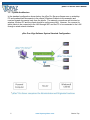
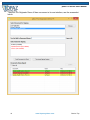
To demonstrate this use case, a new demo named pDoc Pro Originator Demo #2 is included in
pDoc Pro Server. The pDoc Pro Originator Demo #2 demonstrates the usage of pDoc Pro in
enrolling a user for health insurance. This application uses a predefined database (in XML)
where the information about 10 users pre-exists. This database exists in the Common
Application Folder of the system. In general, in the latest Windows versions, the database
exists in the “C:\ProgramData\pDoc Pro Server” folder. When a filled-in and signed PDF is
received back from the client, the information is again updated in this sample database. A copy
of the sample database exists in the installation folder. If an evaluator wants to start from
scratch, the sample database in the Program Data folder can be replaced by the one in the
installation folder.
A sample health insurance enrollment form is installed when pDoc Pro Server is installed, and
pDoc Pro Originator Demo#2 uses this PDF form by default. Features supported by this
application are
1. Selecting the signer from the database
2. Automatically populating the PDF document (the health insurance enrollment form)
with information from the selected record in the database
3. Selecting a pDoc Pro Client from the available list
4. Pushing the enrollment form to the selected client for updating information and
signing (accomplished by clicking on the Enroll button)
5. Terminating the Enrollment process on a selected pDoc Pro Client if required.
6. Receiving the signed, filled-in PDF document from the client after it has been
updated and signed by the user
7. Updating the status of the enrollment in the documents being signed list
8. Extracting data from the signed, filled in form
9. Updating the enrollment information in the sample database in the record of the
selected signer.
The pDoc Pro Originator Demo #2 application can be minimized to the taskbar, and the user
can perform other operations on the pDoc Pro Server machine.
23
www.topazsystems.com
Back to Top