1
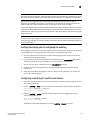
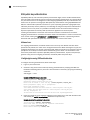
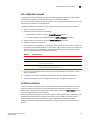
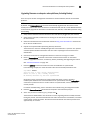
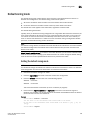
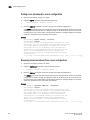
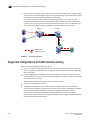
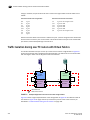
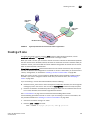
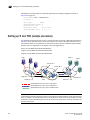
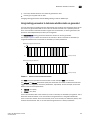
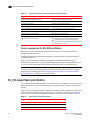
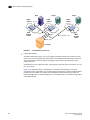
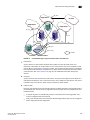
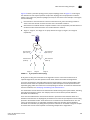
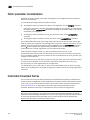
Setting QoS zone-based traffic prioritization over FC routers
20
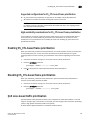
Setting QoS zone-based traffic prioritization over FC routers
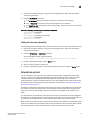
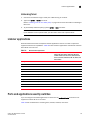
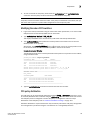
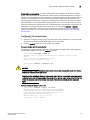
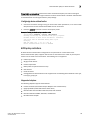
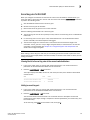
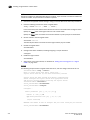
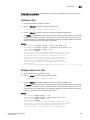
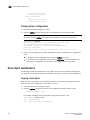
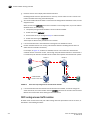
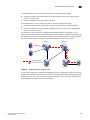
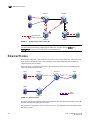
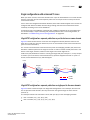
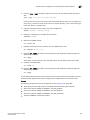
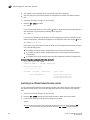
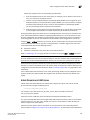
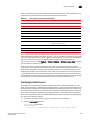
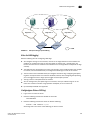
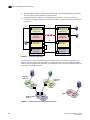
1. Connect to the switch in the edge fabric and log in as admin.
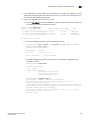
2. Create QoS zones in the edge fabric.
The QoS zones must have WWN members only, and not D,I members. See “Setting QoS
zone-based traffic prioritization” on page 423 for instructions.
3. Create LSAN zones in the edge fabric.
See “Controlling device communication with the LSAN” on page 481 for instructions.
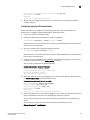
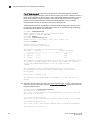
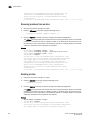
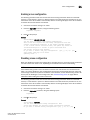
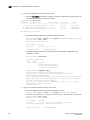
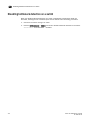
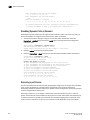
4. Enter the portCfgQos command to enable QoS on the E_Ports.
5. Repeat step 1 through step 3 to create QoS zones and LSAN zones on the other edge fabric.
6. Connect to the FC router in the backbone fabric and log in as admin.
7.
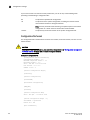
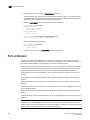
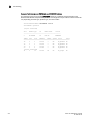
Enter the portCfgQos command to enable QoS on the EX_Ports.
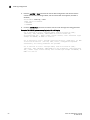
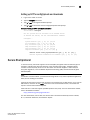
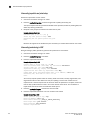
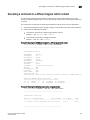
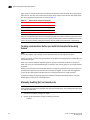
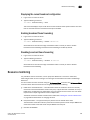
Disabling QoS zone-based traffic prioritization
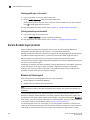
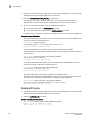
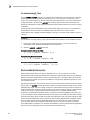
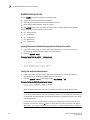
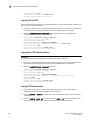
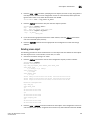
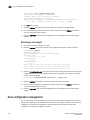
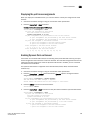
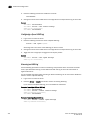
1. Connect to the switch and log in as admin.
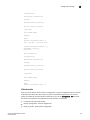
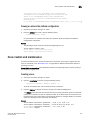
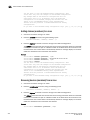
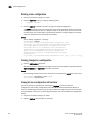
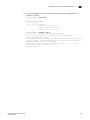
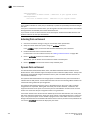
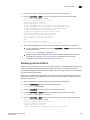
2. Enter the cfgRemove command to remove the QoS zones from the current zone configuration.
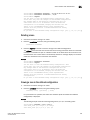
3. Enter the portCfgQos command to disable QoS on the E_Ports.
Fabric OS Administrator’s Guide
53-1002148-02
425