1
Adding & Editing Chemicals: Fields & Functions
The Adding & Editing Windows contain the same fields which
also function in the same manner. If you learn the fields and
functions in one you are also learning the fields and functions in
the other. The only difference between the two is access and
contents. One window contains data, which you will edit. The
other does not. Therefore, we are going to present the details of
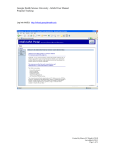
the [Adding Chemical] window in this next section.
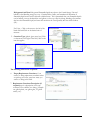
1. Catalog # - This is for the Vendor/Supplier Catalog or
Product order number. The field is optional, except when using
the “Not In Catalog” marker to load chemical information as
described in paragraph 4 below.
2. CAS # is the Chemical Abstract Service number, which
specifically identifies the chemical. This number can be found
on the MSDS and is often printed on the original container
label. The CAS # reads from right to left following the pattern,
one number, hyphen, two numbers, hyphen, and several
numbers. [Example: 87654-32-1] When the CAS # is entered
in this field, the program will auto-search the Database Catalog
for a corresponding chemical name and load it in the Chemical
Description field.
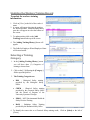
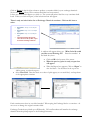
3. “Search Catalog” the Default item, “Search Catalog” is
marked when the adding chemical screen is opened. To
activate the search, Click on the icon [ ] to the right of the
Chemical Description field. This opens an engine with the
option to search one’s “Personal Catalog” or the “Database
Catalog” for the name of chemical. The “Database Catalog”
is created and maintained in the database by the Chemical
Safety Office. The “Personal Catalog” is created and updated
as the user adds chemicals to his/her inventory.
4. “Not in Catalog” was provided to allow users to continue
loading the inventory item after conducting a search and
determining that the product is not in the database catalog.
When this option is marked, the search/load requirements are
bypassed and you can type in the Chemical Name, and it
becomes mandatory for to enter the Vendor Catalog # and
the Vendor name when this option is selected.
5. “Vendor “This is the company or manufacturer from which
the chemical was purchased. Click on the [ ] to open a
Vendor pick list, then Click on Vendor Code or Vendor name
to select. Use the scroll bar to the right of the screen to move
up and down the list. If the vendor name is not on the list, send
an e-mail to [email protected] with the vendor information
and a request to have it added. A reply will be returned when the request is accomplished.
21

















![У]о:(mЧєь{Сr˙„~®M −Ї‹ОЄ* hˇОˆt](http://vs1.manualzilla.com/store/data/006000975_1-aa867c7069e2492e9edc151c99229eb0-150x150.png)