1
A group from CAS wrote the Raspberry Pi Education Manual: http://www.raspberrypi.org/cas-educational-manual/. This
includes chapters written by Graham Hastings of St John’s College School in Cambridge on using Scratch. (I
also made a contribution on the free maths and science software called GeoGebra). You don’t need a
Raspberry Pi to use these resources!
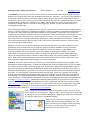
In order to make a Scratch program respond to an event we need to be
able to include some form of sensing. The simplest way is, like with
many video games, to respond to the keyboard sensing whether a
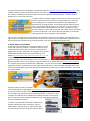
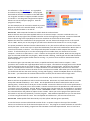
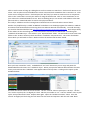
particular key is being pressed. The Scratch program shows the basic
idea. The program will continue to run until the `a’ key is pressed. It
continually monitors the keyboard to see if the `space bar’ is being
pressed. When it is, then the Scratch icon spins right a little, and when it
is not then it spins left. Just click on the first statement to set Scratch
spinning and see how it responds to the keyboard.
Can you alter the program so that Scratch turns left when the left-arrow is pressed, turns right when the
right-arrow is pressed, moves forward when the up-arrow is pressed, moves back when the down-arrow is
pressed and stays still when no key is being pressed? How can you make the program stop?
3. MaKey MaKey and PicoBoard
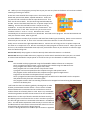
So we have now used Scratch to control a simple on-screen
‘sense and response’ program. It would be more fun if we
could extend the idea to sense and control some physical
gadgets like switches and lamps. One popular input device is
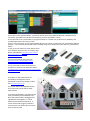
called MaKey MaKey which costs around £50 e.g. from
Maplin: http://www.maplin.co.uk/p/makey-makey-invention-kit-n71nr. It is
supported by an extensive website of resources, projects,
guides and blogs. One fun example is how it can be used as a
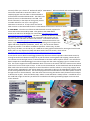
games controller such as for carrying out surgical procedures on Scratch the cat! http://makeymakey.com/guides/.
For a simple test connect the board with a USB cable. Use one of the crocodile clip connector cables
supplied to connect your left hand to one of the EARTH connectors. Then touching the SPACE disk on the
front of the board lights a green LED and will be detected by Scratch as pressing the Space Bar. Test it with
this little program.
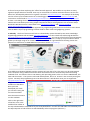
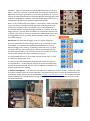
Another answer is to buy the simple control board called the Picoboard which
costs around £30 e.g. from Maplin: http://www.maplin.co.uk/p/picoboard-for-scratch-n79dp.
The board contains a slider (linear potentiometer), light sensor, audio sensor,
four crocodile clip resistance sensors and a pushbutton. It connects to your
computer via USB and has a standard micro-USB connection on the board. I
am sure that more tech-confident people than me could design and build
their own (cheaper) version!
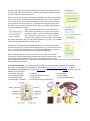
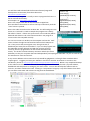
In order to use this with the Scratch 2 software you
need to enable some extra commands. Click on
`More Blocks’ and then click on `Add an Extension’.
This will take you into the `Extension Library’ which