1
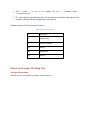
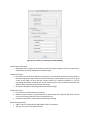
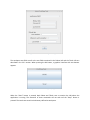
password: Password for the user used for the SSH command Input File: The input file containing the commands for the workload execution. Note: For files and directories full paths are accepted. When the OK button is pressed, both the execution of the benchmark workloads as well as the monitoring commands begin. When the whole process (execution of all the benchmark workloads contained in the input file) ends, the tool exits automatically and the results are stored in the directory defined as workspace. Results: Pidstat results: Pidstat results are stored in a tab separated values file named pidstat.txt which contains the average values calculated for the whole execution period. The 15 values displayed are for the corresponding pidstat output metrics which are (in the same order as provided in the results): %user, %system, %guest, %CPU, CPU, kB_rd/s, kB_wr/s, kB_ccwr/s, minflt/s, majflt/s, VSZ Virtual Size, RSS, %MEM, cswch/s, nvcswch/s TShark results: TShark results are stored in a tab separated values file named TShark.txt which contains values for: number of packets, data byte rate (bytes/s), average packet size (bytes), average packet rate (packets/s). Should be noted that TShark.txt contains two rows of results for each workload. The first one provides the TShark results captured for the monitored IP acting as source and the second one as destination. In order to separate results between different workloads, each row of results (both for pidstat and TShark) is written under a number (workload identifier). The number can have values from 0 to number of workloads - 1. Note: The names of the output files are specified by the tool, so it would be recommended for the user to remove output files from previous executions before the current execution. Otherwise, the tool will append the new results to the existing ones, which could be confusing if the user does not keep track of the order in which the profiling of each benchmark was executed. Application Profiling Execution: 1. Open a terminal 2. Navigate to the directory where the executable ProfilingTool.jar is located. 3. Type the command: java -jar ProfilingTool.jar application After typing the command (step 3) a graphical interface appears which introduces a form with empty text fields.