1
Using Acrobat x-y table
Tips for reading
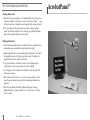
For easy reading with Acrobat and its X-Y table please follow these steps:
Using the X-Y Table
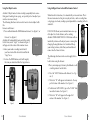
1. The X-Y table can be locked to maintain a steady viewing position or
unlocked to allow you to scan across a page for reading and viewing various objects.
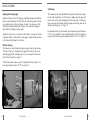
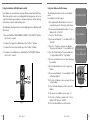
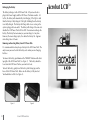
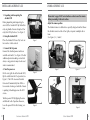
2. To lock the X-Y table, slide the lever all the way to the right until it
clicks and locks (A). Unlock the X-Y table by sliding the lever to the
right again and release the lever (B).
3. Use the X-Y table to move reading materials under the camera,
rather than moving the material manually, except small items such
as a check book or a business card. New users should use two
hands when moving the X-Y table for reading, until they become
comfortable using one hand with the table.
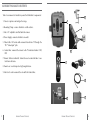
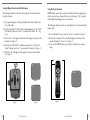
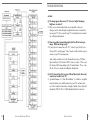
1. Unlock the X-Y table and place a book, newspaper, etc., on the table
with the top of the page against the back lip of the table.
2. Set the Acrobat to its lowest magnification level and move the X-Y
table to position the start of your reading in the approximate center
of the monitor screen.
3. Increase the magnification level to enlarge the image to a comfortable
size.
4. Glide the X-Y table to the left, which will make the words flow
across the screen for reading. When you have reached the end of a
line, glide the table back to the beginning of the line. Move the table
away from you slightly to display the start of the next line of type.
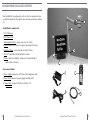
Tips for writing
For writing with Acrobat and its X-Y table please follow these steps:
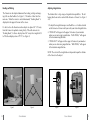
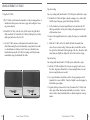
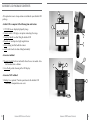
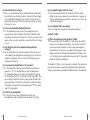
1. Lock the X-Y table and place the item you are going to write on, on
the table. Beginners should start at a lower magnification size and
increase magnification as needed.
2. Use a pen that makes a bold line, such as a heavy point pen or felttip marker for easier visibility. It may be helpful to use lined paper to
find and keep your place.
B
A
23
Using Acrobat X-Y Table
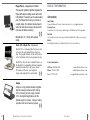
3. Begin by writing a few words at a time, then move the X-Y table and
write again, rather than moving continually as you write. You can
write in either color, black-and-white or enhanced positive viewing
modes.
Using Acrobat X-Y Table
24