1
4.0 Administrator:
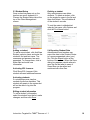
Class Management
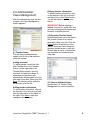
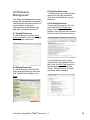
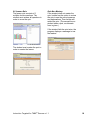
After the administrator logs into the
program, the Class Management
screen appears.
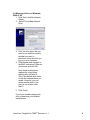
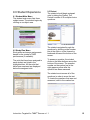
Deleting teacher information
To delete teacher information, click
on the teacher in the list on the left
and then click on the Delete button.
You will be asked to confirm your
choice.
IMPORTANT! Before deleting a
teacher from the list, make sure that
you have reassigned all classes and
students to another teacher.
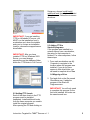
4.1 Teacher Setup
The first thing the administrator
needs to do is set up the teachers
within the system.
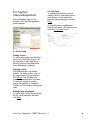
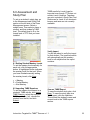
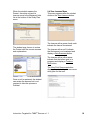
Adding a teacher
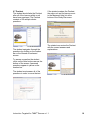
To add a teacher, select the Add
New Teacher line in the Teacher
Roster. On the right side of the
Teacher Setup screen, type the
teacher's first and last names. A
username and password will
automatically be generated; you can
edit them if you wish. When you click
Save, the teacher will be added to
the teacher list at the left.
Editing teacher information
To edit teacher information, click on
the teacher in the list on the left and
alter the information in the fields on
the right. Click Save to add your
changes to the database.
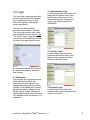
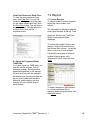
4.2 Exporting Teacher Roster
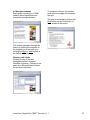
Administrators can export the data in
the Teacher Roster to a comma
separated value (.csv) file. Click the
Export button at the bottom of the
screen. When the Save dialog box
appears, decide where to save the
file and what to name it. Saved files
can be edited and combined with
other files.
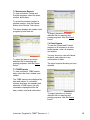
4.3 Class and Student Setup
See Section 5.0 Teacher Class
Management for more information.
Instruction Targeted for TABE® Success v 1.1
8