1
LifeSize ClearSea User Guide
Section 4: Using LifeSize ClearSea Client
Placing a Call
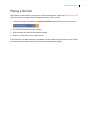
Use any of the following methods to place a call with LifeSize ClearSea Client:
•
Type the IP address or dial string in the search box and press
•
Click call from an entry in the search results, contacts, or history.
•
Click call from the chat window.
(or Enter).
Including Multiple Callers in a Call
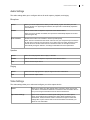
LifeSize ClearSea Client supports two concurrent lines. When you place or receive a call, the first available
line is used. If two calls are connected, both calls appear as active calls.
When more than one call is connected, the LifeSize ClearSea Client acts as a multi-conference device by
default. When in this mode, LifeSize ClearSea Client mixes audio and composites video streams so that
each of the three parties can hear and view each other.
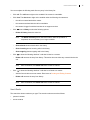
To place a call on hold, position the cursor over the call duration value and press hold. When a remote
caller is on hold, LifeSize ClearSea Client sends music and a static slide. No live audio and video is sent,
and any media received from the remote party is ignored. To continue the call, click resume.
Learn more at Call Window.
Initiating Presentations
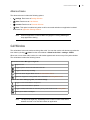
To send the content of a local application window as a presentation to the remote caller, click
NOTE
share.
At least one call must be active to send a presentation.
Select an application from the list and click the share. The selected application window remains on top of
any other window while the presentation is in progress to allow the capture of window content in its entirety.
If you mouse over the application window, LifeSize ClearSea Client overlays a red arrow pointer on the
output video to simulate the mouse pointer.
When initiating a presentation, the best available sharing mode – either H.239 application sharing or video
application sharing, depending on your configuration – is used automatically.
21