1
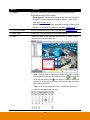
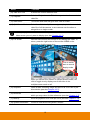
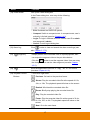
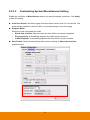
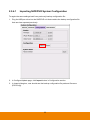
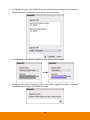
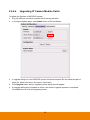
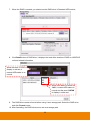
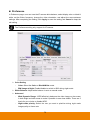
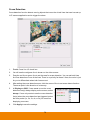
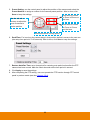
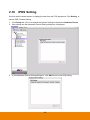
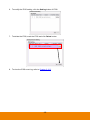
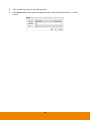
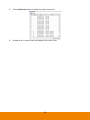
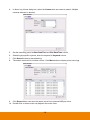
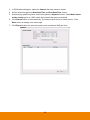
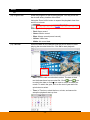
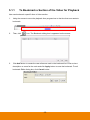
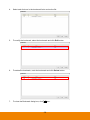
Dropbox: Upload the alarm video clip to the Dropbox space that user has setup. a. Get a Dropbox account. Go to Dropbox website and follow the instruction to get a Dropbox user account. b. Copy the below URL to your browser. http://www.aver.com/Dropbox c. Using your Dropbox account to login and click “Allow” to enable Dropbox WAN storage function. d. Then, user will see the authorization code is displayed. Keep this web page open and open a new web page. e. Enter the below URL to enter authorization code. Please make sure your PC can connect to NVR/DVR server through internet. http://NVR/DVR IP/oauth2.html ex: http:// 10.1.1.3/oauth2.html. f. Next, NVR/DVR server will require login authentication. Enter the login username and password of NVR/DVR server. g. Then, authorization code input page is displayed. Copy the authorization code into the Authorization Code column and click Apply. h. Next, go to alarm action setting to setup FTP transmission via FTP (see also Chapter 2.12.2). Upload Video Clip Select Camera: Select the camera that the images will be captured and send when the any alarm is triggered. Before alarm (sec.)/After Alarm: To send the recorded image before and after alarm occurs, enter the time that before alarm occurs in Before alarm (sec.) and After alarm. 111