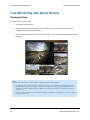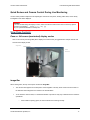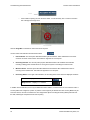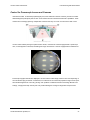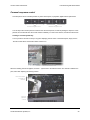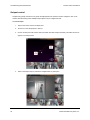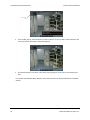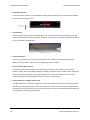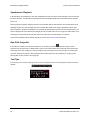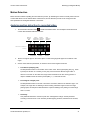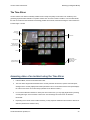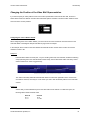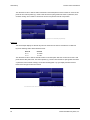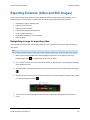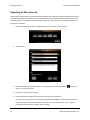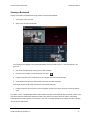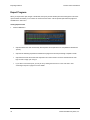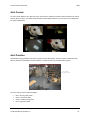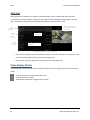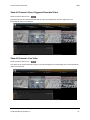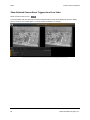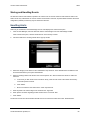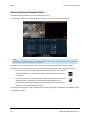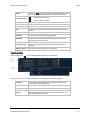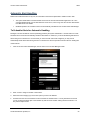
1
Client User Manual Smarter Surveillance for a Safer World On-Net Surveillance Systems, Inc. th One Blue Hill Plaza, 7 Floor, PO Box 1555 Pearl River, NY 10965 Phone: (845) 732-7900 | Fax: (845) 732-7999 Web: www.onssi.com Ocularis 5.1 0000010082015-1457-5.1.0.170 Legal Notice This product manual is intended for general information purposes only, and due care has been taken in its preparation. Any risk arising from the use of this information rests with the recipient, and nothing herein should be construed as constituting any kind of warranty. © 2002-2015 On-Net Surveillance Systems, Inc. All rights reserved. OnSSI and the ‘Eye’ logo are registered trademarks of On-Net Surveillance Systems, Inc. Ocularis, Ocularis Client, Ocularis Client Lite, Ocularis Video Synopsis, NetEVS, NetDVMS, NetDVR, ProSight, NetGuard, NetGuard-EVS, NetSwitcher, NetMatrix, NetCentral, NetTransact, NetPDA and NetCell are trademarks of On-Net Surveillance Systems, Inc. All other trademarks are property of their respective owners. On-Net Surveillance Systems, Inc. reserves the right to change product specifications without prior notice. US patent # 8,390.684 B2 for Ocularis Client Patents Applied For in the U.S. and Abroad Ocularis Client User Manual Table of Contents Table of Contents LEGAL NOTICE ..............................................................................................................................................................2 DISCLAIMER ................................................................................................................................................ 5 WHO SHOULD READ THIS DOCUMENT ................................................................................................... 5 INTRODUCTION........................................................................................................................................... 6 INSTALLATION AND LOGIN....................................................................................................................... 7 MINIMUM SYSTEM REQUIREMENTS ..................................................................................................................................7 INSTALLATION ...............................................................................................................................................................7 LOGGING IN WITH THE OCULARIS CLIENT .........................................................................................................................8 OCULARIS CLIENT VERSION............................................................................................................................................9 OCULARIS CLIENT INTERFACE .............................................................................................................. 10 APPLICATION CONTROLS .............................................................................................................................................. 11 Memory Indicator............................................................................................................................................... 12 Modifying the Default Memory Limit .................................................................................................................. 12 Recommended for 32-bit Operating Systems.................................................................................................... 13 VIEWS ......................................................................................................................................................... 14 VIEWS AND VIEW GROUPS ........................................................................................................................................... 14 VIEW ELEMENTS ......................................................................................................................................................... 15 LIVE MONITORING WITH QUICK REVIEW .............................................................................................. 16 DISPLAYING VIEWS ...................................................................................................................................................... 16 QUICK REVIEW AND CAMERA CONTROL DURING LIVE MONITORING .................................................................................. 17 View Pane Controls .............................................................................................................................. 17 Pane vs. full-screen (maximized) display modes............................................................................................... 17 Image Bar .......................................................................................................................................................... 17 Circular Control Menu ........................................................................................................................... 20 Select Camera................................................................................................................................................... 20 Copy to Clipboard .............................................................................................................................................. 21 Clear a camera from a pane .............................................................................................................................. 21 Push Video ........................................................................................................................................................ 22 Start Recording ................................................................................................................................................. 22 Toggle Patrolling ............................................................................................................................................... 23 Take Snapshot .................................................................................................................................................. 23 Quick Review Tools .............................................................................................................................. 23 Playing back video ............................................................................................................................................ 24 One-Click Snapshot .......................................................................................................................................... 24 Applying Digital PTZ .......................................................................................................................................... 24 Applying Optical PTZ ......................................................................................................................................... 25 Control for Panomorph Lenses and Cameras ................................................................................................... 27 Carousel sequence control ................................................................................................................................ 29 Hotspot control .................................................................................................................................................. 30 Selecting Alternate Streams .............................................................................................................................. 31 Two-way audio .................................................................................................................................................. 33 CRITICAL CAMERA FAILOVER ........................................................................................................................................ 34 BROWSING (INVESTIGATION MODE)..................................................................................................... 36 SWITCHING BETWEEN LIVE AND BROWSE MODES ............................................................................................................ 36 THE BROWSE (INVESTIGATION) WINDOW ....................................................................................................................... 36 The Scalable Kinetic Timeline .............................................................................................................. 37 Browse Mode Controls ......................................................................................................................... 39 On-Net Surveillance Systems, Inc. 1 Table of Contents Ocularis Client User Manual Synchronous Playback ...................................................................................................................................... 40 One-Click Snapshot .......................................................................................................................................... 40 Tool Tips............................................................................................................................................................ 40 MOTION DETECTION .................................................................................................................................................... 41 Applying motion detection to recorded video ....................................................................................... 41 THE TIME SLICER ........................................................................................................................................................ 43 Accessing video of an incident using the Time Slicer .......................................................................... 43 THE MOTION SLICER ................................................................................................................................................... 45 Accessing video of an incident using the Motion Slicer........................................................................ 45 ALERTS ...................................................................................................................................................................... 46 Accessing video of an incident using Alerts ......................................................................................... 46 SEQUENCES ............................................................................................................................................................... 47 Accessing video of an incident using Sequences ................................................................................ 47 CLIENT SETUP .......................................................................................................................................... 49 DISPLAY TAB .............................................................................................................................................................. 49 Screen Configuration: ........................................................................................................................... 49 Mode ................................................................................................................................................................. 49 Camera Selection Filter Settings .......................................................................................................... 50 Clear Filter Text After Selection ......................................................................................................................... 50 Snapshots ............................................................................................................................................. 50 Show Snapshot Overlay .................................................................................................................................... 50 Path ................................................................................................................................................................... 50 Language .............................................................................................................................................. 51 Audio ..................................................................................................................................................... 51 Push To Talk ..................................................................................................................................................... 51 Screens ............................................................................................................................................................. 51 Auto-Hide .......................................................................................................................................................... 51 VIDEO TAB.................................................................................................................................................................. 52 Browsing ............................................................................................................................................... 52 Reduced Frame Rate vs. Full Frame Rate ........................................................................................................ 52 Synchronous Playback ...................................................................................................................................... 52 Critical Camera Failover ....................................................................................................................... 53 Video Quality ........................................................................................................................................ 53 H.264/MPEG Frame Skip .................................................................................................................................. 53 Maintain Quality in Browse Mode ...................................................................................................................... 53 Joystick Sensitivity ................................................................................................................................ 53 SHORTCUTS TAB ......................................................................................................................................................... 54 To Configure Custom Keyboard Shortcuts ........................................................................................................ 55 To Use a Keyboard Shortcut ............................................................................................................................. 56 JOYSTICK CONTROLS TAB ............................................................................................................................................ 57 To Configure Joystick Controls.......................................................................................................................... 58 VIDEO W ALL TAB ........................................................................................................................................................ 59 To Configure A Video Wall ................................................................................................................................ 60 Changing the Position of the Video Wall Representation .................................................................................. 61 EXPORTING EVIDENCE (VIDEO AND STILL IMAGES) .......................................................................... 63 DESIGNATING A RANGE FOR EXPORTING VIDEO ............................................................................................................... 63 EXPORTING AN AVI VIDEO CLIP ..................................................................................................................................... 64 CANCELLING AN EXPORT .............................................................................................................................................. 67 Viewing an Exported AVI Video Clip .................................................................................................... 67 EXPORTING A VIDEO DATABASE .................................................................................................................................... 68 Encryption ............................................................................................................................................. 69 Exported Results .................................................................................................................................. 69 Viewing an Exported Video Database .................................................................................................. 70 Viewing Exported Video with Ocularis Client ..................................................................................................... 70 Viewing Exported Video with Ocularis Viewer ................................................................................................... 70 2 On-Net Surveillance Systems, Inc. Ocularis Client User Manual Table of Contents Viewing Exported Video From a Camera with a Panomorph Lens .................................................................... 71 EXPORTING STILL IMAGES (INDIVIDUAL FRAMES) ............................................................................................................. 72 To export a Single Frame .................................................................................................................................. 72 To export all frames from the selected range .................................................................................................... 73 PRINTING A STILL IMAGE REPORT ................................................................................................................................. 74 To Generate a Print Report ............................................................................................................................... 74 BOOKMARKS ............................................................................................................................................................... 75 Creating a Bookmark ......................................................................................................................................... 75 Viewing a Bookmark .......................................................................................................................................... 77 EXPORT PROGRESS .................................................................................................................................................... 78 ALERTS ...................................................................................................................................................... 79 BLANK SCREEN MONITORING ....................................................................................................................................... 79 Using Blank Screen Monitoring ............................................................................................................ 79 ALERT COUNTER ......................................................................................................................................................... 81 ALERT PRIORITIES ....................................................................................................................................................... 81 Clearing an Alert from a Blank Screen ................................................................................................. 82 High Priority Alerts ............................................................................................................................................. 82 Medium, Low and Zero Priority Alerts ............................................................................................................... 82 Alert Handling Notification ................................................................................................................................. 83 ALERT MANAGER ........................................................................................................................................................ 83 Alert Manager Toolbar .......................................................................................................................... 85 Alert List ................................................................................................................................................ 86 Video Display Modes ............................................................................................................................ 86 Show All Camera’s Event Triggered Recorded Video ....................................................................................... 87 Show All Camera’s Live Video .......................................................................................................................... 87 Show Selected Camera Event Triggered and Live Video .................................................................................. 88 STORING AND HANDLING EVENTS ................................................................................................................................. 89 Handling Alerts ..................................................................................................................................... 89 ACCESSING STORED (HANDLED) ALERTS....................................................................................................................... 90 Event Detail .......................................................................................................................................... 91 Sorting Handled Alerts .......................................................................................................................... 92 Viewing Alerts ....................................................................................................................................... 92 Exporting Alert Video ............................................................................................................................ 92 To export a video clip from alert video ............................................................................................................... 92 Automatic Alert Handling ...................................................................................................................... 93 To Schedule Alerts for Automatic Handling ....................................................................................................... 93 TRIGGERS.................................................................................................................................................. 95 GLOBAL TRIGGERS ...................................................................................................................................................... 95 CAMERA LEVEL TRIGGERS ........................................................................................................................................... 95 OCULARIS MAPS ...................................................................................................................................... 96 VIEWING OCULARIS MAPS ............................................................................................................................................ 96 MAP NAVIGATION ........................................................................................................................................................ 96 Image Preview ...................................................................................................................................... 97 Preview Window Controls.................................................................................................................................. 97 Image Arrange ...................................................................................................................................... 98 OCULARIS VIDEO WALLS ....................................................................................................................... 99 OCULARIS VIDEO W ALL CONFIGURATION ....................................................................................................................... 99 USING A VIDEO W ALL .................................................................................................................................................. 99 Show/Hide Video Wall ........................................................................................................................ 100 Changing Video Wall Panes ............................................................................................................... 102 Managing Video in a Video Wall......................................................................................................... 103 Remote Control ............................................................................................................................................... 103 Camera Location ............................................................................................................................................. 104 On-Net Surveillance Systems, Inc. 3 Table of Contents Ocularis Client User Manual Clear a Pane in a Video Wall........................................................................................................................... 104 Blank Screens in a Video Wall ........................................................................................................... 104 USING A VIDEO W ALL IN THE ALERT MANAGER ............................................................................................................. 105 To Use a Video Wall in Alert Manager ............................................................................................................ 105 APPENDIX A – OCULARIS CLIENT IN LIMITED MODE ....................................................................... 107 LOGGING IN .............................................................................................................................................................. 107 CREATING VIEWS AND VIEW GROUPS .......................................................................................................................... 107 POPULATING VIEW PANES .......................................................................................................................................... 109 Populating a view pane with a Camera .............................................................................................. 109 Saving Changes and Open the View ................................................................................................. 109 CONTACT INFORMATION ...................................................................................................................... 110 4 On-Net Surveillance Systems, Inc. Ocularis Client User Manual Table of Contents Disclaimer Product features and functions described in this Ocularis Client User Manual may not apply to all versions of Ocularis. Every attempt has been made to detail product model differences as per the publication date of this manual. Contact OnSSI Technical Support with any questions regarding supported functions of your installed software version. Who Should Read This Document This document is intended for users and operators of Ocularis Client. It identifies how the software is used and its features and functionality. Administrators who configure the system should refer to the document Ocularis Administrator User Manual and other configuration documents located on the OnSSI website. On-Net Surveillance Systems, Inc. 5 Ocularis Client User Manual Introduction Introduction Ocularis Client is a feature-rich IP video client/controller that allows users to: Monitor live video from an unlimited number of cameras at multiple sites, with instant-investigation capabilities. Easily access and investigate alerts, generated by both motion detection and external systems. Send and receive automated push-live-video of alerts. Export video clips and still images for further event handling or as court evidence. To handle alerts received and organize into incident cases using a graphical Alert Manager interface Be alerted to events with Blank Screen Monitoring Bookmark exported video clips for sharing and easy retrieval Use Map displays to visibly manage campus and security environments Monitor the surveillance system in command centers with Video Wall support Never lose sight of a scene with Critical Camera Failover Ocularis Client supports the following languages: English Arabic-Modern Standard Simplified Chinese Dutch Finnish French German Hebrew Italian Korean Portuguese Russian Spanish Swedish 6 On-Net Surveillance Systems, Inc. Ocularis Client User Manual Installation and Login Installation and Login Minimum System Requirements ® ® ® ® ® ® Operating System: Microsoft Windows Vista, Microsoft Windows 7, Microsoft Windows 8/8.1 -- all 32-bit or 64-bit CPU: Intel® Core™ i5 or better, Intel® Core™ i7 for 20+ Megapixel Streams RAM: 4 GB minimum (8 GB for 64-bit OS) Graphics Adapter: PCI-Express, minimum 256 RAM, Direct 3D supported Guidelines for Video RAM Requirements: 20+ simultaneous Video Channels: 256 MB 50+ simultaneous Video Channels: 512 MB or better Note: Be sure to take into consideration the stream type, resolution and number of streams when designing a client workstation. Ocularis Client cannot run on a virtual machine. It can, however, connect to other virtualized components. Installation Typically, you install the Ocularis Client software on each operator computer by accessing an installation web page on the Ocularis Base server. The Ocularis Client may be installed on any number of computers as it is free of charge. Refer to the Ocularis Installation and Licensing Guide for detailed instructions on installing Ocularis Client. On-Net Surveillance Systems, Inc. 7 Ocularis Client User Manual Installation and Login Logging in with the Ocularis Client The login procedure to gain access to Ocularis is very simple. 1. Launch the Ocularis Client application from the desktop icon. 2. Alternatively, you may choose Start All Programs OnSSI Ocularis Client. A login window will appear. 3. Enter your login information, as follows: The Login Dialog (sample data) User Name and Password: Obtain a user name and password from your system administrator. A user account and password is required to gain access to system video. Server: Enter the Server IP address or hostname for the Ocularis Base server as provided to you by your system administrator. Note: If your system administrator changed the default port to use for the Base (default is 80) you may have to include more information in the server field. Use the format: IP ADDRESS:PORT# Where: IP ADDRESS is the address of the Base computer Port # is the port number assigned by the system administrator Authentication: Choose Basic or Windows, as instructed by your system administrator. Store Last Login: All fields on the login page (User Name, Password, Server IP address and Authentication method) will be saved to facilitate easy entry upon subsequent logins. 8 On-Net Surveillance Systems, Inc. Ocularis Client User Manual Installation and Login Auto-Login: When the application is launched, this checkbox allows the system to automatically launch the Ocularis Client and logs in to the preconfigured server. To disable Auto-Login, once you successfully launch the Ocularis Client, select ‘Log off’ from the menu bar and choose ‘Log off’. The login screen will appear; uncheck the Auto-Login box and log in again. You will be prompted to log in the next time the application is started. Version of software The lower right portion of the login dialog displays the version and build of the Ocularis Client application. Ocularis Client Version In addition to the login screen, you may also obtain the build and version number from inside the application. To view the version number of the installed Ocularis Client software, from the menu bar, select Views About Ocularis Client. On-Net Surveillance Systems, Inc. 9 Ocularis Client User Manual Ocularis Client Interface Ocularis Client Interface When you successfully log in, you will see the screen from the prior log in session. The following is a typical view: Menu Bar Alert Counter Application Controls Image Bar Sample 2 x 2 view in Ocularis Client The items shown on the screen above apply to most installations. Differences and descriptions are noted throughout this document. Moving clockwise from the upper left is the ‘Alert Counter’. This feature displays the number of configured events that have occurred since the last login. At the top of the screen is the ‘Menu Bar’ containing the primary menu functions of Ocularis Client. This bar will dynamically change based upon the mode of the application. If ‘Auto-Hide’ is enabled, and the mouse is positioned over content in the section below it, the ‘Menu Bar’ will disappear, providing more screen real estate for camera views. When the mouse pointer is moved to the top of the screen, the ‘Menu Bar’ reappears. The right-most portion of the Menu Bar is devoted to the ‘Application Controls’. These functions control various aspects of Ocularis Client. More information on Application Controls can be found below. In the case of a view, the top portion of the ‘view pane’ is called the ‘Image Bar’. This bar displays information specific to the video stream shown within it. More information on the Image Bar can be found on page 17. 10 On-Net Surveillance Systems, Inc. Ocularis Client User Manual Ocularis Client Interface Application Controls The upper right portion of the Menu Bar contains functions known as ‘Application Controls’. These functions are defined as follows: Control Graphic/Icon Log off; click this icon to log off (switch users) or to Shut Down (Exit) Ocularis Client software. The ability to log off or shut down is controlled by the system administrator. If you click the Log off icon and this function is disabled for your user account, you will be prompted for Log Off Credentials. Enter user account credentials for a user with the log off privileges and click Submit. Online Help: click this icon to launch the Ocularis Client online help file. You need Adobe Reader to view the file. Minimize: click this icon to minimize Ocularis Client on the current monitor. The ability to minimize the application is controlled by the system administrator. If your account does not have the privilege to minimize, you will see this icon: Memory Indicator: hover the mouse cursor over this icon to receive information on the current memory allocation. More details on page 12. Clock: Current time of the Ocularis Client shown in 24 hour format. EC Status: if the OnSSI Event Coordinator Service on the Ocularis Base machine stops, an additional icon will appear in the Application Control section on all logged in Ocularis Client screens. Go to Previous/Next View: once at least 2 views are open, you can navigate between views that have been accessed in the current session (similar to a back or forward button on a browser). On-Net Surveillance Systems, Inc. 11 Ocularis Client User Manual Ocularis Client Interface Memory Indicator You can determine the amount of memory that Ocularis Client is using by positioning the mouse pointer over the ‘Memory Indicator’ icon. For instance, an 8 x 8 view streaming high resolution video will use significantly more memory than a 2 x 2 view. Items shown are defined as: Working Set: The amount of RAM memory that is being used by Ocularis Client. A warning message will appear when a set limit of memory used is reached. The default for 32-bit operating systems is 1.9GB (1,945 MB). For 64-bit operating systems the default is 3 GB (3,072 MB). Virtual Memory: The total amount of memory that Ocularis is accessing at the current moment (includes memory that is shared with other parts of the system). A warning message will appear when a set limit of memory used is reached. The default for 32-bit operating systems is 1.9GB (1,945 MB). For 64-bit operating systems the default is 3 GB (3,072 MB). GPU: Graphical Processing Units or Texture Memory that is left; GPUs are a measure of the graphics accelerator found on the video card. A warning message will appear when 80% GPU is reached. Should a memory warning message appear, click ‘OK’. The warning message should remain dormant for at least 5 minutes to allow you to modify the view. If desired, click the ‘Do not show this message again’ checkbox to prevent further message notices for the current session. Modifying the Default Memory Limit To modify the upper limits of the working set and GPUs, create an ASCII file on the c: drive called: c:\onssimem.txt Add one line which includes the working set limit following by a comma and then the GPU limit. The units are in MB (megabytes). For example: 1536,100 where the 1536 represents 1.5 GB (or 1,536 MB) limit for the working set memory and 100 represents 100 MB of Texture Memory. You can disable the warning completely by entering a number above 3000 (like 4000). 12 On-Net Surveillance Systems, Inc. Ocularis Client User Manual Ocularis Client Interface Recommended for 32-bit Operating Systems Microsoft Windows 32-bit operating systems can address 3 GB of virtual memory. The operating system kernel reserves 2 GB for itself, and each individual running process is allowed to address another 2 GB. You can optimize the computer’s memory usage by configuring a 32-bit Windows operating system so that it restricts the kernel to 1 GB of memory, leaving 3 GB of address space for processes used by Ocularis. Configuring 32-bit Windows varies depending on the type of Windows operating system. The following outlines Microsoft's recommended procedure for increasing the per-process memory limit to 3 GB. Modifying the Operating System to support 3 GB If Running Windows 2008 Server, Windows Vista, or Windows 7 IMPORTANT: Improper modification of the operating system boot entry can render the operating system inoperable. Use caution before making changes to the boot.ini file. 1. 2. Right-click Command Prompt (from Start > All Programs > Accessories) and select Run as administrator Enter the following command to add the 3 GB switch to the current operating system boot entry: bcdedit /set IncreaseUserVA 3072 where: IncreaseUserVA specifies an alternate amount of user-mode virtual address space for operating systems. 3072 Specifies 3 GB (3072 MB). A reboot is required after editing the boot configuration data store for the changes to take effect. If Running Windows Server 2003 IMPORTANT: Improper modification of boot.ini can render the operating system inoperable. Use caution before making changes to the boot.ini file. From a command prompt, enter the following to the end of the first line of the operating system section in the boot.ini file (requires administrative privileges) to add the 3 GB switch: BOOTCFG /RAW "/3GB" /A /ID 1 where: /RAW specifies the operating system options for the boot entry. The previous OS options will be modified. "/3GB" specifies the 3 GB switch. /A specifies that the operating system options entered with the /RAW switch will be appended to the existing operating system options. /ID specifies the boot entry ID in the OS Load Options section of the boot.ini file to add the operating system options to. The boot entry ID number can be obtained from performing the command: BOOTCFG /QUERY (this displays the contents of the boot.ini file) at the command prompt. A reboot is required after editing the boot.ini file for the changes to take effect. Removing the /3GB Switch 1. 2. Right-click Command Prompt (from Start > All Programs > Accessories) and select Run as administrator Enter the following command to remove the 3 GB switch from the current operating system boot entry: bcdedit /deletevalue IncreaseUserVA A reboot is required after editing the boot configuration data store for the changes to take effect. On-Net Surveillance Systems, Inc. 13 Views Ocularis Client User Manual Views Views and View Groups In Ocularis Client, cameras are displayed within Views. A view can contain up to 64 cameras. Multiple views can be configured, and displayed simultaneously across multiple monitors. Operators have access to views created by an administrator. These views are organized by user group and are configured in the Ocularis Administrator application. Views may be shared among multiple operator groups. 14 On-Net Surveillance Systems, Inc. Ocularis Client User Manual Views View Elements Different panes within a view can be set to display video in one of the following modes: Camera panes: Any camera from a connected image server can be displayed within a camera pane. Upon interaction, Interactive Overlay Controls will appear, including controls for playback and optical and digital PTZ (when applicable). Carousel panes: Cameras can be displayed in sequence, configured by order and dwell time. Carousel views also display all playback and PTZ controls, as well as controls for previous/next camera and pause/resume carousel. Web pages and images: Web pages and images can be included in views as auxiliary resources. Push Video panes: One or more Push Video panes can be configured to allow for peer-to-peer push video. Blank Screen panes (not shown): Supported when using Ocularis Base, one or more panes can be configured to receive event driven alert video. Hotspot pane (not shown): Usually configured in a large pane, the hotspot will display video by clicking on a camera, alert or carousel pane. Once sent to the hotspot, the original and the hotspot displays can be controlled independently. Additional Options Carousel with Quick Review, optical and digital PTZ, and carousel controls Camera Panes with Quick Review as well as optical and digital PTZ Live web page Push Monitor Push Video Pane, for receiving manual (peer-to-peer) pushlive-video Static Image On-Net Surveillance Systems, Inc. 15 Ocularis Client User Manual Live Monitoring with Quick Review Live Monitoring with Quick Review Displaying Views To display a view in Ocularis Client: 1. Click ‘Views’ on the menu bar. 2. Select the desired View Group / Folder to expand the list of views; continue to expand folders and subfolders until you reach the desired view. 3. Click the desired view. Depending on your system’s settings, it may take a few seconds until all panes are populated. The Live Monitoring window Note: If you are using Ocularis v5.x, with a Master & Slave Core, the following applies: If the Master Core is down but Slave Core(s) are running, you can still log into Ocularis Base using Ocularis Client but you will not see any video. The message ‘failed to log into [IP Address] Failed to establish connection’ appears. When the Master Core comes back online, you will be reconnected and see video. If you are already logged in to Ocularis Base and then the Master Core goes down, you will see video properly for any view. 16 On-Net Surveillance Systems, Inc. Ocularis Client User Manual Live Monitoring with Quick Review Quick Review and Camera Control During Live Monitoring Ocularis Client provides multiple tools for adjusting the contents of view panes, sending video alerts, and on-the-fly investigation of the video displayed. WARNING: If you have trouble seeing the display of video, make sure that the camera name does not have any special characters in it including: <> & ' " \ / : * ? | [ ] See your system administrator to remedy this. View Pane Controls Pane vs. full-screen (maximized) display modes Click on the camera pane Image Bar (which displays the camera name) to toggle between multiple camera view and full screen display modes. Image Bar Video indicators Ocularis Client Image Bar Image Bar When viewing video, the top of each pane contains the Image Bar. • The camera name appears on the left portion of the Image Bar. This may be the name from the recorder or the alternate name assigned to the camera in the Ocularis Base. • To the left of the camera name, is a heart beat indicator to provide an easy way to determine if the camera is operational. o If the indicator is pulsing green, the camera stream is functioning normally. On-Net Surveillance Systems, Inc. 17 Ocularis Client User Manual Live Monitoring with Quick Review normal o If the indicator is pulsing red, the camera is offline. You will also likely see a ‘Camera connection lost’ message and a large red X. lost connection Click the Image Bar to maximize or restore the size of the pane. Ocularis Client video indicators are defined as follows: 1. Event Indicator: The first square alternates between yellow and black. Yellow indicates that a recorder event has occurred on that camera. This feature is supported in v4.2 and prior. 2. Recording Indicator: The second (center) square alternates between red and black. Red indicates recording is taking place and will remain on as long as the system is recording the camera’s feed. 3. Motion Indicator: The third square alternates between blue and black. Blue indicates that motion is occurring on the camera feed. This feature is supported in v4.2 and prior. 4. Recording Status: To the right of the Indicators, the recording status of the camera is displayed as follows: Live Video – Displays the text “Live” Stopped Video – Displays a “!” character In addition to these indicators, there may be additional content visible in a camera stream in Live or Browse mode. If a Privacy Mask was configured, a portion or portions of the image may be blocked from view. Privacy Masks may be set at the camera, recorder or Ocularis level. The image below depicts a rectangular Privacy Mask positioned over the desk, affording the receptionist some level of privacy. 18 On-Net Surveillance Systems, Inc. Ocularis Client User Manual Live Monitoring with Quick Review Displays camera name and alternate label streaming info Privacy Mask Additionally, if you position the mouse cursor over the block to the left of the camera name, you’ll see a pop-up showing an optional description of the camera as well as other streaming information including the compression method, image size and frame rate of the camera shown. On-Net Surveillance Systems, Inc. 19 Ocularis Client User Manual Live Monitoring with Quick Review Circular Control Menu Right-click on a camera view, or left-click (or touch) and hold for one second, to display the ‘Circular Control’ Menu. The Circular Control menu Note: When interacting with PTZ cameras, a Virtual Joystick control will appear in the center of the camera pane upon mouse-over or clicking. To display the Circular Control menu using left-click or touch, you must click or touch the pane off-center (i.e. any point except the center of the pane). The ‘Circular Control’ Menu provides a quadrant with several functions: 1. Select Camera 2. Copy to Clipboard 3. Clear a camera from a pane 4. Push Video 5. Start Recording 6. Toggle Patrolling 7. Take Snapshot Select Camera Click the camera icon [ ] at the top-right quadrant of the circular control to display a camera list. Cameras listed here are displayed based upon user privileges and access rights. Click a camera to display it in the desired pane. The Select Camera list; click on a camera to display it in 20 On-Net Surveillance Systems, Inc. Ocularis Client User Manual Live Monitoring with Quick Review Navigating the List • Click-drag on the list to scroll up and down, similar to smart phone navigation. • Click on a Quick-Link (highlighted capital letter) to display the camera names that begin with that letter. • Type all or a portion of the name or keyword of a camera. The text will appear in the text box at the top of the list. For instance: Example: type portion of name This example results in displaying cameras containing with ‘Son' Example: type portion of model number This example results in displaying any camera containing the text ‘755’ Each time you display the camera selection list, the text that was typed in last will be displayed. To remove the text, press the ‘Backspace’ key on the keyboard. If you would like the text box to be cleared each time it is displayed, check the ‘Clear Filter Text After Selection’ checkbox in the Client Setup screen. Note that on-the-fly changes are only temporary, and will not affect the saved view. Copy to Clipboard Right-click on a camera view, or left-click (or touch) and hold for one second, to display the ‘Circular Control’ Menu. Click the ‘Clipboard’ icon in the bottom-right quadrant of the circular control menu. This will save the displayed camera image to the clipboard which can be pasted into different applications for later use. A “Frame in Clipboard” confirmation message will appear. Clear a camera from a pane Right-click on a camera view, or left-click (or touch) and hold for one second, to display the ‘Circular Control’ Menu. Click the ‘Remove Camera’ icon ] in the bottom-left quadrant of the circular control menu to remove the camera from the pane. On-Net Surveillance Systems, Inc. 21 Ocularis Client User Manual Live Monitoring with Quick Review Note: Removing a camera from a view pane as described above will only delete it temporarily; permanent removal of a camera from a view can only be done by an administrator modifying the view on the Base. Push Video Live video can be pushed manually, as described herein, to other users’ designated Push Video panes The recipient must have a visible view pane configured with Push Video in order to receive the video. To manually send video, right-click on a camera view, or left-click (or touch) and hold for one second, to display the ‘Circular Control’ Menu. Click the ’Push Video’ icon [ ] in the top-left quadrant of the circular control menu. This will display the recipients list. The list will display all users currently logged in to the Ocularis Base-Server. (Or, if logged in directly to an NVR, the list of configured NetMatrix recipients appears.) Click a recipient name to send live video; click-drag to scroll up and down the list. The recipient must have a view with a Push Video pane visible in order to see the video. Push Live Video recipients list Start Recording When viewing live video, you may see activity occurring that you wish to capture. You may manually start recording the video displayed in the pane. To manually initiate recording: 1. Right-click on a camera view, or left-click (or touch) and hold for one second, to display the ‘Circular Control’ Menu. 2. Click the ‘Start Recording’ icon [ ] in the upper-left outer quadrant of the ‘Circular Control’ Menu to begin recording video from the selected pane. Video recording will begin. Recording is indicated by the red center square in the pane’s image bar. For Ocularis 5 recorders, video will be recorded for the duration as set on the camera's configuration screen for 'Maximum post-alarm duration' under Alarm recording. The default is 100 seconds. For legacy recorders, the duration is five minutes. 22 On-Net Surveillance Systems, Inc. Ocularis Client User Manual Live Monitoring with Quick Review Access to this icon is controlled through either the Ocularis Administrator or the recording component’s management application. If you do not have access to this icon and you think you should, see your system administrator Toggle Patrolling PTZ cameras may be configured to patrol from a preset position to another preset position. While viewing video, you may wish to pause the camera at a given preset in order to view video activity taking place. Click the ‘Toggle Patrolling’ icon in the upper-left outer quadrant of the ‘Circular Control’ Menu to pause the patrol. The PTZ camera will remain at this position, until the user clicks the ‘Toggle Patrolling’ icon again. Keep in mind that the PTZ camera may still be controlled by other operators. The camera will be paused in the current position for all users until an operator manually moves the PTZ or until the resume patrol button is clicked. The patrol will resume after 60 seconds. Access to this icon is controlled through either the Ocularis Administrator or the recording component’s management application. If you do not have access to this icon and you think you should, see your system administrator. Take Snapshot When viewing video, you may see activity occurring that you wish to capture immediately. You may take a quick snapshot of the image displayed in the pane. The image is saved to a predetermined location in .jpg format. The ability to be able to perform this function is controlled via the ‘Export Frames’ privilege in Ocularis Administrator. This privilege is assigned at the user group level, user level, as well as on the camera privilege group. Taking a snapshot is available with Live or Recorded video. If you do not see this icon on a camera pane’s Circular Control Menu, ask your system administrator to enable the privilege on your user account and/or check the camera privilege group’s settings. This feature is supported on all feature sets of Ocularis. When you click the ‘Take Snapshot’ icon, a confirmation message appears (“Snapshot Taken”) and a .jpg file is stored in the location defined in the Video tab of the Client Setup screen. (See Video Tab on page 52). Taking a snapshot may also be done via the view pane (live or browse) (See One-Click Snapshot on page 40), using a keyboard shortcut (See Shortcuts Tab on page 54) or joystick shortcut (See Joystick Controls Tab on page 57). Quick Review Tools As Ocularis Client is designed to display only the tools you need when you need them, moving the cursor around the screen will result in the display (or hiding) of tools applicable to the area of the application. Visible tools are context sensitive and may be controlled via User Privilege in the Ocularis Administrator application. On-Net Surveillance Systems, Inc. 23 Ocularis Client User Manual Live Monitoring with Quick Review Playing back video Upon mouse-over, whether in full-screen or pane mode, playback controls (also called ‘Interactive Overlay Controls’) appear in the pane. Overlay Controls Click and hold the ‘Forward’ (right arrow) or ‘Reverse (left arrow) buttons to review video. Releasing the buttons will pause the video stream. Note that clicking on the ‘Forward’ button while viewing live video will pause the video stream. Pause a live video stream by using the ‘Pause’ button. When the video is paused, the pause icon will change to a heart symbol; to resume live video, click the heart-shaped ‘Live’ [ ] button. One-Click Snapshot You may see an additional icon in the overlay controls for live or recorded video . This is the Take Snapshot overlay. Click this icon to take a snapshot of the image in the pane. The image is saved in JPEG format in a location defined in the Video Tab of the Client Setup screen. (See Video Tab on page 52 ). You’ll receive a confirmation message in the pane with the text ‘Snapshot taken’ upon clicking the icon. Taking a snapshot may also be done via the Circular Control menu (See Take Snapshot on page 23), using a keyboard shortcut (See Shortcuts Tab on page 54) or using a joystick shortcut (See Joystick Controls Tab on page 57). One-Click Snapshot is supported in live or recorded modes, on any pane with camera video displayed (i.e. hotspots, carousels, etc.) Applying Digital PTZ Digital PTZ can be applied to video in any mode or pane, live or recorded. To apply digital PTZ, click-drag or touch-drag a rectangular region within the camera view. The selected region will expand to the entire size of the camera display. Note that the default for optical PTZ cameras is optical zoom, therefore the ‘Digital PTZ’ option must be selected prior to drawing a Digital PTZ region. Digital PTZ in live monitoring mode. Note the PIP window (upper right) 24 On-Net Surveillance Systems, Inc. Ocularis Client User Manual Live Monitoring with Quick Review Once a Digital Zoom region is created, a PIP (picture-in-picture) of the entire camera view, indicating the selected digital PTZ area, will appear in the top right corner of the camera pane, for orientation and navigation. The selected area can be dragged within the PIP, maintaining the same magnification level. This zoomed image may be copied to the clipboard using the Circular Control Menu. Click or touch the camera view (outside of the PIP window) to remove the digital PTZ and return to normal camera view. Applying Optical PTZ Ocularis Client offers a number of methods for controlling PTZ-enabled cameras. 1. Click to Center: click on any point within the camera view to center the camera on it. 2. Virtual Joystick: hover over or touch the center of the camera view to display the virtual PTZ joystick handle, and drag it in any direction for continuous panning and tilting. The Virtual PTZ Joystick 3. Physical joystick: standard USB joysticks can be used to pan, tilt and zoom the camera view. This may require configuring the joystick buttons. 4. Click-drag/touch-drag region: draw a region within the camera view to center the camera and set the zoom level. Zoomed images may be copied to the clipboard using the Circular Control Menu. 5. Mouse Scroll Wheel: optical zoom in/out can be applied in any mode (including digitally-zoomed camera views) using a scroll-wheel mouse. 6. Zoom control ribbon: click on any point on the zoom ribbon, or use the [+] and [-] buttons, to set the zoom level. On-Net Surveillance Systems, Inc. 25 Ocularis Client User Manual Live Monitoring with Quick Review Zoom control ribbon 7. Optical PTZ presets: Click the ‘aux’ button alongside the playback controls to display the PTZ presets as configured on the recording component (see the individual recording component’s user manual for more information). This will display the presets list. Click on an item on the list to display the PTZ preset, or click-drag up and down to scroll the available presets. The Optical PTZ Presets list 8. Toggle between optical and digital PTZ: Click the ‘Optical PTZ’ button to toggle between digital and optical PTZ. Note: Not all controls are available in conjunction with every PTZ camera model. Note: While users may have the ability to view video from a PTZ camera, they may not have the privilege to control its functions. These privileges may be set for the user within the user settings of the recording component or Ocularis Administrator. 26 On-Net Surveillance Systems, Inc. Ocularis Client User Manual Live Monitoring with Quick Review Control for Panomorph Lenses and Cameras ImmerVision’s IMV1 1/3 Panomorph (360-degree) lens, when attached to static IP cameras, provides a constant 360x180-degrees (half-sphere) field of view. Some cameras are also manufactured with 360˚ capabilities. These cameras are increasingly replacing multiple static cameras since they can cover more area in the field of view. ImmerVision’s Panomorph Lens Ocularis Client enables parsing the spherical video stream, received from cameras equipped with a panomorph lens, so that it appears un-skewed, resembling the image received from a camera equipped with a standard lens. Panomorph-equipped cameras are displayed in Ocularis Client in either Single, Quad or Pano view depending on the manufacturer plug-in software. In Quad view, four instances of the camera will populate a single camera pane, with individual digital ‘PTZ’ control. By ‘pointing’ each quadrant at a different direction and setting different zoom settings, a single panomorph camera pane can provide 360-degree coverage for large halls and open areas. On-Net Surveillance Systems, Inc. 27 Ocularis Client User Manual Live Monitoring with Quick Review Controls for Panomorph lens views include: • Playback controls (standard; forward, back and pause) • Toggle modes – click the 360 icon to display the available functions. Single displays one view image while Quad displays a four-quadrant view of the camera. Pano shows a 180 panoramic view. Panomorph View Controls • Virtual Joystick – clicking anywhere within the camera view and moving the cursor in any direction will create a pan/tilt effect, resembling that of an optical PTZ camera. o Moving the virtual joystick down will, in ceiling-mounted cameras, cause the camera view to face upward; moving the joystick left and right will move the camera view in the opposite direction, at a speed relative to the length of the horizontal gesture. o Position the mouse in the center of the camera view in single mode, and in the intersection of the four quadrants in quad mode, will display the Virtual Joystick control. o Zoom In/Out – use the Zoom Ribbon on the right side of the screen, or the mouse wheel if available. At a certain zoom level, the camera view will revert to the original, pre-parsed 360 view. Virtual Joystick Panomorph View 28 On-Net Surveillance Systems, Inc. Ocularis Client User Manual Live Monitoring with Quick Review Carousel sequence control Carousel panes can be controlled just like any other camera pane, for playback, digital PTZ and optical PTZ. Carousel navigation icons Standard navigation icons You can skip to the next and previous camera in the carousel sequence, as well as pausing the sequence. Once paused, the carousel will show the current camera indefinitely. To resume the carousel, click the checkmark icon. Creating a Carousel Dynamically You may create a carousel on the fly in any pane displaying camera video. In the desired pane, simply use the ‘Circular Control’ Menu and click the ‘Select Camera’ icon. Click the ‘+’ next to the camera to add When the resulting camera list appears, click the ‘+’ symbol next to the desired camera. The camera is added to the pane, rather than replacing the existing camera. Carousel indicator of number of cameras Carousel playback controls Adding a Carousel as needed On-Net Surveillance Systems, Inc. 29 Ocularis Client User Manual Live Monitoring with Quick Review Hotspot control Hotspots are typically used when many panes are displayed and the operator needs to enlarge the view of one camera while still viewing others. Multiple hotspot panes may be configured as well. To use a hotspot: 1. Open a view which contains a hotspot pane. 2. Click once on the hotspot pane to select it. 3. Click on another pane with camera video (carousels and other hotspots included). This video should now appear in the hotspot pane. 4. 30 Video in the hotspot may be paused and navigated like any other pane. On-Net Surveillance Systems, Inc. Ocularis Client User Manual Live Monitoring with Quick Review 5. When done viewing the video in the hotspot, use the Circular Control Menu to clear the hotspot pane. 6. Repeat steps 2 and 3 above to select a different camera stream for the hotspot. To lock a hotspot: Once you populate a hotspot pane with camera video, you may want to lock it in place for a time so that you can investigate this or other panes. You may lock the video in the hotspot pane by clicking the hotspot lock icon located in the upper right corner of the hotpot. Hotspot Lock The hotspot remains locked for the current session even if you switch to ‘Browse’ mode. If you log out, however, the view will be returned to its original format and the hotspot will be empty. Click the hotspot lock again to unlock the hotspot. Selecting Alternate Streams If the camera supports it multiple streams may be viewed from the Ocularis Client. The streams must be configured in the recorder by the system administrator. Stream selection is a privileged controlled at the group/user level by the Ocularis system administrator. Use a lower quality stream for viewing on a network where bandwidth is limited. Differing streams may also be selected for supported cameras with embedded NVRs. To Select an Alternate Stream: 1. On a pane which contains a camera with two or more streams, (Notice the stream that is currently shown by positioning the mouse cursor in the streaming info area), click the ‘aux’ overlay button. On-Net Surveillance Systems, Inc. 31 Live Monitoring with Quick Review Ocularis Client User Manual streaming info 2. In the resulting pop-up, select the stream you wish to switch to. (You may need to click the ‘Streams’ tab in the pop-up if the camera also contains PTZ presets). 3. The alternate stream is now shown. Verify this by using placing the mouse cursor in the streaming info area. For cameras with embedded NVRs, different camera manufacturers may display a different list of available streams. 32 On-Net Surveillance Systems, Inc. Ocularis Client User Manual Live Monitoring with Quick Review Two-way audio Ocularis Client enables both listening to audio from camera-connected microphones and sending audio to camera-connected speakers. All camera-connected audio devices are configured on the recording component. Cameras with connected audio capabilities display overlay audio icons in the top right corner of the video pane. These icons may be used for listening to a camera-connected microphone as well as sending audio to a camera’s speaker using a microphone connected to the operator station. LISTEN Click to listen to microphone on camera SPEAK Click to speak through speaker on camera LISTEN and SPEAK icons Clicking on either icon will enable or disable the feature. The icon will appear bright when on and dim when off. In standard mode, if you click the icon, the function is enabled (turned on) until you click the icon again to disable it (turned off). Note that audio icons appear only upon mouse move, together with all other overlay controls. The ‘Audio’ menu may also be used to select an audio stream to hear what is going on near the selected cameraattached-microphone. Keep in mind that you can select to hear audio from one camera that is not in view while sending audio (e.g. talking) to a speaker on a different camera. Two-way audio is supported in Ocularis 4.x and prior. One-way audio, listening, is supported in Ocularis 5. Push to Talk ‘Push to Talk’ is a feature that is configurable in the ‘Client Setup’ screen. It changes the behavior of how the ‘Speak’ icon functions within a view pane. If Push To Talk is enabled, click and hold the ‘Speak’ icon to enable it and speak into the microphone to send audio to the vicinity of the camera. Release and the microphone is disabled. This feature works similar to a ‘walkie-talkie’ and is supported with Ocularis 4.x and earlier. On-Net Surveillance Systems, Inc. 33 Ocularis Client User Manual Live Monitoring with Quick Review Using Audio With Ocularis 5, use the 'Listen' icon in the camera's pane to hear its audio. Note: With Ocularis 4.x and prior, audio is treated as a separate entity in Ocularis. You can listen to the audio from one camera, while viewing video from another camera or cameras. Only one audio stream may play at a time. If you use the Audio menu, you can select the audio stream to listen to by its camera-attachedmicrophone name (as defined in the recording component). Select the same menu item again to turn off audio from that microphone. If you use the ‘Listen’ overlay icon to listen to the remote microphone, keep in mind that since only one audio stream can play at a time, clicking the icon in one pane will automatically turn off the audio in another pane. Also, if you enable audio from a camera in one pane, and then maximize the video for a different camera, you will still hear the audio stream enabled from the first camera, even though a different camera is in full view. Critical Camera Failover Critical Camera Failover is used for mission critical applications where live video cannot be interrupted. Camera streams may become unavailable for multiple reasons such as network failure, device failure or even recorder failure. Critical Camera Failover automatically switches the camera pane to an alternate stream in as little as 2-3 seconds without operator intervention and works in all Camera Views, Map Views and Alerts. Critical Camera Failover will continue to function even if Ocularis Base is unavailable. Use this feature when you never want to lose sight of a scene. Administrators configure which cameras require failover and assign cameras as back up in the Ocularis Administrator application. As an operator of Ocularis Client, when a camera fails, the transition to the failover camera is nearly seamless. You will see a message ‘Failover Camera’ appear in the video pane and a pulsing orange icon to the left of the camera name. Critical Camera Failover 34 On-Net Surveillance Systems, Inc. Ocularis Client User Manual Live Monitoring with Quick Review The streaming information for that camera pane will also identify the name of the primary camera for which the current camera is configured as failover. Mouse over to view primary camera name The system administrator can define failover cameras using a: • Duplicate camera stream from a redundant recorder • Different camera from the same recorder • Different camera from a different recorder • Or any combination of above Multiple cameras can be set as failover cameras for a primary camera. The level of tolerance to wait prior to switching to a failover camera is defined by the system administrator when configuring the failover camera. The time in which the ‘Failover Camera’ message is displayed in Ocularis Client is configurable by the user in the ‘Client Setup’ section of Ocularis Client. (See Critical Camera Failover on page 53). The message will appear for the duration configuration and then disappear. To keep the message on screen, use a value of 0 in the Critical Camera Failover message setting. Once the connection to the primary camera stream resumes, the view pane will revert to that camera stream. On-Net Surveillance Systems, Inc. 35 Ocularis Client User Manual Browsing (Investigation Mode) Browsing (Investigation Mode) Ocularis Client’s Browse mode includes a variety of tools for quick, easy access to video of incidents, reviewing the events before, during and after the incident, and for exporting segments of video for evidence. Switching between Live and Browse modes In the top menu bar, click Browse to shift to Browse mode. Once in Browse mode, the menu item will change to Live for returning to Live monitoring. Upon switching between Live and Browse modes, the currently displayed camera view will carry between the modes. This includes current cameras displayed in full screen, carousel panes, hotspots and push-video panes. As opposed to the Live Monitoring view, which displays multiple cameras asynchronously (i.e. different panes can show playback, paused and/or live cameras simultaneously), the Browse mode displays all cameras synchronously. This provides insight as to the events taking place at different locations at the time an incident occurred, and allows easily tracking an incident as it moves from camera to camera. The Browse (Investigation) Window Current time (may differ from displayed video time) Camera name and time/date of video displayed Kinetic Motion Timeline, with video time stamp and timeline scale Browse Mode controls The Browse Window Ocularis Client’s Browse window offers a number of tools and methods for accessing and enhancing video of incidents: 36 On-Net Surveillance Systems, Inc. Ocularis Client User Manual Browsing (Investigation Mode) The Scalable Kinetic Timeline The Kinetic Timeline provides a clear overview of recorded motion events over extended periods of time. It can be used for reviewing video from multiple cameras simultaneously at variable speeds, for quick access to video of incidents. Color-coded zones of recording and detected motion Browse Mode Controls Time indicator of video displayed Date of video displayed Timestamp of video displayed Time interval markers Timeline Scaling Controls The Kinetic Timeline Timeline Color-Coding Color-coded segments in the timeline are used to indicate whether video has been recorded at a certain time, and whether motion was detected during those periods: • Black: no video was recorded • Green : video was recorded, but no motion has been detected. • Red : video was recorded, containing motion events • Blue/Purple: indicates the future, starting from the current time ϯ ϯ ϯ Note: When viewing video from a camera with embedded NVR, the color coding on the timeline shows recorded video in ‘Green’ regardless of whether it was recorded due to motion or not. The Kinetic timeline ribbon displays color coding accurate to the minute. Sometimes, due the granularity of the timeline shown, the ribbon will show red indicating that video was recorded when, in fact, it was not. In this instance, the date/timestamp of the frame will be displayed in red. red indicates no recording Red timestamp indicates no recording On-Net Surveillance Systems, Inc. 37 Ocularis Client User Manual Browsing (Investigation Mode) Video Buffer Indicator The Kinetic Timeline will show a bar (Video Buffer Indicator) which indicates how much video has been buffered for that camera at that point in time. Video Buffer Indicator Video Buffer Indicator Video Retrieval If there is a delay when loading video in Browse Mode, you may see the border of the pane pulsing in the color purple and an information message ‘Processing: reading at: <date and time>’. This video retrieval text will appear only for camera with embedded NVRs. Processing Video Scaling the timeline Use the [+] and [-] buttons on the right to scale the timeline, thus extending or contracting the time period displayed. As the Timeline is scaled, marker line spacing will contract or expand. Playing video using the timeline The Kinetic Timeline allows for quickly scanning extended portions of recorded video from one or multiple cameras. ‘Swiping’ the timeline (rapidly dragging and releasing while still in motion) in either direction will play the video at a speed proportional to the speed of the swiping motion. The Kinetic Timeline can also be used for ‘shuttle’-style playback by click-dragging the timeline in a slow, controlled manner. Using the timeline in multiple-camera views In multiple-camera views, the Kinetic Timeline at the bottom of the Browse window refers to the selected camera (indicated by a blue frame around the camera view pane), while all other cameras maintain an individual timeline at the bottom of each camera pane. Click on another camera pane to select it; this will automatically associate the main Timeline with the newly-selected camera. 38 On-Net Surveillance Systems, Inc. Ocularis Client User Manual Browsing (Investigation Mode) Browse Mode Controls Ocularis Client’s Browse Mode Controls allow for precise playback control and access to events by motion sequence, frame-by-frame playback, normal-speed playback and time/date. This group of controls also provides access to the motion detection toolbar, and is used to search recorded video for motion in a defined area of the view. Apply video motion detection Frame-byframe forward/ rewind Skip to next/previous sequence Go to start/end of database The Browse Mode Toolbox Normal speed play/reverse play Set start/end of segment for video export Go to time/date Apply Video Motion Detection Transition to Motion Detection mode (described in the next section) Frame-by-frame forward/rewind Review video frame-by-frame in both directions. Next/previous motion sequence Motion sequences display the actual starting point of detected motion occurrences. Go to start/end of database Access directly the beginning of the video database and the current time. Normal speed playback Review recorded video at normal speed, both forward and backward. Click on the timeline to pause. Note: You may increase the speed of the playback (up to 1024 times) if, after you click the normal speed icon once, you hold the [SHIFT] key and click the icon again. Repeat this to increase the speed of the playback. Set start/end of bookmark Graphically set the start and end points of video segments. This is used when exporting video as evidence (described in the ‘Video Export’ chapter) Go to Time/Date Access video from a specific time and date; scroll up and down the time unit rollers to set the exact time and date. The time/date utility On-Net Surveillance Systems, Inc. 39 Ocularis Client User Manual Browsing (Investigation Mode) Synchronous Playback In Browse Mode, when displaying a view with multiple panes at least one pane must be selected in order to work with the Kinetic Timeline. The behavior of the playback of views with multiple panes can be associated with the selected pane or not. With Synchronous Playback, playback of panes is not associated with the selected pane. All recorded video from all displayed cameras in a view will display their own recorded video based on the timeline regardless of which video pane is selected. If Synchronous Playback is not enabled, the selected pane controls when the recorded video for all panes is displayed. Only the selected pane will play all of its recorded video. If there is a gap of recorded video on the selected pane, other panes will not play their video when video from the selected pane is not present. Synchronous Playback must be enabled manually by the user in the Video Tab of Client Setup. One-Click Snapshot If this feature is enabled, you’ll see the Snapshot icon on the video pane itself . Click this overlay to take a snapshot of the recorded video. A JPEG image is saved in the location defined in the Video Tab of the Client Setup screen (See Video Tab on page 52). Taking a snapshot may also be done via the view pane (live or browse) (See One-Click Snapshot on page 24), using a keyboard shortcut (See Shortcuts Tab on page 54) or using a joystick shortcut (See Joystick Controls Tab on page 57). Tool Tips If you are not sure of a tool’s meaning, and the mouse is positioned over the tool, a description of that tool’s function appears. Tool Tip 40 On-Net Surveillance Systems, Inc. Ocularis Client User Manual Browsing (Investigation Mode) Motion Detection Motion detection enables expediting the event detection process, by eliminating the need to manually review volumes of video data. Motion can be detected within a defined zone, and the detection process can be configured to the exact parameters of the targeted behavior or movement. Applying motion detection to recorded video 1. Click the Motion Detection button in the Browse Mode toolbox. This will replace the Browse Mode controls with the Motion Detection Controls. Return to Browse Mode Skip to next/previous motion event Set time interval for detection Go to start/end of database The Motion Detection Toolbox Set percentage of changed pixels 2. Set detection sensitivity Go to time/date Draw a rectangular region in the camera pane. A motion level gauge will appear on the bottom of the region. 3. Set the motion detection parameters, to match the nature of the targeted movement: • Time Interval (sampling rate) Set this parameter based on the duration of the motion event. Set a high sampling rate (e.g., frameby-frame) for vehicles on a roadway, as they may enter and exit the detection region within a fraction of a second. On the other hand, large values should be set for slow moving persons or objects. Available values are frame-by-frame (FBF), 1, 5, 10 and 30 seconds. • Percentage of changed pixels Set this parameter based on the size or area of the movement, relative to the detection region. For example, set a high value or detecting a vehicle entering a detection region the size of a single parking space; this will prevent false detections of persons walking in the parking lot. Values range from 1% to 99%. • Sensitivity This parameter defines the amount for pixel color and brightness change. Set this parameter according to the amount of ‘noise’ caused by ambient lighting, shadows, reflections from windows, etc. On-Net Surveillance Systems, Inc. 41 Ocularis Client User Manual Browsing (Investigation Mode) 4. Set the start time for motion detection. Use the ‘Go To Time/Date’ utility, skip to the beginning or end of the recorded video database, or drag the timeline to the desired time and date. 5. Click the ‘Skip to Next/Previous Motion Event’ to begin searching, going either back or ahead in time. 6. Adjust the time interval, pixel change and detection sensitivity parameters if too many or too few motion events are detected. 7. 42 Click ‘Return to Browse Mode’ to return to the primary Browse Mode view. On-Net Surveillance Systems, Inc. Ocularis Client User Manual Browsing (Investigation Mode) The Time Slicer Ocularis Client’s Time Slicer functionality enables users to easily and quickly access video of an incident by autogenerating equal-interval thumbnails of a specific camera view. Once the incident is evident in one of the thumbnails, the user can create sets of thumbnails of increasingly smaller time intervals, towards accessing the exact moment the incident began or ended. Time Slicer Current View pane Timeslice thumbnails Mode Selector Timeslice direction (back/forward in time); pause slicing Time Slicing Interval Kinetic Motion Timeline, with video time stamp and timeline scale Interchangeable Motion Detection/ Playback Controls The Time Slicer Accessing video of an incident using the Time Slicer 1. In Browse Mode, click on the Timeslice menu item. 2. The Time Slicer will generate thumbnails of the currently selected camera view, spaced 10 minutes apart, starting from the currently displayed time-stamp and back in time. The Timeslice Current View pane displays the camera view at the current time stamp (indicated on the Kinetic Timeline.) 3. For convenient detection limited to a certain part of the camera view, you may apply digital zoom by drawing a rectangular region in the Timeslice Current View. This will change the zoom level in all Timeslice thumbnails. 4. Depending on the nature of the incident searched, you may adjust the initial time interval and the direction of detection (backward or forward in time). On-Net Surveillance Systems, Inc. 43 Ocularis Client User Manual Browsing (Investigation Mode) Use a larger interval to detect significant or semi-permanent changes to the current camera view, that occurred days before or after the current time stamp (e.g. set the interval to One Day to detect damage to a building that occurred within the past week.) Use a smaller interval to detect short-term, transient incidents that occurred within hours or minutes of the current time-stamp (e.g. use the default 10-minute interval, or even a 1-minute interval to detect a car that had parked within half an hour of the currently displayed video.) 5. Click the Search Back/Forward buttons , depending on the desired direction of detection, to generate the next set of thumbnails, starting at the time-stamp of the bottom-right thumbnail. 6. Once a change has been detected between two consecutive thumbnails, indicating that the incident has occurred in the time between the two frames, click on the first of the two (if searching back in time; click in the second frame if searching forward in time). The selected thumbnail will populate the Timeslice Current View pane, and the Timeline will move to the selected thumbnail’s time stamp. 7. Select a smaller interval and click the Search Back/Forward buttons to generate thumbnails of smaller intervals, and repeat the process until the exact start or end time of the incident is accessed. 8. At this point, you can: Apply motion detection to the Timeslice Current View pane: motion detection can be applied to the Timeslice Current View pane in the same manner as any Browse Mode pane. See Motion Detection on page 40 for more information. Review the selected camera or the entire camera view at the time of the detected event: click on the camera’s title bar to expand it to full-view, or click ‘Overview’ in the menu bar to resume multi-camera browsing. Export video and/or still images for evidence: see Exporting Evidence (Video and Still Images) on page 63. Note: If no video is recorded at a Timeslice point, the Time Slicer will search for and display the next frame of recorded video (both backward and forward in time.) Time Slicing will resume from that point on at the set interval. 44 On-Net Surveillance Systems, Inc. Ocularis Client User Manual Browsing (Investigation Mode) The Motion Slicer Similar to the Time Slicer, the Motion Slicer enables instant detection of motion events, adjusted for the duration of the event and level of motion. Accessing video of an incident using the Motion Slicer 1. Within the Time Slicer, click ‘Motion’. 2. Set the Motion Slice detection parameters, based on the nature of the motion detected. The sampling frequency, denoted in intervals ranging from frame-by-frame to 1 minute, complies to the speed of the object or duration of the event. The percentage of change determines the minimal number of changed pixels (from within the digitally-zoomed image) for an event to be detected. Note: For more information about setting motion detection parameters, see Motion Detection, page 41. 3. Draw a Motion Detection zone using the motion detection tool 4. Click the Back/Forward buttons in the Browse Mode toolbox. , depending on the desired direction of detection, to generate thumbnails of detected motion events. At any point during the detection process you may click the pause button 5. to abort the operation. If needed, adjust the detection parameters and repeat the search. Unless a different thumbnail from the first is selected, or the timeline is moved, the search will resume from the same point. 6. Once the maximum number of twenty thumbnails per page is reached, the Motion Slice process will halt. To continue, click on either the Back or Forward buttons to resume detection. 7. Once the desired motion event is accessed, you can: Apply motion detection to the Motion Slice Current View pane: motion detection can be applied to the Motion Slice Current View pane in the same manner as any Browse Mode pane. See Motion Detection on page 40 for more information. Review the selected camera or the entire camera view at the time of the detected event: click on the camera’s title bar to expand it to full-view, or click ‘Overview’ in the menu bar to resume multi-camera browsing. Export video and/or still images for evidence: see Exporting Evidence (Video and Still Images) on page 63. On-Net Surveillance Systems, Inc. 45 Ocularis Client User Manual Browsing (Investigation Mode) Alerts Alerts generated by the recording component in response to events such as motion detection or generic events received from external systems (e.g. access control, emergency phones, etc.) may also be used in Time Slicing. Accessing video of an incident using Alerts 1. Within the Time Slicer, click ‘Alerts’ 2. Browse by Server, Camera and Alert and select the desired alert. 3. Starting at any point in the timeline, click on the Back/Forward buttons , depending on the desired direction of viewing alerts. This will populate the screen with thumbnails of the camera at the time of each alert. At any point during the detection process you may click the pause button 4. to abort the operation. Hover over a thumbnail to enlarge it, or click to set the Timeline and the Currently Displayed Camera pane to the time stamp of the alert. 5. Once the maximum number of twenty thumbnails per page is reached, the Alerts process will halt. To continue, click on either the Back or Forward buttons to present the next set of alerts. Note: The camera associated with the alert can be different from the one currently displayed; in such a case the alert thumbnails will show the displayed camera at the time stamps of the selected alert. 6. Once the desired event is accessed, you can: Apply digital Zoom to the Currently Displayed Camera pane Apply motion detection to the Currently Displayed Camera pane: motion detection can be applied in the same manner as any Browse Mode pane. See Motion Detection on page 40 for more information. Review the selected camera or the entire camera view at the time of the detected event: click on the camera’s title bar to expand it to full-view, or click ‘Overview’ in the menu bar to resume multi-camera browsing. Export video and/or still images for evidence: see Exporting Evidence (Video and Still Images) page 63. 46 On-Net Surveillance Systems, Inc. Ocularis Client User Manual Browsing (Investigation Mode) Sequences Sequences are messages generated by the recording components indicating a sequence of events. Each sequence may include one or more instances of motion, or alerts received from external sources, making this method more suitable for accessing complex incidents. The recorder’s motion detection utility may be configured to include a few seconds of pre- and post-event video. Generating Sequences Accessing video of an incident using Sequences 1. Within the Time Slicer, click ‘Sequences’ 2. Starting at any point in the timeline, click the Back/Forward buttons , depending on the desired direction of viewing alerts. This will populate the screen with thumbnails of the starting point or end point of each sequence (for generating sequences forward and back in time, respectively). At any point during the detection process you may click the pause button 3. to abort the operation. Hover over a thumbnail to enlarge it, or click to set the Timeline and the Currently Displayed Camera pane to the time stamp of the sequence. 4. Once the maximum number of twenty thumbnails per page is reached, the sequence-generating process will halt. To continue, click on either the Back or Forward buttons to present the next set of sequences. 5. Upon accessing the desired sequence, you may: Apply digital Zoom to the Currently Displayed Camera pane Apply motion detection to the Currently Displayed Camera pane: motion detection can be applied in the same manner as any Browse Mode pane. See Motion Detection on page 40 for more information. On-Net Surveillance Systems, Inc. 47 Browsing (Investigation Mode) Ocularis Client User Manual Review the selected camera or the entire camera view at the time of the detected event: click on the camera’s title bar to expand it to full-view, or click ‘Overview’ in the menu bar to resume multi-camera browsing. Export video and/or still images for evidence: see Exporting Evidence (Video and Still Images) page 63. 48 On-Net Surveillance Systems, Inc. Ocularis Client User Manual Client Setup Client Setup The ‘Client Setup’ screen, located by selecting Views…Client Setup allows users to customize their Ocularis Client experience. Access to this screen is controlled in the Ocularis Base. Configuration is broken into five tabs: • Display Tab • Video Tab • Shortcuts Tab • Joystick Controls Tab • Video Wall Tab Display Tab The ‘Display’ tab allows the user to configure certain display related parameters used with Ocularis Client for their own user account for the current workstation. These settings are workstation-specific so the settings will not follow the user if they log in from a different workstation. Display Tab The items on this tab are defined as follows: Screen Configuration: Mode The default ‘Mode’ is to display Ocularis Client in 'Full Screen' mode on all connected monitors. If you prefer, you may display the Ocularis Client in a resizable window, by selecting ‘Windowed’ mode. Changes made to this setting will be immediate upon clicking 'Save'. On-Net Surveillance Systems, Inc. 49 Ocularis Client User Manual Client Setup Camera Selection Filter Settings Clear Filter Text After Selection When you display a camera list in a video pane from the Circular Control Menu, you have the ability to filter the list by typing all or a portion of the name or keyword of a camera. If the 'Clear Filter Text After Selection' checkbox is checked, the textbox will be cleared of text each time the Select Camera list is invoked. If the box is unchecked (default), the last text typed will appear in the list. Changes made to this setting will be immediate upon clicking 'Save'. Snapshots Show Snapshot Overlay The checkbox ‘Show Snapshot Overlay’ controls whether the One-Click Snapshot icon appears in panes with camera video (live or browse). If this checkbox is not visible, the logged in user does not have the privilege to take snapshots (which is controlled in Ocularis Administrator). This feature is off by default in new installations. If this checkbox is unchecked, the icon overlay is not displayed. However, the user may still (pending privileges) take snapshots from the Circular Control Menu (See Take Snapshot on page 19), via keyboard shortcut (See Shortcuts Tab on page 51) or using a joystick shortcut (See Joystick Controls Tab on page 54). Changes to this feature take effect only after you ‘Log Off’ and restart Ocularis Client. Path The ‘Path’ is the location where you want the snapshots to be stored. The default location is: c:\Users\username\Documents\Ocularis\Snapshots Snapshot Filename Format The filename for the snapshot image includes the date, time and camera name at the time of caption and is in the format: YYYY-MM-DDTHH_MM.SS.SSS_Camera name.jpg 50 On-Net Surveillance Systems, Inc. Ocularis Client User Manual Client Setup Where: YYYY Four digit year MM Two digit month DD Two digit date T a separator character for the time HH Two digit hour (in military time) MM Two digit minutes of the hour SS.SSS Seconds down to the millisecond Snapshots may be taken in quick succession since the filename is created using milliseconds and will yield unique file names. Changes made to this setting will be immediate upon clicking 'Save'. Language If you wish to change the display language for Ocularis Client, you may do so by selecting it from the ‘Language’ drop-down menu. This setting applies to the current PC only. Keep in mind that if someone else uses the PC this setting will apply to them too. Therefore, if the person using the PC after you does not understand the language you’ve selected, it is courteous to change the language back to the original before you log out. Changes to the language take effect only after you 'Shut Down' and restart Ocularis Client. Audio Push To Talk The ‘Push To Talk’ checkbox allows you to control the functionality of the ‘Speak’ overlay icon in a view when you want to transmit audio. If this checkbox is checked, the Speak icon will behave like a walktie-talkie where you will have to click and hold it to communicate. Changes made to this setting will be immediate upon clicking 'Save'. Screens The number of screens detected by the PC’s video card is represented by the checkboxes in the ‘Screens’ section. Check a minimum of one screen or as many as shown on which to display Ocularis Client. Ocularis Client supports the ability to view up to eight (8) monitors on the same client machine. Changes to this feature take effect only after you ‘Log Off’ and restart Ocularis Client. Auto-Hide The ‘Auto-Hide’ checkbox controls whether the Ocularis Client main menu bar is visible at all times. If this checkbox is checked, the menu bar will ‘disappear’ after a few seconds while viewing live or recorded video. To view the menu bar after it is hidden, slide the mouse to the top of the screen and it will appear. Changes made to this setting will be immediate upon clicking 'Save'. Auto-hide is not available when the screen configuration is in ‘windowed’ mode. On-Net Surveillance Systems, Inc. 51 Ocularis Client User Manual Client Setup Video Tab The ‘Video’ tab allows the user to configure certain video related parameters used with Ocularis Client for their own user account. Changes made to any item on this tab will take effect after you ‘Log Off’ and restart Ocularis Client. Video Tab The items on this tab are defined as follows: Browsing Reduced Frame Rate vs. Full Frame Rate When browsing recorded video, the default is to display the selected pane in ‘Full Frame Rate’ and all others in Reduced Frame Rate. This saves on bandwidth and is selected by default. Click ‘Full Frame Rate’ if you require all view panes to display video with full frame rate during playback of recorded video. Synchronous Playback The ‘Synchronous Playback’ checkbox controls the behavior of recorded video played back in Browse Mode. (see Synchronous Playback on page 40 for more information). The default value is unchecked. 52 On-Net Surveillance Systems, Inc. Ocularis Client User Manual Client Setup Critical Camera Failover If the ‘Critical Camera Failover ‘feature is enabled and a situation occurs where one camera takes over for another camera, a message is displayed in the pane with the failover camera indicating as such. The ‘Show Message for __ seconds’ field, allows you to control the length of time in which the ‘Failover Camera’ message appears on the screen. A value of ‘0’ would display the message constantly until the connection to the primary camera is reestablished. Video Quality H.264/MPEG Frame Skip When using H.264 or MPEG compression, you may experience ghosting if packets are lost. The default setting for the ‘H.264 frame skip’ checkbox is checked (‘on’) in order to alleviate this. Maintain Quality in Browse Mode If the ‘Maintain Quality in Browse Mode’ box is checked and you select Browse mode, the quality of the video panes will be the same in Browse mode as it was in Live mode. Left unchecked, the quality in Browse mode for all panes will be displayed at the highest setting. Joystick Sensitivity Use the ‘Joystick Sensitivity’ slider to adjust real (as opposed to virtual) joystick movement. The left of the slider bar indicates maximum sensitivity; the right side of the slider bar is the least sensitive. So, for instance, to instruct the smallest of joystick inputs to be passed along as PTZ commands to the recorder, move the slider to the left on the slider bar. On-Net Surveillance Systems, Inc. 53 Ocularis Client User Manual Client Setup Shortcuts Tab The ‘Shortcuts’ tab allows the user to define custom keyboard shortcuts for common functions used with Ocularis Client for their own user account. Changes made to any item on this tab will take effect immediately upon clicking ‘Save’. Note: Configured keyboard shortcuts may be mapped to work with a USB jog shuttle device such as the Contour Design Shuttle Pro 2. Use the manufacturer’s mapping tool to associate the Ocularis keyboard shortcut configured here. Available functions for keyboard shortcuts include: 54 Shortcut Definition PTZ Up Moves the image from a PTZ camera up PTZ Down Moves the image from a PTZ camera down PTZ Left Moves the image from a PTZ camera to the left PTZ Right Moves the image from a PTZ camera to the right PTZ Up Left Moves the image from a PTZ camera up and to the left PTZ Up Right Moves the image from a PTZ camera up and to the right PTZ Down Left Moves the image from a PTZ camera down and to the left PTZ Down Right Moves the image from a PTZ camera down and to the right PTZ Zoom In Zooms in one level PTZ Zoom Out Zooms out one level Preset 1 Moves the PTZ camera to its preset position #1 Preset 2 Moves the PTZ camera to its preset position #2 Preset 3 Moves the PTZ camera to its preset position #3 Preset 4 Moves the PTZ camera to its preset position #4 Preset 5 Moves the PTZ camera to its preset position #5 Preset 6 Moves the PTZ camera to its preset position #6 Preset 7 Moves the PTZ camera to its preset position #7 Preset 8 Moves the PTZ camera to its preset position #8 Preset 9 Moves the PTZ camera to its preset position #9 Start Recording Manually starts recording on the camera of the selected pane Show Live Switches the application to Live mode Show Browse Switches the application to Browse mode Next Image Browses to next recorded image Previous Image Browses to prior recorded image Playback Initiates playback of recorded video Minimize/Maximize View Toggle the selected pane between minimize and maximize mode Minimize Application Minimizes the Ocularis Client application Log Out Issues a log out command to the Ocularis Client application Close Application Closes the Ocularis Client Application (equivalent to a ‘Shut Down’) Show Client Setup Displays the Client Setup configuration screen. On-Net Surveillance Systems, Inc. Ocularis Client User Manual Shortcut Client Setup Definition Show Shortcut Keys Displays a list of existing keyboard shortcuts Copy to Clipboard Takes a snapshot of the current image and sends it to the Windows clipboard Take Snapshot Takes a snapshot of the current image and saves it in JPEG format to a predefined location. Path for file storage is configured in the Video tab. (see Video Tab on page 52). Show Camera List Selector Display the list of available cameras in the selected pane. Play Reverse - Yx In Browse mode, play video ‘Y’ times fast in reverse. Pause Pause the video. Play Forward – Yx In Browse mode, play video ‘Y’ times fast in forward Step Backward (time) In Browse mode, play video in reverse mode but restrict to the time interval shown. Step Forward (time) In Browse mode, play video in forward mode but restrict to the time interval shown. Set Start Marker Set the starting point of the video to be exported. Set Stop Marker Set the ending point of the video to be exported. To Configure Custom Keyboard Shortcuts 1. To configure settings for custom keyboard shortcuts, click the ‘Views’ menu and select ‘Client Setup’. 2. Select the ‘Shortcuts’ tab. Shortcuts Tab A list of configurable functions appears. 3. To configure a function, select the cell adjacent to the function (using the mouse or finger with touch screen). 4. Enter the desired shortcut. A shortcut is defined by either: On-Net Surveillance Systems, Inc. 55 Ocularis Client User Manual Client Setup • the combination of two keys: a modifier key (SHIFT, CTRL, or ALT) and a second key which can be a letter, number, arrow or number from the numeric keypad. • a single key found on the keyboard (letter, number, directional arrow, etc). • Some keys require a dual key combination (e.g. ‘Home’ and the letter ‘P’ may not be used alone but may be combined with ‘CTRL’, ‘SHIFT’, or ‘ALT’). Hold the desired modifier key and depress the second key to assign this combination to the function. Or simply depress the single key you wish to assign. Repeat this process for each function for which you wish to assign a shortcut. 5. • Some special characters are not allowed • Duplicate entries are not allowed When finished, click the ‘Save’ button. The changes made on this screen will be available when the user clicks the ‘Save’ button. To Use a Keyboard Shortcut Keyboard shortcuts will only work when the function is applicable. For instance, PTZ shortcuts only work with PTZ cameras, browse shortcuts only work when in Browse mode, etc. 1. If the shortcut applies to a particular camera, click the pane with the camera video to select it. 2. Be sure to be in the appropriate mode (Live or Browse) based on the function to be issued. 3. Execute the shortcut (Hold the modifier key (SHIFT, CTRL or ALT) and press the secondary key or simply press the single shortcut key). The shortcut function should be invoked. 56 On-Net Surveillance Systems, Inc. Ocularis Client User Manual Client Setup Joystick Controls Tab If you have a USB joystick connected to the Ocularis Client PC, you will be able to map Ocularis Client functions to the buttons of the joystick. The commands available to program are listed here: Shortcut Definition PTZ Up Moves the image from a PTZ camera up PTZ Down Moves the image from a PTZ camera down PTZ Left Moves the image from a PTZ camera to the left PTZ Right Moves the image from a PTZ camera to the right PTZ Up Left Moves the image from a PTZ camera up and to the left PTZ Up Right Moves the image from a PTZ camera up and to the right PTZ Down Left Moves the image from a PTZ camera down and to the left PTZ Down Right Moves the image from a PTZ camera down and to the right PTZ Zoom In Zooms in one level PTZ Zoom Out Zooms out one level Preset 1 Moves the PTZ camera to its preset position #1 Preset 2 Moves the PTZ camera to its preset position #2 Preset 3 Moves the PTZ camera to its preset position #3 Preset 4 Moves the PTZ camera to its preset position #4 Preset 5 Moves the PTZ camera to its preset position #5 Preset 6 Moves the PTZ camera to its preset position #6 Preset 7 Moves the PTZ camera to its preset position #7 Preset 8 Moves the PTZ camera to its preset position #8 Preset 9 Moves the PTZ camera to its preset position #9 Start Recording Manually starts recording on the camera of the selected pane Show Live Switches the application to Live mode Show Browse Switches the application to Browse mode Next Image Browses to next recorded image Previous Image Browses to prior recorded image Playback Initiates playback of recorded video Minimize/Maximize View Toggle the selected pane between minimize and maximize mode Minimize Application Minimizes the Ocularis Client application Log Out Issues a log out command to the Ocularis Client application Close Application Closes the Ocularis Client Application (equivalent to a ‘Shut Down’) Show Client Setup Displays the Client Setup configuration screen. Show Shortcut Keys Displays a list of existing keyboard shortcuts Copy to Clipboard Takes a snapshot of the current image and sends it to the Windows clipboard Take Snapshot Takes a snapshot of the current image and saves it in JPEG format to a predefined location. Path for file storage is configured in the Video tab. (see Video Tab on page 52). Show Camera List Selector Display the list of available cameras in the selected pane. On-Net Surveillance Systems, Inc. 57 Ocularis Client User Manual Client Setup Shortcut Definition Play Reverse - Yx In Browse mode, play video ‘Y’ times fast in reverse. Pause Pause the video. Play Forward – Yx In Browse mode, play video ‘Y’ times fast in forward Step Backward (time) In Browse mode, play video in reverse mode but restrict to the time interval shown. Step Forward (time) In Browse mode, play video in forward mode but restrict to the time interval shown. Set Start Marker Set the starting point of the video to be exported. Set Stop Marker Set the ending point of the video to be exported. To Configure Joystick Controls 1. To configure joystick buttons to correspond to Ocularis Client functions, click the ‘Views’ menu and select ‘Client Setup’. 2. Select the ‘Joystick Controls’ tab. A list of buttons appears. Joystick Controls Tab 3. Click inside the cell in the Command column to the right of the button you wish to configure. A drop-down list appears with the list of Ocularis functions that are configurable. 4. Select the Ocularis function you wish to assign to the corresponding button. 5. Repeat for each button you wish to configure. 6. When finished configuring joystick buttons, click the ‘Save’ button. The changes made on this screen will be available when the user clicks the ‘Save’ button. These settings will be saved only on the PC on which it was configured. 58 On-Net Surveillance Systems, Inc. Ocularis Client User Manual Client Setup Video Wall Tab Video walls are simply a collection of monitors typically posted in a public or other group observation area, with no visible keyboard attached. They are used to display video from preset cameras as well as receive video on demand, pushed there by operators. Video Walls in Ocularis are defined in the Base using the Ocularis Administrator. Ocularis Client is used to display the video wall. Remote Video Wall is an optional add-on component to Ocularis and available with Ocularis Ultimate, Ocularis Enterprise, Ocularis ES, Ocularis LS, Ocularis CS and Ocularis IS. Ocularis PS and Ocularis Professional support local video walls only. Local vs. Remote Local video walls are those on the same station (PC) as the operator. For instance, an operator’s pc may have 4 monitors attached to it (with an appropriate video card). The operator can use one of the monitors to observe views and maps and the other three monitors as the video wall on which he can post video. Local video walls are available in all Ocularis feature sets. Rule of thumb is that a local video wall has the same IP address as the operator station. Remote video walls are those where the video wall display monitors are not attached to the same pc as the operator. These monitors may be located in the same room or in another remote location from the operator. Remote video walls are available in the Ocularis IS, Ocularis CS, Ocularis LS and Ocularis ES feature sets. Remote video walls use a different IP address as the operators’ PCs who post video to them. The Video Wall tab in the ‘Client Setup’ screen is visible only in the full Ocularis Client. This tab is only used on the pc whose monitors are used for a remote video wall. Operators and typical users do not need to configure settings in this tab. Configure these parameters only when the PC monitor(s) attached to the local Ocularis Client are to become (all or a part of) a video wall. The system administrator determines which video wall a user may push video to as well as which video wall site an Ocularis Client account may be associated with. The video wall in the example shown in the graphic below has six monitors and two stations. Each station is a separate PC with a unique IP address. Both stations combined make up the video wall site named ‘Lobby’. Video wall site names are created by the administrator on the Ocularis Base. Video wall names can be any short label or description about the video wall. In most cases, where there are dedicated video walls, this is set up only once by the system administrator on the video wall system (station). 1024 x 768 1024 x 768 1024 x 768 1024 x 768 1024 x 768 1024 x 768 B A t en t Cli en Cli Station Station Site is named ‘Lobby’ Sample Video Wall On-Net Surveillance Systems, Inc. 59 Ocularis Client User Manual Client Setup There is no technical limit to the number of screens/monitors which can encompass a video wall. There is, however, a limit to the number of screens that each Ocularis Client installation can support. Currently, each instance of Ocularis Client can support up to eight (8) monitors on a single station (or IP address). Therefore, if you wanted a video wall comprised of sixteen (16) monitors for instance, you would need at least two PCs, each with its own instance of Ocularis Client installed. To Configure A Video Wall These steps are necessary only when using remote video walls. On the Ocularis PC that is connected to the video wall monitors: 1. Click the ‘Views’ menu and select ‘Client Setup’. 2. Select the ‘Video Wall’ tab. Video Wall Tab 3. Check the ‘Enabled’ checkbox. 4. Select the video wall name from the ‘Site Association’ drop-down menu. The video walls listed here are displayed based on the privileges set up by the system administrator in Ocularis Administrator. In the example above, Station A would select ‘Lobby’ from the Site Association list. Station B would also select ‘Lobby’, adding its monitors to the bank for the video wall. 5. Click the ‘Save’ button. In most cases, this is all that is required. To use a video wall, see Using a Video Wall on page 99. 60 On-Net Surveillance Systems, Inc. Ocularis Client User Manual Client Setup Changing the Position of the Video Wall Representation If you wish to specify an exact position for the local monitor representation of the remote video wall, the axes or station offsets need to be defined. Click the ‘Show Advanced Options’ checkbox to enter the station offsets for the X and Y axis of the monitor positions. Video Wall Tab Configuring the X and Y Station Offsets When configuring the X and Y Station Offsets, you need to know the screen resolutions of all the monitors in the video wall. Refer to the diagram Sample Video Wall on page 59 as an example: In the example, Client A has four monitors attached and Client B has two monitors. Each monitor has a screen resolution of 1024 x 768. Example 1: If default station offsets are used (X=0, Y=0), the resulting video wall, when selected, will take the following shape (assuming that in the Video Wall tab of Client Setup, client A selected the video wall ‘Lobby’ before Client B selected it or Client A logged in first): Client A Client B Four screens from Client A and two screens from Client B The native functionality within Microsoft Windows allows a consecutive organization of the screens from each station. However, there may be a case where you wish to alter the default position for the video wall screens. Example 2: Assume that you wish a different layout for the video wall for these stations. To obtain the layout, the following station offsets should be used: Client A X=0 Y=0 On-Net Surveillance Systems, Inc. Client B X=0 Y = 769 61 Ocularis Client User Manual Client Setup The calculation for the Y offset in station B is based on the assumption that each of Client A’s screen is 768 pixels tall. The vertical position (Y), needs to start at least one pixel greater than Client A (otherwise, there would be overlap). The X offset is 0 to allow the screen to be placed in the left most position. Client A Client B Four Screens from Client A on top of Two Screens from Client B (left justified) Example 3: This last example displays an alternate layout for the monitors from Client A and Client B. To obtain the layout the following station offsets should be used: Client A X=0 Y=0 Client B X = 2049 Y = 769 The calculation for the Y offset in Client B is based on the assumption that each of Client A’s screen is 768 pixels tall and 1024 pixels wide. The vertical position (Y), needs to start at least one pixel greater than Client A (otherwise, there would be overlap). The X offset is 2049 [(1024 x 2)+1] to display Client B’s screens below and to the right of Client A’s screens. Client A Client B Four Screens from Client A on top of Two Screens from Client B (right justified) 62 On-Net Surveillance Systems, Inc. Ocularis Client User Manual Exporting Evidence Exporting Evidence (Video and Still Images) Ocularis Client enables exporting video in audio-included AVI format, as a multi-camera video database, or as a single still image or series of images in JPEG format. The following export topics will be discussed here: • Designating a range for exporting video • Exporting an AVI video clip • Exporting a Video Database • Exporting Still Images (individual frames) • Printing a Still Image Report • Bookmarks (available only in Ocularis Client) • Export Progress Designating a range for exporting video This step must be performed when exporting any video clip. It is not necessary for exporting a single still image or print reports. Note: Video export is possible only in Browse mode (including Timeslice, Motion Slice, Alerts and Sequences modes). 1. Make sure the interchangeable motion detection/playback control set is set to playback. Click on the Playback Mode button [ 2. ] to toggle between the two sets of controls. For .AVI exports, set the zoom level for the camera stream you wish to export. The resulting clip will display at the desired zoom level. 3. Drag the Timeline to the desired starting point for the exported segment, and click the Segment Start button [ 4. ]. Drag the Timeline to the end point of the exported segment. The selected segment is displayed with a yellow bar. Click the Segment End button [ ]. Yellow bar designates video clip for export 5. You may extend or reduce the segment after it has been designating by setting different start and end points. On-Net Surveillance Systems, Inc. 63 Ocularis Client User Manual Exporting Evidence Exporting an AVI video clip Audio-included, single-camera AVI clips have relatively small file sizes, allowing for electronic distribution of evidence across multiple platforms. Each frame in the clip is time-stamped, and an optional preamble including the time, date, camera ID, operator and operator’s comments will precede the clip. Exporting video to .avi format is available in all features sets of Ocularis. 1. Once a segment of video has been designated for export, click ‘Export’ on the menu bar. The ‘Export Options’ Dialog Box 2. Select ‘AVI File’. Exporting to AVI File 3. Enter the full path of the destination folder for the exported clip, or click Browse Folders [ ] to select a folder or to create a new folder. 4. Enter a file name for the exported clip. 5. Enter Preamble text to display in the beginning of the video as an introduction. By default, exported AVI clips are preceded by a Preamble which displays the time and date, operator (by username), camera name and the operator’s comments. You may choose whether or not to append a preamble to the exported clip, and which items to include. 64 On-Net Surveillance Systems, Inc. Ocularis Client User Manual Exporting Evidence The AVI Video Preamble 6. Enter additional information in the ‘Comment’ text box. 7. If the camera supports audio, the ‘Export Recorded Audio’ checkbox is selected by default. If audio is present on the clip, it will be included in the export. 8. Click ‘Setup’ to change the video export Codec and the encoding quality. A Note About Video Codecs: A video codec (“compression / decompression”) is required to create .avi files. AVI is not in itself a codec; it is a common container format that many different codecs can use. There are literally hundreds of supported codecs. Windows ships with the Cinepak codec. The encoding quality of this codec may cause the encoding process to take longer and make the .AVI file size larger than other codecs. Therefore, we recommend other popular codecs such as: DivX, XviD, or MPEG4. These (or any) codecs must be installed locally in order to create the .AVI file and also must be installed on the PC which is to play the exported .AVI file. AVI Export Setup Dialog 9. Click the ‘Video Codec’ drop-down menu to see the list of available codecs. These are the codecs installed locally and detected by Windows. Select the desired codec. 10. Determine if you wish to include: On-Net Surveillance Systems, Inc. 65 Exporting Evidence a. A ‘Time Stamp’ to appear on the recorded video. b. The ‘Camera Name’ to appear on the recorded video. c. Always add the preamble to the beginning of the clip Ocularis Client User Manual by clicking the corresponding checkbox. 11. Click ‘OK’ to exit the Setup dialog box. 12. Click ‘Export’ to begin the export process. 13. If you wish to cancel the export while it is still in progress, you may do so by clicking the Cancel icon in the ‘Jobs’ menu. See Cancelling an Export on page 67 for more details. Depending on the length of the designated segment of video and on the framerate and resolution of the video, the encoding process may take a number of minutes. You can follow the encoding progress by clicking on ‘Jobs’ on the menu bar. Note: You may continue to work with Ocularis Client as usual during the export process, including running multiple video exports simultaneously. Note: In the event that system memory is low, the resolution of the exported image may be scaled down. The message: “Resolution of exported images will be scaled down due to memory constraints.” will appear. If you do not want to export using this resolution, cancel the export. 66 On-Net Surveillance Systems, Inc. Ocularis Client User Manual Exporting Evidence Cancelling an Export If, after executing an export of any type (AVI video, Database Format video or still images) you decide you want to abort the export for any reason (e.g., incorrect data selected, wrong codec selected, taking too long, etc.) you may cancel the export while it is still visible in the Jobs menu. 1. Click ‘Jobs’ on the menu bar. 2. Click the Cancel icon next to the job you wish to cancel. Cancelling an Export Job 3. A “Do you want to cancel …” message box appears. 4. Click ‘Yes’ to cancel the export. Viewing an Exported AVI Video Clip Once a video clip is exported to an .avi file, it can be viewed with any application that supports playing .avi files such as Windows Media Player or QuickTime. Additionally, if the export was done in the current session, an .avi export may be played back directly from the Jobs menu. Click the completed job in the Jobs menu to launch the associated .avi player and view the video clip. Note: For Windows 8, this feature will only work if a media player is associated with the .avi filename extension via the Control Panel Set Associations screen in the operating system. On-Net Surveillance Systems, Inc. 67 Ocularis Client User Manual Exporting Evidence Exporting a Video Database Multiple-camera video exports in database format allow future reviewing of an event as it unfolds through an entire set of cameras. While exported database files may be very large and therefore are not usually suitable for electronic distribution, their encryption and password-protection features provide the security level required in dealing with sensitive content and/or court evidence. Exporting to database format is available in all Ocularis feature sets. This feature may also be controlled (enabled or disabled) on a user group level by the system administrator. Viewing the exported video database requires Ocularis Client or the Ocularis Viewer to be installed on the recipient’s computer. 1. Once a segment of video has been designated for export, click ‘Export’ on the menu bar. 2. From the ‘Export Options’ screen, select ‘Database Format’. The Export to Database Format Dialog Box 3. In the ‘Export Path’ field, enter the full path of the destination folder for the exported clip, or click Browse Folders [ ] to select a folder or create a new folder. 4. In the ‘Filename’ field, enter a file name for the exported clip. 5. Choose the camera feeds to be included in the database export in addition to the selected camera, from among current view’s cameras. To export a camera feed not included in the original view, cancel this dialog, change the camera using the ‘Circular Control Menu’ in either Live or Browse modes, and repeat steps above. 6. Cameras that support audio display an ‘Audio’ checkbox available for selection. Check the Audio box if you wish to include recorded audio from the corresponding camera in the export. 68 On-Net Surveillance Systems, Inc. Ocularis Client User Manual 7. Exporting Evidence If the recipient of this video clip does not have Ocularis Client, you should include the Ocularis Viewer as part of the export. To include the Ocularis Viewer in the destination folder, check the ‘Export Ocularis Viewer to same directory’ checkbox. More information on the Ocularis Viewer is discussed later in this section. 8. If you want to encrypt the exported clip, assign a password to the database and check the ‘Also Encrypt Video Data’ checkbox. Encryption requires password protection and the password is required to view the encrypted export. Select the encryption level (128 or 256). For more information see Encryption below. 9. Click ‘Export’ to begin the export process. 10. If you wish to cancel the export while it is still in progress, you may do so by clicking the Cancel icon in the ‘Jobs’ menu. See Cancelling an Export on page 67 for more details. Depending on the length of the designated segment of video, the framerate and resolution of the video and whether audio was included, the encoding process may take a number of minutes. You can follow the encoding progress by clicking on ‘Jobs’ on the menu bar. Note: You may continue to work with Ocularis Client as usual during the export process, including running multiple video exports simultaneously. Encryption Video databases may be encrypted using the AES (Advanced Encryption Standard) algorithm. Available key sizes for export are 128 or 256 bits. Marking the checkbox ‘Also Encrypt Video Data’ will ensure that all files contained within the export are encrypted. If you leave this checkbox empty, only the index file to the video will be encrypted. Note that choosing the higher level encryption key or choosing to encrypt all files may increase the time needed to complete the export as well as impact the size of the exported video database. Exported Results Once the export process is finished, the following will be found in the destination folder: • a ‘[filename].oml’ file • a folder named ‘Data’ • a folder named ‘Ocularis Viewer’ (if the option to ‘Export Ocularis Viewer to same directory’ checkbox was selected) The first two items are required to view the exported video in any format. The Ocularis Viewer folder is only necessary if the recipient does not have Ocularis Client. To transfer the video export to another user, simply copy the exported items onto a portable hard drive, or burn them on a CD or DVD using any off-the-shelf burning software. On-Net Surveillance Systems, Inc. 69 Ocularis Client User Manual Exporting Evidence Viewing an Exported Video Database Viewing an exported video database can be done by using the Ocularis Client or the Ocularis Viewer. Viewing Exported Video with Ocularis Client To view exported video using the Ocularis Client: 1. Select the ‘Load Database from File’ option under the ‘Views’ menu 2. Select the .oml file in the ‘Open’ dialog and click Open. The video database will open in Browse mode, allowing for all Browse operations (including motion detection, Timeslice, Motion Slice, etc.) Note: It may take a short period for the video database to parse and recorded video to be available for browsing. Loading a video database in Ocularis Client Viewing Exported Video with Ocularis Viewer For occasions when a user does not have the Ocularis Client installed, a standalone video viewing application called the Ocularis Viewer is available to view recorded database video. Note: Be sure to copy the Ocularis Viewer to the PC that will be playing the exported video. The Ocularis Viewer is installed during the installation of Ocularis Client. It is also exported to a folder when you export video and select the ‘Export Ocularis Viewer to same directory’ option. Note: Video exported from a camera with a panomorph lens will appear in its original ‘warped’ state when viewing using Ocularis Viewer. Use Ocularis Client to view this video as dewarped. See Viewing Exported Video From a Camera with a Panomorph Lens below. See the Ocularis Viewer User Manual for instructions on how to use the Ocularis Viewer. 70 On-Net Surveillance Systems, Inc. Ocularis Client User Manual Exporting Evidence Viewing Exported Video From a Camera with a Panomorph Lens If you exported video from a camera with a 360˚ lens using Database Format, the inherent format for the video is in its original, ‘warped’ state. Only the Ocularis Client (not the Viewer) can dewarp the image into one of the camera’s supported views (Single, Quad, Pano, etc). If the video is to be played on a computer without connectivity to Ocularis Base, do the following: 1. On the computer where the video is to be viewed, download and install the Ocularis Client software (obtain from http://www.onssi.com/support/downloads.) 2. Launch Ocularis Client. 3. Login with any username. 4. Leave the Password field blank. 5. In the Server field, enter the text: 6. Click Log in. local Ocularis Client should launch with a blank screen. 7. Select Views….Load Database from File 8. Select the exported database to view. Now you may playback the clip and use the camera’s corresponding dewarping tools to change its view. On-Net Surveillance Systems, Inc. 71 Ocularis Client User Manual Exporting Evidence Exporting Still Images (individual frames) Rather than full-motion video, you may want to export a still image or series of still images from Ocularis Client. Single-camera still images can be extracted either as single frames or multiple frames, covering the entire export range. Exporting Still Frames To export a Single Frame 1. From Browse mode, select a camera, and set the Timeline to the desired point in time, with the desired image displayed. 2. Click ‘Export’ on the menu bar and select ‘Individual Frames’. 3. Check the ‘Single Frame’ radio button. 4. Click ‘Setup’ to set the Still Image export parameters: Image Export Setup 5. Set the image quality to Original, Medium or Low. Exporting images in ‘Original’ quality will result in larger file size, while reducing the image quality may cause image degradation. 6. Check the ‘Time Stamp’ and ‘Camera Name’ checkboxes to include camera and timestamp information in the export. 7. Click ‘OK’ to return to the ‘Export Still Frame’ dialog box, and click ‘Export’. You may view the exported .jpg image with any application that supports this file type. 72 On-Net Surveillance Systems, Inc. Ocularis Client User Manual Exporting Evidence To export all frames from the selected range 1. From Browse mode, select a camera. 2. On the Timeline, set the start and end points for the exported segment (see Designating a range for exporting video, page 63). 3. Click ‘Export’ on the menu bar and select ‘Individual Frames’. 4. Check the ‘Full Timespan’ radio button. 5. Click ‘Setup’ to set the Still Image export parameters: 6. Set the image quality to Original, Medium or Low. Exporting images in ‘Original’ quality will result in larger file size, while reducing the image quality may cause image degradation. 7. Check the ‘Time Stamp’ and ‘Camera Name’ checkboxes to include camera and timestamp information in the export. 8. Click ‘OK ‘to return to the ‘Export Still Frame’ dialog box, and click ‘Export’. You may view the exported .jpg images with any application that supports this file type. 9. If you wish to cancel the export while it is still in progress, you may do so by clicking the Cancel icon in the ‘Jobs’ menu. See Cancelling an Export on page 67 for more details. On-Net Surveillance Systems, Inc. 73 Ocularis Client User Manual Exporting Evidence Printing a Still Image Report Still Image Reports are one-page reports which include a still image as well as the associated time/date, camera information, operator and workstation identifiers and operator comments. To Generate a Print Report 1. From Browse mode, select a camera, and set the Timeline to the desired point in time. 2. Click ‘Export’ on the menu bar and select ‘Print’. 3. Enter a report Header, report Footer and Comments. 4. Click ‘Preview’ to view the final report prior to printing. Still Image Report 5. Click ‘Print’ to print the report, using any local or networked printer. Note: If you select an area on the video and zoom in, the enlarged image will appear on the print report. 74 On-Net Surveillance Systems, Inc. Ocularis Client User Manual Exporting Evidence Bookmarks A Bookmark is simply an exported video clip that is stored centrally. Bookmarks are a copy of the video data exported. These clips are maintained in their location indefinitely (or until they are manually deleted). Therefore, bookmarks exist long after the original video footage has reached its retention time limit. IT administrators can use any off-the-shelf back up tool to back up bookmarks in their saved location. Bookmarks may be shared among multiple operators, directly from within Ocularis Client, saving time needed to create multiple copies of exported evidence. Bookmarks may be assigned to an incident case and be categorized by classification or tag to facilitate organization. Like the Database Format export, bookmarks may include multiple cameras (audio and video). The location of bookmark storage is configurable by the system administrator. The default location is on the same machine as Ocularis Base but the system administrator may change this location during installation. The default path for bookmarks is: c:\inetpub\wwwroot\OcularisService\Bookmarks\Data The ability to create a bookmark is controlled in the Ocularis Administrator application on a camera by camera basis for each user group. You may have the privileges to bookmark video from Camera A but not Camera B. Contact your system administrator for assistance. This feature is available in all Ocularis feature sets. Creating a Bookmark 1. From Browse mode, designate a segment of video for export. See Designating a range for exporting video, page 63. 2. Click ‘Export’ on the menu bar. 3. Select ‘Create Bookmark’. If this button is disabled: • Check that you are logged in to the Ocularis Base Server (using Ocularis Client) rather than directly to the recording component. • You may not have bookmarking privileges. Check with your system administrator. On-Net Surveillance Systems, Inc. 75 Ocularis Client User Manual Exporting Evidence The Create Bookmark Dialog Box If there are expected cameras missing from the resulting list, you may have limited privileges for bookmarking. Check with your system administrator. 4. Select a Classification to file the bookmark under based on the nature of the clip. 5. Select a Case File for the clip to be assigned. A Case File is an incident case which may contain multiple bookmarks or alerts related to the same event. Classifications and Case File designations are created and configured in the Ocularis Administrator. 6. Enter any Tags for the clip. Tags are keywords related to the clip content. Tags are created here and may be deleted in the Ocularis Administrator. 7. Enter any comments related to the clip or its contents 8. Choose the camera feed(s) to be included in the bookmark export in addition to the selected camera, from those displayed in the current view. To include a camera feed not shown in the original view, cancel the ‘Create Bookmark’ dialog and modify one of the view panes to display the desired camera using the ‘Circular Control’. Then, click ‘Export’ and repeat steps above. To include all cameras displayed, click the ‘Select All’ checkbox. 9. For each camera that has associated audio, an ‘Audio’ checkbox appears beneath the camera name. If you wish to also include recorded audio in the bookmark, check the Audio checkbox beneath the corresponding camera. 10. Click ‘Submit’ to create the bookmark. You may verify the successful creation of the bookmark, by looking at the ‘Status’ column of the bookmark table. See Viewing a Bookmark on page 77 for more details. 76 On-Net Surveillance Systems, Inc. Ocularis Client User Manual Exporting Evidence Viewing a Bookmark Viewing a bookmark is supported when using Ocularis Client with Ocularis Base. 1. Click ‘Views’ on the menu bar. 2. Select ‘Tools’ and then ‘Bookmarks’. Bookmarks The resulting screen displays a list of existing bookmarks in the lower half and a 2 x 1 view with hotspots in the upper half. 3. Sort the list of bookmarks by clicking on the column heading. 4. Click the comment balloon to view bookmark comments. 5. Position the mouse over a Thumbnail to see an enlarged view of the thumbnail image. 6. Click a hotspot pane and then a thumbnail to view video from that Thumbnail. The hotspot will show a still image of the start of the bookmark video clip. 7. Position the mouse over the pane to see the navigation controls for that pane. Use these controls to view the video. The ‘Status’ column of the Bookmarks table indicates whether the video of the bookmark was successfully created. In the case where audio is included during bookmark creation, there may be an instance where the video is successfully bookmarked but the audio export is not successful. In this case, a message appears in the hotspot view pane indicating an error with the audio export. On-Net Surveillance Systems, Inc. 77 Ocularis Client User Manual Exporting Evidence Export Progress When you export video clips, images or bookmarks, the export process will take place in the background. This frees up the interface and allows you to continue to monitor and view video. A list of exported jobs and their progress is available in the Jobs menu. Viewing Exported Jobs 1. Click the Jobs menu. Exported Jobs • Clips are listed in the order in which they were exported. Those jobs which are completed are labeled with ‘(Done!)’. • Clips that are still being exported are shaded with a progress bar and the percentage complete is shown. • Clips listed are those which have been exported in the current session. The list is cleared when the user logs out and is empty upon re-log in. • If you wish to cancel the export, you may do so by clicking the Cancel icon in the ‘Jobs’ menu. See Cancelling an Export on page 67 for more details. 78 On-Net Surveillance Systems, Inc. Ocularis Client User Manual Alerts Alerts The Alerts feature is available with all feature sets of Ocularis. It encompasses the following: • Blank screen monitoring • Storing and handling alerts • Access of stored alerts • Visible alert location on a map • Posting alert video to a video wall (For Ocularis PS, local video wall only) • Scheduling automatic handling of alerts Alerts are generated when a configured event occurs. The event can be as simple as motion detected on a camera to complex composite events that combine multiple events into one (e.g. when there is motion on camera A and a card swipe is detected from an access control system, generate an alert). Alerts may be configured on the NVR itself or from the Ocularis Administrator. The Ocularis Administrator, however, controls the distribution of an alert regardless of where it was configured. When an operator is logged in through Ocularis Base, for instance, alert video is forwarded to the Ocularis Client. Note: Alert notification is controlled on a distribution group and schedule basis. It may also be automatically handled based upon an alert schedule. If you do not see an expected alert it may be because either your user account was not given adequate permission, the time period for which you should receive the alert has passed or the alert itself was scheduled for automatic handling and was stored directly to the database. See your system administrator for assistance. Blank Screen Monitoring Blank Screen monitoring is an effective way to notify an operator when an event occurs. The view pane is ‘blank’ until an event occurs and video from the alert is pushed to the blank screen pane. Video from one or more cameras may be displayed triggered by a single alert. This eye-catching method of video display draws the attention of the operator to video where some action is taking place. Configuring a view pane with a Blank Screen is done in the Ocularis Administrator and therefore, this function is supported only when using Ocularis Client with Ocularis Base. For instructions on Blank Screen configuration in Ocularis Administrator, see the Ocularis Administrator User Manual. Using Blank Screen Monitoring Start by displaying a view that was configured with a Blank Screen pane. Select the ‘Views’ menu and choose the view containing the Blank Screen. On-Net Surveillance Systems, Inc. 79 Ocularis Client User Manual Alerts Blank Screen pane A View with a Blank Screen pane When an alert occurs, video will be populated in the Blank Screen pane. Alert triggered video A motion alert triggered video on the Blank Screen If you position the mouse over the Blank Screen pane, navigation controls appear allowing you to play or pause the alert video. Navigation Controls 80 On-Net Surveillance Systems, Inc. Ocularis Client User Manual Alerts Alert Counter An Alert Counter appears in the upper left corner of the screen to indicate the number of alerts received in the current session. When you log in, you will be presented with the last 20 alerts directed to your user account as configured by the system administrator. Alert Counter appears in the upper left corner of Ocularis Client Alert Priorities Administrators assign priorities to each alert using the Ocularis Administrator. (See the Ocularis Administrator User Manual.) Priorities are identified in Ocularis Client by a colored bar at the top of the Blank Screen pane. color coded for alert priority High Priority Alert The color code for alerts is defined as follows: • • • • Blue = zero (0) priority alerts Green = low priority alerts Yellow = medium priority alerts Red = high priority alerts On-Net Surveillance Systems, Inc. 81 Ocularis Client User Manual Alerts Zero, low and medium level alerts remain visible in a Blank Screen pane for about 10 seconds (default dwell time) and then they are cleared from the screen. Low and medium priority alerts can be retrieved from the Alert Manager. Zero priority alerts, once cleared from the screen, are not saved or retrievable. High priority alerts remain visible on the Blank Screen pane until they are acknowledged by an operator or another alert of equal or higher priority occurs. An audible sound may be heard when an alert is triggered. The sound may be different for each alert regardless of priority. Audible alerts are configured in the Ocularis Administrator application. Low, medium and high priority alerts go either to the ‘Alert Manager’ or the ‘Handled Alerts’ list and may be investigated and reviewed at a later time. Clearing an Alert from a Blank Screen High Priority Alerts A High priority alert remains visible until an operator handles it from the Blank Screen pane or until another alert with the same or higher priority occurs. Click the acknowledge button (checkmark icon) above the navigation controls to acknowledge the alert and clear the pane. All high priority alerts must be handled in order to clear the pane of video. You can view the handled alert at any time. See Handling Alerts on page 89 for more information. Acknowledge a high priority alert Note: If a blank screen is used on an unmanned video wall, high priority alert video may be replaced with another alert of the same or lower priority once the dwell time has been reached. The high priority alert can be retrieved from the alert manager at a later time. Medium, Low and Zero Priority Alerts Since Medium, Low and Zero priority alerts display on the blank screen temporarily, there is an option to pin the video to the pane until such time as it is cleared manually or until another alert with higher priority occurs. This gives you the opportunity to investigate the alert video before it is cleared from the pane. non-high priority alerts 82 • Click the checkmark (acknowledge) to handle the alert now. It will then be moved to the ‘Handled Alerts’ list. • Click the ‘Pin’ icon when viewing to keep the video displayed and investigate further. On-Net Surveillance Systems, Inc. Ocularis Client User Manual • Alerts Clear the pane of video by using the Circular Control Menu (right-click or left click and hold) and select the ‘Remove Camera’ icon. This unhandled alert will be listed in the Alert Manager and can be viewed and handled at a later time. See Handling Alerts on page 89 for more information. Alert Handling Notification If multiple operators are viewing blank screen video at the same time and someone handles the alert, all others who happen to be viewing the same alert will see an overlay notification that the alert is being handled and by whom. Once handled, the video will be cleared from the blank screen for all parties. alert handling notification Alert Manager The Alert Manager displays a list of alerts that have been triggered but have not yet been handled. You can view, sort, store and review alerts. You can also locate alert locations on a map. Launch the Alert Manager by one of the following methods: From the menu bar, select: Views Tools Alert Manager. Or click the Alert Counter found in the upper left corner of the screen. On-Net Surveillance Systems, Inc. 83 Ocularis Client User Manual Alerts video display area List of unhandled alerts Ocularis Map Alert Manager toolbar Alert Manager – Row Layout The Alert Manager screen may be customized between two layouts: ‘Row layout’ and ‘Column Layout’. In ‘Row Layout’ (see example above), the upper section of the screen displays video related to the configured event that triggered the alert. The lower left section displays a list of alerts with associated information (event name, camera name, priority, timestamp, etc). The lower right section displays a map. If multiple maps are available, use the 'Locate' button to find the alert on a map. In ‘Column Layout’ (not shown), the video display area is shown in the upper right section of the screen, the list of unhandled alerts on the left and optional Ocularis Map in the lower right. Use the ‘Layout Options’ tool on the Alert Manager Toolbar to change between the two layouts. 84 On-Net Surveillance Systems, Inc. Ocularis Client User Manual Alerts Alert Manager Toolbar The tools on the Alert Manager Toolbar can be defined as follows: Tool Description Acknowledge The Acknowledge tool will store the selected alert into the database of Handled Events. You’ll be prompted for detailed information about the alert. See Handling Alerts on page 89. Locate The Locate tool will center the map on the primary camera for the selected event. This will only work if the map is displayed. Send Live The Send Live tool works in conjunction with Ocularis Video Walls. If a video wall is displayed on a map in the Alert Manager, operators can push live video from the primary camera associated with the selected event to the video wall. See Sending Live Video on page 105. Remote Loop The Remote Loop tool also works in conjunction with Ocularis Video Walls. If a video wall is displayed on a map in the Alert Manager, operators can push recorded video from the primary camera associated with the selected event to the video wall. See Sending Recorded Video on page 106. Recent Click this tool to switch to the Handled Alerts list. Filter This tool allows privileged operators to create schedules where alerts can be automatically handled or discarded based on a timetable. See To Schedule Alerts for Automatic Handling on page 93 The three video display mode icons switch the video display area as follows: Video Display Mode Show All Camera’s Event Triggered Recorded Video Show All Camera’s Live Video Show Selected Camera Event Triggered and Live Video Layout Options Map Toggle Click this icon to display the Alert Manager in ‘Row layout’ Click this icon to display the Alert Manager in ‘Column Layout’ Show or Hide Ocularis Map; if a triggered alert is from a camera which is displayed on a map, you can display the corresponding map by selecting the event and clicking the Map Toggle icon. This works in conjunction with the Locate tool. Click ‘Locate’ to center the map on the camera whose event triggered the alert. The tools on the toolbar become emphasized or dimmed based on their applicability. On-Net Surveillance Systems, Inc. 85 Ocularis Client User Manual Alerts Alert List Alerts triggered from configured events appear in the Alert Manager. The list of alerts shows those which have occurred but have not been handled. ‘Handling’ an alert is defined as acknowledging it, applying optional keyword tags or classifications and storing it in the Handled Alerts database for later retrieval or review. Camera icons pulsate with corresponding alert priority color Click heading to sort list Alert Timestamp Event which triggered alert Priority and color code Camera(s) associated with event Unhandled Events are displayed in Alert List • Click a column heading to sort the list by that item (Priority, Time, Rule or Camera) in ascending order. Click the column heading again to reverse the sort by descending order. • Select an alert in the list to display video from that alert in the video display area. Video Display Modes The Alert Manager view allows the operator to change the modes of the video triggered by the alert. There are three options: Show All Camera’s Event Triggered Recorded Video Show All Camera’s Live Video Show Selected Camera Event Triggered and Live Video 86 On-Net Surveillance Systems, Inc. Ocularis Client User Manual Alerts Show All Camera’s Event Triggered Recorded Video Select an alert and click the icon: Recorded video from all cameras associated with the event will be displayed in the video display area. The thumbnails will resize to fit all cameras. Show all cameras recorded video from when the alert triggered Show All Camera’s Live Video Select an alert and click the icon: Live video from all cameras associated with the event will be displayed in the video display area. The thumbnails will resize to fit all cameras. Show all cameras live video from when the alert triggered On-Net Surveillance Systems, Inc. 87 Ocularis Client User Manual Alerts Show Selected Camera Event Triggered and Live Video Select an alert and click the icon: Live and recorded video from the selected camera associated with the event will be displayed in the video display area. In row layout, the recorded video is on the left and the live stream is on the right. Show the selected camera’s recorded video from when the alert triggered and live video 88 On-Net Surveillance Systems, Inc. Ocularis Client User Manual Alerts Storing and Handling Events As alerts are received and reviewed, operators can choose to file or store the events for later retrieval. Alerts in the Alerts List are only sustained for the current Ocularis Client session. Therefore, important alerts should be saved and categorized (‘Handled’) so that they may be viewed at a later time. Handling Alerts Alerts may be handled from the Alert Manager or from video displayed in a blank screen pane. 1. From the Alert Manager, select the alert and click the ‘Acknowledge’ tool in the Alert Manager toolbar. From a blank screen pane, click the checkmark icon in the Overlay Controls. 2. Fill out the fields in the resulting ‘Handle Event’ pop-up window. Handle Event 3. Select the category for the alert from the ‘Classification’ drop-down list. These Classifications are defined in the Ocularis Administrator by the system administrator. 4. Select an existing incident case file from the ‘Case’ drop-down list. Click the ‘New Case’ button to add a new Case File. a. In the event you wish to add a new case file on the fly, enter the case name in the ‘Name’ field and any comments specific to this file. b. Click ‘Submit’. c. Be sure to select the new case from the ‘Case’ drop-down list. 5. Enter keywords to be used as tags for the incident in the ‘Tags’ field. 6. Enter specific comments regarding the alert incident in the ‘Comments’ field. 7. Click ‘Submit’. The alert is removed from the unhandled alert list and can be accessed at a later time under ‘Handled Alerts’. On-Net Surveillance Systems, Inc. 89 Ocularis Client User Manual Alerts Accessing Stored (Handled) Alerts Once alerts have been handled, they can be accessed at any time. From the menu bar select: Views Tools Handled Alerts. The result is a list of all handled alerts. Accessing Handled Alerts Note: The ability to view handled alerts is controlled through the user account. If you have trouble viewing handled alerts, see your system administrator for assistance. The upper portion of the screen shows the recorded video clip that was captured during the event. Click the thumbnail of the event to populate this area. Use the Kinetic Timeline or timeline tools to navigate the video clip. • In the event that there are multiple cameras associated with an event, the thumbnail will display a filmstrip icon. The video shown will be that of the primary (first) camera in the group. • In the event that the event was handled via the ‘Batch Handle’ function by the system administrator (this is performed in the Ocularis Administrator application), the thumbnail shown will be that of a plain camera. Click this icon to see the video from the primary camera associated with the event. In the lower half of the screen, a table is displayed with each row representing a handled alert. The following columns are provided in the table: 90 On-Net Surveillance Systems, Inc. Ocularis Client User Manual Reload Alerts Click the icon to refresh the list and view alerts handled by others in your user group (pending privileges) while viewing this screen. Click to expand row detail Expand / Collapse Click to collapse row detail Priority The priority number assigned to the event. Event The name of the event that triggered the alert Created The date and timestamp when the event occurred. User The name of the user (Ocularis Client account name) who handled the alert. Classification The classification category assigned to the alert. Handled at The date and time when the alert was handled. Thumbnail A thumbnail of the video for the alert. Hover the mouse cursor over the thumbnail to view a larger thumbnail image of the alert video. Click the image to see alert video. Event page count 25 events are shown on a page. If you have more than 25 handled events, you can page through the list using the column heading navigation. Number of Events The total number of handled events is displayed Event Detail Click the expand icon to view additional details regarding the handled alert: Click to expand Click to collapse Handled Alert Details When you expand a row to display the details for the handled alert, the following appears: Comments If the handler of the alert entered comments during handling, the comments are listed first. (Optional) Tags Any tags (key words) assigned to the alert are listed next. (Optional) Case The case designation is listed next. (Optional) Cameras The camera(s) associated with the event are listed. Note that the camera(s) listed here may be different from the camera which may have actually triggered the event. On-Net Surveillance Systems, Inc. 91 Ocularis Client User Manual Alerts Sorting Handled Alerts To locate alerts more easily, click the column heading to sort the list by that column. Viewing Alerts To view video from a handled alert: 1. From the ‘Handled Alerts’ screen, click the thumbnail image of the alert you wish to view. Browse mode is invoked and the upper left pane is populated with the recorded alert video. 2. Use the Kinetic Timeline and its navigation controls to rewind or forward the video recorded at the time of the alert. Exporting Alert Video While viewing handled alerts, you may have a need to export the alert video. Just as you can export video to .AVI format, database format or bookmarks while browsing, you can export video clips from a handled alert. To export a video clip from alert video 1. From the ‘Handled Alerts’ screen, click the thumbnail image of the alert you wish to view. You should already be in ‘Browse’ mode. 2. Use the Kinetic Timeline to set the start and end times for the video clip to be exported. 3. Click ‘Export’ on the menu bar. 4. Choose your method of export from the resulting ‘Export Options’ box. 92 On-Net Surveillance Systems, Inc. Ocularis Client User Manual Alerts Automatic Alert Handling Rather than handle each alert one-by-one, two mechanisms have been implemented to handle events in bulk. • The system administrator can batch handle events from the Ocularis Administrator application. He or she can automatically handle a set of alerts based on event source, event or age. See the Ocularis Administrator User Manual for more details. • Qualified operators can schedule events to be automatically handled from the Ocularis Client Alert Manager. To Schedule Alerts for Automatic Handling Privileges to access this feature must be specifically granted by the system administrator. Use this feature to create schedules where events are automatically handled or discarded. For instance, if you know that building maintenance will be doing some construction in an area where you have cameras and events configured, you may want to automatically handle these alerts during the time of construction to save the operators' time and effort on dealing with nuisance alerts. 1. From the Ocularis Client Alert Manager, click the Filter tool on the Alert Manager toolbar. Create Event Schedule 2. Enter a name to assign to the filter in Filter Name. 3. Select the Event category(s) (or event source) that you wish to be affected. 4. All events from the sourced checked in ‘Events’ are listed in ‘Filtered Events’. You may deselect those events you do not want included as part of the schedule by click the event and then clicking the Remove button. You may select multiple events. On-Net Surveillance Systems, Inc. 93 Alerts Ocularis Client User Manual 5. Enter the start time for the schedule. You can type in the date or select it from the drop-down menu. The default start time is the current time. If you need to modify this, simply type in the new start time. 6. Enter the end time for the schedule. You can type in the date or select it from the drop-down menu. The default end time is one hour from the current time. If you need to modify this, simply type in the new start time. 7. Select either Discard or Autohandle. We recommend ‘Autohandle’ as alerts which occur meeting the criteria set in the schedule will automatically be stored in the Handled Alerts database and can be reviewed at a later time. The ‘Discard’ option will eliminate alerts from being accounted for in the database or on the screen. 8. Click ‘Submit’. Alerts handled using this method will be shown in the Handled Alerts list with the plain camera thumbnail image. 94 On-Net Surveillance Systems, Inc. Ocularis Client User Manual Triggers Triggers Ocularis Client enables triggering of outputs (relays) for activating external devices such as electronic locks, gates, camera presets, switching lights on and off, alarm systems, etc. These manual events can be global or associated with a particular camera and are configured on the recorder. A single trigger may include one or more actions, e.g. a button trigger can sound an alarm and send a PTZ camera to a specific preset. All triggers are configured on the recorder; please refer to the recording component user manual for more information. Trigger activation is done in two places depending on the type of trigger. Global Triggers Global triggers are system wide and set up on the recorder. In Ocularis Ultimate, Enterprise or Professional, these are configured as a 'Button'. In RC-C or RC-I, these are configured as ‘Global Manual Events’ under the ‘Events and Output’ node. In RC-L and RC-E, these are ‘User Defined’ events. From the Ocularis Client menu bar select: Triggers Global Triggers. The result is a list of all configured manual events. Select the trigger to manually activate it. Manually Execute a Global Trigger Camera Level Triggers Camera specific triggers are also available. With Ocularis 5, these are configured by administrators as a 'Button' associated with a specific camera. These triggers are launched directly from the view pane of the corresponding camera. 1. Display the camera with the camera level trigger. 2. In the View pane, click the ‘aux’ overlay button. 3. The resulting pop-up may display multiple tabs. Click the ‘Triggers’ tab to display the camera triggers (buttons). 4. Select the desired trigger from the displayed list. Select a camera level trigger On-Net Surveillance Systems, Inc. 95 Ocularis Client User Manual Ocularis Maps Ocularis Maps Maps are supported when using Ocularis Client with any model of Ocularis. A map is a graphical representation of the Ocularis environment and is configured in the Ocularis Administrator application. Using Ocularis Administrator, system administrators import images to be used as maps and icons to represent cameras and views on those maps. The administrator positions icons on maps, links individual maps to each other and assigns access to maps for operators. Viewing maps is done through the Ocularis Client from the Ocularis Maps or Alert Manager functions. Viewing Ocularis Maps 1. From the menu bar select: Views Ocularis Maps. The names of the installed maps are listed. 2. Select the desired map from the map list. Map navigation icons Map Shortcut Map link area Ocularis Maps View The map is displayed with icons for cameras and views as configured by the system administrator. Map Navigation Zoom in on a map in by using the scroll wheel of the mouse or clicking the zoom in icon. Zoom out of a map in by using the scroll wheel of the mouse or clicking the zoom out icon. Click a map link area or floating map pin to navigate from one map to another. Click the back map navigation icon to go back to the previous map. 96 On-Net Surveillance Systems, Inc. Ocularis Client User Manual Ocularis Maps Image Preview For any camera icon displayed on a map you can open the corresponding video image by clicking and holding the primary (left) mouse button on the icon. The preview image that appears may be resized or moved on the screen. If you hover the mouse over the preview image, navigational controls appear which allow you to review recorded video. A view on a map will also generate a preview image. Preview windows controls Navigation controls Preview of view Map Preview Image You can use the navigation icons within each view pane to navigate recorded video from the view. Preview Window Controls Once a preview window is displayed, controls are identified as: Preview Lock Image bar Preview Close Preview Expand • Use the Preview Expand tool to resize the preview window • Click and drag the Image bar to move the position of the preview window • Click the Preview Close button to close the preview window. On-Net Surveillance Systems, Inc. 97 Ocularis Client User Manual Ocularis Maps • Click the Preview Lock button to lock the preview window. Once the window is locked, you may click on other camera icons or views and their image(s) will populate inside this window. Click the Return icon to unlock the preview so that multiple windows may now be displayed. Image Arrange To automatically arrange open preview images, click the Image Arrange Icon. Preview images are arranged at the bottom of the map. Map showing arranged preview images 98 On-Net Surveillance Systems, Inc. Ocularis Client User Manual Ocularis Video Walls Ocularis Video Walls A video wall is a monitor or set of monitors used solely for the purpose of displaying video and can dynamically accept video pushed to it by system triggered events or by an operator. An Ocularis video wall is simply a collection of monitors on a dedicated computer (or computers) running an instance of Ocularis Client. No special monitoring software is needed for a video wall. Ocularis Video Wall Configuration Video walls are defined in the Ocularis Administrator. They are controlled by an operator in the Ocularis Client when viewing a map. On the PC(s) used as a video wall, install and log in to Ocularis Client. Select a desired video wall as defined in ‘To Configure A Video Wall’ on page 60. Using a Video Wall As you are viewing an Ocularis map, you may encounter video from a camera or a view you would like to display on a video wall. 1. Display the video wall template by selecting ‘Video Walls’ from the menu bar. The Video Walls menu lists all video walls for which you have been granted access. Note: Access to video walls is restricted based on privileges assigned to the user group in the Ocularis Administrator. 2. Select the desired video wall. The panes of the selected video wall are graphically displayed. Virtual Video wall layout panels On-Net Surveillance Systems, Inc. 99 Ocularis Client User Manual Ocularis Video Walls 3. Drag & Drop a camera from the map to a pane on the virtual video wall. Drag & Drop a camera onto a Virtual Video Wall pane The virtual video wall will display the camera name and the actual video wall will display the video from that camera. 4. Drag & Drop a view from the map to a pane in the virtual video wall to display an entire view on the video wall. Tip: If you drop a view that contains a blank screen onto a video wall, the blank screen alerts will also display on the video wall. Show/Hide Video Wall On the operator’s screen, the video wall template may be so large that trying to navigate the map on the same screen becomes tedious. You can roll the video wall up or down in order to view the map underneath. In this example, the video wall overlay is covering a good portion of the map. The operator may have difficulty posting video from this map to the video wall due to the coverage of the overlay. In the upper left corner, there is a collapse/expand icon next to the video wall name. Click to collapse the video wall. 100 On-Net Surveillance Systems, Inc. Ocularis Client User Manual Ocularis Video Walls Click to collapse Video Wall in ‘rolled down’ position Move the mouse cursor down the screen and you will see the video wall ‘roll up’ It is still there, except it is just hidden from view. The video wall toolbar is still visible. . Click to expand Video Wall Toolbar Video Wall in ‘rolled up’ position On-Net Surveillance Systems, Inc. 101 Ocularis Client User Manual Ocularis Video Walls Changing Video Wall Panes From the controller PC, you may change the pane arrangement on the video wall remotely. Using the video wall icons on the side bar, you can set the virtual video wall to a 1, 4 or 9 pane view. 1. While viewing an Ocularis Map, select the desired video wall from the Video Walls menu. 2. Select the pane which you want to change. The selected pane is displayed in green. 3. Click corresponding video wall icon: Click: To display a: 1 pane view 4 pane view 9 pane view 4. 102 Now you may populate these panes by dragging & dropping icons from a map to the pane. On-Net Surveillance Systems, Inc. Ocularis Client User Manual Ocularis Video Walls Managing Video in a Video Wall Operators may control the video displayed in a video wall including pausing, rewinding and forwarding displayed video. 1. With the desired Ocularis Map and virtual video wall displayed, drag & drop camera video or a view to the video wall. A set of virtual video wall controls appears. Closes virtual controls & clears Locate camera remote video wall video on map pane Pause Returns video on video wall to live mode 2. Play Backward/rewind Play Forward Opens local preview window Select the pane which you want to control and use the icons on the virtual video wall controls. Remote Control If a video wall is visible from the controlling station, the video on the display can be controlled with the ‘Pause’, ‘Play backward/rewind’ and ‘Play Forward’ buttons. However, in cases where the video wall is not visible from the controlling station (because it is too far away or in another physical location), use the ‘View button to open a local preview of what is displayed on the video wall. Viewing a video wall pane remotely On-Net Surveillance Systems, Inc. 103 Ocularis Client User Manual Ocularis Video Walls Use the navigation controls at the bottom of the preview pane so that you can see what is displaying on the remote video wall. Camera Location While working with an Ocularis map and video wall, you can auto locate the camera icon on the map which is displaying in the video wall. 1. Click the pane in the virtual video wall with the camera video you would like to locate. 2. Click the ‘Locate Camera Video’ icon. The Ocularis map repositions with the camera icon centered on the screen. Clear a Pane in a Video Wall 1. Click the pane in the virtual video wall with the camera video you would like to clear. 2. Click the ‘Clear Video’ icon. Blank Screens in a Video Wall When blank screens are posted to a video wall, their behavior is slightly different than if they are on an operator station. Namely: • Video triggered by alerts of any priority (even high) will eventually be replaced by newer alerts. Any high priority alert that is overridden can be accessed via the Alert Manager by privileged operators. • Configured properly, if there are multiple blank screen panes visible in a video wall, the alerts should populate the panes in the sequence from upper left to lower right per monitor. 104 On-Net Surveillance Systems, Inc. Ocularis Client User Manual Ocularis Video Walls Using a Video Wall in the Alert Manager There are times when you are reviewing unhandled alerts and come across video that you wish to post to a video wall. Rather than switch over to Ocularis Maps and populate the video wall from there, you may do so directly from the Ocularis Client Alert Manager. Alternately, some operators may want to use the Alert Manager as their sole dashboard interface with their security environment. In these instances as well, using video walls in the Alert Manager may come in handy. To Use a Video Wall in Alert Manager 1. Open the Alert Manager (Views…Tools…Alert Manager). 2. Locate an alert in the unhandled alert list. 3. Show the video wall template by selecting from the menu bar, Video Walls…<name of video wall> video wall roll up or down Drag & drop Post to video wall 4. You can send live and recorded video to the video wall from this screen. Sending Live Video To send live video, use one of these two methods: a.) If the map displays the camera related to the alert, simply drag and drop the camera icon from the map to the corresponding pane of the video wall. b.) Click a pane of the video wall to select it. The selected pane should turn the color green. Then, click the Send Live tool found at the bottom of the screen on the Alert Manager toolbar. On-Net Surveillance Systems, Inc. 105 Ocularis Video Walls Ocularis Client User Manual Sending Recorded Video To send recorded video: a.) Click a pane of the video wall to select it. The selected pane should turn the color green. Then, click the Remote Loop tool found at the bottom of the screen on the Alert Manager toolbar. 106 On-Net Surveillance Systems, Inc. Ocularis Client User Manual Ocularis Video Walls Appendix A – Ocularis Client in Limited Mode This appendix covers the setup and configuration for Ocularis Client when used to log directly into a recorder. This feature is commonly used for troubleshooting purposes. The features described here were in what was formerly called ‘Ocularis Client Lite’. Logging In Log in to the Master Core using Ocularis Client. To do this, use the IP Address of the Core in the Server field. Note: if the Base is on the same computer, you will need to append ':60000' to the end. This is the port number used for the Core. For example: Figure 1 Log in to Ocularis Client in Limited Mode Creating Views and View Groups When operating Ocularis Client directly with the recorder (not logged in to Ocularis Base), limited mode features are available. The ‘Setup Utility’ is one such feature and is used to create views. 1. Click the ‘Setup Utility’ icon, located on the right-hand side of the menu bar. The icon will appear when hovering over it. The View Setup/Editing utility is displayed. On-Net Surveillance Systems, Inc. 107 Ocularis Client User Manual Ocularis Video Walls View List Close the Setup Utility Filter box View Controls View Panes Camera List Setup Utility Views are organized within folders or ‘View Groups’. The top level folder is the name of the Company as defined in the Ocularis 5 recorder. Ocularis 5 supports the following view layouts: The ‘Filter’ box enables easy access to views or cameras. Any character (number or letter; not case sensitive) or combination of characters will filter the list to only the items containing the character or string of characters entered, highlighting those characters within the list names. 2. For Ocularis legacy recorders, to create subfolders, highlight a folder, and click the ‘New Folder’ icon [ ], located on the bottom left of the Folders/Views pane. 3. To create a view within a folder, click on the ‘Create View’ icon [ ]. This will open a submenu of view layout templates. 4. At any point during the View creation process, you can: Rename [ 108 ], and Delete [ ] Views On-Net Surveillance Systems, Inc. Ocularis Client User Manual Ocularis Video Walls Save changes, without closing the editor; [ ] Populating View Panes Ocularis 5 view panes may be populated with cameras. Ocularis 4.x also supports: hotspots, carousels, web-pages, images and push video components. To populate a pane, simply drag and drop the desired element from the Cameras panel into the pane. If the pane is already populated, the dragged view element will replace the previous element. Populating a view pane with a Camera In the Cameras panel in the setup utility, click on the [+] sign beside ‘Cameras’ to expand the list of cameras available through the NVR server. The ‘Cameras’ search box enables easy access to cameras by name. Any character (number or letter; not case sensitive) or combination of characters will filter the cameras list to only the cameras containing the character or string of characters entered, highlighting those characters within the cameras’ names. List of cameras connected to an individual NVR server 1. Drag the desired camera into one of the view panes. An image from the camera view, as well as the camera name, will appear in the pane. 2. To display a different camera or view element, simply drag another camera or view element into the pane. Saving Changes and Open the View 1. Once you’ve completed populating all of the view panes, it is important to save the changes made, by clicking on the ‘Save’ [ ] icon. ]. 2. To open the view, exit (close) the Setup utility [ 3. Select the newly created view from the 'Views' menu. On-Net Surveillance Systems, Inc. 109 Ocularis Client User Manual Contact Information Contact Information On-Net Surveillance Systems (OnSSI) One Blue Plaza 7th Floor P.O. Box 1555 Pearl River, NY 10965 Website: www.onssi.com General: [email protected] Fax: 845.732.7900 845.732.7999 Sales Support: [email protected] 845.732.7900 x 1 PreSales Support [email protected] 845.732.7900 x 2 Technical Support: [email protected] 845.732.7900 x 3 Training: [email protected] 845.732.7900 x 4 Marketing: [email protected] 845.732.7900 x 5 110 On-Net Surveillance Systems, Inc.