1
Contents
Contents .................................................................................................................................... 2
Introduction ................................................................................................................................ 3
Step 1 – Signing Up................................................................................................................... 3
Sign Up Form - Part 1: About Your Company....................................................................... 4
EU Intra Community VAT.................................................................................................. 4
Sign Up Form - Part 2: About the Administrator ................................................................... 4
Sign Up Form - Part 3: About Your Email Domain................................................................ 5
Sign Up Form - Part 4: About Your Server............................................................................ 6
Sign Up Form - Submitting your entries ................................................................................ 6
Adding additional domains................................................................................................ 6
Adding additional servers.................................................................................................. 7
Step 2 - Setting up Exchange to use a Smart Host................................................................... 8
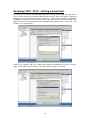
Exchange 2000 / 2003 – Setting a smart host ...................................................................... 8
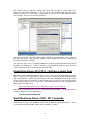
Exchange 2007 / 2010 – Setting a smart host .................................................................... 10
Hosted Exchange 2010/2013 – Setting a smart host.......................................................... 11
Small Business Server 2008 / 2011 onwards ..................................................................... 11
Step 3 – Changing your DNS Records.................................................................................... 12
Changing DNS MX records ................................................................................................. 12
Changing DNS SPF TXT Records ...................................................................................... 12
Step 4 – Adding Users............................................................................................................. 13
Adding Additional Admin Users........................................................................................... 13
Adding Ordinary Users ........................................................................................................ 13
Step 5 – Whitelisting Client And Supplier Domains................................................................. 14
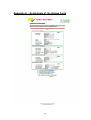
Appendix A – The Signup Form .............................................................................................. 15
Notes ....................................................................................................................................... 16
Contacts................................................................................................................................... 16
Agent Technical Contacts ................................................................................................... 16
Spam Safe Mail Contacts.................................................................................................... 16
2