1
28
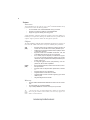
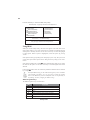
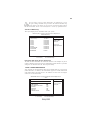
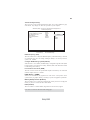
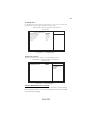
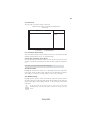
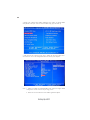
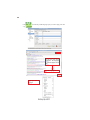
Press the delete key to access the BIOS Setup Utility.
CMOS Setup Utility -- Copyright (C) 1985-2008, American Megatrends, Inc.
f Standard CMOS Setup
f Advanced Setup
f Advanced Chipset Setup
f Integrated Peripherals
f Power Management Setup
f PCI/PnP Configuration
f PC Health Status
fFrequency/Voltage Control
Load Default Settings
fSupervisor Password
fUser Password
Save & Exit Setup
Exit Without Saving
mnlk : Move
Enter : Select +/-/: Value F10: Save
F1:General Help
F9: Load Default Settings
ESC: Exit
v02.61 (C)Copyright 1985-2008, American Mega trends, Inc.
Using BIOS
When you start the Setup Utility, the main menu appears. The main menu of the
Setup Utility displays a list of the options that are available. A highlight indicates
which option is currently selected. Use the cursor arrow keys to move the highlight
to other options. When an option is highlighted, execute the option by pressing
<Enter>.
Some options lead to pop-up dialog boxes that prompt you to verify that you wish to
execute that option. Other options lead to dialog boxes that prompt you for information.
Some options (marked with a triangle f) lead to submenus that enable you to change
the values for the option. Use the cursor arrow keys to scroll through the items in the
submenu.
In this manual, default values are enclosed in parenthesis. Submenu items are denoted
by a triangle f .
The default BIOS setting for this motherboard applies for most conditions
with optimum performance. It is not suggested to change the default
values in the BIOS setup and the manufacture takes no responsibility to
any damage caused by changing the BIOS settings.
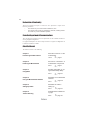
BIOS Navigation Keys
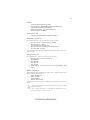
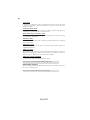
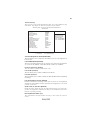
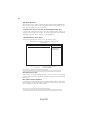
The BIOS navigation keys are listed below:
KEY
ESC
FUNCTION
Exits the current menu
mnlk
Scrolls through the items on a menu
+/-/PU/PD
Enter
Modifies the selected field’s values
Select
F9
Loads an optimized setting for better performance
F10
Saves the current configuration and exits setup
F1
Displays a screen that describes all key functions
Using BIOS