1
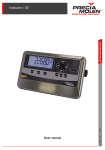
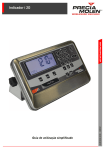
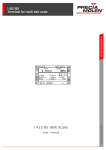
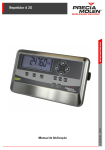
Indicator i 20
04-50-00-1 GU - 10/2012
WWW.PRECIAMOLEN.COM
Simplified User Guide
This document is intended as a quick user guide for the
i 20 Indicator.
It allows a quick start of the device. For electrical connection
and installation, refer to the following manuals :
• Wiring block diagram : 04-50-00 DD
• Installation Manual : 04-50-00 MI
• User manual : 04-50-00 MU
Safety
Standard NF EN 60 950 requires that instruments are
connected via a power outlet and that the outlet is in close
proximity to the instrument. An easily accessible isolator
device must be installed when the instrument is permanently
connected to the mains.
Configuration
m+O
Keys
Select the application in
configuration mode
Configuration
Single weighing
Page 6
Configuration
Parts counting
Page 7
Configuration
Formulation
Page 13
Configuration
Tolerance checks
Page 10
Configuration
Calculation
Page 15
Use
O
Key
Power on/Application Selection
Single weighing
Page 6
Parts counting
Page 7
Formulation
Page 13
Tolerance checks
Page 10
Calculation
Page 15
Please note: prior to first use, the required parameters for each application need to be set via the configuration menu.
04-50-00-1 GU
1
Indicator i 20
General overview
$ Keyboard
C
Function
O
M
On / Off
Press and hold to turn the indicator on/off.
Application / Metrology
Toggles between the two operating modes.
E
Escape
Exit a menu or abort current data entry without
saving.
m
Menu
In operating mode, provides access to the
configuration menu for the current application.
m+O
Configuration mode
R
8.
4 6
2.
0... 9C
&
S
I
Confirmation
2
Directional keys
Press both keys to power up the indicator in
configuration mode.
Enter menu or accept current data entry.
Navigation keys for menus and lists.
Indication < > in the help area.
Numeric keys and cancel
Taring or zeroing
Totalizing the batch
Print
If printer is connected.
04-50-00-1 GU
$ Screen
5
1
10
8888.888
.
.
9
8888888888
2
6
cd
k
4
888
3
i
z
W 6
0
7
8
Function
Title / Symbol
1.
2.
Data area
User area
3.
Assistance area
4.
kg g t lb
5.
%
6.
D
7.
W1 W2
i
z
04-50-00-1 GU
Use
Display digital data : weight, number of pieces, calculated
data.
- User prompts.
- Bar display analogue output.
- NET indication if tare taken into account.
- Addition to unit.
- Indication of valid keys.
See detail below.
Unit.
Formulation application :
Proportion of one ingredient. (Replaces the unit.)
- Applications :
Symbol D displayed. The displayed weight is not a
metrological reference.
- Metrological screen
No symbol. The displayed weight is not a metrological
reference.
Weighing range 1 or 2 is active.
The weight is "in motion".
The weight is in the zero and setting range.
3
Indicator i 20
Function
Title / Symbol
8.
0
9.
Battery charge :
0 - 10 %
1
10 - 30 %
2
30 - 60 %
3
60 - 100 %
.
Confirmation of the key press of a button.
.
Counting application: :
Unit weight too low compared to the resolution of the
instrument.
10.
$
Use
Basic parameters
%
Language
• PARAMETERS / LANGUAGE
Select French or English.
%
Display device
• PARAMETERS / DISPLAY / ECO MODE enables setting of standby
mode :
ON
OFF
- Turns off the backlight after 30 seconds of inactivity, weight to
zero.
- After 1 hour of inactivity, weight to zero, the indicator turns itself
off.
No standby mode.
• PARAMETERS / DISPLAY / BRIGHTNESS allows adjustment of
backlight intensity : 3 level settings.
• PARAMETERS / DISPLAY / COLOR selects the screen background
colour: : 7 colour choices.
4
04-50-00-1 GU
$
Saving
When the configuration parameters have been changed, the changes can be saved in
two ways :
(1) returning to the highest level in the configuration menu :
menu
< >
SAVE
The SAVE option screen is displayed for about 1 s,
the operator is prompted to save the modified parameters
Yes or No.
NO
save
< >
YES
Select NO to return to the
configuration menu without saving the
modified parameters.
save
< >
Select YES to return to the
configuration menu and save the modified
parameters.
(2) by pressing O.
Similarly, the SAVE option screen is displayed for about 1 s, then the choice
whether to confirm or not confirm the modified parameters is proposed.
NO
save
< >
Select NO to abort changes prior to
power off.
YES
save
< >
Select YES to save changes prior to
power off.
After configuration changes, the system re-starts with the same selected application at
power up.
The operator may at any time make changes to the configuration of the selected application.
In order to do this the indicator must be re-started in configuration mode.
04-50-00-1 GU
5
Indicator i 20
Single weighing
$ Configuration
1. Select the function SIMPL WT in the configuration menu.
(LOGIN / OPERATOR / APP/ SELECT APP / SIMPL WT).
2. Select the PRINT MODE parameter.
This parameter selects the recording mode for each weighing :
• MANUAL
⇒ by pressing key R or I.
• STABILITY ⇒ when "no motion" is detected.
Both menus below are only active if STABILITY mode is selected, otherwise
they are disabled.
- AUTO BATCH ⇒ YES / NO. To start a batch automatically.
- PROD.THRESH⇒ Piece presence threshold.
• PERIODIC⇒ automatically after a period.
The menu below is only active if PERIODIC mode is selected, otherwise they are
disabled.
- PERIOD ⇒ enter the Printing Period in minutes
(from 1 to 60).
$ Operational mode
1. When turning on the i20 the simple weighing
0.000
mode is active.
The active keys are:
•
•
•
•
•
&: Set tare/zero.
I: Print the result of the current operation.
R: Record the batch weighing.
C: Undo the last batch weighing.
S: End of batch
HR:
2. Perform an initial weighing.
The weighing result is displayed (A) as well as
the weight in high resolution (B).
3. If a printer is connected, print the current
weighing (I).
B A
HR:
0.0000
0.436
0.4360
d
k
z
d
k
z
Once printed, a new operation can be
performed.
6
04-50-00-1 GU
Parts counting
$ Configuration
1. Select the COUNT function in the configuration menu.
(LOGIN / OPERATOR / APP / SELECT APP / COUNT).
2. Enter the TYPE parameter.
Select the required counting mode.
• STANDARD ⇒ simple counting.
• TOL CHK+/- ⇒ counting with tolerance control.
Choose STANDARD mode.
3. Enter the PRINT MODE parameter.
Select the recording mode for each weighing:
• MANUAL
⇒ by pressing key R or I.
• STABILITY⇒ automatically when "no motion" is detected.
4. Enter the EXT. SCALE parameter.
This parameter enables selection of an external reference scale:
$ Operational mode
% Sampling Mode
1. After powering the instrument, the sampling
0.000
phase commences.
NB.OF.PIECES
2. Determines the number of sample pieces on the
scale.
The result of the sample weighing is
displayed (A).
04-50-00-1 GU
A
0.290
NB.OF.PIECES
d
k
< >
z
d
k
< >
z
7
Indicator i 20
3. Select the NB.OF.PIECES function to get the
number of sample parts (R).
The current weight of the number of pieces is
displayed.
0.290
5. Confirm the number of sample parts (R).
B
• current weight on the scale (C).
• unit weight (D).
• weight in high resolution (E).
The procedure is identical for each weighing.
0.290
d
k
0-9
50
6. Use keys 4 and 6 keys to view the
corresponding information.
0-9
0
4. Enter the number of items using the
keyboard. The number being entered is
displayed on screen (B).
d
k
C
W:
D
50
50
50
d
PCS
0.290KG
d
PCS
Uw: 0.0058KG
E
HR:
d
PCS
0.2900
% Counting Mode
1. In counting mode the following keys are active:
• m: Abort and return to sampling mode.
• I: Print the result of the current weighing.
• R: Record the batch weighing.
• S: End of batch
8
W:
50
d
PCS
0.290KG
04-50-00-1 GU
2. Perform an initial weighing.
The information displayed is :
• Calculated number of pieces (A),
• Weight of all the pieces (B),
• Calculated unit weight (C).
3. If a printer is connected, print the current
operation (I).
Once printed, a new operation can be
performed.
04-50-00-1 GU
B
W:
73
d
A
PCS
0.290KG
C
73
d
PCS
Uw: 0.0058KG
9
Indicator i 20
Tolerance Checking
$ Configuration
1. Select the function TOL CHK+/- in the configuration menu.
(LOGIN / OPERATOR / APPLI / SELECT APP / CONTROL +/-).
2. Select the TOL DEF parameter.
This parameter selects the tolerance input mode.
• ENTRY
⇒ manual entry via the keyboard.
• ENTRY.WEIGH⇒ sample weighing.
When the ENTRY.WEIGH mode is selected to weigh a load, the number 0 must
be entered via the keyboard.
3. Select the COLOR parameter.
This parameter enables screen colour selection for the target weight, the - tolerance,
and the + tolerance.
• TOLERANCE - : NO/ YES (if yes, the screen turns yellow when the value is
at < tolerance -).
• TARGET : NO/ YES (if yes, the screen will turn green when the value is within
tolerance).
• TOLERANCE + : NO/ YES (if yes, the screen turns red when the value is >
tolerance +).
4. Select the PRINT MODE parameter.
This parameter selects the recording mode for each weighing :
• MANUAL
⇒ by pressing key R or I.
• STABILITY⇒ automatically when "no motion" is detected.
The menus below are only active if STABILITY mode is selected, otherwise they
are disabled
• AUTO BATCH ⇒ YES / NO. Starts a batch automatically.
• PROD.THRES ⇒ piece presence threshold.
5. Select the BEEP parameter.
This parameter allows a beep to be assigned to a tolerance level.
$ Operational mode
Tolerance checking is carried out in 3 steps: sampling (See “Sampling Mode”, page 7.), the
definition of set points and checking itself.
10
04-50-00-1 GU
% Definition of set points
1. Enter or weigh the load corresponding to the
target then confirm (R).
Press button (R) again.
The target weight is recorded.
1.384
1.384
d
k
< >
TARGET
d
k
0-9
1.384 KG
2. Enter the load corresponding to the tolerance then confirm (R).
Press button (R) again.
The set point is recorded.
The number of pieces is relative to the target
(tolerance - = 1384 - 0050 = 1.334 kg).
NB: If the load is weighed, the weight displayed
corresponds directly to the number used for
tolerance - (1.334).
3. Proceed in the same way for tolerance +.
0.050
0.050
d
k
< >
TOLERANCE-
d
k
0-9
0.050 KG
0.050
4. Then confirm again to take into account all the
(R) parameters.
d
k
$
CONFIRM
% Checking
1. In the checking mode, we find are active:
• m: Abort and return to the tolerance definition
0.000
menu.
• I: Print the result of the current weighing.
• R: Record the current weighing.
• S: End of batch
04-50-00-1 GU
.
d
k
< >
I
11
Indicator i 20
2. Perform an initial weighing.
A
The information displayed is:
• checking results,
-
below the tolerance - (A)
on the target (B)
within the tolerances (C)
above the tolerance + (D)
• unit weight,
• total weight.
3. If a printer is connected, print the current
operation (I).
Once printed, a new operation can be
performed.
I
.
B
.··*
C
1.328
1.382
1.390
1.480
d
k
< >
.
d
k
< >
.
d
k
< >
.··I· .
D
d
k
< >
.··I··.Á
12
04-50-00-1 GU
Formulation
$ Configuration
1. Select the FORMUL function in the configuration menu.
(LOGIN / OPERATOR / APP/ SELECT APP / FORMUL).
2. Select the ACCUMUL. parameter.
• YES: The composition of the recipe is formulated by the addition of products into
a vessel.
The calculated result is calibrated after recording each operation.
• NO: The composition of the recipe is formulated by entering the weight of each
individual product.
The calculated result is only reset after the withdrawal of the
previous product.
3. Select the DEC POINT parameter: 0 (no decimal) at 6.
This parameter defines the position of the decimal point in the display.
4. Select the BEEP parameter.
This parameter allows a beep to be assigned when 100% of the desired quantity is
achieved.
$ Operational mode
1. At device power up, formulation mode is
QUANTITY
0
QUANTITY
0
activated.
The active keys are:
•
•
•
•
•
&: Set tare/zero.
I: Print the result of the current operation.
R: Record formulation weights.
C: Cancel last weighing of the formulation.
S: End of batch
2. Press R enter the required quantity.
04-50-00-1 GU
d
g
< >
z
d
g
< >
z
13
Indicator i 20
3. Enter the value using the numeric keypad
(0 to 9).
Confirm (R).
If the amount entered is 0 then the quantity is
weighed.
2000 G
¡:
4. Fill the first product until the desired batch
percentage is reached.
¡:
5. Confirm the current weighing (R).
Information about the current weighing is reset
to perform a next reweighing.
The number of product weighings is shown at
(A).
A
Nb:
0
0
0
d
g
0-9
z
d
z
46
cd
0
cd
46%
1
z
z
6. Repeat this operation as many times as
necessary until the composition reaches 100%.
7. If a printer is connected, print the result of the
formulation (I).
Once printed, a new operation can be
performed.
14
04-50-00-1 GU
Calculation
$ Configuration
1. Select the CONVERSION function in the functional configuration menu.
(LOGIN / OPERATOR / APPLI / SELECT APP / CONVERSION).
2. Enables entry of the UNIT parameter.
This parameter allows entering the unit used in the calculations.
3. Enter the DEC POINT parameter: 0 (no decimal) at 6.
This parameter defines the position of the decimal point in the weight display.
4. Enter the PRINT MODE parameter.
This parameter allows selecting the recording mode for each weighing :
• MANUAL
⇒ by pressing key R or I.
• STABILITY⇒ automatically when "no motion" is achieved.
The menus below are only active if STABILITY mode is selected otherwise they
are disabled. In other cases they will not be visible.
• AUTO BATCH ⇒ YES / NO. Starts a batch automatically.
• PROD.THRES⇒ Piece presence threshold.
$ Operational mode
% Definition of the factor
1. Select the factor type using the arrow keys (4
and 6) then confirm (R).
For example a division factor (A).
The current factor value is displayed (B).
A
DIV FACTOR
B
2. Enter the new a new factor value (C) and
confirm (R).
0
C
0.081
04-50-00-1 GU
0.000
0.000
0.000
d
k
< >
z
d
k
0-9
z
d
k
0-9
z
15
Indicator i 20
The calculation mode is active.
Where there is no factor simply press the R key
to switch directly to the calculation step.
The selected unit is displayed (D).
0.000
W:
0.000KG
d
k
M/L
z
D
% Calculation
1. In calculation mode the following keys are
0
active:
• m: Abort and return to the factor definition
menu.
• R: Record the current weighing.
• S: End of batch
2. Perform an initial weighing.
The information displayed is :
W:
0.000KG
B
A
• Result of the calculation for the current
weighing (A),
•
•
•
•
Current weight (B),
Unit used if there is one (C),
W:
D
Weight in high resolution (E).
Factor used (E).
3. If a printer is connected, print the current
weighing (I).
Once printed, a new operation can be
performed.
HR:
E
/
16
0
0
0
0.168KG
d
M/L
d
M/L
C
d
M/L
0.1680
d
M/L
0.081
04-50-00-1 GU
Predetermined tare
$ Configuration
1. Select the WRITE TARE parameter:
This parameter allows defining the number of tare weights saved (from 1 to 10).
2. Select the WRITE UTIL parameter:
This parameter allows defining the user rights to be defined in user mode.
• YES: Read/write permission available.
• NO: User has read only permission.
$ Operating Procedure
0.000
1. Press key m and scroll through the various
functions with the arrow keys.
HR :
2. Select the SAVED TARE function then
confirm (R).
0.0000
0.000
SAVED TARE
3. Select the WRITE TARE function then
confirm (R).
0.000
READ TARE
04-50-00-1 GU
k
z
k
< >
z
k
< >
z
17
Indicator i 20
0.000
0.000
4. Select the tare to be saved (here1 SAVED
TARE) then confirm (R).
1 SAVD.TARE
The current tare value is displayed
0
5. Enter the tare value via the numeric keypad and
confirm (R).
Repeat this process for each saved tare.
6. Press E to return to the previous menu.
7. Select the READ TARE to view and confirm
the tare (R).
The tare weight is displayed.
k
0-9
z
0-9
0.000
< >
0.100
0.000
-0.100
1 SAVD.TARE
HR :-0.1000
18
z
0.000
READ TARE
8. Select tare to view and confirm (R).
k
< >
k
z
k
z
k
< >
z
k
z
04-50-00-1 GU
Entering references ID1 and ID2
References 1 and 2 allow the identification of a weighing.
2.250
1. A weighing is in progress.
HR:
functions using the arrow keys.
3. Select the preset tare ID1 or ID2 function
and confirm (R).
k
ID1
The reference value is displayed.
4. Enter the new value for reference 1 via the
numeric keypad.
Each reference can consist of up to 9 digits from
1 to 9 including decimal points.
2.2500
2.250
2. Press key m and scroll through the various
k
0
Using key C, during input eraser the last
character entered.
2.010
2.010
d
k
1-9
d
k
1-9
1255
2.250
5. Confirm reference value 1 (R).
This reference will be shown on printed tickets.
HR:
04-50-00-1 GU
k
2.2500
19
Indicator i 20
Notes
20
04-50-00-1 GU
WWW.PRECIAMOLEN.COM
WWW.PRECIAMOLEN.COM
PRECIA-MOLEN Head Office & Plant
BP 106 - 07000 Privas - France
Tel.
33 (0) 475 664 600
Fax
33 (0) 475 664 330
E-MAIL
[email protected]
www.preciamolen.com
RCS: 386 620 165 RCS Aubenas