1
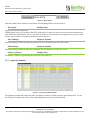
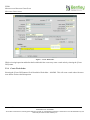
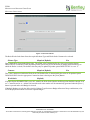
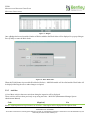
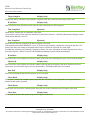
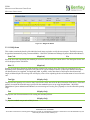
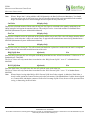
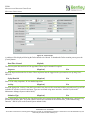
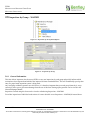
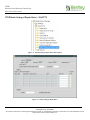
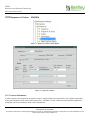
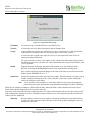
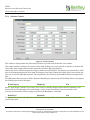
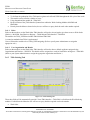
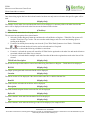
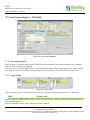
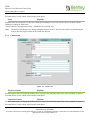
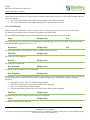
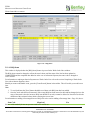
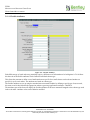
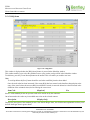
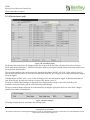
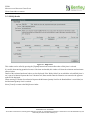
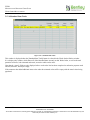
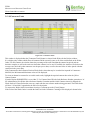
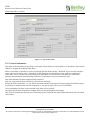
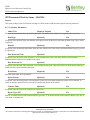
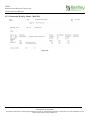
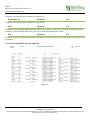
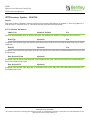
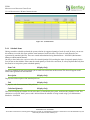
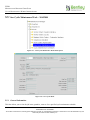
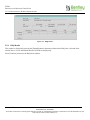
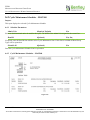
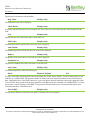
EXOR MAINTENANCE MANAGER USER GUIDE WORK ORDER MANAGEMENT Priority (Optional) List Enter a Priority for the Works Order. These will have been previously set up using Work Order Priorities – MAI0312 In addition the contents of the WOR_PRIORITY list of values, maintained using Domains – HIG9120, will be concatenated onto the list, this is to cater for backward compatibility. This will automatically populate the Target Date field below. Road Type (Required) List Select the road type for the works order. If budgets are to be used the road type must match the road types set in the Product Options – HIG9130, for DoT roads – BUDGRPTYPD, for Local roads – BUDGRPTYPL. Road Id (Required) List When <List> is selected only groups of the type entered in the previous field will be displayed, make your selection from this list without drilling down through the gazetteer. Scheme Type (Required, Default) List Select the scheme type under which this work will be carried out. Some restrictions will apply based on the values set using Item Code Breakdowns , they are as follows: The options available on the list will be restricted to whether the road selected is DoT or Locally owned. The scheme type selected will restrict the work categories available when raising the order. The scheme type cannot be changed if works order lines are present on the works order. The product option DEFSCHTYPU must be set to ‘Y’ if the user is allowed to update the default scheme type. The scheme type will affect the flexible attributed returned when the [Flexible Attributes] button is selected. The flexible attributes for each scheme type are defined by the System Administrator using Application Attributes – MAI3819. Register (Optional) Checkbox If all the contents of this works order are to be notified to street works this check box will need to be checked. Once checked the Register Status field will become populated and the [TMA Interface] button will become active. Any work order lines subsequently added to the work order will have to be ticked manually. If unchecked, all work order lines that have not had a notice generated will be deselected. Register Status (Display Only) This field will display the current register status of the works order lines. Current statuses are: N – Nothing to Register – One or more works order lines have been ticked as Registerable but no notices have been sent for any of them. O – Outstanding – one or more of the works order lines have been ticked as Registerable and at least one notice has been sent for at least one of them. Only work order lines that have a status of INSTRUCTED can be sent to the register. C – Complete – All work order lines that have been ticked as Registerable have had a ‘0600’ notice sent. At this point the [View Register] button will be displayed. Version: 4.7 88 CONFIDENTIALITY STATEMENT The contents of this document, including system ideas and concepts, are confidential and proprietary in nature and are not to be distributed in any form without the prior written consent of Bentley, Inc.