1
EXOR
MAINTENANCE MANAGER USER GUIDE
WORK ORDER MANAGEMENT
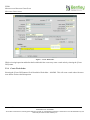
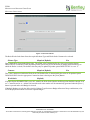
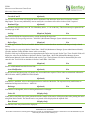
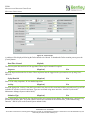
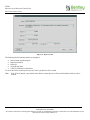
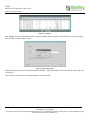
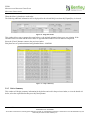
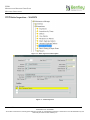
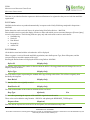
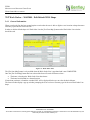
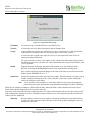
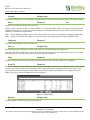
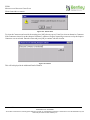
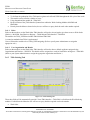
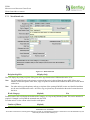
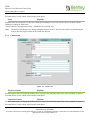
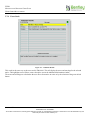
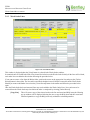
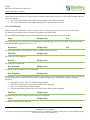
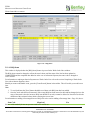
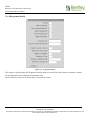
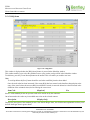
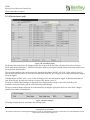
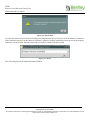
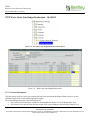
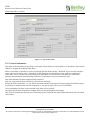
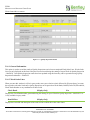
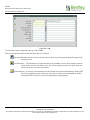
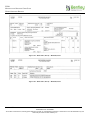
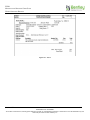
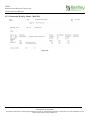
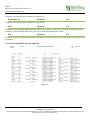
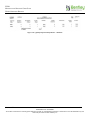
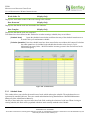
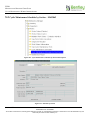
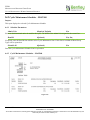
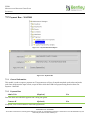
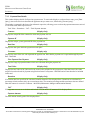
Figure 113 - Invoices
3.5.18 Invoices
Once a Works Order Line or Part of a Works Order Line, in the case of an Interim payment, has been included in payment
run the Invoice details can be displayed by pressing the [Invoices] button on the Works Order Line window.
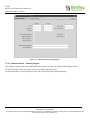
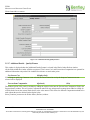
The Payment Id, Payment Value and Date Paid will be displayed. To add the Invoice number, click in the 'Invoice field'
and enter the appropriate value. Press [Save] on the menu toolbar to save the changes.
If the Works Order Line has had a number of Interim Payments made against it, this is a good way to track the payments
made to date.
Press the [Close] button to return to the Works Order Line window.
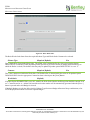
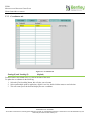
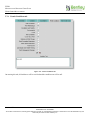
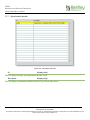
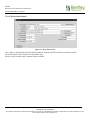
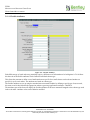
3.5.19 Making Interim Payments
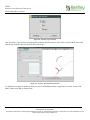
Interim payments can be made on part of an individual Works Order Line if needed. This may used where the work
ordered on a Works Order line may take a long period of time to complete or is of very high value. As work proceeds the
Contractor may require payment for the work he has completed to date. Interim payments allow the Standard Items
quantities to be amended to show the actual amount of work done to date or for new Standard Items to be added. Once the
actual quantities have been added the Works Order Line can then be included in a payment run.
As the work progresses further, this Interim Payment process can be repeated until the work is Completed and the Final
Payment is made.
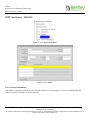
If an Interim Payment is made on a Works Order Line raised to repair a defect, the defect status will be set to STR MAIN
(the Status Code with feature 6 allowed).
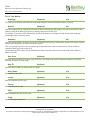
A Works Order cannot be completed until all the Works Order Lines on the Works Order are Completed.
Version: 4.7
120
CONFIDENTIALITY STATEMENT
The contents of this document, including system ideas and concepts, are confidential and proprietary in nature and are not to be distributed in any form
without the prior written consent of Bentley, Inc.