1
Tibbo
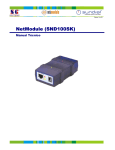
EM100 Ethernet Module
(EM100SK Starter Kit)
TECHNOLOGY
Technical Manual*
Thank you for taking an interest in Tibbo’s Products!
Always check for updates!
Our every Product is an “ongoing Project”. Basing on our Customer’s feedback we are constantly
working on improving and enhancing the EM100 Ethernet Module. Chances are, the User’s Manual you are
reading now is outdated. Visit our website at www.tibbo.com for up-to-the-minute firmware, software, and
documentation. You can also subscribe to our periodic e-mail newsletter to stay informed on the latest
developments at Tibbo Technology.
No external components,
just add a connector
The EM100 can be customized in many ways. Have an idea? Let us know now!
46mm
h=13mm
Tibbo
28mm
NetModule
TIBBO TECH. INC. TAIWAN
MODEL NO: EM100
PART NO: EM100-00
S/N: A
0801 0601
Is this Manual for you?
This User’s Manual was designed to serve as a reference for Hardware Engineers, Software
Developers and System Integrators seeking in-depth information on the EM100 functionality and
programming. Our Connectivity Manual provides an additional information on the installation, setup, and use
of the EM100-enabled devices and Tibbo Device Server Toolkit software ( including Virtual Serial Port
Driver).
This Manual assumes that the Reader is a technical specialist with a knowledge of Ethernet and
TCP/IP networking
Is your firmware up to date?
Please, register at www.tibbo.com to receive update notifications
Version: 2.1a
Tibbo Technology, Inc. 2001, 2002
* Formerly User’s Manual
This Manual describes the functionality of the EM100 Ethernet Module running V2.1x firmware. If your
EM100 has an older firmware you need to upgrade to this new firmware first. See Firmware Download Mode
for a complete information on how to upgrade the EM100.
Seeking further assistance
•
•
•
[email protected] for all “other” inquiries
[email protected] for sales inquiries
[email protected] for your suggestions
[email protected] for technical problems
If you cannot find an answer to your question or problem you are encouraged to send us an e-mail:
•
How to print out this Manual
This Manual is supplied in two forms: screen-optimized and print-optimized. Use the screen-optimized
document (EM100 Technical Manual) to conveniently view the Manual on your PC screen. Use the printoptimized version of the above (EM100 Technical Manual (print)) to make a hardcopy of the Manual. The
printed version arranges 2 small document pages per single A4 sheet.
3
1.
2.
3.
4.
5.
6.
7.
8.
9.
Table of Contents
Introduction
1.1.
What is the EM100?
1.2.
Three basic ways of using the EM100
Controls, operating modes, and signals
2.1.
EM100 connectors and controls
2.2.
Operating modes
2.3.
Summary of Status LED signals
Operation in the Normal Mode
3.1.
General information
3.2.
Slave and Master routing modes
3.3.
Serial!Ethernet data routing
3.4.
Buffer-related issues
Programming the EM100
4.1.
General information
4.2.
Serial Programming Mode
4.3.
Network Programming
Available commands and replies
5.1.
List or commands
5.2.
List of possible reply codes
5.3.
Detailed Command description
Available Settings
6.1.
List of Settings by groups
6.2.
Detailed Setting description
Available Parameters
7.1.
List of Parameters
7.2.
Detailed Parameter description
Firmware Download Mode
8.1.
Downloading new firmware file
8.2.
Initializing the EM100
8.3.
Possible download problems and LED signaling
I/O Connector pin assignment & Cable wiring
9.1.
EM100 I/O connector pin assignment
30
31
33
20
21
26
29
7
8
14
6
6
6
Error! Bookmark not defined.
20
30
35
60
56
58
59
54
54
42
43
35
35
36
42
54
56
60
4
9.2.
RS232 cable wiring
9.3.
Ethernet cable wiring
10.Specifications, packing & ordering Information
10.1. Specifications & packing information
10.2. Ordering Information
62
60
61
62
62
5
1. Introduction
1.1. What is the EM100?
The EM100 is an Ethernet Module. The main function of the EM100 is to network-enable existing serial
devices. Using the EM100 you can add an Ethernet port practically to any serial device with RS232
interface. You can then communicate with your serial device from any PC (or other device) connected to
your LAN. And if your LAN has a direct connection to the Internet, then you can access and control your
*
serial device from anywhere in the world !
•
•
If you have a serial device and are creating a new PC software to control it then you can
develop software that communicates with the EM100 directly (without VSPD). The EM100
transmits the data using industry-standard UDP/IP and TCP/IP communications protocols. Most
software development packages like Visual Basic from Microsoft® provide an easy to use
components that simplify exchanging data with the EM100. Turn to our tutorial Using VB to
communicate with the DS100/EM100 for more information.
If you have a serial device that you want to control via the network using an existing PC
software then you can use the EM100 to network-enable this serial device and communicate with
it from the PC through our Virtual Serial Port Driver (VSPD). Virtual Serial Ports (VSPs) created by
the driver are logical COMs that behave like standard hardware COMs but in reality transparently
reroute the data via the TCP/IP network to the EM100-enabled serial device. VSPs allow you to
continue using your existing PC software without any modification.
1.2. Three basic ways of communicating with the EM100
•
You can also create a virtual serial link over the network by using the EM100-enabled serial
device on one side and the DS100 Serial Device Server on the other side. The serial port of the
DS100 on the other side of the link will literally be an extension of your serial device’s own serial
port.
* Provided that you have assigned a valid “true” IP-address to the EM100. “True” IP-address is the address that is unique Internet-wide.
Output
Output
Input
Input
1
2
3
4
5
6
7
GND
TXTX+
P1
P0
RST
P3
P2
RTS
CTS
TX
RX
MD
13
12
11
20
19
18
17
16
15
14
Fig. 1. EM100 pin assignment
Ethernet port pins
Positive line of the differential output signal pair
Negative line of the differential output signal pair
Positive line of the differential input signal pair
Negative line of the differential input signal pair
Serial port pins
Serial transmit line
Serial receive line
Full-duplex mode: request to send, Half-duplex Mode: data direction
control
8
9
10
RXRX+
VCC
ER/WS
EG
SG
SR
2. Hardware description
TX+
TXRX+
RXOutput
Input
Output
2.1. EM100 I/O pin assignment
TX
RX
RTS/DIR
EM100
RST
MD
P0
P1
P2
P3
SG
SR
EG
ER/WS
CTS/SEL
Input
Input
Input/Output
Input/Output
Input
Input/Output
Output, 10mA max.
Output, 10mA max.
Output, 10mA max.
Output, 10mA max.
Input
VCC
GND
Clear to Send line, also full-duplex/half-duplex mode selection line
LED control pins
Green Status LED control line
Red Status LED control line
Green Ethernet LED control line
Red Ethernet LED control line, also watchdog strobe line
General-purpose I/O pins
Remotely controlled (through Parameter command) input/output
Remotely controlled (through Parameter command) input/output
Remotely controlled (through Parameter command) input
Remotely controlled (through Parameter command) input/output
EM100 control pins
Reset, active high (10us min. pulse length)
Mode selection pin (see Operating modes and mode selection)
Power supply pins
+5V nominal +/- 5% (4.75…5.25V) DC power (70mA max)
Ground
2.2. Detailed pin description
Ethernet port pins
The EM100 is designed to attach directly to the RJ45 10BaseT Ethernet connector. Standard magnetics
circuitry (YCL part 20F001N) has been included onboard to provide a “glueless” interface to the Ethernet
network.
When performing the PCB layout for the host serial device observe the layout guidelines set forth in .
8
A pair of green and red LEDs connected to the SG and SR lines will provide a visual indication of
the EM100s operating mode as well as error conditions (see Summary of Status LED signals)
9
The ER/WS line of the EM100 also acts as a watchdog reset line and Serial Transmission Mode
selection line. This does not interfere with the main function of this pin (to drive the Red Ethernet LED).
VCC
ER/WS
EG
SG
SR
General purpose I/O pins are of open-collector type. A weak pull-up resistors are already included in the
EM100 module. A simplified circuit diagram of each pin is shown on Fig. 3. In order to sense the input status
of a pin the output driver of this pin must first be set to high otherwise the pin will be kept at low state by its
own output driver.
The EM100 features four general-purpose I/O pins that can be used to switch on and off loads and
sense the status of connected sensors. I/O pins can be set and sensed remotely over the network using the
Parameter command. All four pins (P0, P1, P2, and P3) can be used as inputs while only three pins (P0, P1,
and P3) can be used as outputs.
General-purpose I/O pins
Fig. 2. Connecting LED control lines to the LEDs
EM100
Serial port pins
The serial port includes four interface lines and can work in a Full-duplex or Half-duplex Transmission
Mode. In the Full-duplex Transmission Mode the EM100 supports RX, TX, RTS, and CTS signals. In the
Half-duplex Transmission Mode the EM100 provides RX, TX, and DIR signals. DIR pin is used to control the
data direction.
All lines of the EM100s serial interface are CMOS level, active low. TX and RX lines are high when idle,
start bit is low level, and stop bit is high. High on CTS and RTS lines means “transmission prohibited”, low“transmission allowed”.
Serial lines of the EM100 can be connected directly to the serial port pins of most microcontrollers and
microprocessors, also to the RS232 driver IC (i.e. MAX232) for Full-duplex operation or RS485 driver IC (i.e.
MAX485) for Half-duplex operation.
Half-duplex or Full-duplex operation can be selected through the Serial Interface Setting or in hardware
using CTS/SEL and ER/WS pins. See Full-duplex/Half-duplex Serial Transmission Mode selection.
LED control lines
•
The EM100 can drive four LEDs:
•
Another pair of green and red LEDs connected to the EG and ER/WS lines will provide a visual
indication of the Ethernet port operation. Green LED is normally on and is turned off momentarily
when the EM100 receives Ethernet packets. Red LED is normally off and is turned on momentarily
whenever there is a data collision on the Ethernet network.
All LED lines are active low, so the LEDs must be connected as shown on Fig. 2. ~300 Ohm resistors
should be connected in series with each LED.
300
10
Not present
on P2
OUT
IN
VCC
P0...3
Fig. 3. Simplified circuit diagram of the general-purpose I/O pins
EM100 control pins
•
MD pin is used to select the operating mode of the EM100.
RST provides a reset to the internal circuitry of the EM100. Holding this pin high for at least 10uS
resets the EM100. The RST pin must be connected to a proper reset circuit, otherwise the EM100
may not function properly.
Two control pins of the EM100 are RST and MD.
•
Power supply pins
The EM100 works on 5VDC (+/- 5%) power.
2.3. Operating modes and mode selection
The EM100 has three modes of operation:
11
•
•
Normal Mode is entered after the powerup, software restart, or hardware reset provided that the
MD line is not pulled low. It is in the Normal Mode that the EM100 performs its Ethernet"!Serial
data routing. Network Programming of the EM100 can also proceed in the Normal Mode in parallel
with the data routing
1s
MD
“No reaction zone”- time it takes the EM100 to enter the
Normal Mode of operation after the powerup, software
restart, or hardware reset
MD holding time to enter the Serial Programming Mode
MD holding time to enter the Firmware Download Mode
Entering the Firmware Download Mode
F-ware d-load mode
T3
Serial Programming Mode is entered when the MD line is pulled low for at least 100ms or escape
sequence is sent into the EM100’s serial port while the EM100 is in the Normal Mode. This mode is
used to program the EM100’s functioning parameters (Settings) via the serial port
Max
20ms
1ms
RST
Firmware Download Mode is entered when the EM100 is powered up, restarts, or exits from reset
with the MD line pulled low. This mode is used to download new firmware file into the EM100.
T1
Normal mode
Prog. mode
•
RST
MD
T2
T1
Min
Min
Entering the Serial Programming Mode
T2
T3
Fig.4. Using MD line to change the operating mode
12
2.4. Full-duplex/Half-duplex Serial Transmission Mode selection
The EM100 can perform serial communications in the Full-duplex or Half-duplex Serial Transmission
Mode. Mode selection is effected through the Serial Interface Setting or through the CTS/SEL and ER/WS
pins.
13
+
VCC
Bypass caps
P3
P2
RTS/DIR
CTS/SEL
TX
RX
MD
P1
P0
RST
A
B
LT485
RE
DE
DI
RO
ST
LTC1232
RST
VCC
Setup
Button
default to high upon reset. Thus, connecting such an I/O pin to the RST input of the EM100 will
provide a reset simultaneous with the reset of the main microcontroller itself and at least as “wide”
(in duration) as the reset applied to the main microcontroller. It will be a responsibility of the main
microcontroller’s firmware to release the EM100 out of reset. This reset method is recommended
because this way the main microcontroller can reset the EM100 and change the EM100’s operating
mode at any time.
RXRX+
VCC
ER/WS
EG
SG
SR
GND
TXTX+
Standalone application circuit (RS485)
2.6. Typical application circuits
Pin numbers on the
RJ45 connector may
vary
300
300
VCC
300
300
VCC
Fig. 5. Standalone application circuit
Standalone operation (RS485 version shown on Fig. 5). The LTC1232 reset/watchdog IC is used
to provide reset to the EM100. Watchdog reset strobe comes from the ER/WS line. A pushbutton is
connected to the MD pin of the EM100 and can be used to put the EM100 into different modes of
operation. CTS/SEL line is connected to the ER/WS which selects the RS485 interface. TX and RX
RJ45
•
By external reset IC. Use a specialized reset IC (like MAX810) to provide a proper powerup reset.
Reset ICs are more reliable than RC reset circuits since the latter are not very stable and also do
not provide reset during brownouts.
•
EM100
When the Serial Interface is set to “Auto”, the EM100 selects between the Full-duplex and Half-duplex
Serial Transmission Modes basing on the hardware configuration. When the CTX/SEL line is connected to
the ER/WS line the EM100 selects the Half-duplex mode. When the CTS/SEL line is not connected to the
ER/WS, the EM100 selects the Full-duplex mode. When the Serial Interface Setting is programmed to “Fullduplex” or “Half-duplex” it doesn’t matter whether the CTX/SEL line is connected to the ER/WS or not- the
interface is selected according to the Setting.
Serial Transmission Mode selection happens only once when the EM100 enters the Normal Mode
(during the “no reaction zone T1” shown on Fig. 4).
2.5. Reset options
•
By external reset/watchdog IC. Even better solution is to use a reset IC with a watchdog function.
ER/WS pin provides a watchdog strobe (watchdog timer reset pulse) at a rate of 100Hz. This
doesn’t interfere with the primary function of the ER/WS pin (which is to drive the LED) since the
watchdog reset pulses are very short (~2uS).
Reliable external reset must be provided in order for the EM100 to work correctly. There are several
ways to do this:
•
By an I/O pin of the main microcontroller. If the DS100 operates as a “network coprocessor” to
the main CPU (microcontroller) of the host serial device a regular I/O line of this microcontroller can
be connected to the RST pin of the EM100. I/O pins of many popular microcontrollers (like 80C51)
Ethernet
Status
RJ45
Red Grn. Grn. Red
14
•
RXRX+
VCC
ER/WS
EG
SG
SR
+
VCC
Bypass caps
P3
P2
RTS/DIR
CTS/SEL
TX
RX
MD
P1.1
P1.0
P3.1/TX
P3.0/RX
P1.2
P1.3
15
Max.
Max.
Max.
Min.
Max.
Aver.
Aver.
p
H
l
m
46.2mm
28mm
13mm
4.5mm
1mm
40.6mm
2mm
1
11
20
d
10
Recommended
PCB thru-hole size:
1mm
PCB footprint
Length
Width
Height
Pin length
Lead “flash”
Distance between pin rows
Pin pitch
Fig. 7. Mechanical dimensions of the EM100
Lead “flash”
NetModule
Tibbo
Pin#1 key
L
2.7. Mechanical dimensions
L
W
H
I
m
d
p
W
P1
P0
RST
Fig. 6. Communications coprocessor application circuit
Microprocessor or
microcontroller with
built-in Serial port
serial interface lines are connected to the MAX485 driver IC. RTS/DIR controls RS485 data
direction. Ethernet lines (TX+, TX-, RX+, RX-) go directly to the RJ45 connector. It is recommended
that all four Status LEDs are provided. It is a common practice to place Ethernet LEDs next to the
RJ45 connector.
300
VCC
300
GND
TXTX+
EM100
Communications coprocessor application circuit
Ethernet
Communications coprocessor (Fig. 6). The EM100 is controlled by the main microcontroller
(80C51 on the circuit diagram below). By directly manipulating the RST and MD lines of the EM100
the main microcontroller can put the EM100 into different modes of operation. This way the main
microcontroller can program the EM100’s Settings and even download new firmware into the
EM100. Four serial interface lines (TX, RX, CTS, RTS) are connected directly to the I/O pins of the
microcontroller. Ethernet lines (TX+, TX-, RX+, RX-) go directly to the RJ45 connector. Four LED
lines may or may not be connected to the LEDs. It is a common practice to place Ethernet LEDs
next to the RJ45 connector.
80C51
Pin numbers on the
RJ45 connector may
vary
RJ45
Green Red
16
2.8. Board layout considerations
•
•
Short, direct lines should connect the EM100’s TX+, TX-, RX+, and RX- lines to the RJ45
The EM100 should be located physically as close to the RJ45 connector as possible
The following layout tips should be followed:
•
The board area should be flooded (filled) with ground where possible except for the area around
TX+, TX-, RX+, and RX- lines. Do not bring the ground or power planes too close to these four
lines.
Following these recommendations will decrease the noise, emitted by the EM100 and make passing the
EMI and ESD parts of the FCC/CE tests easier. Fig. 8 illustrates the above points:
Pin #1
EM100
Ground
Fig. 8. Good board layout example
RJ45
2.9. Summary of Status LED signals
The EM100 features four pins that can drive Ethernet and Status LEDs.
This Section details the Status LED signaling for the Normal and Serial Programming Modes. LED
signaling in the Firmware Download Mode is detailed in Possible download problems and LED signaling.
17
Entering the Normal Mode
Setting error, cannot enter the Normal mode
In the Normal Mode:
• Slave Routing Mode
• Master Routing Mode
• Destination IP-address is not reachable*
• Destination IP-address is reachable*
When buffer overflow is detected
In the Serial Programming mode
Red and Green LEDs blink 3 times
Red LED is blinking constantly (Initialize the EM100)
Green LED is constantly on
Green LED is blinking
Green LED is constantly on
Red LED blinks momentarily
Green and Red LEDs are blinking (Green-Red-Green...)
*The EM100 is constantly sending pings to the Destination IP-address when in the Master Routing
Mode (once in every 5 seconds). The Green Status LED is blinking if no reply is received. The Green Status
LED is constantly on when the destination replies to pings.
2.10. EM100SK Starter Kit
•
•
•
•
Serial (RS232) port is connected to the RX, TX, RTS/DIR, and CTS/SEL pins of the EM100 via the
RS232 driver IC.
Ethernet (10BaseT) port is connected to the TX+, TX-, RX+, and RX- pins of the EM100
Ethernet Status LEDs are connected to EG and ER/WS pins of the EM100. Green LED blinks
when the data packet is received, Red LED indicates network data collision error
Status LEDs (connected to SG and SR pins of the EM100) indicate EM100’s operating
mode/conditions. See Summary of Status LED signals for details
Setup Button (connected to the MD pin of the EM100). Pressing the button while the EM100 is in
the Normal Mode forces the EM100 into the Serial Programming Mode. Powering the EM100SK up
with the button pressed puts the EM100 into the Firmware Download Mode.
EM100SK Starter Kit consists of the EM100 Ethernet Module installed on a test PCB that provides a
necessary “environment” for testing. The board includes (Fig. 9):
•
18
•
Power Jack- connected to the voltage regulator providing 5V power for the EM100 and other
circuits on the board. Use DC12V, 200mA (min.) power adaptor
Red
Setup Button
RS232 port
Reset IC provides a proper reset for the EM100
Tibbo
Green
Ethernet
Col
Download
Setup
NetModule
EM100SK
•
10BaseT port
Power Jack
Green
Ethernet
Data RX
Ethernet LEDs
Red
Status2
Status LEDs
Status1
Fig. 9. EM100SK Starter Kit
19
3. Operation in the Normal Mode
3.1. General information
The main function of the EM100 is to route the data between its Ethernet and serial ports. Routing
means that the data received into the serial port is sent out via the Ethernet port and vise versa. Data routing
is effected through two routing buffers, one for each routing direction.
The EM100 performs the routing in the Normal Mode of operation. A number of user-programmable
Settings and Parameters define the way the EM100 works in the Normal Mode. Settings define permanent
functionality of the EM100 and are programmed into the EM100 via its serial port in the Serial Programming
Mode or via the network in the Network Programming Session. Parameters are temporary overrides for
certain Settings. Parameters can be changed via the network only. For more information see Programming
the EM100.
Ethernet port and network communications
The Ethernet port of the EM100 is of 10BaseT type. Just like any other Ethernet device each EM100
has a unique Ethernet (MAC) Address and must be assigned a valid IP-address to function properly on the
network.
Logically, the EM100’s network interface has two ports. A user-definable Data Port is used to exchange
the data between the EM100 and other stations on the network. Another port called Command Port has a
fixed number 65535 (FFFF Hex) and is used to send programming commands to the EM100’s over the
network.
The EM100 can exchange data with remote stations using the UDP/IP or TCP/IP transport protocols as
defined by the Transport Protocol Setting. Depending on the Routing Mode Setting the EM100 can act as a
network Slave or Master (see Slave and Master routing modes for details).
Other network-related settings include Destination IP-address, Destination Data Port Number, Gateway
IP-address, Netmask, and Connection Timeout.
Besides UDP and TCP protocols used for data transmission the EM100 also supports ARP and ICMP
(ping) protocols. You can ping the EM100 just like any other device on the TCP/IP network.
Serial port
The serial port of the EM100 supports TX, RX, CTS, and RTS signals and can work at baudrates up to
115200. In the Normal Mode the serial port transmits the data between the EM100 and attached serial
device (microcontroller). In the Serial Programming Mode the port is used to program the EM100’s Settings.
Settings that define the operation of the serial port include the Baudrate (150~115200bps), Parity (none,
even, or odd), Bits Per Byte (7 or 8), and Flow Control (none or CTS/RTS). Each of these Settings has a
matching Parameter that overrides the value of a corresponding Setting.
Routing buffer
•
Ethernet !serial data routing is simple: the EM100 outputs the contents of arriving Ethernet data
packets byte by byte via the serial port. The EM100 does not check of filter the contents of data
being routed in the Ethernet!serial direction
The data between the Ethernet port and the serial port is routed via two independent 255-byte buffers,
one for each routing direction. Buffers are necessary because the Ethernet and the serial port operate at
different speeds and in different ways. Ethernet carries the data in “packets” (i.e. groups of data), while the
serial port sends and receives a serial “stream” where each data byte is independent. Here is how the
EM100 transforms the Ethernet packets into the serial stream and back:
•
Serial !Ethernet routing requires grouping arriving serial data into packets and is more
complicated. Several Settings define exactly what serial data is accepted into the buffer and when
and how this data is combined into an Ethernet packet and sent out. Detailed information on the
subject can be found in Serial!Ethernet data routing.
3.2. Slave and Master routing modes
The EM100 routes the data in one of two modes as defined by the Routing Mode Setting:
21
•
•
In the Master Routing Mode the EM100 does not wait for the remote station to send the data first
and routes the data in the serial!Ethernet direction as soon as there is a data to be sent. The data
is always sent to a specific destination (as defined by the Destination IP-address and Destination
Data Port Number Settings of the EM100). Also, the EM100 only accepts the data sent from the
remote station whose IP-address matches the one set in the Destination IP-address. The EM100
will discard the data sent from any other IP. Note, that data port number of the sender is not verified
so the data can be sent from any port.
In the Slave Routing Mode the EM100 never sends any data transmission in the serial port!
Ethernet direction before it receives some data from the remote station first (i.e. the data in the
Ethernet!serial direction). The serial data received into the EM100’s serial port before the remote
station “contacts” the EM100 is discarded. In the Slave Mode the EM100 will “work” with any station
on the network that contacts it;
•
•
Use the Master Routing Mode to network-enable serial devices that send out the data
“spontaneously” i.e. without waiting for the request from PC. Examples of such devices are barcode
scanners and other “readers” that just output the data after each successful read.
Use the Slave Routing Mode to network-enable serial devices that never send out the data by
themselves but instead are “polled” for data from the PC. Examples of such devices are time
recorders, access control panels and other “hardware terminals”.
When to use the Slave and Master Routing Modes
•
Also use the Master Routing Mode in cases when the serial data must flow independently in both
directions (i.e. Ethernet!serial and serial!Ethernet). This is the case, for instance, when you are
creating a “network modem” that must pass the data in both directions simultaneously.
In the Slave Routing Mode the EM100 only “responds” to other stations on the network. When the
EM100 receives the data from remote station it memorizes this station’s IP-address and data port
Required network settings for the Slave and Master Routing Modes
•
22
•
number. When routing the data in the serial!Ethernet direction the EM100 will reply to this IPaddress and data port number. Therefore, the only network settings that must be set in the Slave
Routing Mode are the EM100’s own IP-address and the Data Port Number. This is true even if
there is a router between the remote station and the EM100. You don’t have to set the Netmask
and Gateway IP when using the EM100 in the Slave Routing Mode;
In the Master Routing Mode the EM100 needs to be able to send the data to a predefined remote
station at any time. This means that not only EM100’s own IP-address and Data Port Number must
be set but also the Destination IP-address and the Destination Data Port Number. If the destination
remote station and the EM100 are residing in different network segments then the Netmask and
Gateway IP-address must also be set.
Slave and Master routing modes vs. UDP/IP and TCP/IP transport protocols
o
Slave Routing Mode. All UDP data packets arriving from any remote station and addressed to
the Data Port of the EM100 are routed to the serial port. For the serial!Ethernet direction the
EM100 always sends the data to the IP-address and the port number that were received in the
last (latest) UDP packet. Once the EM100 receives a UDP packet from a different station it will
start sending all its serial!Ethernet data to this new station. After power up and before the
EM100 receives the first UDP data packet the EM100 doesn’t have any IP-address and port
number to send the data to so all the data received into the EM100’s serial port is simply
discarded.
UDP/IP Transport Protocol
UDP/IP and TCP/IP provide completely different data transmission so EM100s behavior in the Slave
and Master Routing Modes is slightly different under UDP/IP and TCP/IP Transport Protocols.
•
o
Master Routing Mode. The EM100 only accepts and routes to the serial port the data packets
that have originated from the remote station whose IP-address matches the one defined by the
Destination IP-address Setting. Source data port number need not match the one defined by
the Destination Data Port Number Setting so the packet can be sent from any port. Whenever
23
•
the EM100 has the data to transmit in the serial!Ethernet direction it will send the data to the
Destination IP-address and Destination Data Port Number. The packet will be sent to the
Destination Data Port Number even if the packet received by the EM100 from the remote
station originated at a different port. Therefore, it possible that the EM100 will be receiving the
data from one port but sending it to another port!
o
Slave Routing Mode. The EM100 will accept an incoming TCP connection from any station
on the network. The EM100 will not attempt to establish a connection with a remote station by
itself even it the EM100 has the data to transmit in the serial!Ethernet direction. Once the
remote station has established the connection the data can flow independently in either
direction. Pending serial!Ethernet data received by the EM100 prior to the TCP connection
establishment is discarded when the connection is established.
TCP/IP Transport Protocol
o
Master Routing Mode. The EM100 will both accept an incoming TCP/IP connection and
attempt to establish a connection with the remote station by itself depending on which side
sends that data first- remote station or attached serial device. Incoming TCP connection will
only be accepted from a station whose IP-address matches the one defined by the Destination
IP-address Setting of the EM100. Source port number need not match the one defined by the
Destination Data Port Number Setting so the connection can be initiated from any port. When
the EM100 needs to initiate a TCP/IP connection the it will attempt to connect to the
Destination IP-address and Destination Data Port Number. Once the connection has been
established the data can flow independently in either direction. Note that unlike in case of
UDP/IP there will never be a situation when the EM100 receives the data from one port but
sends the data to another port. Once the TCP/IP connection has been established both sides
exchange the data using a single port on each side.
Connections with more than two nodes
In many real-life situations it is often necessary to have several PCs (network stations) access the same
serial device through the EM100 (“many clients to one data source”) or have many serial devices (each
24
connected to the network via its own EM100) send the data to a single PC (“many data sources to one
client”).
o
o
TCP/IP Transport Protocol can be used safely since when one client is already connected to
the EM100 others won’t be able to gain access to the same EM100 until this client
disconnects. To prevent one client from holding the TCP/IP connection to the EM100
indefinitely there is a Connection Timeout Setting that defines after how long the EM100 will
abort the connection in case there is no data transfer in any direction.
UDP/IP Transport Protocol should not be used if there is a chance that several different
clients will send the requests to the same EM100/serial device at the same time. Data mix up
will result on the serial side and the EM100 won’t be able to route the data back to the
respective sender of each command correctly.
Many clients to one data source operation is achieved by using the EM100 in the Slave Routing
Mode. The EM100 will reply to any sender in this mode, so any station will be able to access the
host serial device with the EM100 inside.
An example of “many clients to one source” installation is a hardware terminal or sensor that can be
polled for data from many PCs on the network. A typical “many sources to one client” situation is when
several barcode scanners must send the data to a single PC on the network.
•
•
Many data sources to one client operation is achieved by using the EM100 in the Master Routing
Mode. In this mode the EM100 will route all its serial!Ethernet data to the Destination IP-address
and Destination Data Port Number. Any number of EM100s can be set to send the data to the
same destination.
o
UDP/IP Transport Protocol can be used in this arrangement but you must make sure that
each serial data block output by the serial device (for instance, a complete barcode from a
barcode scanner) is sent out in a single UDP packet. Potential data mix up can occur on the
receiving end if the serial data block is transmitted in several UDP packets and several EM100
are sending data at the same time. The upside of using the UDP/IP is that you will only need to
maintain one listening socket on the receiving end to get the data from all data sources
25
o
(unless, of course, you want to distinguish between the data sources). Several EM100’s
Settings define how the incoming serial data is combined into Ethernet packets so you can
make sure that the serial data block from is not split into several packets (see serial!Ethernet
data routing for details).
TCP/IP Transport Protocol can be used safely but you will have to maintain a separate
socket on the receiving end for every data source sending the data.
3.3. Serial!
!Ethernet data routing
The EM100 provides a way to choose which incoming serial data is accepted into the serial!Ethernet
buffer, how this data is combined into Ethernet packets and when it is sent out via the Ethernet port.
Serial data blocks
The EM100 treats all incoming serial data as a sequence of data blocks. The term “data block” here
does not mean that the EM100 is only capable of working with a structured serial data. An absolutely
random serial stream can also be processed- as one continuous infinite serial data block.
Serial data blocks begin when a start condition is detected and end when a stop condition is detected.
After the start condition is detected the EM100 begins recording the incoming serial data into the
serial!Ethernet buffer. Thus, the start condition is said to open the serial data block.
When the stop condition is detected the EM100 seizes recording the data into the buffer and attempts to
send out all the data accumulated in the buffer via the Ethernet port. Therefore, the stop condition closes the
serial data block. The inter-block serial data i.e. the data received after the stop condition is detected and
before the next start condition is detected is discarded.
Besides the start and stop conditions there is also a break condition. When the break condition is
detected the EM100 doesn’t close the serial data block (i.e. it continues recording subsequent serial data
into the serial!Ethernet buffer) but sends out the data already accumulated in the buffer through the
Ethernet port. Break conditions provide a way to subdivide large serial data blocks.
26
Start conditions
The Start On Any Character Setting defines if the EM100 recognizes any character received into the
serial port as a start condition or requires a predefined Start Character to open the serial data block. When
Start On Any Character is set to “yes” the EM100 will accept any character following the end of the previous
serial data block as the beginning of the next block.
When Start On Any Character is set to “no” the EM100 will only open the serial data block when one of
the preset Start Characters is received. Up to three different Start Characters can be defined.
Start Characters received after the serial data block has been opened are treated as normal characters
and do not “restart” the serial data block.
Stop conditions
Up to three different Stop Characters can be defined to close the serial data block.
Once one of the preset Stop Characters is detected the EM100 closes the serial data block and
attempts to send out the contents of the serial!Ethernet buffer via the Ethernet port. All subsequent serial
data is ignored until the next start condition is met.
The use of Start Characters and Stop Characters assumes that these characters will not be
encountered in the data block body. Some communications protocols use checksums (or other forms of data
integrity verification). Checksum can potentially take any value and occasionally match the ASCII codes of
the Stop Characters. To avoid possible confusion some communications protocols put the checksum bytes
behind the Stop Characters. The EM100 deals with this by allowing to define a Number Of Post-characters
for each enabled Stop Character. For example, if the Number Of Post-characters for a certain Stop
Character is set to 2 then the EM100 will additionally receive and count as belonging to the current serial
data block 2 bytes of data after this Stop Character has been encountered.
27
Break conditions
The Maximum Data Length Setting defines the maximum number of data bytes in the serial!Ethernet
buffer. (can be set between 32 and 255). Once this number is reached the EM100 attempts to send out the
contents of the buffer via the Ethernet port. This Setting only works when the UDP/IP Transport Protocol is
selected. This is because TCP/IP has its own way to determine what size of data chunks is best for
transmission over the network.
The Maximum Intercharacter Delay Setting defines the maximum time gap between the arrival of two
consecutive serial characters into the serial port (can be defined in 10ms increments between 10ms and
2.55 sec). Once this time is exceeded the EM100 attempt to send out the contents of the serial!Ethernet
buffer via the Ethernet port. Setting the Maximum Intercharacter Delay to 0 disables the function.
Default start/stop/break configuration
By default (i.e. after the Initialization) the EM100 is configured to handle a random data stream that
doesn’t have any structure. To achieve this the Start On Any Character is set to “yes”, no Stop Characters
are defined, the Maximum Intercharacter Delay is set to 10ms, and the Maximum Data Length is set to 255
bytes (the latter is needed only for the UDP/IP Transport Protocol). As a result the very first byte received
into the serial port is regarded as a beginning of the serial data block that never ends. Once there amount of
data in the serial!Ethernet buffer reaches the limit or there is a gap in the serial transmission the EM100
combines all serial data it has already received and sends it out.
Practice shows that this arrangement works very well not only for a random data flow but also for
structured data. Consider, for example, a case in which a hardware terminal with the EM100 exchanges the
data with PC using command-reply communications protocol. In this situation every time the hardware
terminal finishes transmitting a reply to the PC it starts waiting for the next command to process. This
creates a gap in the serial data coming into the EM100’s serial buffer. After a small delay of 10ms the
EM100 routes the (end of) reply to the PC. The 10ms delay slows a system down a little bit but is, in fact,
negligible for most serial applications.
28
3.4. Buffer-related issues
UDP/IP Transport Protocol. The Ethernet!serial buffer can easily overflow because the
Ethernet is much faster than the serial port and UDP/IP has no inbuilt protection against buffer
overflows. UDP/IP should not be used to send continuous data flow and is only suitable for
sending short data blocks that can fit in the buffer.
Ethernet!
!Serial buffer
When using the EM100 be careful not to overflow its internal Ethernet!serial and serial!Ethernet
buffers. The overflow can occur because of the difference in receive/transmission speeds on the Ethernet
and the serial sides of the EM100 (Red Status LED blinks momentarily when overflow happens). In addition,
the internal receiving buffer of the host serial device can potentially overflow if the EM100 outputs the serial
data too fast.
•
o
TCP/IP Transport Protocol has an inbuilt protection from buffer overflowing. You can safely
send the data of any size.
•
!Ethernet buffer. The only way to protect the buffer is to enable the RTS/CTS Flow Control
Serial!
in the EM100 and on the host serial device. This way the EM100 will be able to signal the host
serial device to stop transmitting the data once the buffer becomes full.
o
•
Internal receiving buffer of the host serial device. This buffer can also be protected by using the
RTS/CTS to regulate the exchange of data between the EM100 and the serial device.
Using TCP/IP and RTS/CTS is the most reliable way of transmitting data through the EM100
29
4. Programming the EM100
4.1. General information
Settings and Parameters
•
Settings define the permanent functionality of the EM100. Settings are stored in the non-volatile
memory and are preserved even when the EM100 is switched off. After having been changed new
Setting values take effect only after the EM100 is restarted (rebooted)
The operation of the EM100 in the Normal Mode is controlled by a number of user-definable Settings
and Parameters:
•
Parameters are temporary overrides for certain Settings. Changing Parameters have an immediate
effect on the EM100 operation. Parameters are preserved only until the EM100 is switched off or
restarted.
Ways of programming the EM100
•
Over the network using UDP packets sent to a command port 65535 (FFFF Hex). This method is
called Network Programming
Through the serial port of the EM100 in a Serial Programming Mode
The EM100 can be programmed in two different ways:
•
There are several differences between the Serial Programming Mode and the Network Programming:
•
Serial Programming Mode is a separate mode of operation. The EM100 is not performing its data
routing function when in the Serial Programming Mode. In contrast the Network Programming is not
a separate mode of operation but a method of programming. Network Programming can proceed in
parallel with the normal operation of the EM100.
•
•
Serial Programming Mode can always be entered, even when the EM100 is not properly setup and
needs to be Initialized. Network Programming can only be used when the EM100 is already
functional.
Certain commands can only be executed through the network. Some commands have different
result when executed in the Serial Programming Mode and through the network (Initialize
command)
Groups of commands
•
•
Parameter commands are used to change the Parameters (and also retrieve the values of certain
Parameters). These commands can only be sent over the network.
Setup commands are used to program the Settings of the EM100. Setup commands can be
issued both in the Serial Programming Mode and using the Network Programming, in a so-called
Network Setup Session.
The EM100 is programmed using programming commands that fall into three categories:
•
Broadcast commands are sent in the Ethernet broadcast mode and are used for automatic
discovery of the EM100s on the network and over-the-network assignment of new IP-addresses.
Naturally, the Broadcast commands can only be sent over the network.
See Available commands and replies for a complete description of all commands.
4.2. Serial Programming Mode
Serial Programming Mode is a separate mode of operation that can only be used to edit Settings (via
Setup commands). Parameter commands and Broadcast commands cannot be issued in the Serial
Programming Mode.
Serial Programming is effected by sending commands to and receiving replies from the EM100’s serial
port.
31
Entering the Serial Programming Mode
•
By pressing pulling the MD line low while in the Normal Mode (on the EM100SK there is a
Setup Button connected to the MD line) This forces the EM100 to enter the Serial Programming
Mode with default communications parameters of 38400-8-N-1, flow control=”none”.
There are two ways of entering the Serial Programming Mode:
•
By sending an escape sequence of three consecutive SOH (ASCII code 1) characters to the
serial port (“soft entry”). The Soft Entry Setting of the EM100 defines if escape sequence will
work. Soft Entry is disabled by default. Escape characters must be sent at a current baudrate.
When entering the Serial Programming Mode through escape sequence the EM100 preserves the
current baudrate, defined by the Baudrate Setting. However, the parity is still set to “none”, number
of bits- to 8, and the flow control- to “none” regardless of the values of Parity, Bits Per Byte, and
Flow Control Settings.
The state of the RTS (output) line of the EM100 must be ignored when in the Serial Programming
Mode. Therefore, you must disable the flow control in the host serial device for the duration of the Serial
Programming Mode.
Exiting Serial Programming Mode
You can exit the Serial Programming Mode either by hardware-resetting the EM100 through the MD pin,
or by using the Exit command. In both cases the EM100 restarts operation using the new Setting values.
Serial command and reply format
Command code
Setting name (if any)
Setting value (if any)
CR (13)
All commands sent to the EM100 in the Serial Programming Mode must have the following format:
STX (2)
STX (ASCII code 2) and CR (ASCII code 13) provide necessary encapsulation. Command code field
always consists of one character (i.e. “S”, “G”, etc.). Setting name and Setting value fields are only
32
required for certain commands. Setting name always consists of two characters (i.e. “BR”, “SA”, etc.).
Setting value format depends on the type of Setting.
Reply code
Setting value (if any)
CR (13)
All replies returned by the EM100 in the Serial Programming Mode have the following format:
STX (2)
Reply code is always present and informs you of the command processing status (OK, failed, etc.).
Setting value field is only present for commands that return Setting values.
4.3. Network Programming
Setup commands, Parameter commands, and Broadcast commands can all be sent over the network.
Parameter commands and Broadcast commands can be sent at any time. Executing Setup commands
requires a Network Setup Session to be opened first.
Network programming is effected by sending commands to and receiving replies from the command
port (65535 or FFFF Hex) of the EM100. Each command and reply must be sent in its own UDP packet.
Opening Network Setup Session (Login)
The Network Setup Session is opened by logging in using a Login command. Correct password
matching that defined by the Login Password Setting must be supplied. Login command must be used even
if the Login Password is set to NUILL (default after the Initialization).
If you forgot the password you can use the Serial Programming Mode to set a new password since the
Serial Programming Mode is not password-protected.
Closing Network Setup Session
Network Setup Session is closed either by hardware-resetting the EM100 through the MD pin or by
using an Exit command. In both cases the EM100 restarts operation using the new Setting values.
33
Command and reply format for Setup and Parameter commands
Setting/Parameter value
The format of Setup and Parameter Commands and replies sent via the network is similar to that of
Setup commands and replies exchanged in the Serial Programming Mode with the only exception that STX
and CR characters are not required- sending each command and reply in a separate UDP packet provides a
necessary encapsulation already.
Setting/Parameter name
Setup and Parameter Commands have the following format:
Command code
Command code field always consists of one character (i.e. “S”, “G”, etc.). Setting/Parameter name
field and Setting/Parameter value fields are optional and only required for certain commands. Name
always consists of two characters (i.e. “BR”, “SA”, etc.). Value format depends on the type of
Setting/Immediate.
Setting/Parameter value
All replies sent by the EM100 over the network have the following format:
Reply code
Reply code field is always present and informs you of the command processing status (OK, failed,
etc.). Setting/Parameter value field is only present for replies that return values.
Format of Broadcast commands
Broadcast commands have no unified format. Format of each Broadcast command and corresponding
reply is described in Available commands.
34
Request echo from all listening EM100s
Assign new IP-address to the EM100 with the specified Ethernet address
Change Parameter value
Login (open Network Setup Session)
Set (write) new Setting value
Get (read) current Setting value
Initialize (restore Settings to their default factory values)
Exit Serial Programming Mode/Network Setup Session (restart the EM100)
Get firmware version
Description
5. Available commands and replies
5.1. List or commands
Code S N B L
Setup commands
L
+
S
+ +
+
G
+ +
+
I
+ +
+
E
+ +
+
V
+ +
Parameter commands
P
+
Broadcast commands
X
+ +
A
+ +
5.3. Detailed Command description
Command and reply strings below are shown without STX and CR characters. STX/CR encapsulation is
required when sending commands via the serial port (see Serial command and reply format for details).
Login (L)
Opens Network Setup Session for the programming of EM100’s Settings over the network
Command format: “Lppp…p”, where ppp…p- login password
Possible replies: “A”, “F”, “D”
Can be issued through the network only (broadcast not allowed)
Login password is defined by the Login Password Setting. Default password is NULL but login is still
required to open the Network Setup Session.
F reply may happen because of the EM100’s internal malfunction (for example, inability to retrieve
current password from the non-volatile memory). D reply code is returned when the supplied password is
incorrect.
Set (write) new Setting value
Can be issued in the Serial Programming Mode or through the network in the Network Setup Session
(broadcast not allowed, prior login required)
Possible replies: “A”, “C”, “F”, “D”
See Available Settings for a complete description of Settings
Set (S)
Columns: “S”- command is available in the Serial Programming mode; “N” -command can be issued
through the network; “B”- command can be issued through the network in broadcast mode; “L”- when issued
through the network this command requires prior login (Network Setup Session must be opened first).
Command format: “Snnvvv…v”, where nn- Setting name, vvv…v- Setting value
Description
Completed successfully, may be followed by data (if this command returns data)
Invalid command, Setting/Parameter name, or Setting/Parameter value
Command execution failed (internal error or malfunction)
Access denied. This reply code can only be sent in response to a network command. It
means that you haven’t logged in properly or have supplied an incorrect Login Password.
5.2. List of possible reply codes
Code
A
C
F
D
36
C reply code is returned if the Setting name is incorrect or new Setting value is invalid (out of range, has
invalid formatting, etc.). F reply may happen because of the EM100’s internal malfunction (for example,
failure to save new Setting value into the non-volatile memory). D reply code is returned when command is
issued through the network and the Network Setup Session is not opened (i.e. without prior login).
Example. Set the IP-address of the EM100 to “192.168.100.40”:
SIP192.168.100.40
A
Get (G)
Get (read) current Setting value
Command format: “Gnn”, where nn- Setting name
See Available Settings for a complete description of Settings
Possible replies: “Avvv…v”, “C”, “F”, ”D”, where vvv…v- Setting value
Can be issued in the Serial Programming Mode or through the network in the Network Setup Session
(broadcast not allowed, prior login required)
C reply code is returned if the Setting name is incorrect. F reply is returned when current Setting value
is invalid or could not be retrieved (situation can be rectified by setting correct value using the Set command
or using the Initialize command to restore all Settings to their default factory values). D reply code is
returned when command is issued through the network and the Network Setup Session is not opened (i.e.
without prior login).
Example. Get the IP-address of the EM100:
GIP
A192.168.100.40
37
Initialize (I)
Initializes the EM100 (restores all Settings to their default factory values)
Command format: “I”
Possible replies: “A”, “F”, ”D”
Can be issued in the Serial Programming Mode or through the network in the Network Setup Session
(broadcast not allowed, prior login required)
This command performs the following: (1) all Settings are restored to their default values with the
following exceptions: (a) Factory Ethernet address is not initialized (because it contains unique address set
by the factory), and (b) IP-address and Current Ethernet Address of the EM100 are not initialized in case
this command is issued through the network; (2) in case this command is issued in the Serial Programming
Mode the value of the Factory Ethernet address Setting is copied into the Current Ethernet address Setting.
If this command fails (F reply code), this maybe because the Factory Ethernet address Setting contains
invalid value. In this case initialize it first by setting any address you can think of (i.e. “204.134.165.0.44.55”)
but make sure that the first number is even, then try to use the Initialize command again. D reply code is
returned when command is issued through the network and the Network Setup Session is not opened (i.e.
without prior login).
Exit (E)
Exits the Serial Programming Mode or Network Setup Session, also restarts the EM100 which puts new
Setting values into effect
Command format: “E”
Possible replies: no reply in case of success, “D”
Can be issued in the Serial Programming Mode or through the network in the Network Setup Session
(broadcast not allowed, prior login required)
38
No reply is returned in case of successful execution because the EM100 restarts. D reply code is
returned when command is issued through the network and the Network Setup Session is not opened (i.e.
without prior login).
Get firmware version (V)
Gets firmware version of the currently loaded firmware
Command format: “V”
Possible replies: “Avvv…v”, where vvv…v - version string
Can be issued in the Serial Programming Mode or through the network (broadcast not allowed, prior
login is not required)
The version string is always encapsulated in “<” and “>” characters, begins with the version number in
the “X.XX” format and possibly contains a small comment after a space. Version numbering follows this
system: change in the first digit- major release, change in the second digit- new minor features or
alterations, change in the third digit- bug fixes but no functionality changes.
Example:
V
A<V2.10 RELEASE2 final>
Parameter (P)
Changes (and retrieves) Parameters of the EM100
Command format: “Pppv”, where pp- parameter, v- value if any
See Available Parameters for a complete description of Parameters
Possible replies: “A”,”C”,”D”
Can be issued through the network only (broadcast not allowed, prior login not required)
39
The EM100 only accepts Parameter command when the Remote Control is set to “yes”.
C reply code is returned if supplied parameter name or value is incorrect. D reply code is returned if
command is rejected because the Remote Control is set to “no”. The only case when this command returns
some data along with the A reply code is when the status of general-purpose I/O pins is read using the Pin
Get command.
Echo (X)
Request Echo from all listening EM100s
Command format: “X”
Possible replies: “Aether_addr/port_num”, where ether_addr is Current Ethernet Address of the
EM100, port_num- current Data Port Number
Can be issued through the network only (broadcast mode should be used)
This command can be utilized to auto-detect all the EM100s on a local network segment. When sent in
the broadcast mode it reaches all locally attached EM100s. Each EM100 then replies with its Current
Ethernet Address and Data Port Number (IP-address is not returned because it is already contained in the
IP-packet’s header). Reply will reach the sender even when the IP-address of the EM100 is not valid.
Ethernet address of each particular EM100 is needed for an over-the-network assignment of the new IPaddress to the designated EM100 using the Assign command.
It is noteworthy that broadcast packets cannot penetrate routers, bridges, etc. and, therefore, are
confined to a local network segment. Consequently, it is impossible to use this command to discover the
EM100s outside the local network segment.
Example:
X
A192.168.100.40/1001
40
Assign (A)
Assign new IP-address to the EM100 with the specified Ethernet (MAC) address
Command format: “Aether_addr/password/ip_addr”, where ether_addr- Ethernet (MAC) address of
the EM100 that is to be assigned a new IP-address, password- Login Password for this EM100, ip_addrnew IP-address to be assigned.
Possible replies: this command is never replied to
Can be issued through the network only (broadcast mode should be used)
This command is used to assign a new IP-address to the EM100 with specific Ethernet (MAC) address.
When sent in the broadcast mode this command reaches all locally attached EM100s. Only the EM100
whose Current Ethernet Address matches that in the ether_addr field of the command will change its IPaddress to ip-addr value (provided that correct Login Password has been supplied in the password field).
This command is never replied to but its result can be verified using Echo command.
This command is useful when you need to assign a valid IP-address to the uninitialized EM100. Using
the Set command to change the IP-address Setting of the EM100 is not possible at this time since executing
this command requires the EM100 to have a valid IP-address already. Having to supply a valid password is
usually not an issue since uninitialized (ex-factory) EM100 have a NULL password.
It is noteworthy that broadcast packets cannot penetrate routers, bridges, etc. and, therefore, are
confined to a local network segment. Consequently, it is impossible to assign a new IP-address using this
command to the EM100s outside the local network segment.
Example: set the IP-address of the EM100 whose Ethernet address is 0.1.2.3.4.5 and login password is
“pwd1” to 192.168.100.40
A0.1.2.3.4.5/pwd1/192.168.100.40
41
6. Available Settings
6.1. List of Settings by groups
Description
Network-related Settings
Routing mode (slave/master)
IP-address of the EM100
Destination IP-address. Only relevant in the Master Routing Mode
Data Port Number of the EM100 (0…65534)
Destination Data Port Number (0…65535). Only relevant in the Master Routing Mode
Transport Protocol (UDP/TCP)
Connection Timeout (never/1…255min). Only relevant with TCP Transport Protocol
Gateway IP-address. Only relevant in the Master Routing Mode
Netmask. Only relevant in the Master Routing Mode
Login Password for the Network Setup Session
Serial port-related Settings
Baudrate (150/300/1200/2400/4800/9600/19200/38400/57600/115200bps)
Parity (none/even/odd)
Bits Per Byte (7/8)
Flow Control (none/RTS-CTS)
Remote Control of EM100’s Parameters via Parameter Commands (enable/disable)
Soft Entry (by escape sequence) into the Serial Programming Mode (enable/disable)
!Ethernet routing Settings
Serial!
Maximum Data Length (32…255bytes). Only relevant with UDP Transport Protocol
Maximum Intercharacter Delay (disabled/10…2550ms)
The following is a complete list of all available Settings. Setting values are set and retrieved using Set
and Get commands:
Code
RM
IP
DI
PN
DP
TP
CT
GI
NM
PW
BR
PR
BB
FC
RC
SE
ML
MD
SA
F1, F2, F3
S1, S2, S3
U1, U2, U3
E1, E2, E3
P1, P2, P3
EA
FE
SI
Start On Any Character (no/yes)
Start Characters, Enable/Disable. Not relevant when Start On Any Character= “yes”
Start Characters, ASCII code. Not relevant when Start On Any Character= “yes”
Stop characters, Enable/Disable
Stop characters, ASCII code
Stop characters, Number Of Post-characters
System Settings
Current Ethernet address
Factory Ethernet address
Serial Interface (full-duplex/half-duplex/auto)
6.2. Detailed Setting description
Routing Mode (RM)
Selects Slave or Master Routing Mode
Set command format: “SRMx”, where x- 0- Slave Routing Mode, 1- Master Routing Mode
Get command format: “GRM”
Default: 0 (Slave)
See also: ---
IP-address (IP)
Defines own IP-address of the EM100
Set command format: “SIPip_addr”, where ip_addr must be in the “dot-decimal” format, i.e.
“192.168.100.40”
Get command format: “GIP”
43
Default: 127.0.0.1
See also: Ethernet port and network communications
Destination IP-address (DI)
Defines the Destination IP-address. Only relevant in the Master Routing Mode
Set command format: “SDIip_addr”, where ip_addr must be in the dot-decimal format, i.e.
“192.168.100.40”
Get command format: “GDI”
Default: 127.0.0.2
See also: Ethernet port and network communications
Data Port Number
Defines own data port number for the EM100
Set command format: “SPNport_num”, where port_num must be in the 0…65534 range
Get command format: “GPN”
Default: 1001
Port number 65535 cannot be used since it is reserved for a command port.
See also: Ethernet port and network communications
Destination Data Port Number
Defines the destination data port number. Only relevant in the Master Routing Mode
Set command format: “SDPport_num”, where port_num must be in the 0…65535 range
44
Get command format: “GDP”
Default: 1001
See also: Ethernet port and network communications
Transport Protocol (TP)
Selects UDP/IP or TCP/IP communications protocol for data transmission
Set command format: “STPt”, where t- 0- UDP/IP protocol, 1- TCP/IP protocol
Get command format: “GTP”
Default: 0 (UDP/IP)
See also: Ethernet port and network communications, Slave and Master routing modes vs. UDP/IP and
TCP/IP transport protocols, Buffer-related issues
Connection Timeout (CT)
Specifies timeout (in minutes) for the TCP/IP connection in case no data is transmitted in any direction
Set command format: “SCTtout”, where tout is the connection timeout in minutes (0-255). Value of 0
disables this function (connection never times out)
Get command format: “GCT”
Default: 5 (5 minutes)
When no data is exchanged across the TCP/IP connection for a specified number of minutes the
EM100 will abort the connection automatically (by sending a RESET packet). This Setting prevents an idle
client (connection) from “holding” the EM100 indefinitely.
See also: Ethernet port and network communications, Connections with more than two nodes (many
clients to one data source under TCP/IP Transport Protocol)
45
Gateway IP-address (GI)
Defines the IP-address of the default gateway. Only relevant in the Master Routing Mode
Set command format: “SIPgateway_ip”, where gateway_ip must be in the “dot-decimal” format, i.e.
“192.168.100.40”
Get command format: “GGI”
Default: 127.0.0.1
Defines the IP-address of the default gateway to which the EM100 sends the data in case the
Destination IP-address is not on the local network segment. Whether the Destination IP-address is local or
not is defined by the Netmask Setting.
See also: Ethernet port and network communications
Netmask (NM)
Defines the IP-address range for the local network segment. Only relevant in the Master Routing Mode
Set command format: “SNMnetmask”, where netmask must be in the “dot-decimal” format, i.e.
“255.255.255.0”
Get command format: “GNM”
Default: 0.0.0.0 (any Destination IP-address is considered to be local)
See also: Ethernet port and network communications
The Netmask defines whether the Destination IP-address is considered to be on the local network
segment or foreign network segment. In the latter case the EM100 sends the data to the default Gateway IPaddress rather then to the Destination IP-address directly.
46
Login Password (PW)
Defines login password for the Network Setup Session
Set command format: “SPWpassword”, where password is the login password (0-6 characters long,
valid characters are those with ASCII codes in the 32…127 range).
Get command format: “GPW”
Default: NULL
You need to Login even when the password is set to NULL (i.e. password has a zero length).
See also: ---
Baudrate (BR)
Sets the baudrate of the EM100’s serial port. Can be overridden by the Baudrate Parameter.
Set command format: “SBRb”, where b: 0-.1200bps, 1- 2400bps, 2- 4800bps, 3- 9600bps, 419220bps, 5- 38400bps, 6- 57600bps, 7- 115200bps, 8- 150bps, 9- 300bps, 10- 600bps
Get command format: “GBR”
Default: 5 (38400bps)
See also: ---
Parity (PR)
Selects the parity mode of the EM100’s serial port. Can be overridden by the Parity Parameter.
Set command format: “SPRp”, where p: 0-.Disabled, 1- Even, 2- Odd
Get command format: “GPR”
Default: 0 (Disabled)
47
See also: ---
Bits Per Byte (BB)
Defines the bits/byte mode of the EM100’s serial port. Can be overridden by the Bits Per Byte
Parameter.
Set command format: “SBBb”, where b: 0-.7 bits/byte, 1- 8 bits/byte
Get command format: “GBB”
Default: 1 (8 bits/byte)
See also: ---
Flow Control (FC)
Set command format: “SFCf”, where f: 0-.none, 1- RTS/CTS (hardware)
Selects the flow control mode for the EM100’s serial port. Can be overridden by the Flow Control
Parameter.
Get command format: “GFC”
Default: 0 (none)
You are recommended to choose the RTS/CTS flow control whenever possible
See also: Buffer-related issues
Remote Control (RC)
Enables/Disables EM100’s Parameter changing through the Parameter command
Set command format: “SRCp”, where p: 0-.Disabled, 1- Enabled
Get command format: “GRC”
48
Default: 1 (Enabled)
See also: ---
Soft Entry (SE)
Enables/disables entry into the Serial Programming Mode by escape sequence
Set command format: “SSEs”, where s: 0-.Disabled, 1- Enabled
Get command format: “GSE”
Default: 0 (Disabled)
See also: ---
Maximum Data Length (ML)
Defines the amount of data in the serial!Ethernet buffer at which the break condition will be generated
and the contents of the buffer will be sent out via the Ethernet port. Only relevant when the UDP/IP
Transport Protocol is selected
Set command format: “SMLlen”, where len is the length of data in bytes (32-255)
Get command format: “GML”
Default: 255
See also: Serial!Ethernet data routing (Break conditions)
Maximum Intercharacter Delay (MD)
Defines the time gap after the arrival of the most recent serial character into the serial port which, when
exceeded, leads to a break condition and makes the EM100 send out the contents of the serial!Ethernet
buffer via the Ethernet port
49
Set command format: “SMDdel”, where del is the maximum intercharacter delay (0-255). Value of 0
disables this function. Actual delay is calculated as del X 10ms, i.e. it can be in the 10-2550ms range.
Get command format: “GMD”
Default: 1 (10 ms)
See also: Serial!Ethernet data routing (Break conditions)
Start On Any Character (SA)
Defines if the next serial data block is opened on any character received or only when one of predefined Start Characters is received
Set command format: “SSAs”, where s: 0- No (new serial data block is opened on predefined Start
Characters only), 1- Yes (new serial data block is opened on any character)
Get command format: “GSA”
Default: 1 (Yes)
See also: Serial!Ethernet data routing (Start conditions)
Start Character, Enable/Disable (F1, F2, F3)
Three separate Settings to enable/disable start characters 1, 2, and 3 (ASCII codes of start characters
are defined by Start character, ASCII Code Settings). Not relevant when Start On Any Character is set to
“yes”
Set command format: “SF1e”, “SF2e”, “SF3e”, where e: 0- Disabled, 1- Enabled
Get command format: “GF1”, “GF2”, “GF3”
Default: 0 (Disabled)
See also: Serial!Ethernet data routing (Start conditions)
50
Start Character, ASCII Code (S1, S2, S3)
Three separate Settings to define the ASCII codes of start characters 1, 2, and 3 (start characters are
enabled/disabled through Start Character, Enable/Disable Settings). Not relevant when Start On Any
Character is set to “yes”
Set command format: “SS1c”, “SS2c”, “SS3c”, where c is an ASCII code of the start character (0-255)
Get command format: “GS1”, “GS2”, “GS3”
Default: 0
See also: Serial!Ethernet data routing (Start conditions)
Stop Character, Enable/Disable (U1, U2, U3)
Three separate Settings to enable/disable stop characters 1, 2, and 3 (ASCII code of stop characters
are defined by Stop character, ASCII Code Settings)
Set command format: “SU1e”, “SU2e”, “SU3e”, where e: 0- Disabled, 1- Enabled
Get command format: “GU1”, “GU2”, “GU3”
Default: 0 (Disabled)
See also: Serial!Ethernet data routing (Stop conditions)
Stop Character, ASCII Code (E1, E2, E3)
Three separate Settings to define the ASCII codes of stop characters 1, 2, and 3 (stop characters are
enabled/disabled through Stop character, Enable/Disable Settings)
Set command format: “SE1c”, “SE2c”, “SE3c”, where c is an ASCII code of the stop character (0-255)
Get command format: “GE1”, “GE2”, “GE3”
Default: 0
51
See also: Serial!Ethernet data routing (Stop conditions)
Stop Character, Number of Post Characters (P1, P2, P3)
Three separate Settings to define the number of post characters to follow stop characters 1, 2, and 3
(ASCII codes of stop characters are defined by Stop character, ASCII Code Settings, stop characters are
enabled/disabled through Stop character, Enable/Disable Settings)
Set command format: “SP1n”, “SP2n”, “SP3n”, where n in a number of Post-characters (0-255)
Get command format: “GP1”, “GP2”, “GP3”
Default: 0
See also: Serial!Ethernet data routing (Stop conditions)
Current Ethernet Address (EA)
Defines current Ethernet (MAC) address of the EM100
Set command format: “SEAe_addr”, where e_addr must be in the “dot-decimal” format, i.e.
“100.101.102.103.104.105”.
Get command format: “GEA”.
Default: copied from the Factory Ethernet address Setting
This Ethernet address is used by the EM100 during operation.
See also: Initialize (I)
Factory Ethernet Address (FE)
Keeps default Ethernet address
Set command format: “SFEe_addr”, where e_addr must be in the “dot-decimal” format, i.e. “1.2.3.4.5.6”
52
Get command format: “GFE”
Default: unique number for each EM100 produced
This Setting contains a default Ethernet address assigned to a particular EM100 during production.
Tibbo Technology initializes each EM100 to different Ethernet address number. You are advised to never
change it. If you want to change the Ethernet address of the EM100 do this by changing the value of the
Current Ethernet Address Setting. During the Initialization, the value of this Setting is copied into the Current
Ethernet Address thus restoring factory Ethernet address for use.
See also: Initialize
Serial Interface (SI)
Selects full-duplex or half-duplex mode for serial interface
Set command format: “SSIi”, where i: 0- RS232, 1- RS485, 2- Auto
7. Available Parameters
Baudrate (BR)
53
7.1. List of Parameters
Description
Baudrate (150/300/1200/2400/4800/9600/19200/38400/57600/115200bps)
Parity (none/even/odd)
Bits Per Byte (7/8)
Flow Control (none/RTS-CTS)
Set the status of P0, P1, and P3 general-purpose I/O lines
Get the status of P0, P1, P2, and P3 general-purpose I/O lines
The following is a complete list of all available Parameters. Parameters are set using Parameter
command:
Name
BR
PR
BB
FC
S0, S1, S3
G0, G1, G2, G3
Changes current baudrate of the EM100’s serial port. This Parameter overrides the Baudrate Setting
7.2. Detailed Parameter description
Default: 2 (Auto)
Get command format: “GSI”
See also: Full-duplex/Half-duplex Serial Transmission Mode selection
Command format: “PBRb”, where b: 0-.1200bps, 1- 2400bps, 2- 4800bps, 3- 9600bps, 4- 19220bps, 538400bps, 6- 57600bps, 7- 115200bps, 8- 150bps, 9- 300bps, 10- 600bps
See also: ---
Parity (PR)
Changes current parity mode of the EM100’s serial port. This Parameter overrides the Parity Setting
Command format: “PPRp”, where p: 0-.Disabled, 1- Even, 2- Odd
See also: ---
Bits Per Byte (BB)
Changes current bits/byte mode of the EM100’s serial port. This Parameter overrides the Bits Per Byte
Setting
Command format: “PBBb”, where b: 0-.7 bits/byte, 1- 8 bits/byte
See also: ---
Flow Control (FC)
Changes current flow control mode of the serial port. This Parameter overrides the Flow Control Setting
Command format: “PFCf”, where f: 0-.none, 1- RTS/CTS
See also: ---
Pin Set (S0, S1, S3)
Three Parameter to changes current output level of general-purpose I/O pins P0, P1, and P2
Command format: “PSpb”, where p: 0- P0, 1- P1, 3- P3, and b: 0-.set to low, 1- set to high
Note that pin P2 is input-only and this command cannot control its output state.
See also: ---
Pin Get (S0, S1, S2, S3)
Four input Parameters to read the current input level of general-purpose I/O pins P0, P1, P2, and P3
Command format: “PGp”, where p: 0- P0, 1- P1, 2- P2, 3- P3
Reply: “Ap”, where p: 0- pin is low, 1- pin is high
See also:
55
8. Firmware Download Mode
Internal firmware of the EM100 can be upgraded in the field. We are constantly working on the EM100
functionality enhancement, so new firmware versions are released quite often. New firmware versions are
posted at www.tibbo.com. You are advised to register at our site so we can let you know when the new
firmware becomes available.
Red Status LED is blinking after you have downloaded new firmware and the EM100 doesn’t
seem to work? You have forgotten to initialize the EM100!
8.1. Downloading new firmware file
New firmware file is downloaded into the EM100 through its RS232 port. The file is downloaded using
the XMODEM communications protocol. If the EM100 is used as a standalone device the firmware file can
be downloaded from the PC. When the EM100 is used as a communications coprocessor the main
processor of the host serial device can perform the download.
Procedure below shows how the firmware file can be downloaded from the PC. The use of the
EM100SK Starter Kit is assumed
To download the firmware file you’ll need any PC software that supports an XMODEM communications
protocol (checksum version). Suitable software packages are Term95 (part of a Norton Commander
package), QMODEM (a very popular DOS program), and a HyperTerminal. The latter is especially
widespread because it comes with every Windows distribution. Procedures below assume the use of
HyperTerminal for Windows.
The HyperTerminal is normally found in the Start! Programs! Accessories! Communications!
HyperTerminal folder. If it is not there, then you must have opted it out when installing Windows on your PC.
Follow the instructions below to add HyperTerminal to your system (be sure to have your Windows
distribution CD handy!):
•
Click on Windows Setup tab to view the list of optional installation components
Go to the Control Panel (Start! Settings! Control Panel) and double-click on the
Add/Remove Programs icon- the Add/Remove Programs dialog will open
o
o
o
Click OK twice to close both dialogs
Check (enable) three options: Echo typed characters locally, Send line feeds with line
ends, and Append line feeds to incoming line ends
57
•
Choose Communications in the Components list and click Details
Choose Transfer! Send file from the Main menu- the Send file dialog will appear
•
•
In the Send file dialog, select the firmware file that you want to download into the EM100 and
choose the Xmodem protocol from the Protocol drop-down box. Click OK when finished
In the Communications window, select the HyperTerminal (it must be “checked”)
•
The Xmodem file send for a dialog will be displayed
•
•
Press the Setup Button on the EM100SK’s board and power the EM100SK up while keeping
the Button pressed- the download will start. You may release the Button at this point
Optional: you may want to save this HyperTerminal configuration for the future use.
This way you won’t have to go through this elaborate setup again next time. Choose
File!Save from the Main menu to save this configuration under the filename you’ve
chosen for your connection
•
EM100SK’s Green Status LED is blinking during the download, and the HyperTerminal shows
the file transfer progress
Press OK to close Communications window, press OK again to close Add/Remove Programs
•
•
•
You will possibly be asked to insert the Windows CD at this point. Do this and follow the
instructions on the screen.
When the Connection Description dialog opens, type any descriptive string (like
“EM100”) and press OK
•
Make sure the EM100SK is powered up and press the Setup Button. The EM100 will enter the
Serial Programming Mode
Initialize command is used to initialize the EM100 after the new firmware download.
8.2. Initializing the EM100
When the download is finished, switch the EM100SK off and back on again. If the Red Status
LED starts blinking this means that the EM100’s Settings need to be initialized. Do not exit the
HyperTerminal and proceed to the next Section for further instructions
•
Switch the EM100SK off
Once the HyperTerminal is installed, follow the procedures below to download new firmware file into the
EM100:
•
o
When the Connect to dialog opens, select an appropriate COM port from the Connect
Using drop-down box (for example, “Direct to COM1”)
Connect the EM100SK’s Serial port to the PC using WAS-1455 or similar cable
o
When the COM Properties dialog appears, set communications parameters as
follows: Bits per second: 38400, Data bits: 8, Parity: None, Stop bits: 1, Flow control:
None. Click OK when done- the HyperTerminal’s main window will appear
•
o
Now choose File!Properties from the Main menu- the Properties dialog will appear
Launch the HyperTerminal and configure it as follows:
o
Click on the Settings tab and press the ASCII Setup button- the ASCII Setup dialog
will open
•
o
58
#I
#A
•
The EM100 should reply with STX-“A”-CR which means that command was completed
successfully. The whole dialog should look like this:
In the HyperTerminal window type <CTRL+B> followed by capital “I” and press <ENTER> key.
Pressing <CTRL+B> sends an STX character (appears on the HyperTerminal’s screen as a
“smiley face”) while pressing <ENTER> sends CR character (see Serial command and reply
format for more information)
Switch the EM100SK off and back on again- the EM100 should start normal operation.
•
•
8.3. Possible download problems and LED signaling
Timeout while waiting for the data from PC
Communications error (XMODEM error)
File is too big and cannot fit in the EM100s memory
EM100 program memory (FLASH) failure
A number of errors can occur when downloading new firmware file. All errors are expressed as Red
Status LED signals (“blinking patterns”):
One long signal
One long + one short signal
One long + two short signals
One long + three short signals
•
If you’ve downloaded a wrong file, then the EM100 will not show “any signs of life” on startup.
If you’ve been downloading a correct firmware file but the download wasn’t finished, then the Red
and Green Status LEDs will blink rapidly
Every time you reset or power the EM100 up its internal firmware is checked for being valid. If the
firmware is valid, the EM100 starts normal operation. If the firmware you have downloaded is not valid then
one of the following may occur:
•
In both cases, make sure you are trying to download correct firmware file and repeat the downloading
process.
59
9. EM100SK I/O Connector pin assignment & Cable wiring
9.1. EM100SK I/O connector pin assignment
The EM100SK has one 10BaseT (Ethernet) port and one RS232 (Serial) port. Pin assignment is shown
in the table below:
#1
#2
#3
#4
#5
#6
#7
#8
1
TX+
TXRX+
No connection
No connection
RXNo connection
No connection
8
10BaseT (Ethernet) port
To avoid common confusion, all pins are designated as inputs and outputs with respect to the
EM100SK.
RS232M (Serial) port
No connection
No connection
RX (Input)
TX (Output)
No connection
Ground
No connection
RTS (Output)
CTS (Input)
6
1
#1
#2
#3
#4
#5
#6
#7
#8
9
5
#9
9.2. RS232 cable wiring
There are two kinds of RS232 cable suitable for use with the EM100SK: EM100SK-to-Device (WAS1404) and EM100SK-to-PC (WAS-1455). You can use your own cable in case the standard one is not
suitable. Cable wiring is presented in the table below:
EM100SK-to-Device (WAS-1404)
DB9M (Male)
DB9F (Female)
#2 "
! #2
! #3
#3 "
! #5
#5 "
! #7
#7 "
#8 "
! #8
EM100SK-to-PC (WAS-1455)
DB9F (Female)
DB9F (Female)
#2 "
! #3
! #2
#3 "
! #5
#5 "
! #8
#7 "
#8 "
! #7
Important note: you need to have an EM100SK-to-PC cable to be able to download new firmware.
9.3. Ethernet cable wiring
(**) #3, #6
must share
the same
twisted pair;
(*) #1, #2
must share
the same
twisted pair;
#1 " (*)
#2 " (*)
#3 " (**)
#4 "
#5 "
#6 " (**)
#7 "
#8 "
! #3
! #6
! #1
! #4
! #5
! #2
! #7
! #8
Device-to-device (WAS-1498)
Side A
Side B
Most Ethernet installations require cables of substantial and variable length, so you will probably need
to make your own cables. For testing purposes Tibbo supplies two kinds of Ethernet cables: device-to-hub
(WAS-1499) for connections through a standard Ethernet hub, and device-to-device (WAS-1498) for
connections without a hub (i.e. directly from one Ethernet device to another).
! #1
! #2
! #3
! #4
! #5
! #6
! #7
! #8
Device-to-hub (WAS-1499)
Side A
Side B
#1 " (*)
#2 " (*)
#3 " (**)
#4 "
#5 "
#6 " (**)
#7 "
#8 "
61
10. Specifications, packing & ordering Information
10BaseT Ethernet
TTL-level, supports RS232 and RS485 communications; RS232 signals: RX,
TX, RTS, CTS; RS485 signals: RX, TX, DIR
UDP, TCP, ICMP (ping), ARP
Two independent 255-byte buffers (for LAN!RS232 and RS232!LAN data
transmission, can be increased upon request)
DC 5V+/- 5%, 70 mA
0-55 Co
10-90%
46mm(L) x 28mm(W) x 13mm(H)
Tray, 50 x EM100/ tray
10.1. Specifications & packing information
Ethernet interface:
Serial interface:
Network Protocols
Data buffer size
Power supply:
Operation Temperature
Operating relative humidity
Module dimensions (excluding leads)
Shipping packing:
Bare Module (gang packing: 50 per tray)
EM100 Kit with accessories: ARP-1014 (110V), WAS-1455, WAS-1404, WAS-1499, WAS-1498, DSK-T001
Same as the above but with the ARP-1015A (220V) power adaptor
AC 110V/ DC 12V power adaptor
AC 220V/ DC12V power adaptor
EM100SK-to-PC RS232 180cm cable (required for firmware downloading!)
EM100SK-to-Device RS232 140cm cable
Device-to-hub Ethernet 180cm cable
Device-to-device Ethernet 180cm cable
Official CD with all the latest documentation and software
10.2. Ordering Information
EM100-00
EM100SK-00E
EM100SK-00U
ARP-1014
ARP-1015A
WAS-1455
WAS-1404
WAS-1499
WAS1498
DSK-T0001