1
Chapter 1
1.1 QX Mobile Server
Welcome to QX Mobile! At this point you should have downloaded and installed QXMobile from our web site. If
not please download and install the application from http://www.alocet.com/downloads/qxmobile.exe.
Once you get QX Mobile Server installed on your desktop, click Start > All Programs > QXpress > QX Mobile
Server > QX Mobile Server. If you get an error message, most likely you don’t have ActiveSync installed. To
install ActiveSync go to Start > All Programs > QXpress > QX Mobile Server > Install ActiveSync.
Here is a listing of what happens when you start QX Mobile Server.
•
•
•
•
Starts the server to listen for incoming wireless QX Mobile connections from a Pocket PC (PPC). The first
time you start up QX Mobile you may be prompted by your firewall software to allow QX Mobile access to
wait for incoming connections. Make sure you click Unblock.
Uploads current IP Address and Port Number of your system so QX Mobile on the Pocket PC can
communicate with your desktop and synchronize information.
If your PPC is in the cradle, it will detective if QX Mobile is installed. If it is not installed, you will be
prompted to install QXMobile.
The first time you Synchronize the data you will be prompted to allow access to QX Mobile to access data.
Click Yes, Always.
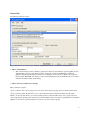
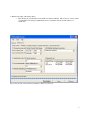
With minimal amount of effort, you'll be able to synchronize QXpress with QX Mobile on your Pocket PC. QX
Mobile Server is separated into two parts. One is the General tab where the basic information you need to
synchronize and use QX Mobile. The other portion is the Advanced tab where you can fine-tune what is
synchronized and displayed on QX Mobile on your PPC. Every time you wish to synchronize data from QXpress to
QX Mobile and vice versa, just place your PPC in your cradle and click Synchronize.
3