1
Downloading Software to Targets
Adding, Editing, or Deleting a File
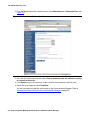
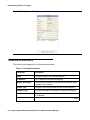
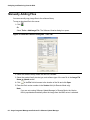
To add a file to the NMS (local) Software Library:
1. From the Software Libraries dialog box, click the Files tab.
2. From the Software Library drop-down list, select the NMS Software Library. A table of files
available in that library is displayed. File Details parameters appear below the table in
read-only format.
3. Click New to enter new file details. The File Details Parameters now appear in read-write
format.
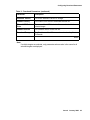
4. From the Product Family drop-down list, select the relevant Product Family for the file.
5. From the Device Type drop-down list, select the relevant Device Type for the file.
6. From the Software Type drop-down list, select the relevant Software Type for the file.
7. To the right of the File field, click
opens.
to select the file you want to add. The Open dialog box
8. Select the file you want to add and click Open. The file path appears in the File field.
9. In the Version field, enter the version of the file. (Avaya Software Update Manager
populates this field when you choose the file from the local file system.)
10. In the File Length field, specify the length of the file. (Avaya Software Update Manager
populates this field when you choose the file from the local file system.)
11. In the Notes field, add any notes you want. (This parameter is optional.)
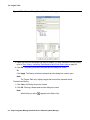
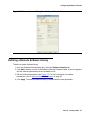
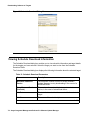
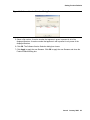
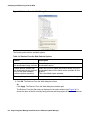
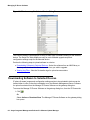
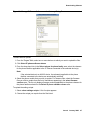
12. Click Apply to add the file to the Software Library. The progress of the file download is
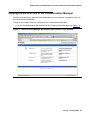
displayed in the Progress Information bar (refer to Figure 19).
Figure 19: Software Libraries File Download - Progress Information Bar
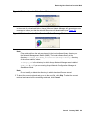
You can add file details to a Remote Software Library. Avaya Software Update Manager cannot
add/delete files in remote libraries.
To modify file details in the Software Library:
1. From the Software Libraries dialog box, click the Files tab.
2. From the Software Library drop-down list, select the Software Library. A table of files
available in that library is displayed. The File Details parameters appear below the table in
read-only format.
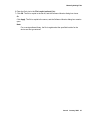
3. Select the file entry you want to modify.
4. Click Modify to enter file details. The File Details parameters appear in read-write format.
60 Avaya Integrated Management Release 5.0 Software Update Manager