1
General tab
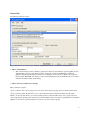
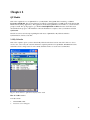
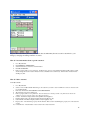
The General section has 3 parts.
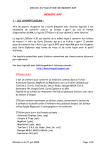
Fig. 1.1 The General screen shows the minimum requirements you need to synchronize with QX Mobile.
1. Choose Your Database
• This section will list your last 5 databases opened (Note these are only databases opened by QX6 or Later).
Automatically your most recent database will be selected. If you have Login Permission enabled in
QXpress, then the Login and Password text boxes will appear (not shown above). Enter your Login and
Password and click Login. You’ll need to enter your Login and Password for QX Mobile Server to retrieve
and enter information when synchronizing.
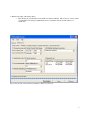
2. Choose the Crew(s) and/or Crew Groups
Here you’ll have 2 options.
Option 1. Select a crew or crew group. If you don’t select any crews/crew groups, all crews will be synchronized.
Option 2. Select a profile. Profiles allow you to control what information is displayed, added and edit on QX
Mobile. As well, profiles allow you to create specific captions for desired terms, allows you to group crews and
crew groups under a specific profile and setup your Custom Entry Screen. If you have Login Permissions enabled in
QXpress, you'll need to login first and then you can see your crews and crew groups.
4