1
Hog 3PC Handbook
Right Click Menu
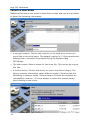
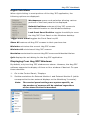
When right clicking in most portions of the Hog 3PC application, the
following options are displayed:
Workspaces opens a sub selection allowing various
portions of the front panel to be displayed.
Default Positions restores all Hog 3PC screens to
their default location on the Windows desktop.
Lock Front Panel Position toggles the ability to move
the Hog 3PC Front Panel on the Windows desktop.
Toggle Front Panel toggles the Front Panel on/off.
Show All restores all Hog 3PC screens to their previous size.
Minimize minimizes the current Hog 3PC screen.
Minimize All minimizes all Hog 3PC screens.
Maximize maximizes the current Hog 3PC screen and hides the title bar.
Quit displays the exit dialog for the Hog 3PC application.
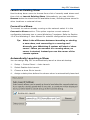
Displaying Four Hog 3PC Windows
By default, only two Hog 3PC windows are shown. However, the Hog 3PC
software supports the display of three or four windows if desired. To open
these windows:
1.
2.
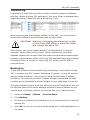
Go to the Control Panel / Displays
Set the resolutions for External Monitor 1 and External Monitor 2 (which
correspond to the two external displays on the Wholehog 3 console).
Note:
The control panel settings are system specific, so
the number of screens will be retained regardless
of the show file that is launched.
15