1
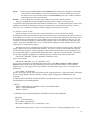
•
•
•
•
•
•
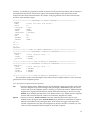
with no space between. The last statement may be null (;/).
Paragraph names and statements are only scanned for in columns 2 through 72. The first column is for
the C of comment statements, and characters beyond column 72 are ignored. (the Template helps you
see where column 72 is). You can now change this to longer lines using the LENGTH keyword. There
can be multiple statements per line, and single statements can span multiple lines. Blank lines and nonsignificant blanks can be used freely for readability.
Upper or lowercase characters may be used, but the scanner translates all characters to uppercase before
parsing, and POPAN translates all raw data attribute characters to upper case; in particular, this means
that you cannot use upper and lower case of the same letter as distinct attributes.
Keywords and pre-defined keyword values can be truncated down to 2 (or more) letters.
When a keyword value requires real values, there must be at least one digit before and at least one digit
after the decimal point (e.g. 1.0 rather than 1.)
Keywords INPUT and DATASET are used consistently in all paragraphs to specify the input and
output file, respectively. The Keyword_Value for these Keywords should be a relative or absolute
path\file.ext enclosed in single quotes (supplied by the template). A relative path is relative to the file
in which the POPAN.EXE executable resides (NOT relative to where the .POP file resides). Thus, for
example INPUT= ‘SKUNKS\JUNE.RAW’ will try to open the file
C:\POPAN5\SKUNKS\JUNE.RAW.
Users should adhere to the conventions on file extensions given above (section 2.2). LOG and RES files
must be kept in the same directory as the POP file that created them if they are to be found by the
RUNPOPAN interface.
4.3.2 An example with use of templates.
(a) Start a new Edit window
Close all windows and start this tour from the main menu. Make sure the main menu window is
maximised. Select File...New from the Main menu. When the file dialog box appears, navigate to your
new subdirectory MYTOUR and enter NEWJOB.POP in the file name box. If this file already exists, you
will be warned (because a later Save could obliterate it). An empty Edit Window titled
C:\POPAN5\MYTOUR\NEWJOB.POP will be activated. We will create a program similar to
TESTCR8V.BIN but it will analyse a somewhat smaller dataset to save typing. It will consist of a CREATE
paragraph followed by a couple of ANALYSIS paragraphs. Start by typing some explanatory comments so
that you know later what the POP file was for. Remember to type C in the first position of each comment
line. Type something like the following:
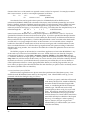
C
C
C
C
My First Example (NEWJOB.POP)
This simple example reads the Rodli Tarn data (Ricker, 1975 p. 81)
in-line using grouped CMR histories using minimal metadata.
It then applies some 2-sample (closed model) ANALYSIS tasks to them.
(b) Make the first task paragraph using the CREATE Template.
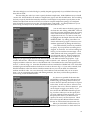
Now, with your cursor on the line after your last comment, click on the Edit menu, then on Template.
The list of paragraphs drops down. Click on Create. A new Template window opens with the title:
Create paragraph for C:\POPAN5\MYTOUR\NEWJOB.POP
(since you can have multiple copies of the same template open, this identifies the Edit window it belongs
to). Reposition and widen the Template window if necessary so you can see a full line. The template should
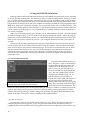
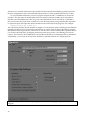
look like that in Fig. 4.2, below, except that most of the entry boxes are empty. Templates have 3 types of
entry boxes:
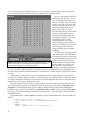
1• A Text box (like the NAME and NHIST boxes in Fig. 4.2) lets you enter a text string. It scrolls to the
right for long strings. Arrow keys can be used to scroll back.
2• A Scrolling Box (like the FORMAT box in Fig. 4.2) lets you enter very long strings that will be broken
up into multiple lines when pasting back to the Edit window. It has vertical scrolling bars and text
23