1
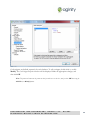
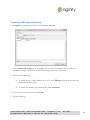
7. In the Output File drop-down list box in the Output and Error Targets area, do one of the following:
·
If you want an existing output file to be used, select the file to which the execution result must
be written, or click
·
to browse for the appropriate file.
If you want a new output file to be created, type its name in the Output file list box.
8. In the Error file drop-down list, do one of the following:
·
If you want to use an existing error file, select the file to which errors that may occur during the
SQL script’s execution must be written, or click
·
9.
to browse for the appropriate file.
If you want to use a new error file, type its name in the Error file list box.
In the Output Formatting area, specify the values of the following formatting parameters:
·
Column separator.
·
Row separator.
·
Quote char.
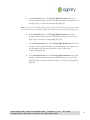
10. If any user-defined parameters are used in either in the SQL script to be executed, or in any of the SQL
scripts employed for tracing purposes, you need to define the value of those parameters in the SQL
Parameters tab. Do one of the following:
·
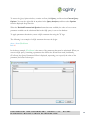
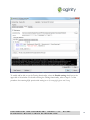
To specify the values of the user-defined parameters, at the top of the Properties area, select the
SQL Parameters tab.
·
Go to step 14 of this procedure.
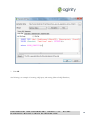
11. To specify the values of the user-defined parameters and their data types, do the following:
a. In the Value filed of the displayed SQL Parameters tab, specify the values of the existing
user-defined parameters.
b. In the corresponding Type drop-down list, specify the data type for the specified
parameter value.
CONFIDENTIAL AND PROPRIETARY, AGINITY LLC.
DISTRIBUTE WITHOUT PRIOR AUTHORIZATION.
DO NOT
71