1
Operating (continued)
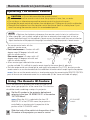
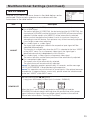
Displaying The Child Window
memo This feature called "PinP (Picture in Picture)" is available only when a RGB signal is selected
to main screen. And this feature does not work when UXGA (1600 x 1200) or higher signal is input.
1
2
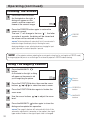
Press the PinP button.
The child window with a picture of a video signal
will appear.
Press the PinP button again to change the size of
the child window or close the window.
LASER INDICATOR
STANDBY/ON VIDEO
+
RGB
+
LENS SHIFT FOCUS
+
ZOOM
–
–
–
BLANK
ASPECT
LASER
PREVIOUS
NEXT
MOUSE
Small child window
Large child window
No child window
ESC
MENU
POSITION
RESET
AUTO
MAGNFY
PinP
VOLUME
FREEZE
MUTE
PinP button
ON
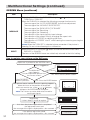
memo You can select the video signal to display in the
OFF
KEYSTONE SEARCH
child window, and the position of the child window.
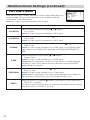
Please refer to the items “P.INP. INPUT” and “P.INP.
POSIT.” of the table of the section “INPUT Menu”.
1 2 3
ID CHANGE
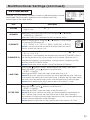
Selecting An Audio Input
memo This feature is available only when the child window is on the screen.
1
2
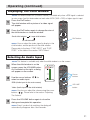
When the child window is on the
screen, press the VOLUME button.
As illustrated on the right, a dialog
will appear on the screen.
Use the cursor buttons
select an audio input.
/
VOLUME
RGB
LASER INDICATOR
Video
STANDBY/ON VIDEO
+
+
LENS SHIFT FOCUS
to
RGB
+
ZOOM
–
–
–
BLANK
ASPECT
LASER
PREVIOUS
NEXT
Cursor
buttons
MOUSE
16
RGB (Audio input for the main screen)
ESC
MENU
POSITION
RESET
AUTO
PinP
VOLUME
FREEZE
MUTE
MAGNFY
ON
Video (Audio input for the child window)
OFF
VOLUME
button
KEYSTONE SEARCH
memo You also can adjust the volume using the cursor
buttons / . Please refer to the section “Adjusting
1 2 3
ID CHANGE
The Volume”.
3
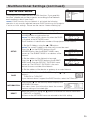
Press the VOLUME button again to close the
dialog and complete this operation.
memo Even if you don’t do anything, the dialog will
automatically disappear after a few seconds.
21