1
camSPECS / camSPECS express
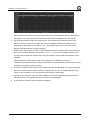
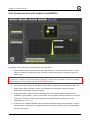
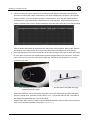
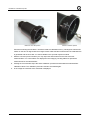
3. Select ColorChecker reflectance data. The data used contains the spectral distribution between
380nm and 730nm in 5-nm increments.
4. Select an RGB image file of a ColorChecker test chart (ColorChecker with 24 patches or
ColorChecker SG with 140 patches). The image may not be a raw image file. Do not use
compressed image formats like JPEG since colors may differ too much. Not manipulated TIFF
images, converted from raw camera files, are the best choice.
5. Select optionally a dark image for subtracting from the ColorChecker image. The size of this image
and the ColorChecker image must be the same. The image may not be a raw image file.
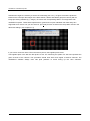
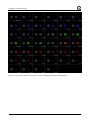
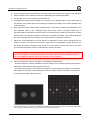
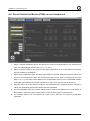
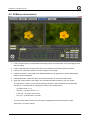
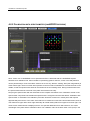
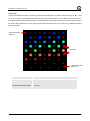
6. After clicking the Start button the selected ColorChecker image is opened and displayed. You can
select the color chart by drawing a rectangle around the patches from upper left to lower right and
double click on the rectangle. The ROIs for each patch are displayed in the next step and can be
rearranged manually. Double click outside ROIs to continue.
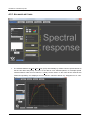
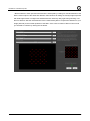
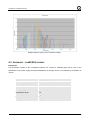
7. Export the validation graph to an image (JPEG, PNG, TIFF, BMP, GIF) for documentation purposes.
The validation proves the processing chain from the exposure of the ColorChecker images (surrounding light
conditions, camera lenses, raw image converting, etc.) to the measurement of the spectral response with
camSPECS.
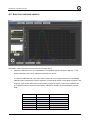
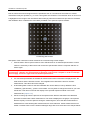
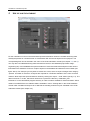
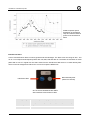
In the displayed result the measured digital values (red, green and blue) for each patch are plotted against
the predicted digital values. All values are normalized to a range between 0 and 1.
If the exposure and measurement setup is highly accurate all RGB data points in this plot should be close to
the white diagonal line (best correlation).
Possible reasons for major variations may be changes in the illumination of the ColorChecker, or in
manipulations of the RGB data within the camera.
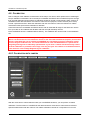
Fig. 4.3.1
Fig. 4.3.2
21