1
User’s Guide
Version 11.4
Copyright © 1981-2011 Netop Business Solutions A/S. All Rights Reserved.
Portions used under license from third parties.
Please send any comments to:
Netop Business Solutions A/S
Bregnerodvej 127
DK-3460 Birkerod
Denmark
Fax: Int +45 45 90 25 26
E-mail: [email protected]
Internet: www.netop.com
Netop™ is a trademark of Netop Business Solutions A/S. All other products mentioned in
this document are trademarks of their respective manufacturers. Netop Business Solutions
A/S denies any and all responsibility for damages caused directly or indirectly as a result of
using this document. The content of this document is subject to change without notice.
Netop Business Solutions A/S retains the copyright to this document.
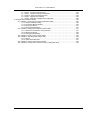
Table of Contents
Preface .................................................................................................................................. xx
1. About This Guide .......................................................................................................... xx
2. Expectations & Prerequisites ........................................................................................... xx
3. Terminology used in this document ................................................................................... xx
4. Notice ........................................................................................................................ xxi
1. Introduction ........................................................................................................................... 1
1.1. What is Print-Limit Pro? ................................................................................................ 1
1.1.1. Benefits .......................................................................................................... 1
1.1.2. Key Features ................................................................................................... 1
1.1.3. System Requirements ........................................................................................ 2
1.2. How does Print-Limit Pro work? ...................................................................................... 3
1.2.1. Key Concepts ................................................................................................... 3
1.2.2. Understanding the print process flow ..................................................................... 4
1.2.3. Architecture Overview ........................................................................................ 6
1.3. The Top-Ten Hidden Features! ....................................................................................... 7
1.3.1. One: Zero-install Client Deployment ...................................................................... 7
1.3.2. Two: Remote Administration ................................................................................ 7
1.3.3. Three: Web Print ............................................................................................... 8
1.3.4. Four: Shared Accounts ....................................................................................... 8
1.3.5. Five: Secondary Servers and Local Printers ........................................................... 8
1.3.6. Six: Scripting .................................................................................................... 8
1.3.7. Seven: Customizable Web Interface ..................................................................... 9
1.3.8. Eight: XML Web Services and Command-line Control ............................................... 9
1.3.9. Nine: 3rd Party Database Support ........................................................................ 9
1.3.10. Ten: The Development Team ............................................................................. 9
2. Installation ........................................................................................................................... 10
2.1. Installation on Windows ............................................................................................... 10
2.1.1. Step 1 - System Requirements & Network Setup .................................................... 10
2.1.2. Step 2 - Print queue configuration ........................................................................ 11
2.1.3. Step 3 - Download and install ............................................................................. 12
2.1.4. Step 4 - Configuration Wizard ............................................................................. 13
2.1.5. Step 5 - Printer Configuration ............................................................................. 16
2.1.6. Step 6 - Sharing Client Software ......................................................................... 16
2.1.7. Step 7 - Client Software Deployment (Optional) ...................................................... 16
2.1.8. Step 8 - Testing ............................................................................................... 16
2.1.9. What next? ..................................................................................................... 17
2.2. Installation on Apple Mac ............................................................................................. 17
2.2.1. Step 1 - System Requirements ........................................................................... 17
2.2.2. Step 2 - Print Queue Setup ................................................................................ 17
2.2.3. Step 3 - Download and install ............................................................................. 17
2.2.4. Step 4 - Configuration Wizard ............................................................................. 18
2.2.5. Step 5 - Printer Configuration ............................................................................. 20
2.2.6. Step 6 - Sharing Client Software ......................................................................... 20
2.2.7. Step 7 - Testing ............................................................................................... 20
2.2.8. Step 8 - Deployment for a Professional (Client Billing) Installation .............................. 20
2.2.9. What next? ..................................................................................................... 21
2.3. Installation on Novell OES Linux (iPrint) .......................................................................... 21
2.3.1. Step 1 - System Requirements & Printer Setup ...................................................... 21
2.3.2. Step 2 - Create the host user account and firewall settings ....................................... 21
2.3.3. Step 3 - Download and installing ......................................................................... 22
2.3.4. Step 4 - Configuration Wizard ............................................................................. 23
2.3.5. Step 5 - Printer/iPrint Configuration ...................................................................... 26
2.3.6. Step 6 - Sharing Client Software ......................................................................... 27
2.3.7. Step 7 - Testing ............................................................................................... 27
2.3.8. Step 8 - Deployment for a Professional (Client Billing) Installation .............................. 27
2.3.9. What next? ..................................................................................................... 28
iv
Print-Limit Pro 11.4 User Manual
2.4. Installation on Linux (CUPS and/or Samba) ..................................................................... 28
2.4.1. Step 1 - System Requirements ........................................................................... 28
2.4.2. Step 2 - Create the host user account and firewall settings ....................................... 29
2.4.3. Step 3 - Download and installing ......................................................................... 29
2.4.4. Step 4 - Configuration Wizard ............................................................................. 30
2.4.5. Step 5 - Printer Configuration ............................................................................. 33
2.4.6. Step 6 - Sharing Client Software ......................................................................... 33
2.4.7. Step 7 - Testing ............................................................................................... 34
2.4.8. Step 8 - Deployment for a Professional (Client Billing) Installation .............................. 34
2.4.9. What next? ..................................................................................................... 34
2.5. Testing the Installation ................................................................................................. 34
2.5.1. Testing for an Education or Small/Medium Enterprise Installation: .............................. 35
2.5.2. Testing for a Professional (Client Billing) Installation: ............................................... 35
3. Implementation by Example .................................................................................................... 37
3.1. Scenario: The Small School .......................................................................................... 37
3.1.1. Requirements .................................................................................................. 37
3.1.2. Implementation ................................................................................................ 37
3.2. Scenario: The Large School .......................................................................................... 38
3.2.1. Requirements .................................................................................................. 38
3.2.2. Implementation ................................................................................................ 39
3.3. Scenario: The University .............................................................................................. 39
3.3.1. Requirements .................................................................................................. 40
3.3.2. Implementation ................................................................................................ 40
3.4. Scenario: The Small Business ....................................................................................... 41
3.4.1. Requirements .................................................................................................. 41
3.4.2. Implementation ................................................................................................ 41
3.5. Scenario: The Medium to Large Business ........................................................................ 42
3.5.1. Requirements .................................................................................................. 42
3.5.2. Implementation ................................................................................................ 42
3.6. Scenario: The Public Library or Internet Cafe/Kiosk ........................................................... 43
3.6.1. Requirements .................................................................................................. 43
3.6.2. Implementation ................................................................................................ 43
4. Quick Tour ........................................................................................................................... 44
4.1. Navigation ................................................................................................................. 44
4.1.1. Tabs .............................................................................................................. 44
4.1.2. Actions .......................................................................................................... 44
4.1.3. Buttons .......................................................................................................... 44
4.1.4. Crumb Trail ..................................................................................................... 45
4.1.5. Status Messages ............................................................................................. 45
4.1.6. Fields ............................................................................................................ 45
4.2. Sections ................................................................................................................... 46
4.2.1.
Dashboard ............................................................................................... 46
4.2.2.
Users ...................................................................................................... 46
4.2.3.
Groups .................................................................................................... 47
4.2.4.
Accounts .................................................................................................. 47
4.2.5.
Printers .................................................................................................... 47
4.2.6.
Reports .................................................................................................... 47
4.2.7.
Cards ...................................................................................................... 48
4.2.8.
Options .................................................................................................... 48
4.2.9.
Application Log .......................................................................................... 48
4.2.10.
About ..................................................................................................... 48
4.3. Basic User Operations ................................................................................................. 48
4.4. Basic Printer Operations .............................................................................................. 50
4.5. Client Software .......................................................................................................... 52
v
Print-Limit Pro 11.4 User Manual
4.5.1. Demonstrating the client software and account selection process ............................... 53
4.6. Interface Levels .......................................................................................................... 53
4.6.1. Admin Access ................................................................................................. 53
4.6.2. User Access ................................................................................................... 53
4.7. Assigning Administrator Level Access ............................................................................. 54
4.8. Charting, Statistics, Reports and Logs ............................................................................ 55
4.8.1. Charts ........................................................................................................... 55
4.8.2. Reports .......................................................................................................... 56
4.8.3. Logging .......................................................................................................... 57
5. Services for Users ................................................................................................................. 59
5.1. Introduction ............................................................................................................... 59
5.2. User Client ................................................................................................................ 59
5.2.1. User Client Deployment ..................................................................................... 62
5.3. User Web Pages ........................................................................................................ 67
5.3.1. Summary ....................................................................................................... 68
5.3.2. Environmental Impact ....................................................................................... 68
5.3.3. Shared Accounts ............................................................................................. 69
5.3.4. Rates ............................................................................................................ 69
5.3.5. Use Card ........................................................................................................ 70
5.3.6. Transfers ........................................................................................................ 70
5.3.7. Transaction History .......................................................................................... 71
5.3.8. Recent Print Jobs ............................................................................................. 71
5.3.9. Jobs Pending Release ...................................................................................... 72
5.3.10. Web Print ..................................................................................................... 72
5.4. Mobile User Web Pages .............................................................................................. 73
5.5. Gadgets/Widgets and more... ........................................................................................ 74
5.5.1. Windows Vista Gadgets .................................................................................... 74
5.5.2. Web Widgets .................................................................................................. 75
6. Advanced User Management .................................................................................................. 77
6.1. Groups in Print-Limit Pro .............................................................................................. 77
6.2. Setting up quota allocations .......................................................................................... 78
6.2.1. Custom Quota Scheduling Periods ...................................................................... 79
6.2.2. Advanced User Quota Management .................................................................... 80
6.2.3. Automated Quota Allocation Example .................................................................. 80
6.3. New User Creation Rules ............................................................................................. 80
6.4. Bulk User Operations .................................................................................................. 82
6.4.1. Example 1: Bulk operation on a user group ........................................................... 82
6.4.2. Example 2: Bulk operation on an ad-hoc list of users ............................................... 82
6.4.3. Additional information ....................................................................................... 82
6.5. Using Overdrafts ........................................................................................................ 83
6.6. Batch User Data Import and Update ............................................................................... 83
6.6.1. Batch User Import File Format ............................................................................ 85
6.7. Batch User Card/Identity Update .................................................................................... 86
6.7.1. Batch User Card/Identity Update File Format ......................................................... 86
6.8. Looking up card numbers in an external database ............................................................. 87
6.8.1. Database lookup configuration ............................................................................ 87
6.8.2. Testing .......................................................................................................... 88
6.9. Disabling user printing with time latches .......................................................................... 88
6.10. Office/Department History ........................................................................................... 89
6.10.1. Scenario 1: Correcting a late change to a user's office or department ........................ 89
6.10.2. Scenario - Correcting an unintended office or department change ............................ 90
6.11. User Management Quick Reference ............................................................................. 91
7. Advanced Printer Management ................................................................................................ 93
7.1. Adding and Removing/Deleting/Ignoring Printers ............................................................... 93
7.1.1. On Windows ................................................................................................... 93
7.1.2. On Mac .......................................................................................................... 94
7.1.3. On Linux ........................................................................................................ 94
7.2. The Template Printer ................................................................................................... 95
7.3. Copying Printer Settings .............................................................................................. 96
7.4. Renaming a printer ..................................................................................................... 97
7.5. Disabling printers with time latches ................................................................................. 98
7.6. Managing printing using differential charging .................................................................... 98
vi
Print-Limit Pro 11.4 User Manual
7.6.1. Charging modes available .................................................................................. 99
7.6.2. How duplex discounts are calculated .................................................................. 100
7.7. Using filters and restrictions ........................................................................................ 100
7.7.1. Reduce printer jams ....................................................................................... 101
7.7.2. Controlling documents on slow Inkjets ................................................................ 101
7.7.3. Automatically deleting duplicate jobs .................................................................. 101
7.7.4. Force sensible use ......................................................................................... 101
7.7.5. Automatically deny documents based on file extension or name .............................. 102
7.7.6. Control who can print in color (Advanced) ........................................................... 102
7.7.7. Advanced Setups ........................................................................................... 103
7.8. Managing printer groups ............................................................................................ 103
7.8.1. Suggested best practises for naming printer groups .............................................. 104
7.9. Cost Adjustments ..................................................................................................... 105
7.10. Popup Authentication ............................................................................................... 107
7.10.1. Where Popup authentication is used ................................................................ 107
7.10.2. How does popup authentication work? .............................................................. 107
7.10.3. Macs and popup authentication ....................................................................... 108
7.10.4. Configuration ............................................................................................... 108
7.11. Color Detection ...................................................................................................... 109
7.11.1. Limitations of Page-Level Color Detection ......................................................... 111
7.12. Validating page counts using hardware checks ............................................................. 111
7.12.1. Causes for differences in page counts .............................................................. 111
7.12.2. Requirements .............................................................................................. 112
7.12.3. How hardware checks work ............................................................................ 112
7.12.4. Configuring hardware checks .......................................................................... 112
7.12.5. Reviewing hardware check results ................................................................... 115
7.12.6. Known Limitations ........................................................................................ 116
7.12.7. Troubleshooting ........................................................................................... 117
7.13. Watermarking/Job Annotation .................................................................................... 117
7.13.1. Typical Uses ............................................................................................... 118
7.13.2. Requirements .............................................................................................. 119
7.13.3. Enabling Watermarking ................................................................................. 119
7.13.4. Digital Signatures in Detail (Advanced) ............................................................. 121
7.13.5. Troubleshooting ........................................................................................... 122
7.14. Behavior on Server Connection Failures ...................................................................... 123
7.14.1. Failure Mode Settings ................................................................................... 124
7.15. Toner Levels (for supported printers) .......................................................................... 125
7.15.1. How toner level information is retrieved? ........................................................... 126
7.16. Printer Quick Reference ........................................................................................... 126
7.17. Refunding Print Jobs ............................................................................................... 127
7.17.1. Enabling End-User Refunds ........................................................................... 127
7.17.2. Managing Refunds ....................................................................................... 128
7.17.3. Admin Notifications ....................................................................................... 130
7.17.4. User Notifications ......................................................................................... 130
7.18. Custom Printer Fields .............................................................................................. 132
7.18.1. Defining Custom Printer Fields ........................................................................ 132
8. Shared Accounts ................................................................................................................ 134
8.1. Creating a Shared Account ......................................................................................... 135
8.1.1. The Template Account .................................................................................... 137
8.2. Account Naming Guidelines ........................................................................................ 137
8.2.1. Client / Matter Naming Model ........................................................................... 138
8.2.2. Project / Phase Naming Model .......................................................................... 142
8.2.3. Customer / Job Naming Model .......................................................................... 144
8.3. Client Security ......................................................................................................... 144
8.3.1. Using account security with PIN/codes ............................................................... 147
8.4. The Account Selection Popup ..................................................................................... 148
8.4.1. Standard Account Selection Popup .................................................................... 148
8.4.2. Advanced Account Selection Popup ................................................................... 150
8.4.3. Manager Mode Popup ..................................................................................... 152
8.4.4. Automatically charge to a shared account ........................................................... 153
8.5. Account Selection in Non-Domain Environments (Workgroups) .......................................... 154
8.6. Batch Shared Account Import and Update ..................................................................... 155
vii
Print-Limit Pro 11.4 User Manual
8.6.1. Batch Account Import File Format ...................................................................... 156
8.7. Shared Account Synchronization ................................................................................. 158
8.7.1. Synchronization Options .................................................................................. 158
8.8. Bulk Shared Account Operations ................................................................................. 159
8.9. Shared Account Quota Allocation ................................................................................. 160
8.10. Shared Account Cost Multiplier .................................................................................. 160
8.11. Advanced Shared Account Options ............................................................................ 160
9. Reports ............................................................................................................................. 162
9.1. Report types ............................................................................................................ 162
9.1.1. User Reports ................................................................................................. 163
9.1.2. Printer Reports .............................................................................................. 163
9.1.3. Print Log Reports ........................................................................................... 163
9.1.4. Group Reports ............................................................................................... 163
9.1.5. Shared Accounts Reports ................................................................................ 163
9.1.6. Transaction Reports ....................................................................................... 163
9.1.7. Environmental Impact Reports .......................................................................... 163
9.1.8. Ratio Reports ................................................................................................ 163
9.1.9. Period Comparison Reports ............................................................................. 163
9.2. Report Formats ........................................................................................................ 163
9.3. Combining Filters and Reports .................................................................................... 164
9.4. Scheduling and Emailing Reports ................................................................................ 165
9.4.1. Usage .......................................................................................................... 165
9.4.2. Details ......................................................................................................... 168
9.5. Advanced Reporting Options ...................................................................................... 168
10. Hold/Release Queues & Print Release Stations ....................................................................... 170
10.1. Release Station Interfaces ........................................................................................ 170
10.1.1. Standard Release Station .............................................................................. 170
10.1.2. Manager-mode web-based release station ........................................................ 171
10.1.3. Web-based release station within the admin pages ............................................. 172
10.1.4. End-user web-based release station ................................................................. 173
10.2. Hold/Release Usage Scenarios ................................................................................. 173
10.2.1. Saving paper and toner ................................................................................. 173
10.2.2. Secure Printing ............................................................................................ 174
10.2.3. Pay per print (e.g. Library or Internet Cafe) ........................................................ 174
10.2.4. Expensive Printers (Approved Printing) ............................................................. 175
10.2.5. Unauthenticated printing ................................................................................ 175
10.3. Release Station Configuration ................................................................................... 176
10.3.1. Enabling hold/release support on a printer ......................................................... 176
10.3.2. Hold/Release Queue Managers ....................................................................... 177
10.3.3. Standard Release Station Configuration ............................................................ 177
10.3.4. End-User Web Based Release Interface Configuration ......................................... 181
11. Find Me Printing and Printer Load Balancing ........................................................................... 182
11.1. Find Me Printing ..................................................................................................... 182
11.1.1. Implementation by Example ............................................................................ 183
11.1.2. Find Me Printing and Web-Based Release ......................................................... 190
11.2. Requirements For Job Redirection (Load Balancing or Find Me Printing) ............................ 190
11.2.1. Compatibility Testing ..................................................................................... 190
11.2.2. Find Me Printing Implementation Checklist ........................................................ 191
11.3. Advanced Configuration ........................................................................................... 192
11.3.1. Overriding cost and filter settings ..................................................................... 192
11.3.2. Mixed Color and Grayscale Printers ................................................................. 192
11.3.3. Cross-Server Job Redirection ......................................................................... 192
11.4. Printer Load Balancing ............................................................................................. 193
11.4.1. Example 1: Simple Load Balancing .................................................................. 194
11.5. Find Me Printing and Printer Load Balancing FAQ ......................................................... 195
12. System Management ......................................................................................................... 196
12.1. Overview ............................................................................................................... 196
12.2. The Dashboard ...................................................................................................... 196
12.3. User and Group Synchronization ................................................................................ 198
12.3.1. Sync Source ................................................................................................ 199
12.3.2. Sync Source Options .................................................................................... 199
12.3.3. Sync Options ............................................................................................... 200
viii
Print-Limit Pro 11.4 User Manual
12.3.4. Secondary Sync Source (Advanced) ................................................................ 200
12.3.5. Manual Synchronization ................................................................................. 200
12.3.6. Importing Card/Identity numbers from Active Directory or LDAP ............................. 201
12.3.7. On Demand User Creation ............................................................................. 203
12.3.8. Using Active Directory for user synchronization .................................................. 203
12.3.9. Using LDAP for user synchronization ................................................................ 204
12.4. Assigning Administrator Level Access ......................................................................... 205
12.4.1. Assigning Administrator Access to a Group ........................................................ 205
12.4.2. Assigning Administrator Access to a User .......................................................... 206
12.5. System Backups ..................................................................................................... 207
12.5.1. Performing an Online Backup ......................................................................... 207
12.5.2. Restoring a Backup ...................................................................................... 207
12.5.3. Performing Offline Backups ............................................................................ 208
12.5.4. Backup File Retention ................................................................................... 209
12.6. System Notifications and Emailing .............................................................................. 209
12.6.1. Configuring Notifications ................................................................................ 209
12.6.2. System Notifications (for Administrators) ........................................................... 212
12.6.3. Testing Notification Methods ........................................................................... 215
12.7. System Security Options .......................................................................................... 215
12.7.1. Application Server Connections ....................................................................... 215
12.7.2. Provider Connection Security .......................................................................... 216
12.8. Environmental Impact .............................................................................................. 217
12.9. Using the Config Editor ............................................................................................ 218
13. PrintCards ....................................................................................................................... 219
13.1. Cards by Example ................................................................................................... 219
13.1.1. The User's Perspective .................................................................................. 219
13.1.2. The Administrator's Perspective ...................................................................... 219
13.2. The Card System .................................................................................................... 219
13.3. Creating New Cards ................................................................................................ 220
13.3.1. Overview and Definitions ............................................................................... 220
13.3.2. Using the Card Wizard .................................................................................. 220
13.3.3. PrintCard Tips ............................................................................................. 226
13.4. Using a Card .......................................................................................................... 228
14. Configuring Secondary Print Servers and Locally Attached Printers ............................................. 230
14.1. Configuring a Windows Secondary Print Server ............................................................ 230
14.1.1. Step 1 - Ensure primary server is set up correctly ................................................ 230
14.1.2. Step 2 - Ensure firewall software is set to allow access to port 9191 ........................ 230
14.1.3. Step 3 - Install the print provider ...................................................................... 230
14.1.4. Step 4 - Configuration ................................................................................... 230
14.1.5. Step 5 - Test ............................................................................................... 231
14.1.6. Automated Install ......................................................................................... 231
14.2. Configuring a Macintosh Secondary Print Server ........................................................... 231
14.2.1. Step 1 - Ensure primary server is set up correctly ................................................ 231
14.2.2. Step 2 - Ensure firewall software is set to allow access to port 9191 ........................ 231
14.2.3. Step 3 - Create the host user account ............................................................... 231
14.2.4. Step 4 - Install the print provider ...................................................................... 231
14.2.5. Step 5 - Configuration ................................................................................... 231
14.2.6. Step 6 - Test ............................................................................................... 232
14.3. Configuring a Linux or Novell iPrint Secondary Print Server ............................................. 232
14.3.1. Step 1 - Ensure primary server is set up correctly ................................................ 232
14.3.2. Step 2 - Ensure firewall software is set to allow access to port 9191 ........................ 232
14.3.3. Step 3 - Account setup .................................................................................. 232
14.3.4. Step 4 - Install the Print Provider ..................................................................... 232
14.3.5. Step 5 - Configuration ................................................................................... 233
14.3.6. Step 6 - Test ............................................................................................... 233
14.4. Print Monitoring Architecture ..................................................................................... 233
14.5. Multiple Print Servers ............................................................................................... 234
14.6. Automating Secondary Server Deployment on Windows ................................................. 236
15. Advanced Customization .................................................................................................... 238
15.1. Customizing the User Client Tool window .................................................................... 238
15.2. Limiting the list of interface languages/translations ......................................................... 239
15.3. Customizing the User web pages ............................................................................... 239
ix
Print-Limit Pro 11.4 User Manual
15.3.1. Look & Feel ................................................................................................. 239
15.3.2. Login Instructions ......................................................................................... 242
15.3.3. Custom Printer Maps for Web Print .................................................................. 242
15.4. Customizing the Administration Web Interface .............................................................. 242
15.5. Customizing Report Headers ..................................................................................... 243
15.6. Data Access and Custom Reports .............................................................................. 243
15.6.1. Plain Text Print Log ...................................................................................... 244
15.7. Automation and Scripting .......................................................................................... 244
15.8. Custom User Directory Information Providers ............................................................... 245
16. Advanced Scripting (Print Scripting) ...................................................................................... 246
16.1. Introduction ........................................................................................................... 246
16.1.1. Prerequisites ............................................................................................... 247
16.1.2. How to Use Print Scripts ................................................................................ 248
16.1.3. Tips for Print Scripts ...................................................................................... 251
16.2. Print Script API Reference ........................................................................................ 251
16.2.1. Script Hooks (Entry Points) ............................................................................. 252
16.2.2. Script Inputs ................................................................................................ 252
16.2.3. Script Actions .............................................................................................. 256
16.2.4. Print Script Requirements (Advanced) .............................................................. 262
17. Licensing and Support ........................................................................................................ 263
17.1. Installing a License .................................................................................................. 263
17.2. Technical Support & Further Information ...................................................................... 263
18. Deployment on an External Database (RDBMS) ...................................................................... 264
18.1. Overview ............................................................................................................... 264
18.1.1. Why use an external RDBMS? ........................................................................ 264
18.1.2. Supported Databases .................................................................................... 264
18.2. Upsizing to an External RDBMS ................................................................................. 264
18.2.1. Step 1 - Stop Print-Limit Pro ........................................................................... 265
18.2.2. Step 2 - Perform a backup of the existing data .................................................... 265
18.2.3. Step 3 - Create a new database in the external RDBMS ....................................... 265
18.2.4. Step 4 - Change the Print-Limit Pro connection details ......................................... 266
18.2.5. Step 5 - Initialize the new database .................................................................. 268
18.2.6. Step 6 - Load the data into the new database ..................................................... 268
18.2.7. Step 7 - Restart Print-Limit Pro ........................................................................ 269
18.3. Database specific configuration ................................................................................. 269
18.3.1. Configuring Microsoft SQL Express .................................................................. 269
18.3.2. Configuring MySQL ...................................................................................... 270
18.3.3. Configuring Oracle (and Oracle Express Edition) ................................................ 271
19. Web Print (Driver-less printing via a web browser) .................................................................... 272
19.1. Key Features ......................................................................................................... 272
19.2. Introduction to Web Print .......................................................................................... 273
19.2.1. Supported Applications and File Formats .......................................................... 273
19.2.2. Security Considerations ................................................................................. 273
19.3. Setting Up Web Print ............................................................................................... 273
19.3.1. Simple Mode Setup ...................................................................................... 274
19.3.2. Sandbox Mode Setup .................................................................................... 276
19.4. Web Print Testing and Feature Tour ........................................................................... 279
19.5. Web Print Configuration ........................................................................................... 283
19.5.1. Print Options for Web Print Jobs ...................................................................... 285
19.5.2. Designing Printer Maps / Custom Printer Selection Lists ....................................... 285
19.5.3. Advanced Web Print Configuration ................................................................... 290
19.6. Troubleshooting Web Print Problems .......................................................................... 291
19.7. XPS Viewer Installation Instructions ............................................................................ 292
20. Clustering and High Availability ............................................................................................ 294
20.1. About Clustering ..................................................................................................... 294
20.2. Microsoft Cluster Server (MSCS) on Windows .............................................................. 294
20.2.1. Mode 1 - Clustering at the Print Provider layer .................................................... 294
20.2.2. Mode 2 - Clustering at all application layers ....................................................... 297
20.2.3. Clustering Tips ............................................................................................. 300
20.3. Microsoft Failover Cluster Manager (MSFCM) ............................................................... 300
20.3.1. Mode 1 - Clustering at the Print Provider layer .................................................... 300
20.3.2. Mode 2 - Clustering at all application layers ....................................................... 303
x
Print-Limit Pro 11.4 User Manual
20.3.3. Clustering Tips ............................................................................................. 306
20.4. Veritas Cluster Server (VCS) on Windows .................................................................... 307
20.4.1. Mode 1 - Clustering at the Print Provider layer .................................................... 307
20.5. Novell Cluster Services (NCS) on Novell OES Linux ...................................................... 309
20.5.1. Mode 1 - Clustering at the print provider layer .................................................... 309
20.5.2. Mode 2 - Clustering at all application layers ....................................................... 312
20.6. Client/Workstation Configuration ................................................................................ 316
21. Print-Limit Pro on Linux ...................................................................................................... 317
21.1. The Installation Process ........................................................................................... 317
21.1.1. Manual extraction ......................................................................................... 317
21.1.2. The install process ........................................................................................ 317
21.1.3. Linux Print Queue Integration .......................................................................... 318
21.2. Advanced Configuration & Logs ................................................................................. 321
21.3. Backups & System Management ................................................................................ 321
21.4. User Directory and Authentication .............................................................................. 321
21.4.1. Standard Unix .............................................................................................. 322
21.4.2. Samba/Windows Domain ............................................................................... 322
21.4.3. Custom ...................................................................................................... 322
21.5. Unix Command-Line Release Station Client ................................................................. 322
21.5.1. Installing the Command-Line Release Station Client ............................................ 323
21.6. Removing Print-Limit Pro from a Linux server ............................................................... 324
21.7. Linux FAQ ............................................................................................................. 324
22. Print Authentication ............................................................................................................ 326
22.1. About Authentication and Printing ............................................................................... 326
22.1.1. What is authentication? ................................................................................. 326
22.1.2. Why does authentication pose a problem? ......................................................... 326
22.1.3. How does Print-Limit Pro address authentication? ............................................... 327
22.2. Handling Unauthenticated (non-domain) Laptops .......................................................... 329
22.2.1. Option 1: Popup Authentication for Unauthenticated Laptops ................................. 329
22.2.2. Option 2: Release Station Authentication for Unauthenticated Laptops .................... 330
22.3. The Authentication Cookbook - Recipes by example ...................................................... 332
22.3.1. Windows systems with generic logins ............................................................... 332
22.3.2. Windows laptops that do not authenticate against a domain .................................. 332
22.3.3. Windows print server using LDAP or eDirectory authentication .............................. 333
22.3.4. Mac OS X systems with generic user accounts ................................................... 333
22.3.5. Mac OS X systems using domain authentication via Open Directory ....................... 334
22.3.6. Mac OS X systems using domain authentication via Windows Active Directory ......... 334
22.3.7. Mac OS X laptops (or single user systems) printing to Windows print queues ........... 335
22.3.8. Linux Workstations in a lab environment with printers hosted on a Windows server .... 335
22.3.9. Linux Workstations in a lab environment with printers hosted on Linux CUPS server .. 336
22.3.10. Linux laptops (or single user systems) ............................................................. 336
22.3.11. Multiuser Unix terminal servers ...................................................................... 336
22.3.12. Further Recommendations ........................................................................... 337
23. Mac Printing in Detail ......................................................................................................... 338
23.1. Mac hosted print queues .......................................................................................... 338
23.1.1. Step 1: Installing the printers on the server ........................................................ 339
23.1.2. Step 2: Enable Printer Sharing ........................................................................ 341
23.1.3. Step 3: Set up the printers on the workstations (pointing to the shared server queues) 341
23.1.4. Publishing the printer via Workgroup Manager .................................................... 343
23.1.5. Unauthenticated systems (e.g. Laptops) ............................................................ 345
23.2. Windows hosted print queues .................................................................................... 346
23.2.1. Scenario One: My Own Mac (Single User) ......................................................... 346
23.2.2. Scenario Two: The Multi-User Mac with Popup Authentication ............................... 350
23.2.3. Scenario Three: Multi-user Macs using LDAP or Active Directory authentication ........ 355
23.2.4. Scenario Four: Mac OS X Server ..................................................................... 359
23.2.5. Additional information and tips ........................................................................ 359
23.3. Eliminating PopUp Authentication via Mac Login Hook ................................................... 359
24. Running in a Workgroup Environment .................................................................................... 361
24.1. Option 1: Common username and passwords on all systems ........................................... 361
24.2. Option 2: Authenticating via popup ............................................................................. 362
25. Managing Guests and Internal Users ..................................................................................... 364
25.1. Internal Users (users managed by Print-Limit Pro) ......................................................... 364
xi
Print-Limit Pro 11.4 User Manual
25.1.1. Implementation by Example ............................................................................ 364
25.1.2. Internal Users Options ................................................................................... 366
25.1.3. Changing Internal User Passwords .................................................................. 368
25.1.4. Batch Internal User Import and Update ............................................................. 369
26. Multiple Personal Accounts ................................................................................................. 372
26.1. Why use multiple personal accounts? ......................................................................... 372
26.1.1. Separating Quota and Cash ........................................................................... 372
26.1.2. Independently Managed Work Areas ................................................................ 372
26.2. Configuration ......................................................................................................... 373
26.2.1. Enabling Multiple Personal Accounts ................................................................ 373
26.2.2. How Account Priorities Work ........................................................................... 373
26.2.3. Configuring the Cash/Payment Account ............................................................ 374
26.2.4. Why can't I delete accounts? .......................................................................... 374
26.2.5. Other Options .............................................................................................. 374
26.3. Configuration Examples ........................................................................................... 375
26.3.1. Example 1: Separate Cash/Quota Accounts ....................................................... 375
26.3.2. Example 2: Department/Faculty Quotas (Advanced) ............................................ 375
A. Tools - database, server-command scripting, and APIs (Advanced) .............................................. 378
A.1. Server Commands (server-command) .......................................................................... 378
A.1.1. Accessing Server Commands remotely .............................................................. 378
A.1.2. Available Commands ...................................................................................... 379
A.2. Database Tool (db-tools) ........................................................................................... 388
A.2.1. export-db Command ....................................................................................... 389
A.2.2. import-db Command ....................................................................................... 389
A.2.3. init-db Command ........................................................................................... 390
A.2.4. delete-old-logs Command ................................................................................ 390
A.3. The XML Web Services API ....................................................................................... 390
A.3.1. Web Services Example Code ........................................................................... 395
A.3.2. Security ....................................................................................................... 395
A.4. SSL/HTTPS Key Generation ...................................................................................... 396
A.4.1. Re-create the self-signed certificate ................................................................... 396
A.4.2. Using a custom signed SSL key ........................................................................ 397
A.4.3. Importing an existing SSL key .......................................................................... 399
A.4.4. Installing the Keystore .................................................................................... 400
A.5. User Client Options .................................................................................................. 401
A.6. Stopping and Starting the Application Server ................................................................. 404
A.6.1. Stopping and Starting the Application Server on Windows ...................................... 404
A.6.2. Stopping and Starting the Application Server on Mac ............................................ 405
A.6.3. Stopping and Starting the Application Server on Linux ........................................... 405
A.7. Automating / Streamlining Installation on Windows .......................................................... 405
A.8. Importing Print Job Details ......................................................................................... 406
B. Troubleshooting & Technical FAQ's ........................................................................................ 408
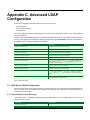
C. Advanced LDAP Configuration .............................................................................................. 413
C.1. LDAP Server Default Configuration .............................................................................. 413
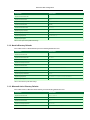
C.1.1. Standard (Unix / Open Directory) ...................................................................... 413
C.1.2. Novell eDirectory Defaults ............................................................................... 414
C.1.3. Microsoft Active Directory Defaults .................................................................... 414
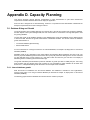
D. Capacity Planning ............................................................................................................... 416
D.1. Database Sizing and Growth ...................................................................................... 416
D.1.1. Internal database growth ................................................................................. 416
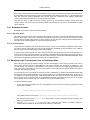
D.1.2. SQL Server database growth ........................................................................... 417
D.1.3. Sample database growth calculation .................................................................. 418
D.2. Network Bandwidth Planning ...................................................................................... 418
D.2.1. Bandwidth Estimates ...................................................................................... 419
D.3. Managing Large Client Account Lists on Distributed Sites ................................................. 419
D.3.1. Known limitations .......................................................................................... 420
E. Upgrading From a Previous Version ....................................................................................... 421
E.1. The recommended upgrade procedure ......................................................................... 421
F. Upgrading from Print-Limit Standard ....................................................................................... 422
F.1. Upgrade process ...................................................................................................... 422
F.1.1. Step 1 - Stop and disable Print-Limit Standard ..................................................... 422
F.1.2. Step 2 - Install Print-Limit Pro ........................................................................... 422
xii
Print-Limit Pro 11.4 User Manual
F.1.3. Step 3 - Configure and test printers ................................................................... 422
F.1.4. Step 4 - Import the existing User Balances .......................................................... 423
F.1.5. Step 4b - Import the existing Accounts ............................................................... 424
F.1.6. Step 5 - Upgrade client software ....................................................................... 425
F.1.7. Step 6 - Optionally uninstall Print-Limit Standard .................................................. 425
G. Example User Information Sheets .......................................................................................... 426
G.1. Example 1: Printing with the popup confirmation window .................................................. 426
G.1.1. Popup Confirmation Dialog .............................................................................. 426
G.1.2. The Printing Balance Window .......................................................................... 426
G.1.3. Resolving Problems ....................................................................................... 427
G.1.4. Printing Denied Message ................................................................................ 427
G.2. Example 2: Printing with shared accounts (for staff) ........................................................ 427
G.2.1. Shared Account Selection Popup Window .......................................................... 427
G.2.2. Resolving Problems ....................................................................................... 428
G.2.3. Printing Denied Message ................................................................................ 429
G.3. Example 3: Printing using a release station ................................................................... 429
G.4. Example 4: Refunding a print job (for staff) .................................................................... 430
G.4.1. Refund ........................................................................................................ 430
G.4.2. Action Refund Requests ................................................................................. 431
G.5. Example 5: Adding credit using a PrintCard ................................................................... 432
G.6. Example 6: Printing from a wireless network or laptop (Web Print) ..................................... 433
xiii
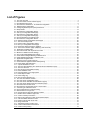
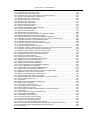
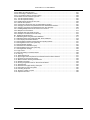
List of Figures
1.1. The user client tool .............................................................................................................. 4
1.2. The User Client account selection popup .................................................................................. 5
1.3. The Windows print queue ...................................................................................................... 6
1.4. Print-Limit Pro Architecture - an advanced configuration .............................................................. 7
2.1. Network printer configuration ................................................................................................ 11
2.2. Configuring Windows print queue permissions .......................................................................... 12
2.3. Setup wizard ..................................................................................................................... 13
2.4. Print-Limit Pro Configuration wizard ........................................................................................ 14
2.5. User sync configuration wizard page ...................................................................................... 15
2.6. Print-Limit Pro Configuration wizard ........................................................................................ 18
2.7. User sync configuration wizard page ...................................................................................... 19
2.8. The Novell OES Linux install process ..................................................................................... 23
2.9. Print-Limit Pro Configuration wizard ........................................................................................ 24
2.10. eDirectory/LDAP configuration wizard page ............................................................................ 25
2.11. The Linux install process .................................................................................................... 30
2.12. Print-Limit Pro Configuration wizard ...................................................................................... 31
2.13. User sync configuration wizard page ..................................................................................... 32
2.14. Ensure the advanced popup is enabled ................................................................................. 35
2.15. The account selection popup (displaying extra accounts) .......................................................... 36
4.1. Application navigation tabs ................................................................................................... 44
4.2. The Actions area. Click to perform the action. ........................................................................... 44
4.3. Buttons to validate and save settings ...................................................................................... 44
4.4. The crumb trail highlighting the location ................................................................................... 45
4.5. A red status message indicating a validation error ..................................................................... 45
4.6. A field highlighted indicating a validation error .......................................................................... 46
4.7. Application navigation tabs ................................................................................................... 46
4.8. Adjusting a user's credit up $10.00 ......................................................................................... 49
4.9. A 40% discount applied to double-sided printing ....................................................................... 50
4.10. Printer Filters and Restrictions ............................................................................................. 51
4.11. A printer disabled for 1 hour ................................................................................................ 52
4.12. The user client displaying the "Advanced Account Selection Popup" ............................................ 52
4.13. The user client tool ............................................................................................................ 54
4.14. User 30-day account balance history .................................................................................... 55
4.15. Printer utilization chart ....................................................................................................... 56
4.16. Print page history for a single printer ..................................................................................... 56
4.17. Printer report in PDF .......................................................................................................... 57
4.18. Printer usage log .............................................................................................................. 58
4.19. User account transaction log ............................................................................................... 58
5.1. The user client balance window ............................................................................................. 60
5.2. The user client's confirmation popup ....................................................................................... 60
5.3. The user client's standard account selection popup ................................................................... 60
5.4. The user client's advanced account selection popup .................................................................. 61
5.5. Print-Limit Client on Mac OS X .............................................................................................. 61
5.6. Print-Limit Pro requires Mac OS X v 10.3.9 or later .................................................................... 63
5.7. Connecting to a Windows server ............................................................................................ 63
5.8. The PCClient share's connection string ................................................................................... 64
5.9. Add PCClient as a Login Item ............................................................................................... 64
5.10. Control-click and open the package contents .......................................................................... 65
5.11. Double-click to install the login hook ..................................................................................... 66
5.12. A user's summary information .............................................................................................. 68
5.13. Draw a user's attention to their environmental impact ............................................................... 69
5.14. A list of available shared accounts ........................................................................................ 69
5.15. Printing costs as seen by the user ........................................................................................ 70
5.16. Using a PrintCard ............................................................................................................. 70
5.17. Transferring funds to another user ........................................................................................ 71
5.18. A user's recent balance transactions ..................................................................................... 71
5.19. A user's recent printing ....................................................................................................... 72
xiv
Print-Limit Pro 11.4 User Manual
5.20. The user's view of jobs pending release ................................................................................. 72
5.21. Web Print jobs in progress .................................................................................................. 73
5.22. Mobile user web tools - summary page .................................................................................. 73
5.23. View in Desktop mode link ................................................................................................ 73
5.24. Mobile user web tools - balance ........................................................................................... 74
5.25. Mobile user web tools - environmental impact statistics ............................................................. 74
5.26. Mobile user web tools - redeem PrintCard .............................................................................. 74
5.27. Mobile user web tools - entering a PrintCard number ................................................................ 74
5.28. The Environmental Impact Gadget ....................................................................................... 75
5.29. The Print Balance Gadget ................................................................................................... 75
6.1. Adding/removing groups ...................................................................................................... 78
6.2. The Group Details screen ..................................................................................................... 79
6.3. Initial settings applied to new users ........................................................................................ 81
6.4. Setting a user's overdraft to $20.00 ........................................................................................ 83
6.5. User printing disabled using a time-latch ................................................................................. 89
6.6. View/edit department history link on User Details page ............................................................... 90
6.7. Department history page with date to change highlighted ............................................................ 90
6.8. View/edit department history link on User Details page ............................................................... 90
6.9. Link to delete a historical department (or office) change. ............................................................. 91
6.10. Department history page after having deleted a historical change ............................................... 91
7.1. The Template Printer ........................................................................................................... 96
7.2. Copy settings from one printer to others .................................................................................. 97
7.3. Printer disabled using a time-latch .......................................................................................... 98
7.4. Advanced differential charging example .................................................................................. 99
7.5. Some of the available printer filters and restrictions ................................................................. 101
7.6. Select "staff" from the list of groups ...................................................................................... 102
7.7. Adding a new printer group "Type:Color" ............................................................................... 104
7.8. Adding an existing printer group .......................................................................................... 104
7.9. Three cost adjustments defined at the printer level .................................................................. 106
7.10. Cost adjustments displayed in the Advanced Client Popup ...................................................... 106
7.11. Cost adjustments displayed in the Manager Mode Popup ........................................................ 107
7.12. Turning on popup authentication at the user level .................................................................. 108
7.13. Print-Limit Pro client requesting for authentication .................................................................. 108
7.14. The color detection setting for a printer ................................................................................ 110
7.15. Enabling the hardware check ............................................................................................ 112
7.16. Hardware check adjustment options ................................................................................... 113
7.17. Printer properties dialog: .................................................................................................. 114
7.18. Hardware check status ..................................................................................................... 115
7.19. Hardware check log status ................................................................................................ 116
7.20. An example watermark using variables ................................................................................ 118
7.21. Print Job Log showing the PostScript metadata ..................................................................... 119
7.22. Enabling watermarking in the Admin Console ....................................................................... 120
7.23. Searching job log for signature b608c7a39f08643768051217f2f5315a ................................ 122
7.24. Job Log showing an EMF job ............................................................................................ 123
7.25. Job Log showing a ESC/P2(Epson) job ............................................................................... 123
7.26. Failure mode settings ...................................................................................................... 124
7.27. Status of print jobs logged after reconnection ........................................................................ 125
7.28. Toner level information on Printer Details screen ................................................................... 126
7.29. Enabling end-user print job refund requests .......................................................................... 127
7.30. A [Request Refund] link on the Recent Print Jobs .................................................................. 128
7.31. Sending refund request .................................................................................................... 129
7.32. Approving a refund request from the Refunds tab in the admin interface. .................................... 129
7.33. Overview of user's refund request ...................................................................................... 130
7.34. Printer refund request user notification options ...................................................................... 131
7.35. Defining custom printer fields ............................................................................................ 132
7.36. Custom printer fields ........................................................................................................ 133
8.1. Selecting a shared account with the User Client popup ............................................................. 135
8.2. Creating a shared account .................................................................................................. 136
8.3. The template account ........................................................................................................ 137
8.4. Template account settings .................................................................................................. 137
8.5. Client / Matter Naming Model example .................................................................................. 138
8.6. Searching accounts by client name in the client/matter code naming model .................................. 139
xv
Print-Limit Pro 11.4 User Manual
8.7. Searching accounts by client code in the client/matter code naming model ................................... 140
8.8. Searching accounts by matter name in the client/matter code naming model ................................ 141
8.9. Searching accounts by matter code in the client/matter code naming model ................................. 142
8.10. Project / Phase Naming Model example .............................................................................. 143
8.11. Searching accounts by project name or number in the project/phase code naming model .............. 143
8.12. Searching accounts by phase in the project/phase code naming model ...................................... 144
8.13. Selecting a shared account from the popup .......................................................................... 145
8.14. The user's popup settings under User -> User Details ............................................................ 145
8.15. Setting up shared account security ..................................................................................... 147
8.16. The standard account selection popup ................................................................................ 149
8.17. Client popup options defined on a per-user basis ................................................................... 150
8.18. The print job confirmation dialog (no account selection options) ................................................ 150
8.19. The advanced account selection popup ............................................................................... 151
8.20. The manager mode popup ................................................................................................ 153
8.21. Account selection option to automatically charge to a shared account ........................................ 154
8.22. Configuration allowing only selection of other user accounts .................................................... 154
8.23. Popup requesting the user to enter their username and password ............................................. 154
9.1. An example report displaying different date ranges .................................................................. 162
9.2. Selecting Ad-hoc date ranges and filters for reports ................................................................. 162
9.3. Printer log PDF report ........................................................................................................ 163
9.4. Clickable report icons to run reports in different formats (PDF, HTML, CSV (Excel)). ...................... 164
9.5. Filters applied to the shared account print log ......................................................................... 165
9.6. The Scheduled Reports page .............................................................................................. 166
10.1. The Standard Release Station ........................................................................................... 171
10.2. Manager-mode web-based release station ........................................................................... 172
10.3. Web-based release station within the admin pages ................................................................ 172
10.4. End-user web-based interface listing held jobs ...................................................................... 173
10.5. All documents easily identifiable by document and machine name ............................................ 176
10.6. End-user web based release interface options ...................................................................... 181
11.1. Single Virtual Queue (High School) ..................................................................................... 185
11.2. Multiple Virtual Queues (Graphics Department) ..................................................................... 187
11.3. Multiple Location Specific Virtual Queues (Large Company) .................................................... 189
11.4. Find Me Printing and Web Based Release Interfaces ............................................................. 190
11.5. Simple Load Balancing .................................................................................................... 195
12.1. The Dashboard Page ....................................................................................................... 197
12.2. User/group sync source options ......................................................................................... 199
12.3. Progress of a user/group synchronization process ................................................................. 201
12.4. On demand user creation options ....................................................................................... 203
12.5. The list of users and groups granted admin access ................................................................ 206
12.6. The list of users and groups granted admin access ................................................................ 206
12.7. Options for a single system notification ................................................................................ 210
12.8. Printer error notification settings ......................................................................................... 213
12.9. Low toner notification settings ............................................................................................ 214
12.10. Error level event notification settings ................................................................................. 214
12.11. Pending refund request notification settings ........................................................................ 215
12.12. Draw a user's attention to their environmental impact ............................................................ 217
13.1. Entering a batch ID ......................................................................................................... 221
13.2. Defining a valid till date .................................................................................................... 222
13.3. Options to edit the card design .......................................................................................... 222
13.4. Enable Macros in MS Word 2007 ....................................................................................... 224
13.5. Cards ready for printing .................................................................................................... 225
13.6. Imported card numbers .................................................................................................... 226
13.7. Inserting a new logo into a card ......................................................................................... 227
13.8. Propagate labels button in previous versions of MS Word ....................................................... 228
13.9. Update labels button in MS Word 2007 ................................................................................ 228
13.10. Using a card ................................................................................................................. 229
14.1. Secondary server reporting back to primary server (application server) ...................................... 235
14.2. Print-Limit Pro Architecture - an advanced configuration ......................................................... 236
15.1. Customizing the user client link .......................................................................................... 238
15.2. Customized user client link ............................................................................................... 238
15.3. A customized end-user web designed for St Mary's Anglican Girls School .................................. 240
15.4. A customized end-user web designed for Williamstown High School ......................................... 241
xvi
Print-Limit Pro 11.4 User Manual
15.5. Login Page with custom instructions ................................................................................... 242
15.6. Example custom report header usage ................................................................................. 243
16.1. Print Policy Pop-up (as implemented in the Print Policy Recipe) ............................................... 247
16.2. The print script editor showing a sample script ...................................................................... 248
16.3. Example syntax error in a print script .................................................................................. 249
16.4. Example runtime error in a print script ................................................................................. 249
16.5. Importing a print script recipe ............................................................................................ 250
16.6. Importing a print script snippet ........................................................................................... 251
19.1. Web Print architecture overview ......................................................................................... 272
19.2. Web Print Server status OK .............................................................................................. 275
19.3. Modifying Adobe Reader X's Protected Mode ....................................................................... 276
19.4. The Print-Limit Web Print dialog ......................................................................................... 279
19.5. Web Print Server status OK .............................................................................................. 279
19.6. Web Print link in the user interface ..................................................................................... 280
19.7. The front Web Print page before any jobs have been submitted ................................................ 280
19.8. Customizable Web Print introductory message ..................................................................... 280
19.9. Web Print wizard step 1: list of printers available for Web Print ................................................. 281
19.10. Web Print wizard step 2: selecting the number of copies for a Web Print job .............................. 281
19.11. Web Print wizard step 2: account selection options .............................................................. 282
19.12. Web Print wizard step 3: upload a document ....................................................................... 282
19.13. Web Print wizard step 3: document upload in progress ......................................................... 283
19.14. List of active Web Print jobs ............................................................................................ 283
19.15. Web Print settings in the admin interface ............................................................................ 284
19.16. Web Print: selecting a printer from the list, which may be replaced with a map or custom list ........ 285
19.17. Web Print: printer selection map with a simple floor plan ....................................................... 286
19.18. Web Print: printer selection map with a simple site plan ......................................................... 287
19.19. Installing the XPS Viewer for Windows Server 2008 ............................................................. 293
20.1. Stopping the service and setting to Manual startup ................................................................ 295
20.2. Creating a new cluster resource ......................................................................................... 296
20.3. Cluster service parameters configuration ............................................................................. 296
20.4. Stopping the service and setting to Manual startup ................................................................ 301
20.5. Adding a new Generic Service Resource ............................................................................. 301
20.6. Cluster service parameters configuration ............................................................................. 302
20.7. Adding a new Generic Service Resource ............................................................................. 304
20.8. Print-Limit Application Server Properties configuration ............................................................ 305
20.9. Print-Limit dependencies configuration ................................................................................ 305
20.10. Stopping the service and setting to Manual startup ............................................................... 308
22.1. Print-Limit Pro client requesting authentication ...................................................................... 327
23.1. Setting up a printer (direct) on Mac OS 10.5 Server using Jetdirect ........................................... 340
23.2. Enable IPP on each queue via Server Admin ........................................................................ 341
23.3. Setting up a workstation printer on Mac OS 10.5 ................................................................... 342
23.4. Printing settings via the Workgroup manager ........................................................................ 344
23.5. Add printer appropriate to the container (users, group, or computer) .......................................... 344
23.6. Print-Limit Client on Mac OS X .......................................................................................... 346
23.7. Add a printer .................................................................................................................. 347
23.8. Option-click for advanced printer addition types ..................................................................... 348
23.9. Windows printer via Samba ............................................................................................... 348
23.10. Connecting to a Windows server ...................................................................................... 349
23.11. The PCClient share's connection string .............................................................................. 349
23.12. Add PCClient as a Login Item .......................................................................................... 350
23.13. Mac popup authentication dialog requesting username and password ...................................... 350
23.14. Add a printer ................................................................................................................ 351
23.15. Option-click for advanced printer addition types ................................................................... 352
23.16. Windows printer via SAMBA ............................................................................................ 352
23.17. Connecting to a Windows server ...................................................................................... 353
23.18. The PCClient share's connection string .............................................................................. 353
23.19. Command-click and open the package .............................................................................. 354
23.20. Double-click to install the login hook .................................................................................. 354
23.21. Turning on popup authentication at the user level ................................................................ 355
23.22. Print-Limit Pro client requesting for authentication (Sorry: Windows screen-shot!) ....................... 355
23.23. Windows Component: Other Network File and Print Service ................................................... 356
23.24. Add a printer ................................................................................................................ 357
xvii
Print-Limit Pro 11.4 User Manual
23.25. Adding an LPR/LPD printer ............................................................................................. 357
23.26. Connecting to a Windows server ...................................................................................... 358
23.27. The PCClient share's connection string .............................................................................. 358
23.28. Double-click to install the login hook .................................................................................. 358
24.1. Turn off simple file sharing ................................................................................................ 361
24.2. Turn off simple file sharing ................................................................................................ 362
24.3. Enable perform printing as other user .................................................................................. 363
25.1. Internal users options ...................................................................................................... 367
25.2. Creating an internal user from the administration interface ....................................................... 367
25.3. Changing an internal user password from the administration interface ....................................... 369
25.4. Changing an internal user password from the user web page ................................................... 369
26.1. Enabling Multiple Personal Accounts for the first time ............................................................. 373
26.2. Multiple Account Priorities ................................................................................................. 374
26.3. Separate Cash and Quota accounts ................................................................................... 375
26.4. Example of an advanced account setup ............................................................................... 376
B.1. Disable simple file sharing .................................................................................................. 408
D.1. Database growth using the internal database ......................................................................... 417
D.2. Database growth using a Microsoft SQL Server database ........................................................ 418
G.1. Client Popup Confirmation Window ...................................................................................... 426
G.2. Printing balance window showing $10.00 of printing balance ..................................................... 427
G.3. Printing balance icon in the system tray ................................................................................ 427
G.4. Printing denied message ................................................................................................... 427
G.5. Shared Account Selection Popup ........................................................................................ 428
G.6. Printing balance icon in the system tray ................................................................................ 429
G.7. Printing denied message ................................................................................................... 429
G.8. Login screen ................................................................................................................... 429
G.9. Print jobs waiting in a release station ................................................................................... 429
G.10. Job Log ........................................................................................................................ 430
G.11. Refunding print job ......................................................................................................... 431
G.12. Approving a refund request from the Refunds tab in the admin interface. ................................... 431
G.13. Overview of user's refund request ...................................................................................... 432
G.14. Balance window showing the Details link ............................................................................. 432
G.15. Redeem Card page ........................................................................................................ 433
G.16. Printing using PDF Creator or XPS Document Writer ............................................................. 434
G.17. Web Print link ................................................................................................................ 434
G.18. Web Print front page showing active jobs ............................................................................ 435
G.19. Instructions for using the system ....................................................................................... 435
G.20. Choosing the printer ....................................................................................................... 435
G.21. Enter the number of copies .............................................................................................. 436
G.22. Upload a document ........................................................................................................ 436
xviii
List of Tables
6.1. Quota schedule times .......................................................................................................... 79
6.2. User Import File Format ....................................................................................................... 85
6.3. User Card/Identity Update File Format .................................................................................... 87
7.1. Cost Adjustment Types ...................................................................................................... 106
7.2. User Client Popup Config Keys ........................................................................................... 109
7.3. Substitution Variables/Macros ............................................................................................. 121
7.4. Fields available printer refund request user notifications ........................................................... 132
8.1. Shared Account Import File Format ...................................................................................... 157
9.1. Report Formats ................................................................................................................ 164
9.2. Scheduled reports delivery times ......................................................................................... 168
9.3. Advanced Reporting Config Keys ......................................................................................... 169
10.1. Standard Release Station config settings ............................................................................. 179
10.2. Standard Release Station modes ....................................................................................... 179
12.1. Example regular expressions to extract card numbers ............................................................ 203
12.2. Fields available in printing notifications ................................................................................ 210
12.3. Fields available in low balance notifications .......................................................................... 210
12.4. Fields available in printer error notifications .......................................................................... 213
12.5. Fields available in error level event notifications .................................................................... 214
12.6. Fields available in pending refund request notifications ........................................................... 215
12.7. Environmental Impact Reporting ........................................................................................ 217
13.1. Card Terminology ........................................................................................................... 220
14.1. Print-Limit Pro services/components ................................................................................... 234
15.1. User Client Customization Config Keys ............................................................................... 239
15.2. Files used to customize the user web pages ......................................................................... 241
15.3. Custom login instructions config key ................................................................................... 242
15.4. Files used to customize the administration web pages ............................................................ 243
15.5. Text print log file format .................................................................................................... 244
16.1. Print Workflow Hooks ...................................................................................................... 252
16.2. Job Info Script Reference (inputs.job) ............................................................................ 254
16.3. User Info Script Reference (inputs.user) ......................................................................... 255
16.4. Client Info Script Reference (inputs.client) .................................................................... 255
16.5. Printer Info Script Reference (inputs.printer) ................................................................. 255
16.6. Utilities Script Reference (inputs.utils) .......................................................................... 256
16.7. Job Actions Script Reference (actions.job) ...................................................................... 258
16.8. Client Actions Script Reference (actions.client) .............................................................. 260
16.9. Log Actions Script Reference (actions.log) ...................................................................... 262
19.1. Web Print Supported Applications and File Formats ............................................................... 273
19.2. Web Print Setup Options (by platform) ................................................................................ 274
19.3. Web Print Settings .......................................................................................................... 285
19.4. Files used for custom printer selection in the Web Print wizard ................................................. 286
19.5. Web Print Config Editor Keys ............................................................................................ 290
19.6. Web Print Server Config File ............................................................................................. 291
21.1. Secured Application Areas ................................................................................................ 318
21.2. Standard print commands ................................................................................................. 320
21.3. Advanced Configuration ................................................................................................... 321
25.1. Internal User Import File Format ......................................................................................... 371
A.1. XML Web Services Methods ............................................................................................... 395
A.2. User Client command-line options ....................................................................................... 403
A.3. Windows installer command-line options ............................................................................... 406
A.4. Fields for Importing Print Job Details .................................................................................... 407
C.1. LDAP Config entries ......................................................................................................... 413
C.2. Unix / Open Directory LDAP default settings .......................................................................... 414
C.3. Novell eDirectory LDAP default settings ................................................................................ 414
C.4. Active Directory LDAP default settings .................................................................................. 415
G.1. Web Print Supported Applications and File Formats ................................................................ 433
xix
Preface
1. About This Guide
The Print-Limit Pro User Guide covers the setup, management and configuration of Print-Limit Pro.
For information regarding how to configure and install Print-Limit Pro, see the Quick Start Guide in Chapter 4, Quick
Tour, and the accompanying sections like Chapter 14, Configuring Secondary Print Servers and Locally Attached
Printers. Prior to installing the application please take a few moments to read key sections of this manual. In
addition, people new to print control may also find the accompanying implementation guide available from the Netop
website useful in managing the deployment process.
The latest version of this manual in HTML and a printable PDF format are available from the Netop website at
http://www.netop.com/printlimit_pro.
2. Expectations & Prerequisites
Print-Limit Pro is a network based server application. Experience with basic network concepts such as server
administration and network connectivity is expected. Prior to installing or evaluating Print-Limit Pro you should be
familiar with:
•
The concept of sharing printers and print servers
•
Understanding of client-server relationships
•
Understanding of basic security concepts such as permissions, groups and users.
3. Terminology used in this document
To make reading this manual easier, the names of all of the screens, tabs and actions from Print-Limit Pro are
marked up in a different font. The User Details screen for instance.
A sub-screen or tab is indicated with an arrow. User Details → Adjustments means: select Adjustments & Charges
tab from the User Details screen.
User Interface Buttons are indicated like this: Press OK to continue.
System output and keyboard input is indicated with a different font as well.
Field labels are indicated like this Username.
Important
Important notes are marked like this.
Tip
Tips provide useful advice to make your life easier.
Caution
xx
Preface
Indicate situations where you have to be careful what you are doing.
Warning
Where extreme care has to be taken.
4. Notice
While every effort has been taken to ensure the accuracy and usefulness of this guide, we cannot be held
responsible for the occasional inaccuracy or typographical error. If you do find an error, please let the Netop
Development Team know.
Information in this document is subject to change without notice. The names of companies, products, people,
characters, and data mentioned herein are fictitious and are in no way intended to represent any real individual,
company, product, or event, unless otherwise noted. No part of this document may be reproduced or transmitted in
any form without the express written permission of Netop.
Print-Limit is a trademark of Netop.
(c) Copyright 1999-2011 Netop. All rights reserved.
xxi
Chapter 1. Introduction
1.1. What is Print-Limit Pro?
Print-Limit Pro is a comprehensive print management system designed to seemlessly monitor and control your
resources with easy to use administrative and user tools that can be securely accessed from anywhere on the
network though a web browser.
Print management requirements vary from organization to organization, and often change dramatically within an
organzation over time. Print-Limit Pro is designed for flexibility and scalability and can be configured to meet your
print management needs now and in the future. It is used in a wide variety of environments ranging from universities
with large printer fleets supporting over 100,000 users to smaller organizations that track printing for a fewer than 50
users on 3 or 4 printers. You can implement a basic system within a few minutes, or if you need more than simple
monitoring and reporting, you can configure powerful features that include differential pricing, blocking filters and
programatic control via APIs and scripting. No matter where you start, you can easily adjust parameters to
implement changes as gradually or quickly as you wish.
Possible implementations can include:
•
Silent activity monitoring
•
Visible activity monitoring and expense tracking by work area, projects and departments
•
Quota/allowance enforcement
•
Charge per-print system
•
Combinations of all of the above to accommodate various user / group profiles
In addition Print-Limit Pro provides system administrators with a kit of tools to manage printers including:
•
Detailed logging and reporting
•
Notifications for printer errors and low toner
•
Job blocking filters and re-direction
1.1.1. Benefits
Some of the key benefits of Print-Limit Pro are:
•
Transfers accountability to users or departments by individually tracking activity.
•
Creates environmental awareness by drawing users' attention to the impact of their specific usage.
•
Reduces overall printing cost through job filtering, enforcing flexible quotas, or direct cost recovery.
•
Discourages overuse of IT resources by establishing a managed print environment.
•
Improves efficiency by allowing administrators to create rules that can steer printing to designated printers for
load balancing, to implement 'Find Me' printing, or to redirect print jobs based on criteria defined using advanced
scripting tools.
•
Improves network reliability by implementing rules to prevent printer queue jams, queue hogging, and
inappropriate printing types.
1.1.2. Key Features
1
Introduction
Some of the key features of Print-Limit Pro are:
•
Track all printing activity by user, client account, printer and document metadata.
•
Enforce per user quotas, or group account budgets
•
Differential print cost/charging allowing costs to be assigned on a per printer basis with advanced options to
charge different amounts based on document type (e.g. color, grayscale or duplex), page size, user or group.
•
Hardware neutral solution supports all major printer types and operating systems. No hardware vendor lock-in!
•
Both cross-platform and multi-platform support. Run a mix of Windows and/or Linux print servers and support
clients ranging from Windows, Mac, Linux, Unix and Novell OES.
•
User Web Tools allow end-users to track usage, transfer funds, request refunds and upload documents from
unauthenticated (wireless) laptops.
•
Provides end-users with advanced options to allocate print jobs to shared accounts, cost centers, faculties or
departments.
•
Single sign-on user authentication with native Active Directory integration or synchronization with LDAP user
accounts. (no separate passwords to manage!)
•
Flexible hold/release queue support with Release Station software allowing administrators to implement
management approved or secure user release printing environments.
•
Service Oriented Architecture utilizing the latest software design methods including, test driven development,
XML Web Services and layered architecture. This ensures scalability and stability by design.
•
Advanced reporting and charts available in standard formats including PDF, Excel, and HTML. All reports
accessible from anywhere on the network via a standard web browser.
•
Ability to run on top of leading 3rd party Relational Database Management Systems (RDBMS) including
Microsoft SQL Server, Oracle, MySQL and PostgreSQL Database.
•
Enterprise level security and encryption based on SSL.
•
Open architecture with a powerful scripting language, source code access and API documentation.
1.1.3. System Requirements
Print-Limit Pro supports the following server platforms:
•
Microsoft Windows Server 2008 (any edition)
•
Microsoft Windows Server 2003 (any edition)
•
Microsoft Windows 2000 (Pro and Server)
•
Microsoft Windows XP (Pro and Pro x64)
•
Microsoft Windows Vista (any edition except Home editions)
•
Microsoft Windows 7 (any edition except Home editions)
•
Macintosh OS X 10.4 - 10.6 (e.g. Tiger, Leopard, Snow Leopard) (both PowerPC and Intel supported)
•
Novell Open Enterprise Server 2 (OES2 SP1+)
•
Most modern Linux operating systems including:
•
Red Hat Enterprise Linux (AS 3.0, ES 3.0, AS 4.0, ES 4.0)
•
Novell SuSE Linux (8.2, 9.0+)
•
Fedora Core
• Debian (3.1+) and Ubuntu
With print queues hosted via:
•
Samba based print queues
•
CUPS based print queues
Servers and clients must use user ID/username based authentication (e.g. Active Directory, Windows NT, LDAP, or
2
Introduction
local system accounts).
Sites with more than 500 users should consider a server class system with more than 512MB of RAM and 500 MB
of free disk space.
Print-Limit Pro supports approximately 90% of printers on the market. Where possible we recommend printers that
support one of the two major printer language standards - Postscript or PCL.
On workstation clients:
•
All supported Microsoft Windows platforms (Windows 95 and later)
•
Macintosh OS X 10.3.9 or higher recommended
•
Most modern Linux and Unix Operating Systems (Java 5.0+ required for optional client tool)
1.2. How does Print-Limit Pro work?
Before explaining how Print-Limit Pro works at a technical and end-user level, the reader should be familiar with the
following key concepts.
1.2.1. Key Concepts
1.2.1.1. Print Server
A print server is a system responsible for hosting print queues and sharing printer resources to desktop
clients/workstations. Users on the workstations submit print jobs to a print server rather then directly to the printer
itself. A print server may be a dedicated server but on many networks this server may also perform other tasks such
as file serving.
1.2.1.2. Print Queue
A print queue is first-in-first-out queue listing all jobs pending on a given printer.
1.2.1.3. User ID/Username
In a multi-user environment, users log on to a network or computer using a username and password. These are
often managed by services such as Active Directory or LDAP. The username is known as the user's identity.
Print-Limit Pro uses this identity to track printing.
1.2.1.4. Shared Account
A shared account is a Print-Limit Pro term used to represent an account (pool of funds or allocation group)
accessible to multiple users. Accounts usually represent "work areas" and the term can be used interchangeably
with terms such as Departments, Faculties, Projects, Clients, Client/Matter, or Cost Centers.
1.2.1.5. Client/Server Model
Client software is a small program that runs on each workstation and communicates with a server. The printing
process on most networks works on a client/server model with clients (workstations) submitting jobs to a server.
Print-Limit Pro also uses the client/server model in the optional client software to commumicate with end-users.
1.2.1.6. Application Server
An application server is a server program responsible for centrally processing “business logic” and providing
services to end-users. Print-Limit Pro uses the application server model to provide a “business logic” unit for
calculating user costs and providing a web browser interface to end-users.
1.2.1.7. Information Provider
A provider is a software component or program responsible for providing information to an Application Server.
Print-Limit Pro uses providers to submit print queue/job information to its application server. This information
3
Introduction
provider is called the Print Provider. Other important providers included with Print-Limit Pro include user directory
and authentication providers.
1.2.1.8. Web Application Interface
A web application is a software program that interacts with end-users via a web browser. Examples range from
Google, Microsoft SharePoint, Hotmail, Internet banking and router management consoles. Print-Limit Pro provides
a web-based interface for system administration and management. Web applications offer administration flexibility
by allowing access from any location on the network and avoid the need for installation of separate software.
1.2.1.9. Scripting Language
A scripting language is a programming language that allows control of one or more software applications. In
Print-Limit Pro scripting can be used to perform various administrative functions such as modifying perameters for
users, shared accounts or printers. It can also be used for programitic control during the print process to provide
functionality such as print job re-direction, user notifications / warnings and confirmation for large or expensive print
jobs.
1.2.1.10. Web Print Server
Web print server is the Print-Limit terminlogy for a server that allows laptop (wireless) users to upload Microsoft
Office and PDF files to be printed on network printers from personal computers that are not authenticated to the
network and do not have network printer drivers.
1.2.2. Understanding the print process flow
To help explain what Print-Limit Pro is and how it works we'll introduce the system by example. We'll start with a
simple high school example:
The student's perspective (transparent quota control):
1.
Chris is a student at a local high school. He has logged onto the network using his username,
chris.j.smith, and is surfing the Internet. He selects Print from his web browser to print out a web page for
his school assignment.
2.
The network administrator has allocated Chris a printing credit budget of $20.00 a month. He can see his
current account balance of $10.00 in the Print-Limit Client Tool window.
Figure 1.1. The user client tool
3.
A confirmation screen listing the number of pages and the cost of the print job is displayed on the Worksation.
4.
Chris confirms the print job.
5.
5 pages come out of the printer.
6.
The network administrator has set a cost-per-page inside Print-Limit on the printer at $0.10. Chris' 5 page
document costs $0.50.
7.
Chris' account balance is now at $9.50. He may continue to print until he submits a print job that has a cost that
is higher than the balance in his account.
4
Introduction
The teacher's perspective (allocation to accounts):
1.
Matt is a english and mathematics teacher at the same local high school.
2.
Matt needs to print out a 279 page document for his next class.
3.
The network administrator has configured Print-Limit to charge users in the faculty group $.01 per page, and
has granted Matt access to charge to his personal account or to the english or math department's shared
accounts.
4.
Matt presses the Print button in the application.
5.
The Print-Limit client tool displays a popup and presents Matt with information about the print jobs and requests
an account selection. In this case accounts represent Departments but could also represent projects or other
work areas.
6.
Matt selects the english department's shared account from the list.
Figure 1.2. The User Client account selection popup
7.
The print job is printed and the english department account is charged $2.97 for the print job.
The technical perspective (behind the scenes):
1.
When the teacher, Matt, prints from his application, his workstation transfers the print job to the server and
places it in the print queue.
5
Introduction
Figure 1.3. The Windows print queue
2.
The Print-Limit Print Provider intercepts the print job in the queue prior to printing, pauses it, and analyzes the
information determining:
a.
Who printed the document
b.
The number of pages in the document
c.
Other information such as duplex, grayscale mode, paper size, etc.
3.
The Print Provider submits the job's information to the Application Server to process the “business logic”.
4.
The Application Server determines that Matt needs to select the account to charge. It notifies the Client
Software on Matt's desktop.
5.
The Client Software displays the Popup requesting for the user to select an account.
6.
After Matt selects the account, the Application Server is notified of Matt selection. The “business logic” validates
that Matt is authorized to charge to the selected account.
7.
The Application Server charges the appropriate account, logs the job and instructs the Print Provider to resume
or unpause the print job in the print queue allowing it to proceed to the printer.
1.2.3. Architecture Overview
Print-Limit Pro was developed using the latest software development strategies, a strong influence being Service
Oriented Architecture (SOA). The Print Provider, Application Server and Client Software all communication uses
XML based web services over HTTP.
6
Introduction
Figure 1.4. Print-Limit Pro Architecture - an advanced configuration
A more detailed explanation of the architecture and support for multiple servers, web print servers, server clustering,
and payment gateways can be found in subsequent sections of this User Guide.
1.3. The Top-Ten Hidden Features!
Much of Print-Limit Pro flexibility and usefulness comes not from the features you can see, but from the advanced
hidden features. Print-Limit Pro is packed full of handy tools, utilities and options and you will read about these
throughout this guide. To provide a quick overview now, the most popular hidden features are:
1.3.1. One: Zero-install Client Deployment
Print-Limit Pro is implemented using 100% server-side logic and no client software is required. A simple lightweight
client tool is however provided so end-users have access to advanced features such as shared accounts and the
option of viewing their account balance in a popup window.
Deploying client software can be a time consuming and fiddly process. To streamline the process Print-Limit Pro
allows its client to be run directly off a network share - no need to install locally, or mess around with deployment
tools! Just set the executable as a startup program and it will run and auto-update itself thereafter.
See Section 5.2, “User Client” for more information.
1.3.2. Two: Remote Administration
Print-Limit Pro is a 100% web based application. Full system administration can be performed from anywhere on the
network via a standard web browser - no special admin software is required! To access the administration section,
point a browser at the server on port 9191:
http://[server_name]:9191/admin
7
Introduction
Encrypted SSL/HTTPS access is also available on port 9192:
https://[server_name]:9192/admin
Access is granted to the built-in admin, or to any user that has been granted administrator level access.
1.3.3. Three: Web Print
Web Print enables printing from user-owned devices without the overhead of installing printer drivers and managing
workstation authentication to the server.
Microsost Office or Adobe PDF files are uploaded using the same User Web Tools available on network computers.
Web Print is fully integrated into Print-Limit's standard print charging/accounting/quota process. It does not matter if
you're a staff user allocating to a faculty or department account, or a student charging to your free print quota, the
user account allocation experience the same as that seen when printing from a networked desktop system.
Print-Limit's Web Print has been deployed across hundreads of education campuses and is an ideal solution for
offering print services via student owned laptops and netbooks.
See Chapter 19, Web Print (Driver-less printing via a web browser) for more information.
1.3.4. Four: Shared Accounts
Many organizations would like to track their printing on more than a per-user level. With the Shared Accounts
feature, users can allocate jobs to cost areas such as Faculties, Departments, Projects, Clients, Cost Centers, or
Pools. Shared accounts are selected via a customizable popup window. Two popup window types are available:
•
Standard - A simple account selection window design ideal for most users.
•
Advanced - An advanced account selection window designed for the power user including features such as
search, preference list, recent selections, comment entry and invoicing options. This is ideal for businesses
including Engineering, Law, Accounting and Architecture Firms.
Access to accounts is controlled via integrated network group membership or optionally PIN's.
See Chapter 8, Shared Accounts for more information.
1.3.5. Five: Secondary Servers and Local Printers
Print-Limit Pro is an enterprise level application designed to be managed and controlled from a central location.
Multi-server environments are common in large organizations and Print-Limit Pro handles them with ease. All
servers are configured to report back to the central Application Server. This ensures that all management, logging
and control is centralized. Secondary servers and workstations with local printers simply run a light weight
monitoring component that communicates to the central server via XML Web Services calls.
Servers and workstations can run the seconary server software on any supported operating system no matter what
operating system is used on the Application Server because Print-Limit Pro supports mixed or heterogeneous
networks as well!
See Chapter 14, Configuring Secondary Print Servers and Locally Attached Printers for more information.
1.3.6. Six: Scripting
Scripting can be applied on a per printer basis to provide programatic control during the print process. Possible
applications include:
•
Route the job to the cheapest compatible printer and notify the user of the change (least-cost routing)
•
Prompt users to print large color jobs on a compatible low cost grayscale printer
•
Charge printing during class time to the department
8
Introduction
•
Inform user when printer is in error and suggest a compatible alternative
See Chapter 16, Advanced Scripting (Print Scripting) for more information.
1.3.7. Seven: Customizable Web Interface
Did you know that the end-user interface can be quickly customized to make it look like an official part of your
organization's infrastructure? With some simple HTML, you can make the Print-Limit Pro end-user interface look just
like your existing web site or intranet site.
See Section 15.3, “Customizing the User web pages” for more information.
1.3.8. Eight: XML Web Services and Command-line Control
It seems like everything these days is Web Services enabled. Not to be outdone, Print-Limit Pro exposes dozens of
API's via secured XML Web Services. This provides advanced administrators and developers with the ability to
programmatically remotely control, integrate and manage the application. The possibilities are endless... some of
our users now have their library fines hooked into the Print-Limit Pro system!
In addition to the Web Services API's, system administrators may hook into the inner workings of Print-Limit Pro
using server commands and scripting.
With server commands you can use batch files or scripts to automate system functions such as:
•
Schedule "online" backups to coordinate with your existing backup processes. No need to take the system down
to take a data snapshot.
•
Create users in Print-Limit Pro automatically and as part of your existing user creation scripts.
•
Automatically import/sync list of accounts from a file, 3rd party system or existing directory structure. (Great for
Engineering and Architecture firms)
See Section A.3, “The XML Web Services API” and Section A.1, “Server Commands (server-command)” for more
information.
1.3.9. Nine: 3rd Party Database Support
Print-Limit Pro ships with its own preconfigured and self-maintaining database. The system however is database
independent and can be run on top of a number of leading database systems. Maybe you have an existing Microsoft
SQL Cluster and would like to take advantages of this infrastructure. No problem! Print-Limit Pro can be quickly
configured to hook into your preferred database.
See Chapter 18, Deployment on an External Database (RDBMS) for more information.
1.3.10. Ten: The Development Team
Software is only as good as the development process. Print-Limit Pro is developed in an open and transparent
fashion by a small development team. The team works closely with key system users to architect new features.
Suggestions and feedback is encouraged. Please contact us if you have any good ideas!
9
Chapter 2. Installation
This chapter covers the initial installation and configuration of Print-Limit Pro in your network environment. Initial
installation takes only a few minutes on a currently configured server. This guide will walk you through installation
and configuration step-by-step. The process is summarized below:
1.
System requirements check
2.
Downloading and installing Print-Limit Pro
3.
Completing the configuration wizard
4.
Testing client software
5.
Testing printing and remote access
Print-Limit Pro is a cross-platform solution and the installation procedure will vary depending on the target operating
system(s). Please jump to the appropriate section below:
•
Windows: Section 2.1, “Installation on Windows”
•
Mac: Section 2.2, “Installation on Apple Mac”
•
Novell: Section 2.3, “Installation on Novell OES Linux (iPrint)”
•
Linux: Section 2.4, “Installation on Linux (CUPS and/or Samba)”
2.1. Installation on Windows
Important
This guide assumes that you are using Windows Server 2003. The process is similar for other
Windows operating systems such as XP, Server 2008 or Vista.
If you're upgrading from a previous Print-Limit Pro version, please refer to the directions outlined in
Appendix E, Upgrading From a Previous Version.
2.1.1. Step 1 - System Requirements & Network Setup
Before installing Print-Limit Pro for either evaluation or production use, the system administrator should take a few
minutes to verify system requirements.
•
Is the operating system version supported and patches up-to-date? Take a few minutes to verify the system is
current and supported (see Section 1.1.3, “System Requirements”).
•
In workgroup environments (i.e. where no domain is present), some additional configuration may be required.
For more details see Chapter 24, Running in a Workgroup Environment.
•
Are printer(s) installed and hosted on this system? Print-Limit Pro needs to be installed on the system directly
hosting the printer(s). The printer should be installed as a "Local Printer" with a connection method such as
TCP/IP Port, LPR, or JetDirect or directly connected to the system via USB or LPT Port.
•
In a multi-user environment, printers are often shared with other network users. Other workstations should
connect to these printers as "Network Printers". Ensure workstations are configured to print to the shared print
queues. For example a Windows workstation may connect to a printer via a path like:
\\[samba_server]\[printer].
•
Ensure that printers are configured correctly and work before installing Print-Limit Pro.
10
Installation
Figure 2.1. Network printer configuration
Important
If you are running the Print-Limit Pro server on Windows XP (Professional) you must disable "Simple
file sharing". For more information please see Appendix B, Troubleshooting & Technical FAQ's.
If you are running a Windows workgroup network or using Windows XP/Vista Home workstations,
please see Chapter 24, Running in a Workgroup Environment.
2.1.2. Step 2 - Print queue configuration
When using release stations or account selection popups it is recommended to secure the print queue so that users
do not have permission to pause/resume documents in the queue. This allows Print-Limit Pro to have full control of
documents without interference from users. To do this:
1.
Log onto the server hosting the printers as an Administrator.
2.
Open the printer configuration screen: Start → Printers
3.
Right-click a printer and select Properties.
4.
Select the Security tab.
5.
Select the CREATOR OWNER user and uncheck the Manage Documents permission. See Figure 2.2,
“Configuring Windows print queue permissions”
6.
Press the OK button.
7.
Perform these steps for each of the monitored printers.
11
Installation
Figure 2.2. Configuring Windows print queue permissions
2.1.2.1. Windows Server 2008 R2 only
Windows Server 2008 R2 installations may experience an issue where print jobs are not removed from the print
queue when completed. These jobs stay in the queue with a status of 'Sent to Printer'. To work around this you will
need to configure the Printer Driver Isolation so that jobs are removed from the queue when completed.
1.
Log onto the server hosting the printers as an Administrator.
2.
Using the Server Manager, navigate to the Print Management Console: Server Manager → Roles → Print and
Document Services → Print Management → Print Servers → PrintServerName → Drivers
3.
Right-click a printer driver and select Set Driver Isolation → None.
4.
Perform these steps for each of the monitored printers drivers.
2.1.3. Step 3 - Download and install
Print-Limit Pro is supplied as a standard Windows setup.exe install program. The latest version may be
downloaded from http://www.netop.com/printlimit_pro. After the download is complete, run the setup wizard as an
administrator level user. A system restart is usually not required but administrators are advised to perform
installation on live production systems during periods of low activity - for example, not during backup operations or
other administration activities.
12
Installation
Figure 2.3. Setup wizard
Select the "standard install" option and install Print-Limit Pro onto a hard drive with adequate free disk space. The
default options will suffice for most systems.
2.1.4. Step 4 - Configuration Wizard
After installation, the install will open a web browser window. The configuration stages are explained below:
2.1.4.1. Administrator Password
This is the master password for the main in-built admin account. This password is independent of the operating
system or domain passwords. Keep knowledge of this password secure! This screen also sets the system's physical
location. Ensure the location and language setting are correct.
13
Installation
Figure 2.4. Print-Limit Pro Configuration wizard
Tip
Treat this password like your router/modem management passwords. It is independent of your domain
accounts and needs to be kept secure.
2.1.4.2. Organization Type
This is the organization type which matches the organizational environment where Print-Limit Pro will be used.
Choosing the appropriate organization type will determine which system defaults are used on setup. For example, in
a Professional (Client Billing) organization, where it is useful to charge-back printing to customers, an advanced
client popup is provided with additional features useful for dealing with large numbers of client (shared) accounts.
These default settings chosen for an organization type can be changed after installation.
2.1.4.3. Default Print Cost
This is the default cost-per-page assigned to the printers. This setting can be changed on a per-printer basis after
installation. Choosing a sensible cost now will help minimize future setup. For example in the USA, a value of $0.05
would be appropriate for many standard black & white printers.
14
Installation
2.1.4.4. Initial User Credit for Education or Small/Medium Enterprise Installations
In Education or Small/Medium Enterprise installations, users can be assigned an initial starting credit. This ensures
they have funds in their account as soon as the system is enabled. An option also exists to control what happens
when users run out of credit/quota. If you are evaluating Print-Limit Pro it might be appropriate not to disable printing
when a users funds run out. This way you can be assured that user printing is not disrupted during the evaluation.
These settings may be changed after setup.
2.1.4.5. User/group synchronization
Print-Limit Pro extracts user information out of the System or Domain. The options presented here will vary
depending on the Operating System and its environment. During evaluation, most sites will opt to import all users
from the system/domain into Print-Limit Pro. An option also exists to import a subset of users from a given group.
This option is pertinent when it is known that only a subset of users will only ever use the printers.
Figure 2.5. User sync configuration wizard page
Options on Microsoft Windows include Windows Standard, Active Directory, or LDAP. In a domain enviroment,
Active Directory is the default option as this offers access to Organization Units, Nested Groups and other AD
features.
Use the Test Settings to test and confirm your settings before continuing.
2.1.4.6. Client Settings in Professional (Client Billing) installations
In a Professional (Client Billing) environment, the main focus is on allowing users to allocate print jobs to client
(shared) accounts. The process works by:
•
Pausing all jobs that enter the print queues.
•
Displaying a popup on the user's workstation asking them to allocate the print job to an account. This is done by
selecting the account from a list.
•
After the user has responded to the popup, the job is released to the printer.
You can read more about the account selection process and shared accounts at Chapter 8, Shared Accounts.
The account selection popup option is enabled at the user level. Once the option is enabled, the user must run the
client software. If the client software is not running, the popup cannot display, and the job will remain paused in the
print queue. This option is hence considered high impact. You are presented with two strategies that allow you to
choose the implementation approach that best suits your needs:
2.1.4.6.1. Minimal impact (Initial single user testing)
In this strategy the account popup is only initially enabled on a single user for testing. You need to nominate the
testing account. You may already have an appropriate test user account on your system/domain or alternatively
selecting your own personal account is a good choice. The name should be in the format used to log into the
15
Installation
domain/system (usually the short form).
The minimal impact strategy will give you time to test the popup with the nominated test user Then the Advanced
account selection popup option can be enabled for other users when appropriate.
2.1.4.6.2. Immediate implementation (Enable for all users)
This strategy enables the account selection popup on all users. This option is good for smaller networks as it
minimizes the amount of post-install configuration - just deploy the client and your up! If this option is selected you
should be in a position to install the client software on user desktops as soon as possible.
If in doubt, select the minimal impact strategy. This will ensure the impact is isolated to only the nominated test user.
2.1.4.7. Wizard Completion
After completing the configuration wizard you will be presented with a user synchronization status screen and an
option to Login. Take some time to log in and browse the interface. There are many options and now is a good time
to have a look at some of the key areas of the application. Take some time to explore!
2.1.5. Step 5 - Printer Configuration
The printers should be automatically detected, and listed under the Printers section. If the printers do not display,
try printing a document as the first job will trigger registration.
2.1.6. Step 6 - Sharing Client Software
The Print-Limit Pro client software is located in the directory [app-path]/client. This software needs to be
shared over the network so workstations can access/install the client application. The directory is automatically
shared in read-only form as PCClient as part of the install process. Confirm that you can access the client
software via the network by browsing to \\server\PCClient.
2.1.7. Step 7 - Client Software Deployment (Optional)
The Print-Limit client software may now be deployed if required. The client software is not required for basic print
tracking and reporting. Some features the client software provides include:
•
Displays notification messages, such as why a print job was denied.
•
Displays print policy popups, such as to encourage duplex printing.
•
Displays popups for shared account allocation/charging (department accounts, client billing).
•
Allow the user to confirm the details and/or cost of their print job before printing.
•
Shows the user their current balance (useful in schools where print quotas are used).
•
Can be used for authentication when printing from public terminals or other unauthenticated systems.
For a professional (client billing) installation the client software is required so that users can allocate print jobs to
client (shared) accounts via a popup. It is recommended to follow the steps in Section 5.2.1, “User Client
Deployment” for best practice client deployment methods. After the client software is deployed you may then enable
the account selection popup for all users as discussed in Section 8.4.2.1, “Enabling the Advanced Account Selection
Popup For All Users”.
For other installation types the client software is optional. If you choose not to deploy the client software you may
still choose to deploy it in the future.
For more details about the client software see Section 5.2, “User Client”. For details about deploying the client
software see Section 5.2.1, “User Client Deployment”.
2.1.8. Step 8 - Testing
It is now time to test the system, please see Section 2.5, “Testing the Installation”.
16
Installation
2.1.9. What next?
This concludes the Install Guide. You may like to take some time to explore the features of Print-Limit Pro before
continuing reading at Chapter 3, Implementation by Example or Chapter 4, Quick Tour. Business users may be
particularly interested in trying the popup client software as covered in Section 4.5, “Client Software”. If desired, the
client software should also be deployed to other workstations. This procedure is detailed in Section 5.2, “User
Client”.
2.2. Installation on Apple Mac
Important
This guide assumes that you are installing on Mac OS X (either server or workstation) hosting and
sharing printers. This guide will refer to this system as the 'server'. This represents the role of the
system rather than the 'edition' of the operating system. Print-Limit Pro equally supports both the
server and workstation versions of Mac OS. If you're upgrading from a previous Print-Limit Pro version
please refer to the directions outlined in Appendix E, Upgrading From a Previous Version.
The following section assumes the reader has knowledge of general Mac OS X server management.
Although the installation process is graphical, it would be an advantage to have knowledge of the
command-line, creating users, editing configuration files and an understanding file permissions.
2.2.1. Step 1 - System Requirements
Before proceeding with the installation the system administrator should take a few moments to verify system
requirements. Is the operating system version supported and are patches up-to-date? Take a few minutes to verify
the system is current and supported (see Section 1.1.3, “System Requirements”). A system prerequisite is Java
version 5.0 or higher. If you are running a fully patched Tiger, Leopard, or Snow Leopard machine this requirement
will be satisfied. If you are running Lion you will need to download and install Java from the Apple web site
(download from: http://support.apple.com/kb/DL1421).
2.2.2. Step 2 - Print Queue Setup
Most small to medium Mac networks will have their workstations configured to print directly to the physical printers.
This method of printing is not supported by Print-Limit Pro and instead administrators will need to set up global
server hosted print queues. Some administrators will be familiar with server queues, while others will need to invest
some time into understanding Mac printing in more detail. The topic of Mac printing is complex and is hence
deserves its own chapter! Please read the first section of Chapter 23, Mac Printing in Detail and ensure your
organization's printers are set up as required.
Administrators should ensure that the server based print queues are set up and working as expected before
attempting to install Print-Limit Pro.
2.2.3. Step 3 - Download and install
Print-Limit Pro is supplied as a standard disk image containing the installer. Log on as an admin level account.
Download and double-click Mac installer. Double-click on the installer package named Print-Limit Pro
Standard Installation.pkg. Follow the directions on the screen. The installation process will take between
two and five minutes depending on the speed of the system. A system restart is not required but administrators are
advised to perform installation on live production systems during periods of low activity - for example, not during
backup operations or other administration activities.
The default install location is /Applications/Print-Limit Pro
Important
Make sure you're installing the correct package. The similarly named Print-Limit Pro
Secondary Server Installation.pkg only installs part of the application and is designed for
17
Installation
more advanced networks.
2.2.4. Step 4 - Configuration Wizard
After installation, the install will open a web browser window. The configuration stages are explained below:
2.2.4.1. Administrator Password
This is the master password for the main in-built admin account. This password is independent of the operating
system or domain passwords. Keep knowledge of this password secure! This screen also sets the system's physical
location. Ensure the location and language setting is correct.
Figure 2.6. Print-Limit Pro Configuration wizard
Tip
Treat this password like your router/modem management passwords. It is independent of your domain
accounts and needs to be kept secure.
2.2.4.2. Organization Type
This is the organization type which matches the organizational environment where Print-Limit Pro will be used.
18
Installation
Choosing the appropriate organization type will determine which system defaults are used on setup. For example, in
a Professional (Client Billing) organization, where it is useful to charge-back printing to customers, an advanced
client popup is provided with additional features useful for dealing with large numbers of client (shared) accounts.
These default settings chosen for an organization type can be changed after installation.
2.2.4.3. Default Print Cost
This is the default cost-per-page assigned to the printers. This setting can be changed on a per printer basis after
installation. Choosing a sensible cost now will help minimize future setup. For example in the USA, a value of $0.05
would be appropriate for many standard black & white printers.
2.2.4.4. Initial User Credit for Education or Small/Medium Enterprise Installations
In Education or Small/Medium Enterprise installations, users can be assigned an initial starting credit. This ensures
they have funds in their account as soon as the system is enabled. An option also exists to control what happens
when users run out of credit/quota. If you are evaluating Print-Limit Pro it might be appropriate not to disable printing
when a users funds run out. This way you can be assured that user printing is not disrupted during the evaluation.
These settings may be changed after setup.
2.2.4.5. User/group synchronization
Print-Limit Pro extracts user information out of the System or Domain. The options presented here will vary
depending on the Operating System and its environment. During evaluation, most sites will opt to import all users
from the system/domain into Print-Limit Pro. An option also exists to import a subset of users from a given group.
This option is pertinent when it is known that only a subset of users will only ever use the printers.
Figure 2.7. User sync configuration wizard page
Options include Mac Standard (PAM, Local NetInfo, etc.), LDAP (Open Directory), or Samba. Select Mac
Standard if the user accounts are setup and defined on the local system. This option will work with most Mac
networks.
The LDAP option is appropriate for large networks with existing Open Directory domains. This includes networks
running Mac OS X Server with Open Directory, and Windows domains running Active Directory. Print-Limit Pro will
do it's best to auto discover LDAP settings, but some knowledge of LDAP and/or Open Directory will be required.
More information on LDAP is available in Section 12.3.9, “Using LDAP for user synchronization”.
Use the Test Settings to test and confirm your settings before continuing.
2.2.4.6. Client Settings in Professional (Client Billing) installations
In a Professional (Client Billing) environment, the main focus is on allowing users to allocate print jobs to client
(shared) accounts. The process works by:
•
Pausing all jobs that enter the print queues.
•
Displaying a popup on the user's workstation asking them to allocate the print job to an account. This is done by
19
Installation
selecting the account from a list.
•
After the user has responded to the popup, the job is released to the printer.
You can read more about the account selection process and shared accounts at Chapter 8, Shared Accounts.
The account selection popup option is enabled at the user level. Once the option is enabled, the user must run the
client software. If the client software is not running, the popup cannot display, and the job will remain paused in the
print queue. This option is hence considered high impact. You are presented with two strategies that allow you to
choose the implementation approach that best suits your needs:
2.2.4.6.1. Minimal impact (Initial single user testing)
In this strategy the account popup is only initially enabled on a single user for testing. You need to nominate the
testing account. You may already have an appropriate test user account on your system/domain or alternatively
selecting your own personal account is a good choice. The name should be in the format used to log into the
domain/system (usually the short form).
The minimal impact strategy will give you time to test the popup with the nominated test user Then the Advanced
account selection popup option can be enabled for other users when appropriate.
2.2.4.6.2. Immediate implementation (Enable for all users)
This strategy enables the account selection popup on all users. This option is good for smaller networks as it
minimizes the amount of post-install configuration - just deploy the client and your up! If this option is selected you
should be in a position to install the client software on user desktops as soon as possible.
If in doubt, select the minimal impact strategy. This will ensure the impact is isolated to only the nominated test user.
2.2.4.7. Wizard Completion
After completing the configuration wizard you will be presented with a user synchronization status screen and an
option to Login. Take some time to log in and browse the interface. There are many options and now is a good time
to have a look at some of the key areas of the application. Take some time to explore!
2.2.5. Step 5 - Printer Configuration
The printers should be automatically detected, and listed under the Printers section. If the printers do not display,
try printing a document as the first job will trigger registration.
2.2.6. Step 6 - Sharing Client Software
The Print-Limit Pro client software is located in the directory /Applications/Print-Limit Pro/client. It
may be useful to share this directory over the network so workstations can access/install the client application. If
you're running Mac OS X Server, use Server Admin to add a read-only file share called PCClient. Sharing with
Protocols AFP for Mac clients, and SMB for Windows clients is recommended.
2.2.7. Step 7 - Testing
It is now time to test the system, please see Section 2.5, “Testing the Installation”.
2.2.8. Step 8 - Deployment for a Professional (Client Billing) Installation
NOTE: This step is a requirement for a Professional (Client Billing) installation.
Now that the system is tested and working, it is time to deploy the client software and enable the account popup for
their use. It is important to deploy the client software before enabling the popup, otherwise users' printing will be
stopped/paused.
2.2.8.1. Deploy the client software
As discussed earlier in the chapter the client can be run directly from a network share (which is automatically
configured on Windows). There is also the option to install the software locally on each workstation, however this is
20
Installation
not usually recommended because it makes the process of updating the client software more complicated.
Client deployment options and instruction are discussed in detail in Section 5.2.1, “User Client Deployment”. Follow
those instructions to deploy the client software, and then enable the popup as described below.
2.2.8.2. Enable the advanced client popup
Once the client software is deployed on user workstations, the Account Selection can be set. In a Professional
(Client Billing) configuration, all users that print jobs for clients are often given the Advanced account selection
popup, however, other Account Selection options may be better suited for some users based on their job function.
The popup can be enabled on one user at a time or can be updated for all users in bulk. The user details page can
be used to enable the popup for a single user. To enable the popup for all users in bulk:
1.
Log into the admin interface.
2.
Under the Users section, select the Bulk user actions... action from the menu at the top left of the Users tab.
3.
Select the target group. To enable for all users select the [All Users] group.
4.
In the Change account selection setting section, enable the Change account selection option.
5.
Select the Show the advanced account selection popup option from the list.
6.
If you do not want to allow users to charge printing to their personal account, then disable the Allow user to
charge to their personal account option.
7.
Press the OK button, and confirm the operation. Once completed, the selected users will have the account
popup enabled.
Once the popup has been enabled on all users some testing should be performed from users' desktops. To test,
login to the user workstation, perform a print, and check that the account popup appears and the job is logged as
expected.
2.2.9. What next?
This concludes the Install Guide. You may like to take some time to explore the features of Print-Limit Pro before
continuing reading at Chapter 3, Implementation by Example or Chapter 4, Quick Tour. Business users may be
particularly interested in trying the popup client software as covered in Section 4.5, “Client Software”. If desired, the
client software should also be deployed to other workstations. This procedure is detailed in Section 5.2, “User
Client”.
2.3. Installation on Novell OES Linux (iPrint)
Important
The following section assumes the reader has knowledge of general Novell OES Linux system
management including using the command-line, creating users, editing configuration files and
understanding file permissions.
2.3.1. Step 1 - System Requirements & Printer Setup
Before proceeding with the installation the system administrator should take a few moments to verify system
requirements. Is the operating system version supported and are patches up-to-date? Take a few minutes to verify
the system is current and supported (see Section 1.1.3, “System Requirements”). Print-Limit Pro is designed to
integrate with iPrint on Novell OES Linux. If your printers are currently hosted on iPrint on a Netware server or even
under legacy NDPS, you will first need to migrate your queues over to a OES Linux based server. Ensure your
printing is correctly working under iPrint on OES Linux before continuing to the next step.
Important: iPrint and the print queues must be configured and confirmed to work before progressing to step 2.
2.3.2. Step 2 - Create the host user account and firewall settings
21
Installation
Print-Limit Pro runs and installs under a non-privileged user account called "printlimit". The printlimit user's
home directory location denotes the application install location. /home/printlimit is recommended, however
Administrators may consider alternate install locations depending on personal preference. Alternatives may include:
•
/usr/local/printlimit
•
/opt/printlimit
The host user account is not an eDirectory account but a local system account. One way to create the "printlimit"
account on OES Linux is:
1.
Open YaST Control Panel and select User Management under Security and Users.
2.
Click Add to create a new user.
3.
On the User Data tab, enter a username of printlimit and assign a secret password.
4.
On the Details tab, select Empty Home with permissions 755 and change the Home Directory path to
define an alternate install location.
5.
Create the account by clicking the Accept button.
Important
This quick start guide assumes the install location is /home/printlimit. If an alternate home
location is defined, some of the paths listed in subsequent sections will require modification.
A default OES Linux installation imposes strict resource usage limits on user accounts (ulimit). The printlimit
account is a special account used for hosting an application and hence should be granted satisfactory resource
limits such as the ability to open many files. Larger sites should consider adding the following line to
/etc/security/limits.conf:
printlimit
-
nofile
65535
Novell OES Linux has a strict default firewall policy. Print-Limit Pro uses ports 9191 (for HTTP) and ports 9192 (for
HTTPS/SSL) and these ports must be open. To open these ports:
1.
Open YaST Control Panel and select Firewall under Security and Users.
2.
Select Allowed Services, then click the Advanced... button.
3.
Add ports 9191 and 9192 to the TCP Ports list (separated by spaces).
4.
Click OK, Next, then Accept to apply the changes.
2.3.3. Step 3 - Download and installing
Important: Please make sure you download the correct architecture for your distribution. i686 is for 32-bit operating
systems. x64 is for 64-bit systems (also known as x86_64 or amd64).
Print-Limit Pro is supplied as a self-extracting and self-installing archive. The installation is performed under the
rights of the newly created printlimit account and temporary root access will be required. Please have the root
password handy. (Administrators who are after a detailed explanation of the install process should also consult the
background information in Chapter 21, Print-Limit Pro on Linux).
Log on as the newly created printlimit user and download and execute the installer from the command prompt.
Here is an example using wget to fetch the installer:
shell> su - printlimit
22
Installation
shell> wget [download url from Netop website]
shell> sh ./plp-setup-novell-oes-linux.sh
Follow the installation instructions and enter the root password when requested.
Important
Ensure you login as the user printlimit so that the user's environment is sourced and the home
directory (install location) is correctly defined.
Figure 2.8. The Novell OES Linux install process
The installation process will take between two and five minutes depending on the speed of the system. A system
restart is not required but administrators are advised to perform installation on live production systems during
periods of low activity - for example, not during backup operations or other administration activities.
2.3.4. Step 4 - Configuration Wizard
After installation, you will be prompted to open a web browser at http://[server-name]:9191/admin to
complete configuration. The configuration stages are explained below:
2.3.4.1. Administrator Password
This is the master password for the main in-built admin account. This password is independent of the operating
system or domain passwords. Keep knowledge of this password secure! This screen also sets the system's physical
location. Ensure the location and language setting is correct.
23
Installation
Figure 2.9. Print-Limit Pro Configuration wizard
Tip
Treat this password like your router/modem management passwords. It is independent of your domain
accounts and needs to be kept secure.
2.3.4.2. Organization Type
This is the organization type which matches the organizational environment where Print-Limit Pro will be used.
Choosing the appropriate organization type will determine which system defaults are used on setup. For example, in
a Professional (Client Billing) organization, where it is useful to charge-back printing to customers, an advanced
client popup is provided with additional features useful for dealing with large numbers of client (shared) accounts.
These default settings chosen for an organization type can be changed after installation.
2.3.4.3. Default Print Cost
This is the default cost-per-page assigned to the printers. This setting can be changed on a per printer basis after
installation. Choosing a sensible cost now will help minimize future setup. For example in the USA, a value of $0.05
would be appropriate for many standard black & white printers.
2.3.4.4. Initial User Credit for Education or Small/Medium Enterprise Installations
24
Installation
In Education or Small/Medium Enterprise installations, users can be assigned an initial starting credit. This ensures
they have funds in their account as soon as the system is enabled. An option also exists to control what happens
when users run out of credit/quota. If you are evaluating Print-Limit Pro it might be appropriate not to disable printing
when a users funds run out. This way you can be assured that user printing is not disrupted during the evaluation.
These settings may be changed after setup.
2.3.4.5. User/group synchronization
Print-Limit Pro extracts user information out of the System or Domain. The options presented here will vary
depending on the Operating System and its environment. During evaluation, most sites will opt to import all users
from the system/domain into Print-Limit Pro. An option also exists to import a subset of users from a given group.
This option is pertinent when it is known that only a subset of users will only ever use the printers.
Figure 2.10. eDirectory/LDAP configuration wizard page
Print-Limit Pro has native support for eDirectory LDAP schemas. This will be the default user import option for most
sites. Print-Limit Pro will do it's best to auto-discover LDAP settings, but some knowledge of eDirectory and/or LDAP
will be required. More information on LDAP is available in Section 12.3.9, “Using LDAP for user synchronization”.
2.3.4.6. Client Settings in Professional (Client Billing) installations
In a Professional (Client Billing) environment, the main focus is on allowing users to allocate print jobs to client
(shared) ccounts. The process works by:
•
Pausing all jobs that enter the print queues.
•
Displaying a popup on the user's workstation asking them to allocate the print job to an account. This is done by
selecting the account from a list.
•
After the user has responded to the popup, the job is released to the printer.
You can read more about the account selection process and shared accounts at Chapter 8, Shared Accounts.
The account selection popup option is enabled at the user level. Once the option is enabled, the user must run the
client software. If the client software is not running, the popup cannot display, and the job will remain paused in the
print queue. This option is hence considered high impact. You are presented with two strategies that allow you to
choose the implementation approach that best suits your needs:
25
Installation
2.3.4.6.1. Minimal impact (Initial single user testing)
In this strategy the account popup is only initially enabled on a single user for testing. You need to nominate the
testing account. You may already have an appropriate test user account on your system/domain or alternatively
selecting your own personal account is a good choice. The name should be in the format used to log into the
domain/system (usually the short form).
The minimal impact strategy will give you time to test the popup with the nominated test user Then the Advanced
account selection popup option can be enabled for other users when appropriate.
2.3.4.6.2. Immediate implementation (Enable for all users)
This strategy enables the account selection popup on all users. This option is good for smaller networks as it
minimizes the amount of post-install configuration - just deploy the client and your up! If this option is selected you
should be in a position to install the client software on user desktops as soon as possible.
If in doubt, select the minimal impact strategy. This will ensure the impact is isolated to only the nominated test user.
2.3.4.7. Wizard Completion
After completing the configuration wizard you will be presented with a user synchronization status screen and an
option to Login. Take some time to log in and browse the interface. There are many options and now is a good time
to have a look at some of the key areas of the application. Take some time to explore!
2.3.5. Step 5 - Printer/iPrint Configuration
Print-Limit Pro works by directly integrating with the Novell iPrint Print Manager. iPrint must however be configured
to use Print-Limit Pro as an accounting control source. In the current release, this configuration is done manually at
the individual print queue level:
1.
Log into iManager, expand iPrint, and select Manage Printer Manager
2.
Select the Printer Manager associated with one of your print queues.
3.
Click the Manage health monitor link. A list of all your printers should appear.
4.
Select a Printer Agent from the list.
5.
Click Configuration Options.
26
Installation
6.
Enter printlimit under the Accounting Autoload Command. Take care to write this all in lower case with
no spaces.
7.
Click Apply.
8.
Click Back, then Back and repeat steps 4 through 7 for all printers that should be monitored/controlled by
Print-Limit Pro
9.
In line with best practice, backup the new printer configuration (padbtxt.xml) as follows:
a.
In iManager open up the active Print Manager.
b.
Select Manager health monitor → Advanced iPrint Manager Information → iPrint Manager Internal
c.
Click the button Backup Database.
10. Finally restart the Printer Manager in iManager by pressing Shutdown then Startup. After this, all jobs on the
queues should be tracked.
2.3.6. Step 6 - Sharing Client Software
The Print-Limit Pro client software is located in the local directory:
/home/printlimit/client
This software needs to be shared over the network so workstations can access/install the client application. Novell
iManager provides a number of file sharing options. One simple solution is to add a read-only NCP or Samba share
called PCClient pointing to /home/printlimit/client. Established networks will benefit from ensuring the
client files are available in their Distributed Files Services. The deployment of the client software (e.g. zero-install
deployment) is covered in Section 5.2, “User Client”.
2.3.7. Step 7 - Testing
It is now time to test the system, please see Section 2.5, “Testing the Installation”.
2.3.8. Step 8 - Deployment for a Professional (Client Billing) Installation
NOTE: This step is a requirement for a Professional (Client Billing) installation.
Now that the system is tested and working, it is time to deploy the client software and enable the account popup for
their use. It is important to deploy the client software before enabling the popup, otherwise users' printing will be
stopped/paused.
2.3.8.1. Deploy the client software
As discussed earlier in the chapter the client can be run directly from a network share (which is automatically
configured on Windows). There is also the option to install the software locally on each workstation, however this is
not usually recommended because it makes the process of updating the client software more complicated.
Client deployment options and instruction are discussed in detail in Section 5.2.1, “User Client Deployment”. Follow
27
Installation
those instructions to deploy the client software, and then enable the popup as described below.
2.3.8.2. Enable the advanced client popup
Once the client software is deployed on user workstations, the Account Selection can be set. In a Professional
(Client Billing) configuration, all users that print jobs for clients are often given the Advanced account selection
popup, however, other Account Selection options may be better suited for some users based on their job function.
The popup can be enabled on one user at a time or can be updated for all users in bulk. The user details page can
be used to enable the popup for a single user. To enable the popup for all users in bulk:
1.
Log into the admin interface.
2.
Under the Users section, select the Bulk user actions... action from the menu at the top left of the Users tab.
3.
Select the target group. To enable for all users select the [All Users] group.
4.
In the Change account selection setting section, enable the Change account selection option.
5.
Select the Show the advanced account selection popup option from the list.
6.
If you do not want to allow users to charge printing to their personal account, then disable the Allow user to
charge to their personal account option.
7.
Press the OK button, and confirm the operation. Once completed, the selected users will have the account
popup enabled.
Once the popup has been enabled on all users some testing should be performed from users' desktops. To test,
login to the user workstation, perform a print, and check that the account popup appears and the job is logged as
expected.
2.3.9. What next?
This concludes the Install Guide. You may like to take some time to explore the features of Print-Limit Pro before
continuing reading at Chapter 3, Implementation by Example or Chapter 4, Quick Tour. Business users may be
particularly interested in trying the popup client software as covered in Section 4.5, “Client Software”. If desired, the
client software should also be deployed to other workstations. This procedure is detailed in Section 5.2, “User
Client”.
2.4. Installation on Linux (CUPS and/or Samba)
Important
The following section assumes the reader has knowledge of general Unix/Linux system management
including using the command-line, creating users, editing configuration files and understanding file
permissions.
2.4.1. Step 1 - System Requirements
Before proceeding with the installation the system administrator should take a few moments to verify system
requirements. Is the operating system version supported and are patches up-to-date? Take a few minutes to verify
the system is current and supported (see Section 1.1.3, “System Requirements”).
Are printer(s) installed and hosted on this system and are they exposed to the network either via CUPS or Samba?
Administrators should ensure that the print queues are set up and working as expected before attempting to install
Print-Limit Pro.
In a multi-user environment, printers are often shared with other network users. Other workstations should connect
to these printers as "Network Printers". Ensure workstations are configured to print to the shared print queues. For
example a Windows workstation may connect to a samba exposed printer via \\[samba_server]\[printer].
Other Linux or Mac workstations will use IPP via CUPS.
If the printers are currently not installed and configured, this task should be performed and verified before
proceeding further.
28
Installation
2.4.2. Step 2 - Create the host user account and firewall settings
Print-Limit Pro runs and installs under a non-privileged user account called "printlimit". The installation location for
the application is the printlimit user's home directory. Create a user account on this system called
printlimit. This is usually done by logging in as root and using a user management GUI tool or at the
command prompt entering:
shell> useradd -m -d /home/printlimit printlimit
The syntax for useradd and groupadd may differ slightly on different versions of Linux. They may also be called
adduser and addgroup.
The user's home directory (the -d option) denotes the install location. /home/printlimit is the recommended
location. Administrators may however also consider alternate install locations depending on personal preference.
Alternatives may include:
•
/usr/local/printlimit
•
/opt/printlimit
Important
This quick start guide assumes the install location is /home/printlimit. If an alternate home
location is defined, some of the paths listed in subsequent sections will require modification.
Some Linux distributions impose strict resource usage limits on user accounts (ulimit). The printlimit account
is a special account used for hosting an application and hence should be granted satisfactory resource limits such
as the ability to open many files. The methods of setting user-level ulimit levels vary from distribution to
distribution, however the common solution is to add the following line to /etc/security/limits.conf:
printlimit
-
nofile
65535
Many Linux distributions have strict default firewall policies. Print-Limit Pro uses TCP ports 9191 (for HTTP) and
ports 9192 (for HTTPS/SSL) and these ports must be open. Take some time now to ensure these ports are open.
Consult your distribution documentation for details on how to open firewall TCP ports.
2.4.3. Step 3 - Download and installing
Important: Please make sure you download the correct architecture for your distribution. i686 is for 32-bit operating
systems. x64 is for 64-bit systems (also known as x86_64 or amd64).
Print-Limit Pro is supplied as a self-extracting and self-installing archive. The installation is done under the rights of
the newly created printlimit and temporary root access will be required for part of the install. Please have the
root password or sudo password handy. (Administrators who are after a detailed explanation of the install process
should also consult the background information in Chapter 21, Print-Limit Pro on Linux).
Log on as the newly created printlimit user and download and execute the installer:
shell> su - printlimit
shell> wget [download url from Netop website]
shell> sh ./plp-setup-*-linux-*.sh
Follow the installation instructions and enter the root password when requested.
29
Installation
Important
Ensure you login as the user printlimit so that the user's environment is sourced so the home
directory (install location) is correctly defined.
Figure 2.11. The Linux install process
The installation process will take between two and five minutes depending on the speed of the system. A system
restart is not required but administrators are advised to perform installation on live production systems during
periods of low activity - for example, not during backup operations or other administration activities.
2.4.4. Step 4 - Configuration Wizard
After installation, you will be prompted to open a web browser at http://[server-name]:9191/admin to
complete configuration. The configuration stages are explained below:
2.4.4.1. Administrator Password
This is the master password for the main in-built admin account. This password is independent of the operating
system or domain passwords. Keep knowledge of this password secure! This screen also sets the system's physical
location. Ensure the location and language setting is correct.
30
Installation
Figure 2.12. Print-Limit Pro Configuration wizard
Tip
Treat this password like your router/modem management passwords. It is independent of your domain
accounts and needs to be kept secure.
2.4.4.2. Organization Type
This is the organization type which matches the organizational environment where Print-Limit Pro will be used.
Choosing the appropriate organization type will determine which system defaults are used on setup. For example, in
a Professional (Client Billing) organization, where it is useful to charge-back printing to customers, an advanced
client popup is provided with additional features useful for dealing with large numbers of client (shared) accounts.
These default settings chosen for an organization type can be changed after installation.
2.4.4.3. Default Print Cost
This is the default cost-per-page assigned to the printers. This setting can be changed on a per printer basis after
installation. Choosing a sensible cost now will help minimize future setup. For example in the USA, a value of $0.05
would be appropriate for many standard black & white printers.
2.4.4.4. Initial User Credit for Education or Small/Medium Enterprise Installations
31
Installation
In Education or Small/Medium Enterprise installations, users can be assigned an initial starting credit. This ensures
they have funds in their account as soon as the system is enabled. An option also exists to control what happens
when users run out of credit/quota. If you are evaluating Print-Limit Pro it might be appropriate not to disable printing
when a users funds run out. This way you can be assured that user printing is not disrupted during the evaluation.
These settings may be changed after setup.
2.4.4.5. User/group synchronization
Print-Limit Pro extracts user information out of the System or Domain. The options presented here will vary
depending on the Operating System and its environment. During evaluation, most sites will opt to import all users
from the system/domain into Print-Limit Pro. An option also exists to import a subset of users from a given group.
This option is pertinent when it is known that only a subset of users will only ever use the printers.
Figure 2.13. User sync configuration wizard page
Options on Linux include Unix Standard (PAM, NIS, etc.), LDAP, or Samba.
Select Unix Standard if the user accounts are setup and defined on the local system as standard Unix accounts or
mapped into the system from a central directory service such as LDAP via nsswitch.conf and PAM. Most large
established networks will use this option.
The LDAP option is appropriate for large networks with existing Open Directory domains. This includes networks
running Open LDAP and Windows domains running Active Directory. Print-Limit Pro will do it's best to auto-discover
LDAP settings, but some knowledge of LDAP and/or Open Directory will be required. More information on LDAP is
available in Section 12.3.9, “Using LDAP for user synchronization”.
Select Samba if the central user directory is a Windows Domain. The Samba option is only available if Samba is
installed on the system. The Samba option is appropriate on medium to small networks currently operating in a
Windows Domain environment.
The Samba option requires additional information such as the name of a domain server, and login credentials for an
Administrator level account. This information is requested on the subsequent wizard screen. Take care to ensure
this information is complete and correct.
More information on user/group synchronization on Linux is available in Chapter 21, Print-Limit Pro on Linux.
2.4.4.6. Client Settings in Professional (Client Billing) installations
In a Professional (Client Billing) environment, the main focus is on allowing users to allocate print jobs to client
(shared) accounts. The process works by:
•
Pausing all jobs that enter the print queues.
•
Displaying a popup on the user's workstation asking them to allocate the print job to an account. This is done by
selecting the account from a list.
•
After the user has responded to the popup, the job is released to the printer.
32
Installation
You can read more about the account selection process and shared accounts at Chapter 8, Shared Accounts.
The account selection popup option is enabled at the user level. Once the option is enabled, the user must run the
client software. If the client software is not running, the popup cannot display, and the job will remain paused in the
print queue. This option is hence considered high impact. You are presented with two strategies that allow you to
choose the implementation approach that best suits your needs:
2.4.4.6.1. Minimal impact (Initial single user testing)
In this strategy the account popup is only initially enabled on a single user for testing. You need to nominate the
testing account. You may already have an appropriate test user account on your system/domain or alternatively
selecting your own personal account is a good choice. The name should be in the format used to log into the
domain/system (usually the short form).
The minimal impact strategy will give you time to test the popup with the nominated test user Then the Advanced
account selection popup option can be enabled for other users when appropriate.
2.4.4.6.2. Immediate implementation (Enable for all users)
This strategy enables the account selection popup on all users. This option is good for smaller networks as it
minimizes the amount of post-install configuration - just deploy the client and your up! If this option is selected you
should be in a position to install the client software on user desktops as soon as possible.
If in doubt, select the minimal impact strategy. This will ensure the impact is isolated to only the nominated test user.
2.4.4.7. Wizard Completion
After completing the configuration wizard you will be presented with a user synchronization status screen and an
option to Login. Take some time to log in and browse the interface. There are many options and now is a good time
to have a look at some of the key areas of the application. Take some time to explore!
2.4.5. Step 5 - Printer Configuration
Unlike Windows and Mac with single print system environments, Linux is a more complex environment with a choice
of print system implementations. At this stage some manual printer configuration is required. Please see
Section 21.1.3, “Linux Print Queue Integration” and follow the steps for integrating with the print queues in your
environment before returning to this section and following on with the next step.
Printers hosted a machine other than the Print-Limit Pro server will require additional installation steps to be
configured as 'secondary' servers. Please see Chapter 14, Configuring Secondary Print Servers and Locally
Attached Printers for details.
2.4.6. Step 6 - Sharing Client Software
The Print-Limit Pro client software is located in the directory [app-path]/client. It may be useful to share this
directory over the network so workstations can access/install the client application. Common sharing methods
include:
•
Samba - used to share files to Windows based workstations. Mac OS X Server tools such as the Workgroup
Manager or other 3rd party tools such as SharePoint may help with sharing the client directory via Samba.
Similar GUI tools exist on Linux.
Advanced system administrators may be comfortable sharing this directory by hand-editing the /etc/smb.conf
file. The following configuration will share the directory in read-only form:
[pcclient]
path = /home/printlimit/client
comment = Print-Limit Client
public = yes
only guest = yes
read only = yes
33
Installation
•
NFS - a popular sharing method used for Linux/Unix based workstations.
2.4.7. Step 7 - Testing
It is now time to test the system, please see Section 2.5, “Testing the Installation”.
2.4.8. Step 8 - Deployment for a Professional (Client Billing) Installation
NOTE: This step is a requirement for a Professional (Client Billing) installation.
Now that the system is tested and working, it is time to deploy the client software and enable the account popup for
their use. It is important to deploy the client software before enabling the popup, otherwise users' printing will be
stopped/paused.
2.4.8.1. Deploy the client software
As discussed earlier in the chapter the client can be run directly from a network share (which is automatically
configured on Windows). There is also the option to install the software locally on each workstation, however this is
not usually recommended because it makes the process of updating the client software more complicated.
Client deployment options and instruction are discussed in detail in Section 5.2.1, “User Client Deployment”. Follow
those instructions to deploy the client software, and then enable the popup as described below.
2.4.8.2. Enable the advanced client popup
Once the client software is deployed on user workstations, the Account Selection can be set. In a Professional
(Client Billing) configuration, all users that print jobs for clients are often given the Advanced account selection
popup, however, other Account Selection options may be better suited for some users based on their job function.
The popup can be enabled on one user at a time or can be updated for all users in bulk. The user details page can
be used to enable the popup for a single user. To enable the popup for all users in bulk:
1.
Log into the admin interface.
2.
Under the Users section, select the Bulk user actions... action from the menu at the top left of the Users tab.
3.
Select the target group. To enable for all users select the [All Users] group.
4.
In the Change account selection setting section, enable the Change account selection option.
5.
Select the Show the advanced account selection popup option from the list.
6.
If you do not want to allow users to charge printing to their personal account, then disable the Allow user to
charge to their personal account option.
7.
Press the OK button, and confirm the operation. Once completed, the selected users will have the account
popup enabled.
Once the popup has been enabled on all users some testing should be performed from users' desktops. To test,
login to the user workstation, perform a print, and check that the account popup appears and the job is logged as
expected.
2.4.9. What next?
This concludes the Install Guide. You may like to take some time to explore the features of Print-Limit Pro before
continuing reading at Chapter 3, Implementation by Example or Chapter 4, Quick Tour. Business users may be
particularly interested in trying the popup client software as covered in Section 4.5, “Client Software”. If desired, the
client software should also be deployed to other workstations. This procedure is detailed in Section 5.2, “User
Client”.
2.5. Testing the Installation
Once the installation is complete, it is now time to test the system.
34
Installation
2.5.1. Testing for an Education or Small/Medium Enterprise Installation:
1.
Print a test document such as a web page or basic document.
2.
Navigate to the printer section and select the Print Log tab.
3.
Navigate to the Printers → Print Log tab.
4.
Your print job should now be listed in the log.
5.
Your user account should also be charged an appropriate amount.
2.5.2. Testing for a Professional (Client Billing) Installation:
1.
Log into the admin interface after completing the configuration wizard.
2.
Under the Users section, locate and click on your test user account. The quick find feature may assist here.
3.
Ensure that the user has the Account Selection option set to Show the advanced account selection popup.
Figure 2.14. Ensure the advanced popup is enabled
Now we need to log onto a workstation, start the client and test printing. The following instructions assume testing is
performed from a Windows desktop system. For other platforms please consult the client deployment process as
explained in Section 5.2, “User Client”.
1.
Log onto a workstation and open Windows Explorer (the file explorer). In the address bar enter:
\\[server-name]\PCClient
Where [server-name] is the hostname of the system you installed Print-Limit on. Explorer should connect to
the share containing the client software.
2.
Browse into the win directory and double-click pc-client.exe. The client should launch and an icon should
appear in the task tray.
3.
Print a test document such as a web page or basic document.
4.
The client popup window should display. Select My Personal Account.
35
Installation
Figure 2.15. The account selection popup (displaying extra accounts)
5.
Back in the Print-Limit Pro server admin interface, navigate to the Printers → Print Log tab.
6.
Your print job should now be listed in the log.
7.
Your personal user account should also be charged an appropriate amount.
36
Chapter 3. Implementation by Example
Print-Limit Pro is a feature-packed application designed to meet the print management requirements of all types of
organizations. It's unlikely that any single organization would use or need all the features in Print-Limit Pro. The key
to a successful implementation is with identifying the features that are most needed, and utilizing them in the correct
manner.
This chapter covers common implementation scenarios in a case study form. It discusses the requirements common
to the scenario, and how these requirements are satisfied using key features. The aim of this chapter is to guide
implementers towards identifying and utilizing the most appropriate features.
Locate the scenario that's the closest fit to your organization. It may also be beneficial to read other scenarios that
might apply to your situation. For example, a large business may benefit from some of the ideas presented in the
small business case and so on.
3.1. Scenario: The Small School
Fast River School has a student population of 200 and caters to students in Kindergarten through 6th grade. A
teacher is responsible for each class. The school has a two computers in each class room and a small computer lab
for older students. All computers are networked. A single server acts as a domain controller and a file and print
server. The students in each year level log on to the computers using the username and password allocated to their
class.
3.1.1. Requirements
1.
Each grade level has a monthly printing budget of $50.
2.
If the budget is exceeded, teachers may discuss additional funding with the school principal.
3.
Student use of color printers should be approved by teachers.
4.
The teacher for each grade level should have access to activity reports in order to track the class's printing
volume.
5.
The school principal needs a summary report of class printing activity at the end of each semester.
3.1.2. Implementation
3.1.2.1. Initial Installation
Print-Limit Pro should be installed on the school's file and print server. The initial installation process is covered in
Chapter 2, Installation.
3.1.2.2. Requirement 1
The monthly budget can be automated by applying a $50.00 monthly quota to the [All Users] group. The
domain login accounts used for each year level are automatically placed in the [All Users] group. See the
following areas for more information:
•
Section 6.1, “Groups in Print-Limit Pro”
•
Section 6.2, “Setting up quota allocations”
3.1.2.3. Requirement 2
Teachers can be warned when their class's balance has reached a low balance limit. The notification can be via
email. The notification option is located under: Options → Notifications → Low Balance Notifications. Enable the
email option for email notifications.
3.1.2.4. Requirement 3
37
Implementation by Example
The system administrator can set up the printers so only selected users (i.e. teachers) can approve jobs issued to
color printers. By selecting the Only managers can release option on a given printer, jobs are held in a queue.
Teachers can then approve the student print jobs by accessing the web based release software accessed via the
URL:
http://server_name:9191/release
Where server_name is the name of the organization's print server.
3.1.2.5. Requirement 4
Teachers can view print activity and account balance by connecting a web browser to:
http://server_name:9191/user
Where server_name is the name of the organization's print server. Access to the end-user pages is covered in
Section 4.6, “Interface Levels”.
3.1.2.6. Requirement 5
Summary reports can quickly be generated by any user with Print-Limit Pro's system administrator access. Granting
administrator access and running reports is discussed in Section 4.7, “Assigning Administrator Level Access”.
3.2. Scenario: The Large School
North Shore High has a student population of 2000 students. Their network consists of:
•
Three student Windows PC labs and one Macintosh lab with other computers scattered around the school for
student use.
•
A mixture of Mac and Windows laptops used by staff.
•
A Windows Active Directory environment hosted on a number of servers.
•
Printers are hosted on two separate Windows servers.
•
Some teaching staff have desktop printers attached locally to their workstations.
•
Each lab has a black and white laser printer.
•
Two high-end color copier/printers and large format printers are located in a print room situated away from the
computer labs.
Students have their own login account and small home directories for storage.
3.2.1. Requirements
1.
The system must support the mixed Mac and Windows environment.
2.
The system should support multiple print servers and locally attached desktop printers.
3.
The school would like to experiment with hosting printers on a Linux system with the aim of using Linux for print
serving tasks to help save on future Windows licensing costs.
4.
Students are to be granted a small $5 a month printing budget. Final year students have a $10 a month
allowance.
5.
If students need additional printing, they must purchase it. The payment process should be simple and easy to
manage.
6.
Jobs issued to printers situated in the print room should be held in a queue and only printed on the physical
printers after the user has arrived at the room to collect the job.
7.
Staff members should have the option of charging printing to department accounts or to a small personal
38
Implementation by Example
account, depending on the type of print job.
3.2.2. Implementation
3.2.2.1. Initial Installation
The mixture of operating systems and multiple-servers makes this a complex installation. Prior to deployment, it is
advisable for the network manager and/or network administrator to plan the deployment and familiarize themselves
with the Print-Limit Pro software.
3.2.2.2. Requirement 1
Print-Limit Pro is a cross platform solution designed for all major operating systems. Given the existence of an
existing domain environment, the installation of Windows systems is typically straightforward. The Macs however
can be set up in a number of different ways. Network administrators should consult Chapter 23, Mac Printing in
Detail.
3.2.2.3. Requirement 2
Multi-server installations are commonplace on larger networks. One system needs to be nominated as the primary
Print-Limit Pro server. This system is responsible for running the "brains" of the system and storing all data. The
other servers, secondary servers, report back to the central primary server via XML Web Services. The system
architecture, deployment considerations, and recommendations are outlined in Section 14.5, “Multiple Print
Servers”.
3.2.2.4. Requirement 3
Linux is becoming ever popular in the server space. First web hosting, and now common file and print services are
being serviced with the Linux operating system. Print-Limit Pro is available for Windows, Mac and Linux systems.
Not only that, its architecture allows all three systems to run side-by-side sharing a common central server. This
school may experiment with hosting printers on Linux by running a Linux based secondary server alongside their
main Windows servers. See Section 14.3, “Configuring a Linux or Novell iPrint Secondary Print Server” for additional
information.
3.2.2.5. Requirement 4
Quotas or allowances are allocated to users on a per-group basis. By adding network domain groups to Print-Limit
Pro that represent the respective student groups, system administrators can automate the allocation process. See
Section 6.2, “Setting up quota allocations” for further information.
3.2.2.6. Requirement 5
The purchase of additional quota/credit is best managed by the PrintCard system. The system reduces the data
entry and management requirements associated with manual transactions. More information on PrintCards is
covered in Chapter 13, PrintCards.
3.2.2.7. Requirement 6
Print release in the print room is best achieved with the release station. By running a special full-screen application
on a dedicated terminal in this room, students can release their jobs once they arrive at the room. The release
station and secure printing in general is covered in detail at Chapter 10, Hold/Release Queues & Print Release
Stations.
3.2.2.8. Requirement 7
Tracking and allocating staff printing to departments is best achieved by using Shared Accounts. When set up,
teaching staff are presented with a popup window asking them to select an account to charge. Account access can
be controlled via domain group membership or via PINs. More information on shared accounts is available at
Chapter 8, Shared Accounts.
3.3. Scenario: The University
39
Implementation by Example
West Face University has a student population of 10,000 full-time students and off-campus and part-time students.
IT services centrally control the network, however individual faculties and departments also offer and manage some
of the specialist IT infrastructure. All major operating systems are in used on both the workstations and servers.
3.3.1. Requirements
1.
Centrally managed printers are hosted in a clustered print server environment. The solution needs to support
clustering.
2.
IT services wants to provide the option for department labs to also have their printers controlled via the central
system.
3.
Client software needs to be optional. It would be preferable for students to have access to their account details
via a web browser.
4.
The design of the web interface should be customizable.
5.
The system must be secure and support SSL-based encryption.
6.
The system should run on top of a database system and allow data access to facilitate custom reports using
packages such as Crystal Reports.
3.3.2. Implementation
3.3.2.1. Initial Installation
University-wide deployments can be quite involved. Most large universities that have deployed Print-Limit Pro have
worked closely with the Print-Limit Pro development team during implementation. A lot can be gained by arranging a
teleconference or similar with the development team. We're always happy to help our larger customers deploy the
ideal solution.
3.3.2.2. Requirement 1
Print-Limit Pro supports clustering at all application layers including the print server, the database server, and the
application server on both Microsoft Windows and Linux. Setting up Print-Limit Pro in Microsoft Clustering Services
is covered in Chapter 20, Clustering and High Availability. The Print-Limit Pro development team has experience
using Linux-HA (High-Availability Linux) and other tools to support customers who use Linux.
3.3.2.3. Requirement 2
Printers and labs hosted by individual faculties and departments outside the central IT services area can optionally
be joined into the campus-wide system via Print-Limit Pro's secondary server support. Central IT staff can approve
these secondary servers via IP address and grant selected staff administrator level access to the system's admin
web interface on a case-by-case basis. See Chapter 14, Configuring Secondary Print Servers and Locally Attached
Printers for more information on secondary servers.
3.3.2.4. Requirement 3
Print-Limit Pro's client software is optional in a basic charging/quota environment. Users can access their accounts
and view their account balance, transaction and printing history, and use advanced tools such as PrintCards and
transfers. More information on the web-based users tools is available at Section 4.6, “Interface Levels”.
3.3.2.5. Requirement 4
The design and layout of the end-user web interface can quickly be changed using HTML and Cascading Style
Sheets. Customizing the end-user web design is covered in Section 15.3, “Customizing the User web pages”.
3.3.2.6. Requirement 5
Print-Limit Pro provides secure connections for report access and administration via SSL-based encryption. Larger
universities often have their own certificate signing procedure for SSL based servers. Print-Limit Pro can even
accept these signed certificates. SSL-based encryption is set up by default and is accessed via a URL such as:
40
Implementation by Example
https://[server_name]:9192/admin
Information on using a custom SSL certificate is covered in Section A.4, “SSL/HTTPS Key Generation”.
3.3.2.7. Requirement 6
Hosting the Print-Limit Pro system on top of an external database system such as Microsoft's SQL Server offers a
number of advantages including easy data access, better performance and scalability, and the ability to take
advantage of existing backup processes. More information on external RDMS support is available at Chapter 18,
Deployment on an External Database (RDBMS).
The data structure is simple and administrators with report writing skills will quickly be able to access the data for
custom reporting via tools such as MS Access or Crystal Reports.
3.4. Scenario: The Small Business
Northwoods Inc. is a small twelve-person Engineering and Architect Drafting office serving the local area. Their
network consists of a mix of Windows XP and Windows Vista workstations connected on a Workgroup based
network. Wireless network access is also provided to employees with laptops. Most staff work on a project basis and
there is a need to track use by project code and sub-project. Some staff work on a freelance basis and management
would like to track and charge for color printer use on a monthly basis.
3.4.1. Requirements
1.
The system must be easy to set up and maintain as there is no full-time IT staff.
2.
The system must work in a Windows workgroup environment.
3.
Staff are to have unlimited access (i.e. no budgets).
4.
Staff need to allocate their printing to projects and cost centers so printing and drafting costs can be passed
back onto the clients (chargeback).
5.
Managers need access to view real-time reports.
6.
Data should be able to be exported to Excel on a monthly basis for billing.
3.4.2. Implementation
3.4.2.1. Initial Installation
One system on the network needs to be allocated the task of hosting the printer and the Print-Limit Pro application.
Users will print via this system so it needs to be left on most for most of the time. An existing file server is ideal,
however someone's desktop system will also suffice (must be left on at all times).
3.4.2.2. Requirement 1
Print-Limit Pro is well known for its ease-of-use. It is a self-maintaining system with a simple to use web-based
interface. Apart from the initial set up, and the recommendation to incorporate the application's data into a backup
procedure, no further technical administration and support is required.
3.4.2.3. Requirement 2
Workgroup environments are common on small networks. They differ from a domain environment in that they are
not centrally authenticated via a server. Users may use a system that automatically logs in as "a user" or maybe
they just log in locally on their workstations. See Chapter 24, Running in a Workgroup Environment for more
information on the ways in which Print-Limit Pro can be installed in a workgroup environment.
3.4.2.4. Requirement 3
All users can be set up as "unrestricted". In this mode, users can start of with a zero balance and count down as
41
Implementation by Example
they print. Their balance indicates their printing value to date.
3.4.2.5. Requirement 4
Shared accounts can be created to represent the current projects with sub-accounts used to represent areas under
these projects (sub-projects). The client popup software can be enabled on user accounts forcing users to allocate
printing to the project/client. In addition, the advanced client popup will allow premiums to be charged for special
printing such as reporduction of expensive mylar film.
Selected staff can run monthly or quarterly invoice reports at any time to quickly determine printing associated with a
given client/project. More information on shared accounts and reporting can be found in Chapter 8, Shared
Accounts.
3.4.2.6. Requirement 5
Print-Limit Pro records data in real-time. Full print logs and reports are available at any time and can be accessed
using a standard web browser. The manager can log into the administration interface and access the reports at any
time.
3.4.2.7. Requirement 6
All reports and activity lists can be exported to Microsoft Excel. To access the Excel data, click on the small Excel
icon located next to the report name, or the icon at the bottom of the print log.
3.5. Scenario: The Medium to Large Business
SandComp is a large manufacturing company consisting of 3000 employees spread over 4 sites. All sites are
connected via a fast Wide Area Network (WAN). Printers are hosted on local servers with the largest site hosting
printers in a Microsoft Cluster environment.
3.5.1. Requirements
1.
Must support a Microsoft Cluster environment.
2.
Must centrally store print data on a server located at the main office.
3.
Must not cause disruption if the WAN link goes down between offices.
4.
The consulting division needs to be able to track printing by project (client/matter format) so costs can be
passed back to their clients.
5.
The finance department needs secure print release on their shared printers stored in the utility room.
3.5.2. Implementation
3.5.2.1. Initial Installation
The implementation of Print-Limit Pro in this environment would best be managed using staggered or step-by-step
approach. First, the software should be installed and tested on the central offices' clustered environment, then rolled
out to the other offices, and finally the secure printing and client popups should be implemented. A staggered
approach is likely to minimize disruption allowing network administrators to focus on the tasks at hand.
3.5.2.2. Requirement 1
Print-Limit Pro supports Microsoft Clustering Services. The installation process is documented at Chapter 20,
Clustering and High Availability.
3.5.2.3. Requirement 2
The print servers at the remote locations can be installed as secondary servers reporting back to the primary server.
All data will be stored in one location. The services communicate using XML Web Services and only consume a few
bytes per print job. Hence the system will work well over the WAN.
42
Implementation by Example
3.5.2.4. Requirement 3
Print-Limit Pro has a fail-open design. This means that if a failure occurs, such as the network fails between servers,
printing will continue as normal.
3.5.2.5. Requirement 4
The consulting division can make use of the share accounts feature to track their printing by client. More information
on shared accounts is available in Chapter 8, Shared Accounts. These advanced users would benefit from using the
advanced popup. The advanced popup offers advanced searching features allowing end-users to quickly located
the appropriate account and enter job comments as required.
3.5.2.6. Requirement 5
Secured print release can be facilitated by setting up a terminal (a low-end PC will do) in the finance department's
utility room. When a member of the finance department prints to a shared printer, their document will hold in the
queue until that member goes to the utility room and releases the print job with his or her username and password.
This process ensures that documents stay secure and can't be "accidentally" collected by other people.
3.6. Scenario: The Public Library or Internet Cafe/Kiosk
The Sandy Beach Cafe is a typical Internet cafe offering Internet access, faxing, printing and other services. This
business has 50 computers and two printers. A black & white laser printer called "Black and White Printer" and a
high-end color inkjet system named as "Color Printer". They would like to implement a pay-per-print system that
meets the following process and requirements:
3.6.1. Requirements
1.
The customer prints the job to the appropriate printer.
2.
At the front desk, the customer pays a staff member for the print job.
3.
The staff member releases the job for printing.
4.
The customer collects the print job.
3.6.2. Implementation
Print-Limit Pro's hold/release queues are ideally suited to the Internet cafe scenario. More information on the
hold/release queues are available at Chapter 10, Hold/Release Queues & Print Release Stations. Print-Limit Pro
provides both an application interface for release station managers (i.e. desk staff) as well as a convenient web
browser-based interface. To summarize a typical implementation:
1.
The Print-Limit Pro server software is installed on the system hosting the printers. An existing server or desktop
system will suffice.
2.
Workstations are configured to print to the printers shared on the system set up in step 1.
3.
Inside the Print-Limit Pro admin interface, the printers should have the manager only release option selected.
4.
Desk staff can view and control pending print jobs, their cost, and other details via the web based release
interface accessible at the URL:
http://server_name:9191/release
43
Chapter 4. Quick Tour
This section will guide you through the main areas of the application and cover some common management tasks.
4.1. Navigation
Before we jump in and start our tour of Print-Limit Pro it is important to take some time to understand the
application's navigation tools. The subsequent sections detail the major user interface elements.
4.1.1. Tabs
Figure 4.1. Application navigation tabs
Application areas are grouped into tabs that logically separate parts of the system. Selecting a tab displays the
controls and information related to that area. Users will be familiar with the concept of tabs from many other
applications.
4.1.2. Actions
Figure 4.2. The Actions area. Click to perform the action.
Throughout the application, the Actions area lists a number of tasks or actions that can be performed. The Actions
list is always located in the top left-hand corner of the application window. Actions are adaptive and the list of
actions changes depending on the area of the application being viewed.
4.1.3. Buttons
Figure 4.3. Buttons to validate and save settings
Changes made to options, user settings or configurations are only validated and applied after submitting the
change. Screens that you can save in the application will have the following buttons located at the bottom:
•
Apply - Validate and save the changes and return to this location/object
•
OK - Validate and save the changes and return to the data list ready to select and edit another object.
•
Cancel - Don't save and changes.
44
Quick Tour
4.1.4. Crumb Trail
Figure 4.4. The crumb trail highlighting the location
The crumb trail serves two purposes. It maps out the navigation path followed by the user and provides a way to
navigate up (back) the navigation path. For example, while editing a user's account, the crumb trail provides a
hyperlink up one level back to the User List.
4.1.5. Status Messages
Figure 4.5. A red status message indicating a validation error
Important status messages are displayed in the top section of the application window. Messages relating to an error
or requiring user intervention are displayed in red. Standard messages are displayed in green and cautions in
yellow.
4.1.6. Fields
45
Quick Tour
Figure 4.6. A field highlighted indicating a validation error
Configuring printers, users or settings are often done via text fields. Changes made to fields are validated after
pressing OK or Apply buttons. If the field fails validation, the offending data is marked with a red asterisk. Typical
validation errors include invalid number or currency formats.
4.2. Sections
The Print-Limit Pro administration interface is grouped into task oriented sections. These are denoted by the tabs at
the top of the screen. The sections are:
Figure 4.7. Application navigation tabs
4.2.1.
Dashboard
•
The What's next? gadget provides tips for new users.
•
The System Status gadget provides a list of system statistics.
•
The Pages Printed graph shows a running history of the daily pages printed over the past 30 days.
•
The Environmental Impact gadget provides environmental impact statistics.
•
The Printer Status gadget displays daily pages printed and device status per printer.
•
The News gadget has links to the latest information about release and development activity at Print-Limit.
•
The Real-time Activity gadget is a scrolling summary of Print-Limit events with expandable details.
•
Related sections:
•
4.2.2.
Section 12.2, “The Dashboard”
Users
•
View a list of all users
•
View and change a user's credit balance
•
View a user's statistics and charts
•
List a user's printing activity
•
Change user privileges and settings
•
Related sections:
46
Quick Tour
4.2.3.
4.2.4.
4.2.5.
4.2.6.
•
Section 4.3, “Basic User Operations”
•
Chapter 6, Advanced User Management
Groups
•
Add/Remove domain or network groups required for user management
•
Define rules controlling how new users are created
•
Perform bulk user operations
•
Control user quota allocations
•
Related sections:
•
Section 6.1, “Groups in Print-Limit Pro”
•
Chapter 6, Advanced User Management
Accounts
•
View, edit and create shared accounts
•
View and change the shared accounts credit balance
•
List all charges against shared accounts
•
Set account access security
•
Related sections:
•
Chapter 8, Shared Accounts
•
Section 5.2, “User Client”
Printers
•
View and edit printer costs and settings
•
Define printer filter rules and restrictions
•
View all recent print jobs
•
View printer statistics and charts
•
Related sections:
•
Section 4.4, “Basic Printer Operations”
•
Chapter 7, Advanced Printer Management
Reports
•
Access to standard reports for viewing, export and printing
•
Run “one click” reports for quick overviews
•
Run reports over Ad-hoc date ranges
•
Related sections:
•
Section 4.8, “Charting, Statistics, Reports and Logs”
•
Chapter 9, Reports
47
Quick Tour
4.2.7.
Cards
•
Managed PrintCards
•
View card use and activity
•
Download and install the card creation wizard
•
Import new cards
•
Related sections:
•
4.2.8.
4.2.9.
Chapter 13, PrintCards
Options
•
Access general system settings
•
Control administrator access and security
•
Perform network user and group synchronization tasks
•
Perform backup snapshots
•
Related sections:
•
Chapter 12, System Management
•
Appendix A, Tools - database, server-command scripting, and APIs (Advanced)
Application Log
•
View system audit, security and application events
•
Related sections:
•
4.2.10.
Chapter 12, System Management
About
•
List version and build information
•
Access update news
•
Install and view license information
•
Related sections:
•
Chapter 17, Licensing and Support
4.3. Basic User Operations
The user section is dedicated to user management. Common user oriented tasks include assigning additional credit
to users, viewing a user's activity, and controlling user privileges.
Users in Print-Limit Pro can be assigned either:
•
Restricted access where access to resources is denied once their credit drops to zero (or to the overdraft limit).
•
Unrestricted access meaning the user is never denied access.
48
Quick Tour
To change a user's restriction privileges:
1.
Log in as the built-in admin user.
2.
Click on the Users section.
3.
Select the user from the list (or enter the user name in the quick find).
4.
Scroll down to the Account Details section.
5.
Click on the Restricted checkbox.
6.
Click on the Apply button to save the change. A save success message will appear.
To increase a user's account balance by $10.00:
1.
Select the user from the list (or enter the user name in the quick find).
2.
Select the Adjustments and Charges tab.
3.
Enter $10.00 in the adjustment field.
4.
Enter a comment to associate with the transaction.
5.
Click the Apply button.
Figure 4.8. Adjusting a user's credit up $10.00
To view a user's transaction and print history:
1.
Select the user from the list (or enter the user name in the quick find).
2.
Select the Transaction History tab to view the user's transaction.
3.
Select the Job Log tab to view the user's recent print activity.
49
Quick Tour
4.4. Basic Printer Operations
All printers managed by Print-Limit Pro are configured under the Printers section. Printer configuration may include:
•
Setting a cost-per-pages or defining more complex charging rules.
•
Defining advanced filter and restriction rules. For example, configuring a printer to deny jobs of a selected size or
automatically removing duplicate documents.
•
Controlling the enabled/disabled status via time-latches.
To define a basic cost-per-page of $0.10:
1.
Log in as the build-in admin user.
2.
Select the Printers section.
3.
Click on the printer who's page cost is to be defined.
4.
Enter a page cost of $0.10 under the configuration section.
5.
Press the Apply button to save the change.
To define an advanced cost model offering a 40% discount for duplex (double sided) printing:
1.
Under the Printers section, select the printer whose cost model is to be modified.
2.
Click on the Advanced Charging tab.
3.
Select a charge type of by category.
4.
Enter 40% in the duplex discount field and select Percent less from the dropdown list.
5.
Click the Apply button to save the change.
Figure 4.9. A 40% discount applied to double-sided printing
Filters provide administrators with access to a set of rules to control what type of documents are allowed access to
the printer. Filter rules can be used for a variety of tasks such as:
•
Enforcing good printing practices
•
Preventing queue jamming and hogging
•
Ensure printers are used for the purpose they are designed for
Filter options include:
50
Quick Tour
•
Control by the jobs cost
•
Control by a document's page count
•
Denying jobs based on their color mode
•
Filtering by document name
•
Automatically denying and deleting duplicate documents
Example - To apply a filter preventing jobs over 100 pages:
1.
Under the Printers section, select the printer to which the filter should be applied.
2.
Click on the Filters tab.
3.
Scroll to the Page Count section.
4.
Click and select the deny jobs based on number of pages.
5.
Enter in 100 in the maximum filed.
Figure 4.10. Printer Filters and Restrictions
To disable a printer for the next hour using a time latch:
1.
Under the Printers section select the printer to lock or disable.
2.
On the Summary tab, scroll to the Configuration section.
3.
Select Disable for next hour from the drop-down list.
4.
Click the Apply button to save the change.
51
Quick Tour
Figure 4.11. A printer disabled for 1 hour
4.5. Client Software
The client software is optional and not required for basic logging, however it does provide users with access to
advanced features. These features include:
•
Real-time feedback to the user including their account balances and event messages such as "print job denied"
reasons.
•
Access to the account selection popup so users can allocate print jobs to shared accounts - for example,
accounts representing departments, projects, clients, etc. This is particularly important in a business
environment.
Figure 4.12. The user client displaying the "Advanced Account Selection Popup"
52
Quick Tour
4.5.1. Demonstrating the client software and account selection process
Create a Shared Account:
1.
Log into Print-Limit Pro as an administrator (e.g. admin account).
2.
Select the Accounts tab.
3.
Click the Create a new account action.
4.
Enter an appropriate name for the account. For example "test account".
5.
Click the Apply button to save the account.
6.
Select the security tab and ensure the [All Users] group has access to the account. If not, add the group by
selecting it from the drop-down and pressing Add.
7.
See Chapter 8, Shared Accounts for more details about creating and managing shared accounts.
Grant account selection access to your account:
1.
Select the Users tab.
2.
Locate and click on your personal user account.
3.
Under the Account Selection section, select the option Show the advanced account selection popup.
4.
Print the OK button to save and apply changes.
Launch the client software (Windows Platform):
1.
Log into a workstation using your user account as modified above (note: The server itself can also be used for
this testing if desired)
2.
Open Windows Explorer (File Explorer).
3.
In the address bar, enter \\server_name\pcclient where "server_name" is the name of the server
hosting the Print-Limit Pro software. This will bring up files located on the PCClient share.
4.
Launch the pc-client.exe program by double-clicking on the file. An icon should appear in the task tray.
5.
Print a test page (for example a web page). The advanced client popup should appear allowing you to select
the "test account" set up in the preceding section.
More information about shared accounts can be found in Chapter 8, Shared Accounts and information about client
software deployment is covered in Section 5.2, “User Client”.
4.6. Interface Levels
Print-Limit Pro provides two layers of system access, Admin and User.
4.6.1. Admin Access
Admin access provides access to the system for administration and management. This level is usually only granted
to selected individuals in the organization, such as network administrators or management staff. To assign admin
rights to an individual or group of users see Section 4.7, “Assigning Administrator Level Access”.
4.6.2. User Access
End users are granted access to a set of basic web pages providing them with access to:
•
View their account balance
•
List recent account activity
•
Use tools such as PrintCards and funds transfers to other users
The User Client Tool (Print-Limit Pro User Client Software) complements the web pages by providing users with a
quick view of their current account balance.
53
Quick Tour
Important
Access to the user area, like the admin area, requires authentication - that is the user must enter their
network username and password. Authentication is required because user information such as print
history is confidential. Access to the user's funds transfer feature also needs to be protected. This is
particularly important in schools. Students can rest assured that should they leave their workstation for
a few minutes another student can't transfer their account balance to themselves!
To access the user pages via the User Client Tool:
1.
Start the client software if it is not already running. On the server this may be started via the Client Start menu
item. See the client software section for details on how to start this on a remote workstation or desktop.
Figure 4.13. The user client tool
2.
Click the Details... link. The web browser will open.
3.
Enter your username and password and click Login.
4.
The user page pages will display.
To access the user pages directly via a web browser:
1.
Open a standard web browser.
2.
Enter the URL http://[servername]:9191/user where [server_name] is the network name assigned
to the system running Print-Limit Pro. The login screen will appear.
3.
Enter your username and password and click Login.
4.7. Assigning Administrator Level Access
Print-Limit Pro sets up one administrator account called “admin”. This is the master administrator account, with
access to all features, whose password is assigned during the configuration wizard. In large organizations it is likely
that administrator level access will need to be granted to more than one person. One solution is to give all persons
the master password; however the recommended approach is to assign administrator rights to these individual's
network user accounts. The advantages of this approach are:
•
They can access the administration pages using their own username and password (they don't have to
remember another password!).
•
Different levels of administrator access can be assigned to different users. Print-Limit Pro includes an advanced
Access Control List (ACL) allowing different administrators access to different functions and areas of the
application.
•
Most activity is audited so changes can be sourced to an individual.
For more information see Section 12.4, “Assigning Administrator Level Access”.
54
Quick Tour
4.8. Charting, Statistics, Reports and Logs
One of the key features of Print-Limit Pro is the advanced charting, statistics, reporting and logging. This information
can be used by administrators to:
•
Determine which printers are most used
•
Spot areas where printers may be inappropriate for the task.
•
View user and printer trends over time.
4.8.1. Charts
Charts are ideal for obtaining a quick visual overview. All users and printers have a line chart displaying activity over
the last 30-days.
Figure 4.14. User 30-day account balance history
The Charts Tab under the Printers section hosts a set comparison charts allowing administrators to compare
printers side by side.
55
Quick Tour
Figure 4.15. Printer utilization chart
Under each individual printer the Statistics section provides information on all jobs printed on a given printer.
Figure 4.16. Print page history for a single printer
4.8.2. Reports
Reports provide a tabular data display, often in a printable format, of system information ranging from activity
histories, summaries, transaction details, etc. Reports are typically run to print a summary of user activity, printer
activity, or group or account activity. To streamline access to common reports, Print-Limit Pro provides a series of
predefined one-click report links under the Reports section. Most reports can be generated over a variety of
common date ranges or user defined date ranges.
Standard reports include:
•
User Reports
56
Quick Tour
•
•
•
Print summary statistics grouped by user
•
Quick list of the most active print users
Printer Reports
•
Summary of print activity grouped by printer
•
Quick lists of the most active/busiest printers
Group Reports
•
•
Shared Account Reports
•
•
Summary of print activity grouped by network group (Note: The group needs to be defined under the Groups
section.)
Summary of print activity grouped by shared account charged
Print Log Reports
•
Detailed lists of all print jobs over a given period
•
Quick list of the largest print jobs
Figure 4.17. Printer report in PDF
Standard reports are provided in a variety of output formats including, HTML, PDF and MS Excel. PDF reports are
ideal for printing. HTML versions of the reports are provided for systems without a PDF viewer.
Tip
In addition to the standard reports, administrators can run other reports on ad-hoc data by using the
Export/Print option available under most of the data lists. This is covered further in the subsequent
report section (See Chapter 9, Reports).
4.8.3. Logging
The Print-Limit Pro activity logging can be classed into the following areas:
57
Quick Tour
4.8.3.1. Usage Logging
Usage logging records information about usage events such as printing. Information includes:
•
The date of the use
•
Who performed the use
•
Details of the type of user including, cost and other attributes
Figure 4.18. Printer usage log
4.8.3.2. Transaction Logging
All modifications or deductions to an account (user or shared) are recorded in the transaction log. Information
recorded includes:
•
The date of the transaction
•
Who performed the transaction
•
Any comment or note associated with the transaction (if performed by a user)
Figure 4.19. User account transaction log
4.8.3.3. Application Activity Logging
The Application Log records system events messages such as:
•
User logins
•
Security errors such as incorrect password attempts
•
Backup times and scheduled tasks
•
Any system errors or warning
It is similar to the operating system's event log. It is recommended that system administrators view this log on a daily
basis for the first week and weekly thereafter.
58
Chapter 5. Services for Users
5.1. Introduction
How a user experiences and interacts with Print-Limit Pro will vary depending on how it is implemented. When
configured as a silent monitoring solution, users may not even know Print-Limit Pro is in use. In other environments,
users will make extensive use of the various services that are available.
Services are provided to users through one of two interfaces:
the User Client
The User Client is an optional piece of software that provides additional functionality. The client software may
be used to serve a number of purposes including to:
•
Display the user's account balance (for print charging or quota environments)
•
Display account selection or print conformation popups.
•
Show system messages such as "low balance" notifications.
•
Display popup warnings as configured by the administrator (e.g. Print policy discourage printing of emails).
•
Provide popup authentication services in anonymous desktop environments.
The appearance of the user client tool may be customized to fit in with your organization. More information is
available in Section 15.1, “Customizing the User Client Tool window”. The features visible to the user (e.g.
popup dialogs) are a function of server-side settings and are configured by the administrator.
the User Web Pages
The User Web Pages provide additional features that may be of use to users. Functionality includes summaries
and logs of usage, using PrintCards, transferring funds and displaying usage costs. The User Web Pages are
accessed either via the Details... link on the User Client window, or via the browser URL
http://[server_name]:9191/user .
The appearance of the user web pages may be customized to fit in with your organization's existing intranet,
web pages or color scheme. More information is available in Section 15.3, “Customizing the User web pages”.
More information about each of these areas is available in the following sections.
5.2. User Client
The Print-Limit Pro activity tracking and charging is implemented using 100% server-side technology. User Client
software is not required as part of the activity monitoring process.
Note
The use of client software for activity monitoring could open up security problems as client software is
readily accessible to end-users. By design Netop developers endeavor to implement all monitoring at
the server level eliminating client-side loopholes. The client software supplied with Print-Limit Pro is
simply a presentation layer around server-side implementation.
Client software is provided to facilitate four tasks:
•
Allow users to view their current account balance via a popup window.
•
Provide users with a "last chance" before printing, confirming what they are about to print.
•
Allow users to select shared accounts via a popup, if administrators have granted access to this feature.
•
Display system messages such as the "low credit" warning message.
59
Services for Users
Figure 5.1. The user client balance window
Figure 5.2. The user client's confirmation popup
Figure 5.3. The user client's standard account selection popup
60
Services for Users
Figure 5.4. The user client's advanced account selection popup
The client software is available for most major platforms including:
•
Microsoft Windows
•
Macintosh OS X
•
Linux and Unix
Figure 5.5. Print-Limit Client on Mac OS X
The client software and deployment tools are installed automatically on the server under the [app-path]\client
directory. On a Windows based server this directory is automatically shared in read-only form providing network
61
Services for Users
users with access to the client executables.
The following chapters contain further information about the user client:
•
Command line and config options are discussed in Section A.5, “User Client Options”.
•
Customization of the user client is discussed in Section 15.1, “Customizing the User Client Tool window”.
Tip
The behavior of the user client, such as where on the screen it pops up or which option is selected by
default, can be customized. This is discussed in Section A.5, “User Client Options”.
To educate the users about the user client, administrators might find the sample information sheets
helpful.
5.2.1. User Client Deployment
5.2.1.1. Deployment on Windows
The Print-Limit Pro client software may be deployed to workstations using a variety of deployment methods. The
deployment options are covered in detail in the [app-path]\client\README.txt file.
Options include:
1.
If you're after a manual "setup wizard" style installer, run the program client-local-install.exe located
in the network share PCClient. You can access this share by typing the following address into Windows
Explorer. \\<MyServer>\PCCClient\win, where MyServer is the name of the server where Print-Limit Pro
is installed.
2.
Administrators looking for an automated install/deployment option should consider the "zero install" strategy.
See below for details.
The recommended approach with Windows Domains is the "zero install" strategy. This involves configuring the
workstations via group policy or otherwise, to run the client executable directly off the PCClient share - a share set
up during installation. This avoids the need to undertake a separate installation process on each workstation and
ensures the client software is automatically updated in conjunction with server updates.
The client can simply be run directly from the PCClient share setup on the server. Two executables provide this
launch functionality:
pc-client.exe
pc-client-local-cache.exe
pc-client.exe will launch the client directly off the network share. The "local-cache" version
(pc-client-local-cache.exe), is a smarter version that first copies itself and associated files to the local drive
and launches itself from there. The local-cache version has the advantage that any future startups will use the local
copy and hence minimize network traffic. The cache is self-managing and kept up-to-date ensuring that any new
versions of the client are automatically and transparently copied down to the client.
Using pc-client-local-cache.exe is recommended on large networks. It does however require a globally
writable cache directory. By default the cache is created in a directory on the system drive (normally C:\Cache). An
alternate cache can be specified with the --cache command-line switch. Administrators should ensure than
standard users have write access to the system drive, or manually create the cache directory if required.
The zero-install deployment option is not appropriate for all situations. A local install is recommend on Windows
Laptop systems that are not permanently connected to the network or centrally managed by network administrators.
The client-local-install.exe program can assist end users with a standard "setup wizard" install process.
This installer may also be streamlined / automated by using command-line options, see Section A.7, “Automating /
62
Services for Users
Streamlining Installation on Windows” for more details.
For more information on alternate deployment options see the [app-path]\client\README.txt file.
5.2.1.2. Deployment on Mac OS X
This section covers the installation of the Print-Limit Pro client on Apple Macintosh systems. The complexities of
Mac printing in general are discussed in Chapter 23, Mac Printing in Detail. Before installing the client software, we
recommend that administrators study Chapter 23, Mac Printing in Detail and ensure printing is working as expected.
The Mac client is a supplied as a native Macintosh .app package. It's a universal application supporting Mac OS X
10.3.9 (fully patched) or higher on both PowerPC and Intel hardware.
Figure 5.6. Print-Limit Pro requires Mac OS X v 10.3.9 or later
The three common installation methods are outlined below cover most situations. The instructions for the "single
user install" is very standard and should be able to be conducted by any Mac end-user. The other installation
methods are more technically focused and aimed at Mac network administrators.
The client software will work best if Java 5 (or higher) is installed. Java 5 is available for OS X 10.4 or higher. If Java
is not already installed, the installer is available from the Apple website. For Lion the download is available here:
http://support.apple.com/kb/DL1421. The downloads for older operating systems are also available from Apple.
5.2.1.2.1. Single User Install
This method is suitable for a Mac computer used by a single user. For example, a personal Mac desktop or laptop.
The installation process simply involves clicking on the client-local-install program. This copies the
PCClient application into the over to the system's Applications folder and starts the client in the "confirm
network identity" mode. The simplest way to run the install process is to connect to the server's pcclient share
over the network, however alternate methods such as copying the folder contents via a USB key or drive are also
possible.
To install the Mac client from the server's share:
1.
Start and Log into the Mac computer. Ensure it's connected to the network.
2.
Open the Finder.
3.
From the Go menu, select Connect to Server....
Figure 5.7. Connecting to a Windows server
63
Services for Users
4.
Enter the pcclient share's connection details like: smb://server_name/pcclient
Figure 5.8. The PCClient share's connection string
5.
Enter password information if requested.
6.
Double-click the client-local-install file. This will execute a small AppleScript program that will
commence the install/copy process.
7.
Test the application by double-click on the PCClient application icon in the system's local Applications
folder.
If the user needs the client for printing - for example to use the shared account popup - it's advisable to configure the
application to automatically open upon start-up:
1.
Open System Preference... from the Apple menu.
2.
Select Accounts.
3.
Select your login account.
4.
Click the Login Items tab.
5.
Click the + button and browse and locate the PCClient application.
Figure 5.9. Add PCClient as a Login Item
64
Services for Users
6.
Test by restarting the computer. The client should automatically after the reboot and login is complete.
5.2.1.2.2. Multi-User Install
On a multi-user Mac system, setting up a Login Item for each user would be a tedious task. To streamline this
process, the PCClient application can be configured to start on login via the login hook. A login hook is an
advanced Mac feature that works by running a script when a user logs in. The PCClient package includes a
command script resource that installs the login hook.
To install the client on a multi-user system:
1.
Start and Log into the Mac computer. Ensure it's connected to the network.
2.
Open the Finder.
3.
From the Go menu, select Connect to Server...
4.
Enter the pcclient share's connection details like: smb://server_name/pcclient
5.
Enter password information if requested.
6.
Drag the PCClient package over to the local hard disk's Applications folder. The copy process will
commence.
7.
Control-click on the newly copied PCClient application in the Applications directory. Select Open Package
Contents.
Figure 5.10. Control-click and open the package contents
8.
Navigate to Contents/Resources/.
9.
Double-click on the install-login-hook.command script.
65
Services for Users
Figure 5.11. Double-click to install the login hook
10. Restart the system and verify the client starts on login.
Important
If you're already using a login hook for other script tasks, the setup process will be different. Instead in
step 9, double-click on the set-permissions.command file. Then insert the following line at the end
of your current login script (all on one line):
/Applications/PCClient.app/Contents/Resources/login-hook-start
"$1"
The set-permissions.command script ensures the software is set up with the correct permissions,
ensuring it's accessible to all users.
The login hook, once installed, can be removed with the terminal command:
sudo defaults delete com.apple.loginwindow LoginHook
5.2.1.2.3. Zero-Install Deployment
This deployment method is for advanced Mac network administrators and is suitable for medium to large Mac
networks. Knowledge of the Mac's Unix underpinning and scripting is required.
A more flexible option over locally installing the PCClient package on each Mac system, is to directly launch the
client from the pcclient share. The advantage of this deployment method is that any updates applied on the
server (and hence updates to the client directory) will automatically be propagated to all workstations.
The process of setting up zero-install deployment will vary form network to network depending on the directory
environment in use and administrator preferences. The process can however be summarized as:
1.
Configure the Macs to mount the pcclient share as a volume on login or start-up.
2.
Configure a login hook to start the client off the share. The install-login-hook.command resource script
explained in the multi-user install above may help.
The typical way to mount the share is to use mount_smbfs in a boot script. See the Apple documentation on
mount_smbfs
at:
66
Services for Users
http://developer.apple.com/documentation/Darwin/Reference/ManPages/man8/mount_smbfs.8.html
Further information on Mac printing is available at Chapter 23, Mac Printing in Detail.
5.2.1.3. Deployment on Linux and Unix
The Print-Limit Pro user client software may be deployed on Linux and other Unix based operating systems using
the following installation procedure.
5.2.1.3.1. Step 1 - Install Java 5.0+
Linux and Unix workstations are supported via Java. Java version 5.0 or higher is required. Your Linux distribution
may come with Java pre-installed or have the option to install. If no Java option exists, Sun Microsystems provides a
self-install Java distribution for Linux and other major Unix platforms.
Ensure Java 5.0 is installed and the JAVAHOME environment variable is defined on the PATH.
5.2.1.3.2. Step 2 - Copy (or Mount) the Print-Limit Pro user client files
Like the Windows version of the client software, the Linux/Unix Java version is installed in the ~/client directory
on the server. All files in this directory need to be copied, or make available to the Linux/Unix workstation. Common
methods include:
•
Copying the files from the server using file transfer programs such as FTP or scp.
•
If the server is Windows based, connecting using smbclient or the Gnome or KDE smb:// file browsing tools.
The client files are shared via a read-only share called \\[server_name]\PCClient.
•
If the server is Linux based, consider exporting the ~printlimit/client directory via NFS and mounting on
the workstations. The client can then be ran directly from the mount.
If the workstation is used by multiple users, the client directory should be copied to a common location such as
/usr/local/printlimit/client.
5.2.1.3.3. Step 3 - File permissions
Open a command prompt and set execute permissions on the pc-client-linux.sh file as follows:
cd /usr/local/printlimit/client
chmod 755 ./pc-client-linux.sh
5.2.1.3.4. Step 4 - Testing
Log on as a user (a user listed in the Print-Limit Pro system) in your preferred Linux desktop GUI environment.
Locate and execute the file /usr/local/printlimit/client/pc-client-linux.sh. The Print-Limit Pro
client should open displaying the user's account balance.
It is usual to configure the client as a "Startup Program" or "AutoStart Program" launched during login. See your
desktop documentation to see how to define a startup program.
A number of command-line options are available to change the client's behavior. More information can be found in
Table A.2, “User Client command-line options”.
5.3. User Web Pages
The User Web Pages are accessed either via the Details... link on the User Client window, or via the browser URL
http://[server_name]:9191/user .
The User Web Pages provide a range of services for users, including:
•
Summary: A summary of usage and balance history.
•
Shared Accounts: Lists the shared accounts that the user may use for printing.
67
Services for Users
•
Rates: The current costs for printing and internet usage.
•
Use Card: Add balance by using a PrintCard.
•
Transfers: Transfer funds to other users.
•
Transaction History: A history of balance transactions.
•
Recent Print Jobs: A list of the user's recent printing.
•
Recent Internet Use: A list of the user's recent internet usage.
•
Jobs Pending Release: Print jobs pending release (when using a release station).
The services available provide a range of functionality that empowers users to make the most of Print-Limit Pro
without requiring intervention from administrators. The user web pages allows users to do what they need for
themselves, and quickly get back to what they were doing.
Many services can be switched on or off as required. This is useful for situations where a particular service is not
suitable for exposing to the users. For example, some organizations may like to disable the ability for users to
transfer funds.
Each service is discussed in the following sections.
5.3.1. Summary
This page provides a summary of the information most important for a user, including their current balance, a
summary of their printing usage, and a graph of their balance history.
Figure 5.12. A user's summary information
5.3.2. Environmental Impact
One of the primary aims of Print-Limit Pro is to reduce printing levels by changing a user's printing behavior.
Implementing monitoring, quotas and charging are a good way of drawing a user's attention to their habits. The topic
of the environment, global warming, and waste management is currently an area of debate and interest to many.
68
Services for Users
Highlighting the environmental aspects of their activities is another good way of modifying a user's behavior.
The Environmental Impact section appears on the Summary page and provides the user with feedback on the
environmental impact or footprint associated with their activities. Information presented includes an indication on
how their printing equates to trees, CO2 emissions and energy.
For more information about how these values are calculated, see Section 12.8, “Environmental Impact”. If desired,
this option can be disabled via the Options section.
Figure 5.13. Draw a user's attention to their environmental impact
5.3.3. Shared Accounts
Shared accounts page lists the balances of the shared accounts that a user can access.
Figure 5.14. A list of available shared accounts
More information about shared accounts can be found in Chapter 8, Shared Accounts.
5.3.4. Rates
The rates page lets users know the printing costs associated with each printer. Displaying costs to users is a good
way for them to see and understand the costs involved without having to spend time distributing the information to
them.
Armed with this information, users can seek the most cost effective way to manage their printing. With discounts for
grayscale and duplex printing clearly visible, ink and paper usage will be reduced by the users own accord.
69
Services for Users
Figure 5.15. Printing costs as seen by the user
5.3.5. Use Card
From here users can use a PrintCard. When a valid card number is entered, the value of the card is transferred to
the user's balance. More information about cards is available in Chapter 13, PrintCards.
Figure 5.16. Using a PrintCard
5.3.6. Transfers
This page allows users to transfer credit to other users. Transferring balance can be useful in situations such as:
•
A student transferring credit to a fellow student for printing something for them
•
A teacher transferring credit to a student for extra printing
•
Teachers trading printing credit between each other
70
Services for Users
Figure 5.17. Transferring funds to another user
5.3.7. Transaction History
The transaction history page displays a user's balance history in detail. Here a user can see how, when any why
their balance was affected. If there is ever doubt about why a user's balance is at the current amount, or what they
have been spending their credit on, the transaction history page has the answer.
Figure 5.18. A user's recent balance transactions
5.3.8. Recent Print Jobs
This page displays the user's printing history. It allows a user to see the cost of their print jobs, or to find a particular
print job. The filter criteria allows for many different views of printing, and can be used to easily drill-down to find the
information required.
71
Services for Users
Figure 5.19. A user's recent printing
5.3.9. Jobs Pending Release
This page allows users to view and interact with jobs held in a hold/release queue. From here, jobs that have been
held in a managed queue can be released (printed) by the user. This allows for them to confirm the cost and details
of the job before printing, and/or confirm their identity before the job is released.
Figure 5.20. The user's view of jobs pending release
More information about hold/release queues is covered in Chapter 10, Hold/Release Queues & Print Release
Stations.
5.3.10. Web Print
72
Services for Users
Web Print is a printing solution ideal for laptops and other non-domain connected systems. This page allows users
to upload documents for printing, rather than requiring the print queues to be installed on their system.
The user will be guided through a wizard where they can select a printer, choose options such as number of copies,
and select a document to upload. The document will then be queued for printing and the user can track its status
from this page.
Figure 5.21. Web Print jobs in progress
More information about Web Print can be found in Chapter 19, Web Print (Driver-less printing via a web browser).
5.4. Mobile User Web Pages
When the user web pages are accessed from a mobile browser (e.g. Mobile Safari from an iPhone) the user will be
presented with a lightweight interface that has been optimized for smaller screen sizes.
Figure 5.22. Mobile user web tools - summary page
The user may choose to view the user web pages in desktop mode instead by clicking View in Desktop mode.
Figure 5.23. View in Desktop mode link
Features available in the mobile user web pages include:
•
Checking user balance
73
Services for Users
Figure 5.24. Mobile user web tools - balance
•
Viewing environmental impact statistics
Figure 5.25. Mobile user web tools - environmental impact statistics
•
Redeeming a PrintCard
Figure 5.26. Mobile user web tools - redeem PrintCard
Figure 5.27. Mobile user web tools - entering a PrintCard number
For more information about the full (desktop) user web pages see Section 5.3, “User Web Pages”.
5.5. Gadgets/Widgets and more...
Gadgets/Widgets are a lightweight application that sits on a user's desktop. Windows Vista has in-built support for
sidebar gadgets. The equivalent on the Mac is the Widget. Print-Limit Pro offers three useful Gadgets as well as a
series of AJAX/JSON style embeddable components that can be leveraged by intranet developers.
5.5.1. Windows Vista Gadgets
Two small footprint Windows Vista Gadgets are available:
•
The Print Balance Gadget: Used to display user's personal balance on the desktop or sidebar. This is called
74
Services for Users
PCBalance.gadget.
•
The Environmental Impact Gadget: Used to provide the users with feedback on the environmental impact
associated with their printing activities. Highlighting the environmental aspects is useful in modifying a user's
behavior towards printing. For more information about how these values are calculated, see the section called
Section 12.8, “Environmental Impact”. This gadget is called PCEnvironmentalImpact.gadget.
Figure 5.28. The Environmental Impact Gadget
Figure 5.29. The Print Balance Gadget
To install a Gadget:
1.
Log in as administrator
2.
Browse to the share on the Print-Limit Pro server at \\server\PCClient\win\Gadgets
3.
Copy all *.gadget folders to the local directory C:\Program Files\Windows Sidebar\Gadgets
4.
Users should now see the Print-Limit Pro Gadgets as available Gadgets on the system.
5.5.2. Web Widgets
Print-Limit Pro also provides web widgets that can be easily embedded within pages on your intranet site. These
widgets work in a similarly to Google Web Gadgets or the Google Maps APIs. All that is required is to paste a few
lines of HTML/JavaScript on your pages. There are two built-in web widgets that offer balance and environmental
impact (and look identical to the Vista widgets above). However if the built-in widgets do not suit your needs you can
create your own that better suit your site.
There are only two requirements to running web widgets on your intranet site:
1.
You require edit access to the intranet pages to add the required HTML/JavaScript.
2.
The username of the logged in user is required so the web widget knows whose details to load. This will usually
require that users login to the intranet. When using a Microsoft Active Directory domain and Microsoft IIS web
server the user is automatically logged in and their username is available.
The simplest way to get started with web widgets is to look at some examples. There are detailed and well
commented
examples
available
on
the
Print-Limit
Pro
server
in
the
directory
75
Services for Users
[app-path]/server/examples/webwidgets/examples.html. These examples should be used as a starting
point to implement web widgets on your site.
The basic steps to adding a web widget to a page are:
1.
Add a <div> element to your page. The widget will be drawn within this tag. The div element must be given a
unique ID.
2.
Include scripts into your page to load the widget and user data from the Print-Limit Pro.
3.
Edit the included script to set pcUsername to the logged in user.
4.
Edit the included script to set pcServerURL to base URL of the Print-Limit Pro server.
5.
Add some script to draw the built-in widgets to the page. You can use one of the built-in widgets, or create your
own.
76
Chapter 6. Advanced User Management
This section covers some of the more advanced user management tasks. On large networks managing users on an
individual basis is not practical. Management needs to be handled either via a level of automation, or manually at
group level. Some common user management tasks that typically consume time on a large network include:
•
Allocating user credit or quotas.
•
Creating new user accounts
•
Performing administration tasks such as allocating additional allowances or applying different privileges.
Print-Limit Pro offers a number of features to help automate these tasks.
6.1. Groups in Print-Limit Pro
Groups are collections of users. Print-Limit Pro uses the network domain or computer's groups, meaning
administrators can take advantage of the existing network structure. Groups in Print-Limit are used in the following
ways:
1.
To control how quota/credit is allocated to users on a regular basis.
2.
To automate the addition of new (future) user accounts.
3.
To assist with making modifications to user accounts by group.
4.
For group based reporting.
Print-Limit Pro mirrors (caches) domain network group memberships for performance reasons. Hence changes in
group membership made at the domain level may not be immediately reflected in Print-Limit. The group membership
can be refreshed at any time via the User/Group Sync option under the Options section. Groups are mirror/cached
for two reasons:
•
For fast reporting and search performance.
•
To ensure Print-Limit Pro is a good network application and does not overload domain controllers with group
membership requests.
Many large networks may contain hundred of groups and/or organizational units. In many cases only a small
percentage of these groups are pertinent to Print-Limit Pro management. To ensure administrators are not
overwhelmed with all groups, Print-Limit Pro only lists the groups selected as relevant by the administrator.
To add a group to Print-Limit Pro:
•
Navigate to the Group section.
•
Select the Add/Remove Group link at the bottom of the groups list.
•
Select the group(s) required on the left-hand-side and click the Add arrow.
•
Click the OK button to add the group(s).
77
Advanced User Management
Figure 6.1. Adding/removing groups
Print-Limit Pro includes one built-in group called the [all users] group. This group is not related to any existing
network group and simply is a "catch all" group that represents all users list in the Print-Limit system. It is similar to
the "Everyone" special group in Windows.
Note
Print-Limit Pro sources groups and group members from your selected directory/domain source. There
are however some situations where maintaining groups within the network directory source is not
possible. For example, may you only have read-access to the domain. If for technical reasons it's not
possible to define the required groups in your network directory, groups may also be defined via a text
file (e.g. a tab-delimited file). Simply place your group definition file at the location
[app-path]/server/data/conf/additional-groups.txt.
See
the
template
file
additional-groups.txt.tmpl in the same directory for an example and further information.
6.2. Setting up quota allocations
In many organizations Print-Limit Pro is used to control and restrict users to sensible use by allocating a quota or
allowance (a budget). For example a user may be allocated $10.00 a week. This type of control is particularly
popular in schools and universities. The process of quota allocation can be automated via the Groups section.
To allocate a $10.00 a week to members of the Students group:
1.
Navigate to the Groups section
2.
Add the Student group via Add/Remove Groups if not already listed.
3.
Select the Student group
4.
Under the Quota Scheduling section, select a period of Weekly and enter 10.00 in the Schedule amount.
5.
Click the Apply button to save the change.
78
Advanced User Management
Figure 6.2. The Group Details screen
To configure quotas correctly it is important to understand how quota allocations work. Users receive quotas for all
groups they belong to. For example, consider the situations where Students and Student Newspaper groups
are defined in Print-Limit Pro, with $20/month and $10/month quotas respectively. If a student belongs to both
groups they will receive a $30/month of quota. If they belong to only the Students group they will receive only
$20/month.
If you configure a quota on the special [All Users] group then all users in the system will receive this quota in
addition to quotas defined on other groups.
Credit will be assigned to group members at just past 12:00am (midnight) on the day of the schedule. Administrators
can verify that this has taken place by inspecting log entries in the Application event log and/or users' transaction
logs.
Task
Time
Daily Allocations
Applied at 12:10am every day (7 days a week).
Weekly Allocations
Applied at 12:20am on Sunday.
Monthly Allocations
Applied at 12:30am on the first day of the month.
Custom Allocations
Applied at 12:10am on the given day (after the daily allocations).
Table 6.1. Quota schedule times
One potential issue associated with quota allocation in some organizations (for example Schools or Universities) is
that users can "bank up" their quota allowance over time leading to excessive use at periods of the year such as the
end of semester. The Only allow accumulation up to option can be used to implement a "use it or lose it" policy!
6.2.1. Custom Quota Scheduling Periods
In some cases quotas may need to be scheduled for unusual times. A good example of this is unusual term or
semester start dates. The Custom quota scheduling period allows specifying any date for which to run quotas. To
set a custom quota scheduling period:
•
Select the group for which to allocate quotas
•
Under the Quota Scheduling section, select a Period of Custom.
79
Advanced User Management
•
Enter a date in the ISO international date format YYYY-MM-DD (e.g. 2007-03-15). Multiple dates may be
entered, separated by a comma (e.g. 2007-03-15,2007-08-20). * wildcards are supported.
•
Click the Apply button to save the change.
Tip
The year may be omitted or replaced with a * wildcard to specify that quota allocations should take
place on the same date every year. The same is true for months.
For example, entering *-03-15 or 03-15 will result in quotas being allocated on March 15th every
year.
Entering *-*-15 will result in quotas being allocated the 15th of every month of every year.
6.2.2. Advanced User Quota Management
Some organizations may require scheduling quota allocations for periods other than those available above. For
example, an education organization may like to schedule quota allocation per term, semester (period) or academic
year, which may not have set dates. This can be achieved by a manual update when necessary though Bulk user
actions ... in the Users or Groups tab. More information is available in Section 6.4, “Bulk User Operations”.
It is also possible to automate the allocation of user quota through the use of Server Commands (see Section A.1,
“Server Commands (server-command)”) or XML Web Services (see Section A.3, “The XML Web Services API”).
6.2.3. Automated Quota Allocation Example
One way to automate quota allocation is through the use of Server Commands. Following is an example of how to
use Server Commands to automate quota allocation in a Microsoft Windows environment:
North Shore High would like to automate their quota allocation on a per-term basis. There are four terms in a year,
and terms do not necessarily start on the same date every year. Junior students are to receive $5 per term printing
budget, and senior students are to receive $10 per term. The domain has the groups junior-students and
senior-students to reflect the students' grade.
Using the information from Section A.1, “Server Commands (server-command)”, we can see that the Server
Command adjust-user-account-balance-by-group will meet the needs of this situation. Create a batch file
with a name like assign-term-quotas.bat with content similar to the following (depending on your
environment):
cd "C:\Program Files\Print-Limit Pro\server\bin\win"
server-command adjust-user-account-balance-by-group "junior-students" \
+5.00 "$5 term budget for junior students"
server-command adjust-user-account-balance-by-group "senior-students" \
+10.00 "$10 term budget for senior students"
Note: backslash indicates text should appear on the same line.
Running this script will allocate $5 to all members of the group junior-students, and $10 to all members of the
group senior-students. The script can then be scheduled to run at the specified dates by the use of a tool such
as Windows Task Scheduler ( Control Panel → Scheduled Tasks → Add Scheduled Task).
This
example
can
be
found
with
your
Print-Limit
Pro
[app-path]\server\examples\scripting\batch\assign-term-quotas.bat.
installation
under
6.3. New User Creation Rules
It is inevitable that new users will be added to your network in the future. To streamline account setup, Print-Limit
80
Advanced User Management
Pro offers the option of having new users automatically assigned initial settings such as starting credit, privilege
level, and other settings based on their group membership. Users are automatically added to Print-Limit Pro when
either:
•
The user sends his or her first print job
•
Overnight during user/group synchronization
•
When a manual user/group synchronization is performed
•
When a user logs in (i.e. authenticates) to the user client, release station or user web pages
Taking the time to configure initial settings rules means one less job for administrators to perform! The group based
control offers maximum flexibility and ensures that it's possible to have a different set of initial settings rules for
different types of users. This flexibility is particularly important in an academic environment where students of
different year levels need different settings.
For example an administrator may wish for new users belonging members of the Senior Students group to be
allocated $10 starting credit and restricted access, while all other students receive $5.00 starting credit.
New user creation rules are controlled under the Groups → Group Details → New User Settings section. When a
new group is added it does not provide any new user settings. To enable user creation rules for a group the Use
this group to define new user settings option must be enabled.
Figure 6.3. Initial settings applied to new users
Important
Changes made to new user settings are in the Groups section only affect users NOT yet listed in the
system. (i.e. future users). Any users already listed in the system are not affected. Initial user settings
also do not apply when users change groups. To modify settings or credit on existing users, see Bulk
user actions in the following section.
Tip
Initial settings can become confusing when a user belongs to more than one group. Print-Limit Pro
uses the following logic to allocate initial settings:
•
The user obtains a starting credit that is the sum of all the matching groups (the special
[all-users] group is ignored).
•
If any of the matching groups has unrestricted access, the user will inherit unrestricted status.
•
If any of the matching groups has account selection popup settings, the user will inherited the ON
settings.
•
If the user does NOT belong to any group with new user settings defined, they will inherit the
81
Advanced User Management
settings applied to the special [all-users] group.
•
The initial settings are applied from each group in alphabetical order. So for settings that cannot be
merged (e.g. charge to single shared account) the last group alphabetically will take precedence.
Tip
To control when users are automatically created, see Section 12.3.7, “On Demand User Creation”.
6.4. Bulk User Operations
A bulk user operation refers to an operation that is applied to more than one user. This operation was referred to in
previous Print-Limit releases as "Group level functions". Bulk operations can be performed on a user group or a
comma separated list of users. Bulk user operations are best described by example.
6.4.1. Example 1: Bulk operation on a user group
John is a network administrator at a local high school. A number of students from each year level have been placed
on the school newspaper committee. The head teacher has requested that John allocated an extra $10.00 of
printing credit to these students. The students are all in a network group called "NewspaperCommittee". John
performs this operation as follows:
1.
Clicking the Bulk user actions link under the Users section.
2.
Selecting NewspaperCommittee as the group to perform the action on.
3.
Selecting the Adjust credit by option and entered $10.00 in the amount field.
4.
Entering a transaction comment of "extra allowance for newspaper committee role".
5.
Clicking the OK button to apply the change.
6.4.2. Example 2: Bulk operation on an ad-hoc list of users
Now, John wants to add $10.00 credit to a list of users he has saved in a Excel spread sheet. John will need to
perform this operation as follows:
1.
Clicking the Bulk user actions link under the Users section.
2.
Change the Perform operation on users to in the list.
3.
Cut and paste the list of names from the spread sheet. This would generate a comma separated list of
usernames.
4.
Selecting the Adjust credit by option and entered $10.00 in the amount field.
5.
Clicking the OK button to apply the change.
6.4.3. Additional information
Bulk user operations apply changes to all users matching the selected group and other criteria. Settings under the
Groups section or shared accounts are not affected.
Warning
Group level operations are one-way and cannot be undone. Always carefully consider the operation
before proceeding. If you are unsure of the function or behavior, performing a backup prior to
undertaking the operation is advised.
82
Advanced User Management
Other bulk user operations available under Bulk user actions include:
•
Adjust or set the users' credit (perform a transaction).
•
Change the users' restriction status
•
Modify account selection popup options
•
Reset the users' count statistics
•
Apply user level overrides like print cost adjustments, and disabling printer filters for a user
•
Disable printing for a specified period of time
6.5. Using Overdrafts
The overdraft setting applies to restricted users (and restricted Shared Accounts). An overdraft allows a user to
continue to use services even though their account has dropped below zero. In essence, the overdraft value moves
the "zero-point" allowing users to overdraw the account to the agreed limit. An overdraft can also be referred to as a
credit limit.
Reasons for using an overdraft include:
•
Provide users with flexibility between budget, quote or allocation periods. For example, an overdraft will allow a
user to "draw on" a portion the next month's quota allocation.
•
To Implement a credit system with credit limits rather than an up-front pay system.
•
Grant trusted users a "loan" on a case-by-case basis.
An overdraft can be defined at two levels:
1.
Globally as a default affecting all users and shared accounts.
2.
On an individual user or account basis.
The default overdraft is zero. This can be changed by Options → General → Account Options → Default
overdraft limit
Optionally, a separate overdraft can be applied to an individual user (or shared account) using the following
procedure:
1.
Click on the Users section.
2.
Select the user.
3.
Ensure the account is set as Restricted.
4.
In the Overdraft field, select the option Individual overdraft.
5.
Enter a positive value in the adjacent overdraft balance field.
6.
Click Apply to save the changes.
Figure 6.4. Setting a user's overdraft to $20.00
6.6. Batch User Data Import and Update
83
Advanced User Management
The user data batch import and update feature allows the administrator to import users, user information and
optionally update existing users details by reading data from a simple text file. It enables administrators to update
the following user data:
•
Credit balance
•
Restriction status
•
Full name
•
Email address
•
Department
•
Office
•
Card/ID Number
•
Card/ID PIN
•
Notes
Examples of where the batch user details import feature is useful include:
•
To set the user email addresses that are stored in another system (like a student management system).
•
When importing user and balance data from another external or legacy system.
•
When moving user balances from previous Print-Limit editions to Print-Limit Pro.
For more information on using the batch import to import data from previous Print-Limit editions, please see
Appendix F, Upgrading from Print-Limit Standard.
Tip
Print-Limit Pro is designed to import user information from the underlying system or network domain.
The batch user data import feature is not designed to replace this but rather complement it by allowing
importing of user data from other systems our sources. For information about managing a set of users
in addition to those in a user directory see Section 25.1, “Internal Users (users managed by Print-Limit
Pro)”.
To perform a batch import:
1.
Manually inspect your file in a text editor and ensure it's in the prescribed tab-delimited format as detailed at
Section 6.6.1, “Batch User Import File Format”.
2.
Navigate to the Users section.
3.
Click the Batch import ... action (on the left).
4.
Click Browse to select the file to import. (The format of the file is described in Section 6.6.1, “Batch User Import
File Format”).
5.
Choose whether you want the import to create new users if they do not already exist. If you clear this checkbox,
lines that contain users that do not exist will be ignored and only existing users will be updated.
6.
Press the Import button.
7.
Upon completion you will be told how many users were updated and how many users were created.
Caution
Batch imports are a major operation modifying data en masse. Best practise suggests:
84
Advanced User Management
•
Always run a backup before proceeding with the import.
•
First experiment/test the import process with a small batch of users before moving onto the full
batch.
6.6.1. Batch User Import File Format
The import file is in tab delimited format and contains the following fields in the given order.
No.
Field
Description
Optional?
1.
Username
The user's username
Mandatory
2.
Credit Balance
The user's credit balance
Optional - balance not set if blank
3.
Restricted Status
The user's restricted status. (Y/N)
Optional - restricted status not set if
blank
4.
Full Name
The user's full name
Optional - full name not set if blank
5.
Email
The user's email address
Optional - email not set if blank
6.
Department
The user's department or faculty
Optional - department not set if blank
7.
Office
The user's office or location
Optional - office not set if blank
8.
Card/ID Number
The user's identity/card number
Optional - card/id number not set if
blank
9.
Card/ID PIN
The user's card PIN number
Optional - card/id PIN not set if blank.
If the field is '-' then the PIN is set to
zero.
10.
Notes
Notes about the user.
Optional - notes not set if blank
Table 6.2. User Import File Format
Other limitations: Although any actual limit to the size of an import file should be large enough for any purpose, we
recommend keeping the file size below 10MB.
Tip
A simple way to create a tab delimited file is to create a spreadsheet in Microsoft Excel, and then save
it in the Text (Tab delimited) format.
6.6.1.1. Import File Format Examples
The following lines shows importing all the above fields. (The fields are separated by tabs).
matt 20.00
103251
john 25.00
963254
Y Matt
912254
N John
123254
Johnson [email protected] Science Dept Head office \
NoteA
Jackson [email protected] Administration Other office \
NoteB
Note: backslash indicates text should appear on the same line.
The following lines shows importing user email addresses only. NOTE: That the tabs still exist for balance,
restriction, full name fields, but each entry is blank.
85
Advanced User Management
matt
john
[email protected]
[email protected]
The following lines shows importing the credit balance and full name for the first user and the credit balance and
email address for the second user. NOTE: That the tabs characters still exist for blank fields.
matt 10.00
john 15.00
Matt Johnson
[email protected]
6.7. Batch User Card/Identity Update
In Print-Limit Pro a unique card/identity number can be associated with each user. This number may represent
student or employee numbers and can assist in searching for a particular user using the quick find. (Do not confuse
this number with the PrintCards.) The number may also be used as an alternative to usernames/passwords for
authentication at software release stations, or at hardware terminals attached to photocopiers.
The batch user card/ID update feature allows the administrator to update user card/ID numbers and optionally
import or update PINs by reading data from a simple text file. User card/ID numbers may also be imported using the
batch user import/update feature (see Section 6.6, “Batch User Data Import and Update”) or from a directory server
such as Active Directory or LDAP (see Section 12.3.6, “Importing Card/Identity numbers from Active Directory or
LDAP”).
Example: To update/import the card/ID numbers or PINs of all the users in the import.txt file on a windows system.
C:\> cd C:\Program Files\Print-Limit Pro\server\bin\win
server-command batch-import-user-card-id-numbers "C:\card numbers\import.txt"
Note that the import path should be quoted if it contains spaces.
Important
The card/ID number must uniquely identify a user, so care should be taken to ensure that no two users
have the same card/ID number. This means that the card/ID numbers defined in the import file should
be unique. If Print-Limit Pro encounters a non-unique card/ID number that user will not be updated.
A batch user card/ID update may be performed by calling the batch-import-user-card-id-numbers
server-command. Use of server-command is detailed in Section A.1, “Server Commands (server-command)”. The
import file format is detailed in Section 6.7.1, “Batch User Card/Identity Update File Format”.
Caution
Batch updates are a major operation modifying data en masse. Best practise suggests:
•
Always run a backup before proceeding with the import.
•
First experiment/test the update process with a small batch of users before moving onto the full
batch.
6.7.1. Batch User Card/Identity Update File Format
The import file is in tab delimited format and contains the following fields in the given order.
86
Advanced User Management
No.
Field
Description
Optional?
1.
Username
The user's username.
Mandatory
2.
User Card/ID Number
A unique card/ID number for this user.
Optional (card/ID number not set if
blank)
3.
User Card/ID PIN
The user's card/ID PIN.
Optional (card/ID PIN not set if blank)
Table 6.3. User Card/Identity Update File Format
Other limitations: Although any actual limit to the size of an update file should be large enough for any purpose, we
recommend keeping the file size below 10MB.
If your card/ID numbers are stored in an external database, see Section 6.8, “Looking up card numbers in an
external database”.
Tip
A simple way to create a tab delimited file is to create a spreadsheet in Microsoft Excel, then save it in
the Text (Tab delimited) format.
6.8. Looking up card numbers in an external database
Print-Limit Pro can import user card/identity numbers from Active Directory and LDAP. This is the recommended
approach because it allows the card/ID numbers to be associated with users in a centralized location. For more
information see Section 12.3.6, “Importing Card/Identity numbers from Active Directory or LDAP”.
Card numbers can also be imported using the import file described in Section 6.7, “Batch User Card/Identity
Update”.
In some circumstances the mapping between card numbers and users may be stored in another external database
(e.g. a database used for secure door access). In this case, it may be more convenient to look up the card numbers
in this database in real-time.
Tip
This also allows users to be associated with multiple card/ID numbers. This is useful where users are
allocated different types of authentication cards, or there are alternate card systems used throughout
the organization.
To allocate multiple card numbers to a user, simply populate the mapping table with multiple entries
per user where different card numbers map to the same username.
Once external user lookups are enabled, Print-Limit Pro will do the following when looking up a user by card
number:
1.
Find a user with the matching card number in the Print-Limit Pro database.
2.
If not found, the card number will be looked up in the external database.
3.
If a match is found the information returned is used to find the matching user in the Print-Limit Pro database. If a
user is found the lookup is successful.
6.8.1. Database lookup configuration
To enable external card number lookups:
87
Advanced User Management
1.
Navigate to Options → Advanced → External User Lookup.
2.
Enable the option Use external database for card number lookup.
3.
Select the database type. If using Oracle or MySQL you must install the database driver as described in the
Section 18.3, “Database specific configuration”, and the application server must be restarted.
4.
Enter the database connection URL. For examples see Section 18.2.4, “Step 4 - Change the Print-Limit Pro
connection details” of Section 18.2, “Upsizing to an External RDBMS”.
5.
Enter the database connection username and password.
6.
The option SQL to map card number in external database to: allows you to choose what the card number in
your external database maps to. The options include:
•
username, used if your external database contains a mapping between card numbers and usernames, and
•
user's identity number, used if your external database contains a mapping between card numbers and
user ids (and the user ids have been imported and stored on users in Print-Limit).
Select the option that matches the mapping in your external database.
7.
Enter an SQL select query that looks up the card number in your external database and returns either a
username or user id as selected above. The query must return a single row with the first field being the
username or user id (as found in Print-Limit Pro). The SQL statement must contain {cardnumber}, which will
be replaced with the card number to find.
An example select query that looks up a card number and returns a username is:
select user_name from users_table where card_number = {cardnumber}
An example select query that looks up a card number and returns an indentity number is:
select user_id from users_table where card_number = {cardnumber}
Note
The {cardnumber} replacement does not require quotations (it is sent as a parameter). This
also serves to prevent SQL injection attacks sent via card numbers.
6.8.2. Testing
To test the lookup is working as expected:
1.
Navigate to the Users tab.
2.
Pick a card number from your external database that maps to a user in Print-Limit Pro.
3.
Enter this card number in the Quick Find field and press Go.
4.
Verify that the matching user is displayed. If the expected user is not displayed check the App. Log tab for
errors.
6.9. Disabling user printing with time latches
Print-Limit Pro allows printing to be disabled for particular users using time-based locks. These time latches allow a
user's printing to be disabled for a predetermined amount of time. After this time has passed, the user's printing is
re-enabled without the need for manual intervention. Some examples of where time latches may be useful include:
•
Student discipline - Under some circumstances it might be useful to disallow printing for a student who has been
misbehaving in class, abusing computer resources or for other disciplinary reasons. The user's printing can be
disabled for the duration of a class, or indefinitely. Once the time period has passed, printing will automatically be
enabled for this user.
88
Advanced User Management
•
Classroom Management - Using the bulk user actions screen, printing can be disabled for a group of users. This
can be useful to stop a classroom from printing for a period of time.
•
User Management - If a employee or student is away for an extended period of time and may return, printing can
be disabled so that their details and balance is unchanged but no-one can use their account for printing.
The disable printing option is located on each user on the user details screen.
Figure 6.5. User printing disabled using a time-latch
6.10. Office/Department History
Print-Limit maintains a historical record of changes to users' office and department fields. Print-Limit
cross-references job logs against these histories so that it can report print usage by the office and department a
user belonged to at the time they printed a job. Normally this happens in the background and there is no need to be
aware that it is happening.
There are some cases where a user's office or department will have been updated incorrectly in the user directory,
e.g. updated too late, or changed to the wrong name. These changes will reflect how user activity is reported by
Print-Limit. To ensure that information is reported correctly, the changes that were made incorrectly can be
retrospectively altered. The most common cases where alteration might be required are described below.
Note
A user's office and department history are synchronized from the user directory into Print-Limit, and
not the other way around. Therefore it is important that the details in the user directory are updated
before making historical changes in Print-Limit. Print-Limit automatically synchronizes these details
overnight, however a change can be made in the same day by running a manual synchronization via
Options → User/Group Sync → Synchronize Now.
6.10.1. Scenario 1: Correcting a late change to a user's office or department
User peter moves from the Science department to the Medicine department on 14 May but the user directory is not
updated with the change until 28 May. The Print-Limit administrator Jane notices that Peter's activity between 14
and 28 May has been incorrectly allocated to his old department, Science. Luckily Jane can alter history, and she
does so as follows:
1.
Navigates to Users → peter.
2.
Clicks View/edit history below the Department field.
89
Advanced User Management
Figure 6.6. View/edit department history link on User Details page
3.
The Department history screen is displayed, including the department change on the incorrect date of May 28.
Figure 6.7. Department history page with date to change highlighted
4.
Jane finds the row where the department was changed to Medicine on the incorrect date (On 28 May
2011... in the screenshot below), corrects the date and clicks Apply.
5.
Peter's department change has now been retrospectively updated to 14 May. Reports now show Peter's activity
being allocated to the Medicine department after this date.
6.10.2. Scenario - Correcting an unintended office or department change
On April 9 Peter joins the Medicine department. At the time, his department's administrator entered the department
name into the user directory as Medical Department, where the correct name should have been Medicine. The
Print-Limit administrator Jane realizes this mistake on April 28 and updates the user directory.
Print-Limit now displays Peter's activity between April 9 and April 28 as being allocated to the incorrect department
Medical Department. To correct this, Jane performs the following actions:
1.
Navigates to Users → peter.
2.
Clicks View/edit history below the Department field.
Figure 6.8. View/edit department history link on User Details page
3.
The department history screen is displayed, and shows the incorrect department change on April 9.
4.
Jane clicks the delete link in the row of the incorrect department change Medical Department.
90
Advanced User Management
Figure 6.9. Link to delete a historical department (or office) change.
5.
The incorrect department change has now been deleted, leaving the new department Medicine as active
since April 28.
Figure 6.10. Department history page after having deleted a historical change
6.
Jane updates the change date of the Medicine department to April 9 and clicks OK.
7.
Reports will now consider Medicine as Peter's department since April 9, and the incorrect entry Medical
Department has been deleted.
6.11. User Management Quick Reference
How do I add credit to a user?
Select the user from the groups list, and click on the adjust link next to the credit or select the Adjustment &
Charges tab.
How do I add a new user to the system?
Print-Limit Pro will automatically add users to the system the first time they print. If your new user initial settings
rules are defined correctly under groups section, the user will automatically be created with the designated starting
credit and settings.
If you have added a large batch of new users, you can force the addition of these users immediately via the
User/group synchronization option under the Options section. For more information see Section 12.3, “User and
Group Synchronization”.
How should I make a change to more than one user?
If you need to make a change to more than one user, consider using the Bulk user actions link located under either
the User or Groups section. This allows bulk modification of user settings based on their network group
membership. See Section 6.4, “Bulk User Operations”.
How do I grant administrator access to a trusted person to manage a group of users?
Administrator level access can be granted to trusted individuals. See Section 4.7, “Assigning Administrator Level
Access”. By using advanced access control rights, administrators can be limited to a subset of users (a group) via
the option Limit access to users only in group.
How can I prevent new users from being added automatically?
91
Advanced User Management
See Section 12.3.7, “On Demand User Creation”.
Due to technical reasons I'm unable to create new groups in my domain. Can I create groups in Print-Limit
Pro?
Yes. Groups may also be defined via a text file (e.g. a tab-delimited file). Simply place your group definition file at
the location [app-path]/server/data/conf/additional-groups.txt. See the template file
additional-groups.txt.tmpl in the same directory for an example and further information.
I have two different networks with different username naming conventions (e.g. j.smith and jsmith). Is this
supported?
Yes. There is a username aliases file that can be used to map usernames in one format to the format expected by
Print-Limit Pro. Aliases are defined in the file [app-path]/server/data/conf/username-aliases.txt. See
the comments in this file for more information.
Can I manage my own set of users inside Print-Limit Pro (as well as / instead of importing users from a user
directory)?
Yes. Print-Limit Pro is designed to keep user management simple and automated, but it is possible to manage users
inside Print-Limit Pro as well as or instead of using users from a user directory. Users managed by Print-Limit Pro
are termed internal users. For more information see Section 25.1, “Internal Users (users managed by Print-Limit
Pro)”.
92
Chapter 7. Advanced Printer Management
This section covers some of the more advanced printer management tasks. Advanced printer management can be
grouped into the following high-level concepts:
•
Activity monitoring
•
Encouraging appropriate use
•
Managing the addition of new printers
This section addresses these management areas and covers tools available in Print-Limit Pro to assist
administrators.
7.1. Adding and Removing/Deleting/Ignoring Printers
7.1.1. On Windows
Print-Limit Pro tracks all print queues local to the system by default. Local print queues are those that have been set
up on the server running Print-Limit Pro with a local port, such as: a TCP/IP connection to a network printer, an LPR
connection, or a printer attached locally via USB or LPT. Standard Windows print queues that are hosted on a
different system, or “re-shared”, are not tracked (these queues may be tracked by setting up a secondary print
server, see Chapter 14, Configuring Secondary Print Servers and Locally Attached Printers).
New print queues added to the system should show up automatically in Print-Limit Pro, however in some rare
situations the printer may only show up after the first print job has been sent.
Under some situations it may not be desirable to track all printers. Some examples of why an administrator may
choose not to monitor a printer include:
•
The printer is a “virtual printer” such as a PDF generator, FAX, or document management program.
•
The administrator may wish to offer free printing on a selected printer and not be concerned with monitoring
(silent monitoring with a zero page cost will also achieve this).
•
The printer may not be supported by Print-Limit Pro and may need to be ignored.
The Print Provider component is responsible for locating and tracking the printers. To instruct it to ignore a printer:
1.
Open the file [app_dir]\providers\print\win\print-provider.conf in a text editor such as
Notepad.
2.
Locate the line IgnorePrinters= and enter the full name of the printer on the right-hand-side of the equals
line. For example:
IgnorePrinters=Office Printer
Note: This is the printer's locally assigned name and not the name of its network share.
If you have multiple printers to ignore, then separate the each printer name with a comma. For example:
IgnorePrinters=Office Printer,Copy Room Printer
3.
Restart (stop then start) the Print-Limit Print Provider component under Start → Control Panel →
Administrative Tools → Services
4.
If the printer data is no longer required for reporting purposes, log into Print-Limit Pro's admin interface and
select the Printers section, then click on the printer to be removed and select Delete printer from the Actions
93
Advanced Printer Management
list.
5.
Test the changes by printing to the deleted printer and ensuring the printer does not re-register itself in the
system. It if does, verify the name assigned under the IgnorePrinters= setting is correct.
7.1.2. On Mac
The list of monitored printers is configured when installing Print-Limit Pro. To change the list of monitored printers,
run the script at /Applications/Print-Limit Pro/Control Printer Monitoring.command. Please read
the script's instructions carefully and ensure that the Print Setup Utility is closed/quit when running this script.
After running the script, print a test document (i.e. using a text editor or printing a web page from Safari). The act of
printing for the first time will register the printer with the primary server. Log into Print-Limit Pro as admin and verify
that the printers are now listed under the Printers section. Perform a test print on each printer and verify that the
jobs are tracked correctly.
Note
At the technical level, Mac systems use the Common UNIX Printing System (CUPS). Print-Limit Pro
tracks printing by integrating with CUPS. (For system administrators familiar with CUPS, Print-Limit
Pro integrates by wrapping or proxying the CUPS backend). The Control Printer
Monitoring.command script simply edits the file /etc/cups/printers.conf and prefixes the DeviceURI
with printlimit:, enabling monitoring on the selected printer.
System administrators experienced with the terminal may prefer to edit the printers.conf file
directly with a text editor. See Section 7.1.3, “On Linux” for more details.
To delete a printer:
1.
Double click on the Control Printer Monitoring.command script.
2.
Choose to disable monitoring on the printer(s) to delete.
3.
If the printer data is no longer required for reporting purposes, log into Print-Limit Pro's admin interface and
select the Printers section, then click on the printer to be removed and select Delete printer from the Actions
list.
4.
Test the changes by printing to the deleted printer and ensuring the printer does not re-register itself in the
system. It if does, verify that it is not being monitored using Control Printer Monitoring.command.
7.1.3. On Linux
Print-Limit Pro tracks printing by integrating with the Common UNIX Printing System (CUPS), the printing system on
Linux. For a printer to be tracked, CUPS needs to be told to route print jobs through Print-Limit Pro before printing.
To do this, the printers.conf file must be edited. This can either be done manually, or assisted via the
configure-cups script.
To use the script, run the script file at [app-path]/providers/print/linux-*/configure-cups. Please
read the script's instructions carefully to enable monitoring on the desired printers.
To edit the file manually:
1.
Open your printers.conf in a text editor such as vim. On most Linux distributions printers.conf is
located at /etc/cups/printers.conf.
2.
Prepend printlimit: to the DeviceURI of the printers you wish to track. After the modification a
DeviceURI line might look like:
DeviceURI printlimit:ipp://1.2.3.4/printers/My_Printer
94
Advanced Printer Management
3.
Restart CUPS in the way appropriate to your distribution. E.g.:
/etc/init.d/cupsys restart
4.
Perform a test print on each printer. This will cause the printers to be registered. This step is not required with
the configure-cups script, because the script registers the printers automatically.
5.
The printers should now be registered. Log into Print-Limit Pro as admin and verify that the printers are now
listed under the Printers section. Verify that the test prints sent previously were tracked correctly.
To delete a printer:
1.
Double click on the configure-cups script (or manually edit printers.conf), and choose to disable
monitoring on the printer(s) to delete.
2.
If the printer data is no longer required for reporting purposes, log into Print-Limit Pro's admin interface and
select the Printers section, then click on the printer to be removed and select Delete printer from the Actions
list.
3.
Test the changes by printing to the deleted printer and ensuring the printer does not re-register itself in the
system. If it does, verify that it is not being monitored using configure-cups.
7.2. The Template Printer
The Information Technology field is a rapidly moving environment. Change is driven by two main forces:
•
Business and end-user requirements
•
Technology advances
It is change that often consumes a network administrator's time. Print-Limit Pro endeavors to alleviate some of the
more mundane tasks via automation. The New User Initial Settings section under Groups assists with the creation
of new user accounts. The addition of new printers, although less common, is also inevitable. Print-Limit Pro helps
administrators streamline new print setup using a concept of a template. A template is a pattern or initial condition
used as a starting point. Print-Limit Pro has a special virtual printer called the [template printer]. This is not a
real printer, but a special printer used as a template for printers added in the future.
The [template printer] is best described by an example:
1.
Jane is a network administrator at a local business. She has implemented a print policy across all printers as
follows:
a.
The page cost for a standard page is $0.10.
b.
Double sided printing is encouraged with a 40% discount.
c.
A filter exists on all printers to prevent jobs of over 100 pages. This prevents users from holding up the
queues with large single jobs.
2.
Jane has set up her policy on all existing printers and then adjusted settings on a printer-by-printer basis
depending on the type and functions.
3.
She has also set up this policy on the [template printer].
4.
Two months later Jane adds 4 new printers. No change in Print-Limit Pro needs to take place as the printers
automatically set themselves up based on the settings in the [template printer].
5.
When Jane has spare time later in the month she fine tunes printer configuration as required.
As the example shows, the template printer not only helps alleviate future configuration work, but also ensures a
consistent policy is applied on printers by default. It brings Print-Limit Pro one step closer to the
"zero-administration" goal.
95
Advanced Printer Management
It is recommended the administrators take a few minutes to configure the template printer on any network of more
than 100 users.
Figure 7.1. The Template Printer
7.3. Copying Printer Settings
Another way to quickly configure printers and have a consistent charging policy is to copy printer settings (costs,
filters, etc.) from one printer to another.
Warning
Copying settings to printers is a one-way operation and cannot be undone. Always carefully consider
the operation before proceeding. If you are unsure of the function or behavior, performing a backup
prior to undertaking the operation is advised.
To copy printer settings from one printer to another:
1.
Navigate to the Printers tab.
2.
Select the printer you wish to copy the printer settings from. The Printer Details screen appears.
3.
Click the Copy settings to other printers action link.
4.
Choose which settings to copy. There is a choice of the cost and the filter settings.
5.
Select the printers to copy the settings to.
6.
Press Copy to perform the copy.
96
Advanced Printer Management
Figure 7.2. Copy settings from one printer to others
7.4. Renaming a printer
To uniquely identify a print queue Print-Limit Pro uses a combination of the hostname the print queue is hosted on
and the printer's queue name. If either of these change, for example because if the print queue is renamed, or
because the print queue was migrated to a new print server, then a new entry will be created for the Printer List.
Future print logs will be tracked against the new printer name, and the old printer name will still be available along
with all its logs.
In some cases this is the desired behavior. In other cases it may be preferred to rename the "old" printer to its new
name so that logs and settings are maintained.
To rename a printer, log into the administration interface and:
1.
Select the printer to rename via Printers → Printer List
2.
Click Rename this printer from the Actions menu.
3.
Enter the new server and print queue name.
Important
The print queue name may not be the same as the print queue's share name. On Windows the
print queue name appears in Control Panel → Printers. On Mac the print queue name can be
found on the printer's Printer Info sheet under Name & Location → Queue Name. Take care to
enter the name exactly as it appears in the OS, as case sensitivity can be important.
4.
If there is already a printer with the chosen name, for example because the print queue has already been
renamed in the OS and was automatically added to Print-Limit Pro, ensure the checkbox If a printer with the
new name already exists, delete and replace it is enabled.
5.
Press Apply.
6.
Perform a test print to ensure that printing is logged under the new name.
97
Advanced Printer Management
7.5. Disabling printers with time latches
A new feature introduced in Print-Limit Pro is time latch based locks. Time latches allow a printer to be disabled for a
predetermined amount of time. After the disable time has expired, the printer is re-enabled without the need for
manual intervention. Some examples of where time latches may be useful include:
•
Printer maintenance - A printer may be consistently jamming and require maintenance. The administrator can
lock the printer for 24 hours until the maintenance is performed. Users receive a notification message if they try
to use the locked printer.
•
Classroom management in schools - A teacher may wish to disable printer use to force students to focus on their
work for the duration of the class. The printer can be locked for the duration of the class. After the class has
finished the printer is re-enabled automatically ready for the next class.
The disable option is located on each printer under the printer configuration area.
Figure 7.3. Printer disabled using a time-latch
7.6. Managing printing using differential charging
In a quota-based or charged environment, one of the most important tools at the administrator's disposal is the
ability to charge different amounts for different types of documents or on different types of printers. Printers are
designed for a particular task and a particular work rate. For example an inkjet color printer is ideal for photos or the
occasional color page but should not be used print 1000-page black and white documents when the heavy duty
laser printer is located just down the corridor.
Print-Limit Pro allows administrators to:
•
Charge different cost-per-page amounts for each printer
•
Charge different amounts based on the type of document including:
•
Discounts for black and white printing
•
Discounts for double-sided or duplex printing
•
Different amounts based on the size of the page
Administrators can use differential charging to encourage users to use the correct printer and printer settings for the
task at hand. This ensures maximum utilization of the resources available.
Example: David is a network administrator at a local university. The printer comparison charts in Print-Limit Pro
suggest that one of the printers on the 4th floor in the computer science wing is only used half as much as other
printers. Upon investigation he finds that students prefer to use the closer printer located in the corridor outside the
lab. David decides to relocate the printer at the end of semester. In the meantime he encourages its use by reducing
the price thereby taking load off the other printers.
98
Advanced Printer Management
7.6.1. Charging modes available
Print-Limit Pro offers a very powerful array of charging rule possibilities. To help simplify configuration, charging
options are divided into modes.
7.6.1.1. Simple Mode
Simple mode is the default mode and is appropriate to all types of printers. It allows administrators to define a simple
cost-per-page setting only. For example if the cost per page was defined at $0.10, 50 pages would cost $5.00.
7.6.1.2. Charging by Category
Category based charging is the most commonly used mode for printers that support advanced print attributes
including:
•
Duplex or double-sided printing
•
Color or Black & White printing modes
•
Multiple paper trays offering standard and large sizes
Category based charging allows administrators to define costs based on the document's attributes. Black and white
(grayscale) documents can be granted a discount over full color. An option also exists to discount and encourage
double-sided printing. Discounts can be applied either as fixed amounts or as a percentage of document cost.
A practical example, Mary has a color printer that supports letter and legal paper and duplex. She would like to
define rules to:
•
Charge $1.00 per page for letter (standard size) color printing.
•
Charge $0.40 per page if the users select grayscale (black & white) - a $0.60 discount for grayscale
•
Charge an extra $0.80 if they use large legal size paper
•
Offer a 50% discount for duplex to encourage double sided printing.
To accomplish this complex set of charging rules, Mary should setup the Advanced charging options for the
particular printer as defined in the screenshot below.
Figure 7.4. Advanced differential charging example
7.6.1.3. Charging by Paper Sizes
99
Advanced Printer Management
The charging by paper size mode is designed for printers with multiple trays and a variety of available paper sizes.
Administrators have full flexibility to define cost for each of the paper sizes support by the printer. For example,
printing a letter size page would cost less than printing a legal size page. This mode includes options to enable
discounts for grayscale and/or duplex jobs. Discounts can be applied either as fixed amounts or as a percentage of
document cost.
7.6.1.4. Charging by Paper Area
This mode is designed for plan printers, plotters or printers that support a variety of paper sizes. For example, many
engineering firms use these types of printers for plotting CAD design diagrams. Charging by area allows the cost of
the print job to be a function of the paper area.
7.6.1.5. Charging by Paper Length
This mode is designed for plotters or printers that use a paper roll or fixed width media. Charging by length allows
the cost of the job to be a function of the paper/plot length.
7.6.2. How duplex discounts are calculated
Many of the supported cost modes allow a discount to be applied to printing duplex documents. The discount is
entered as either a percentage or a constant amount per page. It is important to understand that Print-Limit Pro
counts a single side of printing as a one page. For example, if you have a 50 page Word document, Print-Limit Pro
will count this as a 50 page document, whether it is printed single-sided or duplex.
When calculating the cost of a job, the duplex discount is only applied to pages when there is printing on both sides
of a sheet paper. If a document contains an odd number of pages, the duplex discount is not applied to the last
page. For example, if a 11 page document is printed as duplex, the duplex discount is applied to the first 10 pages,
but not the last page.
Some printers allow multiple copies of a document to be printed as a single job. Print-Limit Pro will calculate the cost
using the above rules. i.e. If a copy contains an odd number of pages, it will not apply the discount to the last page
of each copy.
7.7. Using filters and restrictions
Print-Limit Pro offers advanced filter options to provide network administrators with the ability to filter or restrict print
jobs using a set of rules. Filtering options available include:
•
Restrict printer access to one or more user groups
•
Detect and delete duplicate print jobs
•
Define the maximum cost of a single print job
•
Define the maximum number of pages allowed in a single print job
•
Filter documents based on the file extension or name
•
Allow only selected paper sizes
•
Set a printer to allow only color or black and white documents
Each printer has its own set of restrictions. The rules can either apply to all users or restricted users only (the filter
scope). You access these settings by selecting the appropriate printer in the charging list and clicking the Filters &
Restrictions tab.
100
Advanced Printer Management
Figure 7.5. Some of the available printer filters and restrictions
The printer restrictions provide network administrators with advanced control over printer usage. Some common
examples include:
7.7.1. Reduce printer jams
Many printers expect print jobs to be on single size of paper, or maybe two sizes if the printer has multiple paper
trays. A non-standard size will cause the printer to enter a manual load state causing the queue to halt. Print-Limit
Pro Filters & Restrictions section allows Administrators to select the allowed sizes. Non-standard sizes are
automatically deleted before they're sent to the printer. It's an effective way of reducing one of the most common
causes of queue jams.
7.7.2. Controlling documents on slow Inkjets
Inkjet printers have very low throughput rates. A large color document can hold up a queue preventing other users
from getting their "fair share" of print time. By setting an upper page count via the printer's Filters & Restrictions
section, network administrators can prevent large print jobs. The page count forces users to split up large
documents and allows other users access to the printer.
7.7.3. Automatically deleting duplicate jobs
Print-Limit Pro can also monitor the print queues and automatically delete duplicate print jobs. This option is useful
on networks with novice users. New users often "double click" an application's printer icon causing two identical print
jobs to be sent to the queue. This wastes paper and users' print quota. Network administrators can enable duplicate
job detection via the Filters & Restrictions section. A popup message warns the user and the duplicate job is
removed from the queue.
Important
This option can affect multiple prints from Microsoft Excel and some other applications. Users wishing
to print multiple prints from Excel may need to reprint the document 30 seconds apart.
7.7.4. Force sensible use
Restrictions can be set to define a maximum cost per job. This will prevent users from accidentally spending all their
101
Advanced Printer Management
credit/quota in one print job.
7.7.5. Automatically deny documents based on file extension or name
There are many reasons why users should not print certain files. For example, maybe a report from the accounting
application consists of 400 pages. Users may not be aware of this and "accidentally" print the report expecting only
a few pages. Print-Limit Pro can be configured to match this document via its name and automatically delete it from
the queue. Use the Filters & Restrictions keyword filter to implement this functionality.
Additionally it's also possible to filter documents based on file extension by entering a keyword like .htm or .pdf.
To filter a document name based on a regex (regular expression), enclose the keyword in forward slashes. Note that
the regex matches the entire document name. For example:
•
To disallow printing of any documents ending in .htm:
/.*\.htm/
•
To disallow printing documents of the form account-12345.pdf:
/account-\d*\.pdf/
Important
This is not a security option. It is easy to circumvent the filter by simply renaming the document. Some
systems may not even report type information!
7.7.6. Control who can print in color (Advanced)
To control which group of users have access to color printing to a particular printer use one of the following
methods:
Method 1
1.
On the print server, create a print queue.
2.
Share the print queue as normal.
3.
Add the printers to Print-Limit Pro and define appropriate costs.
4.
From the printer's Filters & Restrictions tab in Print-Limit Pro select the groups which should have accesss to
color printing via Groups With Color Access restriction.
For example:
•
To only allow group "staff" to print in color to this printer.
102
Advanced Printer Management
Figure 7.6. Select "staff" from the list of groups
Method 2
This method utilizes two print queues, each with different driver defaults. One queue is set to grayscale only and the
other have full color access. Group access is used to control who has access to the color queue.
To implement:
1.
On the print server, set up two print queues that point to the same physical printer. Call one queue Grayscale
Only and the other Color. You will now have two printer icons (logical printers) each connected to the same
physical printer.
2.
Share the printers as normal.
3.
Set Windows access permissions on each queue as required. Users that require color access should be able to
print to the color printer. Other users should only be provided access to the "black and white" only printer.
4.
Add the printers to Print-Limit Pro and define appropriate costs.
5.
From the printer's Filters & Restrictions tab in Print-Limit Pro ensure that the Color Mode restriction is
configured to Allow grayscale documents only on the grayscale printer.
This method although being more complex to manage, sometimes offer better user experience as users do not need
to select driver color and black and white options for each print.
7.7.7. Advanced Setups
Print-Limit Pro provides printer management features that can be easily extended to more advanced network setups
including:
•
Environments with multiple print servers
•
Monitoring of locally attached network printers.
•
Central monitoring over Wide Area Networks (WAN) or VPN.
These topics are an advanced subject and covered in subsequent sections.
Tip
For more flexibility in filtering print jobs, one should consider the Advanced Scripting capability. With
Advanced scripting, one can filter on more attributes of a print job. See Chapter 16, Advanced
Scripting (Print Scripting) for more details.
7.8. Managing printer groups
Administrators use groups to manage large number of users. Groups are used for all manner of purposes such as
reporting, access control and management. Print-Limit Pro also offers the ability to group printers offering
administrators the same level of management advantages they get from user groups. Printer groups are most useful
for organizations with a medium to large number of devices.
Printer groups allow administrators to tag or group printers by attributes. Group names are user definable and may
represent any attribute appropriate for printer management. Examples include printer type, location, make, function,
owner, age, etc. Print-Limit Pro's grouping is implemented using text based "tags" offering similar flexibility to that
seen in many modern online systems such as Flickr - the popular photo management website.
Some examples of where printer groups may be useful include:
103
Advanced Printer Management
•
Grouping by printer type allowing an organisation to compare volume on inkjets vs. laser printers.
•
Grouping by floor, departments, or work areas providing comparison reports to identify areas that may need
additional printers.
•
Quickly locate printers by attributes or tags defined by administrators.
•
Implement fine grained access control by ensuring administrators can only apply adjustments to devices under
their ownership/responsibility.
•
Facilitate group-level management of devices settings such as copying new rules, costs and policies between
like devices.
To group printers that support color output the admin will follow the following procedure:
1.
Locate and click a color printer via the Printers tab.
2.
On the printer details screen scroll down to the Printer Groups/Tags section.
3.
Enter an appropriate group name (tag) such as Type:Color. Read best practises in Section 7.8.1, “Suggested
best practises for naming printer groups”
Figure 7.7. Adding a new printer group "Type:Color"
4.
Click OK to save the change.
5.
Repeat step 1 and 2 selecting another color device.
6.
This time select Choose from recent groups and click Type:Color.
Figure 7.8. Adding an existing printer group
7.
Repeat step 6 for all color devices.
Tip
An alternate method to apply a set of printer groups to multiple printers is to use Copy settings from
printer to printer action.
7.8.1. Suggested best practises for naming printer groups
An important requirement of group management is to have clear and consistent naming conventions for your
groups. This convention needs to be followed by all involved in group management leveraging the Choose from
104
Advanced Printer Management
recent groups link is a good way to ensure consistency. A group name may contain any character except for ",".
Administrators are encouraged to use a key-colon-value format such as:
•
Type:Laser
•
Location:Floor1
•
Department:Science
•
Subnet:192.168.4.*
•
Office:NewYork
Prefixing the value with a type makes it easier to compare and locate groups of interest.
Like user groups, it's important to keep printer groups up-to-date. Ensure someone is tasked with assigning printer
groups when new devices are added to your network.
7.9. Cost Adjustments
Cost Adjustments are used in conjunction with the User Client's Advanced Popup (see Section 8.4.2, “Advanced
Account Selection Popup”) or Manager Popup (see Section 8.4.3, “Manager Mode Popup”). They allow an
administrator to define a user selectable list of adjustments to apply to the current print job. These adjustments can
be in the form a percentage adjustment, a per job fixed adjustment or a per page adjustment. Charge Rates are
commonly used in the Engineering and Architectural Drafting fields. Examples include:
•
Charging different rates for premium print material. For example 150% for use of Mylar drafting film.
•
Offering a discount of selected situations. A 2nd copy of an architectural plan printed on draft quality paper may
be charged at 50% normal rate.
•
Charging a fixed cost for services like document binding. For example, binding might cost an additional $5.00.
•
Increasing the per-page cost of a job for color paper (e.g. an additional $0.20 per page).
Cost adjustments are defined at both a global and printer level - allowing common adjustments to be applied
globally to all printers, with the flexibility to also define printer specific adjustments. The adjustments are defined in
the format:
adjust1:100%, adjust2:150%, adjust3:3.0pj, adjust4:0.10pp, adjust5:1.0pc
(A comma separated list of rates in the format of "Name" and "Amount" separated by a colon). The first rate listed is
the default rate and is automatically selected in the Advanced Client Popup. The format of the "Amount" depends on
the type of adjustment. Each of the formats is defined below:
Type
Description
Format
Examples
Percentage
Applies a percentage adjustment to
the job cost. Rates above 100% will
increase the cost, while those below
100% will discount the job.
0.00%
120% - increases cost by 20%
75% - discounts the cost by 25%
0% - sets the cost to zero
(NOTE: When multiple adjustments
are applied with the manager popup,
the percentage adjustments are
applied last)
Per Page
Adds/subtracts a fixed amount to each
page in the job.
0.00pp
0.10pp - increases cost by $0.10 per
page
-0.05pp - reduces cost by $0.05 per
page
Per Job
Adds/subtracts a fixed amount to the
total job cost.
0.00pj
3.00pj - increases total cost by
$3.00
-1.00pj - reduces total cost by $1.00
Per Copy
Adds/subtracts a fixed amount to each
105
0.00pc
3.00pc - increases total cost by
Advanced Printer Management
Type
Description
Format
Examples
$3.00 per copy
copy in the job.
-1.00pc - reduces total cost by $1.00
per copy
Table 7.1. Cost Adjustment Types
If the option Always require manual selection is enabled then the default selected rate will read “Select...”,
requiring that users manually select a charge rate every time they print.
Global cost adjustments are defined in Options → Client Software. These will be available for all printers. Any
adjustments defined at the printer level will be in addition to the global adjustments. The printer level adjustments
are defined in Printers → Summary → Advanced Configuration → Define cost adjustments. If an adjustment
with the same name is defined at both the global and printer level, the printer adjustment takes preference.
Figure 7.9. Three cost adjustments defined at the printer level
Figure 7.10. Cost adjustments displayed in the Advanced Client Popup
106
Advanced Printer Management
Figure 7.11. Cost adjustments displayed in the Manager Mode Popup
7.10. Popup Authentication
Print-Limit Pro normally relies on the underlying operating system and the associated print queues to perform
authentication. For example, in normal operation, a user logs into a workstation using a domain/network level
authentication method such as a username and password. The print queues also use this authentication and
Print-Limit Pro can trust the supplied identity. However in some network environments, relying on network level
authentication may either not be possible, or may not be reliable. Common examples include:
•
All users log in with a common generic username and password meaning that it's not possible to distinguish
between users.
•
A print queue that does not enforce authentication.
For a detailed explanation of print authentication, please Chapter 22, Print Authentication.
7.10.1. Where Popup authentication is used
Some real life examples covering these two situations include:
7.10.1.1. The Student Lab
Some student labs are set up so everyone logs in using a generic username and password. For example,
username: student, password: student. This is common in Apple Mac labs, where enabling multi-user authentication
is complex and can often prevent selected applications from running correctly.
7.10.1.2. LPR/LPD or CUPS
The Line Printer Daemon print protocol, often used in UNIX environments, is a non-authenticated system. The
username associated with the print jobs is passed through to the print queue, however the name is not verified and
can easily be forged. An extra level of authentication is required.
CUPS, the modern print system often used on Linux, Apple Mac and some Unix systems, is often implemented in a
non-authenticated fashion. Although CUPS can support authentication, technical considerations such as the inability
to interface with Active Directory domain authentication often prevent its use.
7.10.1.3. Mac Print Queues
Mac OS X server use the CUPS print system. Current Apple implementations prevent administrators from enabling
CUPS authentication. This is not usually a problem in an environment where logins can be controlled at individual
workstation level. It does however pose a problem if users have local admin access - for example, individual owned
laptops. Print-Limit Pro popup authentication provides a way to work around the non-authentication issue.
More information, including a discussion of platform specific issues is available in Chapter 22, Print Authentication.
7.10.2. How does popup authentication work?
The popup authentication works by authenticating the user via the Print-Limit Pro client software. The client software
pops up a window requesting the user's username and password. The password is sent to the server via an SSL
encrypted connection and is validated. On successful validation, a session is formed that associates the user with
this workstation. The session is valid for a length of time as selected by the user - the default being 5 minutes - or
until the user logs out.
107
Advanced Printer Management
7.10.3. Macs and popup authentication
Popup authentication is often required on Mac networks supporting a mix of lab systems authenticated via a
directory service and unauthenticated laptop systems. Advance administrators may wish to review Section 23.3,
“Eliminating PopUp Authentication via Mac Login Hook” to streamline login on the secured lab systems.
7.10.4. Configuration
The following sections cover how to enable popup authentication on either the user account level or the print queue
level.
7.10.4.1. Popup authentication and generic user accounts
The following notes explain how to enable popup authentication when a user logs in under a generic user account for example, student.
•
Add the account to the domain called student. You may already have such as account set up.
•
Perform a User/Group Sync or print a job from this account so the username is listed in Print-Limit Pro
•
Select the generic user and set the account to a zero balance and a restricted status. This will ensure that users
can't charge against this account.
•
Check the Unauthenticated option and click on the Apply button to save the changes.
Figure 7.12. Turning on popup authentication at the user level
•
Install client software on workstations. See Section 5.2, “User Client” for details.
•
When a user logs in as the generic student, they will be prompted for their domain level username and
password.
Figure 7.13. Print-Limit Pro client requesting for authentication
7.10.4.2. Popup authentication on a print queue
The following notes explain how to enable popup authentication when a user attempts to print to a
non-authenticated printer such as one hosted via an LPR/LPD queue or a CUPS print queue:
•
Add the printer to the system and normal. Perform a few test prints to ensure the printer is functioning and
108
Advanced Printer Management
tracking as expected.
•
Log into Print-Limit Pro and check the Unauthenticated option under the relevant print to enable the popup
authentication.
•
Install the client software on any workstation that will print to this printer. See Section 5.2, “User Client” for
details.
•
When a user attempts to print to this printer, they will be prompted for their username and password.
7.10.4.3. User Interaction
When running in popup authentication mode, the client makes available a number of additional options including:
•
Logout
•
Login as another user
The Logout option is available on Windows via either the right-click option on the task try icon, or when running on
Mac or Linux, via a right-click popup menu (Option Click) access via the icon on the balance window.
The Login as... option is made available if the client starts as an unauthenticated user. This option allows users to
authenticate or quickly switch user identity.
7.10.4.4. Advanced Popup Configuration
The login box displayed to the user offers the choice of how long their authentication details should remain active.
An administrator can control the options presented to the user by modifying the following system configuration keys.
These configuration keys are edited under Options → Actions → Config editor (Advanced)
Config name
Description
client.config.auth.ttl-values
A comma separated list of values to display in the popup authentication login
box. Positive numbers represent the number of minutes to remember the
authentication for. The value of 0 indicates that the authentication is
remembered for "this print job only". The value of -1 indicates that the
authentication is remembered until the user logs out or exits the client. The
value of -2 indicates that the authentication is remembered indefinitely, even
after restarting the client. For security reasons the client does not save the
password. Instead a server generated cookie is placed in a file in the user's
home directory.
The default is: 1,5,15,30,60,-1
client.config.auth.ttl-default-minutes
The default time-to-live value
authentication window displays.
automatically
selected
when
the
login
client.config.auth.popup-on-startup-if-unauthenticated
Determine if the client should request authentication when the client starts if the
operating system user is unauthenticated. Set to Y (yes = enabled) or N (no =
off).
Table 7.2. User Client Popup Config Keys
Important
User client tools that are already running will pick up changes made via the config editor the next time
they are restarted.
Please see Section 12.9, “Using the Config Editor” to find out how to change config keys.
7.11. Color Detection
The color detection setting determines the method used by Print-Limit Pro to analyze documents for the presence of
color. Changing the detection method may require some additional printer configuration. Please read this section in
109
Advanced Printer Management
its entirety.
The standard way used by Print-Limit Pro to handle color in documents is to see if the printer's driver has set the
grayscale flag. When this flag has been set on a document sent to a color printer, the grayscale discount is
applied. Otherwise, the document is charged at the printer's standard rate. This may be an inconvenience for users
when a large document is printed with just a few color pages.
For example, a user prints a 21 page document to a color printer. The document is all grayscale except for a color
header on the first page. When using standard color detection, the user is charged for 21 pages at the color printer's
standard rate. As a workaround, the user could send the document as two print jobs (one with just the first page
containing color, and another with the rest of the document), but this is an inconvenience. An enhanced alternative
is to use page-level color detection. When this option is selected, the user would be charged for one page at the
color printer's standard rate, and receive the grayscale discount for the other 20 pages.
Print-Limit Pro has three options for document color detection:
•
Grayscale only (for grayscale printers)
•
Standard color detection (also referred to as document-level detection)
•
Page-level color detection
The color detection setting is available for each printer controlled by Print-Limit Pro. To access the setting, click on a
printer from the Printers tab to bring up the Printer Details page.
Figure 7.14. The color detection setting for a printer
'This is a grayscale printer'
This option indicates that the printer is not capable of printing color documents, so color detection should be
bypassed. This will ensure that the color page count for this printer is always zero.
'This is a color printer (use standard detection)'
When this option is active, documents are treated as being either grayscale (where a printer's driver has set the
grayscale flag) or color. This mode is available in almost all color printers, and is the standard color detection
method in Print-Limit Pro. Where users print documents containing both grayscale and color pages, this option
encourages users to use color printers only for their color printing.
'This is a color printer (use page-level detection)'
Page-level color detection is a relatively new feature for Print-Limit Pro (introduced in November 2006), and
continues to be under active development. This feature scans each page of a document for traces of color. The
grayscale discount is applied to any grayscale pages, and other pages are charged at the printer's standard rate.
Currently, Print-Limit Pro can perform page-level color detection with most PostScript, PCL5, PCL6 (PCLXL) and
HPGL printer drivers Many manufacturers offer PostScript and PCL drivers as well as proprietary ones - check your
printer manufacturer's website for availability.
Important: To use page-level color detection:
1.
Ensure the printer is using a PostScript or PCL printer driver on both the server and workstations.
2.
Apply the page-level detection option for the printer in Print-Limit Pro.
3.
On Windows based servers the Print Provider service will be notified of the setting change every 2
minutes. This can be sped up by manually restarting (stop and starting) the Print-Limit Print Provider
service via Control Panel → Administrative Tools → Services. Linux and Mac systems will pick up the
110
Advanced Printer Management
change immediately.
4.
For Windows based servers, disable the setting Enable advanced printing features on the Advanced tab of
the printer's Windows Properties page. This option needs to be changed on the print server. This forces
documents to spool in the driver's native PostScript or PCL language that Print-Limit Pro can analyze.
5.
Print a few test documents with both grayscale and color pages and ensure Print-Limit Pro is correctly charging
the document. The Print Log under the Printers tab is a good place to monitor the detection in real-time.
7.11.1. Limitations of Page-Level Color Detection
Page level detection works by inspecting the contents of the document looking for color use. The aim is to track
down simple black and white only pages so it can offer the user the grayscale discount on these pages. There are a
few situations that may cause a seemingly grayscale page to list as color - referred to as a 'false positive'. These
situations are rare and are discussed below:
•
The use of some image formats, even if they look grayscale, may detect as color. For example, JPEG is a lossy
format and artifacts as a result of compression may cause speckles of color. Print-Limit Pro will handle most of
these situations but grayscale JPEG images in PDF files can cause false positives.
•
The use of 'color' white-space in Microsoft Word can cause a false positive with some print drivers. For example,
the user selects a color font, enters a single space or new-line, and then changes back to black. Print-Limit Pro
in most cases will correctly filter out the 'color space' but may experience problems with some drivers leading to
a false positive.
7.12. Validating page counts using hardware checks
Print-Limit provides accurate tracking of printer usage by analyzing the printer spool file on the server. Before the job
is sent to the printer, Print-Limit determines the job attributes including the page count, color/grayscale, duplex,
paper-size, etc. This up-front analysis allows Print-Limit:
•
To calculate the job cost and determine up-front whether the user has enough credit to print.
•
To display the job details (e.g. the cost and page count) to the user in the print confirmation screens and release
stations.
•
To apply filters and policy rules to print jobs (e.g. to disallow non-duplex jobs, or to enforce print policy using the
advanced printer scripting).
After the job is queued for printing, Print-Limit logs this print job information and charges the usage to the user.
If the job is sent to the printer but it does not print completely (e.g. if the user cancels the job at the printer), then
print job hardware checks allow Print-Limit to determine the actual number of pages printed. These checks are
performed at the hardware-level by communicating with the printer via SNMP (Simple Network Management
Protocol).
The combination of up-front spool file analysis and post-job hardware verification of the jobs provides the best of
both worlds:
•
Accurate up-front page count and cost calculations; and
•
Verification of the printed pages after the job is completed.
7.12.1. Causes for differences in page counts
The printer may report a difference to the Print-Limit server's spool file analysis for a variety of reasons:
•
The user cancels the job at the printer's panel - e.g. LCD screen or cancel button.
•
The printer goes into an error state (e.g. out of toner) after the job has partially printed. The administrator may
then cancel the job at the printer.
•
The print job may have become corrupted, causing the printer to print 100's of pages of junk (e.g. PostScript
111
Advanced Printer Management
code) instead of the user's document!
•
Configuration "strangeness" such as the devices double-counting large pages or counting the blank page at the
end of a duplex job. Most of these corner-cases have been worked around, however, like all things in
Computing, some are bound to show up again!
7.12.2. Requirements
Print-Limit's hardware check use the SNMP protocol to query the page counters of the printer. This is a network
protocol supported by most network printers. To support hardware checks the following is required:
•
A network printer that supports the SNMP protocol.
•
SNMP enabled in the printer (also ensure the "public" SNMP community is enabled).
•
The network/firewall allows SNMP UDP packets from the print server to the printers. SNMP uses UDP port 161.
•
Some additional configuration of the printer queues may be required. See installation instructions in
Section 7.12.4, “Configuring hardware checks”.
7.12.3. How hardware checks work
The Printer SNMP standard allows querying of printer status and page count information over SNMP. Print-Limit
makes use of this information to verify the number of pages printed for each print job. This works as follows:
1.
Before the print job is sent to the printer Print-Limit confirms the printer is idle (i.e. not printing).
2.
A snapshot of the page counters is retrieved using SNMP.
3.
Print-Limit waits for the job to complete by querying the printer status and page counts. If the printer is in error
(e.g. out of paper), then Print-Limit will continue to wait until the printer error is resolved and the job completes
printing.
4.
Once the job is completed and the printer is idle, another snapshot of the page counts is taken.
5.
The total pages printed is calculated using the differences between the initial and the post-job snapshot.
7.12.4. Configuring hardware checks
Printer hardware checks are not enabled by default in installations of Print-Limit. Enabling the checks requires some
configuration within Print-Limit and also some additional configuration of the operating system's printer queues.
Hardware checks may be enabled/disabled at the individual printer queue level, or alternatively the settings can be
applied to multiple printers using the Section 7.3, “Copying Printer Settings”.
7.12.4.1. Enabling hardware checks
To enable the print job hardware checks:
1.
Navigate to the Printers tab.
2.
Select the printer to configure.
3.
Under the Advanced Configuration setting, enable the Enable print job hardware check option.
Figure 7.15. Enabling the hardware check
4.
Press OK or Apply to save the changes.
112
Advanced Printer Management
Important
On Windows print servers, you must also configure the printer to use a Print-Limit TCP/IP Port.
For instructions see Section 7.12.4.2, “Windows printer queue configuration”.
Tip
On Windows print servers, this setting can take up to 2 minutes to take effect. This can be sped
up by restarting the Print-Limit Print Provider service.
When a difference in page counts is reported by the printer, the administrator can choose how this is applied to the
print jobs. This option is configured using the When a difference in page counts is detected: settings as follows:
Figure 7.16. Hardware check adjustment options
'Show differences in the log status. Do not adjust'
The page count differences are recorded against the print job, but no adjustments are made to the page counts or
job costs. This is the default option when hardware checks are enabled.
This mode can be useful when you want to use the hardware check information to validate refund request by users.
In this case the administrator can verify that a user's job did not complete printing and then refund the job.
The hardware check information is displayed in the print log status and also in the refund screens.
'Apply differences and adjust the print cost automatically'
In this mode, the hardware check information is also recorded on the print jobs as described above. However, any
differences in page count and costs will be automatically applied to the job.
For example, if a user printed a 5 page document costing $0.50, and they cancelled the job after only 3 pages were
printed, the job cost would be reduced to $0.30 and the user would be refunded $0.20.
In rare situations, it is possible for the hardware check to report an increased number of pages. For example, this
might happen when a print job is corrupted and prints out 100's of pages of "junk" instead of what the user printed.
In this case the hardware check will report an increased number of pages resulting in an increased cost. By default
Print-Limit will not apply the adjustments to the job if the cost would increase.
If you would prefer to apply the differences even if the cost is increased, then select the Always apply cost
adjustments option.
Tip
To enable the hardware page counts quickly on multiple printers, use the Copy settings to other
printers action available on the left of screen.
113
Advanced Printer Management
7.12.4.2. Windows printer queue configuration
To perform printer hardware checks, the Windows printer queues need to be configured to use the Print-Limit
TCP/IP Port type. This port works just like the Standard TCP/IP Port that ships with Windows. The Print-Limit
TCP/IP Port allows Print-Limit Pro to perform the page count checks before and after printing the job.
To configure an existing printer queue to use a Print-Limit TCP/IP Port
•
Open the Printers list
•
Right-click on the printer and select Printer Properties or Properties
•
Select the Ports tab.
•
Press the Add Port button.
Figure 7.17. Printer properties dialog:
•
Select the Print-Limit TCP/IP Port option. (Note: if this port does not appear in the list of available port types,
then please see Section 7.12.7.3, “Why is the Print-Limit TCP/IP Port not available to be chosen in port selection
on Windows?”.)
•
Press the New Port... button.
•
Enter the printer IP address and port name.
•
Press Add Port to save the new port.
•
Press the Close button on each dialog window.
•
This printer will now be configured to use the new port. The previous port may now be deleted if no longer in use
by other printers.
To create a new printer queue to use a Print-Limit TCP/IP Port:
•
Open the Printers list
114
Advanced Printer Management
•
Click the Add a Printer button.
•
Choose to add a Local printer.
•
When prompted for the printer port, select Create a new port.
•
Select the Print-Limit TCP/IP Port option, and click Next.
•
Enter the printer IP address and port name.
•
Press Add Port to save the new port.
•
Complete the Add Printer wizard as normal choosing the drivers, etc.
7.12.4.3. Novell, Linux and Mac printer queue configuration
When using Novell, Linux or Mac there is no additional configuration of the operating system required for hardware
checks to be enabled. This function is controlled via the Print-Limit administration console and will come into affect
automatically shortly after the hardware checks are enabled. On Linux or Mac, the hardware checking is supported
for the CUPS backends of socket, ipp and lpd.
7.12.5. Reviewing hardware check results
Hardware check results are recorded in Print-Limit on the print log records. When a hardware check is recorded the
Checked status appears in the Status column of the print logs as shown below.
To see the basic details of the hardware check, hover your mouse over the Checked status.
Figure 7.18. Hardware check status
When the hardware check detects a difference, click the Checked status link to see more detailed information.
To manually apply hardware checks to a print job (if this is not configured to apply automatically):
1.
Click on the Checked status.
2.
Review the hardware check information.
3.
Press the Apply Differences button. This will apply the page counts and any cost differences to the print log.
115
Advanced Printer Management
Figure 7.19. Hardware check log status
7.12.6. Known Limitations
Hardware-level page count checks are not enabled by default. Sites should carefully consider these limitations and
known issues before implementing:
•
The use of the Print-Limit TCP/IP Ports in a Microsoft Clustered Windows Printing Environment should be
considered experimental (see Chapter 20, Clustering and High Availability, for more information on Clustering in
Print-Limit). Clustering is a complex technology and further work is being undertaken to support the Hardware
Page Count Checks in a clustered environment. We don't recommend its use in a production environment at this
time.
•
Hardware-level checks will slow down printing a little (a few seconds between each job). The system needs to
take a count snapshot before and after a job. The start/end of a job is detected by the printer entering an idle
state and stabilization on some devices can take a few seconds (printing => idle). This process adds a small
delay between each job.
•
Not all devices support SNMP and even some devices that do, do not support the ability to check page counts at
the hardware level. Most major MPF/MFD devices support SNMP, however smaller printer brands may not. We
suggest taking some time to test this option across your device type(s) once enabled.
•
On Windows, a different Printer Port needs to be installed/configured to support this level of device integration.
Care has been taken to emulate the behavior of the Standard TCP/IP Port, however some drivers may complain
if a non-default port is selected. Although this is rare, it may cause issues with some drivers. Always test the
printer after changing the printer port. The development team is looking at ways to remove the dependency on a
custom port, however at the current time this method has proven to be the most reliable.
•
If you have many printers it's very time consuming to use the Windows GUI to change the ports! Sorry about this,
116
Advanced Printer Management
however we've not found a reliable way to script this process. Our recommended approach is to first test on a
representative sample of your devices for a few days, then role the port change out across your fleet. We have
found that some good music on the iPod and copious amounts of coffee will help ease the frustration :-)
7.12.7. Troubleshooting
7.12.7.1. The "Checked" status does not appear on any print logs
•
Verify that the printer supports SNMP and that SNMP v1 or v2 is enabled in the printer's admin interface.
•
Ensure that your networks and firewalls allow SNMP traffic (i.e. UDP port 161) between your print server and
printers.
•
If using a Windows print server, check that the printer is configured to use the Print-Limit TCP/IP Port. See
Section 7.12.4.2, “Windows printer queue configuration”
•
Verify that hardware checks are enabled in Print-Limit. See Section 7.12.4, “Configuring hardware checks”.
•
You can test that Print-Limit can query SNMP data from the printer by running the following in a command
prompt or terminal/shell:
Windows: [app-path]\providers\print\[platform]\pc-print-monitor.exe -p -h [printer-ip]
Mac/Linux/Novell: [app-path]/providers/print/[platform]/pc-print-monitor -p -h [printer-i
If SNMP data can be retrieved, some basic status information will be printed. If not, an error is displayed.
7.12.7.2. Why is the "Checked" status missing on some some print logs?
•
An intermittent networking problem between the print server and printer may have stopped the SNMP page
counts from being retrieved. E.g. the network was briefly interrupted while Print-Limit was waiting for the print job
to finish printing.
•
If the job is deleted from the print queue while in progress Print-Limit will cancel any hardware checks and the
Checked status will not appear on the print log. To avoid this, it is recommended to fix any problems (e.g. out of
paper, etc) at the printer and then allow the document to finish printing. This will allow Print-Limit to retrieve the
page counts from the printer after the job completes. Only delete the job from the queue if it stays stuck even
after the printer error has been resolved.
7.12.7.3. Why is the Print-Limit TCP/IP Port not available to be chosen in port selection on Windows?
•
A possible reason why the Print-Limit TCP/IP Port is not available may be because the port was unable to be
installed due to a Security Policy disabling the installation of unsigned drivers. A solution for this is to change the
Security Policy for the unsigned driver installation behavior to either allow unsigned driver installations or to warn
but allow their installation.
7.13. Watermarking/Job Annotation
Watermarking is a feature that allows a small portion of text to be written to the bottom (or top) of every page.
Watermarking is a powerful and flexible feature. Typical uses of watermarking include:
•
adding a username to the bottom of every page to help identify the owner
•
writing job metadata in the footer such as print time, printer or document name
•
applying a digital signature to help track and verify documents
Watermark text is defined by the Print-Limit administrator and can be applied to printers individually. Print scripting
makes it possible to change watermarks dynamically (see Chapter 16, Advanced Scripting (Print Scripting)).
Watermarks may contain substitution variables allowing the insertion of document metadata such as date/time,
username, document name, etc.
117
Advanced Printer Management
A typical watermark is shown the picture immediately below. This watermark uses the %user%, %date% and
%signature% substitution variables described in the Substitution Variables section.
Figure 7.20. An example watermark using variables
Note
Print-Limit Pro watermarks print jobs by modifying the print stream as jobs spool via the print server.
The watermark is injected into the job using advanced PDL methods such as macros and overlays.
This is the reason why Print-Limit only supports standards based print languages like PCL and
PostScript - Print-Limit must understand the job and its data to perform this on-the-fly modification.
Important
Watermarking is a new feature that uses advanced printer techniques that can be implemented
differently by each device manufacturer. Please report any problems that you may experience to our
support team for investigation.
7.13.1. Typical Uses
1.
Owner Identification. Add the username to each page so it is easy to find the owner (e.g. uncollected print
jobs).
Suggested Watermark: Printed by %user%
2.
Student Assignments. Add the username and time of printing to each page. This will help teachers match up
student work and help students prove that assignments were delivered on time.
Suggested Watermark: Printed by %user% at %date% on printer %printer%
3.
Tracking an Organization's Physical Documents. Add a sequentially allocated number to every document
printed. This number is a document-level Bates number (http://en.wikipedia.org/wiki/Bates_numbering). It is
recorded in the Print-Limit Pro database and is useful for organizing document trails.
Suggested Watermark: Document No.: %bates% composed of %pages% pages
4.
Identification and Source Tracking. Add a unique and secure digital signature to each document. This can be
used to verify the origin and generation details of a document. (Note: see Digital Signatures in Detail section
below if security is required).
Suggested Watermark: %signature%
5.
Protecting Value of Documents. The copy protection aspects of watermark signatures described above can
be used to protect valuable documents where royalties apply.
Suggested Watermark: Copyright
Signature: %signature%
ABC
Corporation.
118
All
rights
reserved.
Document
Advanced Printer Management
6.
Behavioral Change. The cost of each print job is added to the bottom of each page. This gives the user
immediate feedback on the cost of their printing.
Suggested Watermark: The cost of this print job is: %cost%
Tip
To configure watermarking based on the user (e.g. a user's group membership) or job attributes,
consider the Advanced Scripting feature. Advanced Scripting allows the watermarking to be
enabled/disabled and the watermarking text to be adjusted to meet any need. See Chapter 16,
Advanced Scripting (Print Scripting) for more details.
7.13.2. Requirements
Watermarking is currently available for printers using PostScript and PCL drivers. You should ensure that the printer
driver uses the PostScript or PCL language rather than GDI or other languages. This can be verified by observing
the word Postscript, PCL5 or PCL6 in the Job Log as shown in the screenshot below.
Figure 7.21. Print Job Log showing the PostScript metadata
On Windows systems, if the language lists as EMF then you will need to turn off "Advanced Printing Features" as
described in Section 7.13.5, “Troubleshooting”.
7.13.3. Enabling Watermarking
Watermarking is enabled in a printer’s Printer Details → Advanced Configurationsettings via the options Apply
watermarks to all pages.
119
Advanced Printer Management
Figure 7.22. Enabling watermarking in the Admin Console
7.13.3.1. Options
Text is the text that will be printed on the watermark. It is possible to use macro substitution variables such as
%user% and %date%. Substitution variables are described in the Substitution Variables/Macros section below.
Gray level determines how dark or light the text will appear. Medium is the default. Light should be just viewable.
Font size determines the watermark text size.
Position can be bottom left of page, top left of page, or custom. Custom is intended for advanced situations where
some tweaking is required due to differences in page printable area. Custom positions are specified as the distance
from the left of the page and distance from the bottom of the page in millimeters.
7.13.3.2. Substitution Variables/Macros
Field
Description
%user%
The name (username) of the user that printed the document.
%user_id%
The user's ID code.
%user_full_name%
The full name of the user that printed the document.
%user_email%
The email address of the user that printed the document.
%date%
The date/time that the document was printed. The date is formatted in according
the locale of the server. An example of a %date% is 12/12/2010 3:12:37
PM.
%document%
The name of the document that printed.
%server%
The server name that is hosting the printer that printed the print job.
%printer%
The name of the printer where the print job was printed.
%client_ip%
The IP address of the workstation the job was sent from.
120
Advanced Printer Management
Field
Description
%client_machine%
The name of the workstation that sent the print job.
%job_id%
The Print-Limit Pro job id of the job.
%copies%
The number of copies of the document that was printed.
%cost%
The cost of the print job.
%pages%
The total number of pages in the print job.
%bates%
A sequentially incrementing number based on a Bates Numbering
(http://en.wikipedia.org/wiki/Bates_numbering) scheme. All pages in the
document are stamped with the same number. The number is recorded as a
signature in the print log.
%signature%
A unique secure digital signature (in text form) generated via an MD5 HMAC.
The signature is recorded in the print log. See Digital Signatures in Detail
(Advanced) below for technical details.
%digest%
A unique digital signature (in text form) generated using an MD5 of various
document attributes.
%sig_md5%
Same as %signature%.
%digest_md5%
Same as %digest%.
%sig_sha1%
Same as %signature% but based on the SHA1 message digest algorithm.
%digest_sha1%
Same as %digest% but based on the SHA1 message digest algorithm.
Table 7.3. Substitution Variables/Macros
7.13.3.3. Restrictions and Limitations
To ensure a document that has a unique single signature, only one digital signature macro should be used in a
watermark. The digital signature macros are:
•
%bates%
•
%signature%
•
%sig_md5%
•
%sig_sha1%
7.13.4. Digital Signatures in Detail (Advanced)
7.13.4.1. Signature Algorithm
Print-Limit Pro document digital signatures are generated using a cryptographic technique called an HMAC
(http://en.wikipedia.org/wiki/HMAC). This works by taking various print job attributes such as print time, username,
printer name and document name and combining them with a secret key. The result is then passed through a digest
algorithm such as MD5. The resulting signature is unique to the document. The secret key portioning ensures that it
is not possible to predict a signature. Two message digest algorithms are available: MD5 And SHA1. In our opinion
MD5 will be secure enough for print job signature applications, however for cryptographic completeness SHA1 is
provided as an option. Using MD5 makes it easier to enter keys to find matching print jobs because the signatures
are shorter.
Note
The algorithm used is:
•
Digest = Hash(date time || username || server name || printer name ||
121
Advanced Printer Management
document name || event id)
•
Signature = Hash(Digest || Key)
where
•
key is a random string generated on first use
"print.signature.hmac-key" and hash is either MD5 or SHA1.
and
stored
in
the
config
key
•
date time is formatted in ISO 8601 basic format from year to second ("yyyyMMddTHHmmss").
The time is local time (not UTC). E.g. "20100130T141059"
7.13.4.2. Verifying a Signature
If a document is located, say due to an information leak, the signature can be used to track down the print event
details such as the originating user, time of print, and other details. This is done as follows:
1.
Printers -> Job Log
2.
Expand the filter section
3.
Enter the signature in the signature signature field.
4.
Press Apply. The matching job should list.
For example, the following screenshot shows how
b608c7a39f08643768051217f2f5315a in the job log.
to
search
for
the
print
job
with
signature
Figure 7.23. Searching job log for signature b608c7a39f08643768051217f2f5315a
7.13.5. Troubleshooting
Watermarking requires print jobs to be printed in PostScript or PCL format. If your document is printed in EMF you
may be able to print in PostScript or PCL by following the procedure listed in the EMF section below. For all other
122
Advanced Printer Management
drivers please see Section 7.13.5.2, “Other Printer Languages”.
7.13.5.1. EMF
On Windows systems, if the printer language for a job lists as EMF then you will need to turn off "Advanced Printing
Features". Disabling this option will cause print jobs to be rendered into their printer language on the client side.
Enabling it can result in rendering on the server side, which is usually unwanted.
Figure 7.24. Job Log showing an EMF job
You can do this by following these steps:
1.
On the print server, navigate to: Start → Control Panel → Printers → [right-click printer] → Properties →
Advanced
2.
Turn off (disable) the option Enable advanced printing features.
3.
Test printing and check the printer language to ensure that it is now PostScript or PCL.
You can read more about this setting on the Microsoft website at: http://support.microsoft.com/?kbid=268093.
7.13.5.2. Other Printer Languages
If the printer language for a job is listed as a non-supported language such as ESC/P2(Epson) then watermarking
will not work. The manufacturer may also support other languages such as Postscript as an option. Please check
the printer manufacturer's website download page for details.
Figure 7.25. Job Log showing a ESC/P2(Epson) job
7.13.5.3. Updating Printer Drivers
When updating printer drivers, it is important to update the printer drivers on both the client and the server.
7.14. Behavior on Server Connection Failures
There are various scenarios where the users want to print their print jobs but the Print-Limit Application Server is
unable to receive the information about the printing, including when:
•
The Application Server's machine is being rebooted,
•
The network link is down between a Secondary Print Server on a remote machine and the Application Server,
•
The administrator has decided to shutdown the Application Server for maintenance.
When this occurs Print-Limit must decide on how to handle the print job without communicating with the Application
Server. The administrator can configure Print-Limit to handle new jobs in 3 ways:
1.
Allow new print jobs to print but do not log (default),
2.
Allow new print jobs to print and log after reconnection,
3.
Do not allow new print jobs to print but hold and wait for reconnection.
Each of these options offer different compromises, and the best option will depend on the needs and priorities of a
123
Advanced Printer Management
particular installation. For example, if it's important to never interrupt printing then options 1 or 2 can be selected. If
it's important to strictly enforce quotas (i.e. allow the job to be cancelled if they do not have enough quota) and it is
acceptable to delay printing until the connection is reestablished then option 3 can be chosen. These options are
discussed in further detail below.
These configuration options are controlled under the Printers+[select printer] → Failure Mode.
Figure 7.26. Failure mode settings
7.14.1. Failure Mode Settings
7.14.1.1. Mode 1: Allow new jobs to print but do not log
This is the default mode and will allow jobs to print when the connection to the server is down (a "fail open" mode).
The jobs printed during this period will not be logged in the Application Server. This mode can be used when:
•
It is important to not interrupt printing when outages occur,
•
The setup needs to be simple and easy to understand,
•
It is not important to log jobs printed during failures,
•
Strict quota enforcement is not required, Users will not be charged for printing that occurred during the outage.
7.14.1.2. Mode 2: Allow new jobs to print and log after reconnection
This mode allows jobs to print when the connection to the primary server is down, but when the connection is
re-established these jobs are re-sent to the Application Server and logged (a "fail open" mode with re-send/offline
mode). This mode can be used when:
•
It is important to not interrupt printing when outages occur,
•
It is important to log/charge every job printed during failures,
•
Strict quota enforcement is less important. Users may end up using more credit than they have available.
In this failure mode the administrator can configure how these resent jobs are recorded in the job log:
1.
Leave the job information unchanged (i.e. log the job against the user that printed it),
2.
Change the recorded user to another nominated user,
3.
Change the charging of the print job to a nominated shared account.
The default reconnection option is 1, where we log and charge the same way we would if the recording was done
live. The administrator may consider this unfair to charge the user during this failure time (as there were no warning
popups or ways of telling that the user's quota was reaching its limit). It may be more reasonable to use the
124
Advanced Printer Management
reconnection options of 2 or 3. With option 2, the administrator can choose a new user such as "AppServerDown" to
record the job as and in this way completely divorce the user from jobs printed during the failure.
If the administrator would still like to track who did the printing but just thinks it is unfair to charge their personal
account, then reconnection option 3 can be chosen, and a new shared account such as "AppServerDown", or an
account corresponding to the department owning the printer can be charged. Jobs are still recorded under the user's
name.
When the connection to the Application Server opens up again, the print jobs will show up in the Application Server's
job log within a few minutes. They will show up with a special status and icon in the job log (see figure below).
Figure 7.27. Status of print jobs logged after reconnection
7.14.1.3. Mode 3: Do not allow new print jobs to print but hold and wait for reconnection
In this mode all jobs will be held in the queue while the connection to the server is down (a "fail closed" mode). Once
the connection to the server is reestablished the jobs will be sent to the server and printing will be processed as
normal. This mode can be used when:
•
Strict quota enforcement is required,
•
Secure Print Release or Find-me printing is used and jobs must not be printed until released by a user.
7.15. Toner Levels (for supported printers)
Managing printer toner on a large fleet of printers can be a time-consuming task. The administrator must track toner
usage and ensure that replacement toner cartridges are available when printer toner runs out. Often the
administrator is only made aware that a printer is out of toner after receiving complaints from users. Print-Limit Pro
can track the toner levels for supported printers and provide toner level information in reports or email notifications
when the toner is low.
Armed with this information the administrator can purchase toner supplies in advance and replace toner cartridges
before the printer runs out of toner. This saves the administrator time and ensures that printer downtime is
minimized.
For more information on low toner notifications see Section 12.6.2.2, “Printer low toner notifications”.
125
Advanced Printer Management
Figure 7.28. Toner level information on Printer Details screen
7.15.1. How toner level information is retrieved?
Print-Limit Pro retrieves toner information from supported printers using the SNMP network protocol. Most modern
network printers allow the toner information be queried via SNMP. Print-Limit Pro can retrieve toner information for
printers that meet the following requirements:
•
The printer is networked (i.e. it is connected to your network and not directly to a computer with a USB or parallel
port).
•
The printer supports SNMP and it is enabled.
•
The printer supports the SNMP standard for printers (RFC 1759) that allows toner information to be retrieved in a
standardized way. Most network printers support this standard.
•
The Print-Limit Pro server can establish SNMP connections to the printer. Ensure that your network (e.g. routers,
firewalls, etc) allow SNMP connections between the Print-Limit Pro server and your printers.
Print-Limit Pro regularly updates the toner information to ensure the data is kept up-to-date.
A report with 'Toner Status', 'Lowest Toner Value' and 'Toner Last Updated on' fields can be generated from the
Admin Console. Select the Printers tab to open the Printer List. At the bottom of the list select Export / Print in Excel
format.
7.16. Printer Quick Reference
How do I view printing history?
Printing history can be quickly accessed via a number of areas. The most appropriate area depends on the
information required.
•
To view a user's printing history select the Job Log under the user's details page.
•
To view recent print jobs printed on a printer, select Job Log under the appropriate printer's details page.
•
To view all print jobs printed on the network with advanced search and filtering options, use the global Print Log
under the Printers section.
How do I add a new printer?
On Windows systems, new printers will be added to the system automatically once the printer is added to a
monitored server. On a Mac or Linux system, after Print-Limit Pro is enabled on the printer, it will list in the
administration interface after first print. New printers are assigned initial settings based on the configuration
assigned to the [Template Printer].
How do I delete a printer?
Once the printer has been removed from the operating system's print list, the printer may be deleted from Print-Limit
Pro via the delete printer action under the printer's detail page. This action will remove the printer from the monitored
list. Print history logs are still maintained allowing access to historical data. Always confirm your action before
proceeding with the delete!
126
Advanced Printer Management
How do I disable a printer?
Printers can be disabled indefinitely or for a specified time via the Disable option under the printer's details section.
How do I tell Print-Limit Pro to ignore (not monitor) a printer?
By default on Windows systems all printers are tracked by Print-Limit Pro. The Print Provider can be instructed to
ignore a printer by setting the IgnorePrinters= attribute in the print-provider.conf file. A restart may be
required for this to take effect. Note: This setting only stops monitoring. The printer will continue to be listed under
the printer list section until it is manually deleted via the Delete printer action.
For more information see Section 7.1, “Adding and Removing/Deleting/Ignoring Printers”.
What can I use the printer notes field for?
The Notes field under each printer is useful for tracking all manner of information. Typical uses include:
•
Tracking configuration changes
•
Recording maintenance and/or toner replacements
•
Documenting problems
•
Leaving notes/comments to assist other administrators.
7.17. Refunding Print Jobs
Paper jams, toner problems and print quality issues will always occur. Larger organizations will require a policy to
address these situations and under what conditions a print job may be refunded. The assessment to give a refund or
not is subjective and needs to be managed by responsible administrators. To streamline and partially automate the
process Print-Limit Pro provides a browser based refund management process.
Highlights include:
•
Users can request refunds via a simple form and track their status.
•
Administrators can quickly approve/deny requests with one click.
•
Administrators can be alerted via email when requests are pending.
•
Issue partial and manual refunds.
7.17.1. Enabling End-User Refunds
Users request refunds via the end user web pages. This feature is enabled as follows:
1.
Log into Print-Limit Pro admin interface.
2.
Navigate to Options → General.
3.
Under User Features, enable the option Allow users to request refunds.
Figure 7.29. Enabling end-user print job refund requests
127
Advanced Printer Management
4.
Click Apply.
End-users may enter a reason why they are requesting a refund. Some organizations may prefer to disable this
feature, e.g. where users may write inappropriate comments. To disable end-user comments/reasons, deselect the
Allow users to enter a reason for their request checkbox.
It is recommended that organizations follow a formal refund policy. This policy may be outlined via Refund
policy/instructions option. This text may also include basic HTML markup such as a link to an external policy page.
7.17.2. Managing Refunds
The refund process is best described in the form of an example.
7.17.2.1. How users request refunds
John's print job failed to fully print due to a printer jam, forcing him to reprint the remainder of the job on another
printer. He would like to request a refund of approx. 50% of his job cost for the first failed job. John would place the
request as follows:
1.
Log in to the user web interface at http://[server_name]:9191/user using his network username and
password.
2.
Locate the first, failed print job on the Recent Print Jobs page.
3.
Click the [Request Refund] link.
Figure 7.30. A [Request Refund] link on the Recent Print Jobs
4.
Enter a reason.
128
Advanced Printer Management
Figure 7.31. Sending refund request
5.
Click Send.
7.17.2.2. The administrator approval process
Jenny is an IT administrator at John's school. She has just received an email indicating that refund requests are
pending review. To approve John's request Jenny would:
1.
Log into Print-Limit Pro admin interface.
2.
Navigate to Printers → Refunds.
3.
Locate John's request and review.
4.
Click the Approve link.
Figure 7.32. Approving a refund request from the Refunds tab in the admin interface.
Jenny could have denied the refund request by clicking on [reject] link. Clicking the [other] option would have
allowed Jenny to review John's previous requests for refunds, edit the requested amount and write a comment.
129
Advanced Printer Management
Figure 7.33. Overview of user's refund request
7.17.3. Admin Notifications
Administrators may receive regular emails about pending refund requests. Email notifications can be enabled via
Options → Notifications → System Notifications → Notify when there are pending refund requests. More
information is available in Section 12.6.2.4, “Pending refund request notifications”.
Emails may be delivered hourly or daily. By default daily messages are delivered at 7 a.m. This hour of day can be
configured via the config key notify.pending-refund-requests.daily-hour-of-day. See Section 12.9,
“Using the Config Editor” for information about changing config keys.
7.17.4. User Notifications
Users may receive an email notification when their refund request has been actioned by an administrator. To enable
this feature:
•
Enable the option at Options → General → User Features → Allow users to request refunds → Email user
when their request is processed.
•
An SMTP server must have been defined so that emails can be sent (see Section 12.6.1.3, “Configuring Email
Notifications”).
•
Either the user must have an email address defined, or the email suffix must be enabled.
130
Advanced Printer Management
Figure 7.34. Printer refund request user notification options
The Email subject and Email body options make up the subject and body of the email that is sent to the user. The
Approved message and Denied message options are used for the replacement marker
%approved-or-denied-message% in the email body.
Other than the %approved-or-denied-message% marker, the following markers can be used in any of the above
four fields:
Field
Description
%job.copies%
The number of copies in the print job.
%job.cost%
The original cost of the print job.
%job.date%
The date the original print job was sent.
%job.document%
The document name of the print job.
%job.pages%
The number of pages in the print job.
%job.paper-size%
The paper size of the print job.
%job.printer%
The printer the print job was sent to.
%refund.refund-amount%
The amount that was refunded.
%refund.request-amount%
The refund amount requested by the user.
131
Advanced Printer Management
Field
Description
%refund.request-date%
The date the user made the refund request.
%refund.request-reason%
The reason the user gave for the refund request.
%refund.request-username%
The username of the user making the refund request.
%refund.response-date%
The date the refund was actioned.
%refund.response-reason%
The reason the admin user gave for approving/denying the refund request.
%refund.response-username%
The username of the administrator who actioned the refund request.
%refund.status%
The status of the refund request as it appears in the Job Log.
Table 7.4. Fields available printer refund request user notifications
7.18. Custom Printer Fields
To assist with device management, custom fields may be enabled on printers. Custom fields can be assigned
user-defined names and can represent any data you would find useful for printer management in your organization.
Common examples include recording metadata such as, asset number, lease period, device status, date of
acquisition, last maintenance date, department ownership, etc.
Up to six custom fields may be defined. The names are set by the administrator as per the site requirement. In turn,
these custom fields may be used for many purposes such as recording data, filtering lists, and creating/exporting
reports.
7.18.1. Defining Custom Printer Fields
To define a custom printer field(s):
1.
Log into the Print-Limit Pro admin interface.
2.
Navigate to Options → General.
3.
Under Printer Options, select Enable custom printer fields.
Figure 7.35. Defining custom printer fields
4.
Enter an appropriate name for Name 1 and repeat for any other fields that you plan to use.
5.
Click Apply.
Once enabled, the custom fields will be visible in the Printer Details page.
132
Advanced Printer Management
Figure 7.36. Custom printer fields
The custom field may also be used in other areas of the application such as filtering the printer list, and applying
ad-hoc reporting conditions.
133
Chapter 8. Shared Accounts
Print-Limit Pro has two types of accounts - personal accounts and shared accounts. Each user has a personal
account. This is the default account charged under normal operation. In some organizations and businesses it may
be useful to provide users, or selected users with the option to charge printing to a shared account. Some uses of
shared accounts include ...
In business:
•
Allocate and budget printing by business areas (e.g. cost center)
•
Track printing by project, phase, client or account
•
Track printing by client/matter - popular in legal and accounting firms
In a school or university:
•
Budget staff use via shared faculty or department accounts
•
Provide share accounts for classes or subjects
•
Track printing costs by subject areas
Shared account scenario
East Beach High School has implemented Print-Limit Pro to control their printing. Students are allocated a $5.00 a
month budget. Pre-paid cards are sold at the library for students who need extra credit above this allowance.
Teachers and staff are given a small personal budget to cover casual printing with curriculum material to be
allocated to share accounts. Shared accounts exist for each faculty. The network administrator has granted staff
members access to the share account popup. Access to faculty accounts is controlled via Active Directory group
membership.
Sarah is a Science and English teacher at the school. When she prints she is able to allocate the print job to either
her personal account or either the Science or English shared account via a drop-down list. She can also view the
shared accounts balances from the User web pages.
134
Shared Accounts
Figure 8.1. Selecting a shared account with the User Client popup
Tip
To educate the users about shared accounts, administrators might find the sample information sheet
helpful.
8.1. Creating a Shared Account
Personal user accounts are automatically created when users are first imported into the system. Shared accounts
are created manually on an as-need basis. Normally shared accounts are created manually via the administration
interface, however organizations with many accounts and good IT skills can automate the account creation process
by importing accounts. Import options include via a file (for example Excel, or an export from a 3rd party system) or
by scanning an existing directory structure. More information on automatic importing can be found in Section 8.6,
“Batch Shared Account Import and Update”.
To create a shared account:
1.
Log into Print-Limit Pro as an administrator (e.g. admin account).
2.
Select the Accounts tab.
3.
Click the Create a new account action.
4.
Enter an appropriate name for the account. Account names should be as descriptive as possible.
135
Shared Accounts
5.
Complete other details such as starting balance, restrictions status and notes as appropriate.
6.
Click the OK button to save the changes and return to the accounts list.
Figure 8.2. Creating a shared account
By default shared accounts default to an unrestricted status. This means that the account's balance is allowed to
drop below zero. Many organizations use shared account to track printing expense. A common strategy is to start
the account off at a zero balance and let it count down into the negative. By setting the account to restricted and
allocating an initial starting balance, shared accounts can be used as a budget control system as printing to the
account is denied once credit is exhausted.
Tip
Print-Limit Pro has support for advanced parent/child account structures. The subsequent account
naming conventions section covers many of the common practices. See Section 8.2, “Account Naming
Guidelines” for more details.
Each account can also be assigned a PIN/Code that helps uniquely identify an account. Many users use the codes
to represent cost-centers, clients, projects, etc. These codes are often also used in other systems (like the
accounting system) to identify these accounts consistently across the organization. Once defined, these codes can
be used in the client software to quickly search for accounts, and can also displayed in account-based reports.
The account PIN/code can be entered on both parent and sub-accounts. For example, it is common to use parent
accounts to represent clients and sub-accounts to represent projects for those clients. In this scenario, the parent
136
Shared Accounts
account code would represent a client code, and the sub-account code would represent the project code.
8.1.1. The Template Account
The [Template Account] is designed to save time by applying the most common settings to all newly created
accounts. The [Template Account] can be found on the Shared Account List page of the Accounts tab.
Figure 8.3. The template account
Any settings applied to the template account will be applied to new accounts when they are created.
Figure 8.4. Template account settings
Some examples of where the template account might prove useful include:
•
Applying common security settings. For example, if the Staff group should have access to all accounts, adding
the group to the template account will ensure group members can also charge to future accounts.
•
Applying a starting balance. The starting balance might represent the standard department print quota or the
amount of 'free printing' a customer has before they are billed for the excess.
8.2. Account Naming Guidelines
Administrators are encouraged to create accounts as logically related groups. Doing so makes for easier searching
and charging, and better integration with existing accounting systems.
Different account models may be adopted by organizations depending on their requirements. Common models are:
•
Faculty or Department - a simple flat list familiar to schools, colleges and Universities.
•
Client / Matter model - familiar to legal and accounting firms
137
Shared Accounts
•
Project / Phase model - familiar to engineering and technology firms
•
Customer / Job model - familiar to other customer based firms and common in accounting software
The following sections describe how to configure Print-Limit Pro to best match the three advanced models.
8.2.1. Client / Matter Naming Model
The client / matter model is one with which legal and accounting firms are familiar. In this model:
•
Top level accounts are created for each client
•
Sub-accounts are created for each matter under the relevant client
Usually, charging directly to a client (without a matter) is not allowed in this model. Instead users should charge to
the relevant matter. System administrators should set each top level account to be inactive (disabled), and all
sub-accounts to active, as shown in Figure 8.5, “Client / Matter Naming Model example”. This will enforce use of
sub-accounts only.
Figure 8.5. Client / Matter Naming Model example
As shown in the example, the shared account code is used as the client code for the top level client accounts, and
the matter code for the matter sub-accounts. In the account list, the sub-account codes are displayed as
[parentCode]-[subCode]. For the shared account code to be visible, the option Make shared account PIN /
code visible must be enabled. For more information see Section 8.11, “Advanced Shared Account Options”.
By including both the client/matter code and name, users are able to search for a particular account by either client
code, matter code, client name or matter name. The following examples demonstrate this:
1.
Searching by client name will display the client plus all matter codes for the client.
138
Shared Accounts
Figure 8.6. Searching accounts by client name in the client/matter code naming model
2.
Searching by client code will display the client plus all matter codes for the client.
139
Shared Accounts
Figure 8.7. Searching accounts by client code in the client/matter code naming model
3.
Searching by matter name will display the matching matters plus the client for each matching matter.
140
Shared Accounts
Figure 8.8. Searching accounts by matter name in the client/matter code naming model
4.
Searching by matter code will display the matching matters plus the client for each matching matter.
141
Shared Accounts
Figure 8.9. Searching accounts by matter code in the client/matter code naming model
8.2.2. Project / Phase Naming Model
Engineering and IT firms will be familiar with the project / phase model:
•
Parent accounts are created for each project
•
Sub-accounts are created for each project phase or stage
Usually, charging directly to a project is not allowed in this model - instead users should charge to the relevant
project phase. System administrators should set each parent account to be inactive (disabled), and all the
sub-accounts to be active, as shown in Figure 8.10, “Project / Phase Naming Model example”.
142
Shared Accounts
Figure 8.10. Project / Phase Naming Model example
When projects have a job or project number, it is recommended that it be included as the shared account code. For
the shared account code to be visible, the option Make shared account PIN / code visible must be enabled. For
more information see Section 8.11, “Advanced Shared Account Options”.
By including the project name, project number and phase name, users can search for a particular account using any
of these fields. The following examples demonstrate this:
1.
Searching by project name or number will display the project plus all phases for that project.
Figure 8.11. Searching accounts by project name or number in the project/phase code naming model
143
Shared Accounts
2.
Searching by phase will display all matching project phases, plus the project name for each phase.
Figure 8.12. Searching accounts by phase in the project/phase code naming model
8.2.3. Customer / Job Naming Model
Organizations that deal with customers on a per-job basis will be familiar with the customer / job model, as will those
who use common accounting software packages. In this model:
•
Parent accounts are created for each customer
•
Sub-accounts are created for each job
The basic principals of the customer / job naming model are the same as the project / phase naming model. See
Section 8.2.2, “Project / Phase Naming Model”, substituting project for customer and phase for job.
8.3. Client Security
By default all printing is automatically charged to the user's personal account. For a user to be able to select a
shared account the user needs to be granted access to the account selection popup.
144
Shared Accounts
Figure 8.13. Selecting a shared account from the popup
Access to the account selection popup, as shown in the above figure, is controlled at the user level on the user's
details page. The Show the account selection popup option needs to be selected for each user that requires
access to shared accounts. System administrators might find the Bulk user actions section under the User List
screen convenient for applying this change to many users.
Figure 8.14. The user's popup settings under User -> User Details
145
Shared Accounts
Note
It is also possible to automatically charge printing to a single shared account without the need for the
popup. This can be useful in environments where a user only ever needs to charge to a single shared
account, and it is not desirable to display the popup.
Important
Users need to restart their workstation (or manually restart the Print-Limit client software) for this
change to take effect.
Users with the Show the account selection popup option enabled need to be running the client
software at all times. Print jobs will not print until the user has selected the account.
In addition to granting users access to the popup they also need to be granted access to a shared account. Shared
accounts access can be controlled using two methods:
•
Network group membership
•
PINs (also known as security codes or passwords)
If an account is allocated a PIN (an alpha-numeric access code) users with knowledge of the PIN can select the
account. A PIN based system would be a sensible selection in an organization when PINs are already in use for
other systems such as photocopiers or door access codes.
Tip
PINs/codes can also be used when using parent and sub-accounts. To select a specific sub-account
from the client software, both the parent and sub-account pins are required. They should be entered in
the format of: [parentPIN]-[subPIN] (i.e. they are separated by a hypen).
An alternate method is to delegate access to the shared account via network group membership. One advantage of
group based control is that users do not have to remember PINs. Most medium to large organizations will already
have their network structured into suitable groups representing their position, title, department or work area. These
existing groups may be used to control access. Access to shared accounts can also be granted on an individual
user basis, however best practice suggests group-based management for medium to large networks.
Tip
In a Windows Active Directory environment, Organization Units are treated as special groups. Hence
they also can be used to control access to a shared account.
Controlling access to shared accounts via group membership rather than individual user accounts is
recommended. By using group based control, new users created on the network inherit the correct
account access by virtue of their network group membership. This alleviates the need for additional
user modification inside Print-Limit Pro.
To grant access to a shared account for all members in a given network group:
1.
Log into the system as an administrator (i.e. admin account).
2.
Select the Accounts tab.
3.
Select the appropriate shared account from the list.
146
Shared Accounts
4.
Click on the Security tab.
5.
Select the appropriate group from the drop-down list.
6.
Click the Add button.
Figure 8.15. Setting up shared account security
Tip
Security settings of multiple shared accounts can be changed simultaneously by clicking on the Bulk
account actions... link under the Accounts tab. More information is available in Section 6.4, “Bulk
User Operations”.
8.3.1. Using account security with PIN/codes
PIN/codes provide a convenient way to select shared accounts. However this convenience may compromise
security when short or guessable PINs are used. For this reason Print-Limit Pro allows the user/group security to be
also applied to PIN/code access. This allows sites to use convenient and short codes with confidence that only
authorized users are granted access.
To enforce user/group security for PIN/code access:
1.
Log into the system as an administrator (i.e. admin account).
2.
Go to the Options tab, to the Account Options section.
3.
Change the Access rules defined on shared account security tab apply to: setting to both PIN/code and
selection from list.
4.
Click the Apply button.
With this setting changed, users can only select an account using PIN/code when they:
1.
know the PIN/code; and
2.
are in the shared account's user/group security
147
Shared Accounts
8.4. The Account Selection Popup
The account selection popup is a feature of the User Client that allows allocating printing to shared accounts. There
are two types of account selection popup:
•
Standard account selection popup
The standard account selection popup provides the basic features required to charge to shared accounts. It's
ideal for sites with simple account structures.
•
Advanced account selection popup
The advanced account selection popup includes additional features that are suitable when shared accounts are
used frequently, and especially when many shared accounts exist.
•
Manager mode popup
The manager mode popup is designed for "print managers" that allows charging printing to any user or shared
account, and apply adjustments to the job costs (e.g. for charge for special paper, binding, etc). The manager
mode popup is often used in print rooms where staff perform printing on behalf of other users.
•
Automatically charge to a single shared account
This is a special mode that allows automatically charging all printing to a selected shared account, without any
user interaction or popup.
8.4.1. Standard Account Selection Popup
The standard account selection popup offers four account selection types:
1.
Charge to personal account.
2.
Charge/allocate to a shared account selected by a PIN.
3.
Charge/allocate to a shared account from list (taking into account security settings).
4.
Perform print as another user (username and password required).
148
Shared Accounts
Figure 8.16. The standard account selection popup
When a user selects a shared account, there is the option to:
1.
Charge the print to a shared account.
2.
Charge the print to personal account (and allocate to shared account for reporting).
The option to charge a to personal account allows printing to be tracked against shared accounts while allowing the
use of user-based quotas. When this option is selected, the cost of the print job is deducted from the user's personal
account, but the job is allocated against the shared account which allows for account based print reporting.
The Default shared account can be set to speed up the process of selecting a commonly chosen account. When
entered the selected account will be pre-selected in account selection popups.
System administrators can control on a per-user basis what options are available in the user's popup.
Note
Changes to the options available in the account selection popup come into effect immediately. There is
no need to restart the client software for these settings to take effect.
149
Shared Accounts
Figure 8.17. Client popup options defined on a per-user basis
The Charge to personal account with popup notification option displays a popup with no account selection
features. This option is useful in environments where the system administrator desires to provide users with cost
confirmation prior to printing.
Figure 8.18. The print job confirmation dialog (no account selection options)
Tip
To educate the users about the pop-up confirmation window, administrators might find the End-user
handout example helpful.
8.4.2. Advanced Account Selection Popup
The advanced account selection popup allows charging to personal or shared accounts, and has the following
additional features:
1.
A searchable account list
The account list can be searched by the account name or code, making it much easier to find an account when
there are many in the list. The search can also be remembered for next time.
2.
Structured account list
150
Shared Accounts
The account list is hierarchical; that is, sub-accounts are shown indented from their parent accounts for clarity.
3.
A preferred list of accounts
The most commonly used accounts can be saved to a list. This is a useful feature when many accounts exist,
but each user mostly just uses a few of them.
4.
A list of recently selected accounts
The accounts that have been recently selected are saved to a list for quick selection.
5.
Comments on print jobs
The advanced account selection popup allows assigning a comment to a print job for future reference.
6.
Cost Adjustments
Cost adjustments offer the ability to apply various adjustments to the cost of a print job. Adjustments can be a
percentage rate, a per job adjustment or a per page adjustment. For example, a 200% adjustment could be
defined for manually loading photo paper (charge twice the standard cost). Other common examples of
adjustments include; Mylar Film, draft paper, draft printing mode, discounts for "special" customers/jobs, and
extra for binding and manual handling. Cost adjustments are defined at either a global or printer level and are
documented in detail in Section 7.9, “Cost Adjustments”.
7.
Option to not show a print job on invoices
Sometimes there are print jobs that need to be allocated to an account but not appear on any invoice reports.
The advanced account selection popup has an option to allocate a 'non invoiceable' print job to an account.
Figure 8.19. The advanced account selection popup
As in the standard account selection popup, there are two charging options for shared accounts:
151
Shared Accounts
•
Charge shared account
•
Charge personal account (and allocate to shared account for reporting)
The Default shared account can be set to speed up the process of selecting a commonly chosen account. When
entered the selected account will be pre-selected in account selection popups.
8.4.2.1. Enabling the Advanced Account Selection Popup For All Users
In a professional (client billing) installation the advanced account selection popup is often enabled for all users, so
that every user is prompted for a shared account (client) to charge when printing.
Once the client software is deployed on user workstations (covered in Section 5.2.1, “User Client Deployment”), the
account selection popup may be enabled. The popup can be enabled on one user at a time or can be enabled for all
users in bulk. To enable the popup for all users in bulk:
1.
Log into the admin interface.
2.
Navigate to Usres → Actions → Bulk user actions...
3.
By default the action will be applied to all users (the special [All Users] group). To apply the action to a
subset of users (a user group), select that group from the dropdown list.
4.
In the section Change settings, enable the option Change account selection setting and select the option
Show the advanced account selection popup from the dropdown list.
5.
If you do not want to allow users to charge printing to their personal account (i.e. they must select a shared
account) then disable the option Allow user to charge to their personal account.
6.
Press OK and confirm the operation. Once completed, the selected users will have the account popup enabled.
Once the popup has been enabled on all users some testing should be performed from users' desktops. To test, log
into a user workstation, perform a print and confirm that the account popup appears and the job is logged as
expected.
8.4.3. Manager Mode Popup
The manager mode popup popup is designed to be used by authorized users to perform printing on behalf of other
users (e.g. in a school's print room when jobs are emailed in with often complex instructions such as binding, color
paper covers, etc.). The approved user can charge printing to users' personal accounts or any shared account. This
popup provides the following features:
1.
Charge printing to any user
The manager enters the user's username or ID number. The printing will be logged under this user's account.
2.
Charging to any account
The print job may be charged from the user's personal printing account or any of the shared accounts in the
system. The shared accounts may be selected from a list, or using the account code/PIN.
3.
Standard cost adjustments
Standard cost adjustments provide a list of adjustments that can be applied to the cost of a print job. The print
manager can select one or more standard adjustments to apply to a given print job. Adjustments can be a
percentage rate, a per job adjustment or a per page adjustment. For example, a 200% adjustment could be
defined for manually loading photo paper (charge twice the standard cost). Other common examples of
adjustments include; Mylar Film, draft paper, draft printing mode, discounts for "special" customers/jobs, and
extra for binding and manual handling. These adjustments can be defined on the server at a global or printer
level and are documented in detail in Section 7.9, “Cost Adjustments”.
4.
Custom cost adjustments
If none of the standard adjustments are applicable, the print manager can easily apply a custom per page or per
job adjustment. Examples could include special binding, delivery, etc.
152
Shared Accounts
5.
Comments on print jobs
Allows assigning a comment to a print job for future reference. e.g. to explain the reason for the cost
adjustments.
Figure 8.20. The manager mode popup
8.4.4. Automatically charge to a shared account
This special account selection mode allows all printing to be automatically charged to a single shared account,
without user interaction or the need to run the User Client software on the workstation. This mode is useful when a
user will only ever charge printing to a single shared account and does not want the inconvenience of responding
the the account selection popup then they print.
An example of where this would be useful is in a school or business environment where shared accounts represent
a department within the organisation. In this situation user printing should be automatically allocated to a single
shared account without any user interaction. Although this can mostly be achieved with the standard account
selection popup, it requires the user to respond to each popup when they print.
This option can be selected for an individual user, set on multiple users using the Bulk User Actions or set in the
initial user settings in the Group section. Once the Automatically charge to a shared account option is selected,
then enter the account name to charge. To select a sub-account the account name must be entered in the
parent\sub-account format.
153
Shared Accounts
Figure 8.21. Account selection option to automatically charge to a shared account
8.5. Account Selection in Non-Domain Environments (Workgroups)
Many small networks may not be controlled via a central domain server. These networks are sometimes referred to
as workgroups or peer-to-peer networks. On these networks users may not log on to their desktop, or computers
may be shared by multiple users. The Allow user to perform printing as another user option may be useful in
non-domain/logon environments. User accounts can be set-up in the system hosting the printers and users can
select their account using usernames and passwords for each print job, irrespective of which user account is
currently logged onto the workstation.
Figure 8.22. Configuration allowing only selection of other user accounts
Figure 8.23. Popup requesting the user to enter their username and password
Tip
Print-Limit Pro can also be configured to manage its own set of user accounts. See Section 25.1,
154
Shared Accounts
“Internal Users (users managed by Print-Limit Pro)” for more details.
8.6. Batch Shared Account Import and Update
The batch import and update feature allows the administrator to import accounts, and optionally update existing
account details by reading data from a simple text file or directory structure. In addition to being able to create
accounts, it enables administrators to update the following account data:
•
Enabled / disabled status
•
Account PIN / Code
•
Credit balance
•
Restriction status
•
Users allowed to use the account
•
Groups allowed to use the account
•
Invoicing options
•
Comment options
•
Notes
Examples of where the batch import feature is useful include:
•
When importing account and balance data from another external system (e.g. a project management or
accounting system).
•
To reset the account balances at the end of a billing period (year/term/semester).
•
To bulk update the users and groups who are allowed to use/access the accounts (security).
Tip
To update shared accounts from a tab delimited file on a regular basis, see Section 8.7, “Shared
Account Synchronization” instead. You can also synchronize shared accounts against the directory
structure of a file system, for example when there is a separate folder for each department or
customer.
To perform a batch import:
1.
Manually inspect your file in a text editor and ensure it's in the prescribed tab-delimited format as detailed at
Section 8.6.1, “Batch Account Import File Format”.
2.
Navigate to the Accounts section.
3.
Click the Batch Import / Update tab.
4.
Click Browse to select the file to import. (The format of the file is described in Section 8.6.1, “Batch Account
Import File Format”).
5.
Choose whether you want to delete accounts that exist in Print-Limit Pro but not in the import file.
6.
Press the Test Settings button.
7.
The window shown will tell you how many lines were processed, and how many shared accounts will be
imported, updated or deleted when Import is pressed.
8.
If you are happy with the results of the test, press the Import button.
155
Shared Accounts
Tip
Consider testing your import file format with a small sample first (e.g. maybe a copy of the file
containing only the first five lines). This way any formating mistake will only propagate to a few
accounts rather than all!
Some
example
shared
account
import
files
can
be
found
at
[app-path]/server/examples/import/shared-accounts/ in both Excel and TSV (tab separated values)
formats. The Excel format may be used to produce the TSV format by saving as Text (Tab delimited).
Examples include a flat list of accounts using the example of departments in a school
(school-departments.tsv) and another with subaccounts using the example of a client-matter layout for a
business' clients (client-matter.tsv).
8.6.1. Batch Account Import File Format
The import file is in tab delimited format and contains the following fields in the given order.
No.
Field
Description
Optional?
1.
Parent Account Name
The name of this account's parent.
When creating a top level account,
leave the sub-account name blank
(and this will be the account's name).
Mandatory
2.
Sub-account Name
When creating a sub-account (1 level
deep only), enter its name here.
Optional - account will be top level if
blank
3.
Enabled
Whether or not this account is
enabled. (Y/N where Y = YES, and N
= No).
Optional - account will be enabled if
blank
4.
Account PIN/Code
The account PIN/Code. For parent
accounts, the code must be unique for
all parent accounts. For sub-accounts,
the code must unique amongst
accounts with the same parent
account.
Optional - PIN not set if blank
5.
Credit Balance
The account balance.
Optional - Balance set to 0 if blank
6.
Restricted Status
The account's restricted status. (Y/N
where Y = YES, and N = No).
Optional - if blank,
configurable default
7.
Users
Modifies the users that are allowed to
select this account from the list (no
CODE/PIN required). The access list
may be modified as follows:
Optional - users are not updated if
blank
8.
Groups
•
To replace the previously defined
access list, use a pipe (|)
delimited list of usernames. e.g.
user1|user2|user3 sets the list
to these three users (removing any
previously defined).
•
To add users to the existing
access list, prefix the pipe
delimited user list with a plus sign
(+). e.g. +user1|user2|user3
adds these three users to the
access list.
•
To remove users from the existing
user list, prefix the pipe delimited
user list with a hyphen (-). e.g.
-user1|user2|user3 removes
these three users from the access
list.
•
To remove all users from the
access list, enter a hyphen (-).
Modifies the groups that are allowed
to select this account from the list (no
156
set
to
a
Optional - groups are not updated if
blank
Shared Accounts
No.
Field
Description
Optional?
CODE/PIN required). To reference the
special 'All Users' group, use the
syntax [All Users]. The access list
may be modified as follows:
9.
Invoice Option
•
To replace the previously defined
access list, use a pipe (|)
delimited list of groups. e.g.
group1|group2|group3
sets
the list to these three groups
(removing any previously defined).
•
To add groups to the existing
access list, prefix the pipe
delimited group list with a plus sign
(+).
e.g.
+group1|group2|group3 adds
these three groups to the access
list.
•
To remove groups from the
existing group list, prefix the pipe
delimited group list with a hyphen
(-).
e.g.
-group1|group2|group3
removes these three groups from
the access list.
•
To remove all groups from the
access list, enter a hyphen (-).
The invoicing option defines how
prints allocated to this account are
invoiced. Available values are:
Optional - set to USER_CHOICE_ON
if blank
ALWAYS_INVOICE - prints allocated
to this account are always invoiced
NEVER_INVOICE - prints allocated to
this account are never invoiced
USER_CHOICE_ON - it is up to the
user whether or not to invoice prints
allocated to this account. The default
is yes.
USER_CHOICE_OFF - it is up to the
user whether or not to invoice prints
allocated to this account. The default
is no.
10.
Comment Option
The comments option defines whether
or not comments should be added to
prints allocated to this account.
Available values are:
Optional
set
COMMENT_OPTIONAL if blank
to
NO_COMMENT - comments may not be
added
COMMENT_REQUIRED
must be added
-
comments
COMMENT_OPTIONAL - it is up to the
user whether or not to add a comment
11.
Notes
Notes about the shared account
(placed in the Notes field).
Optional - notes not set if blank
Table 8.1. Shared Account Import File Format
Other limitations: Although any actual limit to the size of an import file should be large enough for any purpose, we
recommend keeping the file size below 10MB.
Tip
A simple way to create a tab delimited file is to create a spreadsheet in Microsoft Excel, and then save
it in the Text (Tab delimited) format.
157
Shared Accounts
8.6.1.1. Import File Format Examples
The following lines shows importing all the above fields. (The fields are separated by tabs).
Maths
Y 12 5 N user1|user2 group1|group2 ALWAYS_INVOICE COMMENT_REQUIRED
Science Physics Y 1620 100 Y user3
NO_COMMENT A Note
Science Biology N 16 12.50 N
group3 USER_CHOICE_OFF
The following lines show updating only the groups that can access the account. NOTE: The tabs still exist for the
enabled status, pin, balance, restriction and users fields, but each entry is blank.
Maths
group1|group2|group3
Science Physics
group1
Science Biology
group3
Tip
The shared account import process can be triggered via the command-line scripting tool
server-command. See Section A.1, “Server Commands (server-command)”.
8.7. Shared Account Synchronization
The shared account synchronization feature allows the administrator to define an external source for shared
accounts. This is useful for situations where shared accounts are managed by an external system, and allows
Print-Limit Pro to mirror the accounts without any additional administration.
To enable shared account synchronization:
1.
Navigate to the Accounts section.
2.
Click the Account Sync tab.
3.
Choose appropriate settings. The available settings are discussed in Section 8.7.1, “Synchronization Options”.
4.
Press Test Settings
5.
The window shown will tell you how shared accounts were processed, and how many shared accounts will be
imported, updated or deleted when Synchronize Now is pressed.
6.
If you are happy with the results of the test, press the Synchronize Now button. This will trigger a shared
account synchronization, and synchronization will continue to occur at the chosen interval.
8.7.1. Synchronization Options
Shared Accounts can be synchronized against two possible sources: a text file or a directory structure. This is
configured in the first option on the Account Sync tab: Sync source.
•
Text file - Synchronize shared accounts against a text file. The format of this text file is discussed in
Section 8.6.1, “Batch Account Import File Format”.
•
File System Directory Scan - Synchronize shared accounts against a directory structure. Many organizations will
have a 'Customers' folder or similar in their file system which will contain one folder per customer. For example,
given Customers/Client 1 and Customers/Client 2, synchronizing against the Customers directory will
import Client 1 and Client 2 as shared accounts.
158
Shared Accounts
Tip
The location of the text file or directory (the sync source) is relative to the system where Print-Limit Pro
is installed, not the system being used to access the admin interface. The sync source should either be
physically on that system, or accessible via a mapped / mounted drive. Additionally, the source should
have permissions to be readable by the Local System account on Windows, or the printlimit
account on Mac or Linux.
The other options include:
•
File location / directory location - The location of the file or directory to sync against. The location is relative to the
server.
•
Perform sync - How often the account sync should take place. The available options are Hourly and Overnight.
If new accounts are being added regularly throughout the day, Hourly is probably the best choice. The
Overnight sync occurs nightly at approximately 12:55am.
•
Treat subdirectories as sub-accounts - This option is only available with directory synchronizing against a
directory. When checked, subdirectories will be treated as sub-accounts. For example, a directory structure of
Customers/Client 1/Project 1 will produce a top level account called Client 1 and a sub-account of
Client 1 called Project 1.
•
Delete accounts that do not exist in the selected source - This option will delete accounts that exist in Print-Limit
Pro but not in the sync source. Use this option to clean out 'old' accounts. This option is not 'remembered' for the
automatic synchronization, so accounts can only be deleted by checking this box and pressing Synchronize
Now. Deleting is a destructive operation. Don't forget to perform a test first and a backup is also advised!
8.8. Bulk Shared Account Operations
A bulk shared account operation refers to an operation that is applied to more than one shared account. There are
occasions where the same task needs to be performed on multiple accounts. With a large number of shared
accounts, it may take too long to perform the task manually on each one; this is where bulk account operations are
useful.
Bulk account actions... can be found in the Actions list while on the Accounts tab.
Some examples of where bulk account operations might come in useful include:
•
Shared account balances need to be reset at the start of a new billing period.
•
A new printing policy or account model is being introduced, and needs to be rolled out across all shared
accounts.
•
Shared accounts are to be temporarily disabled. For example over the holiday period when there should be no
shared account based printing.
•
A particular group needs to be given access to all the shared accounts.
Warning
The bulk account operations are one-way and cannot be undone. Always carefully consider the
operation before proceeding. If you are unsure of the function or behavior, performing a backup prior
to undertaking the operation is advised.
The following tasks can be performed through bulk account operations:
•
Adjust of set the accounts' credit (perform a transaction)
•
Change the accounts' restriction status
159
Shared Accounts
•
Disable the accounts for a specified period of time
•
Change the invoicing option
•
Change the comments option
•
Change the cost multiplier
•
Change the security settings
•
Change quota scheduling settings
8.9. Shared Account Quota Allocation
Sometimes organizations want to control printing to shared accounts. This can be done by allocating quotas on a
periodic basis.
To allocate a $100.00 weekly quota to Science account:
1.
Navigate to the Accounts tab.
2.
Select the account.
3.
Under the Quota Scheduling section, select a period of Weekly and enter 100.00 in the Schedule amount.
4.
Click Apply.
Quota for shared accounts gets allocated very similar to group quota. See Section 6.2, “Setting up quota allocations”
for more details about quota scheduling.
For details about scheduling times please refer to Table 6.1, “Quota schedule times”.
8.10. Shared Account Cost Multiplier
Sometimes organizations will want to charge different amounts to different shared accounts. This can be done by
setting a cost adjustment multiplier on a shared account. For example, by setting the Multiply cost by to 50%, then
printing to the shared account will cost 50% less. Setting the Multiply cost by to 125% will cost 25% more.
To provide a discount to the example "Administration" shared account please follow the steps listed below:
1.
Navigate to the Accounts tab.
2.
Select the "Administration" account.
3.
Under the Advanced Options section, select the option Multiple cost by and enter 50.
4.
If you want to apply same cost adjustment to all it's sub accounts of "Administration", then select the option
Apply to all sub accounts.
5.
Click Apply.
If you want to apply same settings to multiple accounts you can use Bulk account actions. For details please see
Section 8.8, “Bulk Shared Account Operations”.
8.11. Advanced Shared Account Options
It is possible to customize the functionality of shared accounts to suit a wide range of uses. There are several
advanced options available throughout Print-Limit Pro to control this customization:
•
Make shared account PIN/code visible
When this option is active, the purpose of the shared account PIN is changed. Usually the PIN is equivalent to a
password, and can be required before a user is able to charge to a shared account. When this setting is active,
the PIN is treated as a 'code' instead; that is, a unique identifier for a given shared account. For example, an
organization dealing with projects might allocate a shared account the project code 123.
160
Shared Accounts
When this option is active it has several effects throughout Print-Limit Pro, including:
•
The shared account list (on the Accounts tab) includes the shared account code.
•
Reports dealing with shared accounts display the code.
•
On the account selection popup dialogue of the user client tool, the code is visible when entering (i.e. it is no
longer hidden by stars). This allows charging to a shared account by code, rather than scrolling through the
dropdown list to find the correct account by name.
To activate this option:
•
•
Go to the Options tab
•
Check the option Make shared account PIN/code visible
•
Press Apply
Apply to all documents in queue
This option appears at the bottom of both the standard and advanced account selection popups. When checked,
the settings being applied to the current print job will be applied to all waiting jobs automatically. The text will let
you know how many jobs this will affect (e.g. "Jobs: 5").
This setting is useful when printing a batch of documents for the same purpose. For example, when printing a
letter, diagram and spreadsheet for a client, the client account can be selected on the account selection popup
along with any other appropriate settings, and the settings will be applied to all three jobs. This saves the time
taken to apply the settings for each job.
•
Changing the time after which jobs are deleted when awaiting popup response
If a user does not respond to the account selection popup after a defined time, their print job will be automatically
deleted. This is to prevent a buildup of old jobs in the print queue. For more information see Section A.5, “User
Client Options”.
161
Chapter 9. Reports
A report is a representation of data, often in a printable tabular format. Print-Limit Pro provides a set of built-in
reports. These include simple pre-built reports accessed via one-click, up to more advanced reports constructed
using custom filters.
Tip
Print-Limit Pro is an open system. System administrators with database management experience may
choose to run the system on an external database system. 3rd party reporting tools can then be used
to construct custom reports. The Netop Development team can also consult on custom report
development.
Reports can be produced by selecting the date range and then clicking on one of the report format icons. Common
date ranges, such as Last 30 days, and Previous Month can be selected via the drop down box. The Ad-hoc
option may be used to generate the reports with custom date ranges and filters (e.g. generate a User printing summaryreport limited to a particular department). A sample of each report can be seen by clicking on the Show
sample link. A sample report gives an indication of what the final report will look like.
Figure 9.1. An example report displaying different date ranges
Figure 9.2. Selecting Ad-hoc date ranges and filters for reports
9.1. Report types
The one-click reports accessed under the Reports section can be grouped into the following areas.
162
Reports
9.1.1. User Reports
These are reports producing information about users. They range from a list of users, their names and current
account balance, to detailed reports listing all print jobs printed by a user over a particular time-frame.
9.1.2. Printer Reports
Printer reports produce information on printers including configuration, usage summaries and statistics.
9.1.3. Print Log Reports
The print log is a detailed list of all printing performed on the network. The print log reports allow administrators to
produce reports list all jobs over a given date range with simple one-click version for today's print jobs and largest
print jobs.
Figure 9.3. Printer log PDF report
9.1.4. Group Reports
These reports group printer usage by network group allowing system administrators to determine which group of
users performs the most prints. These reports are ideal for gaining a quick overview of printing costs performed by
work area, department, floor, management level, etc.
9.1.5. Shared Accounts Reports
Administrators may use the shared account reports to track printing allocated to shared accounts via the popup.
9.1.6. Transaction Reports
These provide a summary of the transactions / balance adjustments.
9.1.7. Environmental Impact Reports
These reports summarize the environment impact of printing.
9.1.8. Ratio Reports
These reports compare relative printing usage.
9.1.9. Period Comparison Reports
These reports compare printing activity between two periods.
9.2. Report Formats
All reports are available in three different formats. Access to all formats depends on the software installed on your
system. Alternate formats are accessed via the three icons located next to the report period drop down box.
163
Reports
Figure 9.4. Clickable report icons to run reports in different formats (PDF, HTML, CSV (Excel)).
There are three report formats available.
Format
Description
PDF Reports
PDF is the most appropriate format for printing. To view these reports your
computer must have a PDF viewer installed. Adobe Acrobat Reader is a free
PDF viewer available from adobe.com.
HTML Reports
HTML Reports will work on all systems and don't require an external PDF
viewer. These reports may not print or format as well as the PDF versions and
are designed for either a quick review of data or for systems that don't have a
PDF viewer.
CSV/Excel Reports
The CSV/Excel reports can be used to access the data in plain text format. The
format is suitable for importing data into programs such as Microsoft Excel.
Table 9.1. Report Formats
9.3. Combining Filters and Reports
All data list views in Print-Limit Pro have export/print option linked at the bottom of the list. The export/print links run
a report over the data currently displayed in the list. The lists column order and filter options are taken into
consideration when generating the report data. This functionality can be used to produce ad-hoc or custom reports.
This functionality is best described by example.
To run a report to see who and how much people have printed against a shared account over the month of
September:
1.
Navigate to the Accounts.
2.
Click on the appropriate shared account.
3.
Select the Job Log tab.
4.
Click the Show Filters link.
5.
Select the 1st of September in the from date and enter the 30th of September in the to date.
6.
Click Apply Filter button. The data displayed in this list should be all print jobs printed against this shared
account for the month of September.
7.
Click on the Summary by user link to produce the PDF report.
164
Reports
Figure 9.5. Filters applied to the shared account print log
To run a report listing all transactions issued against a user's account over the month of September ordered by
transaction amount:
1.
Navigate to the Users tab.
2.
Click on the appropriate user account. The user details page will display.
3.
Select the Transactions tab.
4.
Click the Show Filters link.
5.
Select the 1st of September in the from date and enter the 30th of September in the to date.
6.
Click Apply Filter button.
7.
Click on the Amount column to order the data by amount value.
8.
Click on the Export/Print button at the bottom of the list to produce the report.
9.4. Scheduling and Emailing Reports
The one-click reports in the Print-Limit Pro web interface are good for finding important data fast, however
sometimes it is more convenient to have important data 'pushed' to interested parties. This can be achieved through
the use of scheduled reports.
Print-Limit Pro can schedule reports to run periodically and have them automatically sent out via email or saved to a
folder. Scheduling reports can be used for a variety of purposes, for example:
•
Sending a department manager a summary of the department staff's printing.
•
Sending a teacher a summary of printing for each student in their class.
•
Producing and using a CSV report saved to disk to import into an external system, such as an accounting
package.
•
Producing a regular report for billing or invoicing purposes.
9.4.1. Usage
The scheduled reports page can be found at Reports → Scheduled Reports.
165
Reports
Important
Before scheduled reports can be sent via email, Print-Limit Pro needs to know where to find a SMTP
server (outgoing email server). For information about how to configure email notifications, see
Section 12.6.1.3, “Configuring Email Notifications”.
Figure 9.6. The Scheduled Reports page
To create a scheduled report, choose the desired report options and press Add. The process is best described by
way of example:
9.4.1.1. Example 1: Faculty based reporting in education
Joe is head of the science faculty at a university. Faculty staff have the ability to charge printing back to the faculty.
Joe would like to see, on a regular basis, how much printing each user charges to the faculty.
To do this:
166
Reports
1.
Navigate to the Scheduled Reports page.
2.
Click Schedule a new report... if the panel is not already displayed.
3.
Choose the report Type of Shared account printing - user summary.
4.
Under Optional parameters → Account name, enter Joe's faculty shared account name, Science.
5.
Change the report title to "Science Faculty Account Printing".
6.
Leave the report Format as PDF.
7.
Make the report deliverable every week by setting Report to Weekly.
8.
Set the Delivery to By email.
9.
Enter Joe's email address under Recipients.
10. Press Add.
The report is now scheduled to run every week, and should now be shown in the table on the bottom of the page.
Joe will receive an email every Sunday showing the previous week's printing in his faculty. To find out exactly when
the report will be sent, see Section 9.4.2, “Details”. To see an example of what the report will look like, press [show
example] next to the report. To manually run the report (generate it and email to Joe now), press [run now]. The
The [run now] operation also provides a convenient way to resend the previous period's report if the original
delivery failed or if the email was accidentally deleted.
9.4.1.2. Example 2: Division based reporting in business
Mary is head of the marketing division at a company. She would like to see which printers her staff use most, to
make decisions about printer redistribution and purchasing. Also of interest are the sizes of paper being used, and
how much color printing is being performed.
To do this:
1.
Navigate to the Scheduled Reports page.
2.
Click Schedule a new report... if the panel is not already displayed.
3.
Choose the report Type of Group printing - printer summary.
4.
Under Optional parameters → Group name, enter Mary's division group name, Marketing.
5.
Leave the report Format as PDF.
6.
Make the report deliverable every fortnight by setting Report to Fortnightly.
7.
Set the Delivery to By email.
8.
Enter Mary's email under Recipients.
9.
Press Add.
The report is now scheduled to run every fortnight, and should now be shown in the table below. Mary will receive
an email every second Sunday showing the previous fortnight's printer usage by her division.
9.4.1.3. Example 3: Create reports to import into external system
John is the head of the accounting department in the organization and wants to charge his clients for invoiced
printing allocated to their account. He wants that data in the external accounting system. He can schedule shared
account printing - summary report to be saved to disk so that he can access the same file periodically and import
the data into his external system.
1.
Navigate to the Scheduled Reports page.
2.
Click Schedule a new report... if the panel is not already displayed.
3.
Choose the report Type of Shared account printing - summary .
4.
Under Optional parameters → Invoiced, select, yes.
167
Reports
5.
Change the report Format to CSV.
6.
Make the report deliverable every week by setting Report to Weekly.
7.
Set the Delivery to To file.
8.
Enter a file name client-summary.This will be the name under which file will be saved on the disk.
9.
Press Add.
Tip
Selecting the option Append datestamp to file name is optional. If the option is selected, then the
report will be saved with a unique name, including the date every time, otherwise the report will be
overwritten periodically.
The report is now scheduled to be written to disk every week, and should now be shown in the table below. John will
see a new report being generated under the name of client-summary.csv, every week under
[app-path]/server/data/scheduled-reports.
9.4.2. Details
Each report Period determines when the report will run. When the report includes date based usage information
(such as printing usage), the period also determines the date range of the data to include.
Period
Report Run Time
Report Date Range
Daily
Early every morning, about 12:55am.
The previous day.
Weekly
Every Sunday in the early morning, about 12:55am.
The previous week, from Sunday to Saturday
Fortnightly
Every second Sunday in the early morning, about
12:55am. Fortnightly reports are run on even
weeks, i.e. the second week of the year, the fourth
week of the year, etc.
The previous fortnight, from two Sundays ago to
Saturday.
Monthly
Early morning on the first day of every month, about
12:55am.
The previous month.
Table 9.2. Scheduled reports delivery times
Tip
Reports scheduled to write to a file are always written to a folder on the server located at
[app-path]/server/data/scheduled-reports. This is a local folder on the server where
Print-Limit Pro is installed. It is not possible to change this target location to point to say a network
share on another system. The reason for this is that Print-Limit runs as a system service/daemon with
limited rights and hence will not have access to other locations/servers. If the file needs to be
accessible/consumed from another system, consider sharing the target folder, or using a scheduled
task running as a privileged user (e.g. Windows Task or Cron job) to copy the file.
Tip
If a user has their email address set in Print-Limit Pro, their username can be entered in the
Recipients instead. For example, instead of entering [email protected], entering just joe will work.
9.5. Advanced Reporting Options
168
Reports
The following configuration keys can be used to configure report behavior. Configuration keys can be edited at
Options → Actions → Config editor (advanced).
Config name
Description
reports.max-rows
The maximum number of rows that a report will produce. Once the number of
rows in a report reaches this value, the data in the report will be cut short (and
the report will contain a message to indicate this has happened). This is a
'sanity limit', intended to avoid producing overly large reports by accident. The
default value is 10000.
reports.top-x-rows
The number of rows to display in 'top X' reports, such as the Largest print users
report. The default value is 100.
scheduled-reports.day-of-month
The day of the month when the monthly scheduled reports are run. By default,
the monthly scheduled reports are set to run on the first day of the month. So,
the default value is 1. The other valid values are between 2 to 28.
reports.csv-display-comment-headers
Determines whether to display the comment headers in CSV reports (e.g. The
report name and report parameters in the first few rows of the file). It may be
appropriate to remove the headers if the CSV files are to be post processed or
imported into a 3rd party system such as an accounts database. To display
comment headers set the value to Y, to hide set the value to N.
Table 9.3. Advanced Reporting Config Keys
Please see Section 12.9, “Using the Config Editor” to find out how to change config keys.
169
Chapter 10. Hold/Release Queues & Print
Release Stations
In a standard network printing environment, when a user prints from an application, the job is sent directly to the
printer and starts printing immediately. In some environments it may be advantageous to place the job in a holding
state prior to printing. Some common examples include:
•
Secure Printing - In a secure printing environment jobs are only printed when the user arrives at the print area
and confirms his or her identity. This ensures the user is there to collect the job and other users can't
"accidentally" collect the document.
•
Approved Printing - In some organizations it may be appropriate to hold jobs until they are approved by selected
individuals. A good example would be a teacher approving printing on an expensive color printer.
•
Authentication - Hold/Release queues can be used as a form of authentication in an unauthenticated
environment. Users must authenticate prior to releasing their jobs allowing Print-Limit Pro to confirm their
identity.
Print-Limit Pro provides the framework and software interface to implement hold and release queues.
Users can interact with the Hold/Release Queues (e.g. release their jobs) in a number of ways. This normally takes
the form of a Release Station - a dedicated computer terminal located next to the printers, however other interaction
methods include access via a browser-based interface. Hold/Release Queues are used for a wide variety of
purposes depending on the requirements of the organization. This section outlines a number of these scenarios,
and also how to install and configure the release interface.
The simplest way to get started with hold/release queues is to read through the scenarios below (see Section 10.2,
“Hold/Release Usage Scenarios”), and decide which best suits your needs. These scenarios will outline the steps
required to configure and manage a queue.
Tip
Hold/release queues may be used to implement a find me printing environment. See Chapter 11, Find
Me Printing and Printer Load Balancing for details.
10.1. Release Station Interfaces
Print-Limit Pro includes four different interfaces to manage hold/release queues. Three of these are variations of a
web-based interface and one is a software version that is typically used for dedicated release stations. These
interfaces are described below.
10.1.1. Standard Release Station
The standard release station is typically used on dedicated workstations located near-by the printers. It usually runs
in a full-screen mode that cannot be exited. The release station can be run in a number of modes that changes its
behavior depending on your needs. These modes are described in Section 10.3.3.1, “Release Station Modes”.
For
more
information
regarding
deployment
of
the
Standard
Release
Station
see
the
[app-path]\release\README.txt file. For information regarding configuration of the Standard Release Station
see Section 10.3.3, “Standard Release Station Configuration”.
The release station scenarios below describe which mode to use for different situations.
170
Hold/Release Queues & Print Release Stations
Figure 10.1. The Standard Release Station
Tip
To educate users about printing using a release station, administrators might find the sample
information sheet helpful.
10.1.2. Manager-mode web-based release station
The manager-mode web-based release station provides functionality equivalent to the standard release station
running in "Manager mode". However, the web-based release station may be more convenient because it can be
run from anywhere using a web browser. It allows release managers and Print-Limit administrators to manage held
jobs and release or cancel jobs printed by any user.
The web-based release station can be access by visiting the following URL, and logging in as a user with admin or
release station manager permissions.
http://[servername]:9191/release
where [servername] is the name of the Print-Limit Pro server. To make a user a hold/release queue manager see
Section 10.3.2, “Hold/Release Queue Managers”.
171
Hold/Release Queues & Print Release Stations
Figure 10.2. Manager-mode web-based release station
10.1.3. Web-based release station within the admin pages
When logged into the admin pages, an administrator can view all jobs held by release stations by:
•
Navigating to the Printers section.
•
Selecting the Jobs pending release tab.
This interface is identical to the full-screen web-based release station, but can be more convenient for users already
logged into the administration pages.
172
Hold/Release Queues & Print Release Stations
Figure 10.3. Web-based release station within the admin pages
10.1.4. End-user web-based release station
When end-users are logged into the user web interface, they can view their print jobs that are currently held pending
release. The administrator can decide whether this interface is visible to end users, and which type of jobs a user
may release. More information can be found at Section 10.3.4, “End-User Web Based Release Interface
Configuration”.
Figure 10.4. End-user web-based interface listing held jobs
10.2. Hold/Release Usage Scenarios
This section describes various usage scenarios discussing why and how to use a hold/release queue. They provide
a good starting point for your own implementations.
10.2.1. Saving paper and toner
A large source of wasted paper in organizations are documents that were never collected from the printer. Some of
these uncollected documents are caused by accidental printing, and others were just forgotten. But the majority of
these documents end up in the bin.
If the document is not printed until a user walks to the printer to collect it, then this source of waste can be mostly
eliminated.
To implement a release station to save paper:
•
Set up a low-end workstation near the printer(s).
•
Run the Standard Release Station in the default mode (Release Any mode). More information can be found at
Section 10.3.3.1, “Release Station Modes”.
•
In Print-Limit Pro, enable the printer(s) for release station use. More information can be found at Section 10.3.1,
“Enabling hold/release support on a printer”.
•
To allow users to release jobs via the end-user web based release station, also enable Release Any mode for
the web tools interface. More information can be found at Section 10.3.4, “End-User Web Based Release
Interface Configuration”.
173
Hold/Release Queues & Print Release Stations
10.2.2. Secure Printing
When users print documents that contain sensitive information, it is important that no one else picks up the
document from the printer. Even when the printers are close-by, people can be distracted and accidentally leave
sensitive documents on the printer. Print release stations can be used to implement Secure Printing, which ensures
that a document can only be released by the person who printed it and only when that person is standing near the
printers.
Secure printing is implemented as follows:
•
Setup a low-end workstation near the printer(s).
•
Run the Standard Release Station in "Secure" mode. More information can be found at Section 10.3.3.1,
“Release Station Modes”.
•
In Print-Limit Pro, enable the printer(s) for release station use. More information can be found at Section 10.3.1,
“Enabling hold/release support on a printer”.
Secure printing requires users to be authenticated on the network when printing (i.e. an Active Directory domain).
This allows the release station to enforce the secure printing so that users can only release documents they print.
Tip
It is sometimes useful to allow a user to release jobs printed by another user. For example a personal
assistant should be able to release both their own jobs and the jobs printed by their manager. This is
configured by setting the user-level option Allow this user to release jobs printed by (find it in the
Advanced Options section).
10.2.3. Pay per print (e.g. Library or Internet Cafe)
Libraries and Internet cafes usually only allow printing once a user has paid for the cost of the printed document.
Previously, implementing pay-per-print often involved deploying expensive card-based payment solutions, however
Print-Limit Pro release stations allow this to implemented in a more cost effective way.
An example of how print release stations would be used in this scenario is:
1.
Users print documents from a workstation without any assistance from staff.
2.
The printed documents will be held in the queue until released by a staff member.
3.
The user goes to the staff desk and asks for the document to be released.
4.
The staff member opens a release station (the program or a web page), finds the user's job, notes the cost and
collects the payment from the user.
5.
The staff member presses the "Print" button, allowing the job to be printed.
6.
The user then collects the printed document from the printer.
If the user never pays for a print then the print job will be automatically deleted without any staff interaction.
To implement a pay-per-print hold/release queue:
•
In Print-Limit Pro, enable the hold/release option on the printer(s). See Section 10.3.1, “Enabling hold/release
support on a printer”.
•
In Print-Limit Pro, setup the staff to be a "hold/release queue manager". This will allow them to log in to the
"manager mode" release stations. See Section 10.3.2, “Hold/Release Queue Managers”.
•
On the staff desk workstations, run the release station in "Manager mode". See Section 10.3.3.1, “Release
Station Modes”.
•
There are two release interfaces to choose from:
174
Hold/Release Queues & Print Release Stations
•
Standard Release Station in "Manager mode" - requires minimal setup.
•
Web-based release interface - requires only a web browser.
10.2.4. Expensive Printers (Approved Printing)
At times it is necessary to restrict access to an expensive printer (like a color laser printer), or other printer that
should only be used with an administrator's permission. Instead of locking the printer away where no one has
access to it; the printer can be configured so that only administrators or hold/release managers can release print
jobs. In this situation:
1.
The user prints the document to the restricted printer.
2.
The document is held in the queue awaiting approval by an authorized person.
3.
The user talks to the administrator (or approved user) who would decide whether the user should be allowed to
perform the print.
4.
The administrator logs into the web-based release interface from any machine on the network, and "Release" or
"Cancel" the job as appropriate.
To implement admin/manager only release interface:
•
In Print-Limit Pro, enable the hold/release mode on the printer(s), and select the "Admin/Manager only release"
mode. See Section 10.3.1, “Enabling hold/release support on a printer” for more info.
•
It is not necessary to set up a dedicated release station near the printer, because the web-based release
interface can be used from any machine on the network.
•
It is also a good idea to put a notice on the printer that tells users how to have their documents released.
10.2.5. Unauthenticated printing
In some environments it is not possible (or very difficult) to have users authenticated when printing. This could be
due to a technology constraint (like using Macs in mainly Windows environment) or could be for convenience (like
having kiosk computers in the library that people can use without logging in).
In these scenarios, print jobs are printed under one name, but charging should be allocated to another. For
example, a job is printed by an generic "library user", but there is a need to charge to the user's real account. In
order to charge the correct user for printing, Print-Limit Pro needs to identify the user to charge, and this can be
achieved by using a release station in "Release Any" mode.
This works as follows:
1.
The user prints from a workstation but is not authenticated, so jobs are allocated to a generic user.
2.
The print job is held in the queue awaiting release.
3.
The user walks to the release station and enters a username and password. Alternatively the user may log into
the Print-Limit Pro web interface and select Jobs Pending Release.
4.
All jobs held are listed. Jobs can be identified by document name or workstation machine name.
5.
The user selects his or her jobs. Any jobs released are charged to that user's account.
175
Hold/Release Queues & Print Release Stations
Figure 10.5. All documents easily identifiable by document and machine name
To implement unauthenticated printing using a release station:
•
Set up a low-end workstation near the printer(s).
•
Run the Standard Release Station in "Release Any" mode. See Section 10.3.3.1, “Release Station Modes”.
•
In Print-Limit Pro, enable the printer(s) for release station use, and select the "User release" mode. See
Section 10.3.1, “Enabling hold/release support on a printer”.
•
To allow users to release jobs via the end-user web based release interface, also enable Release Any mode for
the web tools interface. More information can be found at Section 10.3.4, “End-User Web Based Release
Interface Configuration”.
To implement unauthenticated printing using the browser interface:
•
In Print-Limit Pro, enable the Hold/Release mode on the appropriate printer(s). See Section 10.3.1, “Enabling
hold/release support on a printer”.
•
Ensure end-users have the ability to view held jobs and can release any job (charging to their account). More
information can be found at Section 10.3.4, “End-User Web Based Release Interface Configuration”.
10.3. Release Station Configuration
This section describes various aspects to configuring release stations.
Some additional installation notes can also be found in the release station README file located here:
[app-path]\release\README.txt
10.3.1. Enabling hold/release support on a printer
By default, print jobs will be sent directly to the printer and will not be held. To turn on hold/release support on a
given printer:
1.
Log on to the administration section.
2.
Navigate to the Printers section.
176
Hold/Release Queues & Print Release Stations
3.
Select the printer.
4.
Select the option to Enable hold/release queue.
5.
Choose the appropriate release mode for your needs.
The two release modes available are:
•
User Release - this is the standard mode that allows users to release and view only the jobs printed under their
name/user account.
•
Admin/Manager only release - in this mode, jobs can only be released by administrators or hold/release queue
managers.
Tip
To configure multiple printers with hold/release queue support, the Copy settings to other printers
function can be used. To use this, configure one printer as required, press the Copy settings to other
printers and select the printers to copy the settings to.
10.3.2. Hold/Release Queue Managers
A hold/release queue manager is a user that has additional privileges to manage release stations and jobs held in
hold release queues. Managers can:
•
Log on to the "manager mode" release stations (both the software and web-based release station).
•
Log on to the "secure mode" release stations which switches them into manager mode so that users' print jobs
can be released.
•
Release jobs that can only be released by managers or administrators.
•
Can close the Standard Release Station when running in full-screen mode.
To make a user or group a hold/release queue manager:
1.
Log on to the administration pages.
2.
Navigate to the Options → Admin Rights.
3.
Add a user or group as an administrator.
4.
To restrict their access to only the release station interface and deselect all the other admin rights.
5.
Click on the Apply button to save the changes.
To get more information about assigning admin rights see Section 12.4, “Assigning Administrator Level Access”.
It is also possible to make a user a hold/release queue manager by following the steps below:
1.
Log on to the administration pages.
2.
Navigate to the Options section.
3.
Find the Release Station security section.
4.
Enter user's username in Hold/Release Queue Managers field. To enter multiple users, separate usernames
with a comma (,).
10.3.3. Standard Release Station Configuration
The Standard Release Station is configured using a configuration file located in the directory where the release
station executables are located. The default configuration file is:
177
Hold/Release Queues & Print Release Stations
[app-path]\release\config.properties
This configuration file allows you to configure the behavior and look of the release station in a number of ways. Each
of the configuration items are described in the table below:
Config name
Description
mode
The mode changes the behavior of the release station depending on the need.
The available modes are described in Section 10.3.3.1, “Release Station
Modes”.
use-username-authentication
(Y/N) - Enable username authentication. Users will be required to enter their
domain username to log into the release station. They may also be required to
enter their password, depending on the 'mode' setting. Default: Y (Yes).
use-card-authentication
(Y/N) - Enable card-based authentication. This is designed for use with
dedicated hardware card readers. The card number is validated against the
user's card-number field. Default: N (No).
show-jobs-from-queues
Filters the list of jobs to only those print queues listed. This is a comma
separated list of full printer names (i.e. server\printer). This is useful when there
are multiple release stations, each managing the queues of a different set of
printers.
releases-on
This option applies to installations using Find Me Printing and sets the behavior
of jobs released from a virtual queue. For more information see Chapter 11,
Find Me Printing and Printer Load Balancing.
This setting defines the printer (or list of printers) that the jobs should be printed
to when released. This is usually the printer(s) in close proximity to this release
station.
confirm-printing
When enabled (Y) and users release a job that is charged to their personal
account, a confirmation dialog is displayed to confirm that the user wants to
print and be charged for the job. When disabled (N) the confirmation dialog is
never displayed.
display-columns
Used to customize the columns displayed and the order they appear in the list
of
print
jobs.
The
default
value
is:
date,user,printer,document,machine,pages,cost
display-column-widths
Used to customize the width of columns displayed. The setting can only be used
if the display-columns is defined. The number of values must match the
number of values in the display-columns setting. The default value is:
8,12,25,30,15,8,8
hide-printer-server-names
(Y/N) - Used to hide the printer server names from the list of print jobs. Default:
N (No)
show-print-all
(Y/N) - Indicates whether the Print All button should be displayed. Default: Y
(Yes)
show-cancel-all
(Y/N) - Indicates whether the Cancel All button should be displayed. Default: Y
(Yes)
max-idle-secs
The number of seconds without user input, before the user is logged out of the
release station. The default is 30 seconds.
background-color
Allows for customizing the background color of the release station to match the
organization's colors. The color format is the hexadecimal color code used in
HTML - #RRGGBB (where RR is the red component, GG is the green
component and BB is the blue component).
font-color
Allows for customizing the font/foreground color used in the release station. The
color format is the hexadecimal color code used in HTML.
locale
Allows to override the default language used for the release station. The value
is a valid ISO language code. E.g. en, zh_HK.
title
The title that appears at the top of the release station screen.
instructions
The instructions to display at the login page. A <br> can be included to start a
new line.
178
Hold/Release Queues & Print Release Stations
Config name
Description
card-and-username-instructions
The instruction text that appears when using both card authentication and
username authentication, appearing in-between the card entry and username
entry fields. A <br> can be included to start a new line.
logo-image
Allows a custom logo image to be displayed. For best results the image should
be between 50 and 80 pixels in height. PNG, JPG or GIF images are allowed.
scale-factor
Allows to adjust the size of text displayed in the release station. Higher value
increases the text size. Larger text may be preferable on high resolution
screens or touch screens. The default is 1.5.
release-cancel-gui-style
Allows to set the GUI style of the release station actions. The valid styles are
link and button.
Setting it to button is useful when running release station on touch screens.
The default is link.
Table 10.1. Standard Release Station config settings
Tip
When running release stations from the \\server\PCRelease share, each workstation can have its
own configuration file. The "config.properties" is used for default settings for all release stations, but
settings can be overridden by defining another configuration file for each release station. These files
should be put in the same directory and be named using the following convention:
config.[machine-name].properties
where [machine-name] is the name of the machine running the release station.
Apple OSX servers may require the use of the fully qualified domain name of the machine running the
release station rather than the short name.
A custom configuration file may also be specified as a startup command-line option using the following
syntax:
pc-release.exe --config "[config file path]"
10.3.3.1. Release Station Modes
The release station modes available are described below. The release station mode is changed in the configuration
file as described in Section 10.3.3, “Standard Release Station Configuration”.
Mode
Description
ReleaseAny
This is the default mode. It allows a user who logs onto the release station to
release any held jobs. Any jobs released will be charged to the logged in user.
Manager
Manager mode allows only administrators or hold/release queue managers to
log in to the release station. In release station mode, all jobs are listed and
users are not automatically logged out due to inactivity.
Secure
Secure mode allows users to only see and release print jobs that they have
printed. Release station managers can see and release all users' print jobs.
NoPassword
This works similar to the secure mode, however users don't need to enter the
password to view jobs.
179
Hold/Release Queues & Print Release Stations
Table 10.2. Standard Release Station modes
In all modes except Manager mode, users are logged out automatically after a period of inactivity defined in the
configuration file, the default being 30 seconds.
10.3.3.2. Card-based User Authentication
In some environments, users are issued with identity cards that can be used for authentication. The cards might be
used to gain entry to buildings, or borrow from a library. The cards can also be used to authenticate users at the
standard release station. Using a card is often much more convenient and less error-prone than entering a
username and password.
To use card-based authentication an appropriate hardware card-reader is required. The card reader must be
connected to the machine running the release station and act like a keyboard. i.e. when the user swipes/scans their
card, the card reader outputs the digits just as if someone entered them using the keyboard. There are card readers
that can do this for all commonly used card types (e.g. magneetic stripe, barcode, etc). An easy way to test a card
reader is to open a text editor and place the cursor in a new text document. Then when a card is swiped the card
number will appear in the text file.
The card numbers entered at the release station are validated against the Card/Id number field for the user. This
can be found at the bottom of the user details screen in the admin interface. Before card authentication can be used,
the users' card numbers must be associated with the user record in Print-Limit Pro. The numbers can be entered
manually, automatically synchronized from Active Directory or LDAP (see Section 12.3.6, “Importing Card/Identity
numbers from Active Directory or LDAP”) or imported in bulk using the Batch User Import file (see Section 6.6,
“Batch User Data Import and Update”).
Once card numbers are associated with users, the card-based authentication can be enabled in the release station
by setting the use-card-authentication to Y in the release station's config.properties file. Once the
release station is restarted it will be in card-authentication mode, and can be tested by swiping a card through the
card-reader.
The config.properties file has some other settings to change how the card-number is read from the reader.
For example, you can change the header and trailer characters used by some card readers to indicate the start and
end of the card number. See the config file for details.
10.3.3.3. Friendly client machine aliases
In some environments (for example public libraries), it can be important for users to identify print jobs by the client
machine they were printed from. By default, the release station will list the either the IP address or the machine's
unique network name Neither of these are helpful to release station users. To avoid this problem the administrator
can define a list of aliases, that map the unfriendly names to a more user-friendly name.
For example, print jobs might appear in the release station as 192.168.1.100 or winpc0076, but would be more
meaningful for the user to appear as Public PC 1.
These aliases are defined in the [app-path]/release/client-machine-aliases.properties file. The
entries are in the format:
[machine]=[alias]
It is also valid to have multiple entries that map to the same alias. So to add aliases for the example above the
following lines would be added to the client-machine-aliases.properties file:
192.168.1.100=Public PC 1
winpc0076=Public PC 1
10.3.3.4. Job timeout
If a user does not release their held job after a defined time, their job will be automatically deleted. This is to prevent
180
Hold/Release Queues & Print Release Stations
a buildup of old/abandoned jobs in the hold/release queue. The default timeout is 30 minutes, and can be changed
as follows:
1.
Navigate to Options → General → Hold/Release Queues and find the option Delete held jobs if not
released after.
2.
Enter the number of minutes to wait for users to release their job before it is deleted.
3.
Press Apply
10.3.4. End-User Web Based Release Interface Configuration
Configuration options for the end-user web based release interface can be found in the administrative interface at
Options → General → User Features. These options control the availability of the Jobs Pending Release option
available to end users. The available options are:
Figure 10.6. End-user web based release interface options
•
Allow users to view held jobs - this option enables the Jobs Pending Release screen in the user web tools.
When this option is disabled, no related functionality is available from the user web tools interface.
•
Users have permission to: - this option changes which type of jobs users can see and/or release. The available
options are:
•
•
view their own jobs only - users may see their own jobs that are held in the hold/release queue. Jobs
printed by other users are not displayed. They may cancel their own jobs, but cannot release them. This is
useful if users are required to be physically at the printer to release a job, where a standard release station is
running.
•
release their own jobs - users may release or cancel their own jobs. Jobs printed by other users are not
displayed.
•
release any jobs (charged to their account) - users may release or cancel any job that is being held,
including jobs from other users. If a user releases a job that was sent by a different user, the releasing user is
charged for the job. This option is equivalent to the Release Any mode used in Release Station and is ideal
for authenticating printing in a unauthenticated environment.
Enable the 'Release All' and 'Cancel All' buttons - enabling this option allows users to release or cancel all held
jobs by clicking one button. When this option is disabled, users must release or cancel jobs individually.
This option is purely for the convenience of the users. It can save a user a few clicks when they want to release
all their jobs at once. However if the user is able to release jobs other than their own, a user might accidentally
release (and be charged for) many other users' jobs.
181
Chapter 11. Find Me Printing and Printer
Load Balancing
This chapter covers two advanced concepts: printer load balancing and "find me" printing.
•
Find Me Printing - solves the problem of finding the closest printer from a long list of available printers. It is a
roaming print service that allows print jobs to find users based on their physical location. It's sometimes referred
to as "Pull Printing", "Push Printing" or "Follow Me" printing.
•
Printer Load Balancing - covers the act of automatically distributing print load between multiple physical printers.
These are two advanced features pertinent to large sites with a large number of printers. These topics are
addressed together in this chapter as they both involve the concept of print job redirection, where a job is taken from
one queue and transferred to another.
The topics covered in this chapter are advanced in nature and targeted towards the administrator who is already
comfortable with Print-Limit Pro and print queue configuration. If implementing Print-Limit Pro for the first time it is
recommended to plan a simple configuration in the first phase, then return to implement find me printing or load
balancing in a later phase once users and administrators are comfortable with the basic features.
11.1. Find Me Printing
Find Me Printing is best described not by what it does but by the problem it solves. Consider a large organization
with hundreds of printers. The task of selecting the "best" printer from the list at the time of print can be daunting.
Organizations tend to mitigate this concern using a number of methods:
•
Naming Conventions - network administrators will adopt a printer naming convention that helps users locate the
best printer. A common convention is to use the room name or floor number. This is usually complemented by a
sign on the printer itself.
•
Location Adaptive Login Scripts - in many respects a location adaptive login scripts is a most elegant solution.
The login script automatically adds the printers to the workstation based on the workstation's physical location
(denoted by the computer name). For example, any workstation containing "lvl2" in the name will have the two
printers on Level-2 by default. Users will only need to consult the full list of printers in the rare occasion that they
wish to print to a printer outside their physical level/room.
•
Global Profile - administrators map the "best" printer based on location globally on the workstation (e.g. using
rundll32 printui.dll,PrintUIEntry /ga /n\\server\printer on Windows). Any user that logs on
to the workstation will have the most appropriate printer selected by default.
All these methods have their drawbacks and require careful planning on the part of administrators, and the need for
end-users to understand conventions/processes. Find Me Printing solves the problem by "asking the job to find the
user, rather than having the user find the printer". It works as follows:
1.
The user prints to a single site-wide global queue.
2.
The user then walks up to a Release Station logs in, locates their job and releases it.
3.
The job will then proceed to automatically print to the closest physical printer.
Find Me Printing is referred to by users as other terms such as Follow-me printing (because print jobs follow you to a
printer), Pull Printing (because the job is pulled from the global queue) or Push Printing (because the release station
pushes the job to the nearest printer).
Before implementing a Find Me Printing scenario, the administrator should be familiar with release stations (see
Chapter 10, Hold/Release Queues & Print Release Stations). Administrators will also need to consider and plan
hardware and driver compatibility. Find Me Printing works by re-directing a job targeted at one queue to another and
hence printer compatibility is important. For example, a job designed to print on an inkjet photo printer will not
usually be suitable for printing on a laser printer. The topic of printer/driver compatibility is discussed in detail in the
section proceeding the examples below.
182
Find Me Printing and Printer Load Balancing
11.1.1. Implementation by Example
Implementing Find Me Printing is best described by way of example. The following sections cover some common
scenarios for implementing Find Me Printing.
11.1.1.1. Example 1: Single Virtual Queue (High School)
11.1.1.1.1. Scenario
East Beach High School has seven high volume laser printers of the same model at various locations throughout the
campus. When sending a print job students must currently select the printer nearest to them before retrieving the
document. Students often send jobs to the wrong queue and rather than going to pick it up they re-send the
document to a closer queue and leave the original document uncollected.
The current print queues are named laser-1 through laser-7 with the number corresponding to a label on the
printer. All printers are hosted on the print server called print-server. All printers are the same make and model
(using the same driver).
In the library there are two printers, laser-6 and laser-7, side by side.
The goal is to implement one central queue to receive all print jobs. A release station will be set up next to each
printer. Each release station will allow users to have their job printed at the nearby printer.
11.1.1.1.2. Implementation
The first step is to create a new print queue on the print server. This queue will be a virtual queue with hold/release
enabled. When students print to the virtual queue their job will be held, and the release station the user releases the
job at will determine to which printer the job is sent (the job is pulled from the virtual queue to a printer near the
user).
A new queue will be called find-me-queue is created by the administrator on print-server using the normal
methods for the operating system in use. The queue is created using the same driver that laser-1 through
laser-7 use. The queue points to the IP address of one of the printers - this is not strictly necessary as the "virtual
queue" is just a collecting queue that forwards jobs to real queues, however some printer drivers "complain" if they
do not point to a real printer.
The administrator ensures that the print queue has registered itself with Print-Limit Pro by checking the Printers tab
of the administration interface. Information about adding printers can be found in Section 7.1, “Adding and
Removing/Deleting/Ignoring Printers”.
After creating of the new virtual queue the administrator performs the following:
1.
Navigates to Printers → find-me-queue → Summary in the Print-Limit Pro administration interface.
2.
Changes the Queue type option to This is a virtual queue (jobs will be forwarded to a different queue).
This reveals the Job Redirection Settings section.
3.
The option Jobs may be forwarded to these queues: determines which queues find-me-queue is capable
of redirecting to. The queues print-server\laser-1 through print-server\laser-7 are selected.
4.
Enables the option Enable hold/release queue and sets Release mode to User release (the default). This
ensures that jobs are held in the virtual queue and not automatically forwarded to one of the targets.
5.
Clicks OK.
The next step is to configure the release stations:
1.
The administrator first configures each release station as per Section 10.3, “Release Station Configuration”. The
administrator decides that students should only be able to see and release the jobs they have personally
printed, so sets up the release station in Secure mode.
2.
Each release station should be configured to release jobs on the printer it is associated with by setting the
releases-on option in the release station config file. E.g. for the release station set up near the printer
laser-4, the option should be set to:
183
Find Me Printing and Printer Load Balancing
releases-on=print-server\\laser-4
In the library (where there are two printers side by side) the administrator configures a single release station to
release to either printer by setting the option to:
releases-on=print-server\\laser-6,print-server\\laser-7
In this case when a user releases a job at the library release station Print-Limit Pro will select either laser-6 or
laser-7 based on a load balancing algorithm (see Section 11.4.1, “Example 1: Simple Load Balancing”).
Now when students print from a lab computer to the virtual find-me-queue queue their job will be held. The
student can visit any release station and see their job. When the student releases their job at a release station the
job will be pulled from the virtual queue into the queue or queues associated with the release station for printing.
This setup is illustrated in Figure 11.1, “Single Virtual Queue (High School)”. Administrators should also ensure that
the find-me-queue queue is set as the default queue on all workstations.
The administrator may now optionally un-share all but the virtual queue. This would enforce that users use the "find
me" process rather than printing directly to one of the target printers.
184
Find Me Printing and Printer Load Balancing
Figure 11.1. Single Virtual Queue (High School)
11.1.1.2. Example 2: Multiple Virtual Queues (Different Printer Types)
11.1.1.2.1. Scenario
West Face University has a Graphic Design department who use two wide format plotters and seven color laser
printers. The two plotters and two of the laser printers are located in the department print room, while the other laser
printers are scattered around various locations. The plan is to add more printers next year.
The two wide format plotter queues are named wf-plotter-1 and wf-plotter-2, and the color laser printers
are named color-laser-1 through color-laser-7. Laser 1 and 2 are located in the print room with the
plotters.
The goals of the project are:
•
Implement Find Me Printing so users don't need to remember the names associated with the ever growing list of
printers.
•
Implement release stations. This will ensure the student/staff member is there to collect their work minimizing the
chance of one person accidently collecting another's work.
185
Find Me Printing and Printer Load Balancing
•
Ensure the procedure is similar for all types of printers, meaning users only have to learn one process.
•
Automatic load balancing in the print room to ensure all printers receive an equal load and throughput is
maximized.
11.1.1.2.2. Implementation
This implementation differs from the previous implementation in that we have two distinct printer types. It is not
technically possible to have one "find-me-queue" as jobs rendered by the application for the wide-format printer can't
be printed on a laser printer and vice versa. See Section 11.2, “Requirements For Job Redirection (Load Balancing
or Find Me Printing)” for more discussion on compatibility.
The first step is to create a new print queue for each printer type on the print server. These queues will be virtual
queues with hold/release enabled. When a student prints to a virtual queue their job will be held at displayed at the
release station. When a student releases their job, Print-Limit Pro knows which target queues are compatible (based
on configuration) and selects one of the available target queues using an intelligent load balancing algorithm.
Two new queues called wf-plotter and color-laser respectively are created by the administrator on the print
server graphics-print. wf-plotter is created using the same driver as the existing queues wf-plotter-1
and wf-plotter-2, and likewise color-laser uses the same driver as its counterparts. Both new queues point
to any physical device of the same type, e.g. wf-plotter to wf-plotter-1. This last point is not strictly
necessary but some printer drivers complain if they do not point to a real printer.
The administrator ensures that both print queues have registered themselves with Print-Limit Pro by checking the
Printers tab of the administration interface. Information about adding printers can be found in Section 7.1, “Adding
and Removing/Deleting/Ignoring Printers”.
Following creation of the new queues the administrator performs the following:
1.
Navigates to Printers → wf-plotter → Summary in the Print-Limit Pro administration interface.
2.
Changes the Queue type option to This is a virtual queue (jobs will be forwarded to a different queue).
This reveals the Job Redirection Settings section.
3.
The option Jobs may be forwarded to these queues: determines which queues wf-plotter is capable of
redirecting to. The queues graphics-print\wf-plotter-1 and graphics-print\wf-plotter-2 are
selected.
4.
Enables the option Enable hold/release queue and sets Release mode to User release (the default). This
ensures that jobs are held in the virtual queue and not automatically forwarded to one of the targets.
5.
Clicks OK.
6.
Repeats steps 2 through 5 for the color-laser queue, except the option Jobs may be forwarded to these
queues:
in
step
4
is
instead
set
to
graphics-print\color-laser-1
through
graphics-print\color-laser-7.
The next step is to configure the release station:
1.
The administrator first configures a release station as per Section 10.3, “Release Station Configuration”. The
administrator decides that students should only be able to see and release the jobs they have personally
printed, so sets up the release station in Secure mode.
2.
A single release station should be configured to release jobs to the printers it is associated with by setting the
releases-on option in the release station config file. In the print room the administrator sets the option to the
four printers:
releases-on=graphics-print\\wf-plotter-1,graphics-print\\wf-plotter-2,\
graphics-print\\color-laser-1,graphics-print\\color-laser-2
3.
A separate release station is also set up next to each of the five remaining laser printers in the department. The
releases-on is set to the single adjacent printer in each case.
186
Find Me Printing and Printer Load Balancing
Now when a student prints from a lab computer to either virtual queue (wf-plotter or color-laser) their job will
be held. The student can visit the release station and see their job. When the student releases their job in the print
room, the system will automatically implement load balancing and select an available compatible printer. This setup
is illustrated in Figure 11.2, “Multiple Virtual Queues (Graphics Department)”.
Important
Load balancing may not be appropriate on the plotters if manual loading of paper media is required, as
it is not possible to know beforehand which target printer will be selected. In this case a separate
release station may be required for each plotter.
Figure 11.2. Multiple Virtual Queues (Graphics Department)
11.1.1.3. Example 3: Multiple Location Specific Virtual Queues (Large Company)
11.1.1.3.1. Scenario
Acme Inc. is a large organization with hundreds of printers located throughout. They maintain a common printer fleet
187
Find Me Printing and Printer Load Balancing
of grayscale devices and a smaller but matching fleet of color devices.
The existing grayscale devices use a naming scheme like site1-server\B02_F12_G04, where B02 represents
"building 2", F12 represents "floor 12", G04 meaning it is the fourth grayscale printer on that floor. Color devices use
the same naming scheme except the G is replaced with a C.
Each floor of each building has a print room with several grayscale devices and two color devices. The organization
also has multiple offices located and separate physical sites. Each sites hosts their local print queues on their own
local print server, however all sites exist in a single WAN and shared domain.
Through trial testing, the IT administrators have confirmed that the Postscript drivers supplied with the color devices
also work with the lower cost grayscale-only version of the printers. This means that one common driver will work
across the full fleet.
The main goals of the project are:
•
Simplify the printing process for users, so that they do not need to decipher the naming scheme to work out their
closest available printer.
•
Implement a system/procedure common across all sites.
•
Reduce wasted printing by ensuring the user is physically present in the print room to pick up their job when it
prints.
•
Ensuring high uptime by minimizing single points of failure.
11.1.1.3.2. Implementation
This implementation differences from the previous implementation in that there is a large number of printers and
users spread across multiple physical sites. Although it would be possible to implement one global virtual "Find-Me
Queue", there are some benefits in implementing multiple virtual queues - one per site:
•
Minimize network traffic - jobs should only spool on queues on the local server where possible.
•
No single-point-of-failure - if an issues occurs on the single "find me queue", it would affect printing on all sites.
Implementing multiple virtual queues will offer considerable benefits. One queue per site, or maybe even one queue
per floor/department on larger sites should be considered as the benefits will outweigh the small additional overhead
in administration/setup.
The first step is to create the new print queues that will become the virtual queues. The administrator installs a
separate queue for each site called "find-me-queue" on each of the site's servers. This queue is set up using the
common Postscript driver that has been confirmed to work with all models in the printer fleet.
The administrator ensures that all print queues have registered themselves with Print-Limit Pro by checking the
Printers tab of the administration interface. Information about adding printers can be found in Section 7.1, “Adding
and Removing/Deleting/Ignoring Printers”.
After creation of the new queues the administrator performs the following on each new virtual queue. (site1
example).
1.
Navigates to Printers → site1-server\find-me-queue → Summary in the Print-Limit Pro administration
interface.
2.
Changes the Queue type option to This is a virtual queue (jobs will be forwarded to a different queue).
This reveals the Job Redirection Settings section.
3.
The option Jobs may be forwarded to these queues: determines which queues are compatible. Because this
virtual queue is capable of forwarding to all printers in the organization the Select all printers is clicked.
4.
Enables the option Enable hold/release queue and sets Release mode to User release (the default). This
ensures that jobs are held in the virtual queue and not automatically forwarded to one of the targets.
5.
Clicks OK.
6.
Repeats steps 2 through 5 for all other find-me-queue's on each site server.
188
Find Me Printing and Printer Load Balancing
The next step is to configure a release station for each floor's print room:
1.
The administrator first configures a release station as per Section 10.3, “Release Station Configuration”. The
release station is configured in Secure mode so that staff can only see and release the jobs they have
personally printed.
2.
The release station should be configured to release jobs to the printers it is associated with by setting the
releases-on option in the release station config file. The administrator sets the option to the full name of the
printer(s) in each print room:
releases-on=site1-server\\B02_F1_G01,\
site1-server\\B02_F1_G02,site1-server\\B02_F1_C01
All workstations should be configured to use the local find-me-queue on each site by default.
Now when a staff member prints to either virtual queue their job will be held. The staff member can visit the release
station and see their job. When the staff member releases their job it will be sent to any of the available and
compatible devices in the floor's print room. This setup is illustrated in Figure 11.3, “Multiple Location Specific Virtual
Queues (Large Company)”.
Advanced: Print-Limit Pro can also support redirection between print queues in different servers. In this example, it
may occur when a laptop user that roams between sites prints. Their laptop may be configured to print to the virtual
queue on site1, but they have release their job on a printer hosted on the server in site2. Directing between
different servers is supported, however some additional configuration may be required. See Section 11.3.3,
“Cross-Server Job Redirection” for further information.
189
Find Me Printing and Printer Load Balancing
Figure 11.3. Multiple Location Specific Virtual Queues (Large Company)
11.1.2. Find Me Printing and Web-Based Release
The Find Me printing examples covered above involve setting up a release station so that users can release jobs to
the printers at their current location. The web based release interfaces are also supported (via the user web tools,
admin interface or full screen web based release interface), although due to the lack of location information the user
is asked to select the destination printer.
When a user releases a job held in a virtual queue using one of the web based release interfaces they are
presented with a list of target printers and their locations, as shown in Figure 11.4, “Find Me Printing and Web
Based Release Interfaces”.
Figure 11.4. Find Me Printing and Web Based Release Interfaces
When using web based release interfaces in conjunction with Find Me Printing it is recommended to populate the
Location field on printers for the convenience of users.
11.2. Requirements For Job Redirection (Load Balancing or Find Me Printing)
The ability to redirect print jobs from one print queue to another is limited by several factors. Firstly, the destination
printer must be able to handle the rendered print job. This means that the source (or virtual) print queue and the
target print queue must at least use drivers that produce the same print language (e.g. PostScript to PostScript or
PCL5 to PCL5). However due to the differences in the way each manufacturer uses a print language, and even
differences between models from the same manufacturer, compatibility can be limited to printers of the same or
similar models. E.g. if a print job has been rendered for a letter page size, it may not print correctly (or at all) when
sent to a printer with ledger paper in its tray. The ideal setup for job redirection is when all target printers are of the
same model. In reality this is not always possible, so when setting up job redirection to heterogeneous printers be
sure to conduct thorough testing beforehand.
When selecting the driver to use for a virtual (source) print queue, pick a simple lowest common denominator driver
and test it for compatibility with each one of your printers. On the Mac the "Generic Postscript Driver" is a good
choice. On Windows select a Color Postscript driver for a mid range popular model. Always carefully test driver
compatibility before implementing Find Me Printing. Take care to address corner cases such advanced graphics
options, grayscale mode, paper sizes, duplexing, tray selection, etc. If a common driver can not be found, you may
need to implement multiple virtual queues as discussed in Example 2 above. The following sections provide a
simple procedure that can be followed to to test printer compatibility.
11.2.1. Compatibility Testing
1.
Select your candidate driver to use for your global virtual queue. Use it to set up a print queue on the server,
and share the queue.
2.
Select the new printer in Print-Limit Pro and change it a virtual queue.
3.
In the list of compatible queues, select the printers for which you'd like to test compatibility.
4.
Enable the Hold/Release option on the queue.
5.
Print a test document (e.g. print an email) to the virtual queue from a workstation. The job should hold in the
190
Find Me Printing and Printer Load Balancing
virtual queue.
6.
On the Jobs Pending Release tab under the Printers section, release the held job. Select a target queue to
test when prompted.
7.
Verify that the job printed correctly. Also check the App. Log sections for any error reports.
8.
Repeat the previous 3 steps for all printer types and using different document settings and applications.
Make sure you test a variety of print options targeted at all device types. Problems may manifest in various and
maybe subtle ways:
•
Error events logged in Print-Limit Pro's App Log.
•
Error status on the printer (e.g. a red light and failed print status message).
Or more subtle issues like:
•
Truncated documents because of different device margin sizes (printable area).
•
Errors only when non-default options options are selected (e.g. finishing options).
•
Issues only on very large documents (due to printer memory limitations).
•
Errors/problems when certain paper sizes are selected.
If issues/problems/errors occur:
1.
Try disabling the Enable Advanced Printing Features option in Windows on the virtual queue on the server.
This is accessed by right-clicking on the printer, selecting Properties..., then the Advanced tab. This change
can improve redirection results with some drivers.
2.
If you continue to experience compatibility issues, you may need to consider setting up multiple virtual queues
(for each printer type/class) as discussed in Section 11.1.1.2, “Example 2: Multiple Virtual Queues (Different
Printer Types)”.
11.2.2. Find Me Printing Implementation Checklist
Setting up Find Me Printing involves several configuration steps that must be completed before the setup will work.
Following is a checklist that can be used to ensure that the main requirements have been carried out. It can also
serve as a troubleshooting guide in case of unexpected results.
1.
A new print queue should be created to function as the virtual queue. This print queue should be created using
the standard methods or tools provided by the host operating system.
2.
The driver in use by the virtual queue should be confirmed to be compatible with the target printers. The output
produced by this driver is what will be sent to the printer, so it must be compatible.
3.
The following settings should be configured in the Print-Limit Pro administration interface for the virtual print
queue:
a.
Queue type should be set to This is a virtual queue (jobs will be forwarded to a different queue).
b.
Jobs may be forwarded to these queues should be configured to reflect the possible or compatible
targets for redirection.
c.
Enable hold/release queue should be enabled.
4.
When using Find Me Printing release stations are recommended because they can automatically choose the
best nearby printer (based on a match between the virtual queue's configured compatible queues, the release
station's configured "releases on" queues and current printer load). If the web based release interface is used
instead the user must choose the desired printer from the list of all compatible queues.
5.
The releases-on option in the release station configuration file should be configured to reflect where jobs
released at this station can be sent. Print-Limit Pro will compare this list with the Jobs may be forwarded to
these queues setting of the virtual queue to find possible target queues. Take care to ensure the name is spelt
exactly the same as listed in the printer list.
6.
The show-jobs-from-queues option in the release station configuration file may optionally be configured to
191
Find Me Printing and Printer Load Balancing
limit the jobs shown in the release station to one or more queues. This can be useful for situations with multiple
virtual queues and release stations running in Release Any mode.
7.
If there are multiple print servers and the ability to redirect jobs across print servers is required, ensure that the
requirements in Section 11.3.3, “Cross-Server Job Redirection” are met.
11.3. Advanced Configuration
11.3.1. Overriding cost and filter settings
The default (and recommended) setup is to have the filter and cost settings applied to the virtual queue, for example
the global "find-me-queue" as explained in the examples. This ensures that you have a common cost and access
policy across all printers associated with that queue - a model that your end-users can easily understand. There may
however be some special cases where you may wish to instead apply cost and filter settings based on the target
queue/printer selected:
•
A printer may have less memory that others and jam/error on large jobs. Implementing a page or job size filter at
the target queue level may help prevent problems.
•
A printer may not support the full range of paper sizes and may jam if an incorrect paper size is selected.
The settings are overridden by the option Cost and filter settings are overridden by the target queue. Please
use this option with care and careful consideration.
Important
If used incorrectly, the Cost and filter settings are overridden by the target queue option can be
very confusing to end-users. For example, the cost that is displayed in the release station and/or client
popup will be as calculated by the virtual queue settings. If, after the job is redirected, the cost
changes, the user may become confused. As a general rule, don't override the cost, or if it must be
overridden, communicate this situation to your users beforehand.
11.3.2. Mixed Color and Grayscale Printers
When the organization has a mix of grayscale and color printers it is important to configure Find Me Printing
carefully. Often the simplest approach is to configure 2 virtual queues: one configured as a color queue and the
other as a grayscale queue. This makes it simpler for users to understand where to print and what they'll be charged
if they need color or grayscale printing. The queues should be configured as follows:
•
Grayscale virtual queue - configured to default to grayscale printing, the color mode detection set to This is a
grayscale printer, and can release on all printers (including color printers).
•
Color virtual queue - configured to default to color printing, and can only release to color printers.
Using a single virtual queue is also a valid option. There are no technical problems with this approach, however it
may be a little more complicated for users to understand.
Important
If a physical printer is a grayscale printer then it is recommended that you set the color detection mode
to This is a grayscale printer in Print-Limit Pro. This will ensure the the job is logged as grayscale,
and the user is charged correctly (i.e. not charged for color).
This also applies if there is a single virtual queue. If the job is released to a grayscale printer it will be
logged and charged as a grayscale job.
11.3.3. Cross-Server Job Redirection
192
Find Me Printing and Printer Load Balancing
Print-Limit Pro supports redirecting print jobs across print servers, but due to technical limitations the print servers
must be running the same operating system (e.g. Windows to Windows, Mac to Mac, etc.).
11.3.3.1. Cross-Server Job Redirection On Windows
To enable redirection of print jobs from one Windows print server to another some additional configuration is
required. This section covers the steps necessary to set it up.
The Print-Limit Print Provider service is the Windows service responsible for interaction with print queues.
For security reasons this service, as for most other Windows services, runs as the SYSTEM account. This account
does not have the privileges required to access another system and place a print job in one of its queues. Therefore
to enable this functionality the privileges of the Print-Limit Print Provider service must be escalated.
The recommended way to escalate the privileges of the Print-Limit Print Provider service to the required
level is as follows. First a service account is created with permission to create new print jobs:
1.
Create a new domain user called printlimit_service (or something suitably descriptive). This account will
be granted permission to print on both/all print servers.
If there are multiple domains involved it may be easier to create local users on each print server which all have
the same username and password.
2.
Ensure that the Password never expires option is enabled.
3.
Grant this user local administrator rights on the print server where it is installed. This gives the
printlimit_service the same privileges as the Windows SYSTEM account.
4.
Ensure this user has the rights to print on all remote printers.
Next the Print-Limit Print Provider service on each print server is configured to run as the new service
account (changed from default SYSTEM to printlimit_service):
1.
Open the Windows Services list.
2.
Stop the service Print-Limit Print Provider.
3.
Right-click the Print-Limit Print Provider service and select Properties.
4.
Select the Log On tab.
5.
Select the option This account.
6.
Enter the username and password of the newly created service account.
7.
Press OK.
8.
Start the Print-Limit Print Provider service.
Now Print-Limit Pro should have the ability to redirect jobs to the remote print queues it has been provided access
to. Test by setting up a simple job redirection scenario, such as that described in Section 11.4.1, “Example 1: Simple
Load Balancing”.
11.4. Printer Load Balancing
Printer load balancing means distributing the printing load between two or more printers. While this can be
implemented quite effectively by relying on users to pick a printer that is free, thereby distributing the load, the term
generally refers to automatically managed load balancing.
Load balancing can be implemented in Print-Limit Pro as part of Find Me Printing as discussed in the proceeding
section, or separately without the need for release stations in a direct printing environment. This section discusses
load balancing in general including how it works, as well as how to set it up in a direct printing environment (without
release stations).
Load balancing can be implemented at several different layers (none of which are usually mutually exclusive),
including:
193
Find Me Printing and Printer Load Balancing
•
the hardware/network layer, otherwise known as clustering (see Chapter 20, Clustering and High Availability).
•
the operating system layer, known as printer pooling in Windows and Novell environments, and CUPS classes
in Mac and Linux.
•
within Print-Limit Pro itself, which will be the topic of this chapter.
Print-Limit Pro adds value to the load balancing available in clusters and operating systems by ensuring equal load
between printers. For comparison the primary objective of Windows printer pools is to provide fault tolerance while
load balancing is secondary and to a large extent non-existent. Printer pooling on Windows will often simply pick the
first available printer in a predefined order. The result is that wear and tear of printers is not even; the first printer in
the group will see the heaviest usage and the others may be mostly idle. System administrators often mitigate this
by rotating printers periodically. With load balancing in Print-Limit Pro none of this is necessary: jobs are distributed
evenly between queues based on intelligent algorithms taking into account several factors:
•
An estimate of the current print load (i.e. pages remaining to print) by inspecting past print history. The estimate
is done by using a Pages Per Minute (PPM) for an average printer, however Print-Limit Pro will improve on the
PPM value by "watching" the printer and learning over time.
•
The printer that is likely to get the job done quickest is selected.
•
If all printers are currently equal (e.g. all idle), then a random printer is selected. This ensures that over time, load
is distributed evenly.
•
Printers currently in an error condition are avoided if possible.
Find Me Printing also makes use of printer load balancing while giving users the option of where to send their print
job. For more information about Find Me Printing see Section 11.1, “Find Me Printing”.
Implementing load balancing in Print-Limit Pro is best described by way of example. The following section covers a
common scenario for implementing printer load balancing.
11.4.1. Example 1: Simple Load Balancing
11.4.1.1. Scenario
The science department at East Beach High School has a computer lab with a high volume of printing. Students
send their print jobs to the nearby print lab, which hosts two high volume laser printers of the same model.
The current print queues are named sci_laser_1 and sci_laser_2, and are hosted on the print server called
science-lab. Both queues use the same printer driver and settings.
In this scenario there is some natural form of load balancing, as students may select a queue at random or perhaps
know which queue is available. Ideally this load balancing would be automatic, and students would not need to
concern themselves with which queue to select.
11.4.1.2. Implementation
The first step is to create a new print queue on the print server. This queue will be a virtual queue. Students will print
to this virtual queue, and Print-Limit Pro will handle the load balancing to the target ("real") queues.
A new queue simply called sci_laser is created by the administrator on the science_lab print server using the
normal methods for the operating system in use. The queue is created using the same driver that sci_laser_1
and sci_laser_2 use. The queue points to the same physical printer that sci_laser_1 points to. This last point
is not strictly necessary but some printer drivers complain if they do not point to a real printer.
The administrator ensures that the print queue has registered itself with Print-Limit Pro by checking the Printers tab
of the administration interface. Information about adding printers can be found in Section 7.1, “Adding and
Removing/Deleting/Ignoring Printers”.
Following creation of the new queue the administrator performs the following:
1.
Navigates to Printers → sci_laser → Summary in the Print-Limit Pro administration interface.
194
Find Me Printing and Printer Load Balancing
2.
Changes the Queue type option to This is a virtual queue (jobs will be forwarded to a different queue).
This reveals the Job Redirection Settings section.
3.
The option Jobs may be forwarded to these queues: determines which queues sci_laser is capable of
redirecting to. The queues science-lab/sci_laser_1 and science-lab/sci_laser_2 are selected.
4.
Clicks OK.
Now when students print from a lab computer to the virtual sci_laser queue Print-Limit Pro will intelligently
redirect the job to either sci_laser_1 or sci_laser_2, as illustrated by Figure 11.5, “Simple Load Balancing”.
The administrator may now optionally un-share the sci_laser_1 and sci_laser_2 queues. Doing so ensures
that all printing will be via sci_laser and hence load balanced.
Figure 11.5. Simple Load Balancing
11.5. Find Me Printing and Printer Load Balancing FAQ
11.5.1.1.
Why do redirected jobs have document names starting like R:123456:?
This is a security feature. Print-Limit Pro marks redirected jobs with a special token in the document name to
both distinguish between regular jobs and prevent circumvention by users.
11.5.1.2.
When jobs are redirected are they logged in Print-Limit Pro against the virtual queue or the target queues?
Jobs are logged against target queues. Virtual queues do not represent real printers and hence have no
printing associated with them. This is why the Job Log and Statistics pages are disabled when viewing a virtual
queue.
195
Chapter 12. System Management
12.1. Overview
This section discusses various options and features to assist the administrator manage and configure the
application. Print-Limit Pro is designed to work with minimal initial configuration and is self-maintaining once set up.
This section outlines some of the options available to the administrator, including:
•
Monitoring the system activity and status of devices and users.
•
Configuring the synchronization of users and groups
•
Managing backups
•
Configuring user notifications
•
Exporting/import the data
•
Defining security options
•
Disabling features in the user web interface
•
Display options (like whether to display the currency sign).
12.2. The Dashboard
The Dashboard tab is the first page displayed in the Print-Limit Pro administration interface. It provides an overview
of system activity from the past and in real-time for devices and users. It does this by using a collection of gadgets
which are described below.
196
System Management
Figure 12.1. The Dashboard Page
•
What's Next gadget
At the top of the page is the What's Next gadget. It gives a list of hints which are particularly useful for first-time
197
System Management
administrators of Print-Limit Pro. They give descriptions of useful tasks to do in Print-Limit Pro with links to other
administrator interface or help pages. This gadget can be closed for more experienced administrators who no
longer need it.
•
System Status gadget
The System Status gadget provides a list of system level statistics. They provide an overview of system
information including any warnings or errors that may need attention.
•
Pages Printed gadget
The Pages Printed gadget provides a graph showing the trends in printing volume over the last 30 days. The
graph displays after three days of data has been accumulated. When upgrading from a version of Print-Limit Pro
prior to a version supporting the Dashboard feature, the data from the previous version is not displayed.
•
Environmental Impact gadget
The Environmental Impact gadget provides overall environmental impact statistics in terms of trees, carbon and
energy. For more information on Environmental Impact, see Section 12.8, “Environmental Impact”.
•
Printer Status gadget
The Printer Status gadget provides a status overview of the printers managed by Print-Limit. The information
displayed includes the daily number of pages printed and device alerts such as low toner levels or printer jams.
Alerts for printer errors and low toner levels are also available via System Notifications. Refer to Section 12.6,
“System Notifications and Emailing” for additional information.
•
News gadget
The News gadget ensures you're kept up to date with relevant release and development activity regarding
Print-Limit.
•
Real-time Activity gadget
The Real-time Activity gadget shows a list of current events in real-time. It shows activities such as print jobs
arriving, users logging in, exceeding print quotas, print job status, a variety of errors and much more. This tool is
designed to help administrators monitor activity and diagnose problems. The events are updated as the occur
and errors are highlighted in red. The events are described in a one line summary, but may be expanded by
clicking on the link to the right of the message. The gadget can be expanded by clicking on the Expand item at
the bottom of the gadget to display more events. Refreshing the browser page will reverse the expansion. The
Pause item at the bottom of the gadget can be used if the number of events being reported makes viewing
difficult.
Tip
The Real-time Activity gadget will alert you if the Print-Limit Account Selection has been configured
to use the client software, and the client software is not running on the workstation. For example, if
a user has popup confirmation enabled, (see Section 8.4, “The Account Selection Popup”) and the
client software is not running, the job will stay paused and eventually time out. In this situation, as
soon as the user prints a document the administrator will be warned in the Real-time Activity
gadget that the client software is not running for that user.
12.3. User and Group Synchronization
One of the most important parts of managing Print-Limit is to configure the User and Group synchronization options.
Print-Limit synchronizes user and group information from a source such as Windows Active Directory (Windows
domains). This simplifies the administration of the system by avoiding the need to manage a separate database of
users and groups. If a user is added to the domain or is removed from a group then Print-Limit will automatically
synchronize this information without any intervention from the administrator. For example:
•
Jason configures Print-Limit to assign an initial credit of $10 to users that are members of the "Students"
windows security group.
198
System Management
•
At the start of the new school year Jason has just added 100 new students to the Windows Active Directory.
•
Jason also adds all the users to the "Students" Windows security group.
•
When Print-Limit next synchronizes with Active Directory, the 100 new users are added to Print-Limit and
automatically assigned the $10 initial credit. This is done automatically without any additional work by Jason.
Synchronization settings are configured via the Options → User/Group Sync tab.
12.3.1. Sync Source
The settings in the Sync Source section defines where Print-Limit imports users and groups from.
Figure 12.2. User/group sync source options
The drop-down list under Primary sync source selects the type of directory server to be used. Options include
Windows Active Directory, LDAP (Apple OpenDirectory, Novell eDirectory, OpenLDAP, etc.), Windows Standard
(local users and groups for workgroup environments), Samba and Unix Standard (local users and groups / NIS /
POSIX).
The Import users from option allows users to be imported from a specific group in the domain, rather than
importing all the users in the domain. This can be useful if the domain contains old users or users who will not be
printing.
If the Print-Limit server is a member of an Active Directory domain it is recommended to use this option. The
advantages over the "Windows Standard" include:
•
Allows using Active Directory organizational units.
•
Supports nested groups for simplified user management.
•
Allows importing of users from other trusted Active Directory domains.
Tip
By default, Print-Limit Pro automatically syncs user and group information with your directory each
night. However additional full user/group syncs may be performed by scheduling a script to run the
appropriate server-command command. More information on using the server-command can be
found in Appendix A, Tools - database, server-command scripting, and APIs (Advanced).
12.3.2. Sync Source Options
Depending on the selected sync source, additional options may be displayed, including:
•
Update the users' unique card/identity number from the AD/LDAP field - allows a user card or ID number to
be imported from an Active Directory or LDAP field specified. For more information see Section 12.3.6,
“Importing Card/Identity numbers from Active Directory or LDAP”.
For more information about synchronizing against Windows Active Directory, see Section 12.3.8, “Using Active
199
System Management
Directory for user synchronization”.
For more information about synchronizing against LDAP, including descriptions of the various connection settings,
see Section 12.3.9, “Using LDAP for user synchronization”.
12.3.3. Sync Options
The options listed in the Sync Options section control how the synchronization will take place.
•
Update users' full-name, email, department and office when synchronizing - if a user's details in Print-Limit
do not match those in the synchronization source, they will be updated.
•
Import new users and update details overnight - when selected, synchronization will be automated to occur
each night at approximately 12:55am. This option will never delete users from Print-Limit.
•
Delete users that do not exist in the selected source - deletes users from Print-Limit if they no longer exist in
the selected synchronization source.
This option only applies to manual synchronization (clicking Synchronize Now) and will not delete users when
automatically synchronizing overnight. Enabling the option will also only apply once (i.e. the option must be
clicked before a manual sync each time when users are to be deleted).
This option only affects users added via the synchronization source (e.g. the domain) and will not delete internal
users.
12.3.4. Secondary Sync Source (Advanced)
Enabling a secondary sync source allows Print-Limit to merge the results from two independent sources. Examples
for where this may be useful include:
•
A school with an Active Directory domain for the majority of users and a separate LDAP server that is used and
managed by one department.
•
An organization with a "new" LDAP server and an old "legacy" LDAP server with separate but unique users that
have not been migrated to the new server.
•
A university with an Active Directory for the Windows student workstations and an Open Directory for the staff
Mac workstations.
When enabled, Print-Limit will query both sources to find users and groups. Usernames are treated as globally
unique, so the same username existing in both sources will be treated as the same user (in this case, the details for
the user will be merged, with the primary sync source taking priority). If there is an error connecting to or
synchronizing against either source then no actions will take place.
12.3.5. Manual Synchronization
By default, Print-Limit Pro automatically re-syncs the user and group information each night, however the sync
process can also be initiated manually. To initiate a manual sync:
1.
Navigate to the Options → User/Group sync tab.
2.
Press the Synchronize Now button.
3.
The sync process will start and a status window will open showing the status of the sync process.
200
System Management
Figure 12.3. Progress of a user/group synchronization process
12.3.6. Importing Card/Identity numbers from Active Directory or LDAP
In Print-Limit Pro a unique card/identity number can be associated with each user. The card number is used as an
alternative to usernames/passwords for authentication at software release stations, or at hardware terminals
attached to photocopiers. The card/ID number can also be searched in the user quick-find in the User List page.
The card/ID number can be entered manually in the user interface, imported using the batch user import/update
feature (see Section 6.6, “Batch User Data Import and Update”), or imported using the batch user card/identity
update feature (see Section 6.7, “Batch User Card/Identity Update”), however it is usually more convenient to
automatically import them from Active Directory or LDAP. Unlike other fields like full-name and email address there
is no single field used exclusively for card numbers. For this reason Print-Limit Pro allows specifying the field to
import the card/ID number from.
To enable importing the card/identity number, first enable the Update users' full-name, email, department and
office when synchronizing and the Update the users' unique card/ID number from the AD/LDAP field options.
Then enter the field name to import the card/identity number from and press Apply. For more information on the
field names to use, see the sections on Active Directory and LDAP below.
Important
The card/ID number must uniquely identify a user, so you should ensure that no two users have the
same card/identity number. The card/identity numbers you have defined in your user source should be
unique. If Print-Limit Pro finds a non-unique card/identity number it will not update the user's details,
and will display a warning in the synchronization results.
12.3.6.1. Importing the Card/Identity number from Active Directory
Active Directory has a number of user fields that can be used to store the user's card/identity number. Some of
these fields are editable in the user's properties in the Active Directory Users and Computer tool, but others can
only be updated with other tools. By default, Print-Limit Pro will import the card/identity number from the user's pager
number field (i.e. the pager field). This field was chosen because it is rarely used and is also editable in the
201
System Management
Windows user interface. If this field is not suitable, you can choose any valid Active Directory user field.
The list of standard Active Directory user fields can be found on the Microsoft web site here:
http://msdn2.microsoft.com/en-us/library/ms683980.aspx. The field name entered in Print-Limit Pro must be in the
LDAP display name format. For example, if you want to use the Employee-Number field, then the field name
entered into Print-Limit Pro should be employeeNumber as shown on the Employee-Number attribute page here:
http://msdn2.microsoft.com/en-us/library/ms675662.aspx
Important
If the field name is entered incorrectly, the synchronization will fail. It is therefore important to test your
configuration changes. To test the changes, press the Test Settings button. If the card number is
retrieved correctly, then they will be listed as the 4th user field in the test output.
12.3.6.2. Importing the Card/Identity number from LDAP
LDAP provides a very flexible way to store a variety of user related information. The fields available depend on
LDAP server being used and how that is configured. Many LDAP servers also allow administrators to create custom
fields to store additional custom user information. It is recommended you consult your LDAP server's documentation
or talk to your LDAP administrator to understand which LDAP field your stores the user card/ID number.
By default, Print-Limit Pro uses the employeeNumber field to retrieve the card number. This is a standard LDAP
field, but id this is not suitable, you can choose any valid LDAP user field.
Important
It is important to test the card numbers are being retrieved correctly. To test the changes, press the
Test Settings button. If the card number is retrieved correctly, then they will be listed as the 4th user
field in the test output.
12.3.6.3. Using a regular expression to extract the card/id number from an LDAP/AD field
The vast majority of sites store the full card number in a single field in AD/LDAP. In this situation there is no need to
use a regular expression (regex) to extract the card number. A regular expression is only required under some
unusual specific circumstances, including:
1.
The field contains more then just the card number. For example, if the field contained a card number and
student number separated by a comma (e.g. 12345678,0003456).
2.
The multi-valued LDAP/AD field contains multiple values and only one representing the card number. e.g. Some
third party authentication management systems store external IDs (like card numbers) in a single multi-valued
LDAP field. NOTE: For multi-value fields, Print-Limit will import all the field values separated by TABs by
default. The regex may be used to extract the required portion of the field.
To use a regular expression to extract the card/id number, enable the Apply regular expression to extract card
number option on the User/Group Sync page. Then enter the regular expression used to extract the card number.
The regular expression must contain a capture group (represented by parentheses), that represents the part of the
field that the card number is extracted from.
The simplest way to create a regular expression is to start from one of the examples that follow.
Regular Expression
Description
([\d]+)
Extracts the first sequence of digits. e.g.
12345678,005678 then 12345678 is extracted.
([\d]{5})
Extracts the first sequence of 5 digits. e.g. if the field contains 12345678 then
12345 is extracted.
if
the
field
contains
Extracts the sequence of digits after the = character. e.g. if the field contains
=([\d]+)
202
System Management
Regular Expression
Description
12345678=56789" then 56789 is extracted.
Extracts the sequence of digits preceding the text ::abc. This is a common
notation when storing identities in a multi-valued field in LDAP. The ::abc
notation is used to indicate the different identity types. In this example, if the
field contains 1234::xyz 5678:qrs 9876::abc then 9876 is extracted.
([\d]+)::abc
Table 12.1. Example regular expressions to extract card numbers
Regular expressions are an advanced topic and can be tricky to get just right. For more information on regular
expressions and a test tool see http://www.fileformat.info/tool/regex.htm. If you need assistance, please contact
support.
12.3.7. On Demand User Creation
The On Demand User Creation setting defines if and when Print-Limit Pro will create new users. The settings
applied to newly created users are defined by their group membership (for more information see Section 6.3, “New
User Creation Rules”). By default, new users are created automatically when they print for the first time, start the
user client tool or log into the user web tools. This makes administration much easier, as there is no need for
additional administration when new users come along; they can use Print-Limit Pro straight away.
In some situations it may be preferable to change the way new users are treated. For example when just one
department is being tracked, but there are other departments using the same printers, it may be preferable to allow
the other departments' users to print, but not to track them using Print-Limit Pro.
There are three options available for the setting When the user does not exist:
1.
create the user on demand (default) - users are created when they interact with Print-Limit Pro for the first time.
E.g. when they print for the first time.
2.
do not create the user and allow usage - users interacting with Print-Limit Pro who do not already exist will not
be created, but their usage will be allowed. The usage will not be logged.
3.
do not create the user and deny usage - users interacting with Print-Limit Pro who do not already exist will not
be created, and their usage will be denied. The usage will not be logged.
Figure 12.4. On demand user creation options
To change the behavior, select the desired option and press Apply.
12.3.8. Using Active Directory for user synchronization
Print-Limit Pro's Active Directory integration is performed at a native level and supports advanced features such as
nested groups and OU's. Some additional options provided with the Active Directory interface include:
•
Import disabled users - If set, all users, including disabled accounts will be imported from the domain. In an
education environment it is recommended to leave this option on as often student accounts are disabled for
disciplinary actions, and removing the account from Print-Limit Pro is not appropriate.
•
Enable multi-domain support - This is an advanced option and is appropriate for larger sites running multiple
trusted domains. For example, in an education environment it is common to have separate domains for students
and staff/teachers with a one-way trust relationship. This option can bring in groups, OU's and users from both
domains.
203
System Management
The list of domains is semicolon separated (;). This list should contain the name of the domains in DNS dot
notation, and should include the name of the current domain if importing from this domain is desired.
Trust domain relationships are a complex area and administrators are advised to use the Test button to verify
that the settings result in the desired behavior. The total number of user accounts is a good measure.
12.3.9. Using LDAP for user synchronization
LDAP (Lightweight Directory Access Protocol) directories usually store information about user and groups in an
organization. One of the most common uses of LDAP is to provide single sign-on on a network that comprises
multiple platforms and applications. When a network consists of only Windows computers, then an Active Directory
domain can be used. But when there is a mix of Windows, Apple and Linux machines then LDAP can provided the
single source of user, group and authentication information. (It is worth noting that both Active Directory and Novell
eDirectory implement the LDAP protocol).
Print-Limit Pro can use an LDAP directory for user authentication and as a source of user and group information.
LDAP can either be enabled at installation time, or by changing the user source option in Options → User/Group
sync. When enabling LDAP, a number of configuration settings must be specified to allow the application to connect
to the LDAP server. Please ask your LDAP administrator what values to use for the various options:
•
LDAP Server Type - Determines which LDAP fields are used to get user and group information.
•
LDAP Host address - The hostname or IP address of the LDAP server.
•
Use SSL - Indicates if an encrypted SSL connection should be used to connect to the LDAP server. The LDAP
server requires SSL support to be enabled and should accept connections on the standard LDAPS port 636.
•
Base DN - This is the Base DN of the LDAP server. This is the equivalent of the "suffix" config setting of the
OpenLDAP server. For example, if the domain hosted by the LDAP server is "domain.com" then the Base DN
might be DC=domain,DC=com. The format of the Base DN can differ significantly depending on configuration.
Some older Novell eDirectory installations may require a blank Base DN to operate. Some examples:
DC=myschool,DC=edu,DC=au
DC=myorganization,DC=com
OU=OrgUnit,DC=domain,DC=com
DC=local
•
•
Admin DN - The DN of the user who has permission to connect to and query the LDAP server. This is typically
an administrative user, although it can be a user that only has read-only access to the LDAP server. An example
of the DN of the Administrator user on a Windows AD domain "domain.com", would be
CN=Administrator,CN=Users,DC=domain,DC=com. The exact format of the DN depends on the LDAP
server. Some examples:
•
Windows Active Directory: CN=Administrator,CN=Users,DC=domain,DC=com
•
Windows Active Directory (in organizational unit): CN=administrator,OU=OrgUnit,DC=domain,DC=com
•
Mac Open Directory: uid=diradmin,CN=users,DC=domain,DC=com
•
Unix Open LDAP: uid=root,DC=domain,DC=com, or uid=ldapadmin,DC=domain,DC=com
•
Novell eDirectory: CN=root,DC=domain,DC=com, or CN=ldapadmin,OU=users,DC=domain,DC=com.
Admin password - The password for the above user.
Tip
Some LDAP servers are configured to allow 'anonymous' LDAP query access. In these situations, the
Admin DN and Admin password may be left blank.
Print-Limit Pro supports the following server types:
204
System Management
•
Novell eDirectory
•
Microsoft Active Directory
•
Unix / Open Directory
However, it is easy to support other server types by adjusting the LDAP fields Print-Limit Pro searches. This is
discussed in Appendix C, Advanced LDAP Configuration.
12.4. Assigning Administrator Level Access
Print-Limit Pro sets up one administrator account called “admin”. This is the master administrator account, with
access to all features, whose password is assigned during the configuration wizard. In large organizations it is likely
that administrator level access will need to be granted to more than one person. One solution is to give all persons
the master password; however the recommended approach is to assign administrator rights to these individual's
network user accounts. The advantages of this approach are:
•
They can access the administration pages using their own username and password (they don't have to
remember another password!).
•
Different levels of administrator access can be assigned to the user. Print-Limit Pro includes an advanced
Access Control List (ACL) allowing different administrators access to different functions and areas of the
application.
•
Most activity is audited so changes can be sourced to an individual.
Administrator access may be assigned at the group or user level. Assigning admin access to a group is convenient
for giving the same permissions to multiple users. Assigning admin access to a user is useful when specific
permissions are required. See the following sections for more detail.
Tip
Administrative users should login via http://servername:9191/admin
http://servername:9191/,
http://servername:9191/app
http://servername:9191/user so that they are directed to the correct interface.
rather
than
or
Important
Print-Limit Pro allows different levels of administrator access to be defined via access control list. The
access list is presented as a series of checkboxes enabling or disabling access to selected features or
application areas.
For security reasons it is advisable to:
•
Grant the user's own accounts administrator level rights rather than have them use the general
built-in admin account.
•
Grant the administrator the minimum level rights need for them to perform their job.
•
ACL configuration can be complex. Always test that the ACL rights assigned work as expected by
asking the administrator to log in and verify that they can access the required program functions.
12.4.1. Assigning Administrator Access to a Group
Assigning administrator access to a group is useful when many users all require access to the same functionality.
For example, the Management group might be assigned access to reporting functionality only.
Groups in Print-Limit Pro are mirrored from the domain / directory server. Before a group can be used, it must be
added to Print-Limit Pro (see Section 6.1, “Groups in Print-Limit Pro” for more information). By default Print-Limit Pro
205
System Management
synchronizes users' group membership with the domain / directory server overnight. If a user has been added to a
group in the domain / directory and requires group level admin access on the same day, a manual synchronization
should be run. See Section 12.3, “User and Group Synchronization” for more information.
Example: assigning the Management group access to reporting features:
1.
Log in to the system as the built in admin user.
2.
Ensure that the Management group has been imported into Print-Limit Pro (see Section 6.1, “Groups in
Print-Limit Pro” for more information).
3.
Navigate to the Options → Admin Rights page.
4.
In the field titled Assign administrator access to this group:, select the Management group from the list, and
click Add Group.
Figure 12.5. The list of users and groups granted admin access
5.
By default Management will have access to all features. To change this, click on the show/hide details link to
the right of Management's entry.
6.
Deselect all access rights for Management except Access reports section. When finished, click Apply to save
the changes.
7.
Test by logging into the administrator interface as a user in the Management group, and checking that access
is allowed just to the Reports section.
Tip
The scheduled reports feature can automatically deliver selected reports via email to interested
parties. See Section 9.4, “Scheduling and Emailing Reports” for more information.
Figure 12.6. The list of users and groups granted admin access
12.4.2. Assigning Administrator Access to a User
Assigning access to an individual user is suitable when the access rights are specific to that user. For example, the
junior system administrator mary might be assigned access to all functionality except the ability to grant
administrator rights to other users.
Assigning the user with login name mary all admin rights except the ability to grant admin rights to other users:
206
System Management
1.
Log in to the system as the built in admin user.
2.
Navigate to the Options → Admin Rights page.
3.
Enter mary into the field titled Assign administrator access to this user: and click Add User.
4.
By default mary will have access to all features. To change this, click on the show/hide details link to the right
of mary's entry.
5.
Deselect the access right Access admin rights settings for mary.
6.
Click on the Apply button to save the change.
7.
Verify that Mary can now log into the administrator interface, but is unable to access the Admin Rights section.
12.5. System Backups
As with any application, it is important to ensure that backups are performed regularly. Print-Limit Pro includes a
built-in backup process that saves the state of the database to a file. The in-built backup functionality is designed to
complement (not replace) a good system-wide backup policy and procedure. The backup is stored in the industry
standard XML format that is compressed using the standard ZIP format to reduce disk-space on the server and your
backup medium. The use of these open standards ensures that your data is always available and accessible.
Print-Limit Pro makes the process of managing backups simple by automatically performing a weekly backup. The
backup file is in the following directory:
[app-path]\server\data\backups
The weekly backups are performed at 20 minutes past midnight on Sunday morning (or as otherwise defined by the
schedule.weekly config key. Please see Section 12.9, “Using the Config Editor” to find out how to change config
keys.)
Tip
In accordance with backup best practice, the above directory should be regularly backed-up to offline
media (e.g. tape, CD or remote server). This will allow the data to be restored in the case the server
hard-drive is corrupted. An example backup script called copy-backups-to-remote-server.bat
found at [app-path]/server/examples/scripting/batch/ may help administrators automate
the process of maintaining an off-disk copy.
On larger networks, it may be desirable to perform backups more frequently than the in-built once a
week period. The server-command tool may be used to execute the backup task at other times.
Simply write a script (e.g. batch file) to execute server-command perform-online-backup.
Schedule the script to run at the desired intervals. More information on server-command is available
in Section A.1, “Server Commands (server-command)”.
12.5.1. Performing an Online Backup
In addition to the automated weekly backups, it is also possible to manually initiate a backup. This might be useful to
back up the system before performing an upgrade. To perform a manual backup:
1.
Navigate to the Options → Backups page.
2.
Press the Backup Now button.
3.
A window will open showing the backup progress and the location where the backup file is saved.
12.5.2. Restoring a Backup
There are a number of situations when it might be necessary to restore a database, including:
•
Hardware or system failure requires you to rebuild the server and reinstall Print-Limit Pro.
207
System Management
•
A new print server was purchased and Print-Limit Pro is being moved to a new server.
•
To import data into an external RDBMS (See Chapter 18, Deployment on an External Database (RDBMS)).
To restore from a backup:
1.
Locate a previous backup file.
2.
Shutdown the application server (See Section A.6, “Stopping and Starting the Application Server”). The
database cannot be in-use when performing the restore, so the application server needs to be stopped first.
3.
Open a command prompt. Change to the server binaries directory. On a Windows system the directory location
is [app-path]\server\bin\win\.
4.
Re-initialize the database back to an empty state by typing the following:
db-tools init-db -f
5.
Run the import process by executing the following:
db-tools import-db -f "C:\path\to\backup\backup-file-name.zip"
(Or, ./db-tools on some systems. See Section A.2, “Database Tool (db-tools)” for more information on using
db-tools) NOTE: On Mac/Linux ensure proper permissions for access to the file, e.g.
chown printlimit:admin \path\to\backup\backup-file-name.zip
6.
The import will ask whether the existing database data should be deleted before proceeding.
7.
Once the import has completed, restart the application server (See Section A.6, “Stopping and Starting the
Application Server”).
12.5.3. Performing Offline Backups
Performing an online backup (as discussed above) is a simple and convenient process, but it is sometimes
necessary to perform an offline backup. For example:
•
To integrate into your existing backup procedures, it might be necessary to write a script or batch file to perform
a backup at a known point in time.
•
When it is necessary to guarantee that the backup captures all the data. When performing an online backup the
system is still in use so data could be modified after the backup completes.
To perform an offline backup:
1.
Stop the application server (See Section A.6, “Stopping and Starting the Application Server”). To ensure all data
is captured, the application server must be stopped to perform an offline backup.
2.
Open a command prompt. On
[app-path]\server\bin\win\
3.
Run the database export process by executing:
a
Windows
system
change
to
the
following
directory:
db-tools export-db
(This will create a backup file in the system backups directory and the filename named with a timestamp).
The export command has additional options that allows you to specify a different directory or filename. See
208
System Management
Section A.2.1, “export-db Command” for more details.
12.5.4. Backup File Retention
Backup files in
[app-path]\server\data\backups
will be retained for 30 days and then deleted. This number of days can be changed on the Options → Backups
page under "Keep backups for ... days". This period will automatically be extended should backups not be
performed on a regular basis, i.e. when automatic backup have been temporarily disabled for a time or when
skipping scheduled backups due to a system outage. Older backups files will not be deleted unless a number of new
backups have been performed. At the very least the latest backup file will always be retained regardless of its age.
12.6. System Notifications and Emailing
This section describes system notifications and how they can be configured to assist your users and administrators.
Print-Limit Pro includes built-in notifications to alert users and administrators of a important pieces of information.
Examples of these notifications include:
•
Alerting a user when their account balance drops below a given balance.
•
Displaying a message explaining why a print job was denied (e.g. not enough credit; the printer is disabled; the
print job contains too many pages).
•
Alerting administrators or key IT support staff to problems such as printer jams, or application errors.
The message that is delivered to the user can be customized to suit your organization. For example, if the user is
denied printing for some reason, you may wish to direct the user to the intranet page that discusses printing policies
and guidelines.
Important
Notifications are important to your users because they let them know why their print jobs were denied.
If notifications are not enabled, users print jobs might be deleted without them knowing and they will
not understand what happened. They might then contact the Administrator or Help Desk for
assistance. If they received a notification, then this situation is avoided.
System notifications can be delivered to the user in a number of ways, and the administrator can decide the
preferred option. The delivery options available include:
•
Winpopup (or "net send") - this is useful in a Windows network but workstations running other operating systems
may not receive these messages.
•
User Client - messages are sent to users running the Print-Limit Pro User Client tool. This option is guaranteed
to work in all environments where the user runs the user client.
•
Email - messages are delivered by email, to the email address defined in the system. This is a good alternative
for "low balance warning" messages but is not recommended for real-time messages like when printing is
denied.
•
Custom - this allows you to develop your own message delivery mechanism. This might be useful if your
organization has an instant messaging infrastructure.
12.6.1. Configuring Notifications
Print-Limit Pro provides flexible options for configuring the various notifications. The administrator can choose to:
•
Enable/disable each of the notification types.
•
Change the notification message to suit your organization.
209
System Management
•
Choose the delivery method for each notification type.
Notification text can be modified to suit your organization's requirements. The notification text is a template that can
include some special fields that are replaced by the system when the message is sent. They can be used to provide
more detailed information to the user. These fields are surrounded by percent characters (%).
The default notification text in the application shows a variety of examples using these fields. For a list of the fields
available in each type of notification, see the following sections covering each notification type in more detail.
12.6.1.1. Printing Notifications
To change printing notification options, navigate to Printers → Notification Options.
Field
Description
%user%
The username of the user receiving the message.
%full_name%
The full name of the user receiving the message.
%date%
The date/time that the message was sent.
%balance%
The user's current balance.
%cost%
The cost of the print job.
%printer%
The printer the job was printed to.
%document%
The name of the document printed.
%pages%
The total number of pages in the print job.
%copies%
The number of copies of the document printed.
%paper-size%
The size of the paper used to print the document.
Table 12.2. Fields available in printing notifications
12.6.1.2. Low Balance Notification
To change low balance notification options, navigate to Options → Notifications, and scroll down to the "Low
Balance Notification" section.
Figure 12.7. Options for a single system notification
Using the notification options (shown above), the notification can be enabled, the notification text can be changed,
and the delivery type can be modified.
Field
Description
%balance%
The user's current balance.
210
System Management
Table 12.3. Fields available in low balance notifications
Important
This low balance notification is only sent to users who are set as restricted.
12.6.1.3. Configuring Email Notifications
Before sending notifications via email, the system needs to know the SMTP server to deliver emails to. The SMTP
server can be internal or external to your organization however it must allow forwarding of emails to your users. The
SMTP server will typically be the same server that users set in their email application to send emails.
To set the SMTP server:
1.
Navigate to Options → Notifications.
2.
Find the Email Options section.
3.
Enter the SMTP server in the field provided.
4.
It is also recommended that the subject and from address are changed to be applicable for your environment.
5.
Press the Apply button.
Tip
If your email server requires SMTP authentication, the username and password can be configured by
setting the notify.smtp.username and notify.smtp.password settings in the advanced
configuration editor. For more information see Section 12.9, “Using the Config Editor”.
If your email server supports encrypted SMTP using TLS (e.g Gmail), you can enable this by changing
the setting notify.smtp.enable-tls to Y. For more information see Section 12.9, “Using the
Config Editor”. Most SMTP servers will allow encrypted communication using the default port 25. If the
SMTP server uses an alternate port for TLS encryption the port can be configured with the
notify.smtp.port setting.
Important
Anti-virus software running on the Print-Limit Pro server can block/disallow SMTP connections
because it attempts to block SPAM sent by viruses and trojans. Ensure that any anti-virus software is
configured to allow Print-Limit Pro to make SMTP connections (e.g. add an exception or disable the
SMTP blocking).
When anti-virus is blocking email delivery Print-Limit Pro will log errors like: Mail server
connection failed. Software caused connection abort.. These errors are displayed in
the application log or on-screen when performing email notification tests.
If there are other SMTP connection problems, you should check that your firewall allows SMTP
connections, and that your SMTP server is configured to accept connections from the Print-Limit Pro
server.
12.6.1.4. Configuring Email Addresses
To send notification messages to users via email, an email address needs to be defined for the user. User email
addresses can be entered in the User Details screen. However, if all email addresses match the pattern
[username]@yourdomain.com, then the email addresses can be defined globally using the global email suffix.
211
System Management
An example of how this works is as follows:
1.
An email notification needs to be sent to user brian.
2.
No email address has been defined in Brian's user details, but a global email suffix of @myschool.com is
defined in the Email Options section.
3.
To generate Brian's email address, the username (brian) and suffix (@myschool.com) are combined to form
the email address [email protected].
To define the global email suffix:
1.
Navigate to Options → Notifications.
2.
Find the Email Options section.
3.
Enable the Use email suffix to build user email addresses option.
4.
Enter the Email Address Suffix.
5.
Press the Apply button.
To confirm that the email suffix is working as expected:
1.
Navigate to the Users section.
2.
Select a user from the list.
3.
The Use global email suffix option should be enabled, and the email field should contain the address
constructed from the username and suffix.
12.6.2. System Notifications (for Administrators)
Hardware and software errors will happen on all networks from time to time. The key to minimizing disruption is to
act on errors fast. Print-Limit Pro's error notifications feature will help keep response times down by proactively
notifying key staff of error events. Take for example a paper jam. It might take several hours before an annoyed user
reports the problem as most users may simply opt to use another printer. Automated email notifications take the
"human factor" out of the loop.
Print-Limit Pro's can also notify the administrator when printer toner levels are low (for supported printers). This
allows for toner to be purchased and replaced pro-actively to minimise downtime of the printer fleet.
To enable and configure error notification options, navigate to Options → Notifications, and scroll down to the
"System Notifications" section. The following notification types are available:
•
Printer errors: Notify when a printer enters an error state for a selected period of time.
•
Low Toner warnings: Notify when a printer runs low on toner (for supported printers).
•
Application errors: Notify if a software or application error is detected. This option will allow administrators to
proactively act on errors raised in the App. Log section.
•
License errors: Notify on important license events such as exceeding the licensed user limit.
All error notifications can be enabled using the checkbox, and a list of recipient email addresses can be specified.
Multiple
email
addresses
can
be
entered
by
separating
them
with
a
comma,
e.g.
[email protected],[email protected].
Tip
Consider SMS alerts: Error notifications are often important and require urgent attention. Many
organizations use an email-to-SMS gateway service to ensure technical staff can receive urgent
messages from anywhere in the building via the text message service on their cell/mobile phones.
212
System Management
12.6.2.1. Printer error notifications
Printer error notifications can be used to give advance warning when printers go into an error state.
Print-Limit Pro detects a printer error if either the print queue or the job at the top of the print queue are in an error
state. This is equivalent to clicking on the print queue from the operating system and checking its status.
Some errors that might be seen on print queues or jobs include: paper jam, out of paper, out of toner,
out of memory, device is offline, device door is open, or a generic error. The actual errors reported
depend on the printer driver and which ones it supports.
The message can include information such as the name and location of the printer, the reason for the error, and
how many jobs are pending in the queue (an indication of the impact).
Figure 12.8. Printer error notification settings
The setting Time a printer has been in error before sending notification can be used to decide
how soon a notification should be sent after a printer goes into error. For example if there is a paper jam the user
might be able to fix it themselves, and raising an immediate notification is unnecessary. The suggested default is 10
minutes as problems lasting longer than this are probably more serious and will need technical intervention.
The following special fields can be used in printer error event notifications:
Field
Description
%time%
The time the printer error was first reported.
%printer%
The name of the errored printer.
%location%
The location of the errored printer.
%error%
The error message detail. E.g. Paper jam.
%num_jobs%
The number of print jobs currently in the queue. This information can be used as
a guide to judge the severity of the error. For example, if a printer goes into
error while there are 30 jobs in the queue, there are probably quite a few people
waiting.
Table 12.4. Fields available in printer error notifications
12.6.2.2. Printer low toner notifications
Printer low toner notifications are used give advance warning when printers are running low on toner. This allows
administrators to ensure that printers never run out of toner and improves printer uptime.
The printer toner notifications are available for supported network printers. The toner information is retrieved from
the printer using SNMP over the network. To use low toner notifications, ensure that SNMP is enabled on your
printer and that your network/firewalls/switches allows the Print-Limit Pro server to send SNMP requests to the
printers. For more information see Section 7.15, “Toner Levels (for supported printers)”.
The notification message lists each printer that is low in toner, and includes toner levels for all the printer's toner
213
System Management
cartidges. The notification message is sent each weekday at 10:30am by default.
Tip
If you would prefer to only be notified when new printers run low in toner, set the
notify.toner-level.only-send-if-new to Y in the Config Editor (see Section 12.9, “Using the
Config Editor”).
Figure 12.9. Low toner notification settings
12.6.2.3. Error level event notifications
Error level event notifications help to draw the attention of the administrator to any errors that might occur. This
could involve events such as problems contacting a directory server, software crashes, or processing problems.
Figure 12.10. Error level event notification settings
The following special fields can be used in error level event notifications:
Field
Description
%error%
The error message detail.
Table 12.5. Fields available in error level event notifications
12.6.2.4. Pending refund request notifications
Pending refund requests notifications help to draw attention of the administrator to pending refund requests. By
default, daily notification messages are sent at 7 a.m.
214
System Management
Figure 12.11. Pending refund request notification settings
The following special fields can be used in pending refund request notifications:
Field
Description
%num_requests%
The number of pending refund requests.
Table 12.6. Fields available in pending refund request notifications
12.6.3. Testing Notification Methods
Once the system notifications are configured, it is useful to test that messages can be delivered. Print-Limit Pro
provides a function to send test messages to users. This allows you to verify that notifications are working without
having to try to produce notifications artificially. To send a test notification:
1.
Navigate to the Options → Notifications.
2.
Scroll to the bottom of the page to the Test Notifications section.
3.
Enter the username of the user to send the message to.
4.
Select the delivery method to use.
5.
Enter the notification message to send.
6.
Press the Send Test Notification button
7.
Verify that the notification was received.
12.7. System Security Options
The default installation of Print-Limit Pro is configured to be secure by default. After initial installation only the admin
user defined during the setup process is permitted to administer the system. To allow additional users to administer
Print-Limit Pro follow the instructions defined in Section 4.7, “Assigning Administrator Level Access”.
12.7.1. Application Server Connections
By default Print-Limit Pro runs an internal web server on port 9191. All communication with the server uses HTTP to
this port and includes connections by:
•
administrators to connect to the administration interface
•
users to connect to the end-user interface
•
the user client to communicate with the server to get the user balance and receive notifications; and
•
the information providers (as discussed in Section 1.1.2, “Key Features”) to send information to the server
215
System Management
It is therefore important that all of the above clients can access this port on the server from across the entire
network. If your organization uses firewalls between departments or campuses then it will be necessary to allow
inbound HTTP connections on port 9191 to the Print-Limit Pro application server.
The application server port can be changed from 9191 to any other value.
Important
If the application server port is changed, the port number also must be changed in the applications that
connect to the server. i.e, the print provider and the user client.
To change the application server port:
1.
On the server, navigate to the [app-path]\server\ directory.
2.
Open the file server.properties.
3.
Change the server.port to setting to the desired port.
4.
Change the server port in all providers installed on your network. The server port is set in the
print-provider.conf file in the provider directory.
5.
Change the server port in the user client config file: [app-path]\client\config.properties.
Important
If the client is installed locally on workstations, then the config file will need to be changed on each
workstation.
On Linux/Unix systems, the server runs under the privilege of a non-root account. Some systems
may prevent non-root users from binding to ports lower than 1024. An alternate option is to use
kernel level TCP port redirection (e.g. iptables).
6.
Restart the application server. (See Section A.6, “Stopping and Starting the Application Server”).
12.7.2. Provider Connection Security
The Print-Limit Pro architecture (as discussed in Section 1.2.3, “Architecture Overview” and Section 14.4, “Print
Monitoring Architecture”) involves having a central application server and multiple information providers that send
data to the server to process. One example of a provider is the print provider which monitors printing and sends the
printer activity to the central server.
Print-Limit Pro supports an unlimited number of information providers and they can be located on anywhere on the
network. By default Print-Limit Pro allows these providers to connect from any machine on the network. This can be
restricted to a reduced set of machines by specifying a list of IP addresses or subnets that are allowed to submit
information to the application server.
To define the list of addresses that providers can connect from:
1.
Navigate to Options → General.
2.
Scroll down to the Security section.
3.
Enter the list of IP addresses or subnet masks to allow. The list of addresses is comma separated. The format
of the subnet is X.X.X.X/Y.Y.Y.Y (where X represents the address and Y the subnet mask).
4.
Press Apply.
5.
It is then recommended to test all providers to ensure that they can still submit information to the application
server. To test the print provider, perform a test print job to the server that the provider is running on.
216
System Management
12.8. Environmental Impact
One of the primary aims of Print-Limit Pro is to reduce printing levels by changing a user's printing behavior.
Implementing monitoring, quotas and charging are a good way of drawing a user's attention to their habits. The topic
of the environment, global warming, and waste management is currently an area of debate and interest to many.
Highlighting the environmental aspects of their activities is another good way of modifying a user's behavior.
Figure 12.12. Draw a user's attention to their environmental impact
The Environmental Impact section is available to end-users via their web summary page (See Section 5.3.2,
“Environmental Impact” for more details). Administrators also can view the impact of a user and a printer via the
details pages in the admin interface.
The meaning of the reported values and how they are calculated are detailed below:
Field
Description
Trees
This value corresponds to percentage of a tree that has gone into making the
paper. The value assumes the user is printing on standard A4 or Letter sheets
and 80,500 sheets make up a tree a
This value is set by the config key: environment.sheets-per-tree
Carbon
This value corresponds to greenhouse gases released in the production of the
paper (CO2 equivalent). The value assumes that the user is printing on standard
A4 or Letter sheets and one sheet equals 4.5g CO2 b.
The default value takes in account CO2 produced as a byproduct of the paper
production only. It does not take into account the power consumed by the
printer or power associated with the ink / toner use and production. Finding
referenced figures on these values is difficult, and one could argue that the
printer power consumption is not a function of the user's usage as the printer
would be there consuming power even if they choose not to use the device.
This value is set by the config key: environment.co2-grams-per-sheet
Energy
This value represents the manufacturing energy used to produce the paper. The
energy value is represented by relating it to the equivalent energy consumed by
a standard light bulb. This provides users with a real world understanding of the
value. This value assumes the user is printing a standard A4 or Letter sheet and
that the manufacturing cost per sheet is 17Wh c. This is an appropriate amount
for virgin office paper. 12Wh is more appropriate for 100% recycled paper d.
This value is set by the config key: environment.watt-hours-per-sheet
Table 12.7. Environmental Impact Reporting
a
A single tree can produce about 80,500 sheets of paper according to How Much Information? 2003 filed by University of California at Berkeley,
http://www2.sims.berkeley.edu/research/projects/how-much-info-2003/print.htm.
b
Office paper produces 0.27 metric tons of carbon equivalent (MTCE) per ton of paper, according to the USA EPA report Greenhouse Gas
Emissions
From
Management
of
Selected
Materials
in
Municipal
Solid
Waste,
1998,
p26,
http://www.epa.gov/climatechange/wycd/waste/downloads/fullreport.pdf. This amount is equal to 1.0 metric tons of CO2 carbon equivalents per
metric ton of paper. The Environmental Energy Technologies Division of the U.S. Department of Energy indicate that there are about 220,000
paper sheets in a ton: http://eetd.lbl.gov/paper/ideas/html/copyfactsM.htm.
c
According to the Environmental Energy Technologies Division of the U.S. Department of Energy, the manufacturing cost of virgin office paper is
17 Watt hours: http://eetd.lbl.gov/paper/ideas/html/issues.htm.
d
According to the Environmental Energy Technologies Division of the U.S. Department of Energy, the manufacturing cost of 100% recycled
office paper is 12 Watt hours: http://eetd.lbl.gov/paper/ideas/html/issues.htm.
Tip
Config keys can be set by at Options → Config editor (advanced).
217
System Management
12.9. Using the Config Editor
Most of the settings in Print-Limit Pro are easily accessible via the main admin interface (e.g. the Options tab). Some
advanced settings are however only accessible via the Config Editor. The Config Editor stores keys or information
used by Print-Limit Pro to configure various options and functions. This is very similar to the Windows System
Registry database.
Administrator can edit config keys using the following procedure:
1.
Login to the system as an administrator (e.g. the built-in admin account).
2.
Navigate to the Options section.
3.
Click on the "Config editor (advanced)" link in the Actions list on the left.
4.
In the quick find, enter the config key name and press GO.
5.
Locate the required key and enter a new value.
6.
Press the Update button to the right to apply the change.
Example of some keys that are often changed by administrators include:
•
client.config.show-link - Indicates whether the link at the top of the user client should be displayed or not.
•
client.config.show-details-link - Indicates whether the "Details" link that points to the user web interface is
displayed or not.
•
display.login-instruction - Used to display login instructions on the user/password screen.
Important
Take care when using the Config Editor. If you use the Config Editor incorrectly, you may cause
serious problems which can only be fixed by reinstallation of the application.
218
Chapter 13. PrintCards
Many organizations run Print-Limit Pro in either a silent logging mode or as a way of enforcing sensible quotas. On
the other hand, other organizations choose to run Print-Limit Pro in “charging mode” requiring users to make
payments in advance. Recording and entering payments can be a time consuming process for staff or system
managers. Print-Limit Pro offers a web interface for user account management to assist with the process, however
there is still the need for someone to manually assign credit. The PrintCard system included with Print-Limit
streamlines the payment process and moves much of the manual handling over to the end-user.
Cards are also known as:
•
Vouchers
•
Re-Charge Cards
•
Pre-Paid Cards
13.1. Cards by Example
The card system is best described by walking through the payment process:
13.1.1. The User's Perspective
Amy is a student at a local high school. The school uses Print-Limit Pro for their charging. Amy is allocated $5.00 a
week for printing and Internet use. This week she has used all her allocation but still has one assignment to print on
Friday. She purchases a $5.00 Card from the school canteen. The card contains a 16-digit identification number.
She logs onto the schools intranet site, enters the Print-Limit section, and enters the card's ID number. Her account
is automatically credited $5.00.
13.1.2. The Administrator's Perspective
Andrew is a system administrator at the same high school. At the start of the term he used the Print-Limit Pro card
wizard to generate 500 PrintCard of $5.00 value. These were generated in 2 batches. The first batch was prefixed
with C1 and the second batch L1. The C1 batch was sold at the school canteen and the L1 batch sold at the school
library. The cards are kept secured at these locations.
The card wizard generated a number definition file for each batch. Andrew imported these numbers into Print-Limit.
Andrew took the time to customize the look of the cards to include the school logo and simple instructions on how to
redeem the card.
During the year Andrew is able to track the cards sold and uses the batch prefixes to track where students like to
purchase cards. Andrew also keeps an eye on the event log and has disciplined students attempting to guess card
numbers.
13.2. The Card System
Netop has worked with a number of organizations to design the PrintCard system. A number of payment
technologies were evaluated over the period of two years. These technologies included vending machines, smart
cards, micro-payment systems, and manual processing. The card system proved to be the most successful and cost
effective solution. The card concept is now the de facto standard in other industries such as pre-paid mobile phones.
The Print-Limit Pro card system is 100% software based. There is no need for special hardware such as smart card
readers or special vending machines.
The card system is included as standard with Print-Limit Pro. The system includes:
•
A card wizard application for assisting with the process of creating new cards.
•
A web page for end-users to enter card numbers.
•
A security framework for tracking card redemption and implementing fraud prevention.
219
PrintCards
13.3. Creating New Cards
13.3.1. Overview and Definitions
Cards are generated using the Card Wizard. The card wizard is a Microsoft Windows application that integrates with
Microsoft Word. The card wizard install can be downloaded from inside the Print-Limit Pro administration login under
the Card section. The download link is located in the Actions area.
Important
The Card Wizard integrates with Microsoft Word. Please ensure that Microsoft Word is installed before
using the Card Wizard.
Term
Definition
Card Wizard
A tool to help administrators produce a set of cards. The wizard generates cards
ready for printing and a number definition file suitable for importing into the
Print-Limit Pro system.
Card Number
All cards are designated a random unique number. Print-Limit uses this number
to identify the card and its value. Users enter this number to allocate the credit
to their account. An example number:
P0409-1945-4833-5750-4452
Batch ID
A batch ID is a user defined ID or number assigned to all cards in a batch. The
batch ID will prefix all card numbers and are used to identify the source of a
card. A unique number should be assigned to each batch.
Valid Till Date (Expiration Date)
Define the date on which a card can no longer be used. It's analogous to a “use
by” date on a gift certificate. Expiration dates ensures cards only remain in
circulation for a limited period of time. A six to 12 month period is
recommended. In a school environment it may be useful to define an expiration
date as the last day of the semester.
Mail Merge
Mail merge is an advanced feature of Microsoft Word. The mail merge feature
takes a design template and a data source, and merges the two together to
construct a composite document. In the card wizard's case, the number list is
the data source and the design template is the template Microsoft Word
document.
Number Definition File
The number definition file contains information on all cards in a batch including
a list of card numbers, their expiration date, and value. The card wizard creates
this file during the generation process and the system administrator will import
this file into the Card administration section.
Card Number Entry Page
The card web entry page is a designated page inside the user login section.
Table 13.1. Card Terminology
13.3.2. Using the Card Wizard
This section will walk you through the process of creating a batch of PrintCards. The example covers creating a
batch of 100 cards of value $10.00 each.
The Cards feature is accessed via the Cards tab. By default there is no Cards tab in the Professional (Client Billing)
installation. You can enable the Cards tab by navigating to the Options section and selecting Enable use of
TopUp/PrePaid Cards. Click Apply.
13.3.2.1. Step 1 - Install the card wizard
Log onto a desktop system with Microsoft Word installed (normally not the server!). Open a web browser at:
220
PrintCards
http://[server_name]:9191/admin
Log into Print-Limit Pro as admin and navigate to the Cards section. Download the card wizard from the Download
card wizard action. Run the install program and complete the installation process.
13.3.2.2. Step 2 - Welcome
Open the Card Wizard from the start menu, and press Next>.
13.3.2.3. Step 3 - Batch ID & Format
Enter a unique batch ID to define this batch and click Next>. We recommend adapting a consistent convention. For
example, choose numbers representing the date, or a sequential numbering scheme.
The wizard offers a choice of two popular card number formats. The Numeric format is the most secure and
generates long numbers. The Alphanumeric format produces a shorter format consisting of letters and numbers.
The Alphanumeric format is a little less secure due to the reduced number of possible permutations, however it does
offer a shorter, more convenient entry format.
Figure 13.1. Entering a batch ID
13.3.2.4. Step 4 - Card Attributes
Ensure that the number of cards is set up to 100 and the value of each card is $10.00. By default the valid till date is
set 6 months in the future. We recommend defining an appropriate date that corresponds to a fixed event such as
the end of the year, budget year, term or semester.
221
PrintCards
Figure 13.2. Defining a valid till date
13.3.2.5. Step 5 - Design
To produce a set of standard cards, custom design is not required. Simply click the Next> button to move to the next
step. Modifying the custom design requires knowledge of Microsoft Word's mail merge functionality. See the
Section 13.3.3, “PrintCard Tips” for further details.
Figure 13.3. Options to edit the card design
222
PrintCards
13.3.2.6. Step 6 - Generate Numbers
Press Next> to generate the card numbers. The card wizard will prompt you for a location to save the number
definition file. Save the file on the local hard driver or a secure network drive.
13.3.2.7. Step 7 - Create Cards
The card wizard will now generate a merged Microsoft Word document. Before generating the Word document, the
card wizard will ask you if Macros have been enabled in Microsoft Word. If the answer is no, or you are unsure,
please say No and the card wizard will guide you through the process of enabling Macros. The card wizard uses
Word Macros to automate much of the card generation process.
If using Word 2007, after opening the document a Security warning is displayed on the Message Bar. You will need
to enable macros by selecting "Enable this content" after clicking on "Options" on the Message Bar.
223
PrintCards
Figure 13.4. Enable Macros in MS Word 2007
13.3.2.8. Step 8 - Printing Cards
A new Microsoft Word document will open, listing all 100 cards. The cards are standard business card size suitable
for printing on heavy paper and cutting with a paper cutter. For a professional look, consider forwarding a PDF
version to your local printing shop. See Section 13.3.3, “PrintCard Tips” for more ideas.
224
PrintCards
Figure 13.5. Cards ready for printing
13.3.2.9. Step 9 - Importing
The final step is to activate the cards by importing the number definition file in the Print-Limit Pro admin section.
1.
Navigate to the Card section.
2.
Select the Import New Cards action.
3.
Click the Browse button and locate the number definition file as saved in step 5 above.
4.
Click the Upload button.
225
PrintCards
Figure 13.6. Imported card numbers
13.3.2.10. Step 10 - Testing
It is good practice to test the card process by using one of the cards on a test account (standard user level).
Remember to destroy the spent card used for the test!
13.3.3. PrintCard Tips
13.3.3.1. Security
The Print-Limit Pro card system is designed with security in mind. All fraudulent card redemption attempts are
detected, trapped and logged. The number allocation system is highly secure and guessing a number is “statistically
impossible”. With 1,000 cards in circulation, the chance of guessing a number is 1-in-10,000,000,000,000, or in
non-mathematical terms, it would take over 300,000 years to guess a number if a person enters one number every
second!
Like many IT security systems, the weakest link in the system is the human interface. Cards are a form of virtual
currency. Care should be taken to protect the cards from unauthorized access and disclosure.
•
Ensure the generated Microsoft Word document is deleted or saved in a secure place after the cards are printed.
•
Always delete the number definition file after importing the batch into Print-Limit.
•
Never leave the cards in an unsecured or visible location. Consider sealing cards in envelopes.
•
Check the Print-Limit Pro application event log on a weekly basis for security messages. Print-Limit will log and
trap unauthorized card use.
•
Use the card log to track card redemption and allocation.
•
Cancel/Expire lost or stolen cards by batch number as soon as the problem is reported.
Important
226
PrintCards
The cards are like a form of cash and should be treated with the same care. Make sure the cards are
carefully secured.
13.3.3.2. Cards Design
The Edit Template... button in Step 4 of the card wizard opens the standard card template for editing. The card
wizard is able to use any standard mail merge design. It's even possible to convert the template layout to letters
rather than cards. Microsoft's mail merge support is designed for Word “power users”. Consider taking the
step-by-step mail merge tutorial provided with Microsoft Word help if you do not have experience with Word's mail
merge functionality.
Consider keeping your customizations initially simple and work up towards more complex configuration.
To change the logo graphic:
1.
Click the Edit Template... button in step 5.
2.
Say Yes to Enable Macros.
3.
Select the standard Print-Limit logo on the first card and press the Delete button on the keyboard.
4.
Select Insert → Picture → From File...
5.
Locate the desired logo and click Insert.
Figure 13.7. Inserting a new logo into a card
6.
If using pre-2007 MS Word click on the Propogate Labels button on the mail merge tool bar. The new logo
should propagate across all cards on the page.
227
PrintCards
Figure 13.8. Propagate labels button in previous versions of MS Word
In MS Word 2007, click on the Update Labels button on the Mailings tool bar.
Figure 13.9. Update labels button in MS Word 2007
7.
Repeat the steps above to change other working and layout as required. Always change the first card then
press the Propagate Lables or Update lables button to apply the changes to all cards. IMPORTANT: Do not
accidently delete the special <<Next Record>> field as this cause the merge to move to the next card number
before printing the next card. Removing this will result in all cards displaying the same card number.
8.
Click File → Save and close Microsoft Word.
9.
Test the template by running a batch in the card wizard.
Tip
Design Recommendations:
•
Consider changing the logo and adding your organization name
•
Change the URL reference to point to your intranet site or event your network/card policy page.
•
Provide basic instructions on how to redeem the card or the location of an information page.
13.4. Using a Card
The following information should be distributed to end-users - for example, via the "Print Policy" page on your
organization's Intranet site.
To redeem a PrintCard:
1.
Purchase a card from the appropriate person or place. The network administrator creates cards specific for your
organization. In schools, cards are often sold at the library, general office or school cafeteria.
2.
Open a web browser and navigate to the Print-Limit Pro user login page. After logging in, your account status
should display.
3.
Click on the Redeem Card link on the left-hand navigation bar.
4.
Enter the Card Number in the Card Number box and press Redeem Card. Take care to enter the number
exactly as listed including any dashes (-).
5.
If the card's number is valid, the credit as listed on the card will be transferred to your account and this will list in
your transaction history.
228
PrintCards
Figure 13.10. Using a card
Tip
To educate the users about redeeming their PrintCard, administrators might find the sample
information sheet helpful.
229
Chapter 14. Configuring Secondary Print
Servers and Locally Attached Printers
This section covers the setup of a secondary print server in "Quick Start" format. For a detailed explanation of the
underlying technology and what's happening behind the scenes see the subsequent sections.
A secondary print server is a system that directly hosts a printer. In many situations it may be a dedicated server,
however a secondary server may also be a desktop system hosting a directly attached USB printer. If this printer is
to be controlled and tracked by Print-Limit Pro, a small monitoring component needs to be installed. The monitoring
component intercepts the local printing and reports this use back to the primary Application Server. A secondary
server may either be:
1.
A server style system hosting many printers.
2.
A desktop style system hosting printer(s) also shared to other network users.
3.
A desktop style system with the printer used only for local users (not shared).
The monitoring service is also referred to as a Print Provider as its task is to provide information back to the main
Application Server.
The process of setting up a secondary print server, depends on the operating system. Read the section appropriate
to the required operating system.
14.1. Configuring a Windows Secondary Print Server
This section describes the process of setting up a secondary Windows print server.
14.1.1. Step 1 - Ensure primary server is set up correctly
Before installing a secondary server you should take some time to ensure the primary server (central application
server) is set up and running correctly. If it is not running fine now adding an extra server will only "add an extra
variable to the equation" and complicate troubleshooting. Take some time now to verify that the primary server is
functioning correctly. For example, verify that:
•
Printers on this server are being tracked.
•
Users are allowed to login to user pages from their workstations.
•
Administrators can access the system.
14.1.2. Step 2 - Ensure firewall software is set to allow access to port 9191
Secondary server needs to communicate (initiate a TCP connection) on port 9191. Administrators should ensure
that any firewall software on the primary Application Server is not set to block any incoming local network traffic on
this port.
14.1.3. Step 3 - Install the print provider
Install the print provider software onto the secondary server. On a Windows server, this is done by selecting the
"Secondary Print Server" option in the installation wizard. If the Print-Limit Primary Server software was previously
installed on the server it must be uninstalled prior to installing the Secondary Server software.
14.1.4. Step 4 - Configuration
The Print Provider on the secondary server needs to know where the primary server is installed.
1.
Open a text editor such as Notepad.
2.
Open the file:
230
Configuring Secondary Print Servers and Locally
Attached Printers
[app-path]\providers\print\win\print-provider.conf
3.
Locate the line starting with ApplicationServer= and change localhost to the name or IP address of the
primary server.
4.
Restart the server so the new configuration is detected. To avoid a restart, an administrator may also choose to
manually restart the Print-Limit Print Provider service.
14.1.5. Step 5 - Test
The secondary server should now be configured. Log into the system as "admin" and verify that the printers are now
listed under the Printers section. Perform a multi-page test print on each printer and verify that print jobs are tracked
correctly.
14.1.6. Automated Install
The installation of the secondary server component on Windows systems can be automated. This may be handy
when the Print Provider component needs to be installed on a number of desktop systems running locally attached
printers. For more information see, Section 14.6, “Automating Secondary Server Deployment on Windows”.
14.2. Configuring a Macintosh Secondary Print Server
This section describes the process of setting up a secondary Mac print server. The primary Application Server may
either be a Windows, Mac or a Linux basis system. Print-Limit Pro has full support for "mixed" or heterogeneous
printing environments.
14.2.1. Step 1 - Ensure primary server is set up correctly
Before installing a secondary server you should take some time to ensure the primary server (central application
server) is set up and running correctly. If it is not running fine now adding an extra server will only "add an extra
variable to the equation" and complicate troubleshooting. Take some time now to verify that the primary server is
functioning correctly. For example, verify that:
•
Printers on this server are being tracked.
•
Users are allowed top login to user pages from their workstations.
•
Administrators can access the system.
14.2.2. Step 2 - Ensure firewall software is set to allow access to port 9191
Secondary server needs to communicate (initiate a TCP connection) on port 9191. Administrators should ensure
that any firewall software on the primary Application Server is not set to block any incoming local network traffic on
this port.
14.2.3. Step 3 - Create the host user account
Print-Limit Pro runs under a non-privileged user account called "printlimit". This invisible system account is created
automatically upon first install. Advanced system administrators may however have a preference to create this
account manually. If you fall into this category, create the printlimit account now prior to installation.
14.2.4. Step 4 - Install the print provider
Install the print provider software onto the secondary server. Download the latest Mac DMG disk image and execute
the contained installer called Print-Limit Pro Secondary Server Installation.pkg.
14.2.5. Step 5 - Configuration
The Print Provider on the secondary server needs to know where the primary server is installed. The installer may
open the appropriate configuration file after the install completes.
231
Configuring Secondary Print Servers and Locally
Attached Printers
1.
Open a text editor such as TextEdit.
2.
Open the file:
[app-path]/providers/print/ mac/print-provider.conf
3.
Locate the line starting with ApplicationServer= and change localhost to the name or IP address of the
primary server.
4.
Save the file and exit the text editor.
Double-click on the command script /Applications/Print-Limit
Monitoring.command, and enable monitoring on the appropriate printers.
Pro/Control
Printer
14.2.6. Step 6 - Test
The secondary server should now be configured. Log into the system as "admin" and verify that the printers are now
listed under the Printers section. Perform a multi-page test print on each printer and verify that print jobs are tracked
correctly.
14.3. Configuring a Linux or Novell iPrint Secondary Print Server
This section describes the process of setting up a secondary print server on a Linux system. The primary Application
Server may either be a Windows, Mac, Novell or a Linux based system. Print-Limit Pro has full support for "mixed"
or heterogeneous printing environments.
14.3.1. Step 1 - Ensure primary server is set up correctly
Before installing a secondary server you should take some time to ensure the primary server (central Application
Server) is set up and running correctly. If it is not running fine now, adding an extra server will only "add an extra
variable to the equation" and complicate troubleshooting. Take some time now to verify that the primary server is
functioning correctly. For example, verify that:
•
Printers on this server are being tracked.
•
Users are allowed user login to user pages from their workstations.
•
Administrators can access the system.
14.3.2. Step 2 - Ensure firewall software is set to allow access to port 9191
Secondary server needs to communicate (initiate a TCP connection) on port 9191. Administrators should ensure
that any firewall software on the primary Application Server is not set to block any incoming local network traffic on
this port. A good way to test, is to open a browser on the planned secondary server and confirm you can access the
administration web interface on port 9191.
14.3.3. Step 3 - Account setup
On the secondary server, create a user account called printlimit. The printlimit user's home directory
should be set to the desired install location. This is normally /home/printlimit. The method of creating this
account is the same as that used for the primary server setup. See Chapter 2, Installation for more details if
required.
14.3.4. Step 4 - Install the Print Provider
Important
The instructions below assume i686 architecture. If your system OS is 64-bit, replace i686 with x64
in all file paths.
Install the Print Provider software onto the secondary server by copying all files and directories from the primary
232
Configuring Secondary Print Servers and Locally
Attached Printers
Application Server's directory:
[app_dir]/providers/print/linux-i686/*
To the equivalent location on the secondary server:
/home/printlimit/providers/print/linux-i686/
on the secondary server. Perform the copy operation as the printlimit user so that files are owned by the
printlimit user. You may use any method to copy the files, including over the network or via a USB key. If the
primary server is also Linux, the simplest way would be use Secure Copy (scp) as follows:
shell>
shell>
shell>
shell>
su - printlimit
mkdir -p providers/print
cd providers/print
scp -r primary.server.name:/home/printlimit/providers/print/* .
After the copy operation is performed, execute the setperms and roottasks scripts as root:
shell> su - root
shell> sh ~printlimit/providers/print/linux-i686/setperms
shell> sh ~printlimit/providers/print/linux-i686/roottasks
14.3.5. Step 5 - Configuration
The Print Provider on the secondary server needs to know where the primary server is installed (e.g. Its IP address).
1.
Open the file:
/home/printlimit/providers/print/linux-i686/print-provider.conf
in a text editor.
2.
Locate the line starting with ApplicationServer= and change localhost to the name or IP address of the
primary server.
The binaries copied in step 4 now need to be integrated into the CUPS, Samba or Novell iPrint print queues. This
process is detailed in Section 21.1.3, “Linux Print Queue Integration” and Section 2.3.5, “Step 5 - Printer/iPrint
Configuration”.
14.3.6. Step 6 - Test
The secondary server should now be configured. Perform some test printing on all of this secondary server's
printers. Log into the system as "admin" and verify that the printers are now listed under the Printers section.
Perform a multi-page test print on each printer and verify that print jobs are tracked correctly.
14.4. Print Monitoring Architecture
This section covers Print-Limit Pro print monitoring architecture from a technical perspective. Knowledge of
advanced networking is expected.
Print-Limit Pro is designed using the latest software design principles. An important design principle used is Service
Oriented Architecture (SOA). Print-Limit Pro divides key operational areas into components. These components
communicate using an XML Web Services standard. Two of the main services are:
233
Configuring Secondary Print Servers and Locally
Attached Printers
Service/Component
Description
The Application Server
The central logic service responsible calculating user costs and providing the
web and admin interface.
Print Provider Service
A service responsible for monitoring and analyzing print jobs and reporting this
information using XML Web Services to the application server.
Table 14.1. Print-Limit Pro services/components
In a single server setup, an administrator does not need to be concerned with the two components as they
automatically act as one (it's only noticeable in that two processes are running on the server). On a
multi-server/system environment a deeper understanding of the architecture is required.
14.5. Multiple Print Servers
Many large networks, or even smaller networks with a legacy design, may be composed of more than one print
server. Reasons for separating printers across servers/systems include:
•
Legacy design - “That's the way the previous admin set it up.”
•
Networks with 100 printers or more may need multiple servers to spread the printing load.
•
Networks spanning multiple physical sites or subnets may have separate servers minimize cross-site network
traffic.
•
Servers may exist to support different operating systems
•
A local desktop printer attached to a system is also a remote print server.
One of the servers on the network needs to be nominated as the primary server. This system runs the Application
Server software responsible for providing the user interface, storing the data, and managing the application logic.
The system nominated for this task is usually a print server (but could be any server). It needs to be a system with
spare capacity to run the Print-Limit Pro application server software. This system should have good performance,
have at least 500 Mb of free hard-disk space, and be included in an off-disk backup routine.
Other print servers are known as secondary servers. These servers run the Print Provider component and
communicate back to the central server. The following diagram illustrates this setup.
234
Configuring Secondary Print Servers and Locally
Attached Printers
Figure 14.1. Secondary server reporting back to primary server (application server)
When a client prints to a secondary server, the Print Provider intercepts the print job and forwards the information to
the central server for processing. Communication is via XML Web Services over HTTP on the Print-Limit Application
Server's nominated port (normally port 9191). The web services protocol is specifically designed to facilitate easy
firewalling, scalability, and will work over a wide range of network speeds.
Print-Limit Pro Service Oriented Architecture offers many advantages for network administrators including:
•
Secondary servers run the minimum amount of software
•
Communication between servers uses minimal bandwidth. Physically separated servers connected via WAN
links, VPNs or other slow links are supported with minimal or no impact on printing performance.
•
All data, logging and configuration information is stored on one single central server facilitating central backup
from one location.
•
Management may be conducted centrally from one location.
Print-Limit Pro's SOA design allows advanced setups including:
•
Decentralized deployment
•
Separation of concern (servers dedicated to separate tasks such as database server, application server and print
server)
•
Options to remove points of failure via clustering or fail-over
235
Configuring Secondary Print Servers and Locally
Attached Printers
Figure 14.2. Print-Limit Pro Architecture - an advanced configuration
14.6. Automating Secondary Server Deployment on Windows
The secondary server installation process can also be automated via command line switches issued to the installer
program. This may be useful when there is a need to install the Print Provider on a number of desktop systems
hosting local attached printers.
To automate the installation:
1.
Copy the windows installer program, plp-setup.exe, into a directory accessible to the target systems (i.e. A
network share or mapped drive).
2.
Copy
the
print-provider.conf
file
from
main
server.
This
file
is
located
at
[app-path]/providers/print/win. Place the file in the same directory as the install program (as
performed in step 1.)
3.
Edit the print-provider.conf file and define the correct server name or IP address of the main application
server in the line starting with ApplicationServer= .
4.
Use a batch file or equivalent to start the install program as follows:
plp-setup.exe /TYPE=secondary_print /SILENT
Note: The installer requires administrator level - needed to install a system service.
Note:
•
The executable name of the installer program may vary depending on the version.
•
Replacing the /SILENT option with /VERYSILENT will suppress all visual output during the installation process.
•
The copy of the print-provider.conf file is used during the install process to ensure the installation is
aware of the location of the main application server.
•
For a full list of command-line arguments, see Section A.7, “Automating / Streamlining Installation on Windows”.
236
Configuring Secondary Print Servers and Locally
Attached Printers
237
Chapter 15. Advanced Customization
Print-Limit Pro is an important part of network infrastructure at many thousands of organizations. Having the ability
to seamlessly integrate Print-Limit into an existing network is important. There are a number of ways to ensure
end-users see the system as part of the network rather than an add-on. These include:
•
Changing the URL or link on the User Client window
•
Customizing the look and feel of the use web pages
•
Using the Print-Limit Pro back-end data in other procedures such as custom reports
This section covers some of the customization options available within Print-Limit Pro. For general information about
the user client, see Section 5.2, “User Client”.
15.1. Customizing the User Client Tool window
The pc-client.exe program displays a small window highlighting the current logged in user's current account
balance. This window contains two links. One called Details that takes the user to the User Pages login. The other
defaults to the Netop website. The link to the Netop website can be replaced. Some suggestions include linking to
your organization's website or intranet site, or linking to a page containing your organization's network usage policy.
The logo used on the window can also be customized.
To change the link on the User Client window:
1.
Login to the system as an administrator (e.g. the built-in admin account).
2.
Navigate to the Options section.
3.
Scroll down to the Client software section.
4.
Select the option Change link on client software.
5.
Enter a Destination URL pointing to your new destination. The link should be a complete URL including the
http:// component. e.g. http://www.myorganization.com/printpolicy.htm.
6.
Under Link text enter the text that should be displayed. e.g. Print Policy.
7.
Press the Apply button to the right to apply the changes.
8.
The next time the client tool is started on one of the workstations, the new link will be displayed.
Figure 15.1. Customizing the user client link
Figure 15.2. Customized user client link
238
Advanced Customization
There are other configuration keys that allow an administrator to customize the user client for their organization. The
table below outlines all of the client customization config keys available. The value of these config keys can be
updated using the Config Editor. Please see Section 12.9, “Using the Config Editor” to find out how to change config
keys.
Config name
Description
client.config.show-link
Indicates whether the link at the top of the user client should be displayed. To
display set the value to Y, to hide set the value to N.
client.config.show-details-link
Indicates whether the "Details" link that points to the user web interface is
displayed. To display the link set the value to Y, to hide set the value to N.
client.config.show-document-cost
Determines whether to show the document cost to the user in print popup
notifications. To show the cost set the value to Y, to hide set the value to N.
Table 15.1. User Client Customization Config Keys
The logo used on the User Client balance window and the account selection dialog can also be customized by
placing a file called client-logo.png in the directory [app-path]/client/[platform] - the same directory
as the executable. The image must satisfy the following requirements:
•
Comply to the PNG (Portable network graphic) format.
•
A size of 64px by 64px.
•
Display correctly on different background colors (make use of transparencies or alpha channels).
On the Apple Mac platform the process is a little more involved. The image needs to be placed inside the App
package at: PCClient.app/Content/Resources. To access this directory, Option-click on the PCClient icon
and select Show package contents....
The user client can also be configured by passing command-line parameters to the program. This is described in
Section A.5, “User Client Options”.
15.2. Limiting the list of interface languages/translations
Print-Limit Pro has been translated into a number of languages. Some of these translations are complete and done
at an official level while others are partial and done by Print-Limit Pro users working in cooperation. Many of these
languages may not be appropriate for your environment and it may make sense to limit the list - the user selects the
language in the drop-down list on the web login screen. The list of available languages can be set by changing
config key language.available to a comma-separated list of ISO language codes. The list should be a subset
of:
en,de
For example setting language.available to en,de would limit the list to English and German only.
Please see Section 12.9, “Using the Config Editor” to find out how to change config keys.
15.3. Customizing the User web pages
15.3.1. Look & Feel
The user pages display information about the user's account and provide access to features such as PrintCards.
The visual design of these pages can be tailored to make them fit into the look and feel of an existing internet or
intranet site. This gives the pages an official look ensuring your users see the system as an important part of your
organization's network.
239
Advanced Customization
Figure 15.3. A customized end-user web designed for St Mary's Anglican Girls School
240
Advanced Customization
Figure 15.4. A customized end-user web designed for Williamstown High School
Netop offers a service where their developers will undertake design work based on an existing website. If you would
like assistance with the customization, please email the Netop support team.
Organizations whose staff have good to advanced HTML experience may choose to customize the pages in-house.
The design of the user pages is controlled via HTML "include" files for the header and footer areas of the page, with
page styling controlled via Cascading Style Sheets (CSS). Placing the following files in the Print-Limit Pro directory
structure at [app-path]/server/custom/web overrides page layout and style.
Filename
Description
user.css
If this file exists, the contents of user.css is included as an overriding
stylesheet. Styles in this file can be used to define fonts, colors and sizes.
header.inc
If the header include file exists, the HTML in the header area of the pages is
replaced with the contents of the file.
footer.inc
If the footer include file exists, the HTML in the footer area of the page is
replaced with the contents of the file.
login-logo.png
If this file exists, the logo on the web-based login page is replaced with the
supplied image. The file should be an image of size 250px by 64px in PNG
format.
Table 15.2. Files used to customize the user web pages
241
Advanced Customization
Tip
Any custom content placed in [app-path]/server/custom/web/, such as additional images, can
be accessed via a URL beginning with /custom/. For example if a file named header.jpeg is
placed in [app-path]/server/custom/web/ it can be accessed via the URL
/custom/header.jpeg.
15.3.2. Login Instructions
Some organizations may benefit from providing additional login instructions to users. This can be useful for
explaining which username or password to use (in the case there are multiple logins or passwords at the site).
Figure 15.5. Login Page with custom instructions
A custom message may be displayed on the login page using the following config key:
Config name
Description
display.login-instructions
A message to be displayed on the login screen, above the username and
password fields.
Table 15.3. Custom login instructions config key
Please see Section 12.9, “Using the Config Editor” for more information about changing the value of config keys.
15.3.3. Custom Printer Maps for Web Print
A graphical map or other custom content may be used instead of the default printer selection list in the Web Print
wizard. For more information see Section 19.5.2, “Designing Printer Maps / Custom Printer Selection Lists”.
15.4. Customizing the Administration Web Interface
242
Advanced Customization
As the Print-Limit Pro administration interface is designed for use by administrators there generally isn't the need to
customize it to the extent of the user web interface (for information about customizing the user web interface see
Section 15.3, “Customizing the User web pages”). An organization logo or other image can be displayed in the
header of the administration interface however. The available customizations are:
•
Add an image of your choice to the right of the main administration logo
Logos can be added to customize the look of the admin interface. These can be customized by placing the following
files in the Print-Limit Pro directory structure at [app-path]/server/custom/web/.
Filename
Description
admin-logo.png
If this image exists it will be displayed to the right of the existing application
logo. The image must be in PNG format and for best results should be sized
250px by 42px. For best results, the file should be an image of size 250px by
42px in PNG format.
Table 15.4. Files used to customize the administration web pages
15.5. Customizing Report Headers
The standard Print-Limit Pro report header logo can be replaced with an alternate image. This can be used to
include an organization logo and address for example, which may be useful when attaching reports to customer
invoices, or just to make reports look more professional.
Figure 15.6. Example custom report header usage
To
use
a
custom
report
header
logo,
place
an
image
at
[app-path]/server/custom/web/report-header.png. The image should be 250px by 80px in PNG format.
15.6. Data Access and Custom Reports
The default Print-Limit Pro installation stores data in an internal database. For the interested person, the database is
Apache Derby - an open source database written by IBM and based on their DB2 Cloudscape Database. The
internal database is optimized for embedded use, is very robust, ACID compliant and scales well. The internal
database however is not designed for multi-application access. To access the data from an exteral source such as a
reporting program, you'll need to consider running Print-Limit Pro on an external database (RDMS) designed for
multi-user and multi-applicaiton user access. Common database solutions include Microsoft SQL Server, Oracle,
PostgreSQL and MySQL. For more information see Chapter 18, Deployment on an External Database (RDBMS).
The Print-Limit Pro data structure is relatively simple and people with Crystal Reports, MS Access or SQL
experience should have no problems extracting data or written custom reports. Report developers should keep in
mind:
•
Only access the data in a read-only mode. Modifying data directly underneath the application may cause
unpredictable behavior.
•
Always test any custom reports after an upgrade as the underlying data format may have changed. Netop
developers try to minimize data structure changes but they are expected to occur in major upgrades.
243
Advanced Customization
15.6.1. Plain Text Print Log
In addition to storing print log information in the database, a real-time, plain text log is also written into the directory:
[app-path]/server/logs/print-logs
The log file is in a tab delimited format and a new log is created for each day. Files are named with the format
printlog_yyyy_mm_dd.log and files are archived for 30-days. The tab delimited file can easily be imported into
programs such as Microsoft Excel, Microsoft Access or other database.
Field
Description
Field 1
Date in format yyyy-MM-dd\th:mm:ss a/p
Field 2
Server Name
Field 3
Printer Name
Field 4
User who printed the document
Field 5
Account charged (usually the user's personal account but could be a shared
account)
Field 6
Client/Workstation Name
Field 7
Document name
Field 8
Total number of pages
Field 9
Total number of color pages
Field 10
Number of copies (this has already been used to calculate the total pages).
Field 11
Cost
Field 12
Duplex status
Field 13
Grayscale status (Color mode)
Field 14
Paper Size (e.g. Letter, A4)
Field 15
Paper Height in Millimetres (divide by 24.5 for inches)
Field 16
Paper Width in Millimetres (divide by 24.5 for inches)
Field 17
Print job size in KB
Field 18
Printer Language
Field 19
Cost Adjustments (comma separated)
Field 21
Job Type (PRINT/COPY)
Table 15.5. Text print log file format
15.7. Automation and Scripting
Print-Limit Pro provides a detailed set of server commands and Web Services API's. These services may be used to
automate common operations and management tasks. Some examples of where an administrator may choose to
use scripting/automation include:
•
Automate tasks such as backups and domain user/group synchronization.
•
Integrate account creation and management into existing scripts or processes.
244
Advanced Customization
•
Manage account balances and transactions outside the application.
The automation and scripting tools are written for software and script developers. It is expected that readers
intending on using these tools are comfortable with developing system management and server monitoring
programs.
The server-command and Web Services API's are included as standard with Print-Limit Pro. More information on
using these tools is detailed in Appendix A, Tools - database, server-command scripting, and APIs (Advanced) in
Section A.1, “Server Commands (server-command)” and Section A.3, “The XML Web Services API”.
15.8. Custom User Directory Information Providers
Print-Limit Pro is a modern application designed with a modern architecture. It supports plug-ins and extensions at a
number of different levels. One such layer is the User Directory source. Organizations with very complex domains,
such as those seen in large universities, can be accommodated either with the standard options, or if the standard
options are not sufficient, via a custom plug-in.
For example, a University may have multiple domains, one running Active Directory and the other LDAP/NIS. A
custom plug-in could support this by first querying Domain A, and if the user is not found, the query Domain B via
LDAP. The Print-Limit Pro development team is happy to provide API documentation and sample source code to
assist organizations with custom requirements.
For
some
working
examples
available
in
your
[app-path]/server/bin/linux-[x64|i686]/sambauserdir,
[app-path]/server/bin/linux-[x64|i686]/authsamba
[app-path]/server/bin/linux-[x64|i686]/src/ .
245
current
installation,
look
in:
and
Chapter 16. Advanced Scripting (Print
Scripting)
16.1. Introduction
Print-Limit's advanced scripting interface is a powerful and flexible feature that can be used to define and fine tune
your printing policy. While there are many features that can be enabled by ticking checkboxes and changing options
in the admin interface, scripting your own behavior introduces a whole new level of customization.
The functionality made possible by scripting is varied and is constantly being extended based on customer demand.
Some common uses include:
•
Displaying a popup message if a user forgets to select duplex on large jobs.
•
Showing a dialog that displays environmental impact statistics about a user's print job such as the amount of
carbon dioxide equivalent greenhouse gases produced.
•
Prompting the user to confirm large jobs before printing.
•
Automatically routing large jobs to more efficient high volume printers.
All of the above is possible by writing a small script directly into a code editor in the admin interface. In fact, the
above functionality is a pre-built recipe ready to use.
Other usage examples include:
•
Requesting job data/security classification.
•
Giving discounts during off-peak times.
•
Charging printing to departments during class-time.
•
Displaying warning messages under selected conditions.
•
and many, many more.
At a high level, advanced scripting provides the ability to:
•
Adapt logic based on print job attributes such as cost, pages, document name, time, etc.
•
Modify job attributes and behavior such as routing the job to another printer, influencing job cost and account
charged, and appending metadata such as comments.
•
Interact with end users via client messages and pop-ups/dialog boxes.
246
Advanced Scripting (Print Scripting)
Figure 16.1. Print Policy Pop-up (as implemented in the Print Policy Recipe)
16.1.1. Prerequisites
Writing print scripts brings many possibilities but also introduces the possibility that writing a buggy print script
results in unexpected behavior. Previous experience with scripting or programming is strongly recommended.
Print-Limit Pro does provide a number of tools to assist with script development, however, including:
•
A mini JavaScript editor with basic error checking and syntax highlighting.
•
Quick access to a code cookbook containing dozens of best-practice recipes.
•
Pre-canned "code snippets" demonstrating the use of key functions.
•
Simple debugging tools such as logging and runtime error reporting.
247
Advanced Scripting (Print Scripting)
Figure 16.2. The print script editor showing a sample script
All of Print-Limit Pro's advanced scripts are written using the world's most popular scripting language, JavaScript
(also known as ECMA-262 ECMAScript... apparently ;).
Note
Why JavaScript?
JavaScript was selected as Print-Limit Pro's scripting language after careful consultation with the
existing user base. JavaScript was the language common to system administrators across all
platforms (Windows, Mac and Linux). Its popularity in HTML programming also meant most
administrators already had extensive exposure to the language.
Internally Print-Limit uses the Rhino scripting engine maintained by Mozilla.org, makers of the popular
Firefox browser. It is highly performant and allows Print-Limit Pro to leverage advanced scripting
without compromising system scalability. This is done using advanced techniques such as just-in-time
compilation.
16.1.2. How to Use Print Scripts
Print scripts are segments of code that are run whenever a new print job arrives in the queue. The script is defined
using the concept of a "hook". A hook is a JavaScript function (e.g. function printJobHook(inputs,
actions) { }) that is called for each new job. Your print script defines this method, its behavior and its actions.
Print scripts are defined via Printers → [select printer] → Scripting.
All scripts are defined on a per printer basis allowing each printer to have its own logic (although it is possible to
share/copy a common script between printers, see Section 7.3, “Copying Printer Settings”). Script code is entered
into the editor and once completed can be saved using the Apply button. Errors raised by the script are displayed
on this page.
248
Advanced Scripting (Print Scripting)
Tip
One good way of experimenting with print scripting is to apply your script initially on a test printer (or
fake print queue such as a print queue pointing to an unused LPT port). This will allow you to test and
experiment, and when the logic is right, copy/deploy across to other live printers.
Error messages are classed into two groups:
•
Syntax errors - these are detected and displayed when a script is applied. The script will not save until all syntax
errors are addressed.
Figure 16.3. Example syntax error in a print script
•
Runtime errors - these are errors that only occur when a script is executed for a print job. Runtime errors are also
listed on the Scripting tab in red. You may need to refresh the page to see runtime errors. Runtime errors are
also logged and can be found on the App Log tab.
Figure 16.4. Example runtime error in a print script
Where possible the error message will indicate the line number on which the error was found and the relevant line
249
Advanced Scripting (Print Scripting)
will be highlighted.
The best way to start out writing print scripts is to first experiment with some of the recipes. Try importing a recipe on
a test/non-production printer using the Import Recipe button. Recipes demonstrate best practice and should be
considered as a starting point for development of your own scripts.
Figure 16.5. Importing a print script recipe
Code snippets are small code fragments that demonstrate how to use make best use of the scripting API (inputs,
functions and methods). Consider using snippets as a base for adding functionality to your script. Snippets are
inserted at the current cursor location and accessed via the Insert Snippet at Cursor button.
250
Advanced Scripting (Print Scripting)
Figure 16.6. Importing a print script snippet
16.1.3. Tips for Print Scripts
1.
Use snippets and/or recipes where possible. They are tested and demonstrate best practice.
2.
Start out small and aim high. Don't try building your script all in one go. Write a bit, test, then move on. Large
scripts written in one go are hard to debug.
3.
Always test your scripts! Just because a script compiles does not mean it is bug free. Take time to test your
script and exercise all logic paths. For example, if your script applies an action to jobs with more than 100
pages, test it by printing jobs that are both more and less than 100 pages.
4.
Check all your scripts from time to time for runtime errors and/or enable error level event notifications to receive
an email when errors occur (see Section 12.6.2.3, “Error level event notifications”).
5.
Take some time to explore the list of methods in the reference API documentation (see Section 16.2, “Print
Script API Reference”). Knowing what is possible will open up ideas.
6.
Use actions.log.debug() or actions.client.sendMessage() to assist with "print line" style
debugging.
7.
If your scripts interact with end-users, perform some usability testing to ensure they understand your messages
and intentions.
8.
Consider using HTML markup to pretty up your dialog messages (see the snippet titled Show a dialog with
HTML formatting).
16.2. Print Script API Reference
Print scripts are segments of code that are run whenever a new print job arrives. The script is defined using the
concept of a "hook". A hook is a JavaScript function that is defined by you, the script writer. It is also commonly
referred to as an entry point or method. A number of print hooks (entry points) are available and each differ by the
point in the print workflow when they are called. For example, a hook early in the workflow has the ability to
influence behavior later in the flow, while scripts late will correspondingly have access to additional information that
would not be available earlier. In most cases the generic main hook will satisfy most requirements.
251
Advanced Scripting (Print Scripting)
Note
This API reference describing the all the properties and functions available to print scripts. Many of
these inputs and functions reference JavaScript objects (e.g. String, Boolean, Date etc.). A good
JavaScript reference will assist with making use of and formatting these objects. A good reference can
be found at the Mozilla Developer Center here:
https://developer.mozilla.org/en/JavaScript/Reference.
16.2.1. Script Hooks (Entry Points)
The available print hooks are:
Hook
Description
printJobHook(inputs, actions)
This is the main multi-purpose hook and will be suitable for most situations.
Point of Call: Immediately before account selection popup displays.
Suitability: Most situations as all print job inputs and most actions are available.
Limitations:
•
Can't influence popup authentication behavior
•
End-user account selection information is not available
This hook should only be used to perform actions that use the result of the
account
selection
popup
(i.e.
accesses
inputs.job.selectedSharedAccountName).
printJobAfterAccountSelectionHook(inputs, actions)
Point of Call: Immediately after account selection popup displays (or would
display if enabled).
Suitability: Only use when the result of the account selection is required.
Limitations:
•
Can't influence account selection popup behavior or selected results
(because it's already been completed)
•
Can't influence popup authentication behavior
If you have the need for another hook (e.g. pre-authentication), please explain
your requirements to the support team. Your input can influence the
development of future scripting features.
Other Hooks
Table 16.1. Print Workflow Hooks
All print job hooks have access to job, printer and user information and can perform a variety of actions that affect
the job processing. The scripts have access to these through the two function arguments:
•
inputs - Read-only access to the print job, user and printer information.
•
actions - Access to perform actions that can influence the job processing, e.g. to cancel a job or send a
message to the client software.
inputs are read-only and any modification to variables will not affect the print job. All actions (also known as
side-effects) must be performed via the available actions. All available inputs and actions are listed below.
16.2.2. Script Inputs
16.2.2.1. Job Info (inputs.job)
Property/Method
Description
inputs.job.date
(date) The date/time the job was printed.
252
Advanced Scripting (Print Scripting)
Property/Method
Description
inputs.job.username
(string) The username of the user that printed the job.
inputs.job.printerServerName
(string) The name of the server the print queue is hosted on.
inputs.job.printerName
(string) The printer name.
inputs.job.fullPrinterName
(string) The full name of the printer including the server name, in the format
server\printer.
inputs.job.documentName
(string) The document name.
inputs.job.isAnalysisComplete
(boolean) Indicates that the print job has been completely analyzed. Before the
job analysis is completed, only basic job information is available (e.g. date,
username, printer, document name, client machine, etc). The detailed job
information like page counts, paper size, costs, etc are only available after
analysis is completed.
If scripts require access to the detailed information, they should only access
these once the job analysis is completed. This is achieved by placing the
following snippet at the start of the print hook function:
if (!inputs.job.isAnalysisComplete) {
return;
}
This snippet will exit the script if analysis is not complete. Once analysis is
completed the script will be called again and continue past this point.
inputs.job.isWebPrintJob
(boolean) Determines if the job has been submitted by web print.
inputs.job.clientMachine
(string) The machine name of the client workstation where the job was printed.
This may not be populated if the client machine name is not known.
inputs.job.clientIP
(string) The IP address of the client workstation where the job was printed. This
may not be populated if the client IP address is not known.
inputs.job.clientMachineOrIP
(string) The machine name or IP address of the client workstation where the job
was printed. If we know both the machine name and the IP address the
machine name will be returned.
inputs.job.selectedSharedAccountName
(string) The full name of the selected shared account. If no shared account is
selected the an empty string is returned ("").
(Only available after the account selection is completed. i.e. from within the
printJobAfterAccountSelectionHook hook.)
(number) The total number of pages in the print job.
inputs.job.totalPages
(Only available when job analysis is complete. i.e. isAnalysisComplete is
true.)
(number) The total number of sheets of paper produced by the job.
inputs.job.totalSheets
(Only available when job analysis is complete. i.e. isAnalysisComplete is
true.)
(number) The total number of color pages in the print job.
inputs.job.totalColorPages
(Only available when job analysis is complete. i.e. isAnalysisComplete is
true.)
(number) The total number of grayscale pages in the print job.
inputs.job.totalGrayscalePages
(Only available when job analysis is complete. i.e. isAnalysisComplete is
true.)
(boolean) Determines if the job is grayscale (i.e. contains no color).
inputs.job.isGrayscale
(Only available when job analysis is complete. i.e. isAnalysisComplete is
true.)
(boolean) Determines if the job is color (i.e. contains at least one color page).
inputs.job.isColor
(Only available when job analysis is complete. i.e. isAnalysisComplete is
true.)
253
Advanced Scripting (Print Scripting)
Property/Method
Description
inputs.job.isDuplex
(boolean) Determines job is duplex.
(Only available when job analysis is complete. i.e. isAnalysisComplete is
true.)
(number) The cost of the job.
inputs.job.cost
(Only available when job analysis is complete. i.e. isAnalysisComplete is
true.)
(number) The number of copies. The totalPages attribute already takes the
copies into account.
inputs.job.copies
(Only available when job analysis is complete. i.e. isAnalysisComplete is
true.)
(number) The size of the spool size in kilobytes (KB).
inputs.job.spoolSizeKB
(Only available when job analysis is complete. i.e. isAnalysisComplete is
true.)
(string) The paper size name (e.g. Letter, Tabloid, A4, A3).
inputs.job.paperSizeName
(Only available when job analysis is complete. i.e. isAnalysisComplete is
true.)
(number) The height of the paper size in millimetres (mm).
inputs.job.paperSizeHeightMM
(Only available when job analysis is complete. i.e. isAnalysisComplete is
true.)
(number) The width of the paper size in millimetres (mm).
inputs.job.paperSizeWidthMM
(Only available when job analysis is complete. i.e. isAnalysisComplete is
true.)
(number) The amount of energy used by this job in terms of the number of
hours of use of a 60W light bulb.
inputs.job.environmentBulbHours
(Only available when job analysis is complete. i.e. isAnalysisComplete is
true.)
(number) The amount of paper used by this print job in terms of number of
trees.
inputs.job.environmentTrees
(Only available when job analysis is complete. i.e. isAnalysisComplete is
true.)
(number) The amount of carbon dioxide (C02) produced by this print job.
inputs.job.environmentGramsCO2
(Only available when job analysis is complete. i.e. isAnalysisComplete is
true.)
Calculates the cost of printing this job on another printer. This can be used to
determine the "Least cost route" for this job. This returns the cost of the job.
inputs.job.calculateCostForPrinter(printerName)
Parameters:
•
printerName (string) - The name of the printer to calculate the cost of the
job for. This can be entered as server\printer or without the server
name. If the server name is ommitted it is assumed the printer is on the
same print server as the current job.
Table 16.2. Job Info Script Reference (inputs.job)
16.2.2.2. User Info (inputs.user)
Property/Method
Description
inputs.user.username
(string) The username of the user that printed the job.
inputs.user.fullName
(string) The full name of the user that printed the job (if known).
inputs.user.email
(string) The email address of the user that printed the job (if known).
254
Advanced Scripting (Print Scripting)
Property/Method
Description
inputs.user.office
(string) The office of the user that printed the job (if known).
inputs.user.department
(string) The deparment of the user that printed the job (if known).
inputs.user.restricted
(boolean) Determines if the user is restricted. i.e. printing is denied when they
have no credit.
inputs.user.balance
(number) The user's current account balance.
inputs.user.isInGroup(groupName)
Determines if the user belongs to the given group name (as defined on the
Groups tab). Returns true if the user belongs to this group.
Parameters:
•
groupName (string) - The name of the group to check
Table 16.3. User Info Script Reference (inputs.user)
16.2.2.3. Client Info (inputs.client)
Property/Method
Description
inputs.client.isRunning
(boolean) Determines if the user who printed the job is running the user client
software. This can be used to adapt the script to handle when a client isn't
running. e.g. Only display a popup question when the client is running.
Table 16.4. Client Info Script Reference (inputs.client)
16.2.2.4. Printer Info (inputs.printer)
Property/Method
Description
inputs.printer.serverName
(string) The name of the server where the printer is hosted.
inputs.printer.printerName
(string) The name of the printer.
inputs.printer.fullPrinterName
(string) The full name of the printer in format server/printer.
inputs.printer.isVirtualQueue
(boolean) Determines if this printer is a virtual queue.
inputs.printer.isDisabled
(boolean) Determines if this printer is currently disabled.
inputs.printer.isStatusError
(boolean) Determines if this printer is currently in an error state (e.g. paper jam,
offline, etc.
inputs.printer.statusInErrorSince
(date) The time when the printer went into this error state.
inputs.printer.statusInErrorSeconds
(number) The number of seconds since the printer has been in error.
inputs.printer.groups
(Array) An array of all the printer groups that this printer is a member of.
inputs.printer.isInGroup(groupName)
(boolean) Determines if the printer belongs to a particular printer group. Returns
true if the printer belongs to this group.
Parameters:
•
Table 16.5. Printer Info Script Reference (inputs.printer)
16.2.2.5. Utilities (inputs.utils)
255
groupName (string) - The name of the printer group to check.
Advanced Scripting (Print Scripting)
Method
Description
inputs.utils.formatBalance(amount)
Formats the balance amount based on the server currency settings. Returns a
string.
Parameters:
•
amount (number) - the amount to format.
Formats the cost amount (e.g. a job cost) based on the server currency settings.
Returns a string.
inputs.utils.formatCost(amount)
Parameters:
•
amount (number) - the amount to format.
Formats a number with the given number of decimal places. Returns a string.
inputs.utils.formatNumber(amount, decimals)
Parameters:
•
amount (number) - the amount to format.
•
decimals (number) - The number of decimal places to format.
Table 16.6. Utilities Script Reference (inputs.utils)
16.2.3. Script Actions
16.2.3.1. Job Actions (actions.job)
Method
Description
actions.job.addComment(comment)
Appends a comment to the job. This will be logged to the database and is
available in the job logs and reports. If the job already has a comment (e.g. set
by the user with the advanced client) then this will append to the existing
comment.
Parameters:
•
comment (string) - The comment to add to the print job.
Sets the cost of the print job. NOTE: If there are other cost adjustments
configured (e.g. user cost overrides), these may further modify the job cost later
in the job processing.
actions.job.setCost(cost)
Parameters:
•
cost (number) - The cost of the job. Must be greater than or equal to 0.
actions.job.cancel()
Cancels the current print job so that it will not be printed. The script should
typically exit using return after cancelling the job.
actions.job.chargeToPersonalAccount()
Disables any client popups and account selection, and charges the job to the
user's personal account.
actions.job.chargeToSharedAccount(accountName)
Disables any client popups and account selection, and charges the job to the
specified shared account.
Parameters:
•
accountName (string) - The name of the shared account. If the shared
account is a sub-account then the account name must be provided in the
format parentName\subName.
Schedules the job to be redirected to the given printer queue. The job is
redirected after it has completed processing (e.g. after print popups are
acknowledged, filters are run, and the job is released from the hold/release
queue).
actions.job.redirect(printerName[, options])
NOTE: Jobs should only be redirected between compatibles printers (e.g. those
that support the same printer language and features). For more information see
Section 11.2, “Requirements For Job Redirection (Load Balancing or Find Me
Printing)”.
256
Advanced Scripting (Print Scripting)
Method
Description
Parameters:
•
printerName (string) - The name of the printer to redirect to. This can be
entered as server\printer or without the server name. If the server
name is ommitted it is assumed the printer is on the same print server as the
current job.
•
options (object/dictionary) - An optional parameter defining the additional
options to the redirect command. Options include:
•
recalculateCost (boolean) - Determines whether to recalculate the
cost based on the settings of the destination printer. Default: false.
Example 1: Redirect to a printer named "server\Fast Printer".
actions.job.redirect("server\\Fast Printer");
Example 2: Redirect to a printer named "server\Fast Printer", recalculating the
cost based on the cost settings of the destination printer.
actions.job.redirect("server\\Fast Printer",
{"recalculateCost": true});
actions.job.bypassReleaseQueue()
Allows this job to pass through the queue without being held in a hold/release
queue.
actions.job.holdInReleaseQueue([mode])
Holds this job in a hold/release queue that it was printed to. If the mode
argument is ommitted the the job will be held in "User-release" mode.
Parameters:
•
mode (string) - An optional parameter defining the release station mode. If
set to user-release, the user can release the job. If set to
manager-release, only an admin or print release manager can release
the job. Default: user-release
actions.job.bypassFilters()
Allows this job to pass through the queue without being denied by the
configured print filters/restrictions.
actions.job.changeDocumentName(documentName)
Changes the name of the document that will be logged in the database.
Parameters:
•
documentName (string) - The new name of the document.
Changes the user associated with the job (i.e. the user will be logged as the
user that printed the job).
actions.job.changeUser(username)
Parameters:
•
username (string) - The username of the user.
actions.job.changePersonalAccountChargePriority(accountNames) Allows overriding which of a users' personal accounts to charge and in which
order/priority. This can be useful when a printer can only be used when credit is
available in a particular subset of user personal accounts (e.g. department
allocated quotas). Only those accounts listed will be charged for the job. If credit
isn't available in the listed accounts the jobs is denied.
NOTE: This is only valid when Multiple Personal Accounts is enabled. See
Chapter 26, Multiple Personal Accounts.
Parameters:
•
accountNames (array of strings) - the list of personal account names (as
configured in Options → Advanced.) in the order they should be charged.
e.g. ["Default", "Cash"]
Example: To allow the jobs to be only charge to the accounts "Science
Department" and "Cash" (in that order)
actions.job.changePersonalAccountChargePriority(
["Science Department", "Cash"]);
Sets the watermark text for this job. Watermarking allows text to be added on
each printed page, e.g. the date and name of the user who printed the job.
actions.job.setWatermark(text)
257
Advanced Scripting (Print Scripting)
Method
Description
Parameters:
•
text (string) - the watermark text to add to each page of the job. The text
may include replacement variables such as "%user%" (replaced with the
username of the user who printed the job). An empty string will disable
watermarking for this job.
For more information about watermarking and the replacement variables that
can be used in text see Section 7.13, “Watermarking/Job Annotation”.
Table 16.7. Job Actions Script Reference (actions.job)
16.2.3.2. Client Actions (actions.client)
The client actions allow a script to send messages to the user client and prompt the user for a variety of questions.
These require that the user is running the client software.
Method
Description
actions.client.sendMessage(message)
Sends a message to the user. This message is typically displayed as a task tray
popup on Windows. Unlike the prompt actions, the user does not need to
acknowledge the message to allow the job to print.
Parameters:
•
message (string) - the message to display to the user.
Prompts the user with the message dialog that displays an OK button. Returns
a string:
actions.client.promptOK(message[, options])
•
"OK" - if the user presses the OK button.
•
"TIMEOUT" - If the the user does not respond within the timeout period.
Parameters:
•
message (string) - the message to display to the user. For information on
formatting messages see Section 16.2.3.2.2, “Client Prompt Message
Formatting”.
•
options (object/dictionary) - Options to change the behavior of the prompt.
For the standard prompt options see Section 16.2.3.2.1, “Client Prompt
Standard Options”.
Prompts the user with the message dialog that displays an OK and Cancel
button. Returns a string:
actions.client.promptOKCancel(message[, options])
•
"OK" - if the user presses the OK button.
•
"CANCEL" - if the user presses the OK button.
•
"TIMEOUT" - If the the user does not respond within the timeout period.
Parameters:
actions.client.promptPrintCancel(message[, options])
•
message (string) - the message to display to the user. For information on
formatting messages see Section 16.2.3.2.2, “Client Prompt Message
Formatting”.
•
options (object/dictionary) - Options to change the behavior of the prompt.
For the standard prompt options see Section 16.2.3.2.1, “Client Prompt
Standard Options”.
Prompts the user with the message dialog that displays a Print and Cancel
button. Returns a string:
•
"OK" - if the user presses the OK button.
•
"CANCEL" - if the user presses the OK button.
•
"TIMEOUT" - If the the user does not respond within the timeout period.
Parameters:
•
258
message (string) - the message to display to the user. For information on
formatting messages see Section 16.2.3.2.2, “Client Prompt Message
Formatting”.
Advanced Scripting (Print Scripting)
Method
Description
•
options (object/dictionary) - Options to change the behavior of the prompt.
For the standard prompt options see Section 16.2.3.2.1, “Client Prompt
Standard Options”.
Prompts the user with the message dialog that displays a Yes and No button.
Returns a string:
actions.client.promptYesNo(message[, options])
•
"YES" - if the user presses the Yes button.
•
"NO" - if the user presses the No button.
•
"TIMEOUT" - If the the user does not respond within the timeout period.
Parameters:
actions.client.promptYesNoCancel(message[, options])
•
message (string) - the message to display to the user. For information on
formatting messages see Section 16.2.3.2.2, “Client Prompt Message
Formatting”.
•
options (object/dictionary) - Options to change the behavior of the prompt.
For the standard prompt options see Section 16.2.3.2.1, “Client Prompt
Standard Options”.
Prompts the user with the message dialog that displays a Yes, No and Cancel
button. Returns a string:
•
"YES" - if the user presses the Yes button.
•
"NO" - if the user presses the No button.
•
"CANCEL" - If the user presses the Cancel button.
•
"TIMEOUT" - If the the user does not respond within the timeout period.
Parameters:
•
message (string) - the message to display to the user. For information on
formatting messages see Section 16.2.3.2.2, “Client Prompt Message
Formatting”.
•
options (object/dictionary) - Options to change the behavior of the prompt.
For the standard prompt options see Section 16.2.3.2.1, “Client Prompt
Standard Options”.
Prompts the user with the message dialog that prompts the user to enter text,
and shows an OK and Cancel button. Returns a string:
actions.client.promptForText(message[, options])
•
[user entered text] - if the users enters text and presses OK.
•
"CANCEL" - If the user presses the Cancel button.
•
"TIMEOUT" - If the the user does not respond within the timeout period.
Parameters:
actions.client.promptForChoice(message, choices[, options])
•
message (string) - the message to display to the user. For information on
formatting messages see Section 16.2.3.2.2, “Client Prompt Message
Formatting”.
•
options (object/dictionary) - Options to change the behavior of the prompt.
For the standard prompt options see Section 16.2.3.2.1, “Client Prompt
Standard Options”. Additional options include:
•
defaultText (string) - The text that will pre-populate the text entry field.
•
fieldLabel (string) - The label displayed on the left side of the text
field. By default no field label is displayed, and the text-box fills the full
width of the dialog.
Prompts the user with the message dialog that prompts the user to select from
one or more choices from a drop-down list, and shows an OK and Cancel
button. Returns a string:
•
[user selected choice] - The selected choice item.
•
"CANCEL" - If the user presses the Cancel button.
•
"TIMEOUT" - If the the user does not respond within the timeout period.
Parameters:
259
•
message (string) - the message to display to the user. For information on
formatting messages see Section 16.2.3.2.2, “Client Prompt Message
Formatting”.
•
choices (array of strings) - the list of choices to display in the drop-down
Advanced Scripting (Print Scripting)
Method
Description
list. e.g. ["Unclassified", "Restricted", "Top secret"]
•
options (object/dictionary) - Options to change the behavior of the prompt.
For the standard prompt options see Section 16.2.3.2.1, “Client Prompt
Standard Options”. Additional options include:
•
defaultChoice (string) - The default choice which is pre-selected for
the user. This must match one of the provided choices.
•
fieldLabel (string) - The label displayed on the left side of the
drop-down box. By default no field label is displayed, and the drop-down
fills the full width of the dialog.
Table 16.8. Client Actions Script Reference (actions.client)
16.2.3.2.1. Client Prompt Standard Options
All the client prompt options have an options parameter to customize the prompt behavior. Some prompt types
have additional options, but all prompt types have the following options:
•
dialogTitle (string) - The title of the dialog.
•
dialogDesc (string) - The brief one-line description to complement the dialog title.
•
hideJobDetails (boolean) - Used to hide the job details from the user. e.g. document name, printer name,
pages, cost, etc. Default: false - the job details are displayed.
•
timeoutSecs (number) - The number of seconds to wait for a response from the user. Once this time elapses,
the prompt method returns "TIMEOUT". The default timeout is 5 minutes (300 seconds).
•
questionID (string) - Uniquely identifies a question for a given print job and script. Once a user has responded
to a prompt with a given questionID, the result will be remembered and the user will not be prompted again for
this job. This is important as the print script may be called repeatedly if jobs are held awaiting prompts, popups or
are held in a release queue. If the questionID is not provided, the question ID is automatically generated
based on the prompt parameters (e.g. message, buttons, choices, etc).
The questionID is rarely required, only in the following cases:
•
•
If the same prompt/question is required multiple times for a single script, and the user must answer each
time. Assigning a different questionID to each prompt will ensure that the user is re-prompted.
•
If the message of a prompt changes with each call. e.g. if the message included the current time it would
change each time the prompt was called. This would cause multiple prompts to appear. Assigning a
questionID will avoid this re-prompting.
•
When performing validation of user-entered text from a text prompt in a while loop. A unique questionID
should be assigned with each loop iteration, otherwise the user will not be reprompted and an infinite loop will
occur (Print-Limit Pro will detect this and cancel the script execution).
fastResponse (boolean) - When set to true Print-Limit will enable fast response mode to retrieve the
response to the client prompt more quickly. This is only useful when displaying a sequence of prompts, and will
cause the next prompt to display more quickly.
IMPORTANT: This setting is only useful when displaying a sequence of prompts. Care should be taken when
enabling this option as it may cause increased load on the server.
16.2.3.2.2. Client Prompt Message Formatting
The client prompts allow the administrator to display a message to the user and ask for user input. The dialog
messages provide a subset of the most useful HTML formatting options. You can use them to make your message
stand out and grab the user's attention.
Plain text formatting:
To use plain text formatting simply provide a standard JavaScript string as the message parameter. To start a new
line, use the new line character \n. e.g.
260
Advanced Scripting (Print Scripting)
actions.client.promptOK("First line\n\nSecond line");
HTML formatting:
The dialogs messages HTML formatting that provides a large subset of the most useful HTML formatting options. So
you can get creative and make your message stand out and grab the user's attention.
To enable HTML formatting, surround the message text in <html> and </html> tags. Below is a very simple
example that shows the word bold in bold.
actions.client.promptOK("<html>This is <b>bold</b></html>");
The client dialogs support many of the commonly used HTML features/elements including:
•
Bold text - <b>
•
Colored text - <span style='color: red'>
•
Images - <img src='http://host.com/image.jpg'>
•
Line breaks - <br>
•
Font sizes - <span style='font: 14px'>
•
Bullet lists - <ul> / <li>
•
Numbered lists - <ol> / <li>
•
Horizontal rule - <hr>
Tip
To reference an image stored in the directory [app-path]/server/custom/web/my-image.jpg
use the HTML:
<img src='http://%PC_SERVER%/custom/my-image.jpg'>
The special substitution variable %PC_SERVER% is expanded to the name and port of your active
Print-Limit server.
16.2.3.3. Log Actions (actions.log)
Method
Description
actions.log.info(message)
Logs an informational message to the App. Log.
Parameters:
•
message (string) - the message to log.
Logs an warning message to the App. Log.
actions.log.warning(message)
Parameters:
•
message (string) - the message to log.
Logs an error message to the App. Log.
actions.log.error(message)
Parameters:
261
Advanced Scripting (Print Scripting)
Method
Description
•
message (string) - the message to log.
Logs
a
message
to
the
server's
text-based
log
file
([app-path]/server/logs/server.log). This can be helpful to diagnose
problems with print scripts.
actions.log.debug(message)
Parameters:
•
message (string) - the message to log.
Table 16.9. Log Actions Script Reference (actions.log)
16.2.4. Print Script Requirements (Advanced)
These notes are intended for advanced developers "pushing the limits" of print script functionality. All print scripts
must conform to the following technical requirements:
1.
Timeouts: All scripts execution logic should complete within 5 seconds of CPU time. Failure to comply - say due
to an infinite loop - will result in the script terminating and raising a runtime error. Five seconds should be
adequate as even the most advanced example recipes complete within a few milliseconds.
2.
Reentrant and Idempotent: All scripts should be reentrent - designed to be called multiple times for the same
job, each time producing the same result/behavior. For example your script will be called multiple times at
various stages of analysis and it's expected to provide the same output given the same input. Side-effects
based off logic other than the inputs are not recommended. For example, logic based off the result of
Math.random() would violate this principle.
3.
New APIs: If you have a need for new APIs, please email the developers. We have a number planned such as
the ability to influence account selection popup behavior, options to store/persist attributes on users and
printers, exec external processes, and more layout options for dialogs. Please share your ideas!
262
Chapter 17. Licensing and Support
This section describes how to install the Print-Limit Pro license you receive after purchase, and also provides
information about gaining support and assistance.
17.1. Installing a License
Print-Limit Pro licenses are issued as a digitally signed file. Installing the license file into the application enables the
software for use within your organization.
To install the license file supplied by your vendor:
1.
Save the license file to your hard disk. Your desktop is a handy location. Files are typically named
Print-Limit Pro-[orgname].license.
Tip
There is no need to unzip the file. The file can be loaded into the system as supplied.
2.
Log into the Print-Limit Pro administration interface.
3.
Navigate to the About page.
4.
Scroll down to the Register section and click the Browse... button.
5.
Locate the license file saved in step 1 and click Open.
6.
Click the Install license button.
7.
Verify license information is correctly listed in the About page.
Note
The file supplied is simply a digitally signed and zipped text file containing your license information. It's
converted to ZIP format to minimize size. If you're interested in viewing the contents of the file, rename
the file to .zip and simply open it in any ZIP extraction utility.
If you have a question about your license or need assistance please email the Netop technical support team and
they will be more than happy to assist you.
17.2. Technical Support & Further Information
The Netop technical support team is always happy to assist customers with further technical questions. Please feel
free to contact us for assistance. Contact information is listed on our website at http://www.netop.com/printlimit_pro.
263
Chapter 18. Deployment on an External
Database (RDBMS)
18.1. Overview
This section describes the process of running Print-Limit Pro on an external relational database, and describes why
an organization would choose to do this. By default Print-Limit Pro uses an internal database product known as
Apache Derby. This database engine was donated to Apache by IBM and was previously known as IBM
Cloudscape.
18.1.1. Why use an external RDBMS?
The internal Print-Limit Pro database is stable, scalable, self-maintaining and provides very good performance. For
this reason most organizations do not need to run Print-Limit Pro on an external database system. However there
are some good reasons to run Print-Limit Pro on an external RDBMS, including:
•
Your organization has existing database infrastructure and would like to consolidate all applications on the same
database platform.
•
Your organization has an existing database maintenance and backup procedure and would like Print-Limit Pro to
take advantage of this.
•
People would like to use 3rd party reporting and analysis tools (like Crystal Reports or Microsoft Access) to view
and analyze the Print-Limit Pro database.
•
Your organization is very large and requires the performance benefits of a dedicated RDBMS. This also allows
the database to reside on a separate server to Print-Limit Pro, which improves the system scalability.
18.1.2. Supported Databases
Netop supports the following external databases out-of-the-box:
•
Microsoft SQL Server 2000/2005/2008 (either 32 or 64 bit)
•
Microsoft SQL Express 2005/2008 (free from Microsoft)
•
PostgreSQL 7.1+ (a free open source database)
•
MySQL 5.0+ (a free open source database)
•
Oracle 9.2+ (including the free Oracle Express Edition).
These databases were chosen to cater for the majority of our customers.
18.2. Upsizing to an External RDBMS
Upsizing to an external RDBMS is a simple process that should take approximately 15-30 minutes. The high-level
steps to upsize are:
1.
Backup the existing data.
2.
Create and initialize the new database.
3.
Load the backed-up data into the new database.
4.
Restart the application.
These steps are discussed in detail below.
This chapter also includes some sections that describe database specific configuration. See Section 18.3,
“Database specific configuration” for more details.
264
Deployment on an External Database (RDBMS)
Important
Each application server requires exclusive access to an external database. i.e. A single database
cannot be shared between more than one application server. If you are running multiple application
servers (e.g. a test and production instance), then each must have a separate database.
18.2.1. Step 1 - Stop Print-Limit Pro
To upsize to an external database the application server must be stopped. This allows the data to be backed up,
guaranteeing that all data is saved and ready to load into the new database.
The instructions to stop the application server can be found in Section A.6, “Stopping and Starting the Application
Server”.
18.2.2. Step 2 - Perform a backup of the existing data
Perform a backup of the database. This data will be loaded into the application in a following step. A detailed
discussion about backups can be found in Section 12.5, “System Backups”. To backup the database:
1.
On the server, open a command prompt.
2.
If running on Linux or Mac, use su or equivalent to become the identity of printlimit. e.g.
Mac:
Linux:
3.
sudo su - printlimit
su - printlimit
Change (cd) to the server binaries directory. e.g.
Windows:
Mac:
Linux:
cd "C:\Program Files\Print-Limit Pro\server\bin\win"
cd "/Applications/Print-Limit Pro/server/bin/mac"
cd ~printlimit/server/bin/linux-*
4.
Run the following command: db-tools export-db
5.
The output of the above command shows the name of the backup file created. Take note of this because it will
be required in a future step.
18.2.3. Step 3 - Create a new database in the external RDBMS
This step depends on the external database you are using, and it is assumed that the administrator knows how to
create a new database. No matter what database is used the following steps must be performed:
1.
Create a new empty database for dedicated use by Print-Limit Pro. When creating the database make sure to
select the correct character encoding for your language. For SQL Server, the character encoding is set in the
Collation field on the new database screen. For other databases like PostgreSQL or MySQL it is recommended
to select a unicode character set (like UNICODE or UTF8) that allows all possible characters to be stored.
2.
Create a new database user (and password) for the Print-Limit Pro to use to connect to the database.
3.
Assign the appropriate permissions to the new user to give them full access to the new database (e.g.
permission to create/drop tables, and select/insert/update/delete in all tables).
Important
To use SQL Server you must ensure that SQL Server has the TCP protocol, and the server
265
Deployment on an External Database (RDBMS)
authentication option is set to "SQL Server and Windows Authentication".
Important
The database user created for Print-Limit Pro should only have minimal set of permissions required for
the Print-Limit application. The user should have full permissions to create/drop tables and have full
access to any created tables. However, the user should not have permissions to access other
databases installed on the database server.
18.2.4. Step 4 - Change the Print-Limit Pro connection details
The next step is to configure Print-Limit Pro to connect to the new external database. To do this:
1.
On the server, open the server config file:
[app-path]/server/server.properties
in a text editor (e.g. Notepad).
2.
Comment out the line:
database.type=Internal
by adding a # (hash) character to the beginning of the line.
3.
Find the database connection details for the database type you require (e.g. SQL Server or PostgreSQL), and
uncomment the lines by removing the # (hash) characters.
4.
Set the username and password used to connect to the database
database.username=[your-db-user]
database.password=[your-db-password]
5.
Set the database URL, which describes the location and connection details of the external database. See below
for details of the format of the database URLs for different database types.
Important
If using Microsoft SQL Server, the username specified in the configuration settings is a SQL Server
database user, not a Windows user. This user needs to be created in the SQL Server and granted full
rights to the application database.
18.2.4.1. SQL Server Database Connection URL Format
The SQL Server URL format is:
jdbc:jtds:sqlserver://[server]/[database]
The [server] parameter is the name of the server running the SQL Server database, and must be resolvable from
266
Deployment on an External Database (RDBMS)
the Print-Limit Pro server. If the SQL Server instance is running on the same machine then localhost can be
used.
The [database] parameter is the name of the SQL Server database you created in Step 3 above.
When using SQL Server instances, the instance name is specified in the connection URL as follows:
jdbc:jtds:sqlserver://[server]/[database];instance=[instancename]
18.2.4.2. SQL Server Express Database Connection URL Format
The SQL Server Express format is:
jdbc:jtds:sqlserver://[server]:[port]/[database]
The [server] parameter is the name of the server running the SQL Server database, and must be resolvable from
the Print-Limit Pro server. If the SQL Server instance is running on the same machine then localhost can be
used.
The [port] parameter is the port the SQL Server Express edition is configured to listen on. For more information
on configuring SQL Express, please see Section 18.3.1, “Configuring Microsoft SQL Express”.
The [database] parameter is the name of the SQL Server database you created in Step 3 above.
18.2.4.3. PostgreSQL Database Connection URL Format
The Postgres URL format is:
jdbc:postgresql://[server]/[database]
The [server] parameter is the name of the server running the PostgreSQL database, and must be resolvable
from the Print-Limit Pro server. If the PostgreSQL instance is running on the same machine then localhost can
be used.
The [database] parameter is the name of the PostgreSQL database you created in Step 3 above.
18.2.4.4. MySQL Database Connection URL Format
The MySQL URL format is:
jdbc:mysql://[server]/[database]
The [server] parameter is the name of the server running the MySQL database, and must be resolvable from the
Print-Limit Pro server. If the MySQL instance is running on the same machine then localhost can be used.
The [database] parameter is the name of the MySQL database you created in Step 3 above.
Important
See Section 18.3.2, “Configuring MySQL” for specific instructions to configure MySQL.
267
Deployment on an External Database (RDBMS)
18.2.4.5. Oracle Database Connection URL Format
The Oracle URL format is:
jdbc:oracle:thin:@[server]:[port]:[SID]
The [server] parameter is the name of the server running the Oracle database, and must be resolvable from the
Print-Limit Pro server. If the Oracle instance is running on the same machine then localhost can be used.
The [port] specifies the port number that the Oracle services are listening on. By default this is 1521.
The [SID] specifies the Oracle service identifier used to identify the database. The SID for Oracle Express edition
is XE.
Important
See Section 18.3.3, “Configuring Oracle (and Oracle Express Edition)” for specific instructions to
configure Oracle.
18.2.5. Step 5 - Initialize the new database
The next step is to initialize the new database, creating the required database tables and initial data. To initialize the
database:
1.
On the server, open a command prompt.
2.
If running on Linux or Mac, use su or equivalent to become the identity of printlimit. e.g.
Mac:
Linux:
3.
sudo su - printlimit
su - printlimit
Change (cd) to the server binaries directory. e.g.
Windows:
Mac:
Linux (32bit):
Linux (64bit):
4.
cd
cd
cd
cd
"C:\Program Files\Print-Limit Pro\server\bin\win"
"/Applications/Print-Limit Pro/server/bin/mac"
~printlimit/server/bin/linux-i686
~printlimit/server/bin/linux-x64
Run the following command: db-tools init-db
A message will be displayed to indicate that the connection details are correct the database was initialized correctly.
18.2.6. Step 6 - Load the data into the new database
This step loads the data (that was exported in Step 2) into the database. To import the data:
1.
On the server, open a command prompt.
2.
If running on Linux or Mac, use su or equivalent to become the identity of printlimit. e.g.
Mac:
Linux:
sudo su - printlimit
su - printlimit
268
Deployment on an External Database (RDBMS)
3.
Change (cd) to the server binaries directory. e.g.
Windows:
Mac:
Linux (32bit):
Linux (64bit):
cd
cd
cd
cd
"C:\Program Files\Print-Limit Pro\server\bin\win"
"/Applications/Print-Limit Pro/server/bin/mac"
~printlimit/server/bin/linux-i686
~printlimit/server/bin/linux-x64
4.
Run the following command: db-tools import-db "backup file name"
5.
This command will show progress importing the data.
If no errors occurred then the application is ready to restart.
18.2.7. Step 7 - Restart Print-Limit Pro
The data has now been moved to the new database and the server can be restarted.
The instructions on how to start the server can be found in Section A.6, “Stopping and Starting the Application
Server”.
Wait 30 seconds for the server to start, then log in to the admin console. If you can log in successfully, then the
upsizing process worked successfully.
18.3. Database specific configuration
This section includes database specific configuration for use with Print-Limit Pro.
18.3.1. Configuring Microsoft SQL Express
Microsoft SQL Express provides enterprise class database performance for free. However it does have some
limitations when compared to the full version of SQL Server. But these limitations are not likely to adversely affect
most Print-Limit Pro users. These limitations include:
•
4GB limit on database sizes
•
Limited to only use 1 CPU
•
Limited to only use 1GB of RAM
This section described how to configure Microsoft SQL Express edition for use with Print-Limit Pro. It is assumed
that SQL Server Express is already installed with the default configuration.
Once this configuration is complete, the database can be used with Print-Limit Pro by following the instructions in
Section 18.2, “Upsizing to an External RDBMS”.
18.3.1.1. Enable TCP/IP connections
Print-Limit Pro uses TCP/IP to connect to the SQL Server database, but SQL Server Express does not enable TCP
support by default. To enable TCP/IP:
1.
On the machine with SQL Express installed, open the SQL Server Configuration Manager.
2.
Expand the SQL Server Network Configuration node on the left.
3.
Select the Protocols for SQLEXPRESS node on the left.
4.
Right-click the TCP/IP item on the right and select Properties.
5.
On the General tab, change Enabled to Yes.
6.
On the IP Addresses tab, under the IPAll node clear the TCP Dynamic Ports field. Also enter the port to listen
on in the TCP Port field. For example, 1450. Remember this port, because it needs to be used in the Print-Limit
Pro connection string.
269
Deployment on an External Database (RDBMS)
7.
On the OK button to save the changes.
8.
Restart the Microsoft SQL Server Express service using either the standard service control panel or the SQL
Express tools.
18.3.1.2. Enable SQL Server authentication
Print-Limit Pro requires SQL Server authentication to be enabled on the instance of SQL Express. To do this:
1.
On the machine with SQL Express installed, open the SQL Server Management Studio Express tool.
2.
Right-click the instance of SQL Express to configure, and select Properties.
3.
Select the Security section on the left.
4.
Change the Server Authentication to SQL Server and Windows Authentication mode.
5.
Restart the Microsoft SQL Server Express service using either the standard service control panel or the SQL
Express tools.
18.3.1.3. Create Database User
Print-Limit Pro requires a user to connect to the database. To create this user:
1.
On the machine with SQL Express installed, open the SQL Server Management Studio Express tool.
2.
Right-click the Security->Logins node, and select New Login ....
3.
Enter the username (e.g. printlimit).
4.
Change the Server Authentication to SQL Server and Windows Authentication mode.
5.
Enter the user's password.
6.
Disable password expiration.
7.
On the OK button to create the user.
8.
After creating the Print-Limit Pro database assign this user db_owner permissions on the database, so that it
can create the required database tables.
9.
To initialize the database, follow the instruction in Section 18.2, “Upsizing to an External RDBMS”.
18.3.2. Configuring MySQL
MySQL is a free/open-source database solution that provides robust, proven and scalable storage at a great price.
Print-Limit Pro supports MySQL 5.0 and higher.
Important
Print-Limit Pro requires the use of the MySQL InnoDB table type, which provides full support for
transactions. Please ensure your MySQL database server is configured to support InnoDB (usually this
is enabled by default).
18.3.2.1. Database Driver
Print-Limit Pro does not ship with a database driver for MySQL because the MySQL licensing does not allow
redistribution of the driver. These drivers can be downloaded for free from the MySQL website as described below.
To download the required version of the driver:
1.
Visit the MySQL web site download
http://dev.mysql.com/downloads/connector/j/.
2.
Select the appropriate driver version (the latest version is best).
270
page
for
the
MySQL
Connector/J
product
here:
Deployment on an External Database (RDBMS)
3.
Download the driver package and unzip the contents to a temporary directory.
4.
Find the driver JAR file, which is typically named mysql-connector-java-X.Y.Z-bin.jar.
5.
Copy the JAR file into the [app-path]\server\lib-ext directory. This will allow Print-Limit Pro to find and
load the driver.
Once the driver is installed into Print-Limit Pro the standard upsizing procedure can be followed. See Section 18.2,
“Upsizing to an External RDBMS”.
18.3.3. Configuring Oracle (and Oracle Express Edition)
Oracle is a high-end database solution that provides a very robust and scalable data storage solution. And with the
release of Oracle Express Edition, it is available at no cost, but it does have some limitations that should not impact
Print-Limit Pro installations.
Print-Limit Pro supports Oracle versions 9.2 and higher. Oracle 8 (and earlier) are not supported because they did
not support the TIMESTAMP datatype required by Print-Limit Pro.
18.3.3.1. Database Driver
Print-Limit Pro does not ship with a driver for Oracle because Oracle does not allow us to redistribute the driver and
the recommended driver depends on the version of Oracle used. These drivers can be obtained from the Oracle
website as described below.
To download the required version of the driver:
1.
Visit the Oracle web site here: http://www.oracle.com/technology/software/tech/java/sqlj_jdbc/index.html
2.
Select the appropriate Oracle version.
3.
Download the driver file for JDK 1.4 or later. The filename is usually called: ojdbc14.jar
4.
Copy the downloaded file into the [app-path]\server\lib-ext directory. This will allow Print-Limit Pro to
find and load the driver.
Once the driver is installed into Print-Limit Pro the standard upsizing procedure can be followed. See Section 18.2,
“Upsizing to an External RDBMS”.
271
Chapter 19. Web Print (Driver-less printing
via a web browser)
Web Print is a driver-less printing service that allows users to print by uploading documents from a web browser. No
client software or driver installation is required. Web Print provides a simple way to enable printing for laptop,
wireless and anonymous users without the overhead of installing printer drivers and managing server authentication.
The recent growth in popularity of laptops and other small devices such as NetBooks and smart phones is changing
the landscape of network printing. Where it was previously normal to only allow printing from in-house systems there
is now a growing need to support casual printing from user-owned devices. Providing users with information about
how to configure these devices can be inconvenient and complicated due to issues such as drivers and
authentication, and in some situations may not be possible at all.
Due to this complexity many organizations opt to simply disallow printing from user-owned systems. A common
workaround in these environments is for users to send themselves a document (e.g. via email, on a USB drive) and
print from an in-house system. Web Print works in a similar way: it allows a user to upload their file to an in-house
system (known as a Web Print server) and have this system perform the printing on their behalf.
With Web Print users are authenticated when they log into the Print-Limit Pro end-user web interface. Any
documents they upload can then be tracked against their user name. Users have access to the standard selection of
features normally available for in-house printing, including access to shared accounts.
Figure 19.1. Web Print architecture overview
19.1. Key Features
Some of the key features of Print-Limit's Web Print solution include:
•
Simple wizard style interface, accessed from any web browser.
•
Users authenticate with their regular (network / domain) logins.
•
100% web based. No drivers, client software, or browser plugins required.
•
File uploads with progress indicator (in the style of GMail attachment uploads).
•
Supports popular document formats including PDF, DOC/DOCX (and other Microsoft Office Word formats),
XLS/XLSX (and other Microsoft Office Excel Formats), PPT/PPTX (and other Microsoft Office PowerPoint
formats), and Microsoft XPS (XML Paper Specification).
•
Users select printers from an auto-generated list or a clickable printer map, which can be designed or imported
using open standards and free software.
272
Web Print (Driver-less printing via a web browser)
19.2. Introduction to Web Print
Web Print works by accepting popular file formats and converting them to print jobs using common applications.
This is done by orchestrating and controlling applications such as Adobe Reader TM, Microsoft Office TM and the
Microsoft XPS Viewer as background server-side tasks. Using this approach ensures that maximum print
compatibility and quality is maintained.
Important
Adobe Reader, Microsoft Office and XPS Viewer are not supplied with Print-Limit. It is your
responsibility to purchase and conform to the licensing requirements of any third party software.
19.2.1. Supported Applications and File Formats
The following table lists the applications that Web Print may use to render uploaded documents into print jobs.
Before a file format can be accepted as an upload its supporting application must be installed.
Note that when running Web Print on Windows in simple mode Microsoft Office applications are not available due to
limitations in the applications. See Section 19.3, “Setting Up Web Print” for information about the difference between
simple and sandbox modes.
Application
File Format(s)
Adobe Reader 9, Adobe Reader X (10)
PDF
Microsoft Office Excel 2007, 2010
XLS, XLSX, etc.
Microsoft Office PowerPoint 2007, 2010
PPT, PPTX, etc.
Microsoft Office Word 2007, 2010
DOC, DOCX, etc.
Microsoft XPS Standalone Viewer (Essentials Pack) - For more information
please see Section 19.7, “XPS Viewer Installation Instructions”
XPS
Table 19.1. Web Print Supported Applications and File Formats
19.2.2. Security Considerations
Before setting up Web Print it is worth considering any security implications. Because Web Print allows any user
with access to the Print-Limit Pro user web interface the ability to upload a document for printing, it naturally
increases surface area for attack.
More specifically, security vulnerabilities that might usually be considered local because they are triggered by
opening a document in a Microsoft Office application or Adobe Reader can become a remote vulnerability. This is
because these same applications are used to render print jobs on the server after the user has uploaded their
document.
Much of the security risk can be mitigated through security best practice, such as regularly applying security updates
to the orchestrated applications. Organizations that are very security conscious may with to consider the sandbox
approach. Sandboxing the Web Print server provides an extra layer of protection/isolation.
19.3. Setting Up Web Print
Web Print may be configured in one of two possible modes: simple mode or sandbox mode.
Simple mode involves running the Web Print software on the same system as the Print-Limit Pro primary server. It is
the fastest and easiest way to get Web Print working.
Setting up Web Print in sandbox mode involves a sandboxed or virtualized system, isolated and dedicated to the
task of processing Web Print jobs. Sandbox Mode takes a little more time to configure but offers several
advantages, including improved security and more supported formats.
273
Web Print (Driver-less printing via a web browser)
Primary Server Type
Simple Mode
Sandbox Mode
Microsoft Windows
Yes (PDF only)
Yes. All formats supported
Apple Mac
Yes (PDF only)
Yes. All formats supported
Linux running CUPS
Yes (PDF only)
Yes. All formats supported
Novell OES Linux
No. Simple Mode not supported
Yes. All formats supported
Table 19.2. Web Print Setup Options (by platform)
19.3.1. Simple Mode Setup
Simple mode involves running the Web Print software on the same system as the Print-Limit Pro primary server. It is
the fastest and easiest way to get Web Print working. It is suitable for testing Web Print functionality or where only
PDF support is required.
In simple mode the Web Print software runs as a service (background process or daemon) that is responsible for
watching a directory for documents (e.g. PDFs) submitted by users. When a new document is detected the
background process opens the document and prints it. The service runs as a user that has rights to open the
application and access print queues.
19.3.1.1. Web Print Simple Mode Setup for Windows Servers (PDF Only)
This section describes how to configure Web Print on the same Windows system as the Print-Limit primary server.
This is the fastest and easiest way to get Web Print up and running on a Windows system. Due to the inability of
Microsoft Office or XPS Viewer applications to run as a system service, these file formats are only available on
Windows when Web Print is configured in sandbox mode. See Section 19.3.2, “Sandbox Mode Setup” for more
information.
1.
Install the latest version of Adobe Reader [http://get.adobe.com/reader/] on the system running Print-Limit Pro.
2.
The Print-Limit Pro Web Print server needs to run under a user account so that it has permission to access
printers and use the locally installed Adobe Reader.
a.
Create a new user account called webprint (or equivalent). If it is not possible to create a domain user or
the system is not a member of a domain then create a local user account instead. The password for this
account should be set to never expire. At a minimum this account needs access to the printers and the
ability to run local programs.
b.
Test Adobe Reader as the webprint user: Log into the Print-Limit primary server as the newly created
account. Open a number of different PDF files in Adobe Reader and print to several different printers,
ensuring that all works as expected. IMPORTANT Make sure you permanently acknowledge any license
agreement and customer experience program dialogs during this process.
Important
If using Acrobat Reader X, you must disable the Reader's Protected Mode feature, see
Section 19.3.1.1.1, “Disabling Adobe Reader X protected mode”.
c.
Test that the user has write access to [app-path]/server/data/web-print-hot-folder/, e.g. by
creating a new empty text file in that folder.
d.
Log in as an administrator level user again.
Open the Windows Services dialog (Start → Control Panel → Administrative Tools → Services).
e.
Right-click the service named Print-Limit Web Print Server and select Properties.
f.
From the Log On tab select This account: and enter the credentials for the newly created webprint
service account.
g.
From the General tab change the Startup type to Automatic.
274
Web Print (Driver-less printing via a web browser)
h.
Press Apply.
i.
Press Start to start the service.
3.
Log into the Print-Limit Pro admin interface and navigate to Options → General → User Features.
4.
In the section titled Web Print Server ensure that the Status is OK. If the status indicates an error see
Section 19.6, “Troubleshooting Web Print Problems” for assistance.
Figure 19.2. Web Print Server status OK
5.
The Web Print setup is now complete and ready for testing. Continue at Section 19.4, “Web Print Testing and
Feature Tour” to test printing and functionality.
19.3.1.1.1. Disabling Adobe Reader X protected mode
When using Adobe Reader X (version 10) you will need to ensure that Adobe Reader X's Protected Mode is
disabled. This feature prevents Print-Limit from printing PDF documents.
Disabling Adobe Reader X's Protected Mode is done by navigating to Edit → Preferences → General Category
and then unchecking Enable Protected Mode at startup as shown below.
275
Web Print (Driver-less printing via a web browser)
Figure 19.3. Modifying Adobe Reader X's Protected Mode
19.3.1.2. Web Print Simple Mode Setup for Mac and Linux Servers (PDF Only)
Web Print Simple Mode supporting PDF documents is enabled and configured by default on Mac and Linux systems
(running CUPS). No additional configuration should be required. To confirm that everything is configured correctly,
check the Web Print Status section under Options → General → User Features. The status should be listed as
OK. The Web Print option will also need to be enabled on at least one printer. If there are any status issues, or if
basic Web Print testing produces some errors, please consider these limitations/requirements:
•
The printers targeted for use in via Web Print must be configured as print queues on the Primary Print-Limit
Server.
•
The printers (as setup on the server) must have working compatible drivers.
•
Linux: The Primary Server must be running CUPS version 1.2 or higher.
•
Administrators
may
find
the
following
log
file
useful
[app-path]/providers/web-print/[platform]/logs/web-print.log
in
diagnosing
issues:
Simple mode for Novell OES Linux and iPrint is not available. Novell OES users should implement the Sandbox
Mode (following section).
19.3.2. Sandbox Mode Setup
Sandbox mode is different to simple mode in that the Web Print software runs as a standard GUI application on a
dedicated Windows system (often a virtual machine). The dedicated system is configured to be always logged on
and running the Web Print software. This software watches a mapped network share hosted on the Print-Limit
primary server for the arrival of new documents submitted by users. These documents are then opened in the
appropriate application and printed.
Sandbox mode takes a little more time to configure but offers several advantages, such as support for Microsoft
Office formats and improved security. Improved security is gained by opening and printing documents on an isolated
system, separate from the Print-Limit primary server, with the only connection between the two being via a simple
file share / mapped drive.
Prerequisites:
•
A dedicated, standalone, cleanly installed system or virtual machine.
276
Web Print (Driver-less printing via a web browser)
•
Windows operating system (suggested: 7, Vista or XP).
•
Adobe Reader 9, Adobe Reader X (10)
•
Microsoft Office 2007, 2010 (to support Office formats)
•
Microsoft Standalone XPS Viewer / XPS Essentials Pack (to support Microsoft XPS) - download here
[http://www.microsoft.com/downloads/details.aspx?FamilyID=b8dcffdd-e3a5-44cc-8021-7649fd37ffee]
To set up Web Print in Sandbox Mode:
Important
First before setting up Web Print in Sandbox Mode ensure Web Print in Simple Mode is disabled as
follows:
•
On Windows, stop and disable the Print-Limit Web Print Server System Service (set its
Startup type to Disabled).
•
On
Mac
and
Linux,
use
a
text
editor
to
edit
the
file
[app-path]/providers/web-print/[platform]/web-print.conf and change setting
enabled to enabled=off.
Remove the Web Print status files (named web-print-server.activity and
web-print-server.status) located in the hot-folder /Applications/Print-Limit
Pro/server/data/web-print-hot-folder.
Restart the server (or services) to ensure the change is applied.
1.
Make sure Simple Mode is disabled (see Important box above).
2.
Set up a new virtual machine (e.g. using VMware Server [http://www.vmware.com/], Microsoft Virtual Server
[http://www.microsoft.com/windowsserversystem/virtualserver/] or VirtualBox [http://www.virtualbox.org/]) or a
standalone system (e.g. a dedicated desktop PC). This system will house the Web Print server software and
any required printing applications, and will be termed the Web Print server.
This system does not need access to all network resources, but will need access to printer shares and the hot
folder share (created later in step 7).
Important
Ensure that the system clocks on the primary server and the web print sandbox are synchronized
to a common clock. Time differences between these systems may cause problems with the web
print system.
3.
Create a new user account called webprint (or equivalent). The password for this account should be set to
never expire. At a minimum this account needs access to the printers, the ability to run local programs and the
ability to access the hot folder share (created in step 7).
4.
Log in as the webprint user. Add print queues for the printers that should be made available to users via Web
Print. The print queues should be added in the same way that they would be added to a workstation. They
should point to the print queues hosted on the print server, i.e. a Network Printer mapped to
\\server\printer-share. It is important that the jobs pass via the queue on the server - do not add a Local
Printer. You should also use add the printers using the print server's machine name and not an IP address.
5.
Install one or more of the applications listed in Table 19.1, “Web Print Supported Applications and File
Formats”. The applications installed will determine which file formats are available to users for upload and
printing.
As the webprint user, open a file in each of the installed applications and print to several different printers,
277
Web Print (Driver-less printing via a web browser)
ensuring that all works as expected. IMPORTANT Make sure you permanently acknowledge any license
agreement screen, initial-run wizard, or customer experience program dialog during this process.
Tip
When installing Microsoft Office applications choose all optional components for installation. This
will prevent printing issues occurring due to missing components.
Important
If using Acrobat Reader X, you must disable the Reader's Protected Mode feature, see
Section 19.3.1.1.1, “Disabling Adobe Reader X protected mode”.
6.
7.
Configure the Web Print server to automatically log in as the webprint user on startup. This system will
permanently stay running and logged in as this user.
•
Automatic
logon
for
Windows
Vista
[http://windowshelp.microsoft.com/Windows/en-US/help/e224c60c-0708-48ba-ae97-fcdaddb3dd9d1033.mspx]
•
Automatic logon for Windows XP [http://support.microsoft.com/kb/315231]
The primary server and the software on the sandboxed Web Print server communicate via a standard network
file
share.
On
the
Print-Limit
primary
server,
share
the
folder
at
[app-path]\server\data\web-print-hot-folder\ and name the share PCWebPrint. The hot folder
facilitates communication between the primary server and the Web Print server.
Adjust both the Sharing and Security (NTFS/file) permissions of the PCWebPrint share to allow the
webprint user read and write access.
Tip
By default Web Print will use this folder, not a sub-folder. You do not need to create a sub-folder in
this folder.
8.
Log in to the Web Print server as the webprint user. Map the W: drive to the PCWebPrint share. Ensure that
the option Reconnect at logon is selected when mapping the drive.
9.
Test that the file share can be accessed and written to from the Web Print server (e.g. by creating a new text
file on W:). It is also recommend to test in the other direction as well and confirm that files created on the
primary server in the folder web-print-hot-folder be opened/seen from the Web Print server.
10. Run the main Print-Limit Pro installer on the Web Print server and select the Web Print server installation
(sandbox mode) install option.
11. Configure the webprint user to run [app-path]\providers\web-print\win\pc-web-print.exe at
login (e.g. by adding a shortcut to the user's Startup folder).
12. Reboot the system. Ensure that the system automatically logs in as the webprint user when it starts up, and
that the Print-Limit Web Print dialog is displayed shortly afterwards.
278
Web Print (Driver-less printing via a web browser)
Figure 19.4. The Print-Limit Web Print dialog
See Section 19.6, “Troubleshooting Web Print Problems” for assistance if the dialog indicates an error.
13. Log into the Print-Limit Pro admin interface and navigate to Options → General → User Features.
14. In the section titled Web Print Server ensure that the Status is OK. If the status indicates an error see
Section 19.6, “Troubleshooting Web Print Problems” for assistance.
Figure 19.5. Web Print Server status OK
15. The Web Print setup is now complete and ready for testing. Continue at Section 19.4, “Web Print Testing and
Feature Tour” to submit a test print job and test functionality.
19.4. Web Print Testing and Feature Tour
279
Web Print (Driver-less printing via a web browser)
This section covers the usage and main features of Web Print. For detailed configuration see Section 19.5, “Web
Print Configuration”.
1.
Log into the Print-Limit Pro user interface and click the Web Print link in the navigation menu.
Figure 19.6. Web Print link in the user interface
2.
The front page contains a list of active and recently submitted Web Print jobs for the logged in user. At first the
list will be blank. Later the list will show the status of submitted jobs.
Figure 19.7. The front Web Print page before any jobs have been submitted
The message at the top of this page may be customized, e.g. to include site specific information or other details
that users may need to know. See the Introductory message option in Figure 19.15, “Web Print settings in the
admin interface”.
Figure 19.8. Customizable Web Print introductory message
The administrator may restrict access to the Web Print feature by group, by IP address/range or disable the
feature entirely. See Section 19.5.3, “Advanced Web Print Configuration” for details.
3.
Click Submit a Job to start the Web Print wizard.
4.
The first step of the Web Print wizard is selecting a printer. This is the printer that the uploaded document will
print to.
280
Web Print (Driver-less printing via a web browser)
Figure 19.9. Web Print wizard step 1: list of printers available for Web Print
The printers available for Web Print are chosen by the administrator. See Section 19.5, “Web Print
Configuration” [283] for details.
The printer list may be replaced with a clickable map or other custom content. See Section 19.5.2, “Designing
Printer Maps / Custom Printer Selection Lists” for details.
Tip
Web Print works great in conjunction with hold/release queues and Find Me Printing (print job
redirection / load balancing) .
5.
After selecting a printer the second step is to select the print and/or account selection options. Most users will
simply see an option to select the number of copies to print:
Figure 19.10. Web Print wizard step 2: selecting the number of copies for a Web Print job
The maximum number of copies a user may submit is configurable via the user.web-print.max-copies
config editor key. See Section 19.5.3, “Advanced Web Print Configuration” for details.
Users with print account selection options (i.e. users who are using an account selection popup) will see
additional options on this page, equivalent to what they would see on their popup:
281
Web Print (Driver-less printing via a web browser)
Figure 19.11. Web Print wizard step 2: account selection options
Note
The developers hope to be able to support grayscale and duplex print options in the near future.
6.
After selecting the print options and/or account selection settings, the third and final step in the Web Print
wizard is to upload a document to print. This page lists the applications and associated file extensions that are
supported.
282
Web Print (Driver-less printing via a web browser)
Figure 19.12. Web Print wizard step 3: upload a document
If a supported application/file extension that is listed in Section 19.2.1, “Supported Applications and File
Formats” is not shown on this page but you expect that it should be, see Section 19.6, “Troubleshooting Web
Print Problems” for assistance.
Once a document has been selected and Upload & Complete » is pressed the file will begin uploading to the
server.
Figure 19.13. Web Print wizard step 3: document upload in progress
The maximum file size a user may upload is configurable, with a default of 100MB. See the option Maximum
document/file upload size in Section 19.5.3, “Advanced Web Print Configuration” for details.
7.
Once the document upload is complete the user is returned to the front Web Print page. The table now displays
the status of the user's job. The status will change to indicate the progress of the job from rendering to printing,
and job details such as cost and number of pages will be populated when known. The user may stay at this
page to track the status of the job or navigate away / close their browser - the job will not be affected.
Figure 19.14. List of active Web Print jobs
At this stage the Print-Limit application server accepts the uploaded document and sends it to the Web Print
server. The Web Print server renders the document into a print queue by automating the process of opening the
application (e.g. Adobe Reader) and printing to the target printer.
19.5. Web Print Configuration
Administrators must nomininate which printers are available for use with Web Print. Smaller organizations may wish
to make all printers available. Larger organizations may wish to restrict to a subset, e.g. limiting access to printers
located in public areas. A printer may be enabled for use with web print via Printers → [select printer] →
Advanced Configuration → Enable Web Print (users may upload documents to print).
283
Web Print (Driver-less printing via a web browser)
Tip
To easily enable all printers for use with Web Print:
1.
Select Enable Web Print functionality on the [Template printer].
2.
Copy the setting to all other printers using Copy settings from printer to printer.
General Web Print configuration settings can be found in the admin interface at Options → General → User
Features.
Figure 19.15. Web Print settings in the admin interface
Setting
Description
Enable Web Print (allow users to uploads documents for printing)
When enabled a Web Print item will appear in the navigation menu of the user
web interface, and users will be able to use Web Print functionality. When
disabled this item will not be visible and Web Print functionality will not be
available to users.
Maximum document/file upload size
If a user uploads a document greater than the specified size (in MB) their
upload will be rejected.
Only allow uploads from users in this group
This option may be used to restrict Web Print access to a particular group of
users. When this option is enabled users not in the specified group will not see
the Web Print item in the navigation menu.
Allowed user IP addresses
This option may be used to restrict Web Print access to a select IP address
range. For example, access might be limited to systems on a wireless network
284
Web Print (Driver-less printing via a web browser)
Setting
Description
(i.e. force users on the wired network to use standard print queues).
Address ranges may be entered in the format: 1.2.3.0/255.255.255.0.
Introductory message
This message appears on the first page after a user clicks the Web Print item,
and can be used to explain the service, offer site-specific advice or other
information to assist the user.
HTML is supported, e.g. <p> tags may be used to start a new paragraph, or an
<a> tag may be used to provide a link.
Table 19.3. Web Print Settings
19.5.1. Print Options for Web Print Jobs
The print options selected during the Web Print wizard are currently limited to the number of copies to print. Other
print options such as grayscale, duplex, paper size etc. are selected based on the default options on the print
queue.
If it is important to provide the user with a print option choice, e.g. when the same printer has trays for Letter and
Legal paper, two print queues may be created and set up with different default settings. E.g. one print queue called
Library Printer (Letter) that defaults to the Letter size and tray, and a second print queue (pointing to the
same physical printer) called Library Printer (Legal) that defaults to the Legal size and tray.
Note
The developers hope to be able to support grayscale and duplex print options in the near future.
19.5.2. Designing Printer Maps / Custom Printer Selection Lists
Part of the Web Print wizard involves selecting the target printer from a list. This is fine most environments, but
organizations with many printers or large sites may prefer something that provides users with more context about
the printer they are selecting.
Figure 19.16. Web Print: selecting a printer from the list, which may be replaced with a map or custom list
285
Web Print (Driver-less printing via a web browser)
Using a graphical map can assist users to find the most convenient printer. A map allows a user to select a printer
by location, rather than guessing the printer's location based on its name. Using printer maps or other types of
custom printer lists in Print-Limit Pro does not require any special or proprietary software - they can easily be
implemented using open standards and free software.
Figure 19.17. Web Print: printer selection map with a simple floor plan
Custom content is loaded in place of the printer list by
[app-path]/server/custom/web/ as described in the following table:
placing
the
appropriate
file
at
File Name
Description
printer-map.html
If this file exists it will be loaded as an HTML page and displayed in an iframe in
place of the printer selection list. The HTML may contain any content or images
including links to other pages (which will also be loaded in the iframe by
default).
printer-map.svg
If this file exists it will be loaded as a SVG page and displayed in an iframe in
place of the printer selection list. The SVG may contain links to other pages or
other SVGs. An SVG may be created using software such as Microsoft Visio or
the free/open source Inkscape [http://inkscape.org/], and is a convenient way of
displaying a map or floor plan with clickable links.
Table 19.4. Files used for custom printer selection in the Web Print wizard
Tip
Any custom content placed in [app-path]/server/custom/web/, such as additional images, can
be accessed via a URL beginning with /custom/. For example if a file named floor-plan.png is
286
Web Print (Driver-less printing via a web browser)
placed in [app-path]/server/custom/web/
/custom/floor-plan.png.
it
can
be
accessed
via
the
URL
Tip
The custom printer map is displayed in an iframe with dimensions 776px x 400px. If the content is
larger than this then scrollbars will be visible (the area will not be expanded to fit the content).
19.5.2.1. Example 1: Creating a Printer Map Using an HTML Image Map
This example runs through the process of creating a printer map using HTML with image maps. This method is most
suitable if you have floor plan images and/or arial photos of your site (e.g. in PNG or JPEG format). If you have a
plan in SVG/vector graphic format then Section 19.5.2.2, “Example 2: Creating a Printer Map Using SVG” may be
more suitable.
The
source
for
this
example
can
[app-path]/server/examples/printer-maps/html-image-map/.
be
found
at
For this example we will create a printer selection map with two layers: a site plan and floor plans. Users first choose
a building from the site plan, then choose a printer from the building's floor plan. We have two buildings: Building A
and Building B. Each building has one floor of interest with identical floor plans and five selectable printers.
Figure 19.18. Web Print: printer selection map with a simple site plan
1.
The first step is to create a file named printer-map.html at [app-path]/server/custom/web/. This file
will be loaded as an HTML page in an iframe in place of the default printer selection list, and may contain any
287
Web Print (Driver-less printing via a web browser)
content you choose, including links to further pages. Open this file in a text editor.
2.
We then add the site plan image:
<img src="site-plan.png" usemap="#buildings"
style="width: 422px; height: 190px; border: none;" />
The usemap="#buildings" attribute tells the image to look for an image map with the name buildings.
Image maps allow you to make parts of an image "clickable". For more information about the HTML <map>
element see xhtml.com's map element reference [http://xhtml.com/en/xhtml/reference/map/].
3.
Now we define the image map.
<map name="buildings">
<area shape="poly" coords="" href="building-a.html"
alt="Building A" title="Building A" />
<area shape="poly" coords="" href="building-b.html"
alt="Building B" title="Building B" />
</map>
Here we have defined a new image map called buildings with two clickable areas. These areas are polygon
shapes (shape="poly"), which means we can specify a list of points that will form the outline of the clickable
area (i.e. the area inside the points will be clickable).
Clicking the first area will load the page building-a.html. The alt and title tags provide information
about the link and display a tooltip when the user hovers over the area.
4.
We have defined two areas and the pages they will link to but we have not yet defined the coordinates for these
areas. This is done using the coords attribute of the two area tags. Using an image editor we can find
coordinates for the outline of the two areas. Most image editors, including MS Paint, display pixel coordinates
when hovering the mouse over the image.
Using the image editor we find the following points for Building A (the lefthand building), starting from the top left
corner, in (x,y) format: (0,48), (84,0), (143,34), (143,142), (60,190), (0,155). Pixels are
counted from the top left corner of an image, so the coordinate (60,190) means "60 pixels from the top, 190
pixels from the left".
5.
We repeat the previous step for the second building to get coordinates similar to: (242,50), (320,4),
(422,63), (422,135), (332,190), (226,131).
6.
Now that we have the clickable area coordinates we can define them in our image map.
The definition for the area tag when using a poly type shape tells us that the coordinates are specified in a list
of x,y coordinates (i.e. "x1,y1,x2,y2...xn,yn"), so we enter the coordinates in the coords attributes as follows:
<map name="buildings">
<area shape="poly"
coords="0,48,84,0,143,34,143,142,60,190,0,155"
href="building-a.html" alt="Building A"
title="Building A" />
<area shape="poly"
coords="242,50,320,4,422,63,422,135,332,190,226,131"
href="building-b.html" alt="Building B"
title="Building B" />
</map>
7.
Opening printer-map.html in a web browser should now display the site plan image. Hovering the mouse
over each building should display the link cursor and indicate a link to the respective pages.
8.
The next step is to create the building-a.html page. Using a similar process to the existing page we add
floor-plan.png and create an image map for it:
<img src="floor-plan.png" usemap="#printers"
style="width: 600px; height: 362px; border: none;" />
<map name="printers">
<area shape="rect" coords="4,289,22,307" href=""
288
Web Print (Driver-less printing via a web browser)
<area
<area
<area
<area
alt="building-a\Printer 1"
title="building-a\Printer 1" />
shape="rect" coords="33,342,51,360" href=""
alt="building-a\Printer 2"
title="building-a\Printer 2" />
shape="rect" coords="58,342,76,360" href=""
alt="building-a\Printer 3"
title="building-a\Printer 3" />
shape="rect" coords="521,7,566,23" href=""
alt="building-a\Plotter 1"
title="building-a\Plotter 1" />
shape="rect" coords="571,88,592,129" href=""
alt="building-a\MFP 1"
title="building-a\MFP 1" />
</map>
<div>Building A (<a href="printer-map.html">back</a>)</div>
This map is mostly similar to the previous one, except that we have defined five rectangle shapes
(shape="rect") and provided a link back to the main site plan (printer-map.html).
Rectangle shapes in an <area> element are defined with the coordinates of top left and bottom right corners
("x1,y1,x2,y2").
9.
Now we have the images and shapes in place for the site plan and one building's floor plan. To finish off this
building we now need to define what happens when each printer is clicked. This is done using a JavaScript
function selectPrinter. Calling selectPrinter('my-server', 'Library Printer') will submit the
form on this step of the Web Print wizard, selecting the printer called Library Printer, hosted on the print
server called my-server.
We can call this JavaScript function when one of the defined areas is clicked by setting the href attribute as
follows:
<area shape="rect" coords="4,289,22,307"
href="javascript:parent.selectPrinter('building-a',
'Printer 1');"
alt="building-a\Printer 1"
title="building-a\Printer 1" />
10. Repeat the previous step for the remaining printers, taking care that the server and printer names are entered
correctly. Note that the printer name is the printer's unique name on the print server, and may be different to the
printer's "share name".
11. Repeat the steps to create building-a.html to create building-b.html (or simply copy the file and
modify to suit).
12. Test the Web Print wizard to ensure that clicking on a building takes you to that building's floor plan, and
clicking on a printer submits the form to select that printer. Note that if the names you've used for the printers
don't actually exist in your Print-Limit Pro server then you'll see an error message about the printer not being
available. You may like to modify the details for one of the printers to match a real printer so that the wizard can
be tested end-to-end.
The source for this example contains some additional tweaks to improve browser consistency, such as
removing the border and white background of the iframe in Internet Explorer.
19.5.2.2. Example 2: Creating a Printer Map Using SVG
This example explains how to use an SVG image for a clickable printer map. This method is most suitable if you
have plans or drawings in a vector format that can be saved as SVG. Otherwise Section 19.5.2.1, “Example 1:
Creating a Printer Map Using an HTML Image Map” may be more suitable.
An
example
SVG
floor
plan
with
clickable
printers
[app-path]/server/examples/printer-maps/html-image-map/.
289
can
be
found
at
Web Print (Driver-less printing via a web browser)
Modern web browsers are capable of displaying an SVG file in a similar way to displaying a web page. Mozilla
Firefox and Opera can display SVGs "out of the box", and Microsoft Internet Explorer can display SVGs using the
Adobe SVG Viewer [http://www.ieaddons.com/en/details/Time_Savers/Adobe_SVG_Viewer/] add-on. In addition to
drawing the image parts of the image may be made "clickable" to provide links to other pages or, as in this case, to
call a JavaScript function that selects a printer.
In this example we will describe how to take an existing SVG image and make parts of it clickable so that a printer
may be selected.
Tip
A Microsoft Office Visio drawing can be saved as SVG and used in this example.
1.
Download and install Inkscape [http://inkscape.org/], the free/open source vector graphics editor, and use it to
open your SVG.
2.
Select the object that should be made "clickable". You should see a dotted background around the object.
3.
Right-click the object and select Create Link.
4.
Right-click the object and select Link Properties.
5.
In the Link Properties dialog that appears, enter a value for the Href field like:
javascript:parent.selectPrinter('server', 'printer');, where server is the name of the print
server and printer is the name of the print queue.
6.
Repeat to create links for each printer in the image.
7.
Select File → Save As... and choose a file type of Plain SVG (*.svg). Save the image to
[app-path]/server/custom/web/printer-map.svg on the Print-Limit Pro server.
8.
Try the Web Print wizard to test. The SVG should be visible on the first step of the Web Print wizard in place of
the printer list. Clicking a print should move on to the next step.
19.5.3. Advanced Web Print Configuration
The following advanced configuration options are available via the config editor. See Section 12.9, “Using the Config
Editor” for information about using the config editor.
Config Name
Description
web-print.job-idle-timeout-mins
If a Web Print job remains unchanged for longer than this period of time it is
considered finished and is "cleaned up". The document and associated files are
removed, and the job will no longer appear in the user's list of current Web Print
jobs.
The default idle job timeout is 20 minutes.
web-print.job-rendering-timeout-mins
The Web Print server is given this length of time to render a Web Print
document. If a print job has not been generated from the document after this
time the job is marked as errored and associated files are removed.
The default job rendering timeout is 5 minutes.
web-print.max-copies
This is the maximum number of copies a user may print via Web Print. This
option exists to prevent users accidentally (or thoughtlessly!) printing too much.
web-print.hot-folder
When a user uploads a file via the Web Print interface is it written into the "hot
folder" along with a .metadata file containing information about how to print
the job (data selected by the user in the Web Print wizard). The Web Print
server looks for new files in this folder and prints them as required. The default
hot
folder
location
is
[app-path]/server/data/web-print-hot-folder/.
An
alternate
location can be specified using this config key. The location must be local to the
Print-Limit Pro primary server (it cannot be a network share or mapped drive
due to Windows denying share access to the SYSTEM account).
Table 19.5. Web Print Config Editor Keys
290
Web Print (Driver-less printing via a web browser)
The following configuration options are available in the Web Print server configuration file, located at
[app-path]/providers/web-print/[platform]/web-print.conf.
Config Name
Description
hotfolder
The location of the Web Print hot folder. This is generally a mapped drive letter
(Windows) or a mount point that maps to a file share (Mac, Linux). It may also
be a local path, if the Web Print server software is running on the same system
as the Print-Limit Pro primary server.
debug
Set to on to enable debug logging.
Table 19.6. Web Print Server Config File
19.6. Troubleshooting Web Print Problems
19.6.1.1.
Why are some file formats not available? (Supported file formats listed in Section 19.2.1, “Supported
Applications and File Formats” are not listed under Options → General → Web Print → Status page or not
accepted when uploading a file.)
First check Section 19.2.1, “Supported Applications and File Formats” to see that the file format is supported in
the mode that the Web Print server is running in. Some file formats are only supported in sandbox mode.
Next ensure that the associated application is installed and working. If running in sandbox mode, log in as the
webprint user, open and print a document with the application to ensure the user has the correct
permissions.
The next step is to check the Web Print log files. The Web Print server has a handler for each supported
application. Each handler has a log file, which may provide more information about why the file format is not
available. The handler log files are named web-print-handler-*.log, where * is the name of the
application. See Q: 19.6.1.3 for the location of the Web Print logs folder.
Open the log file that matches the application of interest (e.g. web-print-handler-mso-word.log for
Microsoft Office Word documents) in a text editor. Check the log file for any obvious errors, such as not being
able to find the application or problems launching it.
For further assistance contact support.
19.6.1.2.
The status in the admin interface or on the Web Print dialog is indicating an error. What can I do?
The Web Print server is not running or could not be contacted
When running in simple mode:
•
The service Print-Limit Web Print Server should be running.
When running in sandbox mode:
•
The Web Print dialog should be visible on the Web Print server, and the Status should not indicate any
error.
•
While logged onto the Web Print server as the webprint user, ensure that the mapped W: drive is
accessible and maps to [app-path]/server/data/web-print-hot-folder/ on the Print-Limit Pro
primary server.
•
Open [app-path]/providers/web-print/[platform]/web-print.conf on the Web Print server
in a text editor and ensure that the hotfolder= option is set to W:.
For further assistance contact support.
The Web Print service is running as the SYSTEM account and does not have access to render print jobs
If running Web Print in simple mode, check the steps listed in Section 19.3.1.1, “Web Print Simple Mode Setup
for Windows Servers (PDF Only)” to ensure that the service has been correctly configured to run as the
webprint user account.
291
Web Print (Driver-less printing via a web browser)
If running Web Print in sandbox mode this error may indicate that the service Print-Limit Web Print
Server is running. This service is not required in sandbox mode and should be disabled.
No valid handler programs installed/defined
See Q: 19.6.1.1.
The configured hot folder location is not writable.
•
Check that the location indicated by Hot folder on the Web Print dialog is correct.
•
As the webprint user, navigate to the drive/directory that is mapped to the PCWebPrint share (W: on
Windows). Try creating an empty text file. If this action fails there is a problem with permissions. Check the
Sharing and Security (NTFS/file) permissions for the PCWebPrint share on the Print-Limit primary server.
The webprint user should be allowed read and write access.
•
For further assistance contact support.
Other error messages
Check the Web Print server log file web-print.log. See Q: 19.6.1.3 for the location of the logs directory. For
further assistance contact support.
19.6.1.3.
Where is the Web Print logs folder?
The logs folder is located on the system running the Web Print server software.
On Windows the location of the logs folder depends on configuration and the Windows edition. Logs may be
written to [app-path]\providers\web-print\win\logs\, or to %USERPROFILE%\web-print-logs\
(e.g. C:\Users\[username]\web-print-logs\ on Windows Vista/2008. For a definitive answer open the
file [app-path]\server\data\web-print-hot-folder\web-print-server.status on the primary
Print-Limit Pro server in a text editor and check the line beginning server.log-file=.
19.6.1.4.
Why is my print queue "currently not available"?
When using the Web Print interface, some print queues are giving me an error message: Errored: Printer
'\\servername\queuename' is currently not available.
This can be caused by trying to use Web Print on a print queue that has been deleted or by trying to print to a
print queue that is not installed on the Web Print Sandbox. Please confirm this by logging into the Web Print
Sandbox as the Web Print user and attempting to print to the above print queue.
Note
It is important that the jobs pass via the queue on the server - do not add a Local Printer. You
should also use add the printers using the print server's machine name and not an IP address.
19.7. XPS Viewer Installation Instructions
Microsoft Windows 7, XP, Vista and Server 2003 administrators can easily install the Microsoft XML Paper
Specification Essentials Pack (XPSEP), which contains the XPS viewer, from the Microsoft website. Versions for
both 32bit and 64bit are available.
•
Microsoft
XML
Paper
Specification
Essentials
[http://www.microsoft.com/downloads/details.aspx?FamilyID=b8dcffdd-e3a5-44cc-8021-7649fd37ffee]
Pack
Customers running Microsoft Windows Server 2008 must install the XPS Viewer from the Features module of the
Server Manager MMC snap-in.
1.
Load the Server Manager MMC snap in via Start menu → Administrative Tools → Server Manager
292
Web Print (Driver-less printing via a web browser)
2.
Right Click on Features and select Add Feature
3.
Check the tickbox for "XPS Viewer", click Next
Figure 19.19. Installing the XPS Viewer for Windows Server 2008
4.
Click Install on the Confirm Installation Selections dialogue box.
5.
Click Close when the installation is complete.
293
Chapter 20. Clustering and High
Availability
20.1. About Clustering
Print-Limit Pro is designed to scale to networks over 50,000 users (largest deployments are running over 300,000
users). To ensure reliability on networks of this size, network architects may adopt strategies including:
•
Load balancing - spreading tasks across multiple servers.
•
Clustering - building in redundancy by implementing a failover strategy.
Print-Limit Pro is a cluster compatible application. It supports clustering at all levels of the application, including
•
Clustering at the print spooler service layer by integrating with clustering services.
•
Failover based clustering at the application server layer using clustering services. (Print-Limit Pro's application
server is web and web services based, and hence can support other failover methods such as heartbeat driven
DNS).
•
At the database layer by utilizing cluster aware databases such as Microsoft SQL Server or Oracle.
Setting up Print-Limit Pro in a cluster environment is an advanced operation. This chapter assumes the reader has a
high level of expertise in system and cluster configuration. The cluster environment should be operational before
undertaking the Print-Limit Pro installation. Readers should also have a good understanding of Print-Limit Pro's
Service Oriented Architecture - specifically its two main components, the Application Server and the Print Provider
and how they work together (Section 14.4, “Print Monitoring Architecture”).
In a cluster environment, Print-Limit Pro can be set up in one of two possible configurations.
Mode 1 is the simplest configuration and is suitable for most organizations. It implements clustering in the “front
line”, that is, the printer and print monitoring layer. The cluster print server is configured as a secondary print server
reporting back to a primary Print-Limit server hosted on another system outside the cluster.
Mode 2 implements clustering on all levels of the application for maximum fault tolerance - In addition to the print
queues, the Print-Limit Application Server is also hosted in the cluster. Mode 2 is somewhat more demanding to
configure and should only be attempted by organizations with staff experienced with advanced cluster and database
management.
Please refer to the subsequent sections for an explanation on how to set up Mode 1 or Mode 2 in your environment.
This section assumes that you have an already installed and working clustered printing environment.
20.2. Microsoft Cluster Server (MSCS) on Windows
This section discusses both Mode 1 and Mode 2 configuration in Microsoft Cluster Server. Sites using Microsoft
Failover Cluster Manager, Veritas Cluster Server or Novell Cluster Services should jump to the following sections.
This section assumes that you have an already installed and working clustered printing environment.
20.2.1. Mode 1 - Clustering at the Print Provider layer
The Print-Limit Print Provider is the component that integrates with the print spooler service and provides
information about the print events to the Print-Limit Application Server. At a minimum, in a cluster environment, the
Print Provider component needs to be included and managed within the cluster group. The Application Server
component (The Standard Install option in the installer) is set up on an external server outside the cluster. Each
node in the cluster is configured to report back to the single application server using XML web services over TCP/IP.
294
Clustering and High Availability
20.2.1.1. Step 1 - Application Server (Primary Server) Setup
Install the Application Server component (Standard Install option) on your nominated system. This system will be
responsible for providing Print-Limit Pro's web based interface and storing data. In most cases this system will not
host any printers and is dedicated to the roll of hosting the Print-Limit Application Server. It may be one of the nodes
in the cluster; however a separate system outside the cluster is generally recommended. An existing domain
controller, member server or file server will suffice.
20.2.1.2. Step 2 - Installing the Print Provider components on each node
The Print Provider component needs to be separately installed on each node involved in the print spooler cluster.
This is done by selecting the Secondary Print Server option in the installer. Follow the secondary server set up
notes as detailed in Chapter 14, Configuring Secondary Print Servers and Locally Attached Printers . Take care to
define the correct name or IP address of the nominated application server set up in step 1.
20.2.1.3. Step 3 - Decouple service management from nodes
By default the Print Provider component is installed under the management of the node. To hand over management
to the cluster, the service start-up type needs to be set to manual. On each node navigate to Control Panel →
Administrative Tools → Services, locate the Print-Limit Print Provider service. Stop the service and set
the start-up type to Manual. Repeat for each node in the cluster.
Figure 20.1. Stopping the service and setting to Manual startup
20.2.1.4. Step 4 - Adding the Print Provider service as a resource under the print spooler's cluster group
1.
Open the Cluster Administrator.
2.
Right-click on the cluster group hosting the spooler service and select New → Resource.
295
Clustering and High Availability
Figure 20.2. Creating a new cluster resource
3.
In the new resource wizard, enter a name of Print-Limit Print Provider and select a resource type of
Generic Service. Click Next.
4.
Click Next at Possible Owners.
5.
Ensure that the Print Spooler Service resource is set as a required dependency, then click Next.
6.
On the Generic Service Parameters page, enter a service name of PCPrintProvider and ensure the Use
Network Name for computer name option is checked. Click Next.
Figure 20.3. Cluster service parameters configuration
7.
Click Finish at the Registry Replication page.
20.2.1.5. Step 5 - Shared active job spool
To ensure the state of jobs currently active (e.g. held in a hold/release queue) are not lost during a failover event,
Print-Limit Pro is able to save job state in a shared drive/directory. If a shared disk resource is available and can be
added to the cluster resource, Print-Limit Pro can use this to host a shared spool directory to ensure no active job
state is lost.
1.
Add a shared drive to the cluster resource. e.g. (Q: drive). It is advisable to use the same drive as used for the
shared print spool directory.
296
Clustering and High Availability
2.
Create a directory in this drive called Print-Limit ProSpool
3.
Create a sub-directory in Print-Limit ProSpool called activejobs
4.
On each node, edit the file: [app-path]/providers/print/win/print-provider.conf and add a line
pointing to the shared active job spool directory:
ActiveJobsSpoolDir=Q:\Print-Limit Pro\Spool\activejobs\
Change the drive letter as appropriate.
Important
If running an "Active-Active" print cluster you must use a separate active job spool directory for
each node. To configure this use the %service-name% value in the ActiveJobsSpoolDir
setting. The %service-name% value is replaced by the service name of the running Print-Limit
Print Provider instance. e.g.
ActiveJobsSpoolDir=Q:\Print-Limit Pro\Spool\%service-name%\activejobs\
20.2.1.6. Step 6 - Bring up all cluster resources and test
Perform operations to verify that:
1.
Print jobs log as expected.
2.
No error message appear in the Print Providers text log located at: C:\Program Files\Print-Limit
Pro\providers\print\win\print-provider.log on each node.
20.2.1.7. Active/Active Clustering - Special notes regarding multiple virtual servers
On large networks it is common to distribute load by hosting print spooler services under two or more virtual servers.
For example, two virtual servers may each host half of the organization's printers and hence sharing the load. This is
sometimes referred to as Active/Active clustering - all be it not an entirely correct term, as the print spooler is still
running in Active/Passive.
Virtual servers cannot share the same service on any given node. For this reason if the virtual servers share nodes,
you'll need to manually install the Print-Limit Print Provider service a second time under a different name.
This can be done via the command line as follows:
cd C:\Program Files\Print-Limit Pro\providers\print\win
pc-print.exe PCPrintProvider2 /install
The argument proceeding /install is the unique name to assign to the service. The recommended procedure is
to suffix the standard service name with a sequential number.
20.2.2. Mode 2 - Clustering at all application layers
Mode 2 implements failover clustering at all of Print-Limit Pro's Service Oriented Architecture software layers,
including:
•
Clustering at the Print monitoring layer
•
Clustering at the Application Server layer
•
Optional clustering at the database layer
297
Clustering and High Availability
Mode 2 builds upon Mode 1 by introducing failover (Active/Passive) clustering in the Application Server layer. This
involves having an instance of the application server on each of the cluster nodes. When one node fails, the other
automatically takes over the operation. Both instances use a share data source in the form of an external database
(see Chapter 18, Deployment on an External Database (RDBMS)). Large sites should consider using a clustered
database such as Microsoft SQL Server.
This section assumes that you have an already installed and working clustered printing environment.
20.2.2.1. Step 1 - Application Server Installation
On one of the cluster's nodes, install the Print-Limit Application Server component by selecting the Standard Install
option in the installer. Follow the setup wizard and complete the process of importing all users into the system.
20.2.2.2. Step 2 - Convert the system over to an external database
The system needs to be configured to use an external database as this database will be shared between both
instances of the application server. Convert the system over to the required external database by following the
procedure detailed in Chapter 18, Deployment on an External Database (RDBMS). The database may be hosted on
another system, or inside a cluster. As per the external database setup notes, reference the database server by IP
address by entering the appropriate connection string in the server.properties file.
20.2.2.3. Step 3 - Setup of 2nd Node
Repeat steps 1 and 2 on the second cluster node.
20.2.2.4. Step 4 - Decouple service management from the nodes
By default the Print-Limit Application Server component is installed under the management of the node.
It needs to be managed inside the cluster, so the service's start-up type should be set to manual. On each node
navigate to Control Panel → Administrative Tools → Services locate the Print-Limit Application Server. Stop
the service and set its start-up type to Manual. Repeat this on both nodes.
20.2.2.5. Step 5 - Create a new cluster group
The Print-Limit Application Server should be designated to run inside its own cluster group. Create a new
cluster group containing the two nodes. Add an IP Resource and a Network Name resource. Give the network
name resource an appropriate title such as PCAppSrv.
The need for a new cluster group is not hard and fast. It is however recommended as it gives the most flexibility in
terms of load balancing and minimizes the potential for conflicts.
20.2.2.6. Step 6 - Adding the Print-Limit Application Service as a resource managed under the new cluster
group.
1.
Open the Cluster Administrator.
2.
Right-click on the cluster group hosting the spooler service and select New → Resource.
3.
In the new resource wizard, enter a name of Print-Limit Application Server and select a resource
type of Generic Service. Click Next.
4.
Click Next at Possible Owners page.
5.
Click Next at Dependency page.
6.
On the Generic Service Parameters page, enter a service name of PCAppServer and ensure the Use
Network Name for computer name option is checked. Click Next.
7.
Click Finish at the Registry Replication page.
20.2.2.7. Step 7 - Bring the cluster group online
Right-click on the cluster group and select Bring online. Wait until the application server has started, then verify that
you can access the system by pointing a web browser to :
298
Clustering and High Availability
http://[Virtual Server Name]:9191/admin
Login, and perform some tasks such as basic user management and User/Group Synchronization to verify the
system works as expected.
20.2.2.8. Step 8 - Set up the Print Provider layer
Interface the Print-Limit Print Provider layer with the clustered spooler service by following the same setup notes as
described for Mode 1. The exception being that the IP address of the application server will be the IP address
assigned to the Virtual Server assigned in step 5.
20.2.2.9. Step 9 - Client Configuration
The client and release station programs are located in the directories:
•
[app-path]/client/
•
[app-path]/release/
These directories contain configuration files that instruct the client to the whereabouts of the server. The IP address
and the server name in the following set of files will need to be updated to the Virtual Server's details (Name and IP
address):
•
[app-path]/client/win/config.properties
•
[app-path]/client/linux/config.properties
•
[app-path]/client/mac/PCClient.app/Contents/Resources/config.properties
•
[app-path]/release/connection.properties
Edit the files using Notepad or equivalent and repeat this for each node. Also see Section 20.6, “Client/Workstation
Configuration”.
20.2.2.10. Step 10 - Test
Mode 2 setup is about as complex as it gets! Take some time to verify all is working and that Print-Limit Pro is
tracking printing on all printers and all virtual servers.
20.2.2.11. Advanced: Load distribution and independent groups
It is possible to split the two application layers (Resources) into two separate Cluster Groups:
•
Group 1: Containing only the Print-Limit Application Server service.
•
Group 2: Containing the Print-Limit Print Provider and Print Spooler services. These services are
dependent and hence must be hosted in the same group.
Separating these resources into to groups allows you to set up different node affinities so the two groups usually run
on separate physical nodes during normal operation. The advantage is that the load is spread further across the
systems and a failure in one group will not necessarily fail-over the other.
To make this change after setting up the single group Mode 2 configuration:
1.
Change
the
ApplicationServer=
option
in
[app-path]/providers/print/win/print-provider.conf on each physical node to the IP or DNS
name of the virtual server.
2.
Create a new group called Print-Limit Application Server Group.
3.
Set the Preferred owners of each group to different physical nodes.
4.
Restart or bring on line each group, and independently test operation and operation after fail-over.
299
Clustering and High Availability
20.2.3. Clustering Tips
Tip
Take some time to simulate node failure. Monitoring may stop for a few seconds while the passive
server takes over the role. Simulating node failure is the best way to ensure both sides of the
Active/Passive setup is configured correctly.
It is important that the version of Print-Limit Pro running on each node is identical. Ensure that any
version updates are applied to all nodes so versions are kept in sync.
The Print-Limit Pro installation sets up a read-only share exposing client software to network users. If
your organization is using the zero-install deployment method, the files in this share will be accessed
each time a user logs onto the network. Your network may benefit from exposing the contents of this
share via a clustered file share resource.
20.3. Microsoft Failover Cluster Manager (MSFCM)
This section documents the setup for Microsoft Failover Cluster Manager as introduced in Windows 2008 Server R2.
Sites using Microsoft Cluster Services, Veritas Cluster Server or Novell Cluster Services should jump to their
respective sections.
This section assumes that you have an already installed and working clustered printing environment.
Mode 1 is the simplest configuration and is suitable for most organizations. It implements clustering in the “front
line”, that is, the printer and print monitoring layer. The cluster print server is configured as a secondary print server
reporting back to a primary Print-Limit server hosted on another system outside the cluster.
Mode 2 implements clustering on all levels of the application for maximum fault tolerance - In addition to the print
queues, the Print-Limit Application Server is also hosted in the cluster. Mode 2 is somewhat more demanding to
configure and should only be attempted by organizations with staff experienced with advanced cluster and database
management.
Please refer to the subsequent sections for an explanation on how to set up Mode 1 or Mode 2 in your environment.
Important
Windows Server 2008 R2 installations may experience a bug where print jobs are not removed from
the print queue when completed. For more information please see Section 2.1.2.1, “Windows Server
2008 R2 only”. This work around will need to be performed on the clustered print server, not the
nodes.
20.3.1. Mode 1 - Clustering at the Print Provider layer
20.3.1.1. Step 1 - Application Server (Primary Server) Setup
Install the Application Server component (Standard Install option) on your nominated system. This system will be
responsible for providing Print-Limit Pro's web based interface and storing data. In most cases this system will not
host any printers and is dedicated to the roll of hosting the Print-Limit Application Server. It may be one of the nodes
in the cluster; however a separate system outside the cluster is generally recommended. An existing domain
controller, member server or file server will suffice.
20.3.1.2. Step 2 - Installing the Print Provider components on each node
The Print Provider component needs to be separately installed on each node involved in the print spooler cluster.
This is done by selecting the Secondary Print Server option in the installer. Follow the secondary server set up
notes as detailed in Chapter 14, Configuring Secondary Print Servers and Locally Attached Printers . Take care to
300
Clustering and High Availability
define the correct name or IP address of the nominated application server set up in step 1.
20.3.1.3. Step 3 - Decouple service management from nodes
By default the Print Provider component is installed under the management of the node. To hand over management
to the cluster, the service start-up type needs to be set to manual. On each node navigate to Administrative Tools
→ Services, locate the Print-Limit Print Provider service. Stop the service and set the start-up type to
Manual. Repeat for each node in the cluster.
Figure 20.4. Stopping the service and setting to Manual startup
20.3.1.4. Step 4 - Adding the Print Provider service as a resource under the print spooler's cluster group
1.
Open the Failover Cluster Manager.
2.
Right-click on the cluster group hosting the spooler service and select Add a resource → 4 - Generic Service.
Figure 20.5. Adding a new Generic Service Resource
3.
In the new resource wizard, select the name Print-Limit Print Provider and click Next.
301
Clustering and High Availability
4.
Click Next at Confirmation.
5.
Click Finish at Summary.
6.
Right click on the Print-Limit Print Provider and click Properties. On the Print-Limit Print Provider
Properties page ensure the Use Network Name for computer name option is checked. Click Ok.
Figure 20.6. Cluster service parameters configuration
7.
Right click on the Print-Limit Print Provider and click Bring this resource online.
20.3.1.5. Step 5 - Shared active job spool
To ensure the state of jobs currently active (e.g. held in a hold/release queue) are not lost during a failover event,
Print-Limit Pro is able to save job state in a shared drive/directory. If a shared disk resource is available and can be
added to the cluster resource, Print-Limit Pro can use this to host a shared spool directory to ensure no active job
state is lost.
1.
Add a shared drive to the cluster resource. e.g. (Q: drive). It is advisable to use the same drive as used for the
shared print spool directory.
2.
Create a directory in this drive called Print-Limit ProSpool
3.
Create a sub-directory in Print-Limit ProSpool called activejobs
4.
On each node, edit the file: [app-path]/providers/print/win/print-provider.conf and add a line
pointing to the shared active job spool directory:
ActiveJobsSpoolDir=Q:\Print-Limit Pro\Spool\activejobs\
Change the drive letter as appropriate.
Important
If running an "Active-Active" print cluster you must use a separate active job spool directory for
each node. To configure this use the %service-name% value in the ActiveJobsSpoolDir
302
Clustering and High Availability
setting. The %service-name% value is replaced by the service name of the running Print-Limit
Print Provider instance. e.g.
ActiveJobsSpoolDir=Q:\Print-Limit Pro\Spool\%service-name%\activejobs\
5.
Restart the cluster resource to ensure the change is picked up.
20.3.1.6. Step 6 - Test
Perform operations to verify that:
1.
Print jobs are logged as expected.
2.
No error message appear in the Print Providers text log located at: C:\Program Files\Print-Limit
Pro\providers\print\win\print-provider.log on each node.
20.3.1.7. Active/Active Clustering - Special notes regarding multiple virtual servers
On large networks it is common to distribute load by hosting print spooler services under two or more virtual servers.
For example, two virtual servers may each host half of the organization's printers and hence sharing the load. This is
sometimes referred to as Active/Active clustering - all be it not an entirely correct term, as the print spooler is still
running in Active/Passive.
Virtual servers cannot share the same service on any given node. For this reason if the virtual servers share nodes,
you'll need to manually install the Print-Limit Print Provider service a second time under a different name.
This can be done via the command line as follows:
cd C:\Program Files\Print-Limit Pro\providers\print\win
pc-print.exe PCPrintProvider2 /install
The argument proceeding /install is the unique name to assign to the service. The recommended procedure is
to suffix the standard service name with a sequential number.
20.3.2. Mode 2 - Clustering at all application layers
Mode 2 implements failover clustering at all of Print-Limit Pro's Service Oriented Architecture software layers,
including:
•
Clustering at the Print monitoring layer
•
Clustering at the Application Server layer
•
Optional clustering at the database layer
Mode 2 builds upon Mode 1 by introducing failover (Active/Passive) clustering in the Application Server layer. This
involves having an instance of the application server on each of the cluster nodes. When one node fails, the other
automatically takes over the operation. Both instances use a share data source in the form of an external database
(see Chapter 18, Deployment on an External Database (RDBMS)). Large sites should consider using a clustered
database such as Microsoft SQL Server.
This section assumes that you have an already installed and working Service and Application group hosting a
clustered printing environment.
20.3.2.1. Step 1 - Application Server Installation
On one of the cluster's nodes, install the Print-Limit Application Server component by selecting the Standard Install
option in the installer. Follow the setup wizard and complete the process of importing all users into the system.
303
Clustering and High Availability
20.3.2.2. Step 2 - Convert the system over to an external database
The system needs to be configured to use an external database as this database will be shared between both
instances of the application server. Convert the system over to the required external database by following the
procedure detailed in Chapter 18, Deployment on an External Database (RDBMS). The database may be hosted on
another system, or inside a cluster. As per the external database setup notes, reference the database server by IP
address by entering the appropriate connection string in the server.properties file.
20.3.2.3. Step 3 - Setup of 2nd Node
Repeat steps 1 and 2 on the second and any subsequent cluster nodes.
20.3.2.4. Step 4 - Decouple service management from the nodes
By default the Print-Limit Application Server component is installed under the management of the node.
It needs to be managed inside the cluster, so the service's start-up type should be set to manual. On each node
navigate to Administrative Tools → Services locate the Print-Limit Application Server. Stop the service and set
its start-up type to Manual. Repeat this on all nodes.
20.3.2.5. Step 5 - Create a new Services and Applications group
Create a new Services and Applications group containing the two nodes. Make note of the IP Address that you
assign as it will be used later. Add the Generic Service Print-Limit Application Server. Give the Client Access
Point an appropriate title such as Print-LimitAppCluster.
Figure 20.7. Adding a new Generic Service Resource
This Services and Applications group is separate to the existing clustered printing environment. It is recommended
to set up two Services and Application groups where you can later set the node affinity to better distribute the
application load across nodes.
20.3.2.6. Step 6 - Configure Print-Limit Application Server
Right click on the Print-Limit Application Server and click Properties. On the Print-Limit Application
Server Properties page ensure the Use Network Name for computer name option is checked. On the
Dependencies tab make sure the Service and Application group is added as a Resource. Click Ok.
304
Clustering and High Availability
Figure 20.8. Print-Limit Application Server Properties configuration
Figure 20.9. Print-Limit dependencies configuration
20.3.2.7. Step 7 - Confirm Print-Limit Application Server active
Right-click on the Service and Applications group and select Bring online. Wait until the application server has
started, then verify that you can access the system by pointing a web browser to:
305
Clustering and High Availability
http://[Virtual Server Name]:9191/admin
Login, and perform some tasks such as basic user management and User/Group Synchronization to verify the
system works as expected.
20.3.2.8. Step 8 - Set up the Print Provider layer
Interface the Print-Limit Print Provider layer with the clustered spooler service by following the same setup notes as
described for Mode 1. The exception being that the IP address of the application server will be the IP address
assigned to the Virtual Server assigned in step 5.
20.3.2.9. Step 9 - Client Configuration
The client and release station programs are located in the directories:
•
[app-path]/client/
•
[app-path]/release/
These directories contain configuration files that instruct the client to the whereabouts of the server. The IP address
and the server name in the following set of files will need to be updated to the Virtual Server's details (Name and IP
address):
•
[app-path]/client/win/config.properties
•
[app-path]/client/linux/config.properties
•
[app-path]/client/mac/PCClient.app/Contents/Resources/config.properties
•
[app-path]/release/connection.properties
Edit the files using Notepad or equivalent and repeat this for each node. Also see Section 20.6, “Client/Workstation
Configuration”.
20.3.2.10. Step 10 - Test
Mode 2 setup is about as complex as it gets! Take some time to verify all is working and that Print-Limit Pro is
tracking printing on all printers and all virtual servers.
20.3.2.11. Advanced: Load distribution and independent groups
Separating these resources into to groups, running on different IP addresses allows you to set up different node
affinities so the two groups usually run on separate physical nodes during normal operation. This ensures the load is
spread across multiple nodes.
To make this change after setting up the single group Mode 2 configuration:
1.
Set the Preferred owners of each Services and Applications group to different physical nodes.
2.
Restart or bring on line each group, and independently test operation and operation after fail-over.
20.3.3. Clustering Tips
Tip
Take some time to simulate node failure. Monitoring may stop for a few seconds while the passive
server takes over the role. Simulating node failure is the best way to ensure both sides of the
Active/Passive setup is configured correctly.
It is important that the version of Print-Limit Pro running on each node is identical. Ensure that any
version updates are applied to all nodes so versions are kept in sync.
306
Clustering and High Availability
The Print-Limit Pro installation sets up a read-only share exposing client software to network users. If
your organization is using the zero-install deployment method, the files in this share will be accessed
each time a user logs onto the network. Your network may benefit from exposing the contents of this
share via a clustered file share resource.
20.4. Veritas Cluster Server (VCS) on Windows
This section discusses configuring Print-Limit Pro on a Veritas Cluster Server (VCS). The section provides a brief
overview and is designed to supplement guidance from the Print-Limit Pro development team. If you are about to
commence a production deployment on VCS, please feel free to get in touch with the development team for further
assistance if required.
Note that Mode 1 only is supported for deploying on VCS.
This section assumes that you have an already installed and working clustered printing environment.
20.4.1. Mode 1 - Clustering at the Print Provider layer
The Print-Limit Print Provider is the component that integrates with the Print Spooler service and
provides information about the print events to the Print-Limit Application Server. At a minimum, in a cluster
environment, the Print-Limit Print Provider component needs to be included and managed within the cluster group.
The Print-Limit Application Server component (The Standard installation (primary server) option in the installer) is
set up on an external server outside the cluster. Each node in the cluster is configured to report back to the single
application server using XML web services over TCP/IP.
20.4.1.1. Single Virtual Server (Active/Passive)
Print-Limit Pro supports both Active/Passive and virtual Active/Active in VCS. This section discusses configurating
Print-Limit Pro on a single virtual server running Active/Passive. If your organization hosts mutliple virtual servers,
jump to the following section covering Active/Active.
20.4.1.1.1. Step 1 - Set up the cluster, print spooler and printers
First, set up and verify that the cluster and print server is working as expected. The system should be fully
configured and tested before proceeding to the next step and installing Print-Limit Pro.
20.4.1.1.2. Step 2 - Set up the Print-Limit application server (primary server) on a system outside the cluster
Install the Print-Limit Application Server component (Standard installation option) on your nominated
system. This system will be responsible for providing Print-Limit Pro's web based interface and storing data. In most
cases this system will not host any printers and is dedicated to the role of hosting the Print-Limit Application Server.
It may be one of the nodes in the cluster; however a separate system outside the cluster is generally recommended.
An existing domain controller, member server or file server will suffice.
20.4.1.1.3. Step 3 - Install Print-Limit Print Provider on both nodes
The Print Provider component needs to be installed separately on each node involved in the print spooler cluster.
This is done by selecting the Secondary Print Server option in the installer. Follow the secondary server set up
notes as detailed in Chapter 14, Configuring Secondary Print Servers and Locally Attached Printers. Take care to
define the correct name or IP address of the nominated application server set up in step 1.
20.4.1.1.4. Step 4 - Configure the Print-Limit Print Provider Service to bind to the virtual server
By default the Print-Limit Print Provider component will associate itself with the physical node. A configuration
change is required to force it to bind to the virtual server. Add the following lines (or uncomment the example lines)
to the file: C:\Program Files\Print-Limit Pro\providers\print\win\print-provider.conf
ServerName=[VIRTUAL SERVER NAME]
PrintServerName=\\[VIRTUAL SERVER NAME]
307
Clustering and High Availability
Where [VIRTUAL SERVER NAME] is the network name associated with your virtual server. Note that the
PrintServerName must be prefixed with two back-slashes (\\). The first setting is used to override the name
reported to the Print-Limit Pro Application Server. The PrintServerName setting instructs the print provider to
search for printers on the virtual server rather than on the physical server.
20.4.1.1.5. Step 5 - Decouple service management from nodes
By default the Print Provider component is installed under the management of the node. To hand over management
to the cluster, the service start-up type needs to be set to manual. On each node navigate to Control Panel →
Administrative Tools → Services and locate the Print-Limit Print Provider service. Stop the service and
set the start-up type to Manual. Repeat for each node in the cluster.
Figure 20.10. Stopping the service and setting to Manual startup
20.4.1.1.6. Step 6 - Add the Print-Limit Print Provider Service as a Generic Service
The Print-Limit Print Provider service needs to be added to the Veritas Cluster group associated with the virtual
server. This is to ensure that the service is managed within the same group as the print server and will fail-over as
part of the group. Create a new GenericServer resource called Print-LimitPrintProvider01. Set the service
name to PCPrintProvider. The account, password and domain can be left as defaults.
20.4.1.1.7. Step 7 - Set up dependencies
The PCPrintProvider service must start after the print spool resource. Create a dependency link between
Print-LimitPrintProvider01 and the PrintSpooler using the tools on the Veritas Cluster Resources tab
associated with this virtual server.
20.4.1.1.8. Step 8 - Test
Take some time to test and ensure printing is monitored as expected. Use the Veritas Cluster administration console
to simulate node failure and ensure monitoring continues after failure.
20.4.1.2. Multiple Virtual Servers (Active/Active)
On large networks it is common to distribute load by hosting print spooler services under two or more virtual servers.
For example, two virtual servers may each host half of the organization's printers and hence share the load. This is
sometimes referred to as Active/Active clustering - albeit not an entirely correct term, as the print spooler is still
running in Active/Passive.
308
Clustering and High Availability
Virtual servers cannot share the same service on any given node. For this reason if the virtual servers share nodes,
you'll need to manually install the Print-Limit Print Provider service a second time under a different name.
Use the following procedure.
20.4.1.2.1. Step 1 - Set up one Virtual Server
Set up one virtual server using all steps in the preceding section. After this virtual server is tested, perform the steps
below to set up the 2nd virtual server.
20.4.1.2.2. Step 2 - Create a 2nd instance of the Print-Limit Print Provider on each physical node
A 2nd copy of the Print-Limit Print Provider needs to be created on each physical node. This is required so that a
separate service can be installed and configured to bind to the 2nd virtual server. Copy the following directory, and
all its contents: C:\Program
Files\Print-Limit
Pro\providers\print to C:\Program
Files\Print-Limit Pro\providers\print2. Repeat this step on both physical nodes.
20.4.1.2.3. Step 3 - Configure the copied instance to bind to the 2nd virtual server
Add the following lines (or uncomment the example lines) to the file at C:\Program Files\Print-Limit
Pro\providers\print\win\print-provider.conf:
ServerName=[VIRTUAL SERVER NAME 2]
PrintServerName=\\[VIRTUAL SERVER NAME 2]
Where [VIRTUAL SERVER NAME 2] is the network name associated with your 2nd virtual server. Note that the
PrintServerName must be prefixed with two back-slashes (\\).
Repeat this step on both physical nodes.
20.4.1.2.4. Step 4 - Manually install the a 2nd instance of the PCPrintProvider service
Services need a unique name. We'll install a 2nd instance of the service under the name PCPrintProvider2. This
is done by typing the following commands at the command prompt.
cd C:\Program Files\Print-Limit Pro\providers\print2\win
pc-print.exe PCPrintProvider2 /install
Repeat this step on both physical nodes.
20.4.1.2.5. Step 5 - Add this service to the resource group associated with the 2nd virtual server
Repeat steps 5 through 8 in the preceding section, this time using the service name PCPrintProvider2 rather
than PCPrintProvider. The recommend unique name for the cluster resource in step 6 is
Print-LimitPrintProvider01.
20.5. Novell Cluster Services (NCS) on Novell OES Linux
This section assumes that you have an already installed and working clustered printing environment.
20.5.1. Mode 1 - Clustering at the print provider layer
20.5.1.1. Step 1 - Application Server (Primary Server) Setup
Before installing a secondary server/clustered print provider you should take some time to ensure the primary
Print-Limit server (central Application Server) is set up and running correctly. The primary server will be responsible
for providing Print-Limit Pro's web based interface and storing data. In most cases where a cluster is involved the
primary server will not host any printers and is dedicated to the role of hosting the Print-Limit Application Server. If it
is not running fine now, adding an extra server will only "add an extra variable to the equation" and complicate
troubleshooting. Take some time now to verify that the primary server is functioning correctly. For example, verify
309
Clustering and High Availability
that:
•
Install and configuration is completed
•
Administrators can access the system via a web browser for administration.
•
Users can log into the user web interface from their workstations.
20.5.1.2. Step 2 - Ensure firewall allows access to port 9191
Cluster nodes needs to communicate (initiate a TCP connection) with the primary Print-Limit server on port 9191.
Administrators should ensure that any firewall software on the primary application server is not set to block any
incoming local network traffic on this port. A good way to test is to open a browser on the planned cluster nodes and
confirm you can access the administration web interface on port 9191.
20.5.1.3. Step 3 - Create eDirectory user account
The printlimit user's home directory denotes the application install location. For the fact that it is the default for
LUM enabled users, /home/printlimit is recommended, and assumed through the rest of this guide.
1.
In iManager open Users → Create User.
2.
For username, enter printlimit.
3.
For Last name enter Print-Limit LUM user.
4.
For context choose the same eDirectory context as your the iPrint user and iprintgrp group created during your
clustered iPrint installation.
5.
Assign the user a secret password during creation, and ensure the user's password is set to not expire. This
may require associating the user with an appropriate password policy after creation if you are using eDirectory
password policies.
6.
Click the tickbox next to Create home directory.
7.
For Volume choose the volume that is holding your clustered iPrint resource.
8.
For Path ensure that it reads printlimit.
9.
Click OK to create the user.
We now need to LUM enable this Print-Limit eDirectory user and add it to the already LUM enabled iprintgrp
used by the clustered iPrint resource.
1.
In iManager open Linux User Management → Enable Users for Linux.
2.
Select your printlimit eDirectory user and continue.
3.
Select An Existing Linux-Enabled Group and choose the iprintgrp created during your clustered iPrint
installation and press Next.
4.
Confirm that Workstation list includes all of the servers in your cluster and press next.
5.
On your clustered iPrint volume, navigate to the printlimit user's NSS home folder
(/media/nss/[volume]/printlimit) using for example Windows Explorer or ConsoleOne and add
RWECMF file rights for the eDirectory group iprintgrp created during your clustered iPrint installation. This
ensures the iPrint services have access to the installed files.
6.
As root, on each node that will run the iPrint resource, run the following command, replacing [volume] with
the volume name of your iPrint resource.
shell> ln -s /media/nss/[volume]/printlimit /home/printlimit
Note: The symlink target will only exist on the active node and will "dangle" on the other nodes ready for when it
becomes the active node.
7.
To confirm all the above stages are working, using any method you like (such as the traditional Novell client for
310
Clustering and High Availability
Windows, logged in as an admin user), create a folder or test files inside the printlimit folder on your iPrint
cluster volume, then on the server holding that resource run:
shell> su - printlimit
shell> ls
You should be able to see the files created on the NSS volume. They should also be able to be viewed via
/home/printlimit on the active node.
20.5.1.4. Step 4 - Install the Print Provider
Important
The instructions below assume i686 architecture. If your system OS is 64-bit, replace i686 with x64 in
all file paths.
Install the print provider software onto the secondary server by copying all files and directories from the primary
application server's directory:
[app-path]/providers/print/linux-i686/*
to the equivalent location on the node currently holding the iPrint resource:
/home/printlimit/providers/print/linux-i686/
Perform the copy operation as the printlimit user so that files are owned by the printlimit user. You may
use any method to copy the files, including over the network or via a USB key. If the primary server is also Linux, the
simplest way would be use secure copy (scp) as follows:
shell>
shell>
shell>
shell>
su - printlimit
mkdir -p providers/print
cd providers/print
scp -r primary.server.name:/home/printlimit/providers/print/* .
After the copy operation is performed, execute the setperms and roottasks scripts as root:
shell> su - root
shell> sh ~printlimit/providers/print/linux-i686/setperms
shell> sh ~printlimit/providers/print/linux-i686/roottasks
20.5.1.5. Step 5 - Configuration
The print provider on the cluster needs to know where the primary server is installed (i.e. its IP address). It also
needs to correctly report the cluster name to the primary server.
1.
Open the file /home/printlimit/providers/print/linux-i686/print-provider.conf in a text
editor.
311
Clustering and High Availability
2.
Locate the line starting with ApplicationServer= and change 127.0.0.1 to the hostname or IP address of
the primary server.
3.
Locate the line starting with ServerName=, uncomment it and add the hostname of the cluster. This tells
Print-Limit Pro to report printers as being hosted on the cluster rather than on the node running the resource.
20.5.1.6. Step 6 - Cluster Configuration
1.
Configuring services
As the services are going to be managed by Novell clustering, the services on the physical nodes must be
disabled so that they don't start. On the node used to install Print-Limit in Section 20.5.1.4, “Step 4 - Install the
Print Provider”, in YaST → System → System Services (Runlevel), disable printlimit-event-monitor.
2.
Installing services and disabling them on all other nodes
On each other node in the cluster perform the following steps:
a.
As root run the following command ([resource-name] is the name for your iPrint resource, and
[node-name] is the server name of the node you are now working on):
shell> cluster migrate [resource-name] [node-name]
b.
Once the resource has successfully migrated run the following command (still as root):
shell> /home/printlimit/providers/print/linux-[arch]/roottasks
shell> chown root:iprintgrp /opt/novell/iprint/bin/printlimit
c.
In YaST → System → System Services (Runlevel), disable printlimit-event-monitor.
d.
Repeat steps 1-3 on the other nodes in the cluster.
The binaries copied in Section 20.5.1.4, “Step 4 - Install the Print Provider” now need to be integrated into Novell
iPrint by adding printlimit as the Accounting Autoload Command as discussed in Section 2.3.5, “Step 5 Printer/iPrint Configuration” under Section 2.3, “Installation on Novell OES Linux (iPrint)”. Follow that step only and
return here once completed.
20.5.1.7. Step 7 - Test
Mode 1 clustering should now be configured. Perform some test printing on all of this secondary server's printers.
Log into the Print-Limit admin interface as admin and verify that the printers are now listed under the Printers tab.
Simulate a node failover and test again (wait a minute or two between failures for the new node to engage).
20.5.2. Mode 2 - Clustering at all application layers
This section assumes that you have an already installed and working clustered printing environment.
20.5.2.1. Step 1 - Prerequisites
This guide assumes you have iPrint up and working within an existing cluster. It is assumed the cluster is set up
following
Novell's
documentation
at
http://www.novell.com/documentation/oes2/iprint_lx/?page=/documentation/oes2/iprint_lx/data/akujhhq.html.
Ensure the size of the shared disk partition and NSS Pools are sufficient for your print manager, driver store, and
Print-Limit installation. This may mean making it larger than Novell's recommended 20GB if you are intending to use
the internal database and store large amounts of data over time.
20.5.2.2. Step 2 – Create eDirectory user account
312
Clustering and High Availability
The printlimit user's home directory denotes the application install location. For the fact that it is the default for
LUM enabled users, /home/printlimit is recommended, and assumed through the rest of this guide.
1.
In iManager open Users → Create User.
2.
For username, enter printlimit.
3.
For Last name enter Print-Limit LUM user.
4.
For context choose the same eDirectory context as your the iPrint user and iprintgrp group created during your
clustered iPrint installation.
5.
Assign the user a secret password during creation, and ensure the user's password is set to not expire. This
may require associating the user with an appropriate password policy after creation if you are using eDirectory
password policies.
6.
Click the tickbox next to Create home directory.
7.
For Volume choose the volume that is holding your clustered iPrint resource.
8.
For Path ensure that it reads printlimit.
9.
Click OK to create the user.
We now need to LUM enable this Print-Limit eDirectory user and add it to the already LUM enabled iprintgrp
used by the clustered iPrint resource.
1.
In iManager open Linux User Management → Enable Users for Linux.
2.
Select your printlimit eDirectory user and continue.
3.
Select An Existing Linux-Enabled Group and choose the iprintgrp created during your clustered iPrint
installation and press Next.
4.
Confirm that Workstation list includes all of the servers in your cluster and press next.
5.
On your clustered iPrint volume, navigate to the printlimit user's NSS home folder
(/media/nss/[volume]/printlimit) using for example Windows Explorer or ConsoleOne and add
RWECMF file rights for the eDirectory group iprintgrp created during your clustered iPrint installation. This
ensures the iPrint services have access to the installed files.
6.
As root, on each node that will run the iPrint resource, run the following command, replacing [volume] with
the volume name of your iPrint resource.
shell> ln -s /media/nss/[volume]/printlimit /home/printlimit
Note: The symlink target will only exist on the active node and will "dangle" on the other nodes ready for when it
becomes the active node.
7.
To confirm all the above stages are working, using any method you like (such as the traditional Novell client for
Windows, logged in as an admin user), create a folder or test files inside the printlimit folder on your iPrint
cluster volume, then on the server holding that resource run:
shell> su - printlimit
shell> ls
You should be able to see the files created on the NSS volume.
20.5.2.3. Downloading and installing
On the node that is currently hosting the iPrint resource, perform a primary server Print-Limit installation as per steps
3 and 4 in Section 2.3, “Installation on Novell OES Linux (iPrint)”.
313
Clustering and High Availability
Important
Ensure this only done on the node that is currently holding the iPrint/Print-Limit resource.
20.5.2.4. Step 4 - Installing services
1.
As the services are going to be managed by Novell clustering, the services on the physical nodes must be
disabled so that they don't start. On the node used to install Print-Limit in Section 20.5.1.4, “Step 4 - Install the
Print Provider”, in YaST → System → System Services (Runlevel), disable both printlimit and
printlimit-event-monitor.
2.
Installing services and disabling them on all other nodes
On each other node in the cluster perform the following steps:
a.
As root run the following command ([resource-name] is the name for your iPrint resource, and
[node-name] is the server name of the node you are now working on):
shell> cluster migrate [resource-name] [node-name]
b.
Once the resource has successfully migrated run the following two commands (still as root):
shell> /home/printlimit/server/bin/linux-[arch]/roottasks
shell> /home/printlimit/providers/print/linux-[arch]/roottasks
shell> chown root:iprintgrp /opt/novell/iprint/bin/printlimit
c.
In YaST → System → System
printlimit-event-monitor.
d.
Repeat steps 1-3 on the other nodes in the cluster.
Services
(Runlevel),
disable
both
printlimit
and
20.5.2.5. Step 5 - File permissions
On each node in the cluster, including the one used to install Print-Limit in Section 20.5.2.3, “Downloading and
installing”, run the following command as root:
shell> chown root:iprintgrp /opt/novell/iprint/bin/printlimit
20.5.2.6. Step 6 - Configure the nodes to report the virtual server hostname
Note
This step only has to be completed on whichever node is currently holding the iPrint resource, as the
print provider config file is on the portable volume and will automatically be picked up when the
resource moves.
1.
Open the file /home/printlimit/providers/print/linux-i686/print-provider.conf in a text
editor.
2.
Locate the line starting with ServerName=, uncomment it and add the hostname of the cluster. This tells
Print-Limit Pro to report printers as being hosted on the cluster rather than on the node running the resource.
314
Clustering and High Availability
20.5.2.7. Step 7 – Update iPrint cluster resource scripts to load/unload the Print-Limit application server
1.
In iManager → Clusters → Cluster Options open the cluster hosting your iPrint resource.
2.
Click on the iPrint resource, then Scripts.
3.
This screen displays the load script, which should something like the following:
#!/bin/bash
. /opt/novell/ncs/lib/ncsfuncs
exit_on_error nss /poolact=IPRINT
exit_on_error ncpcon mount IPRINT=250
exit_on_error add_secondary_ipaddress 10.10.55.7
exit_on_error ncpcon bind --ncpservername=FPCL_IPRINT_SERVER --ipaddress=10.10.55.7
ignore_error mv /media/nss/IPRINT/var/opt/novell/iprint/iprintgw.lpr /media/nss/IPRINT/var/o
exit_on_error rcnovell-idsd start
exit_on_error rcnovell-ipsmd start
exit 0
4.
Add the following line between exit_on_error rcnovell-ipsmd start and exit 0:
exit_on_error /etc/init.d/printlimit start
exit_on_error /etc/init.d/printlimit-event-monitor start
5.
Click Apply, then Unload Script. The unload script should look something like the following:
#!/bin/bash
. /opt/novell/ncs/lib/ncsfuncs
ignore_error rcnovell-ipsmd stop
ignore_error rcnovell-idsd stop
ignore_error ncpcon unbind --ncpservername=FPCL_IPRINT_SERVER --ipaddress=10.10.55.7
ignore_error del_secondary_ipaddress 10.10.55.7
ignore_error nss /pooldeact=IPRINT
exit 0
6.
Insert the following two lines between .
rcnovell-ipsmd stop:
/opt/novell/ncs/lib/ncsfuncs and ignore_error
ignore_error /etc/init.d/printlimit-event-monitor stop
ignore_error /etc/init.d/printlimit stop
7.
Click Apply, then offline and online the iPrint resource to load it with these new scripts.
20.5.2.8. Step 8 - Config files
When installing Print-Limit in step Section 20.5.2.3, “Downloading and installing” the IP address of the physical node
will have been automatically detected and stored in config files to simplify the deployment of remote components.
These config files will require modification so that the components connect to the cluster / virtual server resource
instead.
Update the server IP address and hostname to the cluster / virtual server resource in the following configuration
files:
•
/home/printlimit/client/win/client.properties
•
/home/printlimit/client/mac/PCClient.app/Contents/Resources/config
•
/home/printlimit/release/connection.properties
315
Clustering and High Availability
•
client-config.js in each Gadget in /home/printlimit/client/win/
•
/home/printlimit/client/mac/Widget/PCWidget/config
•
/providers/net/connection.properties
•
/providers/hardware/ricoh/*/connection.properties
As these config files are all on the shared resource they only need to be changed once on the node currently
hosting the resource.
20.5.2.9. Step 9 - Printer / iPrint configuration
Each printer in the cluster that will be managed/tracked by Print-Limit needs further configuration via iManager.
Follow Section 2.3.5, “Step 5 - Printer/iPrint Configuration” under Section 2.3, “Installation on Novell OES Linux
(iPrint)” and return here once completed.
20.5.2.10. Step 10 – Test
Mode 2 clustering should now be configured. Perform some test printing on all of this secondary server's printers.
Log into the Print-Limit admin interface as admin and verify that the printers are now listed under the Printers tab.
Simulate a node failover and test again (wait a minute or two between failures for the new node to engage).
20.5.2.11. Step 11 – Sharing Client Software
As the clustered solution uses NSS, the client folder is already available as an NCP share at
\\[cluster-virtual-server]\[volume-name]\printlimit\client. Users should be able to access this
folder once they are given file rights. Alternatively, consider making these files available via an alternate
share/path/location.
20.6. Client/Workstation Configuration
In a clustered environment the behavior of Print-Limit Pro on the workstations is identical to that of a non-clustered
environment. The one exception however is in terms of configuration - The clients need to be configured to connect
to the Virtual Server rather that directly connecting to a node (i.e. network connections need to be made via virtual
server's designated IP address). The changes necessary are:
1.
Update User Client's configuration file config.properties with the Virtual Server's details as per
Section 20.2.2.9, “Step 9 - Client Configuration”.
2.
Ensure that any URL's pointing to Print-Limit Pro's web administration and user interfaces;
http://[server]:9192/admin and http://[server]:9192/user user the virtual server's name. For
example, any links on the organization's intranet site or links supplied to other system administrators.
316
Chapter 21. Print-Limit Pro on Linux
This section is designed to supplement the Install Guide (see Section 2.4, “Installation on Linux (CUPS and/or
Samba)”). It provides an in-depth explanation of the Linux installation process, the directory layout and tools.
Information in this chapter is technical in nature. It is expected that readers have prior experience with:
•
The Unix command line environment
•
Unix file permissions
•
Configuring CUPS and/or Linux print queues
•
Or basic Samba configuration
21.1. The Installation Process
The Linux version of Print-Limit Pro is supplied as a pre-compiled self-installing application. The installation process
is designed to work with all major Linux distributions. Due to the varied nature of some installations and
administrator preferences, often some manual configuration is required. This section describes the installation
process in detail as well as some additional options available to system administrators.
21.1.1. Manual extraction
The Linux version of Print-Limit Pro is supplied in a self-extracting, self-installing archive. The archive is simply a
tar archive compressed with gzip, and headed with a shell script to facilitate self-extracting. After extraction is
complete, the installation script named install is executed to begin the install process. Some system
administrators may like to inspect the contents of the archive, and possibly the installation process itself prior to the
actual install. The self-extracting installer takes a number of command line arguments. The -e argument will extract
the archive into the current working directory ready for inspection. Further options and documentation is available
via the --help option.
Usage: plp-setup.sh [-e|-i|-l] [-v] [-n] [list ...]
-e
Extract the files and then exit without installing.
-i
Install after extracting the files (default).
-l
List the contents of the archive and exit without
extracting.
-v
Verbose. Print the names of the files as they are
extracted.
list
The list of files to extract."
21.1.2. The install process
Even though the majority of the installation process is completed under the identity of the non-privileged user
account called printlimit, most administrators would like to know what the install process does. The main steps
are outlined below:
21.1.2.1. Extraction
The first stage in the install process extracts the archive to /tmp or a location as defined by an environment variable
TMPDIR. The command-line programs tar and gunzip are used during this phase.
21.1.2.2. Installation
After extraction is complete the installation script is called. The install script, called install, will present the EULA
and request acceptance. The script then determines the install location. This is the printlimit user's home
directory. The home directory is determined by the HOME environment variable, or if not set, the result of a call to
getpwnam().
317
Print-Limit Pro on Linux
Files are then copied into the printlimit user's home directory. Care is taken not to overwrite any existing data or
configuration files if this is an install-over-the-top upgrade.
21.1.2.3. Permissions
To ensure the default installation is secure by default, permissions are applied to key files. The following area of the
application are restricted to the printlimit user only:
Area
Comments
~/server/server.properties
Contains server configuration including the default admin password.
~/server/data
This directory contains application data including database files. Some of this
data may contain sensitive information.
~/server/bin/linux-[x64|i686]
This directory contains a setuid-root binary. Even though the binary is no use to
an end-user or hacker, good security practice stipulates that we should only
allow the printlimit user access to this directory.
Table 21.1. Secured Application Areas
Permissions can be checked and re-applied at any time post-install by running the scripts:
~/server/bin/linux-*/setperms
~/providers/print/linux-*/setperms
21.1.2.4. Firewall
The Print-Limit Pro Application Server (pc-app process) listens on port 9191. This port is used for browser based
administration access, for client access, and other services. Ensure that any firewall or local IP filtering software
such as iptables is set to allow local network traffic access to this port.
21.1.2.5. Root Level Tasks
A small part of the install process needs to run as the root account. The tasks conducted as root include:
•
Setting the authpam binary as setuid-root. This binary is used for password verification.
•
Installing a CUPS backend. This is done by placing a symlink in the CUPS lib/backend directory.
•
Setting up SYSV style start scripts if the system uses this boot process. This is done by placing symlinks in the:
/etc/init.d/
/etc/rc3.d/
/etc/rc5.d/
and so on...
If the administrator decides not to run the root-level tasks during the install process, the tasks can be run again
post-install by executing the shell scripts:
~/server/bin/linux-*/roottasks
~/providers/print/linux-*/roottasks
Alternatively the administrator can view the scripts and make the required changes by hand.
21.1.3. Linux Print Queue Integration
318
Print-Limit Pro on Linux
Print-Limit Pro is able to integrate with and monitor CUPS, Samba and Novell iPrint based print queues. The
configuration and an explanation of the integration methods follows:
21.1.3.1. CUPS Configuration Overview
If the print queues are managed and controlled via CUPS, the Device URI on each printer should be modified so the
printlimit backend is incorporated into the print process. This can be done automatically by running the
configure-cups script as root (the simplest option):
~/providers/print/linux-*/configure-cups
and following the interactive instructions. Alternatively, it can be done manually via the CUPS web admin interface or
by editing the CUPS printers.conf file:
1.
Open printers.conf (e.g. /etc/cups/printers.conf)
2.
Prefix the DeviceURL for each printers with "printlimit:". For example:
DeviceURI socket://192.168.1.200:9100
Would become:
DeviceURI printlimit:socket://192.168.1.200:9100
3.
Restart cupsd so the new configuration is detected (e.g. /etc/init.d/cupsd reload)
21.1.3.2. CUPS Integration Explained
CUPS, the Common UNIX Printing System, is a popular system for managing printers on Linux servers. CUPS uses
a chain-of-commands concept where filters and backends combine together to form a process steam - a
workflow. Print-Limit Pro hooks into this workflow at the backend level, intercepting the job before it's passed on to
physical printer hardware.
The interception is done by wrapping or proxying the real CUPS backend. CUPS calls the Print-Limit Pro backend
which processes the job. If the job is approved, it passes the document onto the real backend. If the job is denied, it
is deleted and proceeds no further. The Print-Limit Pro backend is usually set up and installed by default during the
standard installation.
Setting up the Print-Limit Pro CUPS backend proxy is a relatively simple task. All the administrator needs to do is
prefix the existing DeviceURI with printlimit:. For example the entry:
DeviceURI socket://192.168.1.200:9100
would become:
DeviceURI printlimit:socket://192.168.1.200:9100
The printer will register itself with Print-Limit Pro on the first print event.
21.1.3.2.1. Print-Limit Pro CUPS Architecture
The Print-Limit Pro CUPS backend is a native compiled binary. In Print-Limit Pro documentation it is referred to it as
a Print Provider - a component that provides print event information to the Application Server. It's responsible for
319
Print-Limit Pro on Linux
analyzing the print job and then communicating this information to the Application Server component.
Communication is via an XML-RPC based Web Services call. This means that the backend does not even need to
be on the same server as the system hosting the Application Server component.
21.1.3.3. Samba Configuration Overview
If the print queues are exposed to network workstations using Samba (Samba Website) [http://www.samba.org/],
and a print system other than CUPS is used (e.g. BSD, LPRNG, SYSV, etc.) the smb.conf needs some additional
configuration. The "print command" needs to be replaced with a Print-Limit Pro command.
1.
Open the smb.conf (e.g. /etc/samba/smb.conf)
2.
Under the [global] section insert the line:
print command=/home/printlimit/providers/print/linux-i686/samba-print-provider
-u "%u" -J "%J" -h "%h" -m "%m" -p "%p" -s "%s"
-a "[standard print command]" &
(IMPORTANT: The above information should appear all on a single line. Note the use of the & (ampersand) on
the end of the line.)
where [standard print command] is the command that would normally called for printing. Typical
examples of commands usually used for printer are listed below:
Type
Command
BSD, AIX, QNX, LPRNG or PLP
lpr -r -P%p %s
SYSV or HPUX
lp -c -d%p %s; rm %s
Table 21.2. Standard print commands
More information on standard print commands is available under the Samba documentation installed on your
system (see man smb.conf).
21.1.3.4. Samba Integration Explained
Samba is used to provide file and print sharing to Windows systems and is a popular solution. One of the main
reasons for its popularity is that it avoids the need for expensive Microsoft Windows server licenses!
Samba exposes the locally set up Linux/Unix printers as network shared Windows printers. It does this by wrapping
the underlying print system - usually CUPS or LPR/LPD. In the case of LPR, Samba calls the standard lp command
line programs to perform printing. Print-Limit Pro works by wrapping or proxying the "print command". More
information on how Samba interacts with the underlying print system is available in the Samba documentation.
A typical entry in the Samba configuration file smb.conf defining the Print-Limit Pro print command wrapper would
be:
print command=/home/printlimit/providers/print/linux-i686/samba-print-provider
-u "%u" -J "%J" -h "%h" -m "%m" -p "%p" -s "%s"
-a "[standard print command]" &
(IMPORTANT: The above information should appear all on the one line.
Note the use of the & (ampersand) on the end of the line.)
where [standard print command] is the command that would normally be called for printing.
The %u, %p, etc., are Samba substitution variables. These are replaced with content such as the username, printer
name, etc. and are used by Print-Limit Pro in the reporting and logging.
320
Print-Limit Pro on Linux
The printer will register itself with the Print-Limit Pro web interface after the first print is received.
21.1.3.4.1. Print-Limit Pro Samba Architecture
The Print-Limit Pro Samba print command wrapper is a native compiled executable. The Print-Limit Pro
documentation refers to it as a Print Provider. It's responsible for analyzing the print job and then communicating this
information to the Application Server component. Communication is via an XML-RPC based Web Services call. This
means that the command does not even need to be on the same server as the system hosting the Application
Server component.
21.1.3.5. Novell iPrint Configuration
Print-Limit Pro works by directly integrating with the Novell iPrint Print Manager. The configuration process is
detailed in Section 2.3.5, “Step 5 - Printer/iPrint Configuration”. The development team at Netop has worked with the
Novell iPrint engineers during 2008 to ensure an iPrint API was available that allow iPrint users to have access to
the same feature set as seen on Windows, Mac and Linux CUPS. Print-Limit Pro uses this API set to intercept and
account for jobs as they pass into the iPrint queue.
21.2. Advanced Configuration & Logs
The majority of Print-Limit Pro configuration is conducted in the Application Server's web interface. Some additional
configuration options are available in the following configuration files:
Config File
Comments
~/server/server.properties
Contains server configuration including the default admin password, the server's
TCP port and external database connection parameters.
~/providers/print/linux-[x64|i686]/print-provider.conf
The Print Provider's configuration file used by both the Samba and CUPS Print
Providers. This file defines items such as the Application Server's IP address
and port, process timeouts and other.
Table 21.3. Advanced Configuration
Most important application logging is available via the Application Log section of the Application Server's web
interface. Some additional advanced level logging is maintained in standard text files located at:
~/server/logs/*
~/providers/print/linux-[x64|i686]/print-provider.log
Administrators may wish to consult these logs when attempting to diagnose or troubleshoot problems.
21.3. Backups & System Management
Suggested backup procedures are detailed in Section 12.5, “System Backups”. Common system management
functions are covered in Chapter 12, System Management.
Administrators managing Linux servers should also consider adopting the following management policies:
•
Regularly check for Print-Limit Pro updates. Updates can be applied with a simple, install-over-the-top
procedure.
•
Remember to add the Print-Limit Pro backend or command when configuring new printers.
•
Always check Print-Limit Pro's functionality after a system updates (i.e. new versions of CUPS or Samba, or
configuration changes).
21.4. User Directory and Authentication
Print-Limit Pro synchronizes its user directory with the underlying operating system or network. The Linux version of
Print-Limit Pro ships with two user directory implementations. Due to the nature of Linux, some organizations may
321
Print-Limit Pro on Linux
have customized user directory implementations. Print-Limit Pro can support customization in this area. This section
details the user/group/authentication options available as standard, as well has how one would go about developing
customized implementation.
21.4.1. Standard Unix
The Standard Unix user directory provider uses standard Unix API's to enumerate user and group information. This
allows group information to be defined on either the local system or via another source as configured via
nsswitch.conf. For example, the system may be configured via nsswitch.conf to obtain user directory
information from a centralized LDAP server or Novell's eDirectory.
User password authentication is performed via PAM. (Note: For administrators wishing to customize the PAM
authentication method at the application level, Print-Limit Pro reports itself as "printlimit".)
21.4.2. Samba/Windows Domain
If the user and group information is provided by a Windows Domain such as an NT Style Domain or Active Directory,
the Samba option is most appropriate. This option would normally be used on networks where the printers are
hosted on a Linux server and exposed to Windows users via Samba.
At the technical level, the Samba support is implemented as a set of Perl script wrappers around standard Samba
commands such as net and smbclient. Administrators should ensure these Samba commands are on the
printlimit user's path.
21.4.3. Custom
Some large networks, particularly those found at established universities, may have custom user directory and
authentication services not directly supported by Print-Limit Pro. To support these networks, administrators can use
scripting and other technologies to build a new custom User Directory Information Provider.
Print-Limit Pro works by handing off user, group and user authentication tasks to a separate program/process. The
external process must accept a set of commands as command-line arguments and return the answer in a tab
delimited prescribed format on standard out. More information on the format can be found in Section 15.8, “Custom
User Directory Information Providers”. The source code for the standard Print-Limit Pro supplied User Directory
Information Provider are also supplied as part of the installation, and these may prove to be a good example. The
source code is provided in:
~/server/bin/linux-[x64|i686]/src/
~/server/bin/linux-[x64|i686]/sambauserdir
~/server/bin/linux-[x64|i686]/authsamba
21.5. Unix Command-Line Release Station Client
In a modern Linux environment, the most commonly used print system is usually CUPS. Print-Limit Pro can be
configured to integrate with CUPS to conveniently track printing. On Legacy Unix systems CUPS is often not an
option and printing is performed via the Line Printer tools such as lp or lpr. LPR/LPD is a non-authenticated
printing protocol so the identity of the user associated with a print job can't be trusted. Instead, the authentication
must be performed at the Print-Limit Pro application layer. The Print-Limit Pro client tool with popup authentication
as discussed at Section 23.2.2, “Scenario Two: The Multi-User Mac with Popup Authentication” is a good option but
not appropriate for a terminal-only environment. Terminal-only environments can be supported via a release station
queue (see Chapter 10, Hold/Release Queues & Print Release Stations for more detail). Jobs held in a release
station queue are normally accessed and released via a dedicated terminal or a web browser based interface,
however for the benefit of terminal-only users, a command-line job release client is also provided.
This process is best explained using an example:
1.
John uses the lp command to print a Postscript document from his Unix terminal session. The job arrives in the
queue under the username identity "john". (Although the name can't be trusted.)
2.
The administrator has enabled the Print-Limit Pro release station on this print queue. The job is placed into a
322
Print-Limit Pro on Linux
holding state.
3.
John must now authenticate, proving his identity and release the job. He chooses to do this via the
command-line release station client.
4.
John enters the command release-print-job. This command was set up by the system administrator.
5.
John enters his username and password, confirms the job's name, cost and page count and releases the job for
print. The following is an example of the output seen:
Please enter your username: john
Please enter your password:
Current balance: $8.00
18:04:13 - Name: "Configuring Linux", Pages: 2, Cost: $0.40
Print this job? [yes]
Released 1 job(s).
6.
The job prints and John's account is charged.
Enabling the release station on a printer is a global option - it affects all jobs from all users. In some environments it
may not be appropriate to have all jobs controlled via a release station - for example, jobs originating from Windows
systems are already authenticated and should print directly. An alternate strategy is to have two queues for the
same printer. The first queue does not use the release station option and only allows printing from authenticated
workstations/users, while the other queue has the release station option enabled.
Print-Limit Pro managed print queues can be exposed for access via LRP/LPD using various methods. The optional
Windows system component, "Print Services for Unix" can be used if the queues are hosted on a Windows system.
An LPD interface is available for CUPS if the queues are hosted on Linux.
Tip
Windows system administrators can control which queues are exposed via LPR/LPD by setting printer
permissions. Queues set up to explicitly deny permission to access from the SYSTEM account will not
be accessible via LPR.
21.5.1. Installing the Command-Line Release Station Client
The following installation instructions assume the reader has prior Unix system administration experience.
1.
Ensure that Java 1.5 or newer is installed on your system. To check, type java -version at the terminal. If
you do not have Java 5 (1.5) or higher, please install it before continuing. Java is available for all major Unix
operating systems.
2.
Copy the release station files from your primary server to the system for which you wish to set up the command
line release station client. These can be found in [app-path]/release. If your primary server is running
Windows, this folder will be shared by default (accessible via smb://[server]/release). You may be able
to use tools such as Samba (smbclient) to help copy these files. Ensure all files in the folder are copied
taking care to preserve the existing heirarchy.
The
recommended
location
to
install
/usr/local/printlimit/release/.
3.
the
release
station
command
line
client
is
Ensure that the command line release station client has execute permissions for all users. This can be achieved
with the following command when in the release directory:
chmod 755 ./pc-release-cmd-line.sh
4.
For convenience, an alias can be created for the command line release station client. This is typically done by
entering the following line in a global profiles file, or each user's .profile file:
323
Print-Limit Pro on Linux
alias "release-print-job" = \
"/usr/local/printlimit/release/pc-release-cmd-line.sh
5.
Users will now be able to release their print jobs by typing release-print-job.
It may also be useful to create a 'wrapper' for lp to run the command line release station client after a user has sent
a print job. The following script print-doc provides an example:
#!/bin/sh
echo "Printing document using lpr..."
/usr/bin/lpr "$@"
echo "Printing done, calling program to release job..."
sleep 1
cd /usr/local/printlimit/release
./pc-release-cmd-line.sh
echo "Done."
For the convenience of users, the command line release station client should be installed on all systems where
printing from the terminal may be performed.
21.6. Removing Print-Limit Pro from a Linux server
Print-Limit Pro can be completely removed from a system with the following procedure:
•
Remove all files from the printlimit user's home directory.
•
Remove the printlimit user account and home directory.
•
Remove any server start scripts matching:
/etc/init.d/printlimit
/etc/rc*.d/*printlimit
21.7. Linux FAQ
21.7.1. Troubleshooting & Installation Questions
Q:
How can I run the root installation tasks manually?
A:
If you opt not to run the root level tasks during installation, or if they fail, they can be manually run later by
running the following shell scripts as root:
~/server/bin/linux-*/roottasks
~/providers/print/linux-*/roottasks
Q:
I am unable to open a browser to http://[server_name]:9191/admin. What is wrong?
A:
The first step is to check to see if the Print-Limit Pro is listening on the port. The command:
324
Print-Limit Pro on Linux
netstat -anp | grep 9191
should list the pc-app as the owner of the process on port 9191. If nothing is listed, check that the application
server has started (e.g. ps -ef | grep pc-app).
If the server is already running, the next step is to ensure no IP filtering is applied to the port. Some Linux
distributions have strict iptables filters enabled by default. Ensure that port 9191 is accessible from all local
network systems.
Q:
I would like to use a custom script to start the server. Is this possible?
A:
The SYSV style start script included should work with all systems using an /etc/rc*.d style boot process.
Some administrators may wish to replace the app-server with a custom script that better fits in with their
Linux distributions style guide. Administrators should consider storing this script outside the Print-Limit Pro
install structure so it's not overwritten in any further upgrade.
Q:
Can I run/install Print-Limit Pro under an account other than "printlimit"?
A:
No. At the moment the installation, and other scripts, assume the existence of a user called printlimit. This
may however change in the future. E-mail your thoughts to the development team!
Q:
Is an RPM or .deb package available?
A:
No. At the moment we're supplying it as a self-extracting and self-installing archive. This gives us the flexibility
to support install-over-the-top for upgrades and maintain full control over the installation process. The process
will also allow Print-Limit Pro to run and install on systems not using RPM or apt. We also plan on supporting
other Unix based operating systems in the future such as FreeBSD and Solaris. The current installation
method should work with all standard Linux distributions.
21.7.2. General Questions
Q:
Is Print-Limit Pro open source?
A:
Print-Limit Pro in not "open source" in reference to it being available under the GPL or another popular open
source license. Source code is however provided to customers. As a company we are transparent in our
development approach, work closely with our users, and support a number of open source projects both
financially and with code submission. Print-Limit Pro however remains a commercial application with
commercial support at the current time.
325
Chapter 22. Print Authentication
Modern large multiuser networks, like those typically seen in Higher Education, are made up of mix of operating
systems, authentication methods, personal student laptops, print protocols and disparate networks. This
heterogeneous mix poses problems for system administrators working towards a unified and centralized print
management system. Print-Limit Pro sports an array of tools to help administrators meet their unification goals.
Print-Limit Pro's flexibility is however a double-edged sword and the multitude of options also bring complexity. This
section discusses cross-platform support in detail, and hopes to arm the reader with the knowledge needed to make
the correct architecture decisions. Solutions are presented as "recipes" with the aim of directing the reader to
appropriate procedures and other chapters.
The objective of a centralized and unified Print-Limit Pro system is to offer all users, irrespective of their operating
system or access method, access to the full array of features in a secured and authenticated way. Print-Limit Pro
offers cross-platform client software providing end-user features on all major operating systems, however the need
for secured and authenticated access adds an extra, somewhat complex dimension.
22.1. About Authentication and Printing
22.1.1. What is authentication?
Authentication in a printing environment is the act of confirming the digital identity of the person who issued a print
job. Knowledge of the user's identity allows Print-Limit Pro to offer the user access to functions such as allocating
the cost of a job to their account, or offering them access to shared accounts. In a Windows domain environment,
authentication is handled at the point of login using a username and password. A web-of-trust is then established
between servers and services.
22.1.2. Why does authentication pose a problem?
By default Print-Limit Pro assumes the printer queues are authenticated and trusts the username that is associated
with the print job. It is this user is charged for for the printing. On fully authenticated networks (like 100% Windows
Active Directory networks), Print-Limit Pro can trust the username associated with the job. There are a few common
scenarios where authentication is not as simple:
1.
Generic, common, or shared user accounts. (e.g. generic "student" login).
2.
Systems that auto-login as a set user.
3.
Unauthenticated print queues or print protocols (e.g. LPR).
4.
Users' personal laptops that are not authenticated on the network.
Generic or shared login accounts are seen in some computer lab and network environments. In these environments
administrators ask users to log into selected systems using standard user names such as "student" or "user". This
practice is particularly common on the Apple Mac operating system as a single login helps streamline system and
application management. The use of the Window auto-login feature also poses a similar problem - authentication is
not enforced at the time of system startup. An extra layer of authentication is required on these systems to correctly
identify the person that performs printing.
Unauthenticated print queues also pose problems in cross platform environments. In an ideal world all computers
would talk the same protocols and happily work together in a single centrally authenticated environment. We can
come close to this goal in a 100% Microsoft Windows environment, however if we mix in Unix, Linux and Mac, it's a
different story. Although initiatives such as CUPS (Common Unix Printing System) and the Internet Printing Protocol
(IPP) offer some hope, unification in the area of authenticated printing is still some way off. Unfortunately technical
reasons often prevent networks from using CUPS authentication or exclusively using the authenticated Microsoft
printing protocol.
The use of personal laptops or other unauthenticated workstations in an otherwise authenticated network is another
cause of problems. These machines may not be able to authenticate to your network for number of reasons:
•
The operating system does not support authentication (like Windows Home editions).
326
Print Authentication
•
It is too complex to configure authentication on personal laptops.
•
Users log in to their laptop with their personnally chosen username and password.
•
You cannot force users to change the configuration of their personal laptops.
22.1.3. How does Print-Limit Pro address authentication?
If technical reasons prevent authentication at the print queue level, Print-Limit Pro provides a number of alternate
authentication options. These options change Print-Limit Pro's default behavior of trusting the username associated
with a print jobs, and instead the user will be required to re-authenticate before the job is printed. The two alternate
authentication options are described below.
22.1.3.1. Popup Authentication (IP session based authentication)
This method involves associating the workstation's IP address with a user for a specified period of time - a session.
Any print jobs arriving from this IP address are deemed to be associated with this user. Authentication is provided by
the Print-Limit Pro client software in the form of a popup dialog requesting a username and password. Data is
transmitted to the server via an SSL encrypted connection. To print with popup authentication the client software
must be running on the workstations or laptops.
Popup authentication can be used to:
•
Authenticate users that print from a generic login or auto-login account. This is done by flagging the generic
account as unauthenticated in Print-Limit Pro.
•
Authenticate users not authenticated to the network (e.g. personal laptop users). This is done by marking the
print queues as unauthenticated in Print-Limit Pro.
Figure 22.1. Print-Limit Pro client requesting authentication
More information on popup authentication can be found in Section 7.10, “Popup Authentication”.
22.1.3.2. Web Print
Web Print is a service for printing documents that are uploaded via a web browser. This provides a simple way to
enable printing for laptop, wireless and anonymous users without the need to install print drivers.
With Web Print users are authenticated when they log into the Print-Limit Pro user web interface. Any documents
they upload can then be tracked against their user name.
More information about Web Print is available in Chapter 19, Web Print (Driver-less printing via a web browser).
22.1.3.3. Release Station Authentication
Release stations work by placing print jobs in a holding queue. Users must authenticate at a release station before
327
Print Authentication
being given access to release their job. A release station normally takes the form of a dedicated terminal located
next to the printer(s), however the holding queue may also be accessed via a web browser. The act of a user
releasing a job causes it to be charged to their account. Release stations can be used without installing the client
software on user's workstations.
The hold/release queues are enabled on a printer queue level within Print-Limit Pro
More information on setting up and using release stations is discussed in Chapter 10, Hold/Release Queues & Print
Release Stations. To achieve authentication, the Release Station will be run in "release any" mode.
22.1.3.4. Choosing the right authentication option for your network
The choice of the authenticatation approach depends on the constraints of your network and your requirements.
Below are some points to consider when making this decision:
•
Popup Authentication: Usually the most user-friendly option, but it requires the client software to be installed and
running on all workstations that print. In some environments it is not possible to mandate that software be
installed on personal laptops.
•
Release Station Authentication: Users do not need any additional software installed but the process of releasing
a print job is more involved. You must install standard release stations nearby all your printers, or make use of
the end-user web release station. If you are already using hold/release queues, then it makes sense to also use
them for authentication.
22.1.3.5. Handling partially authenticated networks
Many sites have a heterogenous network with a mix of both authenticated an unauthenticated printing. A common
example, is a college where all lab computers are connected to the domain and users must login to the workstations
to print. The college also allows students to print using their personal laptops that are not authenticated on the
network.
An administrator can choose to enable Print-Limit Pro authentication for all users. This is the simplest to set up but
may be inconvenient for users who are already fully authenticated. Why should an authenticated user have to
reauthenticate with Print-Limit Pro to print?
To overcome this it is recommended to set up two sets of print queues, one for the authenticated users and another
for the unauthenticated users. These queues can point to the same physical printers, but are configured differently
in both Print-Limit Pro and the operating system. The authenticated print queues:
•
Must only be accessible to authenticated users (i.e. through network security or operating system permissions).
•
Should not have the authentication enabled within Print-Limit Pro (i.e. do not enable the hold/release queue or
unauthenticated printer options on the print queue).
•
Should not be published to unauthenticated users.
The unauthenticated print queues:
•
Must be configured to allow printing by unauthenticated users.
•
Must have the authentication enabled within Print-Limit Pro. i.e. Enable the hold/release queue or flag the printer
as unauthenticated.
•
Must be published to anonymous users so they know how to connect/user the printers.
If the descision as been made to split up printers into two seprate queues (authenticated and unauthenticated),
administrators can use tools such as IP address filtering, firewalls, or user/group access permsisions to control who
has access to which set of queues (i.e. deny "guest" account access on authenticated queues in Windows).
For a detailed explanation of setting up Print-Limit Pro for unauthenticated laptop printing see Section 22.2,
“Handling Unauthenticated (non-domain) Laptops”
For discussion of many other authentication scenarios see Section 22.3, “The Authentication Cookbook - Recipes
328
Print Authentication
by example”
22.2. Handling Unauthenticated (non-domain) Laptops
Schools and colleges commonly allow students to use their personal laptops for printing to campus printers. They
also want to allocate/charge printing from these unauthenticated users to the correct person. However if the systems
haven't authenticated with the network, then user credentials are not provided with the print job (or worse, their
personal laptop username is associated with the job). For example, on Windows networks, the jobs may list as
guest. Print-Limit Pro addresses this this problem by providing alternate print authentication options. This section
provides a step-by-step guide to configuring these authentication options.
Before continuing it is highly recommended to read the introduction to print authentication (see Chapter 22, Print
Authentication). It introduces the important concepts required to understanding print authentication.
22.2.1. Option 1: Popup Authentication for Unauthenticated Laptops
Having chosen popup authentication to authenticate your laptop users, you should review Section 7.10, “Popup
Authentication” for a detailed explanation of the feature.
22.2.1.1. Step 1: Decide whether to enable popup authentication on all printer queues
First decide whether to enable authentication for all queues, or only the queues accessed by unauthenticated laptop
systems. For more information please read Section 22.1.3.5, “Handling partially authenticated networks”.
If you choose to only enable authentication for your unauthenticated laptops, you must configure a second set of
unauthenticated print queues. These queues can point to the same physical printers as your authenticated queues.
Often the simplest way to set up these unauthenticated queues is to configure a separate print server that allows
anonymous printing. You can make use of a firewall or operating system permissions to ensure that the anonymous
users cannot access the "authenticated queues". On Windows networks, you may need to enable the guest
account on the domain/system so users running the "Home" editions of Windows can print to these queues.
22.2.1.2. Step 2: Install/run the user client software on laptops
To use popup authentication, the client software must be installed and running on the unauthenticated laptops. You
should make the client available for your users along with instructions of how to install the software on their laptops.
The software can be easily installed on all common operating systems (Windows, Mac and Linux).
For more information on installing and deploying the client software see Section 5.2.1, “User Client Deployment”.
22.2.1.3. Step 3: Mark the printer queue as "Unauthenticated"
By default Print-Limit Pro trusts the usernames that are associated with the print job. When printing from
unauthenticated laptops this username cannot be trusted. By flagging the printer queue as "unauthenticated",
Print-Limit Pro will no longer trust the username and will prompt the user to authenticate.
Advanced: An alternate approch on Windows networks is to enable the unauthenticated option at the user-level on
guest only rather than at the queue level.
To flag the printer as Unauthenticated:
1.
Log in as the built-in admin user.
2.
Click on the Printers section.
3.
Select the printer you wish to mark as Unauthenticated.
4.
In the Configuration section, enable the Unauthenticated printer checkbox.
5.
Press the OK button to save the changes.
6.
Repeat this process for each printer that requires popup authentication enabled.
329
Print Authentication
Important
Once the printer is flagged as Unauthenticated, no print jobs will be printed until the user has
authenticated using the client software. It is important that all workstations using these print queues
are running the client software.
22.2.1.4. Step 4: Test the popup authentication
It is important to test the popup authentication once enabled. To do this:
1.
Start-up an unauthenticated laptop/workstation.
2.
Ensure that the user client software is installed and running.
3.
Perform a test print job to the queue on the print server you flagged as Unauthenticated.
4.
The client software should popup the authentication dialog box. The print job should not print until you
successfully authenticate.
5.
Once authenticated, verify that the print job completes and the job is logged against the correct username in
Printers->Print Jobs.
22.2.2. Option 2: Release Station Authentication for Unauthenticated Laptops
Having chosen release stations to authenticate your laptop users, you should review Chapter 10, Hold/Release
Queues & Print Release Stations for a detailed explanation of the feature.
22.2.2.1. Step 1: Decide whether to enable release station authentication on all print queues
First decide whether to enable the the hold/release queue for all print queues, or only the queues accessed by
unauthenticated laptop systems. For more information please read Section 22.1.3.5, “Handling partially
authenticated networks”.
If you choose to only enable the hold/release queue for your unauthenticated laptops, you must configure a second
set of unauthenticated print queues. These queues can point to the same physical printers as your authenticated
queues.
Often the simplest way to set up these unauthenticated queues is to configure a separate print server that allows
anonymous printing. You can make use of a firewall or operating system permissions to ensure that the anonymous
users cannot access the "authenticated queues".
22.2.2.2. Step 2: Choose which Release Station interface to use
You can choose between the Standard/Software release station interface and the end-user web interface. The
standard release station:
•
Requires a dedicated workstation nearby the printers that is configured to run the release station.
•
Requires less user education because when they walk up to fetch their print jobs it is obvious they need to use
the release station to user the job.
The end-user web release station:
•
Requires no workstations configured near the printers. Users simply use a web browser to login to the end-user
web interface and release their jobs.
•
Users must be provided with instructions on how to print and then login to the web release station to release their
print jobs.
After choosing the release station interface, proceed to the appropriate step below.
330
Print Authentication
22.2.2.3. Step 3a: Run and configure the Standard Release Station
If using the standard release station:
1.
Deploy the standard release station to workstations located nearby your printers. See Section 10.3, “Release
Station Configuration” for information on deploying the release station.
2.
Run the release station in "Release Any" mode which allows users to login and see all print jobs awaiting
release. When they release a job it will be charged to their user account. For more information see
Section 10.3.3.1, “Release Station Modes”.
22.2.2.4. Step 3b: Enable and configure the End-user Web Release Station
If using the end-user web release station:
1.
Log in as the built-in admin user.
2.
Click on the Options section.
3.
In the User Features section, enable the Allow users to view held jobs (hold/release queues) option.
4.
Change the Users have permission to setting to Release any jobs (charge to their account).
5.
Press the Apply button to save the changes.
22.2.2.5. Step 4: Enable the Hold/Release queue for the print queues
By default, Print-Limit Pro allows the jobs to be printed without any interaction from the user. The hold/release
queue feature will hold the print job until the user logs into a release station and releases the job. To enable the
hold/release queue for a printer:
1.
Log in as the built-in admin user.
2.
Click on the Printers section.
3.
Select the printer you wish to enable the Hold/Release queue on.
4.
In the Configuration section, enable the Enable hold/release queue checkbox.
5.
Press the OK button to save the changes.
6.
Repeat this process for each printer that requires the hold/release queue enabled.
Important
Once the hold/release queue is enabled, no jobs will print until released using a release station. It is
important to instruct your users how to use the release station, otherwise they will not be able to print.
22.2.2.6. Step 5: Test the release station
It is important to test the release station once enabled. To do this:
1.
Start-up an unauthenticated laptop/workstation.
2.
Perform a test print to a print queue with the hold/release queue enabled.
3.
For the standard release station, go to the print release station and login as a user. Select the job you printed
and press the Print link to release the job. The job should begin to print.
4.
For the end-user web release station, login to the end-user web pages at http://yourserver:9191/user.
Select the Jobs pending release link. Select the job you printed and press the [print] link to release the job.
The job should begin to print.
5.
Login to the Print-Limit Pro admin pages and verify the print job was allocated to the correct user in the
Printers->Print Jobs section.
331
Print Authentication
22.3. The Authentication Cookbook - Recipes by example
This section discusses various solutions to the "authentication problem" in recipe style. The aim is not to provide
detailed step by step instructions, but rather guide the user to the relevant procedures and chapters in other parts of
the manual.
22.3.1. Windows systems with generic logins
This scenario arises either when users log into systems using a common username such as user or student, or if
the workstations auto-login as a generic user. See introduction for details.
22.3.1.1. Preferred Method:
•
Ensure all users have an account (username and password) on the server (or domain) hosting the Print-Limit Pro
software.
•
Install client software on all systems. See Section 5.2, “User Client” for more detail.
•
Enable popup authentication by selecting the Unauthenticated option on the corresponding generic user
account.
•
See Section 7.10, “Popup Authentication” for more detail.
22.3.1.2. Other Methods:
1.
Use standard release station in "Release Any" mode, or the end-user web release station configured to allow
users to release any jobs. See Chapter 10, Hold/Release Queues & Print Release Stations.
2.
Consider implementing domain level logins.
22.3.2. Windows laptops that do not authenticate against a domain
Portable systems may spend most of their time outside the organization's network and hence setting up domain
authentication may not be desirable. The laptops/notebooks are often owned by a single individual and are not
under the control of a central administrator.
22.3.2.1. Preferred Method:
Use popup authentication or hold/release queues as discussed in Section 22.2, “Handling Unauthenticated
(non-domain) Laptops”.
22.3.2.2. Alternate Method 1:
If using a version of Windows that can authenticate with a domain (i.e. not the Windows Home editions), then the
laptop can be configured to authenticate with the network as follows.
•
Teach the user how add their domain username and password to their Stored usernames and passwords:
1.
Start → Control Panel → User Accounts
2.
Select the user's laptop login account
3.
Click Manage my network passwords
4.
Click Add
5.
Enter the name of the server and the user's network domain username and password
•
Teach the user how to add a network printer in the form \\server\printer.
•
Optional: Locally install client software using the client-local-install.exe install program. This is located
on the \\Server\PCClient\win share. At the end of the install process the client will open asking the user to
confirm their network identity. See Section 5.2, “User Client” for more detail.
332
Print Authentication
22.3.2.3. Alternate Method 2:
•
Add a generic "LaptopUser", or "guest" user account to the domain. Make the password known to all users (e.g.
password).
•
Set the unauthenticated option on this user (enable popup authentication).
•
Locally install client software using the client-local-install.exe install program. This is located on the
\\Server\PCClient\win share. At the end of the install process the client will open asking the user to
confirm their network identity. See Section A.5, “User Client Options” for details.
•
Teach the user how to add a network printer pointing to \\server\printer.
•
See the preceding scenario for more detail.
22.3.3. Windows print server using LDAP or eDirectory authentication
The Microsoft Windows operating system does not play well in non Active Directory domain environments such as
LDAP or eDirectory. Although it is possible to configure a Windows print server on any network, Windows does not
normally provide the ability to use LDAP as an authentication source. Jobs will either list under a local Windows user
identity or a guest account. Print-Limit Pro's popup authentication, bound to LDAP, can be used to work around this
limitation.
22.3.3.1. Preferred Method:
•
Set up the Windows server and install and share printers.
•
Set printer permission to allow printing from a general "guest" type account. This will usually take the form of the
built-in guest account, or a local account with a known username and password (e.g. printuser).
•
Configure printers on each workstation. Ensure all workstation users can print and jobs list in the print queue
under the guest account configured in the previous step.
•
Install the Print-Limit Pro software. Select the LDAP server as your user/group source. Print-Limit Pro will then
use this source for the user list and authentication. See Section 12.3.9, “Using LDAP for user synchronization”
for more information about LDAP.
•
Set the Unauthenticated option on each printer (print queue). This will enable popup authentication. See
Section 7.10, “Popup Authentication” for more information.
•
Install client software. See Section 5.2, “User Client” for more detail.
22.3.3.2. Other Methods:
1.
Use release station. See Chapter 10, Hold/Release Queues & Print Release Stations.
22.3.4. Mac OS X systems with generic user accounts
Mac OS X workstations in a lab environment are often set up so users log in using a common, generic, or standard
account. For example, "macuser" or "student".
22.3.4.1. Preferred Method:
•
Install client software. See Section 5.2, “User Client” for more detail.
•
Add a domain/network user account that matches the generic login account (i.e. "macuser"). This ensures that
account will list in Print-Limit Pro.
•
Set the Unauthenticated option on the "macuser" account.
•
Add the printer(s) so jobs list under the "macuser" account. If the print queues are hosted on Windows, add the
printer using Samba. (e.g. A DeviceURI like smb://macuser:password@servername/printer). See
Chapter 23, Mac Printing in Detail for an explanation on how to add a printer using this method.
333
Print Authentication
22.3.4.2. Other Methods:
1.
Use standard release station in "Release Any" mode, or the end-user web release station configured to allow
users to release any jobs. See Chapter 10, Hold/Release Queues & Print Release Stations.
2.
Consider setting up domain-level authentication.
22.3.5. Mac OS X systems using domain authentication via Open Directory
Mac systems can be configured to authenticate users via a central Mac OS X server running Open Directory. Each
user has their own login account.
22.3.5.1. Preferred Method:
•
Set up print queues on the Mac OS X Server.
•
Set up Print-Limit Pro on the server either as a primary server, or as a secondary server reporting to another
primary server (either Mac, Linux or a Windows system). See Chapter 2, Installation.
•
Add printers to each Mac workstation. Ensure the local printers point to the shared print queue set up on the
server.
•
Optional: Install client software as discussed in Section 5.2, “User Client”.
22.3.5.2. Other Methods:
1.
Use standard release station in "Release Any" mode, or the end-user web release station configured to allow
users to release any jobs. See Chapter 10, Hold/Release Queues & Print Release Stations.
2.
Set up print queues on a Windows system and use popup authentication - see next recipe.
22.3.6. Mac OS X systems using domain authentication via Windows Active Directory
Mac systems can be configured so users log in using their Windows Active Directory domain username and
password. The Mac Windows printer support using Samba/SMB however requires printers to be added using a
single username and password and this is shared by all users. For this reason an extra layer of authentication is
required.
22.3.6.1. Preferred Method:
•
Host printers and the Print-Limit Pro system on the Windows server.
•
Ensure the print server is running in Mixed mode or Pre-Windows 2000 Compatibility Mode. Macs currently
have problems with Native Mode networks.
•
Add a domain/network user account that matches the generic login account (i.e. "macuser"). This ensures that
the macuser account will appear in Print-Limit Pro's user list.
•
In Print-Limit Pro, turn on the Unauthenticated option on the "macuser" account to enable popup authentication.
Also ensure that the account has zero balance and is restricted.
•
Add the printer(s) so jobs list under the "macuser" account. If the print queues are hosted on Windows, add the
printer using Samba. (e.g. A DeviceURI like smb://macuser:password@servername/printer). See
Chapter 23, Mac Printing in Detail for an explanation on how to add a printer using this method.
•
Install client software as discussed in Section 5.2, “User Client”.
22.3.6.2. Other Methods:
1.
Use LPR as a connection method. See Section 23.2.3, “Scenario Three: Multi-user Macs using LDAP or Active
Directory authentication” in detail.
334
Print Authentication
2.
Use standard release station in "Release Any" mode, or the end-user web release station configured to allow
users to release any jobs. See Chapter 10, Hold/Release Queues & Print Release Stations.
3.
Host printers on a Mac Server (see the previous recipe).
22.3.7. Mac OS X laptops (or single user systems) printing to Windows print queues
Mac systems that are owned/used by a single user can benefit from having the printers added in such a way in that
they automatically authenticate under their identity.
22.3.7.1. Preferred Method:
•
Teach users how to add printers using the method described in Section 23.2.1, “Scenario One: My Own Mac
(Single User)”.
•
Use popup authentication or hold/release queues as discussed in Section 22.2, “Handling Unauthenticated
(non-domain) Laptops”.
22.3.7.2. Other Methods:
1.
Locally install client software using the client-local-install program located in the directory
[app-path]/client/mac. This install script will cause the client to display a popup asking them to confirm
their network identity (via username/password).
22.3.8. Linux Workstations in a lab environment with printers hosted on a Windows server
Linux workstations typically use the CUPS print system. CUPS, through the use of Samba, can print directly to
Windows print queues.
22.3.8.1. Preferred Method:
•
Ensure the system is configured to deny remote shell access to standard users - that is, only allow direct
screen/console access. This ensures the system's IP address can be associated with a single user providing a
suitable environment for popup authentication.
•
Ensure the print server is running in Mixed mode or Pre-Windows 2000 Compatibility Mode. Some Linux
distributions currently have problems with Native Mode networks.
•
Add a domain/network user account that matches the generic login account (i.e. "linuxuser"). This ensures the
"linuxuser" account will appear Print-Limit Pro's user list.
•
In Print-Limit Pro, turn on the Unauthenticated option on the "linuxuser" account to enable popup authentication.
Also ensure that the account has zero balance and is restricted.
•
Add the printer(s) so jobs list under the "linuxuser" account. If the print queues are hosted on Windows, add the
printer using Samba. (e.g. A DeviceURI like smb://linuxuser:password@servername/printer). Please
refer to the CUPS or distribution documentation to read more how to add a CUPS printer using an smb backend.
•
Install client software as discussed in Chapter Section 5.2.1.3, “Deployment on Linux and Unix”. If users login to
the workstations using a username that matches their Active Directory password, no additional client
configuration is required. If users log in using a generic or non-matching account, use command-line options or
the config.properties file to force the client to display under the user's domain identity. See Section A.5,
“User Client Options” for more information.
22.3.8.2. Other Methods:
1.
Use standard release station in "Release Any" mode, or the end-user web release station configured to allow
users to release any jobs. See Chapter 10, Hold/Release Queues & Print Release Stations.
335
Print Authentication
2.
Host printers on a CUPS server running on Linux.
3.
Install "Print Services for Unix on the Windows server" and use a LPR rather than CUPS (or CUPS with an LPR
backend).
22.3.9. Linux Workstations in a lab environment with printers hosted on Linux CUPS server
Many network administrators running Linux labs may be most comfortable hosting the printers on a Linux server
running CUPS. For convenience, CUPS is set up without authentication.
22.3.9.1. Preferred Method:
•
Set up CUPS print queues on a Linux server.
•
Ensure each user has an account on this system (or the domain depending on Print-Limit Pro's selected user list
source)
•
Set up Print-Limit Pro on the server either as a primary server, or as a secondary server reporting to another
primary server (either Mac, Linux or a Windows system). See Chapter 2, Installation.
•
Set the Unauthenticated option on each printer (print queue). This will enable popup authentication. See
Section 7.10, “Popup Authentication”.
•
Ensure the system is configured to deny remote shell access to standard users - that is, only allow direct
screen/console access. This ensures the system's IP address can be associated with a single user providing a
suitable environment for popup authentication.
•
Install client software as discussed in Section 5.2, “User Client”.
22.3.9.2. Other Methods:
1.
Use standard release station in "Release Any" mode, or the end-user web release station configured to allow
users to release any jobs. See Chapter 10, Hold/Release Queues & Print Release Stations.
2.
Use CUPS Authentication.
22.3.10. Linux laptops (or single user systems)
Modern Linux laptops will make use of the CUPS print system. This environment is equivalent to the Mac laptop
recipes described above.
22.3.11. Multiuser Unix terminal servers
Unix or Linux systems allowing remote SSH, Telnet, VNC, or X connections differ from the other scenarios
discussed above. These systems can not use the popup authentication as it is not possible to uniquely identify a
user from the system's IP address. The only secure option is to use the release station.
22.3.11.1. Preferred Method:
•
Setup Print-Limit Pro on your preferred server - this does not need to be the multiuser terminal system itself. It
could be another Windows or Linux server.
•
Ensure Print-Limit Pro sources its user list from the same source as that used by the multiuser terminal server most likely an LDAP server.
•
Enable the release station option on all printers that will be accessed via users of the multiuser terminal system.
Important: Enabling the release station option may be incompatible with objectives of other operating systems so
it may be appropriate to set up a separate set of print queues. See Further Recommendations below for more
detail.
•
Set up a release station. This commonly takes the form of a dedicated terminal located near the printers,
however other options worth considering using the Print-Limit Pro end-user web interface to release jobs, or the
336
Print Authentication
release station command-line client. See Chapter 10, Hold/Release Queues & Print Release Stations for details.
•
Instruct users on how to use the release station.
22.3.11.2. Other Methods:
1.
No alternate methods.
22.3.12. Further Recommendations
1.
Decide on an authentication method and use it consistently throughout the organization and network. For
example, using popup authentication on some systems and release stations on others may be confusing for
users. Try to offer a consistent user experience.
2.
Where possible, configure workstations to communicate with the server using the server's native print protocol.
For example, use SMB or standard Windows printing when printing to a Windows server, and Internet Printing
Protocol (IPP) when printing to a CUPS server. Servers are most reliable when talking their own language!
3.
Consider the scope of any configuration change. For example, enabling popup authentication or release station
on a print queue will affect ALL users of that printer. For example it may be desirable to ask Linux users to use
the release station, however this may be regarded as an inconvenience for Windows users. In these cases, it
may be advantageous to set up two print queues for each physical printer - the first queue without release
station enabled for Windows users and the other with the release station option enabled for Linux users.
337
Chapter 23. Mac Printing in Detail
Apple Mac printing is a complex topic and deserves its own chapter. The developers started on Print-Limit Pro for
the Mac in 2006. Developing software on the Mac was an enjoyable experience and presented very few technical
challenges. The challenges instead came in the area of general printer setup and idiosyncrasies with printer
configuration. Mac administrators will be all too familiar with these challenges! This chapter addresses Mac printer
setup (on both the client and server) and presents solutions for common setup and deployment scenarios. The
Chapter is split into two sections:
•
1st Section: Organizations hosting their print queues on a Mac (e.g. Mac OS X Server)
•
2nd Section: Organizations hosting their print queues on Windows Servers but supporting Mac clients
In most cases only one section will apply on your network. Jump to the relevant section as appropriate.
23.1. Mac hosted print queues
This section discusses printer setup on systems where the print queues are hosted on a Mac system. For example,
Print-Limit Pro is installed on a Mac system such as Mac OS X Server. See the next section if your print queues are
hosted on a Windows server.
This section assumes Mac OS X Server (e.g. Mac OS 10.6 Server), however Print-Limit Pro also supports running
on the workstation version of Mac OS X. These notes apply in part to both operating systems. The term 'server' is
used to represent the system hosting the Print-Limit Pro software, and not necessarily the edition of Mac OS X.
Before we delve into configuring server based print queues in a Mac environment, we'll first take a few moments to
discuss common terminology:
Note
Print Queue: There are typically two ways of providing shared multi-system access to a printer:
1.
Configure each system to print directly to the device. The device needs to be networkable (e.g.
have an Ethernet connection) and support multiple connections.
2.
Configure a shared print queue. In this setup, only one system connects directly to the device (e.g.
a server) and in turn the device is shared on the network via a print queue. Other systems on the
network print to the shared queue rather than directly to the device.
Option 2 is regarded as a better solution on multi-user networks as it provides a higher level of
scalability, allows for centralized administration, and allows administrators to move or remap devices
without needing to propagate changes to workstations. Print-Limit Pro requires a shared print queue as
it works by intercepting the jobs as they pass through the server's queue.
CUPS: CUPS is the print queue system used by Mac. This is the same queue system used by many
other UNIX based platforms including popular Linux distributions. Apple is a major supporter of CUPS.
IP Printing: This is a generic term used to describe a number of print protocols that are used to
exchange print documents between a computer, a server queue, or a physical printer. (Note: This term
is also occasionally used incorrectly to describe the "JetDirect" print protocol discussed below)
IPP: This is an acronym for Internet Printing Protocol. This is the "native" print protocol used by CUPS
and hence the Mac. It's a modern protocol designed to work well on modern networks including local
networks, or even over the internet or a WAN.
LPR: LPR/LPD is the traditional UNIX based print protocol.
JetDirect/Socket: This is a very simple print protocol used to transmit print jobs to a physical printer
on a TCP network. The printer simply accepts connections on port 9100. In Windows, this print
protocol is often referred to as a Standard TCP/IP Port, and in some cases generally as IP
338
Mac Printing in Detail
Printing. Almost all network printers support this method.
Bonjour Printing: This is not a print protocol, but instead is a way of publishing printers on a network
so workstations can locate the device/queue.
Where possible we have designed Print-Limit Pro to work with all print protocols, however we do recommend some
over others. The following setup procedure highlights methods that have shown to work in most environments.
The Print-Limit Pro compatible setup procedure can be summarized as follows:
1.
Step 1: Install the printers on the server using a compatible driver
2.
Step 2: Enable Printer Sharing
3.
Step 3: Set up the printers on the workstations to point to the server's shared queue
Each one of these steps is discussed in detail below:
23.1.1. Step 1: Installing the printers on the server
Install the printer on the system running Print-Limit Pro using a compatible driver. For example, a driver supplied by
Apple or the manufacturer. If there is a choice of driver, opt for a Postscript or PPD based driver. Follow the
manufacturer's suggested setup procedure, or Apple's recommended Queue setup procedure (Apple Print Services
Administration Guide) if running on 10.5 Server. If the manufacturer supports various connection methods, we
recommend using JetDirect/Socket if possible. Here is an example of a procedure that will set up a standard printer
using a plain JetDirect/Socket connection on all Mac versions (server/workstation 10.4/10.5):
1.
From the Apple Menu select System Preferences...
2.
Select Print & Fax
3.
Click on the + button to add a new printer
4.
Click on the IP icon on the toolbar
5.
Select HP Jetdirect - Socket in the Protocol list
6.
Enter the printer's assigned IP address
7.
For convenience, give the printer a simple name without spaces
8.
Select the driver or printer model from the list and press Add
339
Mac Printing in Detail
Figure 23.1. Setting up a printer (direct) on Mac OS 10.5 Server using Jetdirect
Test printing using a local application (e.g. Print a web page from Safari). Confirm that printing works as expected.
Important
For new printers it is necessary to configure Print-Limit Pro to monitor the new printer. This is
discussed in Section 7.1, “Adding and Removing/Deleting/Ignoring Printers”.
Important
Continue to the next step only after printing from the server is working. If you have problems, see the
troubleshooting section below.
23.1.1.1. Optional Hardware Configuration
Some high-end printer models support other connection methods such as LPR, IPP or even direct AppleShare or
Boujour printing. If the printer offers the option to disable these protocols, e.g. via a web based configuration page,
take the time to turn these off. This will minimize the chance of incorrect future configuration, and minimize the
chance of a workstation user discovering the printer directly. Some printers also support access control via IP
addresses. If available, consider setting access control so only the server IP can submit print jobs to the physical
printer.
23.1.1.2. Notes & Troubleshooting
•
If your printer does not support JetDirect/Socket, consider using LPR as the 2nd choice.
340
Mac Printing in Detail
•
Some printers support proprietary connection methods (e.g. selected Epson printers). Always try Jetdirect/Socket
first and use proprietary methods as a last resort.
•
If you're not able to install or find a driver for your printer, try the Generic Postscript Driver/Printer.
23.1.2. Step 2: Enable Printer Sharing
By default locally installed printers are not shared as public print queues. Printer sharing needs to be manually
enabled. If you're running the workstation version of Mac OS X, this is done by enabling "Printer Sharing" under
System Preferences. On Mac OS X Server, use the following procedure:
1.
Open Server Admin, and select your server.
2.
Select Settings, then Services and enable the Print service.
3.
Save the change.
4.
In the server list on the left, select your server, expand, and highlight the newly created Print service.
5.
Select Queues from the toolbar. Your newly installed printers should be listed.
6.
Select each printer and ensure that at least the IPP protocol is selected. It may also be useful to enable LPR
and expose via Bonjour.
7.
Ensure "Enforce Quotas for this queue" is turned off as Print-Limit Pro manages this.
8.
Click the Save button or save when prompted.
Figure 23.2. Enable IPP on each queue via Server Admin
9.
Restart the Print Service by pressing Stop Print followed by the Start Print. Note: In some cases we've seen
issues where server admin changes have not been immediately picked up. If you suspect this, and can afford
the downtime, schedule a system restart now.
23.1.3. Step 3: Set up the printers on the workstations (pointing to the shared server queues)
341
Mac Printing in Detail
Once the printers are set up on the server and shared, the next step is to install the printers on the workstations. In
the Windows world this is an easy process - the user just double-clicks on the print queue and the drivers are
automatically deployed and configured. The process is a little more manual on the Mac, but we'll also discuss a
method of automating deployment via the Workgroup Manager. First, we'll address manual setup.
The goal is to add the printer on the workstation so it communicates with the server (its queues) rather than directly
to the printer. Protocols include, IPP, LPD, or LPD added via Bonjour. The recommended setup is to use IPP as this
is the native protocol.
23.1.3.1. Recommended Manual Setup
1.
Log onto a workstation
2.
Open System Preferences → Print & Fax (or the Printer Setup Utility if using Mac OS 10.4).
3.
Click the add new printer button (or +).
4.
Select IP as the type and select IPP as the Protocol.
5.
Enter your server name (or the server's IP Address) in the Address field.
6.
Enter the the printer's Queue Name prefixed with printers/ in the Queue field. For example:
printers/my_office_printer. Note: if you have selected LPR as the connection method, the printers/
prefix will not be required (see the following section).
The queue name of the printer will have been set when the queue was first created on the server, and may be
different to the printer name. On Mac OS 10.5, the queue name can be found at: System Preferences → Print
& Fax → [select printer] → Options & Supplies → General → Queue Name. On Mac OS 10.4, the queue
name can be found at: System Preferences → Print & Fax → [select printer] → Printer Setup... → Name &
Location → Queue Name.
7.
Select the appropriate printer model. If this is not listed, you may need to install the manufacturer's driver, then
repeat steps 2 through 6.
8.
Take some time to print from the workstation and confirm that printing succeeds.
Figure 23.3. Setting up a workstation printer on Mac OS 10.5
If you have problems obtaining a driver for your printer, try the Generic Postscript Driver. This option will work with
most printers. If after a test print the printer stops with a connection error, check the printer sharing permissions on
the server or try the alternate method discussed below.
342
Mac Printing in Detail
23.1.3.2. Alternate Manual Setup (LPD/LPR)
1.
Log onto a workstation
2.
Open System Preferences → Print & Fax or the Printer Setup Utility if using Mac OS 10.4.
3.
Click the add new printer button (or +).
4.
Select IP as the type and select LPD as the Protocol.
5.
Enter your server name (or the server's IP Address) in the Address field.
6.
Enter the the printer's Queue Name in the Queue field.
The queue name of the printer will have been set when the queue was first created on the server, and may be
different to the printer name. On Mac OS 10.5, the queue name can be found at: System Preferences → Print
& Fax → [select printer] → Options & Supplies → General → Queue Name. On Mac OS 10.4, the queue
name can be found at: System Preferences → Print & Fax → [select printer] → Printer Setup... → Name &
Location → Queue Name.
7.
Select the appropriate printer model. If this is not listed, you may need to install the manufacturer's driver, then
repeat steps 2 through 6.
8.
Take some time to print from the workstation and confirm that printing succeeds.
23.1.4. Publishing the printer via Workgroup Manager
Manually installing the printer on each desktop on a large network may be tedious. Large networks using Open
Directory may benefit from automating the process using Workgroup Manager. The key to successfully
deploying/publishing printers via the Workgroup Manager is to publish the configuration from a working workstation
rather than the server itself. This is counter intuitive as normally administration is conducted by running Workgroup
Manager on the server itself. This however would publish the server's printer configuration (the server is configured
to print direct to the device and not to the queue hence this is why it's not appropriate to publish its configuration).
Instead we need to install the Workgroup Manager software on a configured workstation/client and publish its known
configuration. Use the following procedure:
1.
Select one workstation on your network. Follow the manual setup procedure as discussed above.
2.
Test and confirm this workstation is configured and printing correctly. Also choose other settings as appropriate
such as tray, duplex and other defaults.
3.
Install the Workgroup Manager on this client workstation (found on the Mac OS X Server install disk).
4.
Open the Workgroup Manager, connect to your directory and select an appropriate user group or computer
group used to manage client settings.
5.
Enter the Settings/Preferences area and select Printing.
343
Mac Printing in Detail
Figure 23.4. Printing settings via the Workgroup manager
6.
Select Manage Always and add printer(s) set up in step 1.
Figure 23.5. Add printer appropriate to the container (users, group, or computer)
344
Mac Printing in Detail
7.
Save settings and exit (e.g. click Done).
8.
Log onto another workstation and confirm that printer settings are being published as expected.
Tip
•
Only publish the printer configuration after it's been tested.
•
If you have problems with the manufacturer supplied driver, try the "Generic Postscript Printer"
•
Always publish the printer config from a tested client workstation and never from server itself.
23.1.5. Unauthenticated systems (e.g. Laptops)
The print queues in current Mac OS X server releases (up to and including 10.6) are unfortunately unauthenticated
(editor's note: CUPS supports authentication, however Apple have decided not to expose/support this feature).
Authentication in an Open Directory environment is instead performed at the time of system login. Unauthenticated
systems such as laptops however fall outside this check. The introduction of unauthenticated systems on your
network mandates the need for an extra layer of authentication. Print-Limit Pro offers two options:
1.
Popup authentication via the client software, or
2.
authentication via a release station or the web based release interface (end-user login -> Jobs pending
release).
Network administrators must decide if the authentication policy/procedure is to be applied to all network systems, or
just "untrusted" laptops.
23.1.5.1. Network-wide policy
This is the simplest solution and provides a consistent procedure/policy across all your users irrespective of their
access method (workstation or their own laptop). Select your authentication method such as popup authentication or
hold/release queue and enable this option on ALL print queues. The setup procedure for both methods is
summarized as follows:
Using Popup Authentication:
1.
Select the Unauthenticated printer option on all printers
2.
Ensure that all workstations have the client software installed. This includes both authenticated lab systems and
laptops. The client must be running to have printer access.
3.
Instruct users that they will need to enter their username/password in the client when requested.
Using Hold/Release Queue Authentication:
1.
Check the Enable the hold/release queue option on all print queues. Jobs will not print until a user has
authenticated and released the job.
2.
Set up release stations, or ensure the Jobs pending release option is enabled in the end-user web interface.
3.
Instruct users on how to release their jobs. This procedure must be followed by all users.
23.1.5.2. Laptop Only Policy (Advanced)
One problem with the network-wide policy discussed above is that it the authentication method (e.g. client popup or
hold/release queue) also applies to authenticated systems. In some ways this is a positive (i.e. provides a consistent
policy), while in other ways it can be viewed as an unnecessary on trusted authenticated systems. This section
discusses a solution appropriate for larger sites.
345
Mac Printing in Detail
The solution is to set up two servers. One server hosts a set of queues for authenticated systems, while the other
server provides queues for unauthenticated systems. Network router or firewall rules are used to ensure that only
authenticated systems have access to the authenticated queues. Laptops systems must use the other queues. This
is best done with partitioned IP address ranges and/or subnets. An experienced network administrator will be able to
assist with restricted server access by IP address.
23.1.5.3. Future Plans
The Laptop Only Policy is best described as a "hack" and is only suitable for larger sites with good network
administrators. In the current release this is a supported solution. The developers do however have some ideas to
streamline the setup. These include:
•
An ability to "endorse" the authenticated systems so the username is trusted by default. For example, a special
file can be copied to these systems (readable only by the root user).
•
An IP address range filter restricting systems that can use a given priter.
If you are using this method please take the time to write to the developer team to share your thoughts and ideas.
23.2. Windows hosted print queues
Print-Limit Pro is a multi-user application designed to integrate with an authenticated network. The Macintosh
system has a long history. It's grown up from a single-user desktop heritage and is now based on a full multi-user
Unix kernel. However, some "single-user-isms" remain, and these can pose challenges for Administrators. One area
in particular is remote printer configuration and credential management.
Figure 23.6. Print-Limit Client on Mac OS X
When a network printer, for example a shared Windows printer, is added to a Macintosh system, the Printer Setup
Utility requests printer access credentials in the form of username and password. Any user that prints to this printer
uses these supplied credentials. This means that on the print server, all jobs originating from this Mac system list
with supplied username irrespective of who's actually using the Mac.
This chapter discussed some of the multi-user challenges and their solutions.
Macs can be set up to work with Print-Limit Pro in a number of configurations or scenarios. There is no "one best"
set up. The ideal solutions will vary from network to network and will depend on factors like:
•
Your existing network configuration.
•
The mix and makeup of operating systems used on the network.
•
The underlying directory technologies (Active Directory, LDAP, etc.) if used.
•
Whether Macs are used by a single owner or multiple users.
The following sections outline common set up scenarios and their pros and cons. Your solution may fit one of these
scenarios or may be composed of a combination.
23.2.1. Scenario One: My Own Mac (Single User)
Many networks, particularly those in a business environment, have a dedicated desktop system for each user. This
allows the desktop system's global settings to be customized for the user. Common examples include:
346
Mac Printing in Detail
•
Dedicated computers used in a business
•
Staff laptops or desktops used in education
23.2.1.1. Requirements
•
Printers hosted and shared from a Windows or Linux server.
•
Mac systems used by a single user (or small group of known users).
•
Each user has a domain account and password.
•
The username associated with the account on the Mac matches the domain username (either the account used
to login, or the account set up as the automatic log in account).
•
Running Mac OS X 10.3 or higher.
23.2.1.2. Installation
Check the user account information:
1.
Start up the Mac and ensure the system is connected to the network.
2.
From the Apple Menu select System Preferences...
3.
Select Accounts
4.
Click MyAccount.
5.
Ensure that the Short name associated with the account matches the user's domain account username. If not,
create a new working account as appropriate.
Set up the printers that the user requires access to:
1.
Open the Printer Setup Utility from Applications -> Utilities.
2.
Click the Add/+ button to add a new printer.
Figure 23.7. Add a printer
3.
10.6 & 10.5: Control-Click on the Toolbar and select Customize Toolbar.... Drag the Advanced icon onto the
bar. Click the newly added Advanced button.
10.4: Option-Click More Printers... (Important: Hold the Option key down) and select Advanced from the top
drop-down list.
347
Mac Printing in Detail
Figure 23.8. Option-click for advanced printer addition types
4.
Select the Windows device type (called Windows Printing via Samba on 10.4).
5.
In Name field, enter a friendly and informative printer name.
6.
Enter a Device URL in the form:
smb://username:password@server_name/printer_name
Where username and password are the user's domain account login details. server_name is the name of
the server hosting the printer, and printer_name is the printer's share name. On recent fully patched versions
of 10.6 and 10.5 the username:password@ component can be skipped as the OS will instead prompt for the
username and password on first print. Note that OS X can struggle with printer share names containing spaces.
If there are problems try a share name without spaces.
Figure 23.9. Windows printer via Samba
7.
Select the Print Model to install and configure drivers.
348
Mac Printing in Detail
8.
Click the Add button.
9.
Test print and ensure jobs are logged in Print-Limit Pro under the user's network identity.
Tip
Some OS X systems (depending on release and patch level) may display an authentication dialog
when printing. The results of this dialog are ignored, because the credentials are already defined in the
device URI. Administrators with knowledge of UNIX configuration file management may suppress this
dialog by editing the CUPS /etc/cups/printers.conf file by removing the AuthInfoRequired
directive under the Printer entry.
To install the Print-Limit Pro client software:
1.
Open the Finder and select Go -> Connect to Server....
Figure 23.10. Connecting to a Windows server
2.
Enter smb://servername/pcclient where servername is the name of the server hosting Print-Limit Pro.
Figure 23.11. The PCClient share's connection string
3.
Drag the PCClient application across to the local Applications directory.
4.
Open System Preferences... from the Apple menu.
5.
Select Accounts.
6.
Click the Login items tab.
7.
Click the + button and select the newly installed PCClient application.
349
Mac Printing in Detail
Figure 23.12. Add PCClient as a Login Item
8.
Restart the system and ensure the client starts upon login.
23.2.2. Scenario Two: The Multi-User Mac with Popup Authentication
Schools and universities often have Macs available for student use in dedicated computer labs. In these
environments the Macs are shared by many users and Scenario One is not appropriate. Larger Mac networks
already using LDAP or Active Directory authentication, or planning on doing so, may wish to consider Scenario
Three explained in the next section.
Figure 23.13. Mac popup authentication dialog requesting username and password
Scenario Two uses a popup authentication model. This is discussed in detail in Section 7.10, “Popup Authentication”
and discussed further below:
The end-user's perspective:
1.
The user sees the client tool (PCClient) running.
2.
When the user prints a job, the client pops up a window requesting the user to enter a username and password.
See Section 7.10, “Popup Authentication”.
3.
The user enters a domain username and password.
4.
If the credentials are valid, the job is charged to the user account.
The explanation:
350
Mac Printing in Detail
1.
The print event is performed as a generic user - for example "macuser", "student", etc.
2.
In Print-Limit Pro, the "macuser" account is set up to use popup authentication by enabling the option
Unauthenticated user. See Section 7.10, “Popup Authentication” for further details.
3.
The popup requests the user to enter a username and password.
4.
The password is authenticated and printing is charged against the supplied account.
23.2.2.1. Requirements
•
Printers hosted and shared off a Windows, Mac or Linux server.
•
Mac systems set up to login under a generic account name. (e.g. macuser, student, etc.)
•
The domain contains a user account matching the generic account.
23.2.2.2. Installation
Domain account set up:
1.
Log onto the print server or the domain controller.
2.
Open Active Directory Users and Computers (or equivalent user management tool) from Start ->
Administrative Tools.
3.
Add a new domain user called macuser.
4.
Define a password for macuser and set the password to never expire.
Mac account set up:
1.
Start up the Mac and ensure the system is connected to the network.
2.
From the Apple menu select System Preferences...
3.
Select Accounts.
4.
Create an account called macuser. Ensure the account's short name is macuser.
5.
Set this account as the automatic login account, or alternatively make the password known to all users.
Set up the printers that the user requires access to:
1.
Open the Printer Setup Utility from Applications -> Utilities.
2.
Click the Add button to add a new printer.
Figure 23.14. Add a printer
3.
Option-Click More Printers... (Important: Hold the Option key down).
4.
10.6 & 10.5: Control-Click on the Toolbar and select Customize Toolbar.... Drag the Advanced icon onto the
351
Mac Printing in Detail
bar. Click the newly added Advanced button.
10.4: Option-Click More Printers... (important: hold the Option key down) and select Advanced from the top
drop-down list.
Figure 23.15. Option-click for advanced printer addition types
5.
Select the Windows device type (called Windows Printing via Samba on 10.4).
6.
In Name field, enter a friendly and informative printer name.
7.
Enter a Device URL in the form:
smb://macuser:password@server_name/printer_name
Where password is the password for the macuser domain account, server_name is the name of the server
hosting the printer, and printer_name is the printer's share name. On recent fully patched versions of 10.6
and 10.5, the username:password@ component can be skipped as the OS will instead prompt the user for
their username and password on first print.
Figure 23.16. Windows printer via SAMBA
352
Mac Printing in Detail
8.
Select the Print Model to install and configure drivers.
9.
Click the Add button.
10. Test print and ensure jobs are listing in the print queue under the macuser identity.
To install the Print-Limit Pro client software:
1.
Start and Log into the Mac computer. Ensure it's connected to the network.
2.
Open the Finder.
3.
From the Go menu, select Connect to Server...
Figure 23.17. Connecting to a Windows server
4.
Enter the pcclient share's connection details like:
smb://server_name/pcclient
Where server_name is the name of the server hosting the Print-Limit Pro server software.
Figure 23.18. The PCClient share's connection string
5.
Enter password information if requested.
6.
Drag the PCClient package over to the local hard disk's global Applications folder. The copy process will
commence.
353
Mac Printing in Detail
Figure 23.19. Command-click and open the package
7.
Command-click on the newly copied PCClient application in the Applications directory. Select Open
Package Contents.
8.
Navigate to Contents/Resources/.
9.
Double-click on the install-login-hook.command script.
Figure 23.20. Double-click to install the login hook
10. Restart the system and verify the client starts on login.
Configure the popup settings:
1.
Log on to Print-Limit Pro's administration interface as built-in admin user.
2.
Select the macuser account from Users.
354
Mac Printing in Detail
3.
On the macuser's details screen, set the account balance to zero.
4.
Ensure the user is set to Restricted.
5.
Check the Unauthenticated option and save the changes.
Figure 23.21. Turning on popup authentication at the user level
6.
Click the Apply button to save the changes.
Tip
If users login to the Mac using their AD/LDAP username then it's possible to eliminate the
authentication popup by configuring the client as described in Section 23.3, “Eliminating PopUp
Authentication via Mac Login Hook”.
Testing:
1.
Log on to a Mac. Verify that the PCClient program starts automatically.
2.
Print to the newly set up printer. On the server's print queue the job appears under the user identity of
macuser.
3.
The popup should display on the Mac. Enter a valid domain username and password.
Figure 23.22. Print-Limit Pro client requesting for authentication (Sorry: Windows screen-shot!)
4.
The corresponding user should be charged for the job.
23.2.3. Scenario Three: Multi-user Macs using LDAP or Active Directory authentication
Larger networks often run the Macs in a domain environment either authenticating with an Active Directory or an
LDAP network. In an authenticated domain environment, the identity of the user (the user's username) is known and
verified at the time of login. With the help of the TCP/IP Printing Services for Microsoft Windows, and the LPR/LPD
support on the Mac, print jobs can be identified on the server and associated with the user's login name. This avoids
the need for the popup authentication used in Scenario Two.
355
Mac Printing in Detail
23.2.3.1. Requirements
•
Macs set up in multi-user mode authenticating off a domain. Either Active Directory or LDAP.
•
Printers hosted on a Windows print server.
•
The server needs the TCP Printing Services installed (also known as Print Services for Unix).
23.2.3.2. Installation
On the server hosting the printers, setup TCP/IP Printing:
1.
Log into the server as a system administrator.
2.
Select Control Panel → Add Remove Programs.
3.
Click on Add/Remove Windows Components.
4.
Select Other Network File and Print Services
Figure 23.23. Windows Component: Other Network File and Print Service
5.
Click Details... and ensure Print Services for Unix is selected.
6.
Click Next to complete the installation.
Tip
Some systems running firewall software may block LPD printing. On systems running firewall software,
ensure that incoming connections from the local network are allowed on port 515.
On each Mac, add the required printers:
1.
Open the Printer Setup Utility from Applications -> Utilities.
2.
Click the Add button to add a new printer.
356
Mac Printing in Detail
Figure 23.24. Add a printer
3.
Click the IP Printing button at the top toolbar.
4.
From the Protocol dropdown, select Line Printer Daemon - LPD.
5.
Enter the IP address of the server hosting the printers in the Address field.
6.
Enter the printer's share name in the Queue field.
Figure 23.25. Adding an LPR/LPD printer
7.
Define a user friendly name in the Name field and select the printer type.
8.
Click the Add button.
9.
Repeat for other printers as necessary.
To install the Print-Limit Pro client software:
1.
Open the Finder.
2.
From the Go menu, select Connect to Server...
357
Mac Printing in Detail
Figure 23.26. Connecting to a Windows server
3.
Enter the pcclient share's connection details like:
smb://server_name/pcclient
Where server_name is the name of the server hosting the Print-Limit Pro server software.
Figure 23.27. The PCClient share's connection string
4.
Enter password information if requested.
5.
Drag the PCClient package over to the local hard disk's global Applications folder. The copy process will
commence.
6.
Control-click on the newly copied PCClient application in the Applications directory. Select Show Package
Contents.
7.
Browse to Contents/Resources/.
8.
Double-click on the install-login-hook.command script.
358
Mac Printing in Detail
Figure 23.28. Double-click to install the login hook
9.
Restart the system and verify the client starts on login.
Testing:
1.
Restart the system and ensure the client starts on login and lists the user's account balance.
2.
Ensure print jobs correctly account under the user's Print-Limit Pro account.
23.2.4. Scenario Four: Mac OS X Server
If the printers used by Mac clients are hosted/shared from a Mac server system (or Mac workstation system acting
as a server), then the preferred solution is to install Print-Limit Pro's Mac server software. The Mac server may
either be set up as the primary server or as a secondary server reporting back to an existing primary server.
The Macintosh server support and initial setup is documented in Section 2.2, “Installation on Apple Mac”.
23.2.5. Additional information and tips
The client install process is also covered in Section 5.2, “User Client”. After the first Mac is set up and the printing
process is tested, the simplified client install notes covered in Section 5.2.1.2, “Deployment on Mac OS X” may be
appropriate to provider to end-users or other system administrators.
The Mac client makes use of Java. Users running Mac OS X 10.4 are advised to install Java 5.0. Java 5.0 is
installed by default on Mac OS X 10.4.5 and higher. Java 5.0 for earlier Mac OS versions is available as a dmg from
the Apple website. Java 5.0 contains new features that allow the client to display popups in an always-on-top mode
above all other application windows.
Mac client can accept command line options as explained at Table A.2, “User Client command-line options”. If the
client is started via the login hook, the command-line options can be defined in the file:
/Applications/PCClient.app/Contents/Resources/login-hook-start
Look for the line starting with client_args and the associated comments above.
23.3. Eliminating PopUp Authentication via Mac Login Hook
In large mixed Mac environments there may be the requirement to use popup authentication to provide a secure
environment. For example, there may be a mix of lab systems and unauthenticated laptops. The lab systems are
managed and secured via authentication against a central user directory source, while the unmanaged systems
(e.g. laptops) are limited to local user authentication only and hence user identity is indeterminate. Popup
authentication at the print queue level can be used to provide an added level of user verification. The downside to
this is that this policy also affects the managed authenticated lab systems. This can frustrate users as they are
forced to login twice: Once for system login and then once for printing (via Print-Limit). This double authentication
can be eliminated by leveraging the lab system's login hook.
This is an advanced topic and is targeted at experienced Mac administrators with basic command-line knowledge.
The double-authentication is eliminated by having the system login also perform the Print-Limit login via the system
login hook. After the administrator has confirmed that the workstation is securely authenticating via a the central
directory service, they endorsed the system by copying a shared secret file onto the workstation. To perform this
endorsement, follow these steps:
1.
Setup the Print-Limit client on the workstation and configure it to start via the login hook as explained in detail
here Section 5.2.1.2.2, “Multi-User Install”.
2.
Use a secure method (e.g. USB key or scp) to copy the file located on the Print-Limit primary server at:
359
Mac Printing in Detail
[app-path]/server/data/pc-shared-secret.dat
to the workstation in either of the following locations:
/etc/pc-shared-secret.dat
or
/Library/PCClient/pc-shared-secret.dat
3.
Set ownership and permissions on the file via the command line as follows:
sudo chown root /etc/pc-shared-secret.dat
sudo chmod 600 /etc/pc-shared-secret.dat
Take care to ensure this step is completed successfully.
4.
Test login and verify that Print-Limit popup authentication step has been eliminated by printing to a
unauthenticated printer. Confirm that the job prints and logs as expected.
5.
Repeat steps above for each trusted directory authenticated system (e.g. lab system) on the network, or use
system imaging processes.
360
Chapter 24. Running in a Workgroup
Environment
A workgroup environment differs from a network domain model. In the domain model, users authenticate using a
common username/password as defined in a central server. Users can typically access and use any PC on the
network by using their username and password. In a workgroup, the PC's are loosely coupled and user identity is
validated locally rather than centrally. The PC's are either set up to automatically log in as a general "user", or user
accounts are set up on the PC's as required.
For systems running Windows XP Home, 'simple file sharing' cannot be disabled, forcing client machines to try to
authenticate as the Guest user. For this reason, we do not recommend the use of Windows XP Home in multi-user
environments.
Users may still authenticate with Print-Limit Pro on Windows XP Home by entering their details into the User Client
utility. This is similar to how user authentication is performed with Mac clients. For more information see
Section 24.2, “Option 2: Authenticating via popup”.
Print-Limit Pro offers a number of options for running and authenticating users in a workgroup. The two common
options are:
24.1. Option 1: Common username and passwords on all systems
This option is suitable for networks running Windows 2000 or Windows XP Pro.
1.
Nominate a system to host the printers and the Print-Limit Pro server software.
2.
Set up the printers and share with appropriate names.
3.
Windows XP only: Turn off simple file sharing by opening Windows Explorer, select Tools → Folder Options...,
and un-ticking the appropriate option on the View tab.
Figure 24.1. Turn off simple file sharing
4.
On the nominated host system, ensure that the Guest account is disabled. To do this on a system running
361
Running in a Workgroup Environment
Windows XP:
a.
Open the Local Users screen: Start → Control Panel → Administrative Tools → Computer
Management → Local Users and Groups → Users
b.
Right-click on the Guest user and select Properties.
c.
On the General tab, check Account is disabled.
d. Press the OK button.
This should also be performed for any system running a release station.
5.
On the nominated host system, set up user accounts for all users. This can be done via under User Accounts
in the Windows Control Panel.
6.
Set permission on the printer so only these users can access the printer shares (i.e. don't allow guest).
7.
Install the Print-Limit Pro server software and complete the configuration wizard.
8.
Instruct each user to log onto their workstation using an account with the same username and password as set
up for them on the nominated host system. This will ensure that their jobs list in the queue under their
username.
24.2. Option 2: Authenticating via popup
Option 1 may not be appropriate for some environments. For example, Windows XP Home edition has a limitation
that ensures that all users list as "guest" when printing to a remote printer. This limitation can be worked around with
popup authentication.
1.
Nominate a system to host the printers and the Print-Limit Pro server software.
2.
Windows XP only: Turn off simple file sharing by opening Windows Explorer, select Tools → Folder Options...,
and un-ticking the appropriate option on the View tab.
Figure 24.2. Turn off simple file sharing
3.
On the nominated host system, ensure that the Guest account is disabled. To do this on a system running
Windows XP:
a.
Open the Local Users screen: Start → Control Panel → Administrative Tools → Computer
Management → Local Users and Groups → Users
362
Running in a Workgroup Environment
b.
Right-click on the Guest user and select Properties.
c.
On the General tab, check Account is disabled.
d. Press the OK button.
This should also be performed for any system running a release station.
4.
On the nominated system, set up user accounts for all users.
5.
Install the Print-Limit Pro server software and complete the configuration wizard.
6.
Print from another workstation. The job should list in Print-Limit Pro under the user "guest".
7.
In the Print-Limit Pro admin interface, enable the account selection popup and turn off the Allow user to
charge to their personal account option and enable the Allow user to perform printing as another user.
Figure 24.3. Enable perform printing as other user
8.
Install the client software on each workstation. See Section 5.2, “User Client”.
9.
When the user prints to the shared printer, a popup will now ask users to enter their username and password.
363
Chapter 25. Managing Guests and Internal
Users
Print-Limit Pro is designed to keep user management simple and automated by synchronizing against an external
user directory source such as Active Directory, Open Directory, eDirectory or LDAP. This simplifies administration of
the system by avoiding the need to manage a separate database of users, passwords, user details and groups.
Synchronizing against a user directory is the recommended way to manage user accounts, and ensures:
•
The tool is right for the job. User directories are specifically designed for managing users, and can provide a wide
range of useful features. It also allows for "single sign-on", allowing users to log in with the same username and
password across many different applications.
•
Scalability and centralization of user management. Many applications may access the same user directory, so
the effort to set up users only needs to be performed once, rather than once for each application.
•
Application vendor neutrality. Switching to a different application is possible, because the users are not 'locked in'
to any particular application.
The first option should always be to manage users in a user directory, but there are some situations where this is
not possible or not ideal, for example:
•
When a guest visits the organization they may require access to network resources, but it requires too much
effort to create them an account in the user directory. (They may receive a temporary / generic login instead.)
•
Some parts of the organization want to manage their own set of users that cannot or should not be created in the
main user directory. For example a university may run a short course where the students only require limited or
sporadic access to network resources. They will not have accounts in the user directory, but still require the
ability to print.
•
The organization does not have enough users to warrant a user directory / domain (i.e. a workgroup or
peer-to-peer environment is in place).
For these situations, Print-Limit Pro provides the internal users feature. The following section discusses how to get
started with the internal users feature, and how to configure it to suit your environment. Internal users are best
thought of as user accounts that only exist inside Print-Limit Pro and are independent of the domain, network or
operating system.
25.1. Internal Users (users managed by Print-Limit Pro)
The internal users feature allows management of users inside Print-Limit Pro, removing the need to create or
manage them in an external user directory. There are several ways the feature can be utilized:
•
Selected staff can be given access to create internal user accounts. This gives staff control over who can receive
a new account, preventing the creation of unwanted accounts (e.g. with offensive usernames).
•
Users can be given the ability to create their own internal accounts via a web based registration form. This can
be useful for providing guests the ability to register their own accounts and begin printing immediately, removing
the need for staff intervention.
•
Administrators can create a new batch of internal users via a text based file import. This can be used to import or
update a set of users that are managed separately to the regular domain users. For more information about the
internal users batch import and update feature, see Section 25.1.4, “Batch Internal User Import and Update”.
The following sections present several different environments and how the internal users feature can be used to
accommodate them. For information about specific configuration, Section 25.1.2, “Internal Users Options” provides
full details about each available option.
25.1.1. Implementation by Example
364
Managing Guests and Internal Users
25.1.1.1. Scenario One: Manually Managed Guest Accounts
North Shore University has a campus that occasionally hosts students from other universities. These guest students
do not have a login in the universities domain, and it is considered too much effort to go through "official channels"
to create one for them.
The administrator would like to provide selected staff the ability to create Print-Limit Pro accounts for these guest
students as needed. To go about this, the administrator performs the following:
1.
The guest students are first provided with access to computers or network resources using the generic login
guest, password guest.
2.
The generic guest login is marked as Unauthenticated using the Print-Limit Pro administration interface. This
option is available on the user's details page.
3.
Navigates to Options → User/Group Sync → Internal User Options.
4.
Checks the Enable internal users option, and under Access control selects Only admins can create users.
5.
The Confirmation message is tailored to provide relevant information such as how to log in.
6.
Presses Apply.
7.
Print-Limit Pro administrator access is assigned to the staff who will be responsible for creating the new student
guest accounts. The administrator right Create internal users is required for this purpose. For more information
about assigning administrator rights see Section 12.4, “Assigning Administrator Level Access”.
8.
Ensures that the Print-Limit Pro client software is running on workstations where guest printing will be allowed.
The system is now configured to allow selected staff the ability to create internal accounts for the guest students.
When a guest student prints from the generic guest login, the Print-Limit Pro client tool will display the
authentication popup. This will allow them to enter their personal username and password, assigned by the
administrator when registering their internal user account.
Staff can create an internal user account for a guest student as follows:
1.
Log into the Print-Limit Pro administration interface, and select the Create internal user... action from the
Actions menu of the Users tab.
2.
Complete the from and press Register.
25.1.1.2. Scenario Two: Automated Guest Management (self-registration)
West Face College is a large community college that regularly has members of the public visiting to use the library
resources.
It is not feasible to create a domain login for every visitor, and manually creating an internal user account for each
guest would require too much time of the administrators or staff, so the decision is made to automate the process
and allow guests to register their own internal user accounts.
To set up the internal users feature and allow guest self-registration, the administrator performs the following:
1.
The guests are first provided with access to computers or network resources using the generic login guest,
password guest.
2.
The generic guest login is marked as Unauthenticated using the Print-Limit Pro administration interface. This
option is available on the user's details page.
3.
Navigates to Options → User/Group Sync → Internal User Options.
4.
Checks the Enable internal users option, and under Access control selects Users can register their own
account.
5.
Checks Display registration links on login screens so that users will have easy access to the registration
interface.
6.
Changes the Link text to Guests click here to register, to provide a better clue for guests.
365
Managing Guests and Internal Users
7.
Adds more information about the organization's printing policy, how to access printing resources, etc. under
Additional registration instructions. A note is also added to specify that only guests need to register to
access printing resources - students or users with existing accounts do not need to register.
8.
Presses Apply.
9.
Ensure that the Print-Limit Pro client software is running on workstations where guest printing will be allowed.
10. Creates an information sheet for guests, providing instructions about how to register, how to print, and where to
find additional help. Most people will not need this kind of information to work out how to use the system for
themselves, but some people appreciate step-by-step instructions.
The system is now configured to allow guests to register their own internal user accounts. When a guest user prints
from the generic guest login, the Print-Limit Pro client tool will display the authentication popup. This will allow them
to enter their personal username and password, chosen when registering their internal user account.
For a guest to create an internal user account, they must:
1.
Click the Register as a New User link on a login screen (the web interface login screen, or on the
authentication
popup),
or
access
the
registration
web
interface
directly
at
http://[server-name]:9191/register.
2.
Complete the from and press Register.
25.1.1.3. Scenario Three: Managing Users in a Non-Domain Environment
Southmark Inc. is a medium sized ten person real estate office service the local area. Their network consists of a
mix of Windows XP and Windows Vista workstations connected to a workgroup based network. No user directory /
domain exists, and setting one up is not a current priority. They would like to take control of their printing costs and
volumes, and use Print-Limit Pro to identify the amount of printing performed by each staff member.
Because no user directory exists, Print-Limit Pro will be used to maintain user accounts, details and passwords for
all staff. To set this up, the administrator performs the following:
1.
Navigates to Options → User/Group Sync → Internal User Options in the Print-Limit Pro administration
interface.
2.
Ensures that the Enable internal users option is enabled.
3.
Removes (sets to blank) the value for Prefix usernames with:. There is no need for an internal username
prefix, because all users will be internal!
4.
Collects a chosen username and password from each staff member. This is used to construct a batch import
file, using the format specified in Section 25.1.4.1, “Batch Internal User Import File Format”.
5.
Imports the batch file into Print-Limit Pro using server-command to create a new internal user account for each
staff member, following the directions in Section 25.1.4, “Batch Internal User Import and Update”.
6.
Follows the directions in Section 5.2.1, “User Client Deployment” to deploy the client software to each
workstation in the office.
7.
When staff send print jobs from their workstations, they arrive at the print server under the generic guest
username. The administrator marks this generic account as Unauthenticated using the Print-Limit Pro
administration interface. This option is available on the user's details page.
The batch of internal user accounts has now been imported, ready for the staff to use them. When a staff member
next sends a print job, the Print-Limit Pro client tool will display the authentication popup. This will allow them to
enter their personal username and password, provided to them on arrival, having been assigned by the
administrator in the batch import file.
25.1.2. Internal Users Options
The options for configuring internal users are located at Options → User/Group Sync → Internal User Options in
the administration interface.
366
Managing Guests and Internal Users
Figure 25.1. Internal users options
The available options are:
•
Enable internal users - enables or disables the feature in general. If the feature is disabled, internal users will
not be able to be created.
•
Access control - determines who may create internal users. The available options are:
•
Users can register their own account - A web based interface will be available for users to register their
own account. This allows users to register their own accounts without intervention from staff or
administrators.
•
Only admins can create users - Only administrators will be able to create users via the Print-Limit Pro
administration interface. For information about delegating this access to additional users see Section 12.4,
“Assigning Administrator Level Access”.
Figure 25.2. Creating an internal user from the administration interface
367
Managing Guests and Internal Users
•
Display registration links on login screens - When enabled, Print-Limit Pro login screens will display a
Register as a New User link. Clicking this link takes the user to the web based registration interface, allowing
the user to create their own internal user account. If disabled, registration links will not appear, and users may
only
access
the
web
based
registration
interface
by
navigating
to
the
URL
at
http://[server-name]/register.
•
Link text - The text used for registration links on login screens. The default link text is Register as a New
User. An example of alternate link text might be Guests click here to register.
•
Additional registration instructions - This option allows providing additional instructions to users when
registering, and are displayed above the web based registration form. Specific instructions will vary from site to
site, but could include information such as how to log in and print, how to add credit to their account, or where to
find additional help.
•
User must enter an email address - Enable this option to require that the user enters an email address. If
disabled, entering an email address is optional.
•
Allow user to choose their own identity number - If enabled, the user will be able to enter/choose their own
identity number. The chosen identity number must be at least 6 digits, and must be unique. If disabled, a unique
identity number will be automatically generated for the user. Identity numbers may be used for logging into some
devices where only a numeric keypad is available.
•
Allow user to choose their own ID PIN - If enabled, the user will be able to enter/choose their own ID PIN. The
chosen PIN must be at least 4 digits. If disabled, a random PIN will be automatically generated for the user.
•
Prefix usernames with: (optional) - This prefix will be applied to the username of all users registering via the
web based interface. E.g. if a user chooses the name john, and the username prefix is guest-, their allocated
username will be guest-john. This prevents name clashes with existing or future users from the configured
user/group sync source, and immediately identifies the user as being internal.
•
Confirmation message - This message is displayed to the user after they have completed registration. It may
also be emailed to the user (see next option).
•
Also email confirmation message to user - If this option is enabled the confirmation message will be emailed
to the user after registration (if an email address was provided).
Tip
•
An alternative to the Print-Limit Pro client tool's authentication popup is to use a print release
station in Release Any mode. After ensuring that guest users have their own internal account,
this will allow users to submit a print job under a guest/generic login, then authenticate at the
release station and choose which job(s) they would like to release. For more information about
setting up a release station see Chapter 10, Hold/Release Queues & Print Release Stations.
•
To delete an internal user, navigate to their User Details page in the administration interface by
clicking on the user in the User List, then select the Delete user item from the Actions list. The
domain/network-level User and Group Synchronization settings and opperations do not affect and
will not delete internal users.
•
The special [Internal Users] group contains all internal users. It can be used to produce
reports showing information about internal users, or to apply a bulk user operation on all internal
users.
25.1.3. Changing Internal User Passwords
When using the Internal User functionality of Print-Limit Pro, there may be a need for the Internal User to change
their password. This can be done by users and administrators.
•
Administrators can reset the password via the users details page in the Print-Limit Pro Application Server
Administration Console. There is a "Change Password Link" located near the Internal User Settings heading.
368
Managing Guests and Internal Users
Figure 25.3. Changing an internal user password from the administration interface
•
The Internal User can reset their password via the User Web pages by clicking on Change Details.
Figure 25.4. Changing an internal user password from the user web page
Tip
Administrators can turn on or off the ability for Internal Users to change their password by using the
Config Editor and modifying the key: internal-users.user-can-change-password
25.1.4. Batch Internal User Import and Update
This section covers the batch importing and updating of internal users. Internal users are managed internally by
Print-Limit Pro, and may be used in addition to those in the configured user directory source. For more information
about internal users see Section 25.1, “Internal Users (users managed by Print-Limit Pro)”. For information about
importing and updating regular users see Section 6.6, “Batch User Data Import and Update”.
The batch internal user import and update feature allows the administrator to import users, user information and
optionally update existing internal user details by reading data from a simple text file. In addition to being able to
create internal users, it enables administrators to update the following user data:
•
Password
•
Credit balance
•
Restriction status
•
Full name
•
Email address
•
Department
•
Office
•
Card/ID Number
•
Card/ID PIN
•
Notes
369
Managing Guests and Internal Users
Important
An internal user can be deleted by selecting the Delete user action while viewing the user. Features to
simplify the deletion of multiple users (a 'batch delete') will be introduced in a future version.
Examples of where the batch user import feature is useful include:
•
Several guests to the organization will be arriving at the same time and will require their own accounts in
Print-Limit Pro.
•
A set of users needs to be managed separately / externally to the existing user directory source. For example,
the users of a certain computer lab require their own accounts in Print-Limit Pro, but it is not possible to create
accounts for them in the existing user directory.
•
Details for existing internal users needs to be updated.
To perform a batch internal user import:
1.
Manually inspect your file in a text editor and ensure it's in the prescribed tab-delimited format as detailed at
Section 25.1.4.1, “Batch Internal User Import File Format”.
2.
Follow the directions in Section A.1, “Server Commands (server-command)” to run the server-command
batch-import-internal-users.
For example, to import/update internal users from a file import.tsv on a Windows system:
C:\> cd "C:\Program Files\Print-Limit Pro\server\bin\win"
server-command batch-import-internal-users "C:\extra users\import.tsv"
Note that the import path should be quoted if it contains spaces.
3.
The import process will start running in the background. See the App. Log tab in the administration interface to
check the status of the import or if any errors were encountered.
Caution
Batch imports are a major operation, modifying data en masse. Best practice suggests:
•
Always run a backup before proceeding with the import.
•
First experiment/test the import process with a small batch of users before moving onto the full
batch.
25.1.4.1. Batch Internal User Import File Format
The import file is in tab delimited format and contains the following fields in the given order:
No.
Field
Description
Optional?
1.
Username
The internal user's username. If the
policy is to use a username prefix for
internal users, include the prefix here
(e.g. guest-user123).
Mandatory
2.
Password
The user's password
Optional - although internal users
cannot log in without a password
3.
Credit Balance
The user's credit balance
Optional - balance not set if blank
370
Managing Guests and Internal Users
No.
Field
Description
Optional?
4.
Restricted Status
The user's restricted status. (Y/N)
Optional - restricted status not set if
blank
5.
Full Name
The user's full name
Optional - full name not set if blank
6.
Email
The user's email address
Optional - email not set if blank
7.
Department
The user's department or faculty
Optional - department not set if blank
8.
Office
The user's office or location
Optional - office not set if blank
9.
Card/ID Number
The user's identity/card number
Optional - card/id number not set if
blank
10.
Card/ID PIN
The user's card PIN number
Optional - card/id PIN not set if blank.
If the field is '-' then the PIN is set to
zero.
11.
Notes
Notes about the user.
Optional - notes not set if blank
Table 25.1. Internal User Import File Format
Other limitations: Although any actual limit to the size of an import file should be large enough for any purpose, we
recommend keeping the file size below 10MB.
Tip
•
If an optional field is not specified in the import file then it will not be updated. To remove or "blank
out" an existing value, use a single "-" (hyphen / dash).
•
A simple way to create a tab delimited file is to create a spreadsheet in Microsoft Excel, then save it
in the Text (Tab delimited) format.
For some examples of using tab-delimited files, see Section 6.6.1.1, “Import File Format Examples”.
371
Chapter 26. Multiple Personal Accounts
Users in Print-Limit have a personal balance used to fund their personal printing. This balance can be treated like a
bank account used for printing. When the account is out of credit the user can no longer print until more funds are
added to the account. By default users have a single account to store their balance, but this may be too restrictive in
some situations. For example, it's often useful to have separate accounts for "free" print quotas and cash payments.
The multiple personal accounts feature discussed in this chapter is an advanced feature that has been carefully
architected with the assistance and feedback from leading Universities and Colleges from around the globe.
When multiple personal accounts are enabled, a user has multiple accounts with credit available for printing. Each
account is a separate pool of credit that adheres to the following rules:
•
Credit is deducted from the available funds in the order configured by the administrator.
•
If the designated account does not have enough credit, the next account in sequence will be used until all of the
credit is used.
•
If a print job costs more than the total credit in all accounts, the job is disallowed.
From the perspective of the end-user little changes when multiple accounts are enabled:
•
The total balance of all accounts is displayed in the user client, release station, and end-user web interface.
•
Printing, quotas, PrintCards and all other Print-Limit features work the same with multiple accounts as they do
with a single account.
•
The fact that there are multiple balances can optionally be effectively hidden from the user.
Important
Although the concept of multiple personal accounts is quite simple, the management may be complex
depending on implementation. Readers are advised to read this chapter in full and conduction some
planning before full deployment. Good print management in large organizations is hard enough, and
multiple accounts if not implemented right could make it just that little bit harder!
26.1. Why use multiple personal accounts?
There are a number of reasons why a site might choose to enable multiple personal accounts, but the most common
is the need to separate "free" print quotas from cash payments. Common reasons for considering multiple accounts
are:
26.1.1. Separating Quota and Cash
Many sites such as colleges, schools and universities allow users to pay for printing via PrintCards or via credit card
using a payment gateway like PayPal or Authorize.Net. When cash payments and "free" quota are combined into a
single account balance it is not possible to give cash refunds without potentially refunding quota amounts.
Using multiple accounts to separate "quotas" and "cash" has a number of benefits:
1.
Simplified auditing and tracking of cash payments and refunds.
2.
Allows for refunding of unused cash payments at the end of year or enrollment.
3.
Making cash payments does not interfere with "not to exceed" quota thresholds.
This configuration is discussed detail in Section 26.3.1, “Example 1: Separate Cash/Quota Accounts”.
26.1.2. Independently Managed Work Areas
372
Multiple Personal Accounts
In some more large and complex environments each department or faculty independently manage and control their
own printer fleet. In these situations the departments may want to assign a "free" quota to their members/students
that should only be used on their own printers. Any "free" quotas allocated from other departments must not be used
on this department's printers. If the user adds cash to their account this may be used in any department.
In most environments this configuration is not required because the print policy is managed centrally. This is most
useful when implementing a centralised Print-Limit installation in an environment where the departments historically
had independent control of print policy. Using this configuration can be the first phase in a transition to a fully
centralised system.
This is an advanced configuration and is discussed in details in Section 26.3.2, “Example 2: Department/Faculty
Quotas (Advanced)”.
26.2. Configuration
Enabling and configuring multiple personal accounts is quite simple. However before enabling this feature it is
recommended that you read this section and understand the concepts involved.
26.2.1. Enabling Multiple Personal Accounts
To enable multiple personal accounts:
1.
Navigate to Options → Advanced → Go to multiple personal account setup.
2.
Enable the Enable multiple personal accounts option.
3.
The built-in default account is where initial credit is assigned and quota allocated.
Figure 26.1. Enabling Multiple Personal Accounts for the first time
4.
Press the Add Account button to add a new account. This will add a new account to the list with a blank
description, and default options for priority and overdraft.
5.
Enter a descriptive name for the account. This can be changed at any time.
6.
Edit the account priority to change the order in which the account balances are used. Accounts at the top of the
list (i.e. the lowest priority number) will be used first. The priority can be changed at any time. For more
information on priorities see Section 26.2.2, “How Account Priorities Work”.
7.
(Optional) Edit the overdraft value. This allows this account to go into negative. e.g. If the overdraft is set to
$5.00, then the account will be allowed to go to $5.00 into negative.
8.
Repeat these steps adding accounts as necessary. Take care to add only the accounts you require (See
Section 26.2.4, “Why can't I delete accounts?”).
9.
When the accounts are configured as required, press the Set Up Accounts button. This will start the process of
creating the new accounts for all of your users.
26.2.2. How Account Priorities Work
When a user has multiple accounts it's important to have a well-defined order for how the balances are used. If one
account is used for cash and the other for quotas, the quota credit should be used first before cash. The account
priority defines this order. This is best explained with some examples.
373
Multiple Personal Accounts
The account priorities are configured with the "Default" account first and the "Cash" account second (as shown in
the screenshot below).
Figure 26.2. Multiple Account Priorities
Example 1: If a user has $1.00 in each of the "Default" and "Cash" accounts, and a $0.25 job is printed the cost of
the job is deducted from the "Default" account, leaving a balance of $0.75.
Example 2: If a user has $1.00 in each of the "Default" and "Cash" accounts, and a $1.30 job is printed the cost of
the job split between both accounts. First, the $1.00 available in the "Default" account is used, then the remaining
$0.30 is deducted from the "Cash" account. The user is then left with $0.00 in the "Default" account and $0.70 in the
"Cash" account.
Whenever a print job is refunded, the credit is refunded to the accounts in the reverse order.
26.2.3. Configuring the Cash/Payment Account
When a user has multiple personal accounts, one of these accounts must be nominated as the account where user
payments will be credited. This account will be credited when the user adds credit to their account using PrintCards
or through payment gateways (like PayPal or Authorize.Net).
To configure the "Cash/Payment" account:
1.
Navigate to Options → Advanced → Go to multiple personal account setup.
2.
Towards the bottom of the screen, select the account you'd like to use for cash/payments with the User
payments are added to option.
3.
Press the Apply button.
26.2.4. Why can't I delete accounts?
Once an account has been configured and created it cannot be deleted. Once an account is created it may be used
immediately by users for their printing activity. If the account could be subsequently deleted, any transaction
associated with that account would also need to be deleted, resulting in a confusing transaction history for the user.
Although accounts cannot be deleted, they can be disabled. Disabling the account means that it is no longer
available to the user, nor displayed in their account details. From the perspective of the user the account no longer
exists, and any associated balance is also no longer available. If the account is later re-enabled any previous
balances will be made available to the user again.
Caution
Because accounts can't be deleted it's prudent to carefully plan accounts and their use before
deployment.
26.2.5. Other Options
374
Multiple Personal Accounts
By default the end-user web interface displays just the total of all of the user accounts. To display an itemized list of
each of the account balances enable the option on Options → User Features → Itemize multiple personal
accounts, then press Apply.
If there is a need to change the available personal accounts or the order that they are used, the Advanced Printer
Scripting feature can be used. This is described in Section 26.3.2, “Example 2: Department/Faculty Quotas
(Advanced)”.
26.3. Configuration Examples
This section describes in detail how to set up Print-Limit for the most common uses for multiple personal accounts.
26.3.1. Example 1: Separate Cash/Quota Accounts
In environments where users have both freely allocated quotas and the option for users to pay for printing it's useful
to separate quotas from cash. For a description of this scenario see Section 26.1.1, “Separating Quota and Cash”.
To configure multiple accounts for this situation:
1.
Navigate to Options → Advanced → Go to multiple personal account setup.
2.
Enable the Enable multiple personal accounts option.
3.
The "Default" (built-in) account is used for quotas. Rename it to something appropriates (e.g. "Quotas").
4.
Press the Add Account button to add a new account. This account will be used for user payments. Name it
appropriately, and set the priority to a value higher than the default/built-in account. i.e. like the screenshot
below.
Figure 26.3. Separate Cash and Quota accounts
It is important that the accounts are given this priority order. This way any freely allocated quotas will be used
before using the cash payments. This allows a user to add credit to their account and know that it will only be
used when they run out of allocated quota.
5.
Press the Set Up Accounts button to start applying the change.
6.
When the account setup is complete, select the "Cash" account as the account for user payments. To do this
select this account from the User payments are added to option.
7.
Press the Apply button.
At this point the system is ready to use. Any cash payments from PrintCards or Payment Gateways are added to the
selected cash account. The quotas will be added to the default/built-in account. (Note: Site running a Payment
Gateway module released prior to version 10.5 may need to upgrade the gateway to leverage this setting.)
26.3.2. Example 2: Department/Faculty Quotas (Advanced)
A much more advanced configuration is required when different departments/faculties/areas want to each have their
own quotas that are only available for use by their users on their printers. Department quotas are also often
combined with user cash payments which can be used anywhere on site. For a description of this scenario see
375
Multiple Personal Accounts
Section 26.1.2, “Independently Managed Work Areas”.
This configuration requires the use of many advanced Print-Limit features. This section gives a brief outline of how
this is configured.
•
Enable multiple personal accounts and create the accounts for each of the work-areas or departments required.
If users can also pay for printing also create a cash account. The priority/order of the quota accounts is not
important, as long as the "Cash" account appears last. The screenshot below shows a possible configuration.
Figure 26.4. Example of an advanced account setup
Press the Set Up Accounts button to start applying the change.
•
When the account setup is complete, select the "Cash" account as account for user payments. To do this select
this account from the User payments are added to option. Then press the Apply button.
•
At this point all the accounts are enabled and can be used on any printers. To restrict the accounts that can be
used on different printers, the Advanced Printer Scripting feature can be used (see Chapter 16, Advanced
Scripting
(Print
Scripting)).
The
advanced
scripting
provides
a
method
(actions.job.changePersonalAccountChargePriority) that allows for changing both the accounts
available and their order/priority. The method is documented in detail in Section 16.2.3, “Script Actions”.
For example, the following script snippet, shows how to limit the available accounts to only "Science Quotas" and
"Cash" (in that order).
actions.job.changePersonalAccountChargePriority(["Science Quotas", "Cash"]);
•
Departments can allocate initial quotas at enrollment or periodically throughout the year using the web-service
APIs or server-command to adjust user balances. All the balances affecting APIs/commands have a parameter
to specify which of the accounts to adjust/set. For example, to use server-command to set the balance of the
"Science Quotas" account to $10.00 for all members of the "Science Students" group:
server-command set-user-account-balance-by-group "Science Students" 10.0 \
"Enrollment quota" "Science Quotas"
This technique can be integrated with existing student management systems to automate the allocation of free
print quota at the time of enrollment.
For more information on web-service APIs or server-command see Section A.3, “The XML Web Services API”
and Section A.1, “Server Commands (server-command)”.
With the power of Advanced Print Scripting and Multiple Personal Accounts much can be achieved. Large
universities and colleges needing this level of flexibility also tend to have very competent IT staff. Take some time to
bounce around some ideas. Here are a few:
376
Multiple Personal Accounts
•
Use advanced print scripting to tune on/off access to accounts based on conditions such as group membership,
time of day, device, etc.
•
Automate account management tasks such as free quota assignment on course enrollment using scripts.
•
Complex rules on which accounts are used and under which consider need to be clearly explained to users.
Take some time to document this and communicate policy with staff/students/members.
377
Appendix A. Tools - database,
server-command scripting, and APIs
(Advanced)
This appendix outlines the command line tools and advanced programming tools that come with Print-Limit Pro.
Using these tools has been discussed throughout this manual, however this provides a reference guide to these
tools and their use.
Caution
The advanced tools provided with Print-Limit Pro are very powerful and offer opportunities for all
manner of customizations and enhancements. However, if used incorrectly, these tools could lead to
unexpected results. Many of the advanced tools are written for software and script developers. It is
expected that readers intending to use advanced tools are comfortable with using the
command-prompt, and developing system management and server monitoring programs.
A.1. Server Commands (server-command)
The server-command tool provides access to dozens of server operations ranging from user management, system
maintenance, account manipulation and printer control. The server-command tool is ideal for controlling the
Print-Limit Pro Application Server via the command-line or automating via scripts.
Some examples of how an Administrator may choose to use the server-command tool:
•
Scheduling of online backups and data snapshots.
•
Scheduling user and/or group synchronization tasks.
•
Automating the addition of new users after the accounts are added to the network.
•
Performing account transactions such as adding funds/quota to user accounts.
•
Automating user account creation using custom scripts.
•
Disabling/Enabling printers.
•
Disabling/Enabling printing for users.
•
Controlling user restriction levels.
•
Managing shared accounts.
The server-command program is a command-line tool. It accepts the commands as arguments and outputs the
results of the command on the console (standard-out). For security reasons only users with read access to the
server.properties (normally only the Administrators group) have rights to execute the commands.
Typical use on a Windows system:
Add $10.00 to a user named 'testuser':
C:\> cd [app-path]\server\bin\win
C:\> server-command adjust-user-account-balance "testuser" 10.00 \
"Added $10.00 to your account"
Note: backslash indicates text should be on the same line.
A.1.1. Accessing Server Commands remotely
378
Tools - database, server-command scripting, and
APIs (Advanced)
Server commands can also be called remotely using standard remote command tools.
A.1.1.1. On Windows
Use PsExec [http://technet.microsoft.com/en-us/sysinternals/bb897553.aspx] - a remote command program
provided by the Sysinternals team at Microsoft. For example (all on one line):
psexec.exe \\remoteserver \
"C:\Program Files\Print-Limit Pro\server\bin\win\server-command.exe" \
disable-printer printsrv1 labprinter -1
A.1.1.2. On Linux/Novell/Mac
Use SSH [http://en.wikipedia.org/wiki/Secure_Shell] - a secure remote command/shell program. SSH can be run
non-interactively in scripts with the use of an authorized public key added under the printlimit account's
~/.ssh/authorized_keys list. For example (all on one line):
ssh printlimit@remoteserver \
"/home/printlimit/server/bin/linux-[x64|i686]/server-command \
disable-printer printsrv1 labprinter -1"
A.1.2. Available Commands
A full list of commands is available via server-command --help.
Usage: server-command COMMAND [ARGS...]
COMMAND
ARGS
: The server command name.
: A list of arguments to supply to the command.
COMMANDS:
user-exists <username>
Test to see if a user exists.
<username> - the username to test.
get-user-account-balance <username> [<account>]
Get a user's current account balance.
<username> - the user's username.
[<account>] - Optional personal account name. Only used when multiple
personal accounts are enabled. Leave blank to get total balance.
get-user-property <username> <property>
Gets a user property.
<username> - the name of the user.
<property> - the name of the property to get. Valid properties include:
balance - the user's current account balance
card-number - the user's card number
card-pin - the user's card pin number
default-shared-account - the user's default shared account name
department - the user's department
disabled-net - whether or not the user's internet access is
currently disabled
disabled-print - whether or not the user's printing is currently
disabled
email - the user's email
full-name - the user's full name
notes - notes for the user
office - the user's office
print-stats.job-count - the total print job count for the user
print-stats.page-count - the total printed page count for the user
net-stats.data-mb - the internet data used by the user (in MB)
379
Tools - database, server-command scripting, and
APIs (Advanced)
net-stats.time-hours - the internet time used by the user (in hours)
restricted - whether or not the user is currently restricted
set-user-property <username> <property> <value>
Sets a user property.
<username> - the name of the user.
<property> - the name of the property to set. Valid properties and
values include:
balance - the user's current account balance (a decimal number)
card-number - the user's card number (any text)
card-pin - the user's card pin number (any text)
department - the user's department (any text)
disabled-net - whether or not the user's internet access is
currently disabled (TRUE or FALSE)
disabled-print - whether or not the user's printing is currently
disabled (TRUE or FALSE)
email - the user's email (an email address, or any text)
full-name - the user's full name (any text)
notes - notes for the user (any text)
office - the user's office (any text)
password - the user's password (for internal users only) (any text)
restricted - whether or not the user is currently restricted
(TRUE or FALSE)
<value> - the value to set (see <property> for valid values).
adjust-user-account-balance <username> <adjustment> <comment> [<account>]
Adjust a user's account balance.
<username> - the user's username.
<adjustment> - the adjustment amount as a number. +ve or -ve.
<comment> - a comment to be associated with the transaction.
[<account>] - Optional personal account name. Only used when multiple
personal accounts are enabled.
adjust-user-account-balance-if-available \
<username> <adjustment> <comment> [<account>]
Adjust a user's account balance if there is enough credit available.
<username> - the user's username.
<adjustment> - the adjustment amount as a number. +ve or -ve.
<comment> - a comment to be associated with the transaction.
[<account>] - Optional personal account name. Only used when multiple
personal accounts are enabled.
adjust-user-account-balance-if-available-leave-remaining <username> \
<adjustment> <leave-remaining> <comment> [<account>]
Adjust a user's account balance if there is enough credit available
to leave the given amount available in the account.
<username> - the user's username.
<adjustment> - the adjustment amount as a number. +ve or -ve.
<leave-remaining> - the amount to leave in the account.
<comment> - a comment to be associated with the transaction.
[<account>] - Optional personal account name. Only used when multiple
personal accounts are enabled.
adjust-user-account-balance-by-group <group> <adjustment> \
<group> <adjustment> <comment> [<account>]
Adjust the account balance for all users in a group. This process
happens in the background.
<group> - the group for which all users' accounts are to be adjusted.
<adjustment> - the adjustment amount as a number. +ve or -ve.
<comment> - a comment to be associated with the transaction.
[<account>] - Optional personal account name. Only used when multiple
personal accounts are enabled.
adjust-user-account-balance-by-group-up-to <group> <adjustment> <limit>
<comment> [<account>]
Adjust the account balance for all users in a group, but don't increase
user balance beyond the given limit. This process happens in the
background.
<group> - the group for which all users' accounts are to be adjusted.
<adjustment> - the adjustment amount as a number. +ve or -ve.
380
Tools - database, server-command scripting, and
APIs (Advanced)
<limit> - don't increase user balance beyond this limit.
<comment> - a comment to be associated with the transaction.
[<account>] - Optional personal account name. Only used when multiple
personal accounts are enabled.
set-user-account-balance <username> <balance> <comment> [<account>]
Set a user's account balance to a set value.
<username> - the user's username.
<balance> - set the account to this value. +ve or -ve.
<comment> - a comment to be associated with the transaction.
[<account>] - Optional personal account name. Only used when multiple
personal accounts are enabled.
set-user-account-balance-by-group <group> <balance> <comment> [<account>]
Set the balance for each member of a group to the given value. This
process happens in the background.
<group> - the group for which all users' balance is to be set.
<balance> - the value to set all users' balance to. +ve or -ve.
<comment> - a comment to be associated with the transaction.
[<account>] - Optional personal account name. Only used when multiple
personal accounts are enabled.
reset-user-counts <username> <reset_by>
Reset the page and job counts associated with a user.
<username> - the user's username.
<reset_by> - name of the user/script/process resetting the counts.
re-apply-initial-user-settings <username>
Re-applies initial settings on the user. Initial user settings are based
on group membership.
<username> - the user's username.
disable-printing-for-user <username> <minutes_disabled>
Disable printing for a user for a set period of time.
<username> - the name of the user to disable printing for.
<minutes_disabled> - the time in minutes to disable. -1 indicates
forever.
add-new-user <username>
Trigger the process of adding a new user account. Assuming the user
exists in the OS/Network/Domain user directory, the account will be
created with the correct initial settings as defined by the rules
set up in the admin interface under the Groups section.
<username> - the user's system username.
rename-user <current_username> <new_username>
Rename the given existing user. Use this method with care. Renaming a
user should be performed in conjunction with renaming the user in the
OS/Network/Domain.
<current_username> - the name of the user to rename.
<new_username> - the user's new name.
delete-existing-user <username>
Delete a user account from the system. Use this method with care.
Calling this will perminantly delete the user account from the user
list (print history records remain).
<username> - the user's system username.
add-new-internal-user <username> <password> <full_name> <email>
<identity_number> <pin>
Add a new internal user. It can also set user's properties such as their
password, full name, email address, card/identity number and card pin.
<username> - the username of the new internal user.
<password> - the password of the user. It cannot be left blank. (any text)
<full_name> - the full name of the user. (any text)
<email> - the email of the user. (any text)
<identity_number> - the user's card/identity number. (any text)
<pin> - the user's card pin number. (any text)
look-up-user-name-by-id-no <id-no>
381
Tools - database, server-command scripting, and
APIs (Advanced)
Looks up the user with the given user id number and prints out their
user name. If no match was found an empty line is printed out.
<id-no> - The user id number to look up.
look-up-user-name-by-card-no <card-no>
Looks up the user with the given user card number and prints out their
user name. If no match was found an empty line is printed out.
<card-no> - The user card number to look up.
add-user-to-group <username> <group>
Add a user to the specified group. It changes the group
membership within the application not in the OS/Network/Domain user
directory.
<username> - the name of the user.
<group> - the name of the group to which the user needs to be added.
remove-user-from-group <username> <group>
Remove a user from the specified group. It changes the group
membership within the application not in the OS/Network/Domain user
directory.
<username> - the name of the user.
<group> - the name of the group from which the user needs to be removed.
add-admin-access-user <username>
Add a user as an admin with default admin rights.
<username> - the name of the user.
remove-admin-access-user <username>
Remove an admin user from the list of admins.
<username> - the name of the user.
add-admin-access-group <groupname>
Add a group as an admin group with default admin rights.
<groupname> - the name of the group.
remove-admin-access-group <groupname>
Remove a group from the list of admin groups.
<groupname> - the name of the group.
set-user-account-selection-auto-select-shared-account <username>
<account_name>
<charge_personal>
Sets a user's account selection to charge to a single shared account.
<username> - the name of the user.
<account_name> - Full name of the shared account to charge to.
<charge_personal> - whether or not personal account should be charged.
(TRUE or FALSE)
set-user-account-selection-auto-charge-personal <username>
Sets a user's account selection to automatically charge to personal.
account.
<username> - the name of the user.
set-user-account-selection-standard-popup <username> <allow_personal>
<allow_list_selection>
<allow_pin_code>
<allow_printing_as_another_user>
<charge_to_personal>
Sets a user's account selection to standard account selection popup.
<username> - the name of the user.
<allow_personal> - allow user to charge to personal account.
<allow_list_selection> - allow user to select a shared account from
list. (TRUE or FALSE)
<allow_pin_code> - allow user to select a shared account using pin.
<allow_printing_as_another_user> - allow user to print as another user.
<charge_to_personal> - when shared account is selected charge to
personal account. (TRUE or FALSE)
list-user-accounts
List the names of all the user accounts in the system, sorted by
username, one per line.
list-shared-accounts
382
Tools - database, server-command scripting, and
APIs (Advanced)
List the names of all the shared accounts in the system, sorted by
shared account name, one per line.
list-user-shared-accounts <username>
List the names of all the shared accounts accessible by the given user
sorted by account name, one per line.
shared-account-exists <account_name>
Test to see if a shared account exists.
<account_name> - the shared account name to test.
get-shared-account-account-balance <account_name>
Get shared account's current account balance.
<account_name> - the shared account's full name.
get-shared-account-property <account_name> <property>
Gets a shared account property.
<account_name> - the name of the user.
<property> - the name of the property to get. Valid properties include:
access-groups - the shared account's access groups
(a comma separated list)
Use blank to clear all groups
access-users - the shared account's access users
(a comma separated list)
Use blank to clear all users
balance - the shared account's current balance
comment-option - the shared account's commenting option
disabled - whether or not the shared account is currently disabled
invoice-option - the shared account's invoicing option
notes - notes for the shared account
pin - the shared account's PIN
restricted - whether or not the shared account is currently
restricted
set-shared-account-property <account_name> <property> <value>
Sets a shared account property.
<account_name> - the name of the shared account.
<property> - the name of the property to set. Valid properties and
values include:
access-groups - the shared account's access groups)
(a comma separated list)
access-users - the shared account's access users
(a comma separated list)
balance - the shared account's current balance (a decimal number)
comment-option - the shared account's commenting option. One of:
NO_COMMENT - no comment may be entered
COMMENT_REQUIRED - a comment must be entered
COMMENT_OPTIONAL - the user may enter a comment or not
disabled - whether or not the shared account is currently disabled
(TRUE or FALSE)
invoice-option - the shared account's invoicing option. One of:
ALWAYS_INVOICE - print jobs will always be invoiced
NEVER_INVOICE - print jobs will never be invoiced
USER_CHOICE_ON - the user can choose (default on/yes)
USER_CHOICE_OFF - the user can choose (default off/no)
notes - notes for the shared account (any text)
pin - the shared account's PIN (any text, must be unique)
restricted - whether or not the shared account is currently
restricted (TRUE or FALSE)
<value> - the value to set (see <property> for valid values).
adjust-shared-account-account-balance <account_name> <adjustment> <comment>
Adjust a shared account's account balance.
<account_name> - the shared account's full name.
<adjustment> - the adjustment amount as a number. +ve or -ve.
<comment> - a comment to be associated with the transaction.
set-shared-account-account-balance <account_name> <balance> <comment>
Set a shared account's balance to a set value.
<account_name> - the shared account's full name.
383
Tools - database, server-command scripting, and
APIs (Advanced)
<balance> - set the account to this value. +ve or -ve.
<comment> - a comment to be associated with the transaction.
add-new-shared-account <shared_account_name>
Add a new shared account.
<shared_account_name> - the name of the shared account.
rename-shared-account <curr_shared_account_name> <new_shared_account_name>
Rename an existing shared account.
<curr_shared_account_name> - Current shared account name. Use a '\' to
denote a subaccount e.g.: 'parent\sub'
<new_shared_account_name> - New shared account name.
delete-existing-shared-account <shared_account_name>
Delete a shared account from the system. Use this method with care.
Calling this will permanently delete it from the shared account list
(print history records will remain).
<shared_account_name> - the name of the shared account to delete.
add-shared-account-access-user <shared_account_name> <username>
Allow the given user access to the given shared account without using
a pin.
<shared_account_name> - the name of the shared account to allow access
to.
<username> - the name of the user to give access to.
add-shared-account-access-group <shared_account_name> <group_name>
Allow the given group access to the given shared account without using
a pin.
<shared_account_name> - the name of the shared account to allow access
to.
<group_name> - the name of the group to give access to.
remove-shared-account-access-user <shared_account_name> <username>
Revoke the given user'- access to the given shared account.
<shared_account_name> - the name of the shared account to revoke access
to.
<username> - the name of the user to revoke access for.
remove-shared-account-access-group <shared_account_name> <group_name>
Revoke the given group's access to the given shared account.
<shared_account_name> - the name of the shared account to revoke access
to.
<group_name> - the name of the group to revoke access for.
get-printer-property <server_name> <printer_name> <property>
Gets a printer property.
<server_name> - the name of the server the printer is hosted on.
<printer_name> - the name of the printer.
<property> - the name of the property to get. Valid properties include:
disabled - whether or not the printer is currently disabled
print-stats.job-count - the total print job count for this printer
print-stats.page-count - the total printed page count for this
printer
cost-model - the cost model used by the printer (e.g. SIMPLE)
custom-field-1 - the value for custom field 1 if set.
custom-field-2 - the value for custom field 2 if set.
custom-field-3 - the value for custom field 3 if set.
custom-field-4 - the value for custom field 4 if set.
custom-field-5 - the value for custom field 5 if set.
custom-field-6 - the value for custom field 6 if set.
set-printer-property <server_name> <printer_name> <property> <value>
Sets a printer property.
<server_name> - the name of the server the printer is hosted on.
<printer_name> - the name of the printer.
<property> - the name of the property to set. Valid properties and
values include:
disabled - whether or not the printer is currently disabled
384
Tools - database, server-command scripting, and
APIs (Advanced)
(TRUE or FALSE)
custom-field-1 - the value for
custom-field-2 - the value for
custom-field-3 - the value for
custom-field-4 - the value for
custom-field-5 - the value for
custom-field-6 - the value for
override-user-level-settings -
custom field 1
custom field 2
custom field 3
custom field 4
custom field 5
custom field 6
whether or not printer should
override user level settings.
(TRUE or FALSE)
override-user-level-settings-charge-to - the name of the shared
account. Use "[personal]" for personal
account. Use blank to disable charge to
settings.
<value> - the value to set (see <property> for valid values).
list-printers
List the names of all the printers in the system, sorted by
printer name, one per line.
set-printer-cost-simple <server_name> <printer_name> <cost_per_page>
Sets the printer's page cost (using SIMPLE charging model).
<server_name> - the name of the server the printer is hosted on.
<printer_name> - the name of the printer.
<cost_per_page> - the cost per page (simple charging model)
get-printer-cost-simple <server_name> <printer_name>
Get the printer's page cost (using SIMPLE charging model).
<server_name> - the name of the server the printer is hosted on.
<printer_name> - the name of the printer.
reset-printer-counts <server_name> <printer_name> <reset_by>
Reset the page and job counts associated with a printer.
<server_name> - the name of the server hosting the printer.
<printer_name> - the printer's name.
<reset_by> - name of the user/script/process resetting the counts.
add-printer-group <server_name> <printer_name> <printer_group_name>
Add a printer to a single printer group in addition to existing printer
group membership.
<server_name> - the name of the server hosting the printer.
<printer_name> - the printer's name.
<printer_group_name> - name of a printer group.
set-printer-groups <server_name> <printer_name> <printer_group_names>
Set the printer groups a printer belongs to, overwriting any existing
group membership.
<server_name> - the name of the server hosting the printer.
<printer_name> - the printer's name.
<printer_group_names> - a comma separated list of printer group names.
To clear all group association set to "".
enable-printer <server_name> <printer_name>
Enable a printer.
<server_name> - the name of the server hosting the printer.
<printer_name> - the printer's name.
disable-printer <server_name> <printer_name> <minutes_disabled>
Disable a printer for a set period of time.
<server_name> - the name of the server hosting the printer.
<printer_name> - the printer's name.
<minutes_disabled> - the time in minutes to disable. -1 indicates
forever.
delete-printer <server_name> <printer_name>
Delete a printer.
<server_name> - the name of the server hosting the printer.
<printer_name> - the printer's name. Use "[All Printers]" to delete
all printers on the specified server.
385
Tools - database, server-command scripting, and
APIs (Advanced)
rename-printer <server_name> <printer_name> <new_server_name>
<new_printer_name>
Rename a printer. This can be useful after migrating a print queue or
print server (i.e. the printer retains its history and settings under
the new name). Note that in some cases case sensitivity is important, so
care should be taken to enter the name exactly as it appears in the OS.
<server_name> - the existing printer's server name
<printer_name> - the existing printer's queue name
<new_server_name> - the new printer's server name
<new_printer_name> - the new printer's queue name
add-printer-access-group <server_name> <printer_name> <group_name>
Adds the user group to the printer's access group list.
<server_name> - the printer's server name
<printer_name> - the printer's queue name
<group_name> - the name of the user group that needs to be added.
remove-printer-access-group <server_name> <printer_name> <group_name>
Removes the user group from the printer's access group list.
<server_name> - the printer's server name
<printer_name> - the printer's queue name
<group_name> - the name of the user group that needs to be removed.
add-new-group <group_name>
Add a new group to the system's group list. The group should already
exist in network directory.
<group_name> - The name of the group to add.
remove-group <group_name>
Removes the group.
<group_name> - The name of the group to remove.
list-user-groups
List the names of all the user groups in the system, sorted by
groupname, one per line.
group-exists <group_name>
Test to see if a group exists.
<group_name> - the group name to test.
set-group-quota <group_name> <quota_amount> <period> <quota_max_accum>
<group_name> - the name of the group to set.
<quota_amount> - the quota amount.
<period> - the schedule period (i.e. DAILY, WEEKLY, MONTHLY).
<quota_max_accum> - the quota maximum accumulation amount. Set to
0.0 to have no limit.
use-card <user_name> <card_number>
Redeem a card and place the credit on the user's account.
<user_name> - the name of the user with the account to credit.
<card_number> - the number of the card to use.
perform-online-backup
Start an online backup. The back file is written to
~/server/data/backups. as a dated, zipped XML file. This process
happens in the background.
perform-group-sync
Start the process of synchronizing the system's group membership with
the OS/Network/Domain's group membership. A call to this method will
commence the sync process and the operation will complete in the
background.
perform-user-and-group-sync
Start a full user and group synchronization. This is equivalent to
pressing the "Synchronize Now" button in the admin interface. No
existing users will be removed. Whether or not full details for existing
users will be updated depends on the current user/group sync settings as
defined in the admin interface. A call to this method will commence the
sync process and the operation will complete in the background.
386
Tools - database, server-command scripting, and
APIs (Advanced)
perform-user-and-group-sync-advanced <delete_old_users> <update_details>
An advanced version of the user and group synchronization process
providing control over the sync settings. A call to this method will
commence the sync process and the operation will complete in the
background.
<delete_old_users> - set to TRUE remove old users, else FALSE.
<update_details> - set to TRUE if existing users details (e.g. email,
full-name, etc. ) are to be updated.
add-new-users
Calling this method will start a specialized user and group
synchronization process optimized for tracking down adding any new
users that exist in the OS/Network/Domain user directory and not in
the system. Any existing user accounts will not be modified. A group
synchronization will only be performed if new users are actually added
to the system.
is-task-complete
Returns TRUE if a long running task such as perform-group-sync,
perform-user-and-group-sync, or add-new-users has completed.
get-task-status
Returns status information such as progress, completion status and,
error messages, on the current or last run long running task such as
perform-group-sync, perform-user-and-group-sync, or add-new-users.
batch-import-shared-accounts <import_file> <test>
<delete_non_existent_accounts>
Import the shared accounts contained in the given tab-delimited import
file.
<import_file> - the import file location.
<test> - (TRUE or FALSE) If TRUE, perform a test only. The printed
statistics will show what would have occurred if testing
wasn't enabled. No accounts will be modified.
<delete_non_existent_accounts> - (TRUE or FALSE) If TRUE, accounts that
do not exist in the import file but exist in the
system will be deleted. If FALSE, they will be
ignored.
batch-import-users <import_file> <create_new_users>
Import the users contained in the given tab-delimited import
file. See the user manual chapter 'Batch User Data Import and Update'
for a description of the file format.
<import_file> - the import file location.
<create_new_users>
If TRUE, users only existing in the import file will be newly
created, otherwise ignored.
batch-import-internal-users <import_file> <overwrite_existing_passwords>
<overwrite_existing_pins>
Import the internal users contained in the given tab-delimited import
file. See the user manual chapter 'Managing Guests and Internal Users'
for a description of the file format.
<import_file> - the import file location.
<overwrite_existing_passwords> (optional, default TRUE) - (TRUE or
FALSE) If TRUE, passwords from the import file will overwrite
existing passwords where a user already has a has a password set.
If FALSE, existing passwords will not be changed.
<overwrite_existing_pins> (optional, default TRUE) - (TRUE or FALSE) If
TRUE, PINs from the import file will overwrite existing PINs where
a user already has a has a PIN set. If FALSE, existing PINs will
not be changed.
batch-import-user-card-id-numbers <import_file> <overwrite_existing_pins>
Import the user card/ID numbers and PINs contained in the given
tab-delimited import file. See the user manual chapter 'Advanced User
Management' for a description of the file format).
<import_file> - the import file location.
<overwrite_existing_pins> (optional, default TRUE) - (TRUE or FALSE) If
387
Tools - database, server-command scripting, and
APIs (Advanced)
TRUE, PINs from the import file will overwrite existing PINs where
a user already has a has a PIN set. If FALSE, existing PINs will
not be changed.
create-user-client-accounts-file
Saves a file containing shared accounts data for the user client.
See the manual for more information on how this feature can be used.
The file will be saved on the server to the location:
[app-path]\server\data\client\client-accounts.dat
If this file already exists it will be over-written.
get-config <config-name>
Gets the value of the given config value printing the result.
If the config value does not exist, a blank string is displayed.
<config-name> - the name of the config value to get.
set-config <config-name> <config-value>
Sets the value of the give config item.
NOTE: Take care updating config values. You may cause serious
problems which can only be fixed by reinstallation of
the application. Use the set-config command at your own risk.
<config-name> - the name of the config value to set.
<config-value> - the value to set.
process-job <job-details>
Takes the details of a job and logs and charges as if it were a "real"
job. Jobs processed via this method are not susceptible to filters,
pop-ups, hold/release queues etc., they are simply logged. See the user
manual section "Importing Job Details" for more information and the
format of <job-details>.
<job-details> - the details of the job to log.
run-command command-name [command args]
Runs a custom command on the server. By default the server does not
include any custom commands. The command arguments depend on the custom
command being run.
Tip
server-command is ideal for scripting via batch files or shell scripts. Some example scripts can be
found at [app-path]/server/examples/scripting/.
Administrators wishing to control Print-Limit Pro using a programming language such as C#, Java,
Visual Basic, Perl, Ruby or Python should consider the XML Web Services APIs. All commands
available via the server-command tool are also accessible via calls to the Web Services layer.
More information on the XML Web Services API is available in Section A.3, “The XML Web Services
API”.
A.2. Database Tool (db-tools)
The db-tools command-line tool provides a variety of functionality manipulating the Print-Limit Pro database and
data. The syntax of the command is:
db-tools command [options]
The valid commands are:
388
Tools - database, server-command scripting, and
APIs (Advanced)
•
export-db - export/backup the database data
•
import-db - import/restore the database data
•
init-db - create tables and initial data in a new database
•
delete-old-logs - delete old log data (transaction, print, app log, etc)
db-tools is a command-line application accessed via the Command Prompt on Windows, or a Command Shell
(e.g. bash or a terminal) on Linux and Mac. On Linux or Mac the command must be run as the printlimit user.
Example use on the Apple Mac:
sudo su - printlimit
db-tools import-db -f /Users/bob/printlimit-backup.zip
db-tools needs exclusive access to the database. It is important that any Print-Limit Pro services and processes
are stopped before executing any commands. Failure to do so will result in a "database in use" error message. The
db-tools command is a powerful low-level utility and its use on a production system should be carefully
considered. The available commands are discussed in detail below.
A.2.1. export-db Command
The export-db command exports the data from the database. The application server must be stopped before
performing the export. The syntax and options for the export-db command are:
Tip
If you want to perform an online backup without stopping the application server you can use the inbuilt
perform-online-backup server command.
More information on the server commands is available in Section A.1, “Server Commands
(server-command)”.
usage: db-tools export-db [options]
-d,--dir <dir>
Exports the database to the given directory.
-f,--file <file>
Exports the database to the given file.
-h,--help
Displays this help.
If no options are specified then the database export file is created in the [app-path]\server\data\backups
directory and the file is named export-[date-time].zip.
The --dir option is used to override the default backup directory. The filename will still be named
export-[date-time].zip.
The --file option is used to specify the full path and filename where the backup is saved.
Caution
If the directory or filename parameters contains space, then the argument needs to be quoted.
A.2.2. import-db Command
The import-db command imports the data (from a previous export) into the database. The application server must
be stopped to perform the import. The syntax and options for the import-db command are:
389
Tools - database, server-command scripting, and
APIs (Advanced)
usage: db-tools import-db [options] import-file
-f,--force
Deletes any existing data before loading the data.
-h,--help
Displays this help.
The --force option is required when the data is loaded into a database that already contains data. In this situation,
the force option indicates that existing data will be deleted first.
Caution
If the import-file contains spaces this argument will need to be quoted.
A.2.3. init-db Command
The init-db command initializes a database, creating the required tables and initial data. The application server
must be stopped before you initialize the database. The syntax and options for the init-db command are:
usage: db-tools init-db [options]
-f,--force
Re-initializes the database even if it already exists.
-h,--help
Displays this help.
The --force option is required to initialize a database that already contains the tables and data. In this case the
force option will drop the existing tables before recreating the tables.
A.2.4. delete-old-logs Command
The delete-old-logs is used to delete old log data from the system. This command will permanently delete the
following data.
•
Printer usage logs - Record all print history and statistics
•
Account transactions - Record all adjustments to user and shared accounts
•
Application logs - Record application status and error messages
usage: db-tools delete-old-logs [options] delete-older-than-days
-n,--non-interactive
Perform deletion without confirmation.
-h,--help
Displays this help.
The --non-interactive option will perform the deletion without confirmation from the user. This can be useful
when automating this deletion through a scheduled task or cron job.
The delete-older-than-days option determines what data will be deleted. If delete-older-than-days is
90, then all log data more than 90 days old will be deleted. A value of zero (0) will remove all historical log data from
the system.
A.3. The XML Web Services API
Over the past few years, Web Services has been one of the IT industry's "buzz words" - and rightly so! Web
Services provide a standardized way to transfer data and call functions across different operating system,
programming languages, and networks. Web Services data is transmitted over standard HTTP and uses
standardized XML mark-up.
There are two main Web Services implementations used for Remote Procedure Call (RPC):
390
Tools - database, server-command scripting, and
APIs (Advanced)
•
SOAP/WSDL
•
XML-RPC
Print-Limit Pro uses XML-RPC. XML-RPC is a lightweight web services implementation and has good support for all
major programming and scripting languages such as C#, Java, Visual Basic, Perl, Ruby and Python. The list of
XML-RPC methods exposed by Print-Limit Pro at the URL http://[server_name]:9191/rpc/api/xmlrpc
are summarized below:
Method
Description
api.isUserExists
Test to see if a user exists in the system/database.
api.getUserAccountBalance
Get the user's current account balance.
api.getUserProperty
Gets a user property. Properties include the user's full name, department, email,
notes, office and restriction status among others.
api.getUserProperties
Get multiple user properties at once. Properties include the user's full name,
department, email, notes, office and restriction status among others.
api.setUserProperty
Sets a user property. Properties include the user's full name, department, email,
notes, office, password (for internal users) and restriction status among others.
api.setUserProperties
Set multiple user properties at once. Properties include the user's full name,
department, email, notes, office, password (for internal users) and restriction
status among others.
api.adjustUserAccountBalance
Adjust a user's account balance by an adjustment amount. An adjustment may
be positive (add to the user's account) or negative (subtract from the account).
api.adjustUserAccountBalanceIfAvailable
Adjust a user's account balance if there is enough credit available.
api.adjustUserAccountBalanceIfAvailableLeaveRemaining
Adjust a user's account balance if there is enough credit available to leave the
given amount available in the account.
api.adjustUserAccountBalanceByGroup
Adjust the account balance for all users in a group by an adjustment amount. An
adjustment may be positive (add to the user's account) or negative (subtract
from the account).
api.adjustUserAccountBalanceByGroupUpTo
Adjust the account balance for all users in a group by an adjustment amount,
but not above the given limit. An adjustment may be positive (add to the user's
account) or negative (subtract from the account).
api.setUserAccountBalance
Set the balance on a user's account to a set value. This is conducted as a
transaction.
api.setUserAccountBalanceByGroup
Set the balance for each member of a group to the given value.
api.resetUserCounts
Reset the counts (pages and job counts) associated with a user account.
api.reapplyInitialUserSettings
Re-applies initial settings on the user. Initial user settings are based on group
membership.
api.disablePrintingForUser
Disable printing for a user for selected period of time.
api.addNewUser
Triggers the process of adding a new user account defined by a given
username. Assuming the user exists in the OS/Network/Domain user directory,
the account will be created with the correct initial settings as defined by the
rules set up in the admin interface under the Group's section. Calling this
method is equivalent to triggering the "new user" event when a new user
performs printing for the first time.
api.renameUserAccount
Rename a user account. Useful when the user has been renamed in the domain
/ directory, so that usage history can be maintained for the new username. This
should be performed in conjunction with a rename of the user in the domain /
user directory, as all future usage and authentication will need to use the new
username.
api.deleteExistingUser
Delete/remove an existing user from the user list. Use this method with care.
Calling this will perminently delete the user account from the user list (print and
transaction history records remain).
Add a new internal user. It can also set user's properties such as their
api.addNewInternalUser
391
Tools - database, server-command scripting, and
APIs (Advanced)
Method
Description
password, full name, email address, card/identity number and card pin.
Password of the user should not be left blank.
api.lookUpUserNameByIDNo
Looks up the user with the given user id number and returns their user name. If
no match was found an empty string is returned.
api.lookUpUserNameByCardNo
Looks up the user with the given user card number and returns their user name.
If no match was found an empty string is returned.
api.addAdminAccessUser
Add a user as an admin with default admin rights.
api.removeAdminAccessUser
Remove an admin user from the list of admins.
api.addAdminAccessGroup
Add a group as an admin group with default admin rights.
api.removeAdminAccessGroup
Remove a group from the list of admin groups.
api.setUserAccountSelectionAutoSelectSharedAccount
Sets a user's account selection to charge to a single shared account.
api.setUserAccountSelectionAutoChargePersonal
Sets a user's account selection to automatically charge to personal account
api.setUserAccountSelectionStandardPopup
Sets a user's account selection to standard account selection popup.
api.listUserAccounts
List all user accounts (sorted by username) starting at offset and ending at
limit. This can be used to enumerate all user accounts in 'pages'. When
retrieving a list of all user accounts, the recommended page size / limit is 1000.
Batching in groups of 1000 ensures efficient transfer and processing.
E.g.:
listUserAccounts("authToken", 0, 1000) returns users 0 through 999
listUserAccounts("authToken", 1000, 1000) returns users 1000 through 1999
listUserAccounts("authToken", 2000, 1000) returns users 2000 through 2999
List all shared accounts (sorted by account name) starting at offset and
ending at limit. This can be used to enumerate all shared accounts in 'pages'.
When retrieving a list of all accounts, the recommended page size / limit is
1000. Batching in groups of 1000 ensures efficient transfer and processing.
api.listSharedAccounts
E.g.:
listSharedAccounts("authToken", 0, 1000) returns shared accounts 0 through 999
listSharedAccounts("authToken", 1000, 1000) returns shared accounts 1000 through 1999
listSharedAccounts("authToken", 2000, 1000) returns shared accounts 2000 through 2999
List all shared accounts the user has access to (sorted by account name),
starting at offset and ending at limit. This can be used to enumerate the
accounts in 'pages'. When retrieving a list of all accounts, the recommended
page size / limit is 1000. Batching in groups of 1000 ensures efficient transfer
and processing.
api.listUserSharedAccounts
E.g.:
listUserSharedAccounts("authToken", "username", 0, 1000) returns users 0 through 999
listUserSharedAccounts("authToken", "username", 1000, 1000) returns users 1000 through 1999
listUserSharedAccounts("authToken", "username", 2000, 1000) returns users 2000 through 2999
api.isSharedAccountExists
Test to see if a shared account exists in the system/database.
api.setSharedAccountAccountBalance
Sets a shared account's current account balance.
api.getSharedAccountAccountBalance
Gets a shared account's current account balance.
392
Tools - database, server-command scripting, and
APIs (Advanced)
Method
Description
api.setSharedAccountProperty
Sets a shared account property. Properties include access groups, balance,
comment options, disabled status, notes, pin and restriction status among
others.
api.setSharedAccountProperties
Sets multiple shared account properties at once. Properties include access
groups, balance, comment options, disabled status, notes, pin and restriction
status among others.
api.getSharedAccountProperty
Gets a shared account property. Properties include access groups, balance,
comment options, disabled status, notes, pin and restriction status among
others.
api.getSharedAccountProperties
Gets multiple shared account properties at once. Properties include access
groups, balance, comment options, disabled status, notes, pin and restriction
status among others.
api.adjustSharedAccountAccountBalance
Adjust a shared account's account balance by an adjustment amount. An
adjustment may be positive (add to the account) or negative (subtract from the
account).
api.setSharedAccountAccountBalance
Set the balance on a shared account to a set value. This is conducted as a
transaction.
api.addNewSharedAccount
Create a new shared account with the given name.
api.deleteExistingSharedAccount
Delete a shared account from the system. Use this method with care. Deleting a
shared account will permanently delete it from the shared account list (print
history records will remain).
api.addSharedAccountAccessUser
Allow the given user access to the given shared account without using a pin.
api.renameSharedAccount
Rename an existing shared account.
api.deleteExistingSharedAccount
Delete a shared account from the system. Use this method with care. Calling
this will permanently delete it from the shared account list.
api.addSharedAccountAccessGroup
Allow the given group access to the given shared account without using a pin.
api.removeSharedAccountAccessUser
Revoke the given user's access to the given shared account.
api.removeSharedAccountAccessGroup
Revoke the given group's access to the given shared account.
api.getPrinterProperty
Gets a printer property. Available
print-stats.job-count, print-stats.page-count.
api.setPrinterProperty
Sets a printer property.
api.listPrinters
List all printers (sorted by printer name), starting at offset and ending at
limit. This can be used to enumerate the printers in 'pages'. When retrieving a
list of all printers, the recommended page size / limit is 1000. Batching in
groups of 1000 ensures efficient transfer and processing.
properties
include:
disabled,
E.g.:
listPrinters("authToken", 0, 1000) returns printers 0 through 999
listPrinters("authToken", 1000, 1000) returns printers 1000 through 1999
listPrinters("authToken", 2000, 1000) returns printers 2000 through 2999
api.setPrinterCostSimple
Set a page cost using the Simple Charging Model.
api.getPrinterCostSimple
Get the page cost if, and only if, the printer is using the Simple Charging Model.
api.resetPrinterCounts
Reset the counts (pages and job counts) associated with a printer.
api.addPrinterGroup
Add a printer to a single printer group.
api.setPrinterGroups
Set the printer groups a printer belongs to, overwriting any existing group.
Enables a printer.
api.enablePrinter
393
Tools - database, server-command scripting, and
APIs (Advanced)
Method
Description
api.disablePrinter
Disable a printer for select period of time.
api.deletePrinter
Delete a printer. Use the special text "[All Printers]" to delete all printers on the
specified server.
api.renamePrinter
Rename a printer. This can be useful after migrating a print queue or print
server (i.e. the printer retains its history and settings under the new name). Note
that in some cases case sensitivity is important, so care should be taken to
enter the name exactly as it appears in the OS.
api.addPrinterAccessGroup
Add a user group to the printer's access group list.
api.removePrinterAccessGroup
Remove a user group from the printer's access group list.
api.addNewGroup
Add a new group to system's group list.
api.RemoveGroup
Remove a group.
api.listUserGroups
List all groups (sorted by group name), starting at offset and ending at
limit. This can be used to enumerate the groups in 'pages'. When retrieving a
list of all groups, the recommended page size / limit is 1000. Batching in groups
of 1000 ensures efficient transfer and processing.
E.g.:
listUserGroups("authToken", 0, 1000) returns groups 0 through 999
listUserGroups("authToken", 1000, 1000) returns groups 1000 through 1999
listUserGroups("authToken", 2000, 1000) returns groups 2000 through 2999
api.isGroupExists
Test to see if a group exists in the system.
api.setGroupQuota
Set the group quota allocation settings on a given group.
api.getGroupQuota
Get the group quota allocation settings on a given group.
api.useCard
Redeem a card and place the credit on the user's account.
api.performOnlineBackup
Instigate an online backup. This process is equivalent to pressing the manual
backup button in the web based admin interface. The data is exported into the
server/data/backups directory as a timestamped, zipped XML file.
api.performGroupSync
Start the process of synchronizing the system's group membership with the
OS/Network/Domain's group membership. A call to this method will commence
the sync process and the operation will complete in the background.
api.performUserAndGroupSync
Start a full user and group synchronization. This is equivalent to pressing the
Synchronize Now button in the admin interface. No existing users will be
removed. Whether or not full details for existing users will be updated depends
on the current user/group sync settings as defined in the admin interface. A call
to this method will commence the sync process and the operation will complete
in the background.
api.performUserAndGroupSyncAdvanced
An advanced version of the user and group synchronization process providing
control over the sync settings. A call to this method will commence the sync
process and the operation will complete in the background.
api.addNewUsers
Calling this method will start a specialized user and group synchronization
process optimized for tracking down and adding any new users that exist in the
OS/Network/Domain user directory and not in the system. Any existing user
accounts will not be modified. A group synchronization will only be performed if
new users are actually added to the system.
api.getTaskStatus
Return the status (completed flag and a status message) associated with a
backgrounded task such as a sync operation started by the performGroupSync
API. This method returns a struct (hashtable/map) containing elements with
keys completed and message. This method may be polled to determine if a
sync has completed.
api.batchImportSharedAccounts
Import the shared accounts contained in the given tab separated import file
(located on the server).
394
Tools - database, server-command scripting, and
APIs (Advanced)
Method
Description
api.batchImportUsers
Import the users contained in the given tab-delimited import file (located on the
server). See Section 6.6, “Batch User Data Import and Update” for a description
of the file format.
api.batchImportInternalUsers
Import the internal users contained in the given tab-delimited import file (located
on the server). See Section 25.1.4, “Batch Internal User Import and Update” for
details of the required file format.
api.batchImportUserCardIdNumbers
Import the user card/ID numbers and PINs contained in the given tab-delimited
import file.
api.createUserClientAccountsFile
Saves a file containing shared accounts data for the user client. See the manual
for more information on how this feature can be used. The file will be saved on
the
server
to
the
location:
[app-path]\server\data\client\client-accounts.dat
If this file already exists it will be over-written.
api.getConfigValue
Gets the value of a configuration settings.
api.setConfigValue
Sets the value of a configuration setting. NOTE: Take care updating config
values. You may cause serious problems which can only be fixed by
reinstallation of the application. Use the setConfigValue API at your own risk.
api.processJob
Takes the details of a job and logs and charges as if it were a "real" job. Jobs
processed via this method are not susceptible to filters, pop-ups, hold/release
queues etc., they are simply logged. See the user manual section "Importing
Print Job Details" for more information and the format.
Table A.1. XML Web Services Methods
A.3.1. Web Services Example Code
The best way to demonstrate how to use the Web Services interface is using example code. Print-Limit Pro ships
with example code for Java, C#, Python and Ruby located in:
[app-path]/server/examples/webservices/
The C# and Java examples also include a full documented Proxy class - a proxy is a common program design
pattern. The Proxy wraps and exposes the Web Services methods as standard methods. The setup and use of the
underlying XML-RPC library is all handled in the proxy class meaning you can just focus on calling the methods.
Please see the README.txt files in the examples directories for more information. The Java example includes full
JavaDoc style documentation under examples/webservices/java/docs/api.
Developers using other languages such as Perl or Python will need to use an XML-RPC library to call the methods
directly. All methods are exposed via the URL http://[server_name]:9191/rpc/api/xmlrpc.
Tip
All the XML Web Services commands are also accessible via the server-command program. An
alternative to using a full programming environment to automate Print-Limit Pro via Web Services is to
use the server-command program to call the commands via a script such as a batch file or shell
script. This may be a simpler solution for common automation tasks such as scheduling a User/Group
synchronization each night.
More information on the server-command program can be found in Section A.1, “Server Commands
(server-command)”.
A.3.2. Security
395
Tools - database, server-command scripting, and
APIs (Advanced)
The Web Services API's provide full access to the system's internals and hence need to be secured. Print-Limit Pro
secures access using two security layers:
1.
IP address level security
2.
Authentication tokens - required for each method call
The IP address level security is used to control which systems, denoted by IP address, are allowed to connect to the
server and call the API's. By default this is restricted to localhost (127.0.0.1) only. If the program/script making
use of the API's resides on another system, then this system's IP address will need to be added to the list of
approved addresses under Options → General → Allowed XML Web Services callers.
The first argument to all method calls is an authentication token (authToken). In the default setup the
authentication token is the built-in admin user's password (This is password defined for the admin during the initial
configuration wizard). Optionally an alternative web service authentication token may be defined via configuration see below. This token must be supplied with all method calls.
To specify an alternative web service authentication token, to avoid the need to use/share the built-in admin user's
password:
1.
Login to the system.
2.
Navigate to the Options section.
3.
Click on the Config editor link in the list of actions.
4.
Find the auth.webservices.auth-token config setting.
5.
Enter a new value that will be the new web services authentication token.
6.
Press the Update button to the right to apply the change.
7.
This authentication token can now be used in addition to the built-in admin user's password.
A.4. SSL/HTTPS Key Generation
During the install process, Print-Limit Pro generates a self-signed key/certificate issued for the host's machine name.
This key is used by default when the system is accessed via HTTPS on port 9192.
The default SSL certificate provides good security, however there are two downsides to using a self-signed
certificate:
1.
When users access the HTTPS site using a fully-qualified domain name, the browser will issue a "Domain
mismatch warning". To avoid this warning, re-create the self-signed certificate with the machine's fully qualified
domain name, see Section A.4.1, “Re-create the self-signed certificate”.
2.
The browser will also warn the user that the certificate is not signed by a trusted authority. To overcome this you
must obtain a certificate signed by a trusted authority, see Section A.4.2, “Using a custom signed SSL key”, or if
you already have one, see Section A.4.3, “Importing an existing SSL key”.
Eliminating these warnings provides a smoother experience for the end users of Print-Limit Pro.
A.4.1. Re-create the self-signed certificate
The tool create-ssl-keystore can be used to re-create the key/certificate (stored in a keystore file) for a
different hostname eliminating the browser domain mismatch warning. An example of the command's use:
cd [app-path]/server/bin/win
create-ssl-keystore -f "myserver.fullname.com"
More information is available via the --help command line option.
396
Tools - database, server-command scripting, and
APIs (Advanced)
Usage: create-ssl-keystore [-f] [-k FILE] [SYSTEM_NAME]
-f
Force. Overwrite any existing keystore file.
-k FILE:
Define a keystore file location. If not set the keystore
is created in the default location
(server/data/default-ssl-keystore).
SYSTEM_NAME: The name of the computer/server used to generate keystore.
If not defined, the current computer name is used.
A.4.2. Using a custom signed SSL key
Large organizations may wish to use their own SSL key signed by a commercial certificate authority (CA) that is
recognized by all popuplar web browsers including Internet Explorer, Mozilla Firefox, Safari and Chrome. A
complete list can be found in Windows under Control Panel > Internet Options > Content > Certificates > Trusted
Root Certification Authorities.
Some large organizations also operate a certificate authority of their own that is recognized by their users' web
browsers by way of a root certificate that has been installed into all users' web browsers in a manual or automated
way.
The advantage of a signed certificate is that it eliminates the browser warning, "The security certificate presented by
this website was not issued by a trusted certificate authority."
If you are already in posession of a signed SSL key and certificate for the domain name of the Print-Limit Pro
application server please see Section A.4.3, “Importing an existing SSL key” below.
To create your own SSL key and have it signed by a commercial or intra-organizational certificate authority you can
use the 'keytool' tool supplied in the directory [app-path]/runtime/jre/bin.
1.
Open a command prompt window and change to the directory [app-path]/runtime/jre/bin.
2.
Enter this command to produce the SSL key:
keytool -keystore my-ssl-keystore -alias jetty -genkeypair -keyalg RSA
As keystore password choose 'password' or another simple password as it is not very important. Enter the
same password again later when asked for a key password.
Note: Some organizations require larger key sizes than the default 1024 bit. In this case add the "-keysize
2048" or "-keysize 4096" parameter to the end of the above command line.
You will be asked a series of questions. Enter the exact fully-qualified domain name of the Print-Limit Pro
Application Server where it asks you for "first and last name". The server name must be the exact one that
users will enter into their browsers to access Print-Limit Pro's web interface, e.g. 'printing.myschool.edu'.
Depending on the certification authority's requirements you may also need to fill in some of the other fields.
Enter keystore password: password
What is your first and last name?
[Unknown]: printing.myschool.edu
What is the name of your organizational unit?
[Unknown]:
What is the name of your organization?
[Unknown]:
What is the name of your City or Locality?
[Unknown]:
What is the name of your State or Province?
[Unknown]:
What is the two-letter country code for this unit?
[Unknown]:
397
Tools - database, server-command scripting, and
APIs (Advanced)
Is CN=printing.myschool.edu, OU=Unknown, O=Unknown,
L=Unknown, ST=Unknown, C=Unknown correct?
[no]: yes
Enter key password for <jetty>
(RETURN if same as keystore password):
3.
password
Prepare your new SSL key for certification by the certificate autority:
keytool -certreq -alias jetty -keystore my-ssl-keystore -file jetty.csr
The contents of the resulting jetty.csr can be pasted into the online order forms of abovementioned
commercial certificate authorities or passed to your organization's own certificate authority. When the
certification process has completed, the authority will provide you with a certificate file that can be downloaded
from the autority's web site. The filename will usually end in .crt, .cer or .cert. The contents of the file
should look something like this:
-----BEGIN CERTIFICATE----MIIDLTCCApagAwIBAgIQJc/MOTjAW0HrPI/4rGtDCDANBgkqhkiG9w0BAQUFADCB
hzELMAkGA1UEBhMCWkExIjAgBgNVBAgTGUZPUiBURVNUSU5HIFBVUlBPU0VTIE9O
... more here ...
Awjhfz9EfxN2l1UYP15xZZyNO4DO3X/LliCG9pdFf4hUHl8tRnhQBvRR1F0v9UHB
PC6L9jNjMbQUoQ9NG/S8Nn7ZcSHNy+P53ntIBaEfTv7+qvXNWvSb5wj4pd05wGF1
Bw==
-----END CERTIFICATE----Save the file as jetty.crt.
4.
Before you can make use of your newly obtained certificate, you may have to import the certificate authorities
"root certificate". Print-Limit comes with a number of root certificates pre-installed that you can list using this
command (still from the directory [app-path]/runtime/jre/bin as above):
keytool -keystore ../lib/security/cacerts -storepass changeit -list
Add the option "-v" at the end to obtain the same list with more details, such as expiration dates.
If your certificate authority is not listed there, or you have been notified that they have recently started using
new root certificates, then you need to first import the certificate authority's root certificate into your keystore
before importing your newly obtained own certificate. The CA's root certificate will usually be available for
download on the CA's web site as a file ending on .pem or .crt. Save the file using a filename indicative of the
CA's name, e.g. globaltrust.pem. Import the root certificate using this command, specifying an alias that
is indicative of the CA's name (type this all in one line):
keytool -keystore my-ssl-keystore -importcert -alias globaltrust
-file globaltrust.pem
When asked whether to trust this certificate, answer yes:
Trust this certificate? [no]:
yes
Some certificate authorities also provide additional "intermediate certificates" that will have to be imported the
same way as the root certificate.
5.
Now you can import your own certificate previously saved as jetty.crt (type this all in one line):
398
Tools - database, server-command scripting, and
APIs (Advanced)
keytool -keystore my-ssl-keystore -import -alias jetty
-file jetty.crt -trustcacerts
6.
Your new keystore file my-ssl-keystore is now ready and should be moved to the location
[app-path]/server/custom.
Now that you have your keystore file, follow the instructions in Section A.4.4, “Installing the Keystore” to install it and
start serving up your new SSL certificate.
A.4.3. Importing an existing SSL key
If you have an existing SSL key with certificate you can import it into the Print-Limit Pro keystore. Reasons for
having an existing signed key include:
•
You have obtained an SSL key specifically for use with your Print-Limit Pro Application Server using a method
other than using 'keytool' as described above. As a result you have – on Windows – a certificate with an attached
private key either stored in the Windows certificate store or in a so-called PCKS#12 file (*.p12/*.pfx), or, – on
Linux – seperate 'PEM encoded' key and certificate files.
•
Your organization's intranet as served by Internet Information Server (Windows), Apache (Linux) or another web
server uses a certificate that can be re-used for Print-Limit Pro. NOTE: Unless your intranet server and
Print-Limit Pro run on the same server (i.e. on different ports), the server name of your intranet server will be
different from your Print-Limit Pro Application Server. E.g. the intranet address might be
internal.myschool.edu while the Print-Limit Pro Application Server can be reached at
printing.myschool.edu. In this case the certificate can only be re-used if it is a so-called wild-card
certificate that allows arbitrary subdomains under the myschool.edu domain name that it was issued for.
On Windows, if the certificate with key exist in the Windows certificate store only, export it:
1.
Open the Windows Control Panel and open Internet Options.
2.
On the "Content" tab click "Certificates".
3.
On the Personal tab select the certificate and click "Export ..." and click "Next" at the initial screen
4.
Select 'Yes, export the private key' and click Next
5.
If you selected the last option correctly, you will only be able to export as a .PFX file
•
TICK 'Include all the certificates in the certification path if possible'
•
UNTICK 'Enable strong protection'
•
UNTICK 'Delete the private key if the export is successful'
6.
Type in a password for the PFX file. This is only used temporarily.
7.
Save the PFX file to with the extension .pfx. (This is just temporary, you MUST delete this file later on.)
8.
Finish the wizard to export the certificate.
On Windows, if the certificate with key exists in the IIS Server Certificates store, export it:
1.
Open the Windows management console, select your IIS server and open "Server Certificates".
2.
Right-click the certificate and click "Export ...".
3.
Choose a filename with the extension .pfx. (This is just temporary, you MUST delete this file later on.)
4.
Type in a password for the PFX file. This is only used temporarily.
5.
Click OK.
On Linux, if the key and certificate are in separate 'PEM encoded' files:
•
Use the 'OpenSSL' tool that is part of many Linux distributions to combine both files to a PKCS#12 file with the
following command (type this all in one line):
399
Tools - database, server-command scripting, and
APIs (Advanced)
openssl pkcs12 -export -inkey <key file> -in <certificate file>
-out <pfx file>
<pfx file> is the target PKCS#12 file for which you should choose a filename with the extension .pfx. (This is
just temporary, you MUST delete this file later on.)
Then import the certificate into your own Print-Limit Pro keystore:
1.
Open a command prompt and change to the installation directory. E.g. on Windows:
cd c:\Program Files\Print-Limit Pro\
2.
Enter the following command (type this all in one line):
"runtime/jre/bin/java" -classpath server/lib/jetty-6.1.22.jar
org.mortbay.jetty.security.PKCS12Import "<pfx file>"
server/custom/my-ssl-keystore
Substitute <pfx file> with the .pfx or .p12 file containing your certificate and key.
The Jetty version number (6.1.22) changes from time to time. If you receive a NoClassDefFoundError
message look for a jetty-*.jar file in the [app-path]/server/lib/ directory and update the command
as appropriate.
3.
You will be asked to enter the 'input keystore passphrase'. Enter the password that you used when you saved
the file.
4.
You will be asked to enter the 'output keystore passphrase'. Enter a new password such as 'password'. Once
this command completes a new file should be created at [app-path]/server/custom/my-ssl-keystore.
This file is your keystore and contains your certificate and key.
5.
Now that you have your keystore file, follow the instructions in Section A.4.4, “Installing the Keystore” to install it
and start serving up your new SSL certificate.
A.4.4. Installing the Keystore
The previous sections described how to create a keystore file - Section A.4.2, “Using a custom signed SSL key” for
putting a new certificate from a certificate authority into a keystore, and Section A.4.3, “Importing an existing SSL
key” for generating and putting your own "self-signed" certificate in a keystore. This section describes how to install
your keystore so that Print-Limit can start serving up your new certificate.
To configure the Print-Limit Application Server to use the new key/certificate:
1.
Copy your signed keystore onto the server running the Print-Limit Pro Application Server. The suggested
location is [app-path]/server/custom/my-ssl-keystore
2.
Open the file [app-path]/server/server.properties with a text editor (e.g. Notepad).
3.
Locate the section titled SSL/HTTP Configuration.
4.
Remove the # (hash) comment marker from all lines starting with "server.ssl".
5.
Define the location of your keystore, keystore password and key password as chosen previously. The file
should look something like this:
server.ssl.keystore=custom/my-ssl-keystore
server.ssl.keystore-password=password
server.ssl.key-password=password
NOTE: On Mac OS please specify the FULL path to your keystore, e.g. /Applications/Print-Limit
400
Tools - database, server-command scripting, and
APIs (Advanced)
Pro/server/custom/my-ssl-keystore
6.
Restart the Print-Limit Pro Application Server and verify all is working. If the server fails to start, error messages
will be recorded in logs located in the server's logs directory.
A.5. User Client Options
The user client is used to display user balances, system notifications and request information from the users. This is
discussed in more detail in Section 5.2, “User Client”. The user client implements a number of command-line options
that change it's behavior.
Option
Description
--silent
The silent option tells the client not to report errors if it has problems connecting
to the server. If the server is unavailable at time of startup (e.g. the client is not
connected to the network), or if the user does not currently exist in the
database, the client will simply sleep waiting for the condition to change.
This option can also be set by adding a silent=Y line to the client
config.properties.
The debug option tells the client to log activity to a file called user-client.log
which will be created in the user's home directory.
--debug
This option can also be set by adding a debug=Y line to the client
config.properties.
The minimized option tells the client to start minimized. On windows the client
will be minimized to the task tray.
--minimized
This option is recommended if the user's balance is not important to the user.
For example, if a user is only allowed to assign print jobs to a shared account,
then their personal balance is of little importance, so the user client should be
minimized.
This option can also be set by adding a minimized=Y line to the client
config.properties.
Stops the user from closing or quitting the client where possible.
--noquit
This option can also be set by adding a noquit=Y line to the client
config.properties.
The option tells the client to hide the task tray icon.
--disabletasktrayicon
This option can also be set by adding a disabletasktrayicon=Y line to the
client config.properties.
This option instructs the client to display messages in dialog boxes rather than
notification area balloon tips. (Windows only)
--disable-balloon-tips
This option can also be set by adding a disable-balloon-tips=Y line to the
client config.properties.
This option instructs the client to hide the user balance.
--hide-balance
On Windows the balance window is not displayed. On other platforms the
balance is hidden from the balance window.
This option can also be set by adding a hide-balance=Y line to the client
config.properties.
The user option allows the client to be run using a different username.
--user <username>
This can be useful if the user is logged into a machine with a different username
than he or she is authenticated to the server/printers as. For example, if a user
is using a laptop that is not a part of the domain.
This option can also be set by adding a user=<username> line to the client
config.properties.
--cache <cache directory>
This argument is actioned by pc-client-local-cache.exe. It defines the
location of the globally writable cache directory on the system's locale hard
drive. The cache is used to minimize network traffic on future launches. The
default location is C:\Cache. Standard users will require WRITE and READ
access to this directory.
--neverrequestidentity
The client will use the username of the logged in user to identify itself with the
server. In a domain environment, users always login using their network identity
401
Tools - database, server-command scripting, and
APIs (Advanced)
Option
Description
and the names will always match. However on non-domain systems where local
accounts are used (e.g. Laptops), these names may not match. The client will
display a popup requesting the user to confirm their identity. This option will
suppress this dialog.
This option can also be set by adding a neverrequestidentity=Y line to the
client config.properties.
Specify where the client window should appear. The valid options include
top-left, top-right, bottom-left or bottom-right.
--windowposition <position>
In addition to the above set of fixed positions, co-ordinates of the window can
also be specified by setting the <position> parameter to XY<x>,<y>. The
<x> value sets the x co-ordinate of the window (if negative the value indicates
the distance from the right of screen). The <y> value sets the y co-ordinate of
the window (if negative the value indicates the distance from the bottom of
screen). Some examples include:
•
XY100,100 - position the window 100 pixels from the left and 100 pixels
from the top of the screen.
•
XY-50,100 - position the window 50 pixels from the right and 50 pixels from
the top of the screen.
•
XY50,-100 - position the window 50 pixels from the left and 100 pixels from
the bottom of the screen.
The
window
position
can
also
be
set
by
adding
windowposition=<position> line to the client config.properties.
a
Allows the window title to be customized. If the <title> includes {0} then this
will be replaced by the user's username.
--windowtitle <title>
The window title can also be set by adding a windowtitle=<title> line to
the client config.properties.
Changes the background color of the client's balance window. The colors are
coded
in
standard
hexadecimal
RGB
("web
colors",
see
http://en.wikipedia.org/wiki/Web_colors for an explanation). E.g. to set the
background color to red, use:
--background-color <color>
--background-color=FF0000
The balance window background color can also be set by adding a
background-color=<color> line to the client config.properties.
Changes the text color of the client's balance window. The colors are coded in
standard
hexadecimal
RGB
("web
colors",
see
http://en.wikipedia.org/wiki/Web_colors for an explanation). E.g. to set the text
color to blue, use:
--text-color <color>
--text-color=0000FF
The balance window text color can also be set by
text-color=<color> line to the client config.properties.
adding
a
Changes the color of the link on the client's balance window. The colors are
coded
in
standard
hexadecimal
RGB
("web
colors",
see
http://en.wikipedia.org/wiki/Web_colors for an explanation). E.g. to set the link
color to a dark gray, use:
--link-color <color>
--link-color=333333
The balance window link color can also be set by
link-color=<color> line to the client config.properties.
adding
a
Specifies the default selected option on the account selection popup. This
option can be used to save mouse clicks / keyboard presses by setting the
default selected option to the one that is most commonly used.
--default-selection <option>
Options include:
402
•
charge-personal - The "Charge to my personal account" option is
selected.
•
charge-account-list - The "Charge to shared account" option is
Tools - database, server-command scripting, and
APIs (Advanced)
Option
Description
selected.
•
charge-account-pin - The "Charge to shared account using PIN / Code"
option is selected.
•
print-as-user - The "Perform print as user" option is selected.
For example, applying a default selection of charge-account-list ensures
that the option Charge to shared account is selected, and the dropdown list of
accounts is highlighted. This allows the user to begin navigating the list of
shared accounts immediately via the keyboard, and saves them having to select
the option first.
This option can also be set by adding or enabling the
default-selection=<option> line in the client config.properties file.
Specifies the default selected account on the account selection popup. This
option can be used to save mouse clicks / keyboard presses by setting the
default selected account to the one that is most commonly used. NOTE: The
default shared account can also be set on the user's account selection options.
See Section 8.4, “The Account Selection Popup”.
--default-account <option>
For example, setting the default account to "sales\invoices" results in this
account being selected when the account selection popup shows. This allows
the user to quickly confirm the selection by just clicking OK in those cases that
the print should be charged to this account. The selection can still be changed
in case the print should not be charge to this account.
This option can also be set by adding or enabling the
default-account=<option> line in the client config.properties file.
If set this overrides the default account setting on the user's account selection
options.
Specifies the default account pin entered on the account selection popup. This
option can be used to save typing by setting the default account pin to the one
that is most commonly used.
--default-account-pin <option>
Without this option, the account pin field on the account selection popup shows
the account pin last entered in this field.
If the option is specified but left blank (--default-account-pin ""), the
account pin field will be blank on every popup.
This option can also be set by adding or enabling the
default-account-pin=<option> line in the client config.properties
file.
--accounts-file <account-file-path>
Specifies the location of the local accounts file to load. For more information,
see Section D.3, “Managing Large Client Account Lists on Distributed Sites”.
--auth-ttl-values <ttl-value-mins>
Comma separated list of authentication ttl values in minutes. This overrides the
values configued on the server. See Section 7.10, “Popup Authentication”.
This option can also be set by adding or enabling the auth-ttl-values= line
in the client config.properties file.
The default time-to-live value automatically selected when the login
authentication window displays. This overrides the values configued on the
server.
--auth-ttl-default <default-mins>
This option can also be set by adding or enabling the auth-ttl-default=
line in the client config.properties file.
Table A.2. User Client command-line options
The command-line arguments listed above are usually used in the area/method used to start the client - a login
script,
shortcut,
or
the
relevant
registry
key
in
HKEY_LOCAL_MACHINE\Software\Microsoft\Windows\CurrentVersion\Run\.
The command-line arguments may also be set in the config.properties file. This is particularly helpful on Apple
Mac systems where command-line arguments are difficult to implement. The config.properties file is located in
the same directory as the client executable on Linux and Windows. On the Mac it can be found at:
[app-path]/PCClient.app/Contents/Resources/config.properties
403
Tools - database, server-command scripting, and
APIs (Advanced)
Additionally settings may be changed at the user-level by placing a file in the user's Library Preferences folder
located at:
~/Library/Preferences/PCClient/config.properties
The file should contain the options in a properties file form like:
user=mary
minimized=Y
windowposition=top-left
windowtitle=Print Balance: {0}
•
Changing the time after which jobs are deleted when awaiting popup response
If a user does not respond to the account selection popup after a defined time, their print job will be automatically
deleted. This is to prevent a buildup of old jobs in the print queue. The default timeout is 10 minutes, and can be
changed as follows:
1.
Navigate to the Options tab
2.
In the section Client Software, find the option Delete jobs awaiting popup response after...
3.
Enter the number of minutes to wait for users to respond to the popup before their job is deleted
4.
Press Apply
A.6. Stopping and Starting the Application Server
Most of the time it will not be necessary to stop or start the server; however there are some circumstances where
this is required:
•
Performing an offline backup
•
Upsizing the database to an external database
•
Upgrading the application
The procedure for stopping the server depends on the platform the server is run on.
Important
When you start the application server, wait approximately 15-20 seconds for the service to start before
accessing the admin interface. This gives the system time to initialize.
A.6.1. Stopping and Starting the Application Server on Windows
The Print-Limit Pro application server runs as a Windows service when installed on Windows, and it can be stopped
and started using the Services control panel applet. To stop/start/restart the application server:
1.
Open the services control panel. (Start → Control Panel → Administrative Tools → Services)
2.
Find the service named Print-Limit Application Server.
3.
Right-click on the service.
4.
Select the option you want to perform (e.g. Stop/Start/Restart).
An alternative to using the services applet is to run the batch files located in the directory
[app-path]\server\bin\win. Using the batch files might be more convenient when the process needs to be
404
Tools - database, server-command scripting, and
APIs (Advanced)
automated (like scripting a database backup). The batch files to stop/start the server are called:
•
start-server.bat - starts the service
•
stop-server.bat - stops the service
A.6.2. Stopping and Starting the Application Server on Mac
The Print-Limit Pro application server may be stopped or started on Mac by using the following scripts found at
[app-path]/server/bin/mac/:
•
start-server.command - starts the application server
•
stop-server.command - stops the application server
A.6.3. Stopping and Starting the Application Server on Linux
The Print-Limit Pro application server may be stopped or started on Linux by using the following scripts found at
[app-path]/server/bin/linux-[x64|i686]/:
•
start-server - starts the application server
•
stop-server - stops the application server
A.7. Automating / Streamlining Installation on Windows
In some cases organizations may wish to streamline the installation of Print-Limit Pro or a particular Print-Limit Pro
component for automating deployment. For example when installing on many secondary print servers, or installing
the user client tool locally on many desktops (although the recommended installation procedure is the "zero install"
strategy - see Section 5.2.1, “User Client Deployment”).
The installer command-line options provide the ability to pre-select the installer options, such that there is no need to
click through them when installing. The options in table Table A.3, “Windows installer command-line options” are
valid for the Windows installers for Print-Limit Pro (the main installer), the user client tool and the card wizard.
Option
Description
/SILENT or /VERYSILENT
Instructs the installer to be 'silent' or 'very silent'. When silent the installation
begins immediately, and only the progress window is displayed. When very
silent, installation begins immediately with nothing displayed.
If any errors are encountered, the error messages are still displayed with either
option.
/DIR="x:\dirname"
Overrides the default installation directory. This can be used to install Print-Limit
Pro to a different directory than the default.
/TYPE=secondary_print
Selects the install type/options:
Server installer:
•
full - The Print-Limit Pro server. The default option.
•
secondary_print - Install option to set up a secondary print server. Only
installs the print provider component.
/GROUP="folder name"
Overrides the default Start menu group / folder into which Print-Limit Pro is
installed.
/NOICONS
Disables the creation of a Start menu group / folder.
/LANG=language
Specifies the language to use during installation. By default this is automatically
detected based on your language settings, but can be overridden by specifying
a language. The available languages are:
405
•
de - German
•
en - English
•
es - Spanish
•
fi - Finnish
Tools - database, server-command scripting, and
APIs (Advanced)
Option
Description
•
fr - French
•
it - Italian
•
nl - Dutch
•
pt - Portuguese
•
pt_BR - Brazilian Portuguese
•
zh_CN - Chinese (Simplified)
•
zh_HK - Chinese (Traditional)
Note: This option only specifies the language during installation. More
languages and regional options are available in Print-Limit Pro once installed,
which are configured separately.
Table A.3. Windows installer command-line options
A.8. Importing Print Job Details
In some environments it may be desirable to import print jobs that have been tracked by external or third party
systems into Print-Limit Pro. This could be because the external system is not easily tracked directly, or to import
data that was previously tracked for logging and reporting purposes.
Job details may be importing using the server-command scripting tool (process-job command, see Section A.1,
“Server Commands (server-command)”) or using the web services API (api.processJob call, see Section A.3,
“The XML Web Services API”). To import multiple jobs in a batch, run the command/call multiples times (e.g. via a
script or program).
The server-command and web services call accept a single argument (string) containing all the job details. Each
field is specified as a name-value pair separated by an equals sign (i.e. name=value), and fields are separated by
commas.
For example, to process a job and specify the user, printer server and printer name (the minimum required details):
user=bob,server=printlimit,printer=My Printer
If any fields contain a comma, surround the name-value pair with quotation marks ("). E.g. for a printer named
Library, rear:
user=bob,server=printlimit,"printer=Library, rear"
Spreadsheet applications such as Excel with automatically add quotation marks as above when saving a document
in CSV format.
If any fields contain quotation marks, escape them by adding another quotation mark, i.e. two in a row. E.g. for a
printer named "John Smith" Library:
user=bob,server=printlimit,printer=""John Smith"" Library
The names of all the available fields are listed in the table below.
Field
Required
Description
user
Yes
The username of the user associated
with the job.
server
Yes
The name of the server the job was
submitted to.
printer
Yes
The name of the printer or print queue
the job was submitted to.
time
No
The
time
the
job
was
submitted/printed. This is formatted as
an
ISO8601
simple
date-time:
Default
N/A
N/A
N/A
(current time)
406
Tools - database, server-command scripting, and
APIs (Advanced)
Field
Required
Description
Default
yyyyMMddTHHmmss.
E.g.
"20091224T133602" represents the
24th of December 2009 at 13:36:02
(1:36 pm, local time).
cost
No
The cost of the job. If the cost is not
set it will be automatically calculated
as for a normal job (based on the job
details and configuration of the printer,
user etc.).
(auto)
total-pages
No
The total number of pages in the job.
1
total-color-pages
No
The total number of color pages in the
job.
(same as total-pages)
copies
No
The number of copies in the job.
1
document-name
No
The document name.
(empty)
duplex
No
TRUE or FALSE to indicate if the job
is duplex (printed on both sides)
FALSE
grayscale
No
TRUE or FALSE to indicate if the job
is grayscale (no color)
FALSE
paper-size-name
No
The name of a standard paper size,
e.g. "Letter" or "A4".
(empty)
paper-width-mm
No
The width of the paper in millimeters.
Determined automatically if using
paper-size-name.
(empty)
paper-height-mm
No
The height of the paper in millimeters.
Determined automatically if using
paper-size-name.
(empty)
document-size-kb
No
The size of the document's spool file
in kilobytes.
0
invoice
No
TRUE to mark the job as invoiced,
FALSE to mark as not invoiced. The
default
value
is
determined
automatically, as for a regular job.
(auto)
comment
No
A comment to be associated with the
job.
(empty)
client-machine
No
The hostname of the client machine
the job was submitted from.
(empty)
client-ip
No
The IP address of the client machine
the job was submitted from.
(empty)
shared-account
No
The name of the shared account to
charge this job to. Sub-accounts may
be selected using a backslash, i.e.
"parent\child".
(empty)
Table A.4. Fields for Importing Print Job Details
407
Appendix B. Troubleshooting & Technical
FAQ's
There are a number of problems you may run into in the course of installing and using Print-Limit Pro. Many will be
resolved once you get a better idea of how Print-Limit Pro works, while others may require you to dig deeper into the
application's workings.
In addition to this section, some platform specific FAQ's are available at Section 21.7, “Linux FAQ”.
B.1. Troubleshooting & Installation Questions
Q:
I am running Print-Limit Pro server on Windows XP Professional. Is this supported?
A:
Yes, Print-Limit Pro server is supported on Windows XP Professional. It is recommended that you disable
Simple File Sharing. This feature causes Windows XP to authenticate all users as Guest, which causes two
problems:
•
All printing is recorded as being printed by the Guest user.
•
Username/password authentication does not work correctly, because Windows XP will authenticate as
Guest, even if the username/password is entered incorrectly.
To disable Simple File Sharing, open Windows Explorer, select Tools → Folder Options..., and un-tick the
appropriate option on the View tab.
Figure B.1. Disable simple file sharing
Q:
I am running Print-Limit Pro in a workgroup environment (i.e. not as part of a domain). What considerations
should be taken into account?
408
Troubleshooting & Technical FAQ's
A:
See Chapter 24, Running in a Workgroup Environment.
Q:
Print-Limit Pro is not detecting jobs printed from a network clients. How can I fix this?
A:
There are two main causes of this problem:
•
Users are not correctly logging on to your network domain or computer. If the domain server does NOT
authorize users, Print-Limit Pro has no way of knowing who submitted the print job. With system policies,
login onto the domain can be made mandatory, eliminating this problem. Alternatively printer permissions
can be set on the print server to ensure only valid users may print to the printers.
•
Alternatively the client computer may be configured to print directly to the network interface printer. Ensure
all network clients are configured as outlined in the Print-Limit Pro installation guide. All print jobs must
pass through the print server running Print-Limit Pro.
Q:
Print-Limit Pro is not counting/detecting pages correctly. What's causing this?
A:
Print-Limit Pro currently supports about 90% of printers on the market. If a printer's language is not
recognized, Print-Limit Pro will not detect any pages and record the print job as a zero page count. This is
usually accompanied with an error message in the Application Event Log. We recommend you try the following
problem resolution actions in this order:
1.
Many printers come with a variety of driver options. Install the Postscript drivers if one is available for the
printer. Do this on both the Print Server and all network clients.
2.
Try the drivers included with the Windows CD. Print-Limit Pro supports the majority of drivers distributed
with recent Windows releases.
3.
Try turning Enable advanced printing features as follows:
4.
a.
On the print server, Start->Settings->Printers.
b.
Right-click on the printer and select Properties...
c.
Select the Advanced Tab.
d.
Turn off (disable) the Enable advanced printing features.
If you're still having problems, email Netop support. The development team may be able to recommend a
suitable set up or even supply a recent update supporting your hardware.
Q:
How do I ignore (not monitor or delete) a printer?
A:
The Print Provider may be configured via its configuration to ignore a printer. For more information see
Section 7.1, “Adding and Removing/Deleting/Ignoring Printers”.
Q:
The system is not displaying the correct currency sign.
A:
Print-Limit Pro will format the currency based off the operating system's default regional settings. If the default
regional settings are incorrect, the format can be changed by defining your location under Options → General
→ Display Settings → Location.
Q:
I've setup a secondary print server. The printers on this server are not listed and not being monitored. What's
wrong?
A:
There are a number of possible explanations. The first step is to open the Print Provider's log file on the
secondary server. This file will often contain error messages indicating the cause or type of error. On a
Windows system the log file is located at: [app-path]\providers\print\win\print-provider.log
The file can be opened from any text editor such as Notepad.
409
Troubleshooting & Technical FAQ's
Some common issues are:
1.
Verify that the secondary server's name is correctly defined in the print-provider.conf file. Open a
command prompt on the secondary server and use the ping command to verify that the server can be
contacted under this name. A server restart (or a manual restart of the Print-Limit Print Provider service) is
required for any changes to the file to take effect.
2.
Ensure that firewall software on the primary server is not preventing the secondary server from connecting
on port 9191. Firewalls should be configured to allow all local network traffic on this particular port.
A quick way to see if the secondary server can connect to the primary server is to use the command-line
telnet program. Simply type: telnet servername 9191 at a command prompt.
3.
•
If you receive an error like Could not open connection to host, then there is probably a
network/firewall issue not letting the connection through.
•
If the screen goes blank then the connection was established successfully. Press Ctrl+] then type
quit to close the telnet session.
Check that the Print Provider process/service is in fact installed and running. On a Windows system this is
located under: Start → Control Panel → Administrative Tools → Services
Q:
The client software is not displaying the user's account balance and is displaying a network error. How do I fix
this?
A:
The client software needs to contact the application server. For the technical readers, the client makes an XML
web services request to the server on port 9191. Most problems relate to either firewalls blocking access or the
application server's name is not correctly defined. Ensure that:
1.
Any firewalling software on the server allows local network access to port 9191.
2.
The client.properties file (a text file) lists the correct server name or IP address of the server. If
you've used the zero-install deployment option, this file is located on the server in the directory:
[app-path]/client/client.properties
B.2. General Questions
Q:
How do I change the built-in admin user's password?
A:
The admin user's password is set up on initial install during the configuration wizard. This password can be
changed post-install by logging into the application as the admin user and navigating to the Options →
Advanced tab, and selecting the Change internal admin password option.
If you have forgotton the internal admin password, it can be reset by editing the admin.password property in
the text file located at [app_dir]/server/server.properties.
Q:
I run a small peer-to-peer network and my users don't log onto the workstations. Can I still use Print-Limit Pro?
A:
Print-Limit Pro is primarily designed for networks managed under a domain and/or authenticated
environments. Peer-to-peer networks or Workgroups are however supported. The first option should be to
consider requiring users to log onto the workstations using their username and password. If this is not
possible, an alternate option is to set up the user accounts on system hosting the printers (system running the
Print-Limit Pro server software) and configuring the account selection popup with the Charge to other users
option selected. Users can then enter their username and password in the popup that displays each time
they print.
Q:
I would like to start the user inquiry tool (client software) with the window minimized. Is this possible?
A:
410
Troubleshooting & Technical FAQ's
Yes. The client software can be started minimized by executing the program with a command-line switch
-minimized. See Section A.5, “User Client Options”.
Q:
How do I stop users from closing/shutting down the client software?
A:
If the user running the client software is configured to either:
•
select shared accounts
•
confirm the print job via a popup
the client software must be running at all times. If the user is configured in either of these modes, the client
software's exit option is disabled. Note: The client software will need to be restarted to pick up this option after
the user's options have been changed.
Q:
Why does Print-Limit Pro cache the group membership?
A:
Print-Limit Pro caches group membership by replicating the user/group relationship structure internally in the
system. Typically network group membership is relatively static, and is usually set up when a user account is
initially created. Print-Limit Pro tries to be a good network application by avoiding common no-no's such as
flooding domain controllers with group lookup requests. This is achieved by caching. Operations such as Bulk
user operations, quota allocations, group reports and group filtering all need to do group membership
lookups. Caching speeds up these operations and prevents excessive callouts to the domain servers.
The downside to caching is that group membership changes are not immediately reflected inside Print-Limit
Pro. To force Print-Limit Pro to detect the change perform a User/Group synchronization under the Options
section. The system will also automatically refresh group membership overnight during low network activity.
Q:
I have noticed a lot of extra options available under the Config Editor (Advanced) area. Can I change these?
A:
The config area contains all of the Print-Limit Pro system wide settings. Some of these can be changed via the
normal options interface while others are designed for internal developer use and tuning and are only
accessible via the config editor. Any changes made in the config editor should be done with care as an invalid
entry may require you to reinstall the system!
Q:
I'd like to write some custom extensions. Do you support this?
A:
The development team may be able to assist with detailed API documentation and source code. If you would
like feedback on your ideas, please email our support team.
Q:
What external databases are supported?
A:
Running Print-Limit Pro on top of an external database is an advanced option. This is discussed in details in
system management section.
Q:
What is the internal database format?
A:
Print-Limit Pro's internal database is Apache Derby - an open source database written by IBM and based on
IBM's DB2 Cloudscape database system. The internal database has proven to scale very well and is suitable
for networks of all sizes.
Q:
What language is Print-Limit Pro developed in?
A:
Print-Limit Pro is developed under a number of languages and development environments. The printer
monitoring component and other native operating system interfaces such as user authentication are written in
C/C++. The application server and web services are written in server-side Java.
411
Troubleshooting & Technical FAQ's
Q:
I'd like to investigate server cluster support?
A:
The Print-Limit Pro is designed as a cluster compatible application and supports clustering at all layers of the
application. For more information on configuring Print-Limit Pro in a Microsoft Cluster environment, please see
Chapter 20, Clustering and High Availability. If you'd like to investigate clustering options on other platforms
(Linux) please contact our support team.
412
Appendix C. Advanced LDAP
Configuration
Print-Limit Pro supports the following LDAP server types out-of-the-box:
•
Novell eDirectory
•
Microsoft Active Directory
•
Unix/NIS/Posix
and basic configuration options for these platforms/environments are discussed at Section 12.3.9, “Using LDAP for
user synchronization”.
However, other server/schema types can be supported by defining the fields to query and the LDAP searches to
perform. These options are configured by adjusting config entries in the Config Editor, which can be opened from
the Options tab. The following config items are available:
Config name
Description
ldap.schema.user-name-field
The LDAP field that contains the user's username.
ldap.schema.user-full-name-field
The LDAP field that contains the user's full name.
ldap.schema.user-email-field
The LDAP field that contains the user's email address.
ldap.schema.user-department-field
The LDAP field that contains the user's department.
ldap.schema.user-office-field
The LDAP field that contains the user's office location.
ldap.schema.user-name-search
The LDAP search to retrieve the user. The {0} in the search is replaces with *
when listing all users, and [username] when searching for a specific user. If
no search is defined, the default is ([userNameField]={0}).
ldap.schema.group-name-field
The LDAP field that contains the group's name.
ldap.schema.group-member-field
The LDAP field that contains the group members.
ldap.schema.group-search
The LDAP search to retrieve the group. The {0} in the search is replaced with
* for all group searches. If no search is defined, the default is
([groupMemberField]={0}), which means get all entries with at least one
member.
ldap.schema.posix-groups
If Y, then the group member field contains the user's username. If N, then the
group member field contains the user's DN.
Table C.1. LDAP Config entries
C.1. LDAP Server Default Configuration
When a particular LDAP server type is selected (e.g. Novell eDirectory), Print-Limit Pro uses the following defaults to
query the LDAP server. These defaults can be used as a starting point for customizing the LDAP searches or for
supporting other server types.
C.1.1. Standard (Unix / Open Directory)
If the LDAP server is configured to support Unix based authentication then this schema type can be used. The
following defaults are used.
Config name
Default value
ldap.schema.user-name-field
uid
413
Advanced LDAP Configuration
Config name
Default value
ldap.schema.user-full-name-field
cn
ldap.schema.user-email-field
mail
ldap.schema.user-department-field
departmentNumber
ldap.schema.user-office-field
[not set]
ldap.schema.user-name-search
(uid={0})
ldap.schema.group-name-field
cn
ldap.schema.group-member-field
memberUid
ldap.schema.group-search
(memberUid={0})
ldap.schema.posix-groups
Y
Table C.2. Unix / Open Directory LDAP default settings
C.1.2. Novell eDirectory Defaults
If the LDAP server is a Novell eDirectory then the following defaults are used.
Config name
Default value
ldap.schema.user-name-field
cn
ldap.schema.user-full-name-field
fullName
ldap.schema.user-email-field
mail
ldap.schema.user-department-field
OU
ldap.schema.user-office-field
l
ldap.schema.user-name-search
(&(cn={0})(objectClass=person))
ldap.schema.group-name-field
cn
ldap.schema.group-member-field
member
ldap.schema.group-search
(&(member={0})(objectClass=groupOfNames))
ldap.schema.posix-groups
N
Table C.3. Novell eDirectory LDAP default settings
C.1.3. Microsoft Active Directory Defaults
If the LDAP server is a Microsoft Active Directory then the following defaults are used.
Config name
Default value
ldap.schema.user-name-field
sAMAccountName
ldap.schema.user-full-name-field
displayName
ldap.schema.user-email-field
mail
ldap.schema.user-department-field
department
ldap.schema.user-office-field
physicalDeliveryOfficeName
414
Advanced LDAP Configuration
Config name
Default value
ldap.schema.user-name-search
(&(sAMAccountName={0})(objectCategory=person)
(objectClass=user)(sAMAccountType=805306368))
ldap.schema.group-name-field
sAMAccountName
ldap.schema.group-member-field
member
ldap.schema.group-search
(&(member={0})(objectCategory=group))
ldap.schema.posix-groups
N
Table C.4. Active Directory LDAP default settings
415
Appendix D. Capacity Planning
This section discusses capacity planning considerations to allow administrators to plan future infrastructure
requirements and make decisions about how to deploy the application.
Print-Limit Pro is designed to be self-maintaining, however it is important that the administrator understands the
disk-space requirements and how this changes overtime.
D.1. Database Sizing and Growth
The most important part of capacity planning for Print-Limit Pro is the size and growth of the underlying database.
All other aspects of the system manages itself, but care must be taken to ensure there is enough disk space to hold
the growing database.
The size and growth of the database depends on the database being used. Each database uses a different format
to store their data, therefore the growth characteristics of databases will differ. This section outlines the database
growth characteristics of:
•
The internal database (Apache Derby)
•
Microsoft SQL Server
For more information on running Print-Limit Pro on external databases, see Chapter 18, Deployment on an External
Database (RDBMS).
Database growth is very dependent on the usage patterns and therefore differs significantly from site to site. The
best way to predict database growth is based on the rate of print jobs performed. Although, there is some overhead
for other data (like users, groups, printers, etc.), this data is static and does not grow over-time. The majority of
database growth is caused by print and transaction logs.
The growth calculations performed below provide an indication of growth per 1000 or 10000 print jobs. Then using
these numbers and your estimate of the rate of printing in your organization a growth estimate can be made. See
Section D.1.3, “Sample database growth calculation” for an example of this calculation.
D.1.1. Internal database growth
Most Print-Limit Pro installations use the internal database. This database is suitable for most organizations,
however some prefer to run using an external database (as discussed in Chapter 18, Deployment on an External
Database (RDBMS)).
The following graph shows the database size increase with the number of print jobs.
416
Capacity Planning
Figure D.1. Database growth using the internal database
These results show that the internal database grows by approximately 8.5MB per 10,000 print jobs.
D.1.2. SQL Server database growth
417
Capacity Planning
Figure D.2. Database growth using a Microsoft SQL Server database
These results show that a Microsoft SQL Server database grows by approximately 4.5MB per 10,000 print jobs.
D.1.3. Sample database growth calculation
This section provides a sample of how to estimate the database growth for your environment. To perform this
calculation we need to make a number of assumptions. These assumptions should be adjusted to suit your
organization. The assumptions are:
•
1 print job per user per day
•
20 working days in a month
•
Therefore, 20 print jobs per user per month
Here is a sample database growth calculation based on a 500 user site using the internal database:
1.
Calculate the total number of print jobs expected for the month. (i.e. the total number of users multiplied by the
number of print jobs). 500 * 20 = 10,000. So in this example, Print-Limit Pro is handling 10,000 print jobs a
month.
2.
Calculate the monthly growth rate by dividing the jobs per month by 10,000 and then multiplying by the
database growth rate (i.e. for the internal DB this is 8.5MB for 10,000 jobs). So, 10,000 / 10,000 * 8.5 =
8.5MB/Month. Therefore in this situation the internal database will grow by approximately 8.5MB per month.
3.
To estimate the growth per year, multiply the above by 12. Therefore in this situation, the database will grow by
10.2 * 12 = 122.4MB per year.
D.2. Network Bandwidth Planning
418
Capacity Planning
With modern switched Ethernet networks, bandwidth is rarely a factor when planning Print-Limit Pro deployments.
The bandwidth consumed by Print-Limit Pro is usually dwarfed by the print document data - e.g. the Postscript spool
data sent across the network. Bandwidth does however become a consideration when planning deployments
crossing physical site boundaries such as networks linked via a WAN.
Print-Limit Pro uses an XML based web services protocol for communication between client-to-server and
server-to-server. This protocol is very bandwidth efficient and designed to work well on low bandwidth and high
latency networks.
D.2.1. Bandwidth Estimates
Bandwidth consumption can be summarized as follows:
D.2.1.1. Server-to-Server
Other than normal print server traffic (standard job spooling), Print-Limit Pro will generate XML-RPC based Web
Services based traffic on port 9191. Connections are made from the print server to the main Print-Limit Pro server
(Primary Server). Normal activity is around 1-2kb of traffic for for each print job. Connections are instigated from the
secondary server. Network packets are only sent during printing activity.
D.2.1.2. Client-to-Server
Connections are instigated by the client inbound to the server on port 9191 and 9192 (Encrypted SSL). While at idle,
the client consumes a few bytes once every minute (a keep-alive heartbeat). During print activity, up to 1-2kb per
print job may be consumed depending on client popup settings.
If using account selection popups, the client must download the latest account list from the server whenever it is
updated. The accounts are downloaded in a very efficient compressed format (approximately 20 bytes per account).
If you have 10's of thousands of accounts, and many clients running on remote sites with limited bandwidth, please
see Section D.3, “Managing Large Client Account Lists on Distributed Sites”.
D.3. Managing Large Client Account Lists on Distributed Sites
When using the print account selection dialogs, the user client displays a list of client accounts for the user to
choose from. This account list is downloaded from the server whenever the account list is updated (i.e. new
accounts added). The accounts are downloaded in a very efficient compressed format (taking approximately 10-20
bytes per account). This works very well on the vast majority of sites that have less than 10,000 accounts and are
running on fast network connection.
On sites that have 10's of thousands of accounts and many workstations on remotes with bandwidth-limited WAN
connections the accumulated bandwidth usage could be significant. To reduce this bandwidth usage, the clients can
be configured to load the accounts from a file stored locally at each site. When the accounts are updated on the
server, the file can be re-copied to each site. This distributes the client account list to all users at a site by sending
the account list over the network only once, instead of one copy per workstation/client.
The process works as follows:
1.
On the server the administrator sets up a scheduled task to run the server command to generate the client
accounts file as follows:
server-command create-user-client-accounts-file
This creates the client account file in [app-path]/server/data/client/client-accounts.dat.
For more information running server-command see Section A.1, “Server Commands (server-command)”. See
below for a sample batch file.
2.
Copy the client-accounts.dat to each of the sites running the client software. It should be copied to a
shared location accessible by all users running the client (e.g. a file share).
419
Capacity Planning
Tip
If you are using Microsoft distributed file system (DFS), you can copy the client account file to the
distributed share. DFS will then efficiently distribute the file to all your remote sites.
3.
Configure
the
user
client
to
run
with
the
--accounts-file
"\\fileserver\path\to\client-accounts.dat" option. Clients at each site should use the accounts
file stored locally at that site. The account file location can also be specified in the client's
config.properties file. For more information on client configuration settings see Section A.5, “User Client
Options”.
4.
Clients then load the accounts from the file and not directly from the server. The client will only load the
accounts from the server if it fails to load the accounts file (i.e. the file does not exist).
Below is an example batch script that can be scheduled to run regularly on your Print-Limit Pro server. This should
be scheduled to run whenever your shared accounts are updated (e.g. once a day). You will need to modify the
script to reflect where Print-Limit Pro is installed and where the client file should be distributed.
REM Batch file to create and distribute the client accounts file
REM Create the client account file
[app-path]\server\bin\win\server-command create-user-client-accounts-file
REM === COPY TO SERVER 1 ===
REM Copy to destination server
REM Create temp file, so clients do not load an incomplete file.
copy /y [app-path]\server\data\client-accounts.dat \\svr1\share\accounts.tmp
REM Rename the temp file the final account file name used by the user clients
move /y \\svr1\share\accounts.tmp \\svr1\share\client-accounts.dat
REM === COPY TO SERVER 2 ===
copy /y [app-path]\server\data\client-accounts.dat \\svr2\share\accounts.tmp
move /y \\svr2\share\accounts.tmp \\svr2\share\client-accounts.dat
D.3.1. Known limitations
There is one minor limitation of using the client account file approach. When the account selection popup appears, it
will list all the defined accounts (even if the user does not have permission to charge to these accounts). The server
still enforces security to ensure that users can only charge to the accounts they have permission to access.
420
Appendix E. Upgrading From a Previous
Version
This appendix describes the Print-Limit Pro standard upgrade procedure. Print-Limit Pro supports upgrades using a
simple install-over-the-top procedure. We recommend reviewing all steps prior to commencing the upgrade
procedure.
E.1. The recommended upgrade procedure
1.
Download the Print-Limit Pro installer for your platform. In accordance with best practice we recommend that
you archive your install programs just in case you need to reinstall in the future or roll back to a previous
version.
2.
Download the Print-Limit Pro installer for your platform. In accordance with best practice we recommend that
you archive your install programs just in case you need to reinstall in the future or roll back to a previous
version. Take some time to read the release notes for this version as they may highlight considerations during
upgrades.
3.
Schedule approximately 10 minutes downtime. It is suggested to choose a time of day with minimal network
activity. If there is a large volume of data in the system (for example if the system has been running for more
than a year, or there are more than 5,000 users) the upgrade may take longer. With very large installations it
may be appropriate to schedule an hour or more of downtime.
4.
Take a point-in-time backup of the data by pressing the Backup Now button located under Options →
Backups. This will ensure you have a copy of the important data.
5.
As a precaution on very large systems, we recommend backing up the whole Print-Limit Pro directory. Existing
overnight backups may have taken care of this task, however take a few moments to grab an up-to-date backup
now. For example, create a zip archive of the directory:
C:\Program Files\Print-Limit Pro\
or the equivalent path on Linux or Mac.
6.
Run the installer downloaded in step 1 and install into the same location as the existing install.
7.
After the install has completed allow a few minutes before accessing the system. The system may need to
perform a database upgrade and this will be performed in the background. If you try to access the application
while a database upgrade is in progress a message displaying the upgrade status will be displayed.
IMPORTANT: Do not shutdown the application while an upgrade is in progress. Wait for the upgrade to
complete.
8.
Although upgrading secondary servers, locally installed user clients and release stations is not strictly required,
we strongly recommend doing so. The developers strive to maintain backwards compatibility between versions,
so in most cases these external components will continue to function, but to take advantage of new features
they must be upgraded. We recommend taking the time now to upgrade secondary servers with the
install-over-the-top procedure.
9.
After the install is complete, log into the system and perform some tests to ensure all is working as expected
and the system is monitoring user activity as expected. Sites running on Novell OES Linux are advised to
restart their iPrint Print Manager.
421
Appendix F. Upgrading from Print-Limit
Standard
This appendix describes the process for moving from Print-Limit Standard to Print-Limit Pro, and includes instruction
of importing user balances and restriction settings from the old Print-Limit Standard installation.
These instructions assume that Print-Limit Pro will be installed on the same machine as Print-Limit Standard,
however the instructions can also be applied when Print-Limit Pro is installed on a new machine.
F.1. Upgrade process
F.1.1. Step 1 - Stop and disable Print-Limit Standard
Firstly the Print-Limit Standard services should be stopped to ensure that they do not interfere with Print-Limit Pro.
You should not uninstall Print-Limit Standard at this stage because we need the user database to import user
balances into Print-Limit Pro.
To stop and disable the Print-Limit Standard services:
1.
Open the Windows services manager ( Start → Control Panel → Administrative Tools → Services).
2.
Find the Print-Limit Print Charging service.
3.
Right-click on the server and select the Properties menu.
4.
Change the Startup Type to Disabled
5.
Press the Stop button to stop the service.
6.
Press OK to save the settings changes.
F.1.2. Step 2 - Install Print-Limit Pro
Install Print-Limit Pro as discussed in Chapter 2, Installation.
During the setup wizard, it is recommended that the user import settings be set up in the same way as was
configured in Print-Limit Standard. For example, if you import users from the full Active Directory domain in
Print-Limit Standard, also set this up in Print-Limit Pro.
Check that the users have been imported correctly. To adjust the user import settings and re-perform the user
synchronization process, go to the Options → User/Group Sync screen. This is similar to the Tune-up function in
Print-Limit Standard.
Once installed it is recommended that the groups are set up in the same way as in Print-Limit Standard. Groups are
used to determine the default settings for new users and also how quotas are allocated. For more information on
groups see Section 6.1, “Groups in Print-Limit Pro”.
F.1.3. Step 3 - Configure and test printers
The next step is to set up the printers in Print-Limit Pro to reflect the require page costs and print restrictions. To do
this:
1.
Navigate to the Printers section.
2.
Select the printer to adjust by clicking on the printer name.
3.
Enter the cost and filter settings.
4.
Press the OK or Apply buttons to save the changes.
For a detailed explanation of setting printer costs and restrictions, see Chapter 7, Advanced Printer Management.
422
Upgrading from Print-Limit Standard
Tip
If all your printers are configured with similar costs and filters then the settings can be copied from one
printer to the other printers. This is discussed in Section 7.3, “Copying Printer Settings”.
Tip
It is recommended that the administrator set up the [template printer]. This printer is used as a
template when new printers are added to the system. The template printer is discussed in detail in
Section 7.2, “The Template Printer”.
To ensure that the printers are setup correctly, perform a test print to one of the configured printers. Once printed,
check the print log (Printers → Print Log) that the job was recorded and the correct cost calculated.
F.1.4. Step 4 - Import the existing User Balances
In Professional (Client Billing) installations, this step can be optional because shared accounts are used instead of
user account balances. If you do not wish to import user balances, skip to the next step.
Moving the user balances and restricted status from Print-Limit Standard to Print-Limit Pro is a simple process. If the
server is running Windows then:
1.
Navigate to the Users section.
2.
Click the Batch import ... action (on the left).
3.
Press the Browse and locate the Print-Limit Standard user database (PCUserDB.mdb). This is typically located
at: C:\Program Files\Print-Limit\Database\PCUserDB.mdb
4.
Press the Import button to start the import process.
5.
Upon successful completion, the number of users updated and created will be displayed.
6.
Perform some checks of the user balances and restricted statuses to ensure they are set to the values from
Print-Limit Standard.
If the Print-Limit Pro server is not running on Windows, the Print-Limit Standard database converter can be run
manually on a Windows system, and the resulting text file can then be imported in a process similar to the above. To
convert the Print-Limit Standard user database manually:
1.
Copy the [app-path]/server/bin/win/PCQuotaExport.exe file from the server (running the
non-windows OS), to the Windows machine running Print-Limit Standard. Copy the exporter to the Print-Limit
Standard database directory (usually c:\Program Files\Print-Limit\Database).
2.
Open the command prompt, by running cmd.exe from Start → Run.
3.
Change to the Print-Limit Standard database directory. e.g.
cd "c:\Program Files\Print-Limit\Database"
4.
Run the converter, with the location of the PCUserDB.mdb as the argument. For example:
PCQuotaExport.exe "PCUserDB.mdb" > user-export.txt
If running the exporter from a different directory to the database, the full path to the database should be
provided.
423
Upgrading from Print-Limit Standard
5.
The above command creates a text file called user-export.txt that contains the user data from Print-Limit
Standard. The file can be opened in a text editor to review the contents.
6.
The file can then be imported into Print-Limit Pro. First log in to Print-Limit Pro.
7.
Navigate to the Users section.
8.
Click the Batch import ... action (on the left).
9.
Press the Browse and locate the user-export.txt file, created in the above step.
10. Press the Import button to start the import process.
11. Upon successful completion, the number of users updated and created will be displayed.
12. Perform some checks of the user balances and restricted statuses to ensure they are set to the values from
Print-Limit Standard.
F.1.5. Step 4b - Import the existing Accounts
Moving the accounts and their settings from Print-Limit Standard to Print-Limit Pro is a simple process, that is
described in detail below. This is particularly important in a Professional (Client Billing) installation where shared
accounts are used to charge print jobs to client accounts. If this is not important in your environment then please
skip this step.
Tip
When accounts are imported they inherit the access control settings from the Template Account.
By default the Template Account is configured to allow all users access to the account. If you do
not want all users to have access the imported accounts, change the security settings on the
Template Account before importing.
To import the accounts when the server is running Windows then:
1.
Navigate to the Accounts section.
2.
Click the Batch import ... action (on the left).
3.
Press the Browse and locate the Print-Limit Standard database (PCUserDB.mdb). This is typically located at:
C:\Program Files\Print-Limit\Database\PCUserDB.mdb. This database contains all of the accounts.
4.
Press the Import button to start the import process.
5.
Upon successful completion, the number of users updated and created will be displayed.
6.
Perform some checks of the accounts and settings to ensure they are set to the values from Print-Limit
Standard.
If the Print-Limit Pro server is not running on Windows, the Print-Limit Standard database converter can be run
manually on a Windows system, and the resulting text file can then be imported in a process similar to the above. To
convert the Print-Limit Standard user database manually:
1.
Copy the [app-path]/server/bin/win/PCCBAccountExport.exe file from the server (running the
non-windows OS), to the Windows machine running Print-Limit Standard. Copy the exporter to the Print-Limit
Standard database directory (usually c:\Program Files\Print-Limit\Database).
2.
Open the command prompt, by running cmd.exe from Start → Run.
3.
Change to the Print-Limit Standard database directory. e.g.
cd "c:\Program Files\Print-Limit\Database"
4.
Run the converter, with the location of the PCUserDB.mdb as the argument. For example:
424
Upgrading from Print-Limit Standard
PCCBAccountExport.exe "PCUserDB.mdb" > account-export.txt
If running the exporter from a different directory to the database, the full path to the database should be
provided.
5.
The above command creates a text file called account-export.txt that contains the user data from
Print-Limit Standard. The file can be opened in a text editor to review the contents.
6.
The file can then be imported into Print-Limit Pro. First log in to Print-Limit Pro.
7.
Navigate to the Accounts section.
8.
Click the Batch import ... action (on the left).
9.
Press the Browse and locate the account-export.txt file, created in the above step.
10. Press the Import button to start the import process.
11. Upon successful completion, the number of accounts updated and created will be displayed.
12. Perform some checks of the accounts and settings to ensure they are set to the values from the previous
version.
F.1.6. Step 5 - Upgrade client software
The old Print-Limit Standard client software is not compatible with Print-Limit Pro. The old client software must be
uninstalled off all workstations and the new client software deployed. The zero-install deployment method can
greatly assist with this process. More information on the client deployment is detailed in Section 5.2, “User Client”.
Note: It is not 100% accurate to claim that the old client software must be removed. Once the old server-side
software is disabled, the old client will sit in an inactive state and do no harm. Having said that however, it will
consume some system resources on the workstations and hence it is generally recommended that it be uninstalled.
F.1.7. Step 6 - Optionally uninstall Print-Limit Standard
Once the Print-Limit Pro installation is completed and tested you can optionally uninstall Print-Limit Standard. If you
would like to view historical print data then we recommend keeping the old application installed so you can view the
historical data. If this is not important then the application can be uninstalled.
To uninstall:
1.
On the Windows server running Print-Limit Standard, go to: Start → Control Panel → Add or Remove
Programs).
2.
Find and select Print-Limit Standard in the list of installed programs.
3.
Click the Remove button to start the uninstall process.
425
Appendix G. Example User Information
Sheets
Usually administrators are responsible for educating users about policy or system changes when Print-Limit Pro is
deployed on their network. Providing the right information and guidelines for users is important for the success of
any new system.
This chapter contains examples of information sheets which could be distributed to users. The purpose of these
information sheets is to assist the administrator in providing important information about the new system and how to
use it. These examples can act as templates or starting points for your own information sheets.
We suggest you enhance the information sheets to include information such as:
•
Details of your organization's printing policy, such as the standard cost per page and whether or not more
printing balance may be added after the user has run out.
•
Location of the printers.
•
How to report problems or receive assistance, such as refunding a failed print job.
•
How to contact the help desk.
•
How to provide feedback about the new system.
G.1. Example 1: Printing with the popup confirmation window
New software to manage printing costs has been installed on the network. To allow effective printing please make
sure you understand the following points:
G.1.1. Popup Confirmation Dialog
After sending a print job a popup dialog will appear and ask you to confirm the details. Click Print to confirm the job
and agree to the cost. Otherwise, click Cancel if you no longer wish to print the job.
Figure G.1. Client Popup Confirmation Window
Note: Large documents might take a while to display the number of pages and cost.
G.1.2. The Printing Balance Window
After logging on to a workstation you will see a window showing your printing balance.
426
Example User Information Sheets
Figure G.2. Printing balance window showing $10.00 of printing balance
If the balance window is not visible (or if you have closed or minimized it) click the icon in your system tray to show it
again.
Figure G.3. Printing balance icon in the system tray
When you confirm a print job by pressing Print in the popup dialog the cost will be deducted from your printing
balance.
G.1.3. Resolving Problems
If the popup window does not appear or the icon is missing from your system tray, the print control system may not
be active and printing will be denied. Please try restarting your system, or ask for assistance if problems continue.
G.1.4. Printing Denied Message
If you do not have enough printing balance for a job you will see a Printing Denied message, and your document
will not be printed.
Figure G.4. Printing denied message
G.2. Example 2: Printing with shared accounts (for staff)
New software to manage printing costs has been installed on the network. The system will allow the college to track
printing expenses according to the individual, faculty or department. To allow effective printing please make sure
you understand the following points:
G.2.1. Shared Account Selection Popup Window
427
Example User Information Sheets
After sending a print job a popup dialog will appear and ask you to confirm the details. The print job may be charged
to your personal account (using your personal printing balance), or to a shared account (a faculty, using the faculty
budget). After choosing an account to charge, click Print to confirm the job and agree to the cost. Otherwise, click
Cancel if you no longer wish to print the job.
Your personal account should be selected when printing non-faculty related documents. For example:
•
Printing your personal bank or phone statement.
•
Occasional personal use of a photo printer.
A shared account should be selected for faculty printing. For example:
•
Student handouts.
•
Student reports.
•
Course syllabus.
•
Class lists.
Selecting the right faculty account from the drop-down list is important. Different staff members will have access to
different faculty accounts. If an account that you require is missing from the list, please contact the system
administrator. Please note that the use of faculty accounts is monitored and faculty heads are provided with printing
reports.
Figure G.5. Shared Account Selection Popup
Note: Large documents might take a while to display the number of pages and cost.
G.2.2. Resolving Problems
If the popup window does not appear or the icon is missing from your system tray, the print control system may not
be active and printing will be denied. Please try restarting your system, or contact the network administrator if
problems continue.
428
Example User Information Sheets
Figure G.6. Printing balance icon in the system tray
G.2.3. Printing Denied Message
If you do not have enough printing balance for a job you will see a Printing Denied message, and your document
will not be printed.
Figure G.7. Printing denied message
G.3. Example 3: Printing using a release station
The printing procedure has been changed on the network. Now when you print a job, it will not print it immediately,
but instead will be held in a queue. You will need to attend a release station and release the job to print. This new
system ensures that you are present and ready to collect your job. Please follow the steps listed below:
1.
Select Print from your application (e.g. File → Print...)
2.
Walk up to the release station located next to the printer.
3.
Log in to the release station using your network username and password.
Figure G.8. Login screen
4.
After login the system will display a list of print jobs. Search for your document by looking for your user name or
document name.
429
Example User Information Sheets
Figure G.9. Print jobs waiting in a release station
Note: If you can't find your print job it may have 'timed out'. Print jobs are held by the release station for 30
minutes. If they have not been released after this time they will be deleted.
5.
Check the cost and details of the job.
6.
Click Print to release the job. Please note that it may take up to 30 seconds for the printer to warm up after
clicking Print.
G.4. Example 4: Refunding a print job (for staff)
Selected staff members have been granted access to refund print jobs in the new print control system.
Reasons for refunding a print job may include:
•
There was a paper jam or the document failed to print correctly.
•
The document failed to print at an acceptable quality.
As a staff me