1
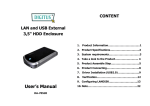
USB2.0 IDE & LANDISK
CONTENT
External Enclosure
User’s Manual
1.
Product Information. . . . . . . . . . . . . . . . . . . . .1
2.
Product Specifications. . . . . . . . . . . . . . . . . . . .2
3.
System requirements. . . . . . . . . . . . . . . . . . . .3
4.
Take a look to the Product. . . . . . . . . . . . . . . .4
5.
Product Assemble Step. . . . . . . . . . . . . . . . . . .5
6.
Product Connecting. . . . . . . . . . . . . . . . . . . . .8
7.
Driver Installation (USB2.0) . . . . . . . . . . . . . . 9
8.
Verification. . . . . . . . . . . . . . . . . . . . . . . . . .13
9.
Configuring LANDISK . . . . . . . . . . . . . . . . . .14
10. Note . . . . . . . . . . . . . . . . . . . . . . . . . . . . . . . . . .23
1. Product Information
2. Product Specifications:
• Personal Internet & Intranet Storage
• Network Connection Method
• Samba Server + FTP Server
Available network environment, 100BASE-TX/10BASE-T,
• No need to install any O.S, Virus free
Connection type, RJ-45
• Low Cost and Simple Installation
• Supported Protocols
• Low Power Consumption, Low Heat Dissipation
TCP/IP, NBNS (Net BIOS Name Server), Microsoft Networks
• Serve Cross-Platform Client O.S.
(CIFS/SMB), HTTP 1.0 and HTML 2.0, DHCP Server/Client (Auto
• Web Browser Management User Interface
detection), SNTP Client and Telnet Server
• Multi Protocol Support: TCP/IP, HTTP, SMB, FTP
• Supported Operating Systems
• Support DHCP / Fixed IP Address
Microsoft Windows: 98SE, ME, 2000, XP
• USB2.0 High-speed data transfer rate up to 480 Mbytes
MAC OS X (10.3.X or above versions)
• 64/512 bytes data payload for full/high speed bulk endpoint
• IP Acquisition Method
• Supports 8-bit/16-bit standard PIO mode interface
Automatic (DHCP)/Manual (Static setting)
• USB2.0 high-speed interfaces & RJ45 for barrier-free data
• Supported Hard Drive Specifications
transfer
Ultra ATA / 133 (must be DMA compatible)
• Supports power down mode and USB suspend indicator
• Partition Configuration
FAT32 (4GB Max File Size)
1
2
3.
System requirements
4. Take a look to the Product
Windows 98SE / 2000 / XP / Linux Red Hat 9.0:
1 Working LED:
Pentium II 233MHz equivalent or higher
2 Power LED
64 MB RAM (128 MB recommended)
3 Link LED
USB 1.1 Port (USB 2.0 recommended)
4 System LED
CD-ROM drive for installation
5 LAN Port: 10/10 Base-TX
100Base-T full duplex switch for NDAS mode
6 USB Port: USB1.1/USB2.0
Mac OS X:
7 Receptor of Power Adapter
G4 processor or higher running OS X 10.2 or higher
8 Reset to Factory Default
128 MB RAM (256 MB recommended)
(Power on, Long Press 15s )
USB 1.1 Port (USB 2.0 recommended)
9 Power Switch
CD-ROM drive for installation
100Base-T full duplex switch for NDAS mode
3
4
5.
1)
Product Assemble Step
Take off the front panel, Pull out the Product module from
3)
Connect IDE cable and 4-pin power adapter cable on your
hard drive.
the housing.
4)
Use the fixed screws to screw it firmly.
2) Setting up your IDE hard drive as “Master/Single” mode.
5
6
5) Close up the Product module from the housing.
7)
Product Assemble Step Complete
6.
Product Connecting
6) Use the bundled fixed screws to screw it firmly.
Top Side
Bottom Side (Also screw it firmly)
1) Connecting USB2.0 IDE External Enclosure to your Computer
7
8
2) Connecting LANDISK to your Network
2)
When you see the following picture, please press “Next”.
3)
When you see the following picture, please check
“Search for
the best driver for your
(Recommended)” and press “Next”.
7.
Driver Installation (USB2.0)
• WINDOWS 98SE
1)
Plug this IDE External Enclosure in the USB port of your
computer, the system will detect it and start “Add New
Hardware Wizard”.
9
10
device
4)
When you see the following picture, please locate the
path “F:\Enclosure Case\LANDISK\AT2” and press
6)
When you see the following picture, please press
“Finish”.
“Next” . (F:\ is the driver letter of your CD-ROM)
5)
When you see the following picture, please press
“Next”.
• WINDOWS ME/2000/XP AND Mac OS X
Need no driver installation.
11
12
9. Configuring LANDISK
8. Verification
Please track the path “My computer→System
• Checking TCP/IP Setting on PC
Properties→Device Manager” and expand the item
Bring up the properties of the “My Network Places”(Windows
“Universal Serial Bus Controllers”, you should meet the
XP).
following screen.
1). Double click the “My Computer” icon on your desktop.
2). Right click “My Network Places” and select the “Properties”
3) Right click “Local Area Connection” and select “Properties”
13
14
4) The following screen will appear, select “Internet Protocol
(TCP/IP)” then click on the <Properties> button
• Using Web Control Utility
1) Open your Web browser and type “http://storage/” into the
URL address box and then press <Enter>.
2) The login pop-up dialog box will appear, please type the
following default username and password are:
5) Follow the step as below to configuring your TCP/IP settings.
15
Username: admin
Password:
16
admin
3) Once you have logged in, the “Status” Home screen will
4) You can select a function from the left side menu.
appear.
Host Name: Setting Up Your Own Host name
Group Name: Setting Up Your Own Host name
Administrator: Setting Up Your Password
Date/Time: Setting Up Your Time zone
Language: Setting Up Your Language
5) Formatting Your Hard Disk If you have installed a new hard
DHCP Server: Enable / Disable Your DHCP Server
drive in the LANDISK, you must go to “Disk Utility” for creating a
NOTE: Make sure to press “OK” after to effective the
new Partition and doing format for the hard disk.
setting.
Utility)
17
18
(Disk
6) Here you can set the IP configuration (Automatic IP or Static
IP) as below:
(IP Config)
7) Sharing Your Folders to LAN
You will see all available folders for “Network Share” listed in the
“Share List” box, just select your target folder and click on the
“Æ” button for sharing the folder to Network.
(SMB Server)
19
20
8) FTP Configurations
9) Maintenance
Here you can set FTP functions, status and user’s authority,
Firmware Upload: Here you can update the new firmware for
please check the image below.
(FTP Server)
your LANDISK.
FTP Status: Enable / Disable FTP function. And Setting port
System Reboot: Click Reboot to have the device perform a
Allow anonymous: If you allow anonymous log-in, and the
software restart.
authority after anonymous login, Home Directory is the folder
Factory Defaults: You can Press “Reset” here then refresh this
will be access by anonymous login.
page by pressing “Refresh button” on IE browser, or reboot the
FTP Account List: Presses “Add”, “Modify “ to set the accounts
LANDISK to recall all settings back to factory default status.
that you allow accessing LANDISK, and defining the authority.
21
22
10.
1)
Note:
Use a IP-Share and set configure DNS address service
If you are installing an old hard drive and willing to keep all
ready , then the dynamic-IP will correspond with
previous data, please make sure the File System on your
state-IP automatically .To know more , please
hard drive is FAT32. LANDISK does not support the File
contact with DNS setting service or your IP-Share
System other than FAT32.Otherwise, you may need to
agent for further details.
re-format your old hard drive by LANDISK’s utility
2) The LAN Port on the LANDISK is Auto-MDI/MDIX, you can
also connect the network cable directly to the Lan port on
your computer. It is not necessary to instead of crossover
network cable for direct link.
3)
If you prefer to use a Fixed IP for your computer, please also
setting up a Fixed IP for LANDISK.
4)
The HDD state must setup to 『MASTER』 State.
5) LANDISK connect way to Network
-5.1
Base on state-IP-address :
If you want login LANDISK from different Network area ,
please key-in the static-IP- address directly.
-5.2
Base on dynamic-IP-address :
23
24