1
AI1620 SmartPass System Guide
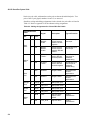
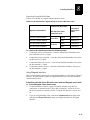
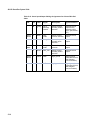
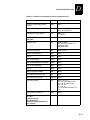
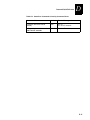
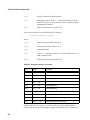
Table 9-2 Symptoms and Remedies
Symptom
Number*
Symptom
Remedy
7
SmartPass came from
another site and does not
work the way the factory
defaults indicate that it
should.
Different commands were probably used to support the
other site’s specific configuration. You can restore the
defaults by first disconnecting the power. Next, twist the
red/black pair of wires together and power up the
SmartPass for 3 or 4 seconds. The factory defaults will be
restored.
8
When connected to a PC
that is running terminal
communications software,
a just-powered up
SmartPass displays one of
the following messages:
#Model SP-ACC Ver 2.00D
SNYYYYYY
#[Copyright notice]
SmartPass works! The software is now loaded. YYYYYY is
the Amtech-assigned serial number for this SmartPass.
However, if YYYYYY = 000000, the internal battery has
failed, or a serial number has never been assigned. If the
internal battery has failed, the SmartPass must be returned
to the factory for replacement. If a serial number has not
been assigned to SmartPass, you can assign a unique
serial number by using command 695. Note that each
SmartPass unit must have its own unique serial number.
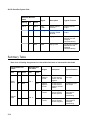
9
The read zone is too small,
even before the range
control has been adjusted.
If another SmartPass is in the same area, be sure it
operates on another frequency that is at least 6 MHz
different.
Check for possible interference from another nearby RF
source: fluorescent lights, neon signs, high voltage power
lines, nearby cellular telephone, or radio stations. Lights
will need to be removed or shielded. Point SmartPass in a
different direction to see if interference comes from only
one direction. You may require a different SmartPass that
uses another frequency.
Verify that the range adjustment is set to the maximum.
10
The perimeter of the read
zone has been defined, but
there is a “hollow” spot in
the center of the zone that
does not read tags.
The angle of SmartPass may need adjustment. Slightly tilt
SmartPass to a different angle to change either the length
or width of the read zone.
Check the range control adjustment. See “Radio
Frequency” on page 4-27.
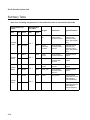
11
SmartPass is reading tags
out of the desired read
zone, or cross-lane reads
are occurring.
Some interference from other RF or electrical sources may
be occurring. See “Reflection, Refraction, and Diffraction of
RF Signals” on page 2-12.
12
How do I download the
SmartPass software
diskette?
To download SmartPass software, you will need a
SmartPass software diskette with READ.ME, DL.EXE, and
the software file. Insert the demonstration diskette into your
PC, and print the instructions on the READ.ME file.
13
SmartPass is not providing
any output to the Wiegand
interface.
Ensure SmartPass is in Wiegand mode. The default is
either RS-232 or RS-422 mode; refer to “Using Wiegand
Interface” on page 4-10.
*
9-6
Use this number to reference the problem you are having with SmartPass if you call Technical Support.