1
Remote Desktop Installation and Configuration | 45
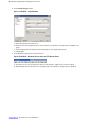
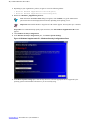
5 Depending on the Windows operating system of the device where you want to limit Remote Desktop connections,
click one of the following Group Policy Objects:
•
•
•
•
DHT_2008_ADM
DHT_ADM_Vista
DHT_ADM (for Windows XP)
DHT_7_ADM (for Windows 7)
Step result: Information about the selected Group Policy Object appears in the right pane. The devices that use
this policy are listed on the Scope tab.
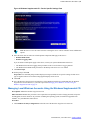
6 After confirming the Group Policy Object you want to edit, based on the devices listed on its Scope tab, rightclick the Group Policy Object and select Edit.
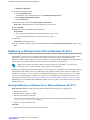
7 Under Computer Configuration, expand each of the following:
a) Policies
b) Administrative Templates
c) Windows Components
d) Remote Desktop Services
e) Remote Desktop Session Host
8 Click Connections.
Step result: Policy settings display.
9 In the right pane, double-click Limit number of connections.
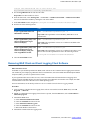
10 Change the value in the field next to RD Maximum connections allowed.
Step example:
• If you want to allow multiple user sessions on each device in this domain, type: 999999
• If you want a maximum of one user session on each device, type: 1
11 Click OK.
Changing Maximum Connections for One Device
When and where to use: If your organization's policies allow multiple user sessions on a device, you can perform
this procedure to change the maximum number of Terminal Services (Remote Desktop Services) connections on one
Windows-based device.
Procedure:
1 Log in to the Windows-based device using the local Windows administrator account.
The local Windows administrator account set up by Motorola is “motosec” for Windows Server devices, and
“secmoto” for Vista and Windows 7 devices.
2 Navigate to the Microsoft Management Console window.
Step example: Type mmc in the command field.
3
4
5
6
7
8
9
10
Select File → Add/Remove Snap-in.
In the Add/Remove Snap-in window, click Add.
In the Add Standalone Snap-in window, click Group Policy Object Editor.
Click Add.
In the Select Group Policy Object window, click Finish.
In the Add Standalone Snap-in window, click Close.
In the Add/Remove Snap-in window, click OK.
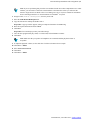
In the left pane of the Microsoft Management Console window, expand each of the following:
a) Local Computer Policy
b) Computer Configuration
c) Administrative Templates
6871025P46-A | November 2013 | Send Feedback