1
Importing and Exporting Data
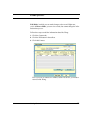
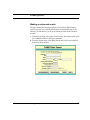
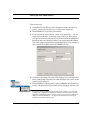
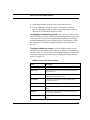
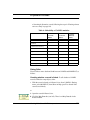
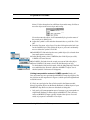
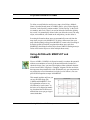
Note: If you accidently import the same Tier2 Submit data file more than
once, don’t worry. Each of the newly imported records will simply be overwritten, rather than duplicated.
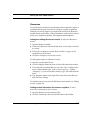
Transferring data between different
copies of CAMEO
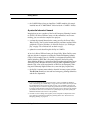
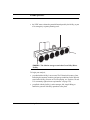
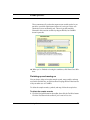
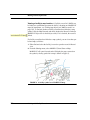
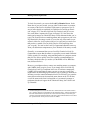
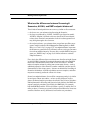
In some situations, you might need to transfer data between your own copy
of CAMEO—the source copy—and someone else’s—the target copy.
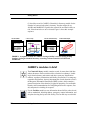
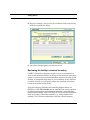
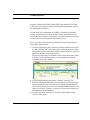
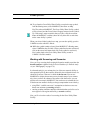
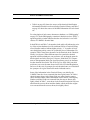
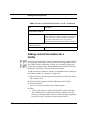
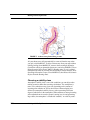
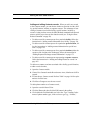
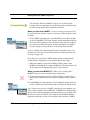
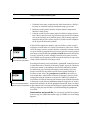
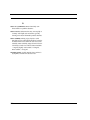
CAMEO #1
Green Valley
Water Facility
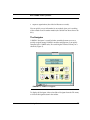
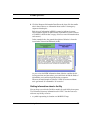
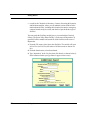
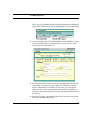
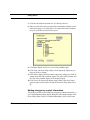
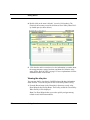
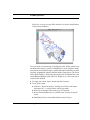
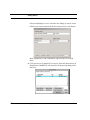
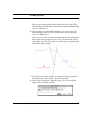
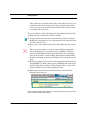
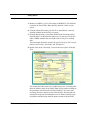
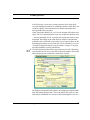
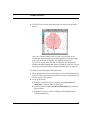
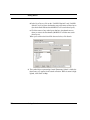
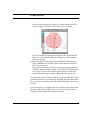
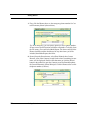
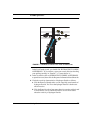
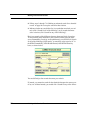
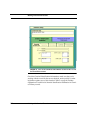
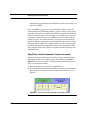
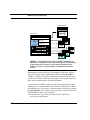
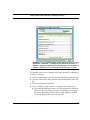
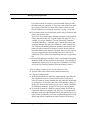
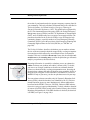
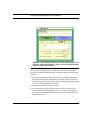
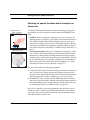
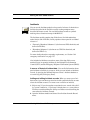
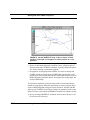
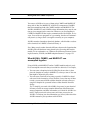
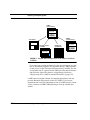
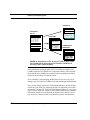
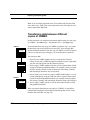
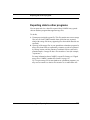
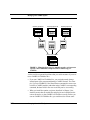
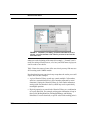
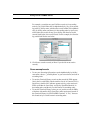
To transfer data from your copy of CAMEO to someone else’s, you export
the data from your own records into an export file. Your colleague then
imports the data from that file into her copy of CAMEO, as at left. If instead
you receive data from your colleague, you would import her export file.
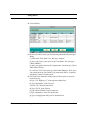
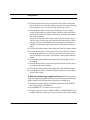
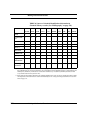
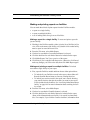
You can export data
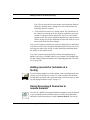
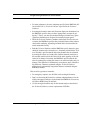
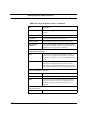
• from all your CAMEO modules at once, except for the Chemical
export.mer.zip
Library. It’s the only CAMEO module from which you can’t export data;
you also can’t import data into the Chemical Library.
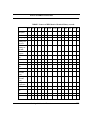
• from a single CAMEO module. Data also will be exported from related
records in child and grandchild modules. For example, when you export
Facilities records, related records in Chemicals in Inventory, Contacts,
and Screening & Scenarios also are exported.
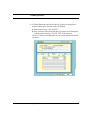
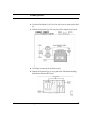
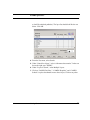
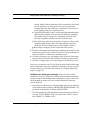
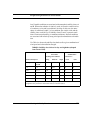
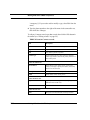
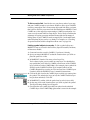
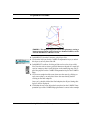
• from a found set of records in a single CAMEO module (that is, a set of
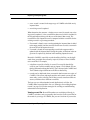
CAMEO #2
Green Valley
Water Facility
records found during a search). Data also will be exported from related
records in child and grandchild modules (for example, from Chemicals
in Inventory, Contacts, and Screening & Scenarios along with Facilities).
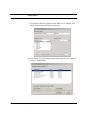
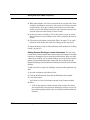
• from a single CAMEO record (as well as from related records in child
and grandchild modules).
When you transfer data between two copies of CAMEO, it’s possible to
unintentionally duplicate records. Before transferring data, review “Data
transfers and record IDs” on page 199.
212
Importing and Exporting Data