1
5-6
Managing Measurements
Printing/Exporting Exams
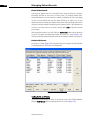
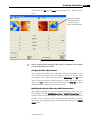
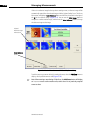
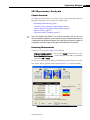
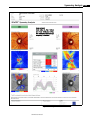
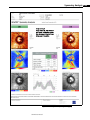
GDxPRO provides multiple report formats for printing and exporting. On the REVIEW
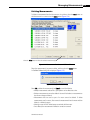
CALCULATIONS screen (Figure 6-1), or with the desired measurements selected on the
MEASUREMENT LIST SCREEN (see Selecting Measurements on page 5-1), you may print
and/or export the measurements.
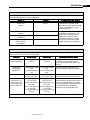
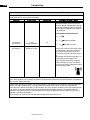
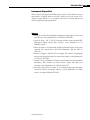
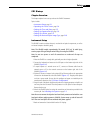
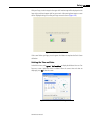
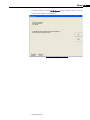
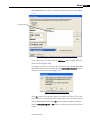
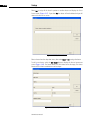
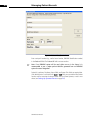
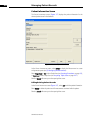
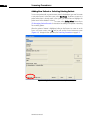
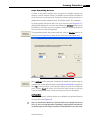
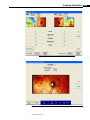
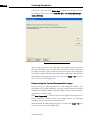
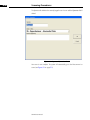
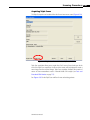
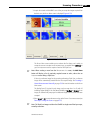
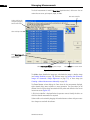
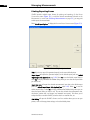
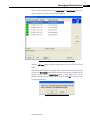
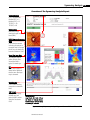
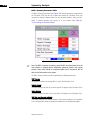
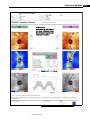
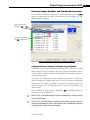
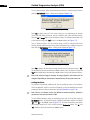
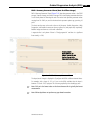
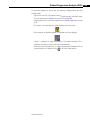
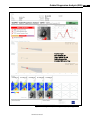
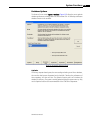
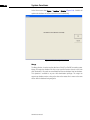
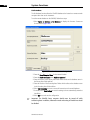
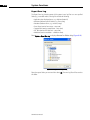
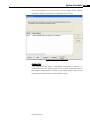
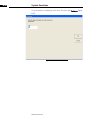
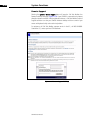
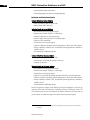
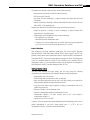
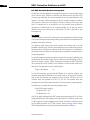
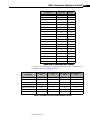
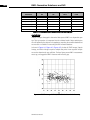
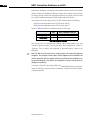
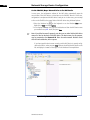
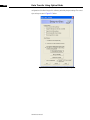
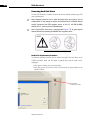
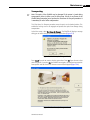
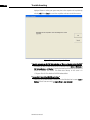
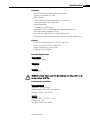
Select Print & Export Options to display the PRINT AND EXPORT OPTIONS screen (Figure 5-3).
Figure 5-3 Print and Export Options Screen
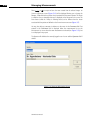
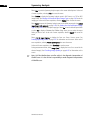
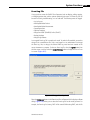
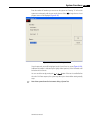
Print will print one copy of the generated report(s) to the current default printer.
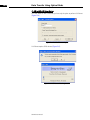
Export Report will export the generated report(s) to the default export path (see Default
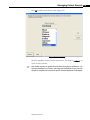
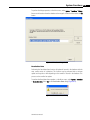
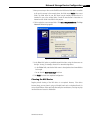
Import/Export Path (optional) on page 2-10). Select Yes to use the default export folder or
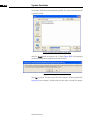
select No to display a Browse for Folder dialog where you can select the export folder
you want to use.
Export Raw Data will export the selected measurement(s) raw data to the default export
path (see Default Import/Export Path (optional) on page 2-10). Select Yes to use the
default export folder or select No to display a Browse for Folder dialog where you can
select the export folder you want to use. The raw data includes the measurement data,
calculations, patient data, and images (not formatted into reports). This allows you to
analyze the data on another GDxPRO, store the data in an external drive, etc.
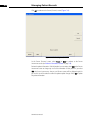
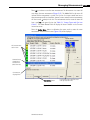
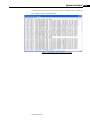
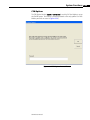
Print Setting will open the GDxPRO’s PRINTERS AND FAXES window where you can see your
printers, view and change printer settings, and set the default printer.
GDxPRO User Manual