1
Tutorial to Overture/VDM++
3.4
Using the Overture Perspective
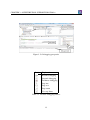
Eclipse is an open source platform based on a workbench that provides a common look and feel
to a large collection of extension products. Thus if a user is familiar with one Eclipse product,
it will generally be easy to start using a different product on the same workbench. The Eclipse
workbench consists of several panels known as views, such as the VDM Explorer view at the top
left of Figure 3.4. A particular collection of panels, designed to assist with a specific activity,
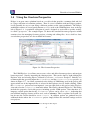
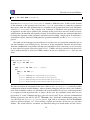
is called a perspective. For example Figure 3.4 shows the standard Overture perspective which
contains views for managing Overture projects, viewing and editing files. As we shall see later,
several other perspectives are also available in Overture.
Figure 3.4: The Overture Perspective
The VDM Explorer view allows you to create, select, and delete Overture projects, and navigate
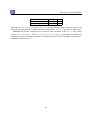
between projects. Start by importing the Alarm projects. This can be done by right-clicking the
Explorer view and selecting Import, followed by Overture → Overture Examples. Initially, it is
recommended that you only import the AlarmErrPP and the Alarm++tracesPP projects, as
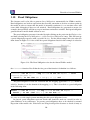
shown in Figure 3.57 . An editor customised to the dialect of VDM being used in the project will
appear when one of the imported files is selected in the Explorer view by double clicking. When
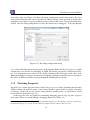
the AlarmErrPP project has been imported, you can right click on the project in the Explorer
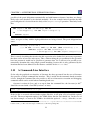
view and select the Properties item in the menu. The result is shown in Figure 3.6. This dialog
includes the properties set for this project, including specific VDM options. Note that there is a
language version option that for the AlarmErrPP project can be set to vdm10, indicating that
non-standard language features will be used, such as traces. This is explained in Section 3.9,
but for now the version should be set to classic. In addition, options are gathered here for
additional checks where the AlarmErrPP project simply follows the standard settings used for
new projects.
7
You need both of these to carry out various exercises throughout this chapter.
6