1
Input devices
© 2008, QNX Software Systems GmbH & Co. KG.
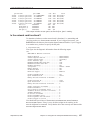
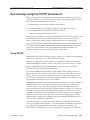
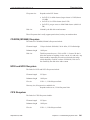
mount /dev/mo0 /fs/mo_drive
You don’t need to remount the drive when you change disks.
Input devices
The devi-* set of drivers handles input under Photon. The type of input device
attached to your system determines which driver you need to use. Photon input can
consist of a single mouse, a mouse and a keyboard, or many mice at the same time
(provided you have the space).
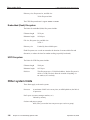
The inputtrap utility automatically detects basic input devices (non-USB keyboards
and mice). The Photon startup script invokes this utility after starting the graphics
adapters.
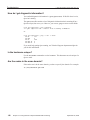
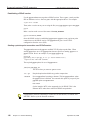
You can override the automatic detection by creating an input trap file,
/etc/system/trap/input.hostname. (This is the default location; you can change
it if you want to.) Each line of this file invokes a driver:
• For devi-hirun, the line should contain only the arguments that you want to pass
to it. For example, this file starts a PS/2 keyboard and a PS/2 mouse:
kbd fd -d/dev/kbd ps2 mousedev
• For other input drivers, specify the name of the driver as well as the arguments.
Mice and keyboards
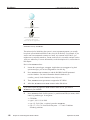
Mice and keyboards both use the devi-hirun driver. The type of mouse attached to
your system determines which options you need to use. For a serial mouse, you need
to specify the correct protocol (e.g. the Microsoft Mouse protocol).
Keyboards are detected on these interfaces:
• AT-style adapters appear as /dev/kbddev.
• PS/2 keyboards appear as /dev/kbd.
If inputtrap detects a serial Microsoft mouse and a keyboard interfaced through the
file descriptor provided by opening /dev/kbd, it invokes devi-hirun like this:
devi-hirun kbd fd -d/dev/kbd msoft fd &
If inputtrap detects a PS/2 mouse interfaced through the auxiliary port on the
keyboard controller (mousedev) and a keyboard interfaced through the primary
keyboard port on the keyboard controller (kbddev), it invokes devi-hirun like this:
devi-hirun kbddev ps2 mousedev &
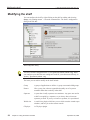
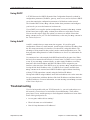
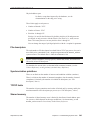
Once the mouse has been started, you can change the behavior of the mouse by using
the Photon Input configuration utility. You can start it by typing input-cfg on the
command line, by selecting Mouse in the shelf, or by choosing
Launch→Configure→Mouse.
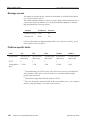
238
Chapter 15 • Connecting Hardware
September 30, 2008