1
Chapter 4. Tasks
4.7.2. Defining Attributes of a Structure
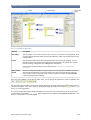
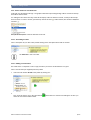
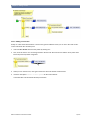
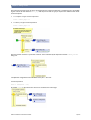
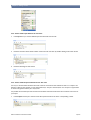
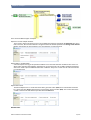
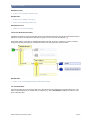
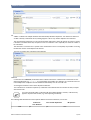
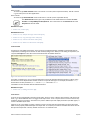
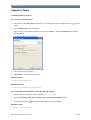
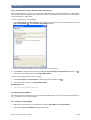
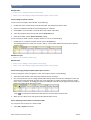
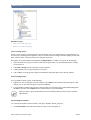
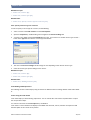
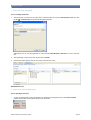
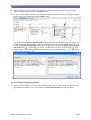
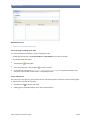
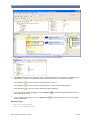
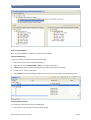
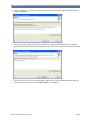
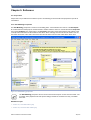
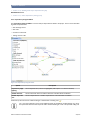
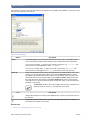
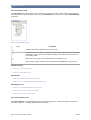
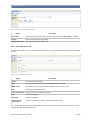
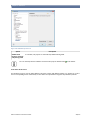
To define Attributes of a structure in the Rule Explorer, do the following:
1.
Select an existing structure to which you want to add attributes.
2.
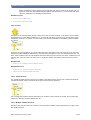
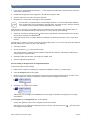
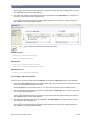
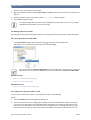
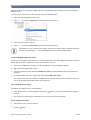
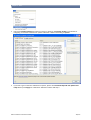
Right-click on the structure and select New Element > Attribute in the contextual menu that appears.
3.
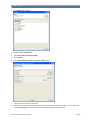
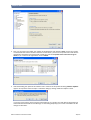
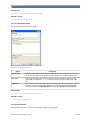
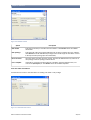
A dialog appears for you to give the new attribute a name.
4.
Click on OK to create the attribute under the structure. It appears in the folder Attributes under the Structure
folder in the Rule Explorer.
5.
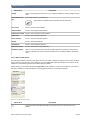
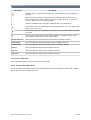
Insert the data element settings for the attribute.
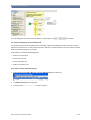
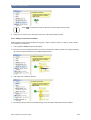
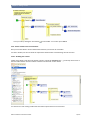
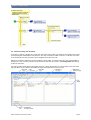
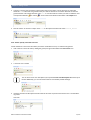
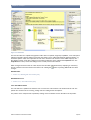
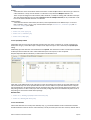
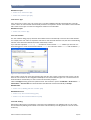
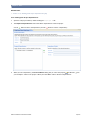
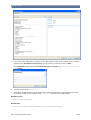
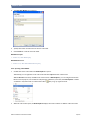
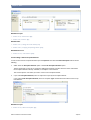
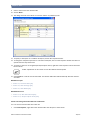
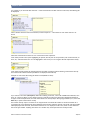
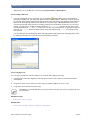
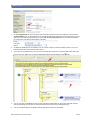
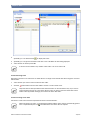
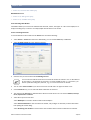
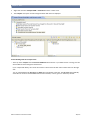
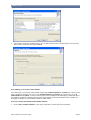
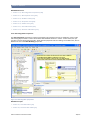
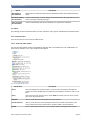
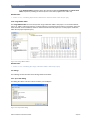
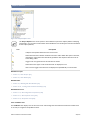
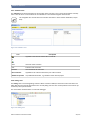
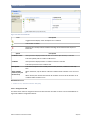
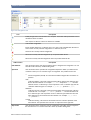
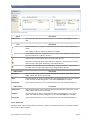
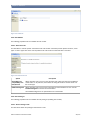
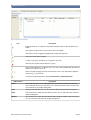
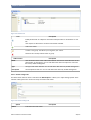
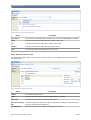
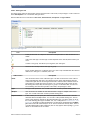
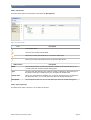
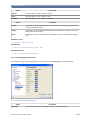
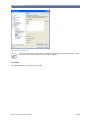
In order to define Attributes on the Attributes tab in the Properties of the structure, do the following:
1.
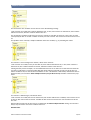
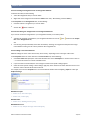
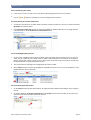
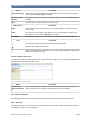
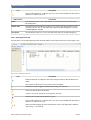
Click on the
2.
Insert a new name for the inserted attribute.
3.
Insert the data element settings for the attribute.
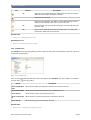
button to add a new attribute to the structure.
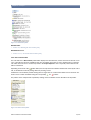
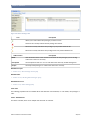
For deleting an attribute, select it and click on the
button.
Related Concepts.
• Section 3.14.3, “Structure” [74]
Related Tasks.
• Section 4.7.1, “Defining Structures” [150]
Related References.
• Section 5.6.8.3, “Attributes Tab” [257]
4.7.3. Defining Constants of a Structure
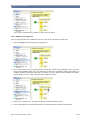
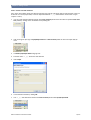
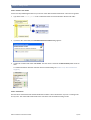
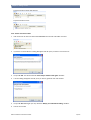
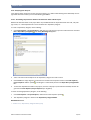
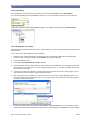
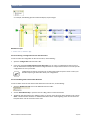
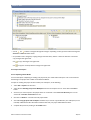
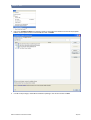
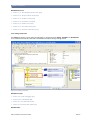
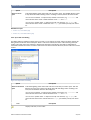
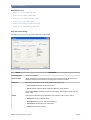
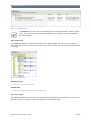
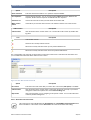
To define constants of a structure, do the following:
1.
Select an existing structure for which you want to define constants.
2.
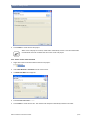
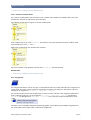
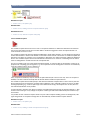
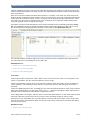
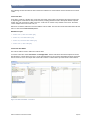
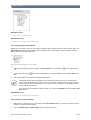
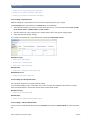
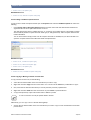
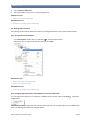
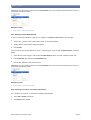
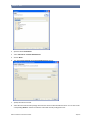
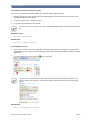
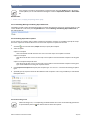
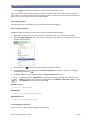
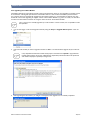
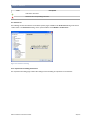
Right-click on the structure and select New Element > Constant Data.
3.
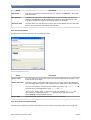
Enter the name of the new constant.
4.
Click on OK to create the constant under the structure. It appears in the folder Constant Data under the structure in the Rule Explorer.
5.
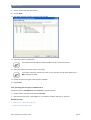
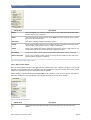
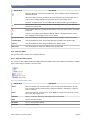
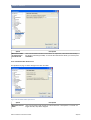
Insert the data element settings for the constant and insert a default value.
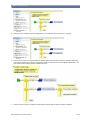
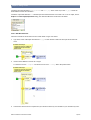
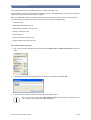
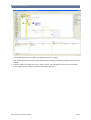
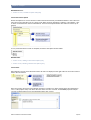
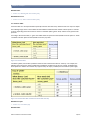
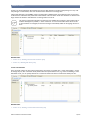
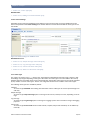
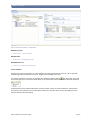
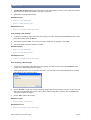
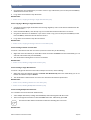
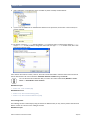
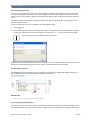
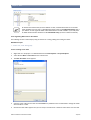
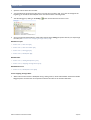
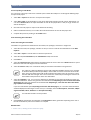
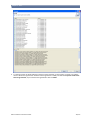
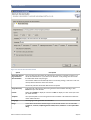
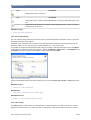
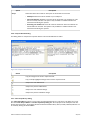
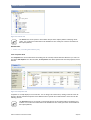
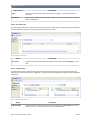
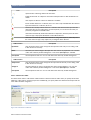
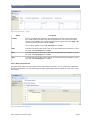
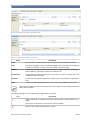
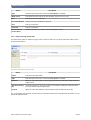
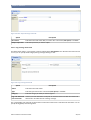
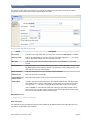
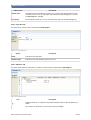
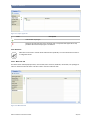
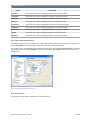
In order to define constants on the Constant Data tab in the Properties of the structure, do the following:
1.
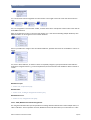
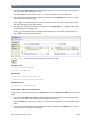
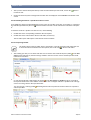
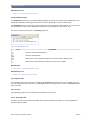
Click on the
2.
Enter the name of the new constant.
3.
Insert the data element settings for the constant and insert a default value.
button to add a new constant to the structure.
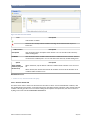
For deleting a constant, select it and click on the
© Bosch Software Innovations GmbH
button.
151/270