1
SO-01D_English
SO-01D_(E).book
180 ページ
2011年10月20日 木曜日 午後1時6分
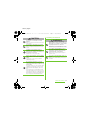
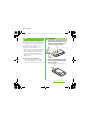
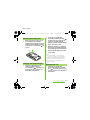
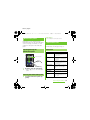
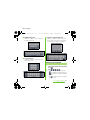
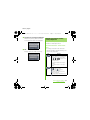
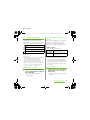
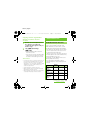
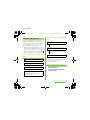
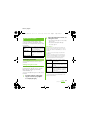
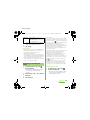
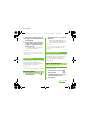
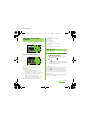
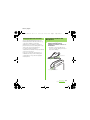
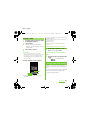
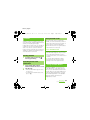
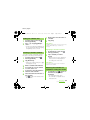
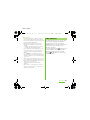
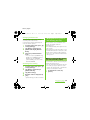
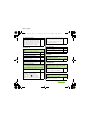
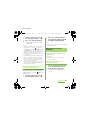
Setting the calendar view
1
From the Home screen, tap
then tap [Calendar].
2
Press t, tap [Day]/[Week] to
select.
,
・ In "Day" view, [Week] and [Month] can
be selected, and in "Week" view, [Day]
and [Month] can be selected.
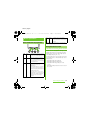
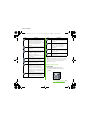
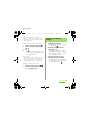
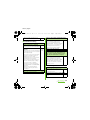
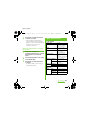
7
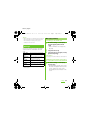
Enter a place and some others of
schedule.
8
Tap [Save].
❖ Information
・ Tap [More] and scroll the screen to set "Time zone",
"Guests (Email addresses)", "Show me as",
"Privacy".
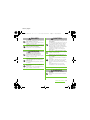
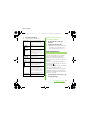
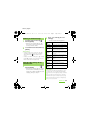
Displaying a calendar schedule
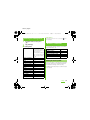
Creating a calendar schedule
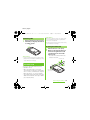
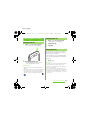
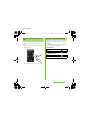
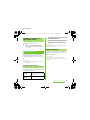
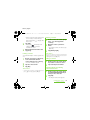
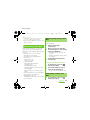
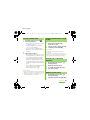
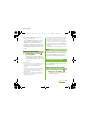
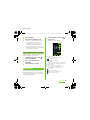
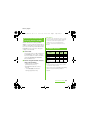
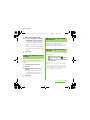
1
From the Home screen, tap
then tap [Calendar].
To create a schedule in Calendar, register
Google account and synchronize Google.
2
Tap a schedule you want to
display.
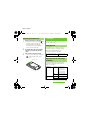
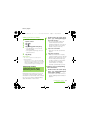
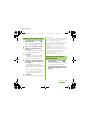
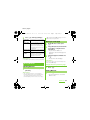
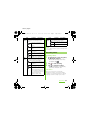
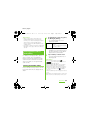
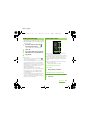
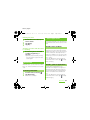
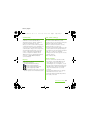
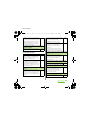
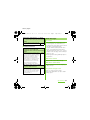
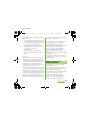
1
From the Home screen, tap
then tap [Calendar].
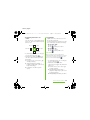
2
Tap [New event].
3
4
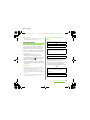
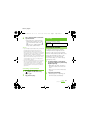
Enter a schedule name and date.
5
If necessary, select the repetition
intervals of the calendar.
6
Select the notification intervals of
the schedule.
・ Flick from side to side to display the
next or previous month/day/week
according to the view mode.
,
・ In Day view or Week view, press t
and tap [New event].
If you have two or more calendar
accounts, select one.
・ Tap
to add a new notification into
the schedule.
,
❖ Information
・ If you login to Facebook, events in Facebook
appear on the calendar.
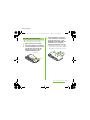
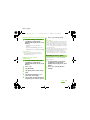
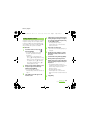
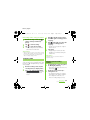
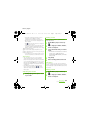
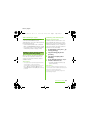
Releasing the reminder of a
schedule or setting the snooze
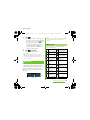
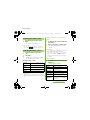
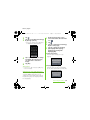
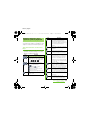
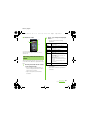
1
If a reminder icon ( ) appears in
the status bar, drag the bar
downward.
・ The notification panel opens.
・ The reminder icon appears at set
notification time.
Applications
Continued on next page
180















































































![取扱説明書 [SC-01D]](http://vs1.manualzilla.com/store/data/005959699_1-0f2252ea3ae3eaa3bd318f5696531d67-150x150.png)