1
SO-01D_English
SO-01D_(E).book
Icon
/
65 ページ
2011年10月20日 木曜日 午後1時6分
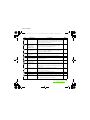
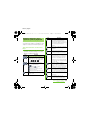
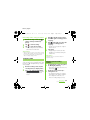
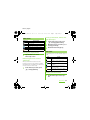
Function
Paste
In alphanumerics input mode, tap to
switch between upper case and lower
case or switch to symbols which can
be entered from the keyboard.
Appears in landscape view. Change
settings of Japanese keyboard.
*1 When any characters are entered, just tap the desired
position on the entered character string to move the
cursor.
*2 " 確定 (Fix)" is displayed before conversion is fixed. In
some screens such as the search box or mail account
registration screen, "次へ (Next)", "完了 (Done)",
" 実行 (Go)", etc. appear.
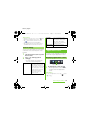
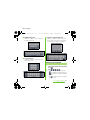
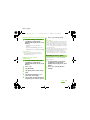
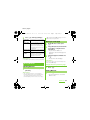
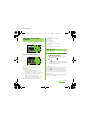
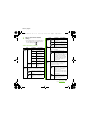
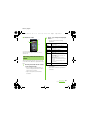
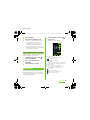
Editing text
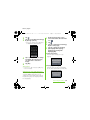
While entering characters, touch and hold the
text box to display the "Edit text" menu and
edit entered text.
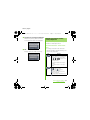
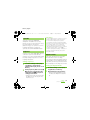
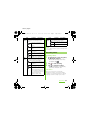
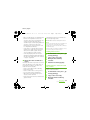
Select word
Drag the slider to select a part of
entered text.
Select all
Select all entered text.
Display when "Cut"/"Copy" is
selected. Paste the cut/copied text
by "Cut"/"Copy".
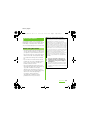
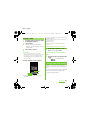
Settings of entering
characters
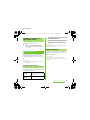
For each type of keyboard, you can make
settings related to character entry.
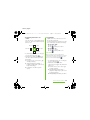
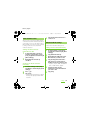
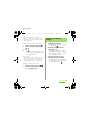
1
From the Home screen, press
t, then tap [Settings]
[Language & keyboard].
2
Tap [Japanese keyboard]/
[International keyboard].
・ The settings screen for each
keyboard appears. Tap an item
displayed on the screen to set.
❖ Information
・ The items vary depending on the keyboard type.
Input method P.56
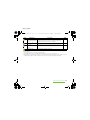
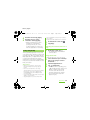
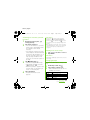
Add "xx" to
dictionary
Add the entered text to the
dictionary.
Cut
Display when "Select word"/"Select
all" is selected. Cut the text selected
by "Select word"/"Select all".
Copy
Display when "Select word"/"Select
all" is selected. Copy the text
selected by "Select word"/"Select
all".
Before Using the Handset
65
















































































![取扱説明書 [SC-01D]](http://vs1.manualzilla.com/store/data/005959699_1-0f2252ea3ae3eaa3bd318f5696531d67-150x150.png)