1
Notes: -
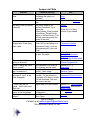
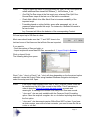
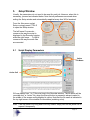
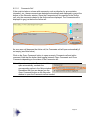
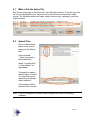
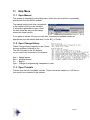
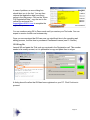
Trying to import the script on the right using the One File Per Row option will
create additional files named NoFileName_1, NoFileName_2, etc.
-
One File Per Row stops at the first empty row, whereas Files Split Over
Several Rows stops at the last row of the table or worksheet.
-
Check Add a Blank Line After Each Row to increase readability of the
imported script.
-
Formatting based on styles (bullets, space after paragraph, etc.) is not
preserved when imported the script. For instances, a bulleted list needs to
be hard coded.
-
Any Comment will follow the behavior of the corresponding Content.
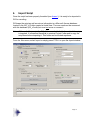
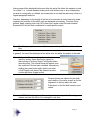
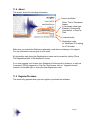
W2 can import up to 500 files at a time.
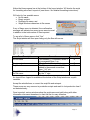
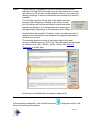
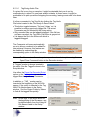
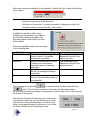
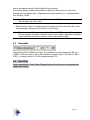
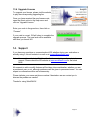
Most users should make sure that “1” and “500” show in the
last two boxes of that frame so that all their files are imported:
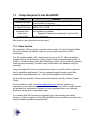
If you want to:
- Limit the number of files per batch, or
- Import scripts with more than 500 files, see section 4.1, Import Script in Batches.
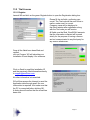
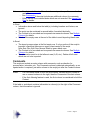
Click on Import Script.
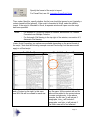
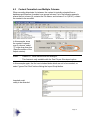
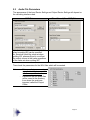
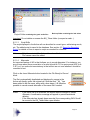
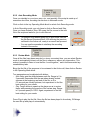
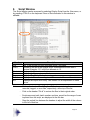
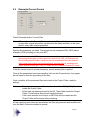
The following dialog box opens:
Word (*.doc; *.docx) or Excel (*.xls; *.xlsx) will show depending on the format and option
selected. Locate the Project Folder using standard Windows navigation techniques,
select the script, and click Open.
Notes: -
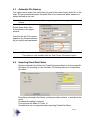
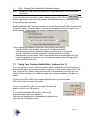
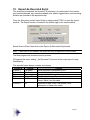
If the import folder contains WAV files, a ‘WAV_Previous_Batch’ folder will
be created and the WAV files moved to that folder. This is necessary in
order to keep the Record Progress bar and counter accurate and
meaningful. A message will indicate how many WAV files were moved.
-
*.docx and *.xlsx are only available with the Preserve Script Formatting
option. Save the script as a regular .doc or .xls before importing when using
the first option.
-
*.docx and *.xlsx documents require Office Word 2007 or later. If you have
an older version, even with a format converter, you need to save the file as
a .doc or .xls first.
Page 13